COBBLESTONE SOFTWARE
Contract Insight — User Guide
Security
Configuration Group: Security
Note: Each procedure in this guide begins at the Contract Insight homepage, so any section can be followed on its own. Several settings in this group depend on the server certificate, single sign-on configuration, or Optional Add-On Modules, so the exact list on any one system may vary.
1. Overview
The Security configuration group holds the settings that govern how Contract Insight protects the application and its data. It covers the content shown on login and system pages, the visibility of list screens, restricted upload types, email attachment delivery and link expiry, browser and transport security, log retention, login behavior, password policy, and secure email messaging.
Security contains 52 settings, organized under ten subsection headings in the settings panel: CONTENT, EMAIL ATTACHMENTS, FIELD VALIDATOR, GENERAL, LOG RETENTION, LOGIN, OAUTH, PASSWORDS, SECURE EMAIL, and SECURITY.
As with every configuration group, each setting is presented as a single row containing:
- The name of the application setting, with a MANAGED BY COBBLESTONE badge where applicable
- A description of what the setting does
- An editing control holding the current value — a toggle, a text box, a numeric text box, a dropdown, or an Edit content button for rich-text settings
- A “Last changed” line recording when the setting was last modified and by whom
Because the Security group is maintained from the Administration area, only Application Administrators — or other users specifically granted the appropriate permission — can view and change these values.
Caution: These settings control access to the application and the security posture of every user session. Several of them — notably Force HTTPS (SSL), Use Strict Transport Security (HSTS), and CSRF Page Monitor — depend on server certificates or may be incompatible with certain VPN and SSO connections. Confirm the environment supports a change before saving it.
2. Accessing the Security Configuration Group
The Security settings are reached through Application Settings. To open them:
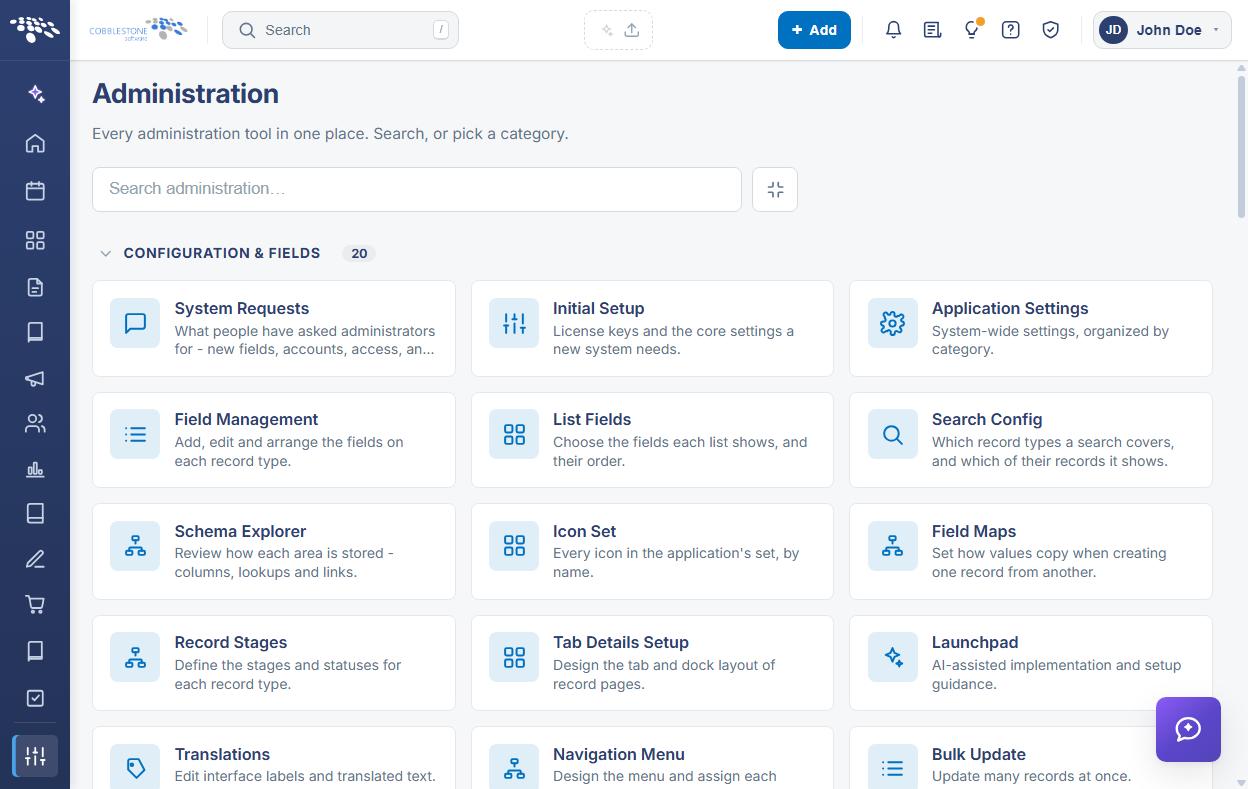
- From the Contract Insight homepage, click Administration at the bottom of the left navigation menu.
- On the Administration page, under Configuration & Fields, select Application Settings.
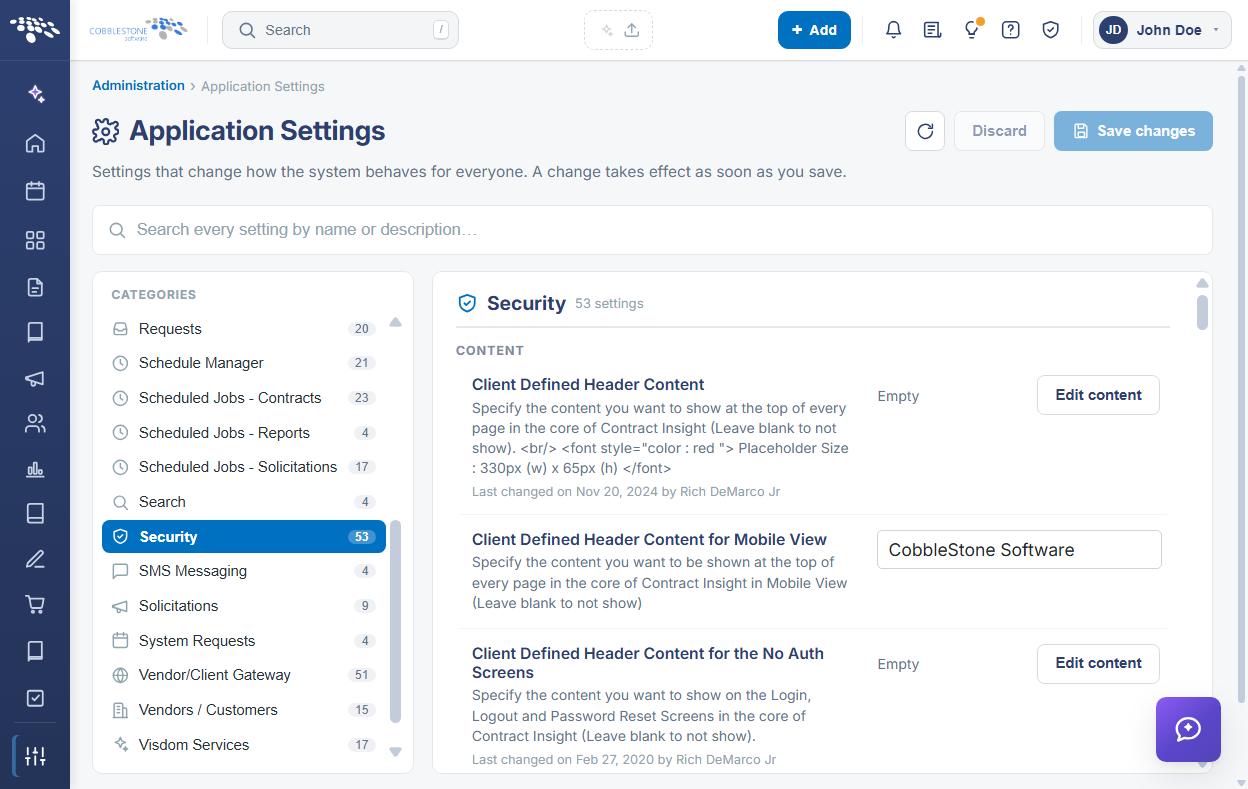
- In the CATEGORIES rail on the left, click Security. The category is highlighted, and the count beside it shows the number of settings it contains.
- The settings panel on the right is headed Security with its setting count, and lists the settings under their subsection headings.
A specific setting can also be reached without browsing the category, by typing part of its name or description into the Search box at the top of the Application Settings screen.
3. CONTENT Settings
The CONTENT subsection controls the content displayed on application and login pages, the visibility of the employee and customer list screens, and which file types cannot be uploaded.
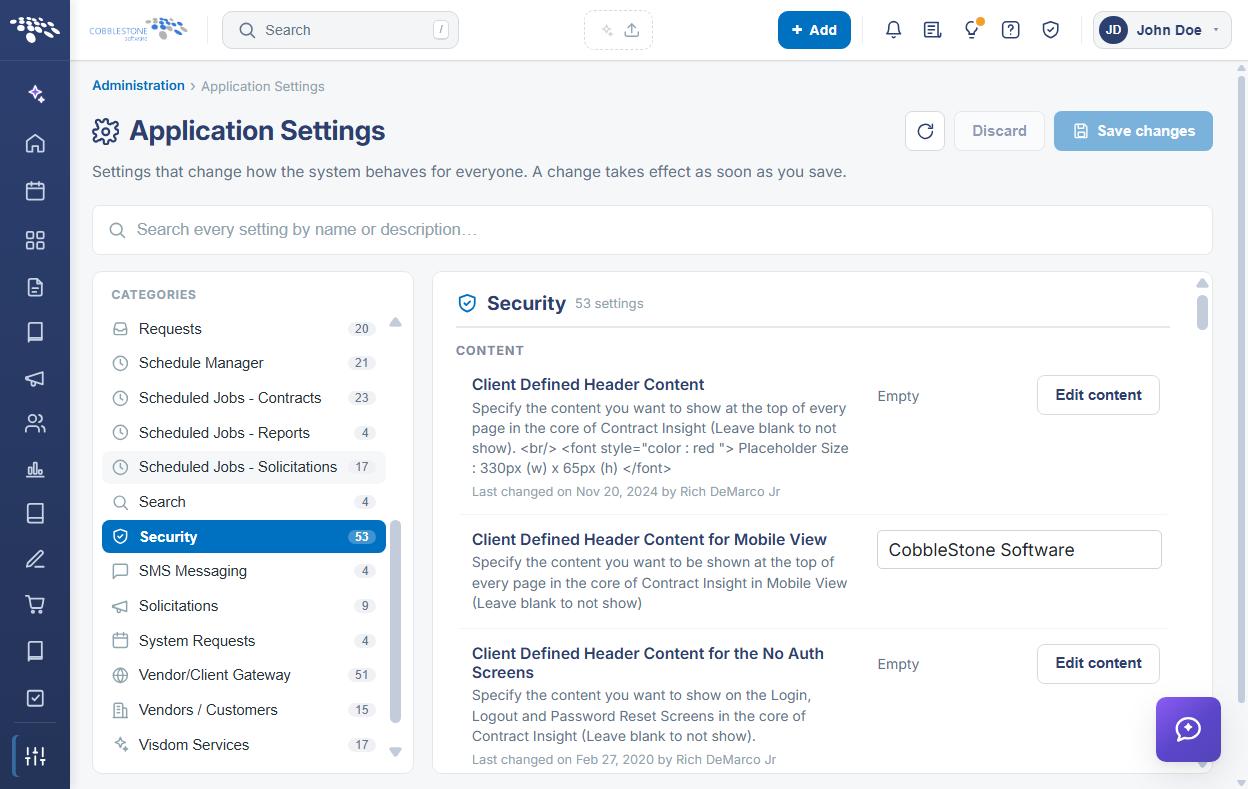
The CONTENT settings are:
- Client Defined Header Content — The content shown at the top of every page in the core of Contract Insight. Leave blank to show nothing; the placeholder size is 330px wide by 65px high. Edited through the rich-text editor using Edit content.
- Client Defined Header Content for Mobile View — The content shown at the top of every page in the core of Contract Insight in mobile view. Leave blank to show nothing. Entered in a text box.
- Client Defined Header Content for the No Auth Screens — The content shown on the Login, Logout, and Password Reset screens in the core of Contract Insight. Leave blank to show nothing. Edited through the rich-text editor using Edit content.
- Confidentiality Message on the Login Page — The confidentiality message all users see on the login page when they sign in. Leave blank for none. Edited through the rich-text editor using Edit content.
- Customer List Screen Visible to All Employees — Enables or disables the ability for the customer list screen to be visible to all employees regardless of permissions. Toggle.
- Employee List Screen Visible to All Employees — Enables or disables the ability for the employee list screen to be visible to all employees regardless of permissions. Toggle.
- Restricted File Types for Upload — Restricted file types, comma separated, that are prevented from being uploaded for contracts, vendors/customers, and employees. Leave blank to allow all types. Entered in a text box.
Note: The two list screen visibility settings override record permissions for those screens. Leave them off where employee or customer visibility must follow security group permissions.
4. EMAIL ATTACHMENTS Settings
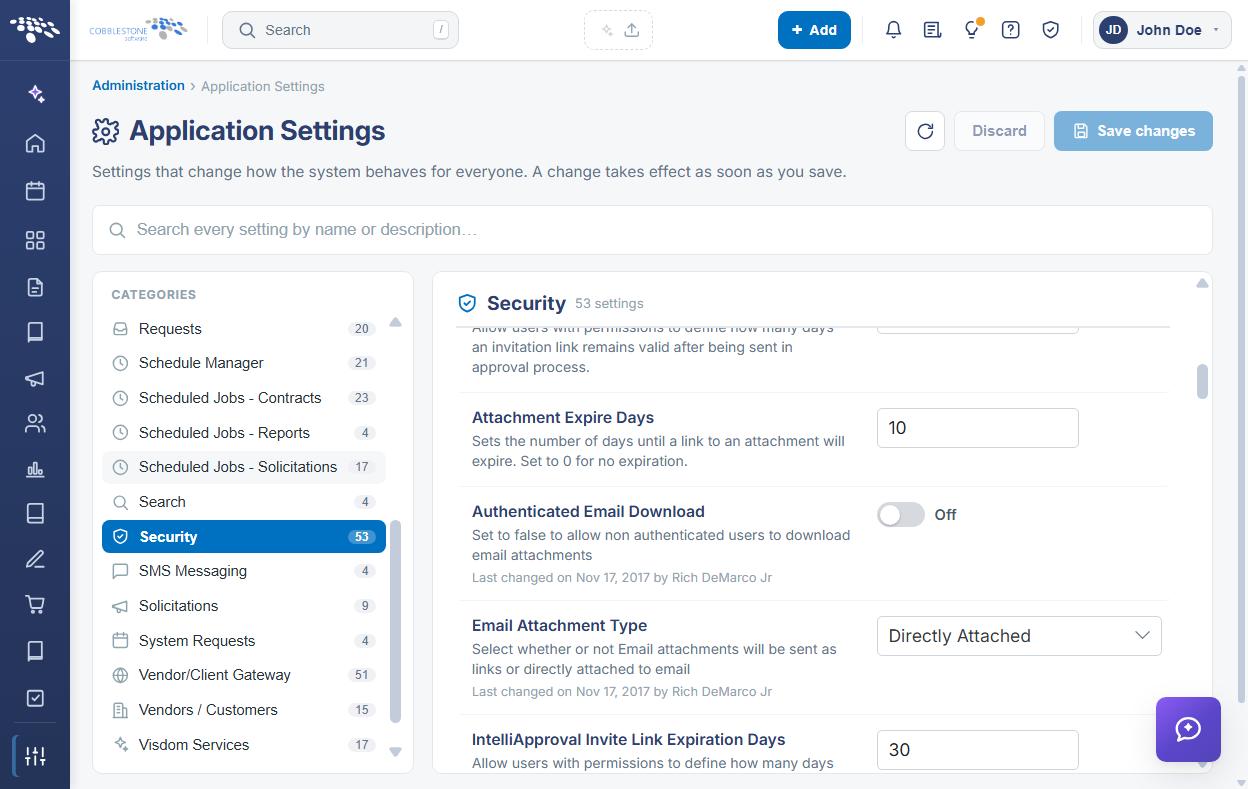
The EMAIL ATTACHMENTS subsection controls how attachments are delivered by email, whether recipients must authenticate to download them, and how long invitation and attachment links remain valid. The expiration settings are entered in numeric text boxes.
The EMAIL ATTACHMENTS settings are:
- Email Attachment Type — Selects whether email attachments are sent as links or attached directly to the email. Selected from a dropdown.
- Authenticated Email Download — Set to Off to allow non-authenticated users to download email attachments. Toggle.
- Attachment Expire Days — The number of days until a link to an attachment expires. Set to 0 for no expiration.
- Approval Invite Link Expiration Days — How many days an invitation link remains valid after being sent in the approval process.
- IntelliApproval Invite Link Expiration Days — How many days an invitation link remains valid after being sent in the IntelliApproval process.
- IntelliSign Invite Link Expiration Days — How many days an invitation link remains valid after being sent in the IntelliSign process.
- Signing Invite Link Expiration Days — How many days an invitation link remains valid after being sent in the signing process.
Caution: Leaving Authenticated Email Download off means anyone holding the link can download the attachment. Where attachments are sent as links, pair it with a suitable Attachment Expire Days value rather than no expiration.
5. FIELD VALIDATOR Settings
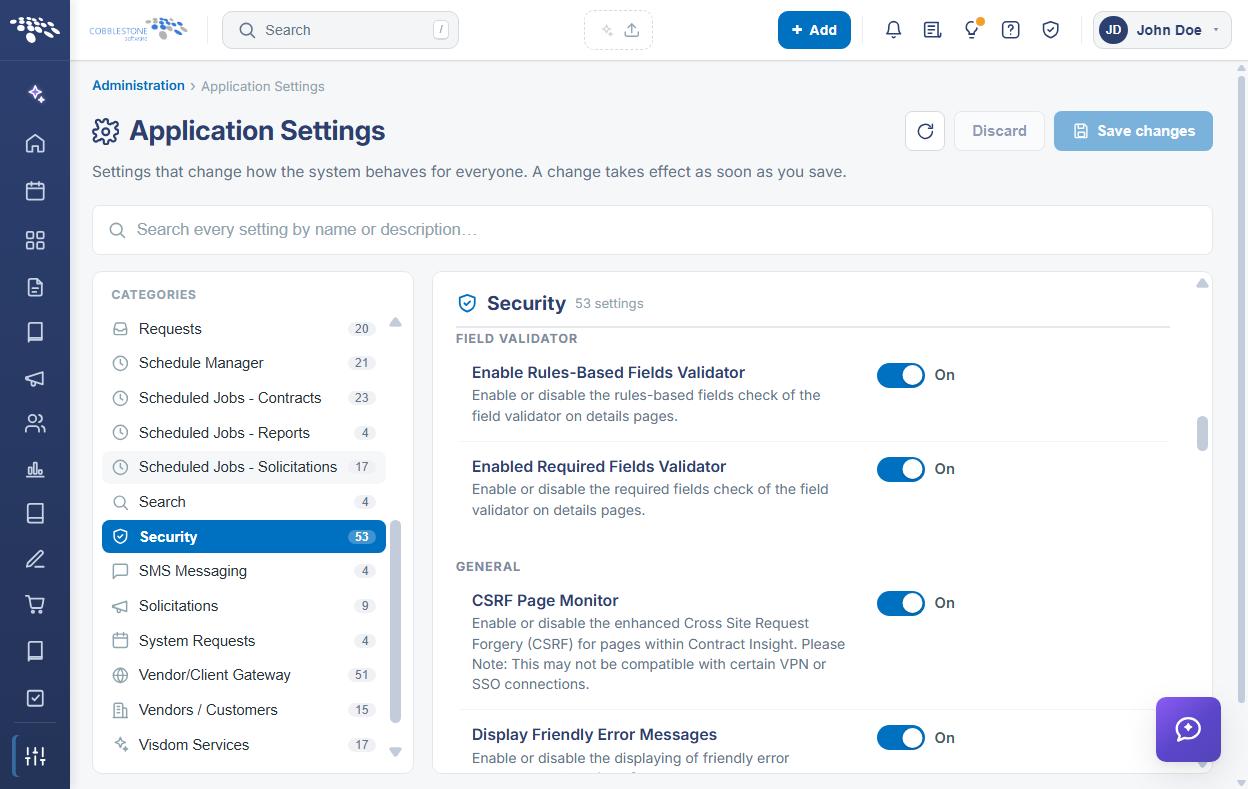
The FIELD VALIDATOR subsection controls the field checks performed on record details pages:
- Enabled Required Fields Validator — Enables or disables the required fields check of the field validator on details pages. Toggle.
- Enable Rules-Based Fields Validator — Enables or disables the rules-based fields check of the field validator on details pages. Toggle.
6. GENERAL Settings
The GENERAL subsection holds the transport and browser security settings, error message handling, and the web services authentication code.
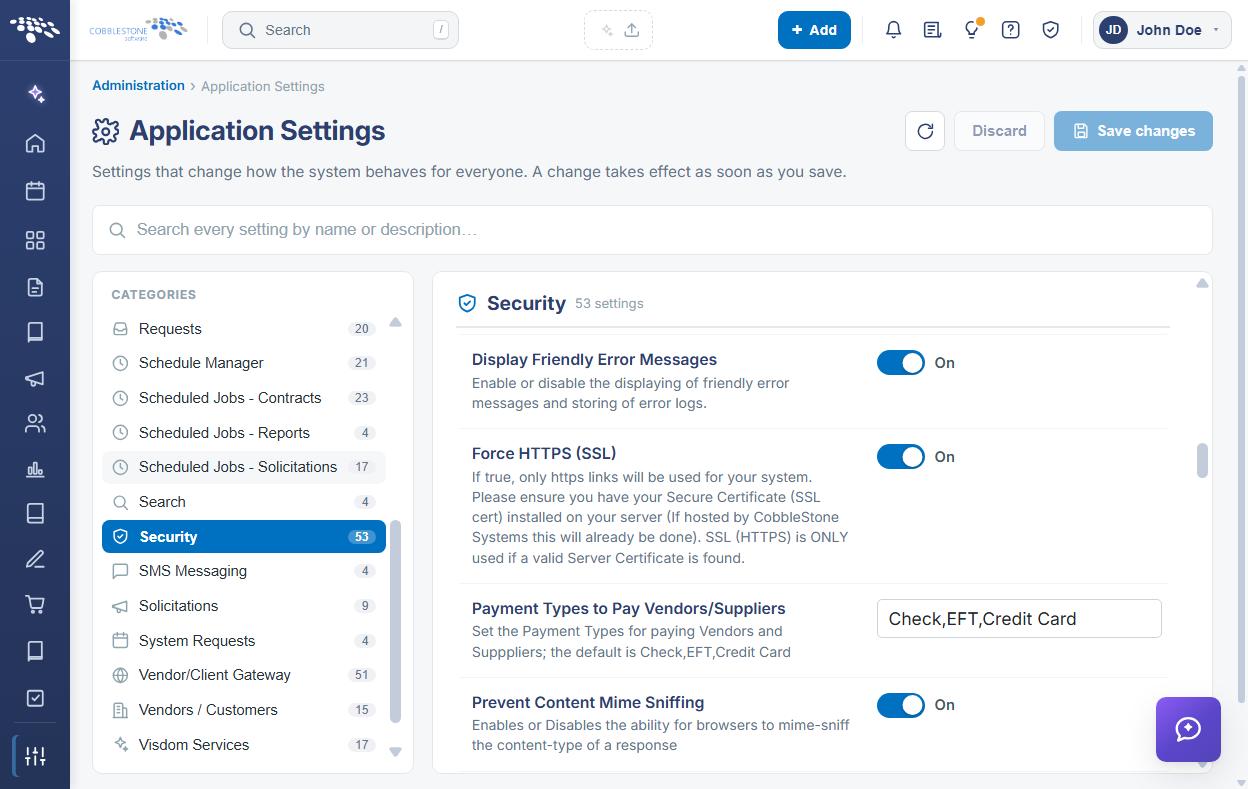
The GENERAL settings are:
- Force HTTPS (SSL) — When On, only HTTPS links are used for the system. A valid server certificate (SSL certificate) must be installed on the server; where CobbleStone hosts the system this is already done. SSL is only used if a valid server certificate is found. Toggle.
- Use Strict Transport Security (HSTS) — Enables or disables strict transport security for additional forced security on user connections. May not be compatible where the site uses an SSL certificate that is invalid, not fully trusted, self-signed, missing a root CA certificate, or expired. Toggle.
- CSRF Page Monitor — Enables or disables enhanced Cross Site Request Forgery protection for pages within Contract Insight. May not be compatible with certain VPN or SSO connections. Toggle.
- Prevent Content Mime Sniffing — Enables or disables the ability for browsers to MIME-sniff the content type of a response. Toggle.
- Show in External Frames/Sites — Enables or disables the ability for the application to display within a frame on an external site. Toggle.
- User Referrer Policy — Enables or disables a referrer policy controlling how much information the browser includes when navigating away from the site over unsecured connections. Toggle.
- Display Friendly Error Messages — Enables or disables the display of friendly error messages and the storing of error logs. Toggle.
- Payment Types to Pay Vendors/Suppliers — The payment types available for paying vendors and suppliers. The default is Check, EFT, Credit Card. Entered in a text box.
- Web Services Authentication Code — The authentication code used to access Contract Insight Web Services. Avoid spaces for best results. Entered in a text box.
Note: Leave Show in External Frames/Sites off unless the application is deliberately embedded in another site, as allowing framing reduces protection against clickjacking.
7. LOG RETENTION Settings
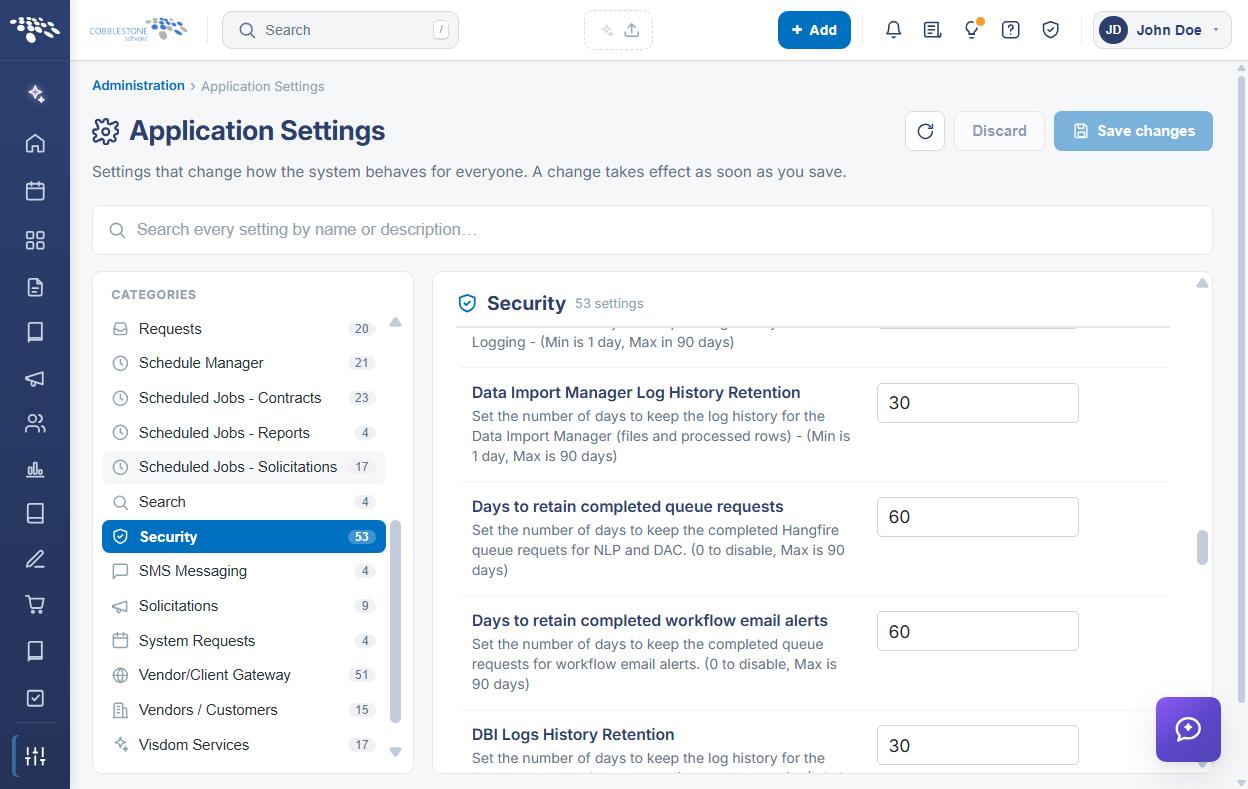
The LOG RETENTION subsection sets how long each log history is kept. All eight settings are entered in numeric text boxes, in days, and each states its own permitted range.
The LOG RETENTION settings are:
- API Logs History Retention — Days to keep the log history for API logging. Minimum 1 day, maximum 90 days.
- Error Logs History Retention — Days to keep the log history for error logging. Minimum 1 day, maximum 90 days.
- IIS Audit Log History Retention — Days to keep the log history for IIS logging. Minimum 1 day, maximum 14 days.
- Data Import Manager Log History Retention — Days to keep the log history for the Data Import Manager, covering files and processed rows. Minimum 1 day, maximum 90 days.
- DBI Logs History Retention — Days to keep the log history for the Database Integration Manager, covering processed rows. Minimum 1 day, maximum 90 days.
- Scheduler Manager Log History Retention — Days to keep the log history for the Scheduler Manager. Minimum 1 day, maximum 90 days.
- Days to retain completed queue requests — Days to keep the completed Hangfire queue requests for NLP and DAC. Set to 0 to disable; maximum 90 days.
- Days to retain completed workflow email alerts — Days to keep the completed queue requests for workflow email alerts. Set to 0 to disable; maximum 90 days.
8. LOGIN Settings
The LOGIN subsection controls sign-in behavior, temporary system lockouts, and where users are sent after logging out.
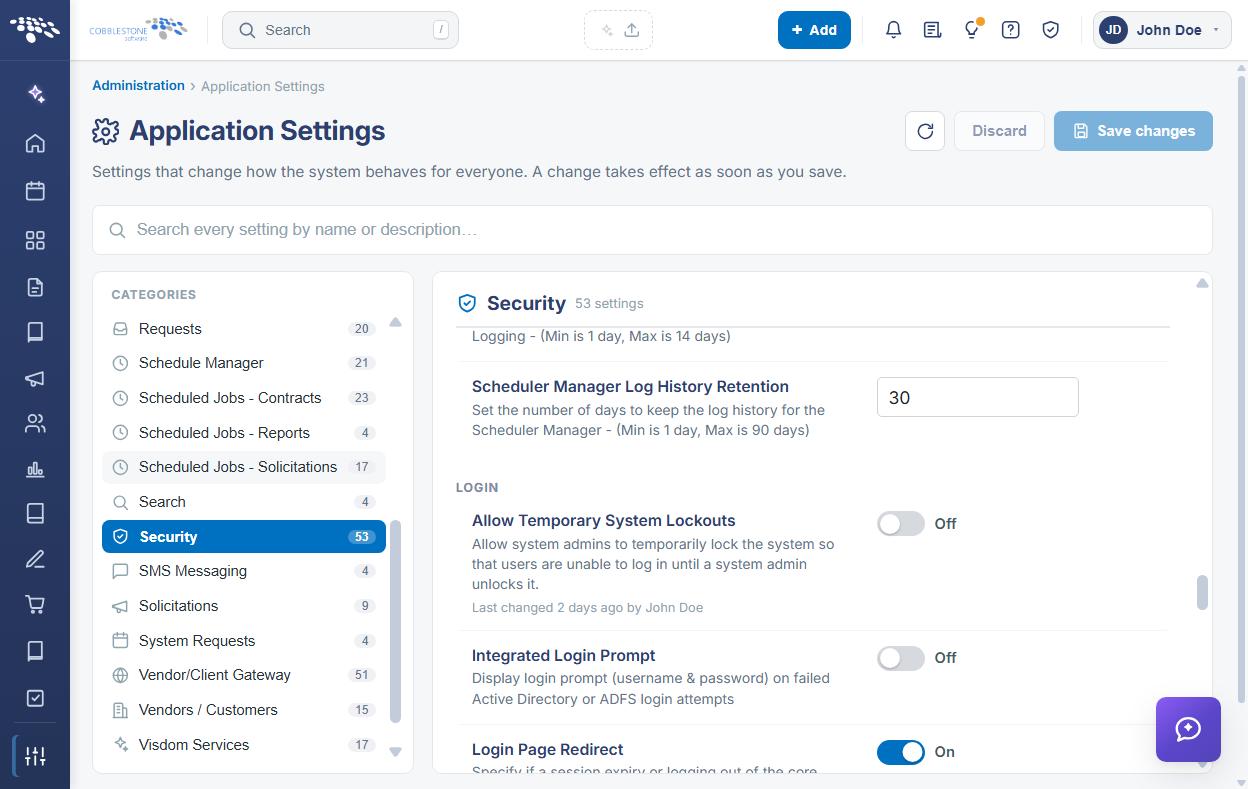
The LOGIN settings are:
- Allow Temporary System Lockouts — Allows system administrators to temporarily lock the system so that users cannot log in until an administrator unlocks it. Toggle.
- Prevent Account Sharing Prompt — An enhanced security and auditing login prompt that prevents multiple simultaneous logins from the same employee account. The default is On. Toggle.
- Integrated Login Prompt — Displays a login prompt for user name and password on failed Active Directory or ADFS login attempts. Toggle.
- Login Page Redirect — Specifies whether a session expiry, or logging out of the core application or the gateways, causes the re-login link to navigate the user back to the page they logged out of. Toggle.
- Redirect URL on User Logout — The URL users are redirected to on logging out of the system. Normally used with single sign-on systems. Entered in a text box.
- Redirect URL on VCG User Logout — The URL users are redirected to on logging out of the Vendor/Client Gateway. Normally used with single sign-on systems. Entered in a text box.
The temporary lockout itself is performed on the Temporary System Lockout administration page, reached from the Administration page under Security & Access.
9. Remaining Subsections
9.1 OAUTH
- First Party OAuth Redirect URL — The URL to redirect to when using the First Party OAuth flow. Managed by CobbleStone.
9.2 PASSWORDS
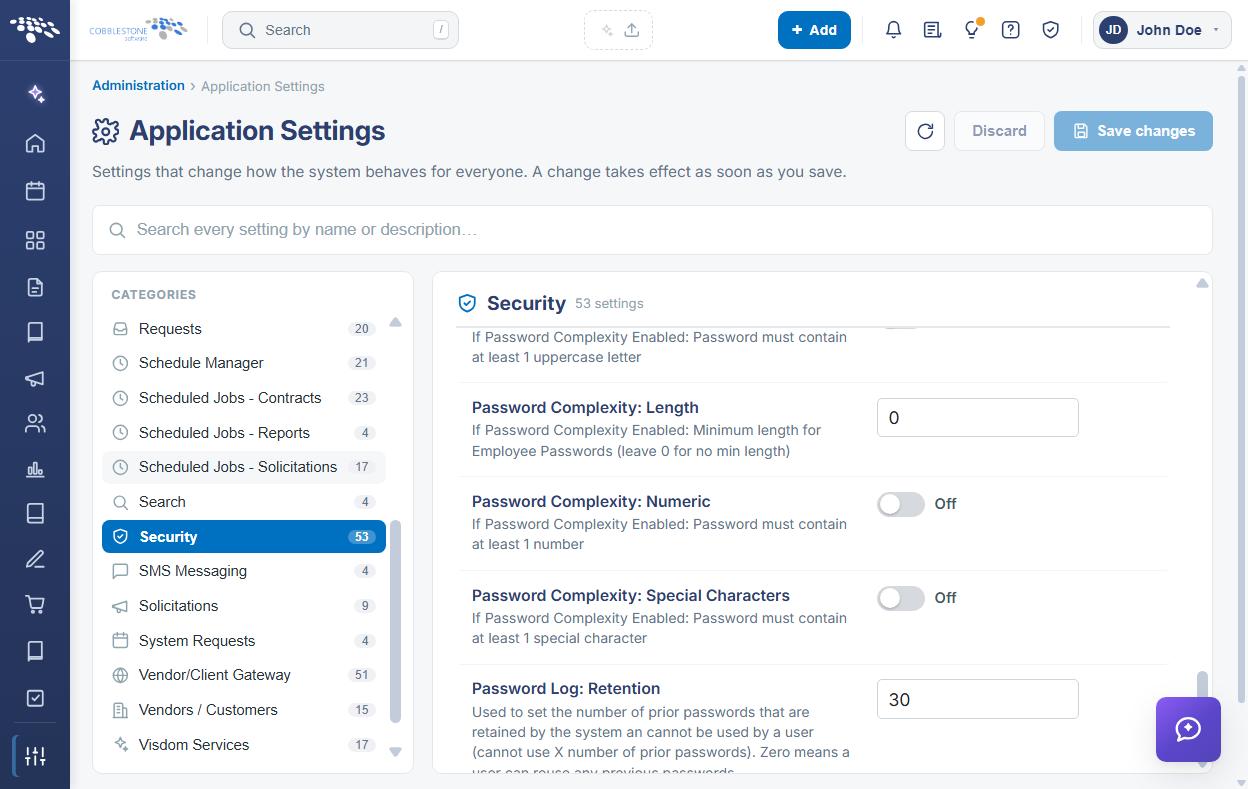
The PASSWORDS subsection holds the ten password policy settings — password encryption, the complexity master switch and its five requirements, the two password history settings, and password expiration. These are covered in detail in the Passwords guide.
9.3 SECURE EMAIL
- Secure Email Notification Message — The message displayed when email notifications are sent to inform users about new secure email. Entered in a text box.
9.4 SECURITY
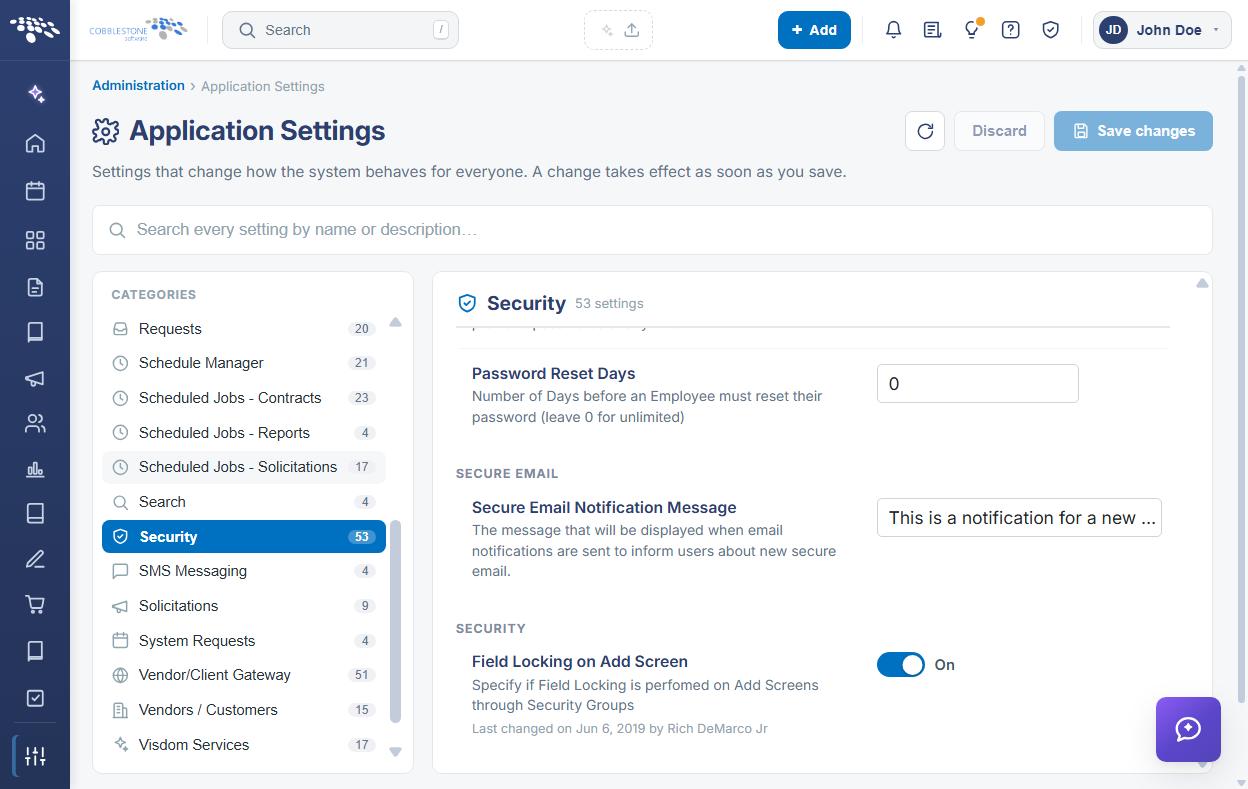
- Field Locking on Add Screen — Specifies whether field locking is performed on add screens through security groups. Toggle.
10. Modifying a Security Setting
Function: Changes the value of a Security setting for the entire system.
Steps:
- From the Contract Insight homepage, click Administration at the bottom of the left navigation menu. On the Administration page, under Configuration & Fields, select Application Settings, then click Security in the CATEGORIES rail.
- Locate the setting by name under its subsection heading, and read its description to confirm what the value controls and whether it carries a compatibility warning.
- Change the value using the control on the right of the setting row — a toggle, a text box, a numeric text box for the retention and expiration values, the Email Attachment Type dropdown, or Edit content for the rich-text content settings.
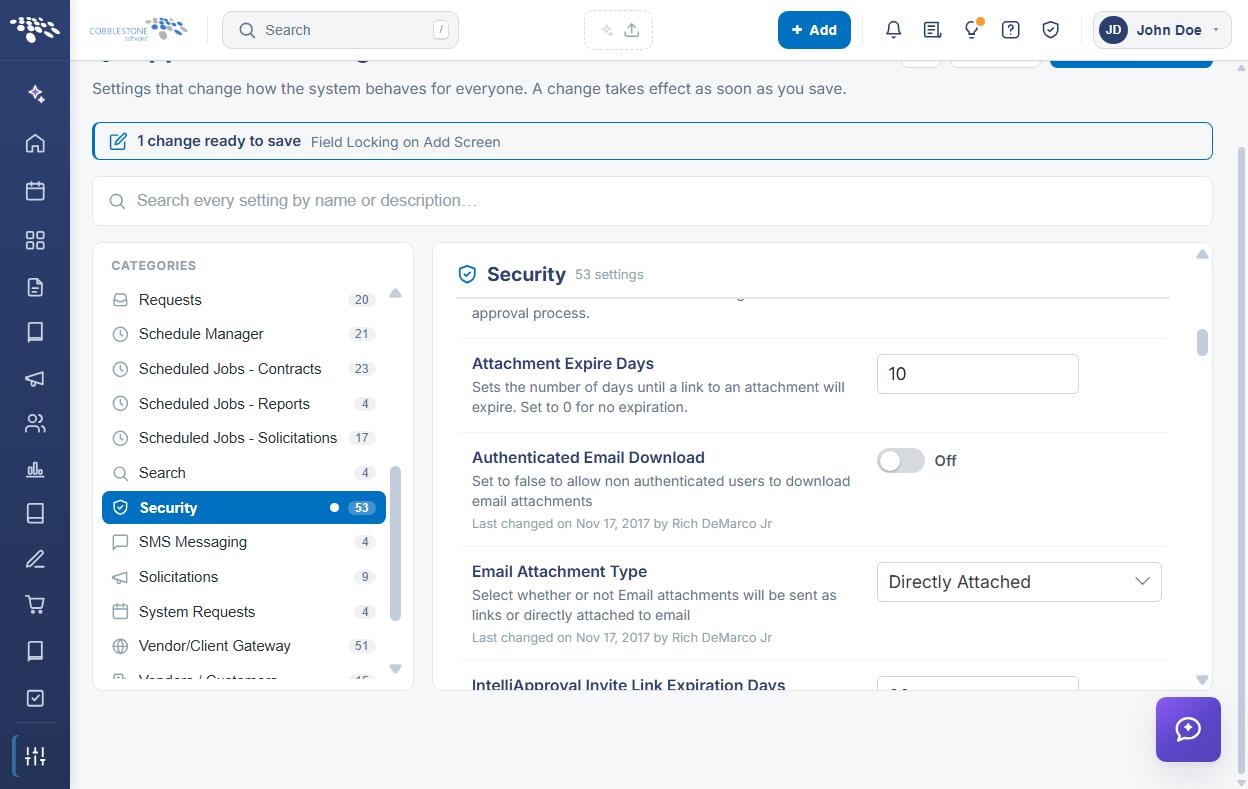
- The setting is marked with a CHANGED badge, an Undo link appears beneath it, a dot appears beside Security in the CATEGORIES rail, and a banner at the top of the screen reports how many changes are ready to save.
- Click Save changes in the upper right to commit the change, or Discard to put every changed setting back to its saved value. Undo on the setting row reverts that one setting only.
Caution: A change takes effect as soon as it is saved and applies to every user. Change one security setting at a time, and verify that users can still sign in and that integrations still connect before making the next change.
11. Related Security Administration
The Security configuration group holds system-wide security settings. Access itself is administered on dedicated screens, reached from the Administration page under Security & Access.
The related administration pages are:
- Security Groups — permission groups and their access
- Manage User Permissions and Employee Permissions — user-defined permissions, and one person’s groups, permissions, and departments
- Roles — roles and their members
- Multifactor Authentication (MFA) — MFA, verified by email code, text message, or questions
- Single Sign-On — SAML / ADFS single sign-on, including just-in-time (JIT) provisioning
- IP Restrictions — access restrictions by IP address range
- Session Manager and License & Session Usage — who is signed in, and seat and sign-in history
- Temporary System Lockout — locking everyone except administrators out for a maintenance window
- OAuth Authorizations — external app authorizations for DocuSign, Adobe Sign, SignNow, and VISDOM
Employee account lockout rules are configured in the Employees configuration group — see the Inactive Login - days until lock, Log-in Failures - Count, and Log-in Failures - Timeframe settings.
12. Quick Reference Summary
Task | How to Complete It |
Open the group | Homepage → Administration → Configuration & Fields → Application Settings → Security. |
Brand the login screens | Client Defined Header Content for the No Auth Screens, and Confidentiality Message on the Login Page. |
Restrict uploads | Restricted File Types for Upload, comma separated (blank allows all). |
Send attachments as links | Email Attachment Type dropdown, then set Attachment Expire Days. |
Require download sign-in | Authenticated Email Download toggle, then Save changes. |
Set invite link expiry | The Approval, IntelliApproval, IntelliSign, and Signing Invite Link Expiration Days settings. |
Force encrypted traffic | Force HTTPS (SSL), with a valid server certificate installed; optionally HSTS. |
Harden the browser | Prevent Content Mime Sniffing, User Referrer Policy, and Show in External Frames/Sites (leave off). |
Set log retention | The eight LOG RETENTION settings, in days, within each stated range. |
Stop account sharing | Prevent Account Sharing Prompt toggle, then Save changes. |
Allow a maintenance lockout | Allow Temporary System Lockouts toggle, then use the Temporary System Lockout page. |
Set logout destinations | Redirect URL on User Logout and Redirect URL on VCG User Logout. |
Set password policy | The PASSWORDS subsection — see the Passwords guide. |
Undo a change | Undo on the setting row, or Discard in the upper right, before saving. |