COBBLESTONE SOFTWARE
Contract Insight — User Guide
Contracts
Configuration Group: Contracts
Note: Each procedure in this guide begins at the Contract Insight homepage, so any section can be followed on its own. Some settings in this group depend on Optional Add-On Modules or third-party integrations, so the exact list on any one system may vary.
1. Overview
The Contracts configuration group holds the settings that control how contract records behave across Contract Insight. It governs contract file and attachment handling, optional third-party attachment storage, financial calculations on the record, default field values, which links appear on the contract record, one-off email behavior, and the scope of contract searches.
Contracts contains 38 settings, organized under eight subsection headings in the settings panel: ATTACHMENTS, ATTACHMENTS - EXTERNAL, CALCULATIONS, CONTRACT, CONTRACTS, GENERAL, ONE-OFF EMAILS, and SEARCHING.
As with every configuration group, each setting is presented as a single row containing:
- The name of the application setting, with a MANAGED BY COBBLESTONE badge where applicable
- A description of what the setting does
- An editing control holding the current value — a toggle for true/false settings, or a text box for names, percentages, URLs, and credentials
- A “Last changed” line recording when the setting was last modified and by whom
Because the Contracts group is maintained from the Administration area, only Application Administrators — or other users specifically granted the appropriate permission — can view and change these values.
2. Accessing the Contracts Configuration Group
The Contracts settings are reached through Application Settings. To open them:
- From the Contract Insight homepage, click Administration at the bottom of the left navigation menu.
- On the Administration page, under Configuration & Fields, select Application Settings.
- In the CATEGORIES rail on the left, click Contracts. The category is highlighted, and the count beside it shows the number of settings it contains.
- The settings panel on the right is headed Contracts with its setting count, and lists the settings under their subsection headings.
A specific setting can also be reached without browsing the category, by typing part of its name or description into the Search box at the top of the Application Settings screen.
3. ATTACHMENTS Settings
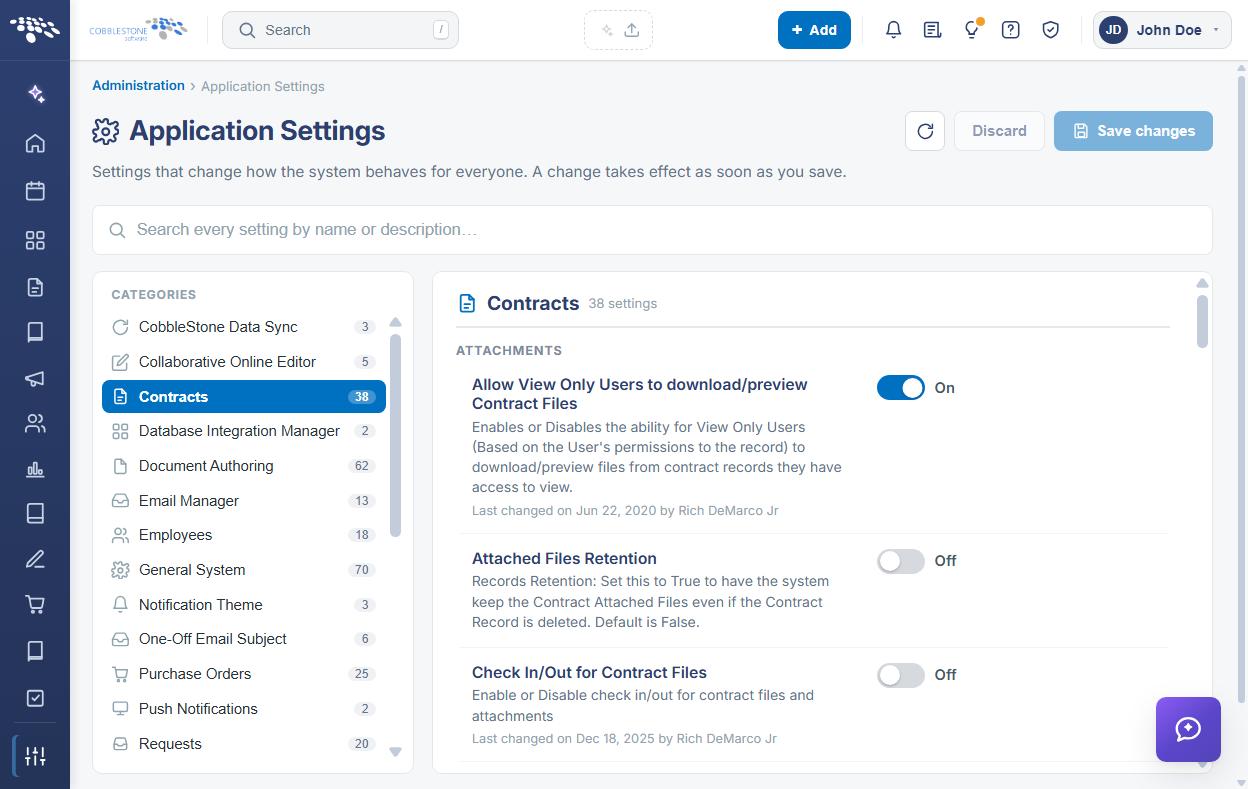
The ATTACHMENTS subsection controls how contract files and attachments are accessed, versioned, checked in and out, retained, and categorized.
The ATTACHMENTS settings are:
- Allow View Only Users to download/preview Contract Files — Enables or disables the ability for view-only users, based on their permissions to the record, to download or preview files from contract records they can view. Toggle.
- Attached Files Retention — Records retention. Set to On to have the system keep contract attached files even if the contract record is deleted. The default is Off. Toggle.
- Check In/Out for Contract Files — Enables or disables check in/out for contract files and attachments. Toggle.
- Download of Checked Out Contract Files — Enables or disables downloading of checked-out contract files. Toggle.
- File Type Extension Check In / Check Out — Specifies whether check-in and check-out of files and attachments includes the file type extension. Toggle.
- File Type Extension Versioning — Specifies whether versioning of files and attachments includes the file type extension. Toggle.
- OCR DPI Setting — The dots-per-inch setting for CobbleStone OCR, recommended between 72 and 300. Managed by CobbleStone.
- Prevent Internal Files from being included in emails — Enables or disables the ability to include contract files and attachments marked as internal in emails sent from the record details page. Toggle.
- Require Category for Contract Attachments — Makes the Category dropdown for file attachments required or optional. Toggle.
Note: The two File Type Extension settings work alongside the Check In/Out for Contract Files setting. Where check in/out is disabled, the related extension setting has no effect.
4. ATTACHMENTS - EXTERNAL Settings
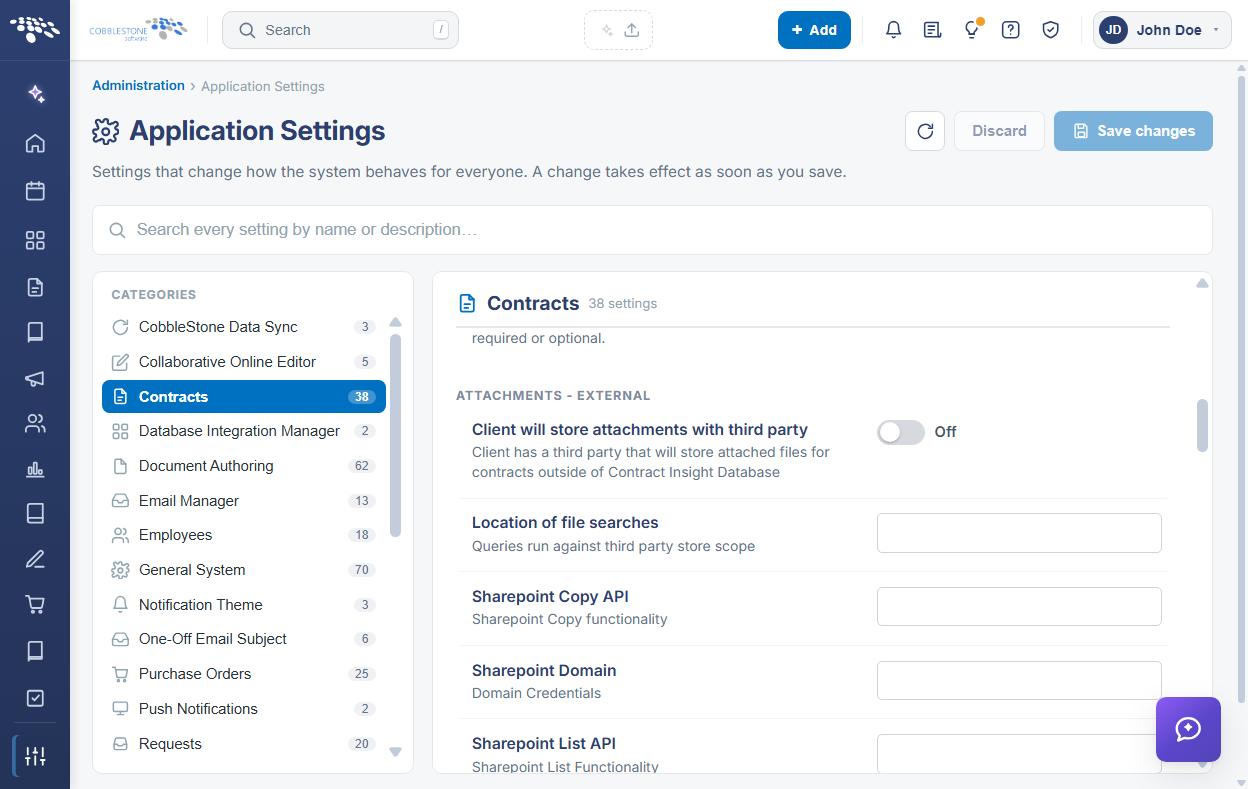
The ATTACHMENTS - EXTERNAL subsection configures optional third-party storage of contract attachments — for example a SharePoint library — so that attached files are held outside the Contract Insight database. All nine settings other than the first are entered in text boxes.
The ATTACHMENTS - EXTERNAL settings are:
- Client will store attachments with third party — Indicates that a third party will store attached files for contracts outside the Contract Insight database. Toggle.
- Location of file searches — The scope that queries run against on the third-party store.
- Sharepoint Copy API — The SharePoint copy functionality endpoint.
- Sharepoint Domain — Domain credentials for the third-party store.
- Sharepoint List API — The SharePoint list functionality endpoint.
- Sharepoint Password — Password credentials for the third-party store.
- Sharepoint Username — Username credentials for the third-party store.
- Third Party Web Service URL — The web service URL used to access the third-party API.
- URL of third party file storage — The file location URL for third-party file storage.
Caution: These settings apply only where the organization stores contract attachments with a third party. They hold connection credentials, so changes should be made with your IT administrator and confirmed against the third-party store before saving.
5. CALCULATIONS Settings
The CALCULATIONS subsection controls how contract amounts are derived from line items, and when a budget alert is raised.
The CALCULATIONS settings are:
- Budget Alert Percentage — The percentage, in decimal format, at which a Budget Task Alert is triggered based on actual contract costs in Financials. The default is .9 for 90 percent; set to 0 to disable. Entered in a text box.
- Auto Calculate the Budget Amount — Set to On to have the Contract Budget Amount field calculate automatically from the contract budget line items on a contract record. Toggle.
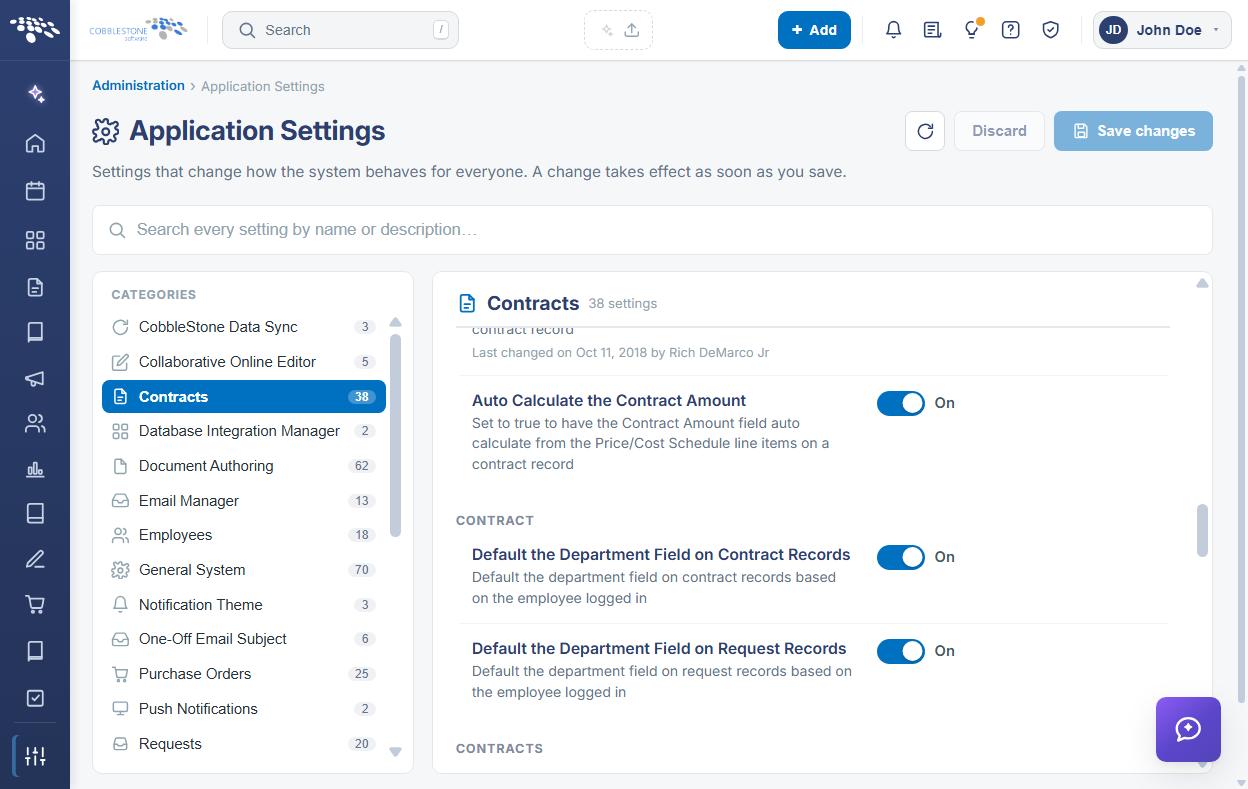
- Auto Calculate the Contract Amount — Set to On to have the Contract Amount field calculate automatically from the Price/Cost Schedule line items on a contract record. Toggle.
Note: Where the auto-calculate settings are enabled, the corresponding amount fields are maintained by the system from the line items and are not keyed directly on the record.
6. CONTRACT Settings
The CONTRACT subsection sets default field values based on the user creating the record:
- Default the Department Field on Contract Records — Defaults the department field on contract records based on the employee logged in. Toggle.
- Default the Department Field on Request Records — Defaults the department field on request records based on the employee logged in. Toggle.
7. CONTRACTS Settings
The CONTRACTS subsection controls which links appear on the contract record and how records are added.
The CONTRACTS settings are:
- Allow Add Company Box — Selects whether users can add a vendor or customer from the contract add page using the Add Company Box. Toggle.
- Hide Auto Complete Tasks — Hides auto-complete tasks on the task grid. Toggle.
- Show Financial Menu Link on Contract Record — Set to On to display the Financials link on the View All Actions menu for contracts. Toggle.
- Show or Hide Assigning Multiple Parties to a Contract Record — Shows the Assign Additional Companies link on the View All Actions menu for contracts. Toggle.
- Show View All Actions Menu Link for Assigning Additional Departments — Shows the Assign Additional Departments link on the View All Actions menu for contracts. Toggle.
- Show View All Actions Menu Link for Assigning Additional Employees — Shows the Assign Additional Employees link on the View All Actions menu for contracts. Toggle.
- Use Original Visdom — Uses the original VISDOM logic when adding a contract record with a file. Does not apply to drag and drop. Toggle.
8. GENERAL Settings
The GENERAL subsection controls contract type behavior, template management, record copying, address display, and the terminology used for contract records.
The GENERAL settings are:
- Allow Altering of Contract Types — Allows the Contract Type to be altered or changed after it has been initially selected on the contract add screen. Toggle.
- Allow Basic Templates Management — Allows access to Basic Templates Management for contract records. Toggle.
- Copy Contract Legacy Functionality — When On, the Copy button in the sidebar on Contract Details performs an exact field-for-field copy of the record and offers an option to copy every file. When Off, the Copy button uses the Field Mapper functionality to copy the contract. Toggle.
- Show Vendor/Customer Address on Field Details — Shows the vendor or customer address on field details for contracts, requests, sourcing, and purchase orders. The default is On, which shows the address. Toggle.
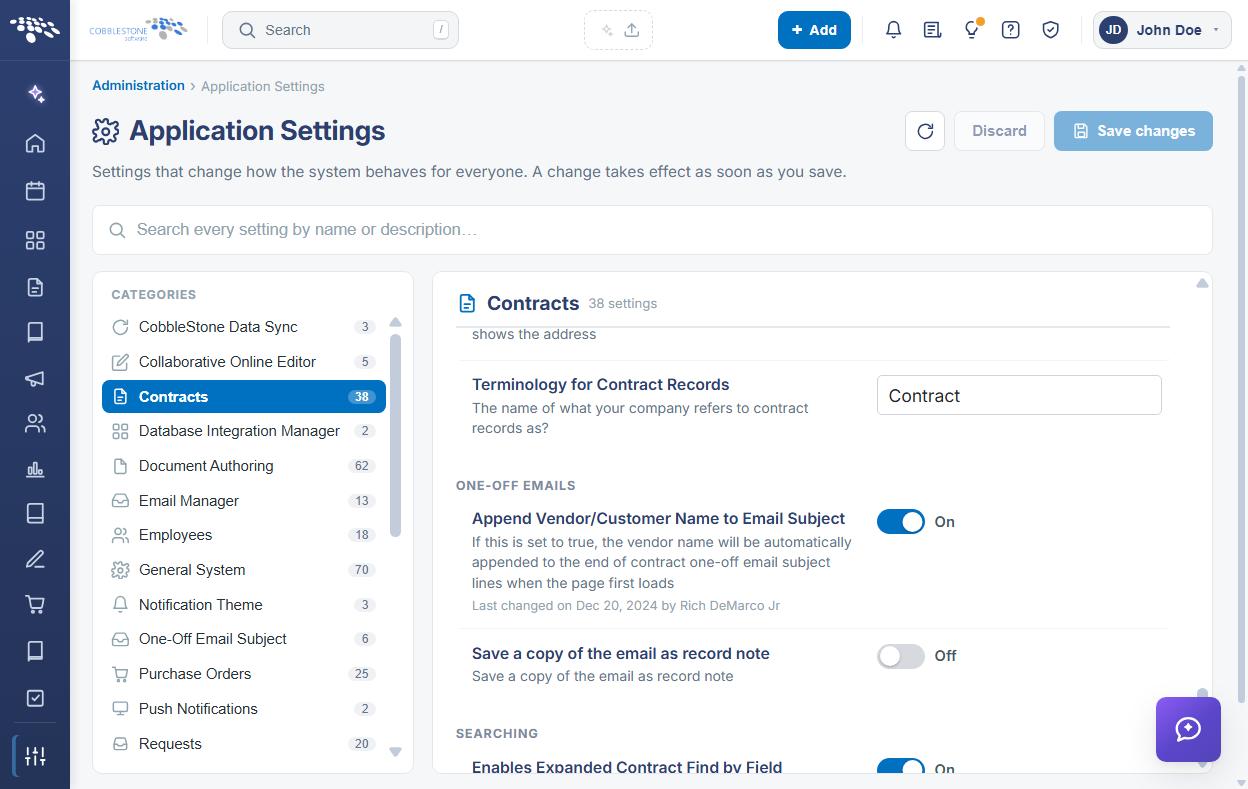
- Terminology for Contract Records — The name your organization uses to refer to contract records. Entered in a text box.
Note: The Terminology for Contract Records setting changes how contract records are labelled throughout the interface, so confirm the wording with your organization before saving a change.
9. ONE-OFF EMAILS Settings
The ONE-OFF EMAILS subsection controls one-off emails sent from a contract record:
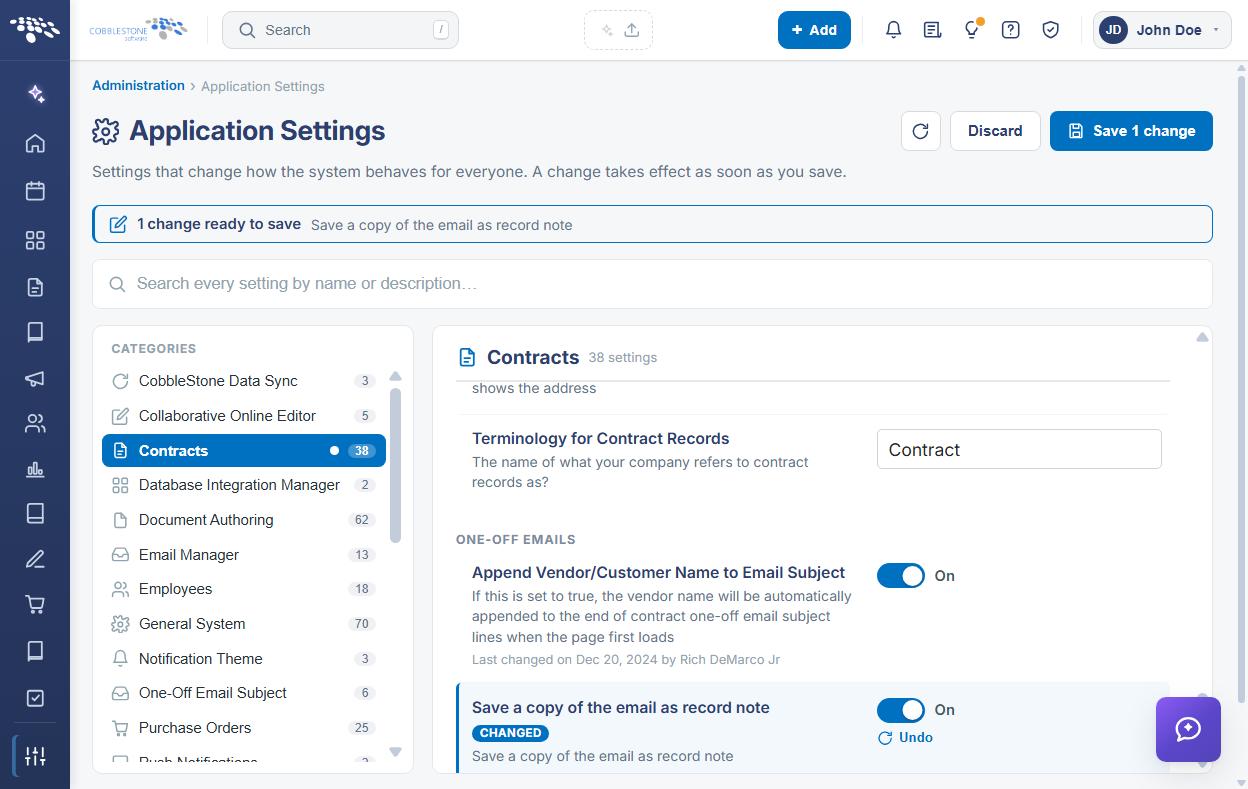
- Append Vendor/Customer Name to Email Subject — When set to On, the vendor name is automatically appended to the end of contract one-off email subject lines when the page first loads. Toggle.
- Save a copy of the email as record note — Saves a copy of the email as a note on the record. Toggle.
10. SEARCHING Settings
The SEARCHING subsection contains a single setting:
- Enables Expanded Contract Find by Field — Expands Contract Find by Field to include alternate employees, vendors/customers, departments, and locations. Toggle.
11. Modifying a Contracts Setting
Function: Changes the value of a Contracts setting for the entire system.
Steps:
- From the Contract Insight homepage, click Administration at the bottom of the left navigation menu. On the Administration page, under Configuration & Fields, select Application Settings, then click Contracts in the CATEGORIES rail.
- Locate the setting by name under its subsection heading, and read its description to confirm what the value controls.
- Change the value using the control on the right of the setting row — a toggle for the true/false settings, or a text box for values such as Budget Alert Percentage, Terminology for Contract Records, and the third-party storage settings.
- The setting is marked with a CHANGED badge, an Undo link appears beneath it, a dot appears beside Contracts in the CATEGORIES rail, and a banner at the top of the screen reports how many changes are ready to save.
- Click Save changes in the upper right to commit the change, or Discard to put every changed setting back to its saved value. Undo on the setting row reverts that one setting only.
Caution: These settings apply to every contract record and every user. Changes to attachment retention, check in/out, and the auto-calculate settings affect how existing records behave, so change one setting at a time and confirm the result before making the next change.
12. Quick Reference Summary
Task | How to Complete It |
Open the group | Homepage → Administration → Configuration & Fields → Application Settings → Contracts. |
Control file access | Allow View Only Users to download/preview Contract Files and Download of Checked Out Contract Files toggles. |
Keep files after deletion | Attached Files Retention toggle under ATTACHMENTS, then Save changes. |
Enable check in/out | Check In/Out for Contract Files, plus the File Type Extension settings, then Save changes. |
Require an attachment category | Require Category for Contract Attachments toggle, then Save changes. |
Use third-party storage | Client will store attachments with third party toggle, then complete the SharePoint and URL text boxes. |
Auto-calculate amounts | Auto Calculate the Budget Amount and Auto Calculate the Contract Amount toggles. |
Set the budget alert point | Budget Alert Percentage in decimal format (.9 for 90%, 0 disables), then Save changes. |
Default the department | Default the Department Field on Contract Records and on Request Records toggles. |
Show record menu links | The Show Financial Menu Link and Show View All Actions Menu Link settings under CONTRACTS. |
Rename contract records | Terminology for Contract Records under GENERAL, then Save changes. |
Change copy behavior | Copy Contract Legacy Functionality toggle — On for field-for-field, Off for Field Mapper. |
Expand contract searching | Enables Expanded Contract Find by Field toggle under SEARCHING. |
Undo a change | Undo on the setting row, or Discard in the upper right, before saving. |