COBBLESTONE SOFTWARE
Contract Insight — User Guide
Email Manager
Configuration Group: Emailer / Email Manager
Note: Each procedure in this guide begins at the Contract Insight homepage, so any section can be followed on its own. Several Email Manager settings are maintained by CobbleStone and cannot be changed from this screen, so the settings available for editing may vary between environments.
1. Overview
The Email Manager configuration group holds the settings that control how Contract Insight sends system-generated email. It defines the mail server the application delivers through, the address and display name those messages come from, who is copied on every message, whether the connection is encrypted, and the alert behavior and message bodies used when a reply is received on a record.
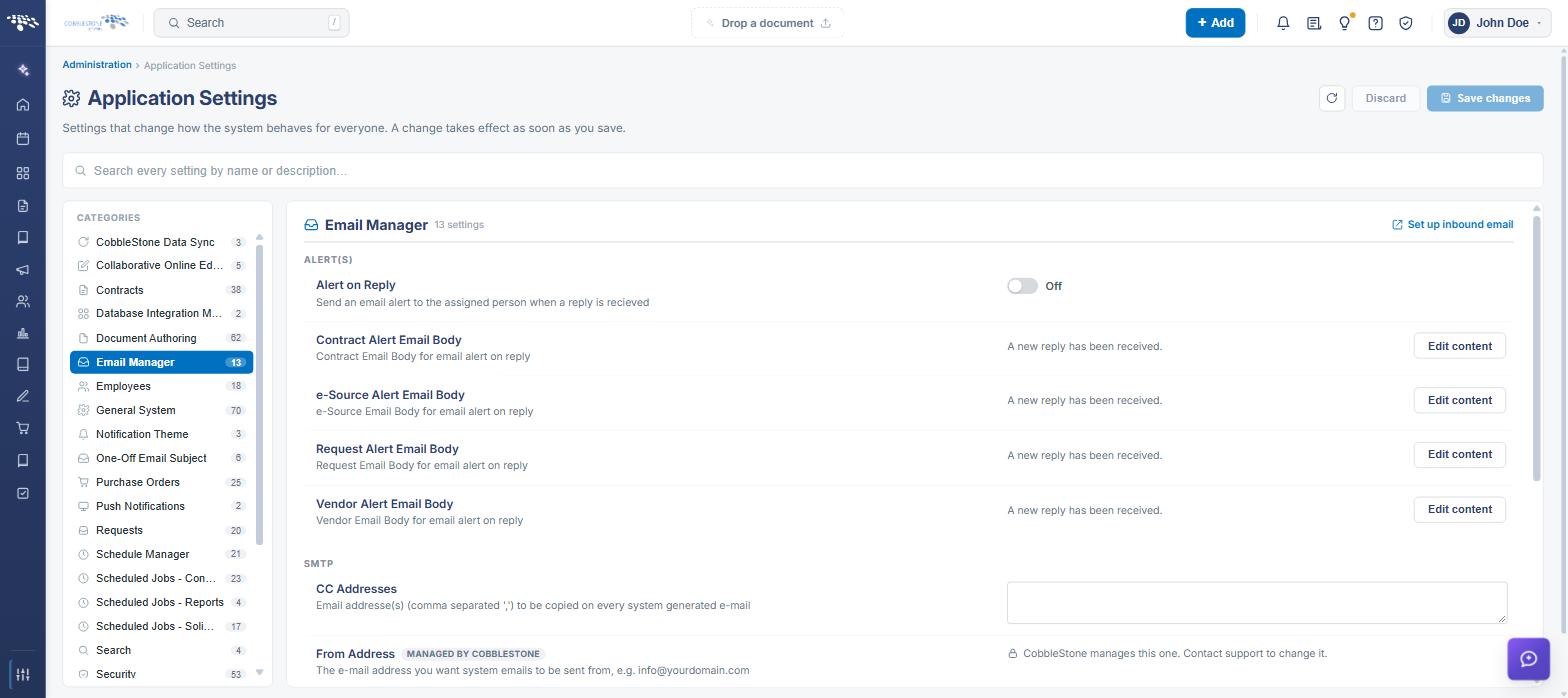
Email Manager contains 13 settings, organized under two subsection headings in the settings panel: ALERT(S) and SMTP. A Set up inbound email link in the upper right of the panel opens the separate Inbound Email administration tool.
As with every configuration group, each setting is presented as a single row containing:
- The name of the application setting, with a MANAGED BY COBBLESTONE badge where applicable
- A description of what the setting does
- An editing control holding the current value — a toggle, a text box, or an Edit content button for rich-text settings
- A “Last changed” line recording when the setting was last modified and by whom
Because Email Manager is maintained from the Administration area, only Application Administrators — or other users specifically granted the appropriate permission — can view and change these values.
Note: By default, all SaaS clients use CobbleStone’s secure email provider, which encrypts data in transit and uses an SSL connection. In those environments the mail server settings are managed by CobbleStone and do not need to be configured by the customer.
2. Accessing the Email Manager Configuration Group
The Email Manager settings are reached through Application Settings. To open them:
- From the Contract Insight homepage, click Administration at the bottom of the left navigation menu.
- On the Administration page, under Configuration & Fields, select Application Settings.
- In the CATEGORIES rail on the left, click Email Manager. The category is highlighted, and the count beside it shows the number of settings it contains.
- The settings panel on the right is headed Email Manager with its setting count, and lists the settings under the ALERT(S) and SMTP subsection headings.
A specific setting can also be reached without browsing the category, by typing part of its name or description into the Search box at the top of the Application Settings screen.
3. ALERT(S) Settings
The ALERT(S) subsection controls the email alert raised when a reply is received on a record, and the message body used for each record type.
The ALERT(S) settings are:
- Alert on Reply — Sends an email alert to the assigned person when a reply is received. This is a toggle, set to On or Off.
- Contract Alert Email Body — The contract email body used for the email alert on reply. Edited through the rich-text editor using Edit content.
- e-Source Alert Email Body — The e-Source email body used for the email alert on reply. Edited through the rich-text editor using Edit content.
- Request Alert Email Body — The request email body used for the email alert on reply. Edited through the rich-text editor using Edit content.
- Vendor Alert Email Body — The vendor email body used for the email alert on reply. Edited through the rich-text editor using Edit content.
The four alert email body settings each display a short preview of their current content beside the Edit content button, so the message in use can be confirmed without opening the editor.
4. SMTP Settings
The SMTP subsection defines the mail server Contract Insight delivers system-generated email through, and the identity those messages are sent under.
The SMTP settings are:
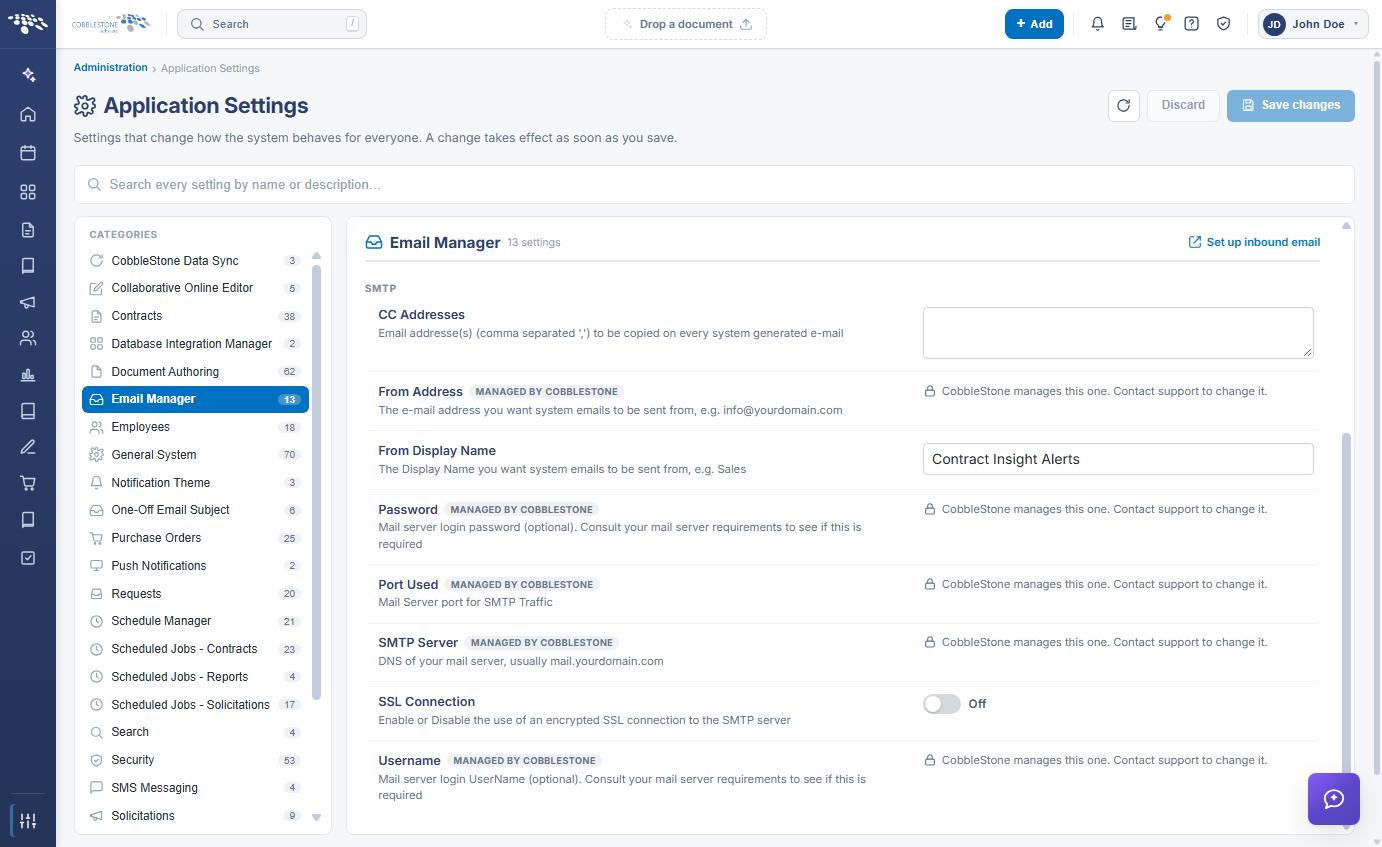
- CC Addresses — Email address(es), comma separated, to be copied on every system-generated email. Entered in a text box.
- From Address — The email address system emails are sent from, for example info@yourdomain.com. Managed by CobbleStone.
- From Display Name — The display name system emails are sent from, for example Sales. Entered in a text box.
- Password — Mail server login password (optional). Consult your mail server requirements to see if this is required. Managed by CobbleStone.
- Port Used — The mail server port used for SMTP traffic. Managed by CobbleStone.
- SMTP Server — The DNS of your mail server, usually mail.yourdomain.com. Managed by CobbleStone.
- SSL Connection — Enables or disables the use of an encrypted SSL connection to the SMTP server. This is a toggle, set to On or Off.
- Username — Mail server login user name (optional). Consult your mail server requirements to see if this is required. Managed by CobbleStone.
Caution: These settings govern all outbound email from the application. An incorrect mail server, port, address, or SSL value will stop system-generated email from being delivered, so confirm the values against your organization’s mail server requirements before saving a change.
5. Settings Managed by CobbleStone
Five of the SMTP settings — From Address, Password, Port Used, SMTP Server, and Username — are maintained by CobbleStone rather than by the customer. Each is marked with a MANAGED BY COBBLESTONE badge beneath the setting name, carries no editing control, and reads “CobbleStone manages this one. Contact support to change it.” in place of a value.
To change any of these values, contact CobbleStone Support. The remaining Email Manager settings — Alert on Reply, the four alert email body settings, CC Addresses, From Display Name, and SSL Connection — are edited directly on this screen.
6. Modifying an Email Manager Setting
Function: Changes the value of an Email Manager setting for the entire system.
Steps:
- From the Contract Insight homepage, click Administration at the bottom of the left navigation menu. On the Administration page, under Configuration & Fields, select Application Settings, then click Email Manager in the CATEGORIES rail.
- Locate the setting by name under the ALERT(S) or SMTP heading, and read its description to confirm what the value controls.
- Change the value using the control on the right of the setting row — a toggle for Alert on Reply and SSL Connection, or a text box for CC Addresses and From Display Name.
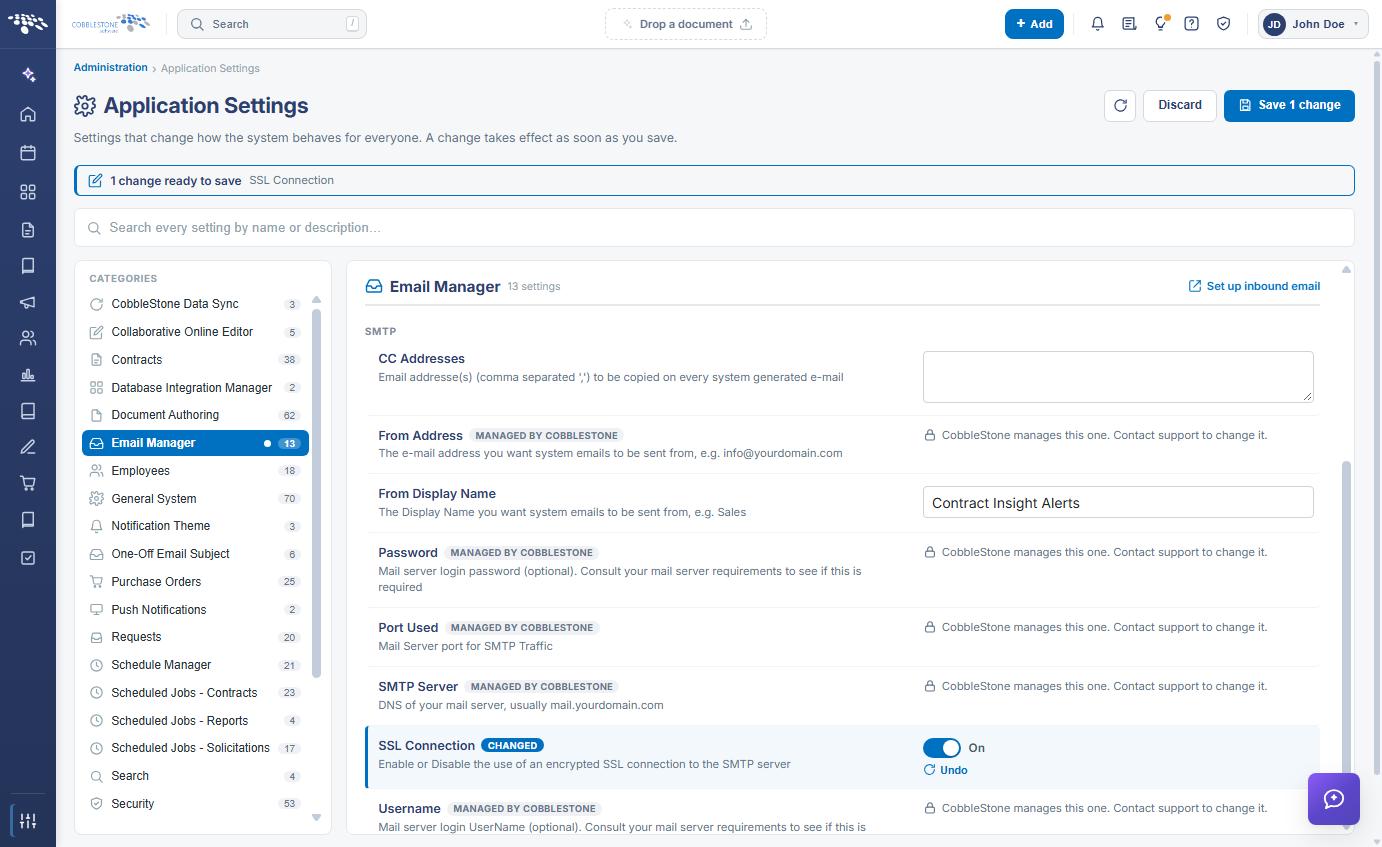
- The setting is marked with a CHANGED badge, an Undo link appears beneath it, a dot appears beside Email Manager in the CATEGORIES rail, and a banner at the top of the screen reports how many changes are ready to save.
- Click Save changes in the upper right to commit the change, or Discard to put every changed setting back to its saved value. Undo on the setting row reverts that one setting only.
Note: A change takes effect as soon as it is saved and applies to every user of the system. The refresh icon beside Discard reloads the settings, picking up any values changed outside this screen.
7. Editing an Alert Email Body
The four alert email body settings store message text rather than a simple value, and are edited in a rich-text, Word-like HTML editor.
Steps:
- From the Contract Insight homepage, click Administration at the bottom of the left navigation menu. On the Administration page, under Configuration & Fields, select Application Settings, then click Email Manager in the CATEGORIES rail.
- Under ALERT(S), locate the alert email body for the record type you want to change — Contract Alert Email Body, e-Source Alert Email Body, Request Alert Email Body, or Vendor Alert Email Body.
- Click Edit content on the setting row.
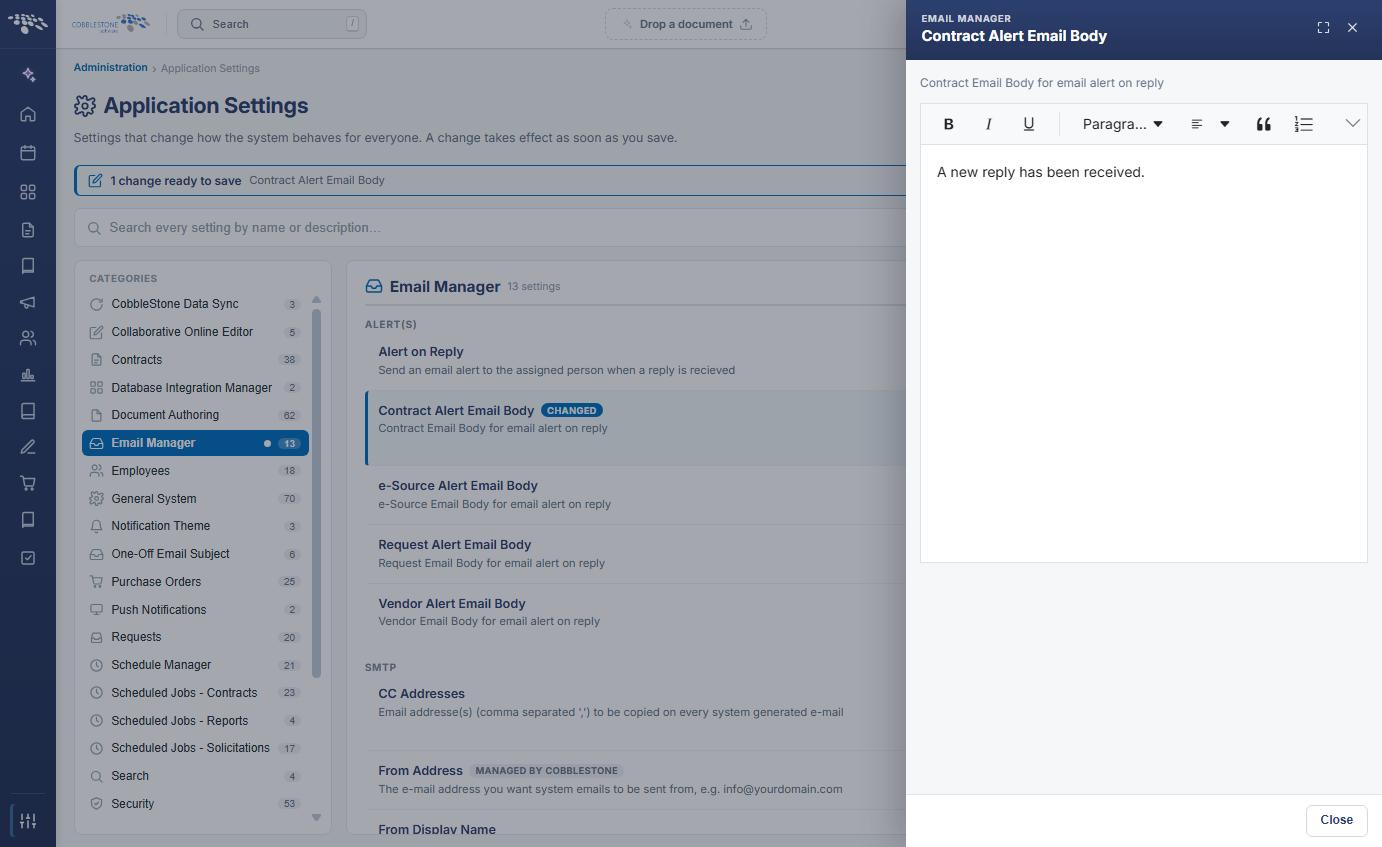
- A drawer slides out from the right, headed EMAIL MANAGER and the setting name, with the setting’s description beneath it and the current message loaded into the editor.
- Edit the message using the editor toolbar, then click Close to return to the settings list.
- Click Save changes in the upper right of the Application Settings screen to commit the new content, or Undo on the setting row to put it back to the saved content.
The rich-text editor toolbar provides:
- Bold (Ctrl+B), Italic (Ctrl+I), and Underline (Ctrl+U)
- A Paragraph format dropdown for paragraph and heading styles
- Blockquote, Numbered List (Ctrl+Shift+O), and Bulleted List (Ctrl+Alt+O)
- Insert Hyperlink (Ctrl+K) and Insert Image (Ctrl+Shift+I)
- Code View (Ctrl+Shift+H) for editing the underlying HTML directly
- Undo (Ctrl+Z) and Redo (Ctrl+Y)
- An overflow control at the end of the toolbar that reveals the remaining tools when the drawer is narrow
- A widen icon and a close icon in the drawer header, to expand the drawer to full width or close it
8. Set Up Inbound Email
The Email Manager settings govern outbound email. Inbound email — letting people create and update records by email, and managing the record templates they fill in — is configured in a separate administration tool.
Click Set up inbound email in the upper right of the Email Manager settings panel to open the Inbound Email administration page. The same page can be reached from the Administration page under Automation & Data.
9. Quick Reference Summary
Task | How to Complete It |
Open the group | Homepage → Administration → Configuration & Fields → Application Settings → Email Manager. |
Alert on a reply | Alert on Reply toggle under ALERT(S), then Save changes. |
Change an alert message | Edit content on the relevant Alert Email Body, edit in the rich-text drawer, Close, then Save changes. |
Copy every system email | Enter comma-separated addresses in CC Addresses, then Save changes. |
Change the sender name | Enter the name in From Display Name, then Save changes. |
Encrypt the connection | SSL Connection toggle under SMTP, then Save changes. |
Change the mail server | From Address, Password, Port Used, SMTP Server, and Username are managed by CobbleStone — contact Support. |
Undo a change | Undo on the setting row, or Discard in the upper right, before saving. |
Configure inbound email | Set up inbound email in the upper right of the panel, or Administration → Automation & Data → Inbound Email. |