COBBLESTONE SOFTWARE
Contract Insight — User Guide
Document Authoring
Configuration Group: Document Authoring
Note: Each procedure in this guide begins at the Contract Insight homepage, so any section can be followed on its own. Many settings in this group depend on the e-signature providers and Optional Add-On Modules licensed for the environment, so the exact behavior on any one system may vary.
1. Overview
The Document Authoring configuration group holds the settings that control document generation, electronic signature and approval processes, and the Document Collaboration Gateway that external participants use to sign and approve. It covers the authentication participants pass through, the email alerts raised during a process, the branding and content of the gateway, signature behavior and the signing engine, the IntelliSign and IntelliApprove participant types, mass process jobs, and the timers that drive document automation.
Document Authoring contains 62 settings, organized under eight subsection headings in the settings panel: AUTHENTICATION, EMAILS, GATEWAY, GENERAL, INTELLIAPPROVE, INTELLISIGN, MASS PROCESS, and TIMERS.
As with every configuration group, each setting is presented as a single row containing:
- The name of the application setting, with a MANAGED BY COBBLESTONE badge where applicable
- A description of what the setting does
- An editing control holding the current value — a toggle, a text box, a numeric text box, a dropdown, or an Edit content button for rich-text settings
- A “Last changed” line recording when the setting was last modified and by whom
Because the Document Authoring group is maintained from the Administration area, only Application Administrators — or other users specifically granted the appropriate permission — can view and change these values.
Caution: These settings govern signature and approval processes that may already be in flight. Changes to the signing engine, authentication, or participant types affect how new processes behave, so change one setting at a time and confirm the result before making the next change.
2. Accessing the Document Authoring Configuration Group
The Document Authoring settings are reached through Application Settings. To open them:
- From the Contract Insight homepage, click Administration at the bottom of the left navigation menu.
- On the Administration page, under Configuration & Fields, select Application Settings.
- In the CATEGORIES rail on the left, click Document Authoring. The category is highlighted, and the count beside it shows the number of settings it contains.
- The settings panel on the right is headed Document Authoring with its setting count, and lists the settings under their subsection headings.
.png)
Because this is one of the larger configuration groups, the quickest way to reach a specific setting is to type part of its name or description into the Search box at the top of the Application Settings screen.
3. AUTHENTICATION Settings
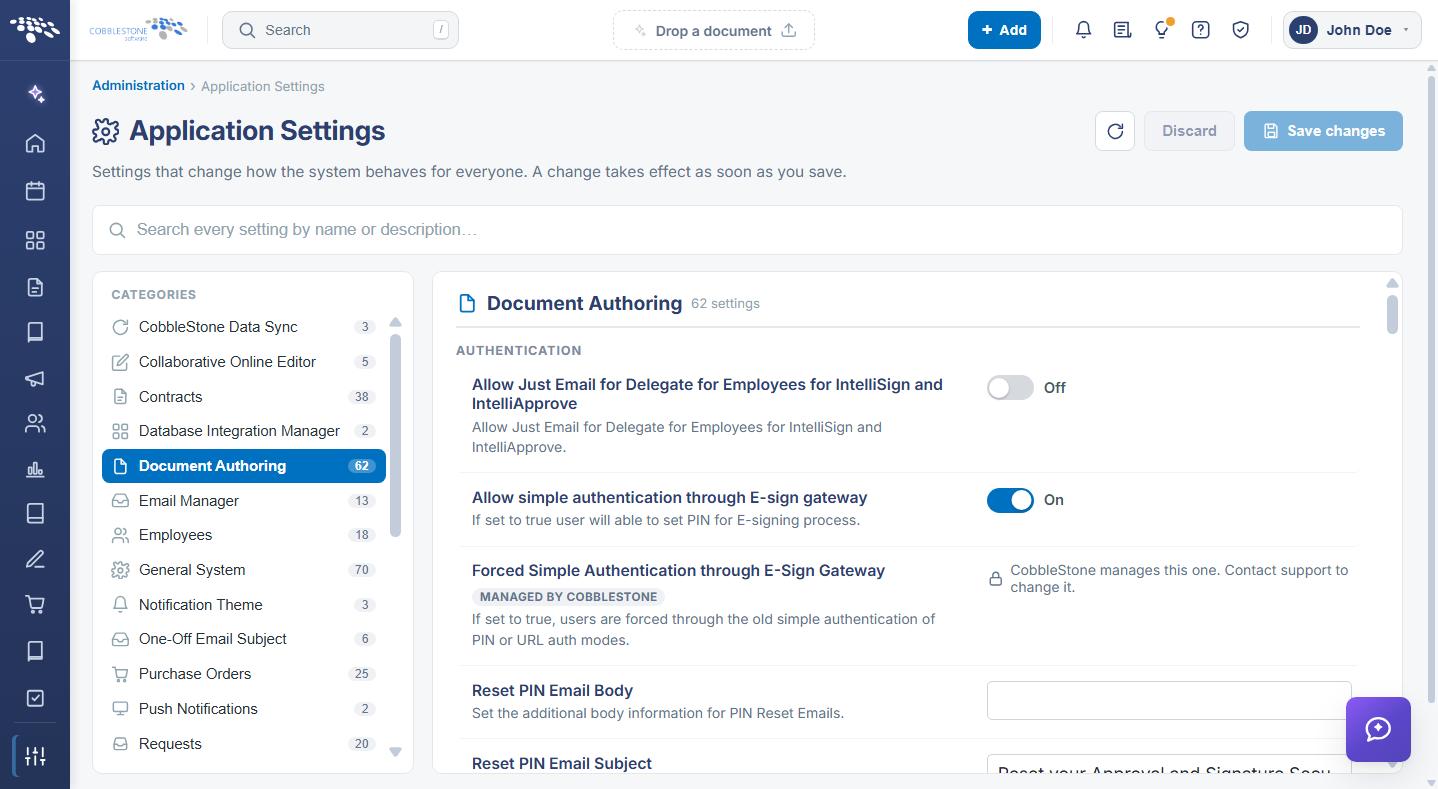
The AUTHENTICATION subsection controls how participants authenticate when signing or approving through the E-Sign gateway, and the emails sent when a PIN is reset.
The AUTHENTICATION settings are:
- Allow simple authentication through E-sign gateway — When On, users can set a PIN for the e-signing process. Toggle.
- Forced Simple Authentication through E-Sign Gateway — When on, users are forced through the older simple authentication of PIN or URL auth modes. Managed by CobbleStone.
- Allow Just Email for Delegate for Employees for IntelliSign and IntelliApprove — Allows just an email address to be used for an employee delegate in IntelliSign and IntelliApprove. Toggle.
- Reset PIN Email Subject — The subject line for PIN reset emails. Entered in a text box.
- Reset PIN Email Body — Additional body information for PIN reset emails. Entered in a text box.
4. EMAILS Settings
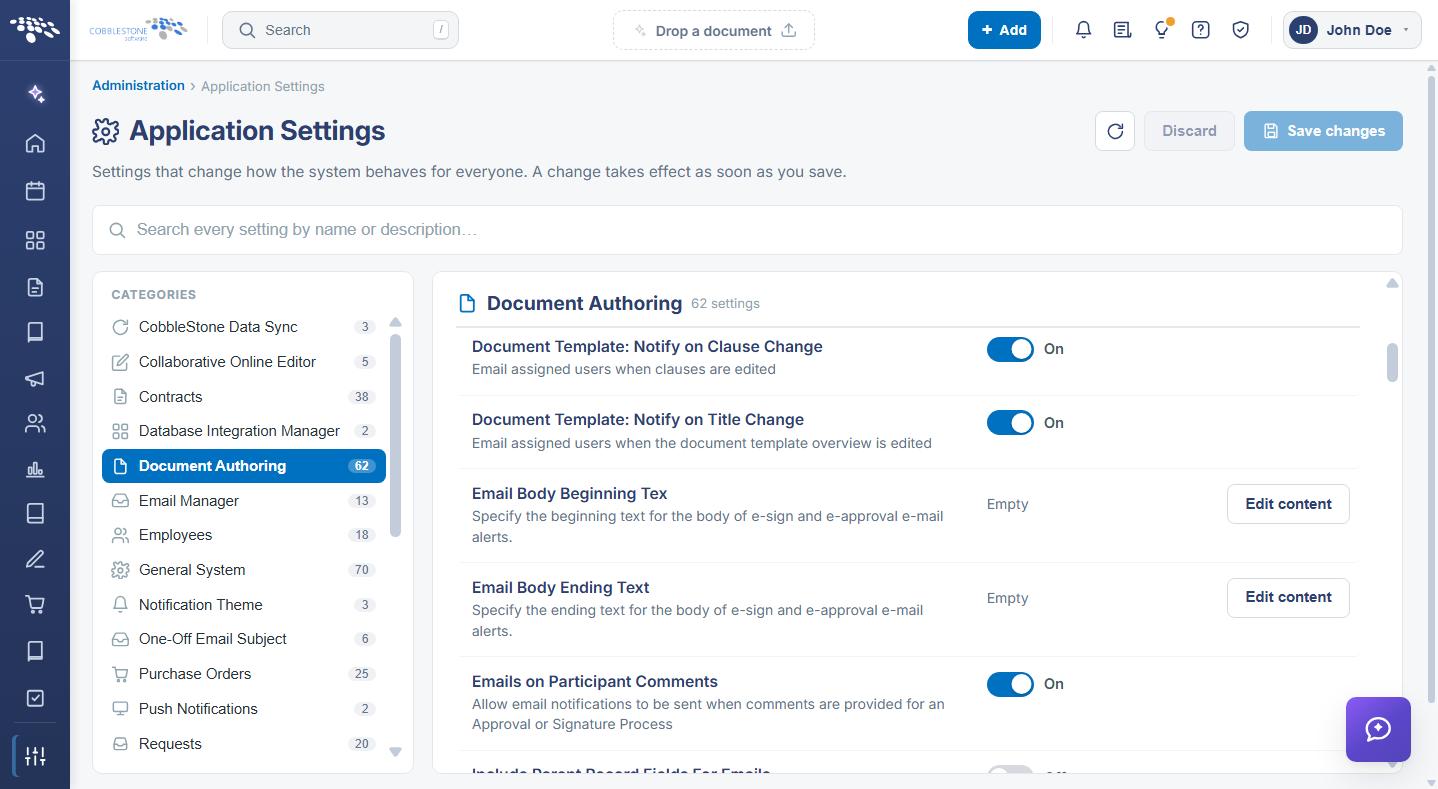
The EMAILS subsection controls the notifications raised while a document template is edited and while a signature or approval process runs, and the default wording of those alerts.
The EMAILS settings are:
- Document Template: Notify on Title Change — Emails assigned users when the document template overview is edited. Toggle.
- Document Template: Notify on Clause Change — Emails assigned users when clauses are edited. Toggle.
- Document Template: Notify on Attachment Change — Emails assigned users when an attachment is added to the document template. Toggle.
- Emails on Participant Comments — Allows email notifications to be sent when comments are provided for an approval or signature process. Toggle.
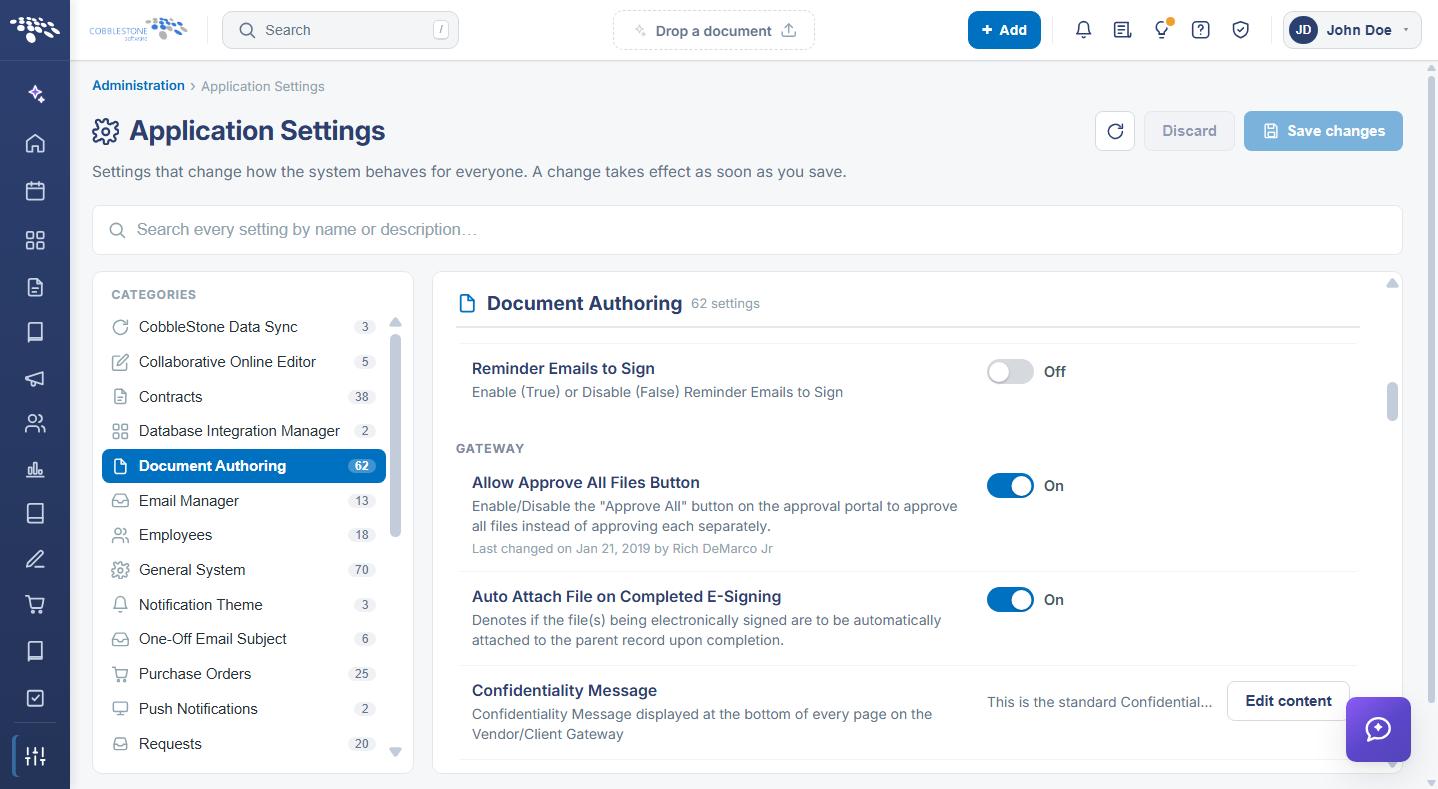
- Reminder Emails to Sign — Enables or disables reminder emails to sign. Toggle.
- Include Parent Record Fields For Emails — Enables or disables the use of record fields showing in Document Collab emails to internal users. Toggle.
- Email Body Beginning Text — The beginning text for the body of e-sign and e-approval email alerts. Edited through the rich-text editor using Edit content.
- Email Body Ending Text — The ending text for the body of e-sign and e-approval email alerts. Edited through the rich-text editor using Edit content.
5. GATEWAY Settings
The GATEWAY subsection configures the Document Collaboration Gateway — the portal external participants use to view, approve, and sign documents. It is the largest subsection in the group, with 20 settings covering gateway behavior, branding, and page content.
5.1 Gateway Behavior
- Auto Attach File on Completed E-Signing — Denotes whether the files being electronically signed are automatically attached to the parent record on completion. Toggle.
- Allow Approve All Files Button — Enables or disables the “Approve All” button on the approval portal, so all files can be approved at once instead of separately. Toggle.
- Simple Participants E-Approvals — Uses simple e-approvals for participants, auto-completing a participant’s action once they have approved all files. Toggle.
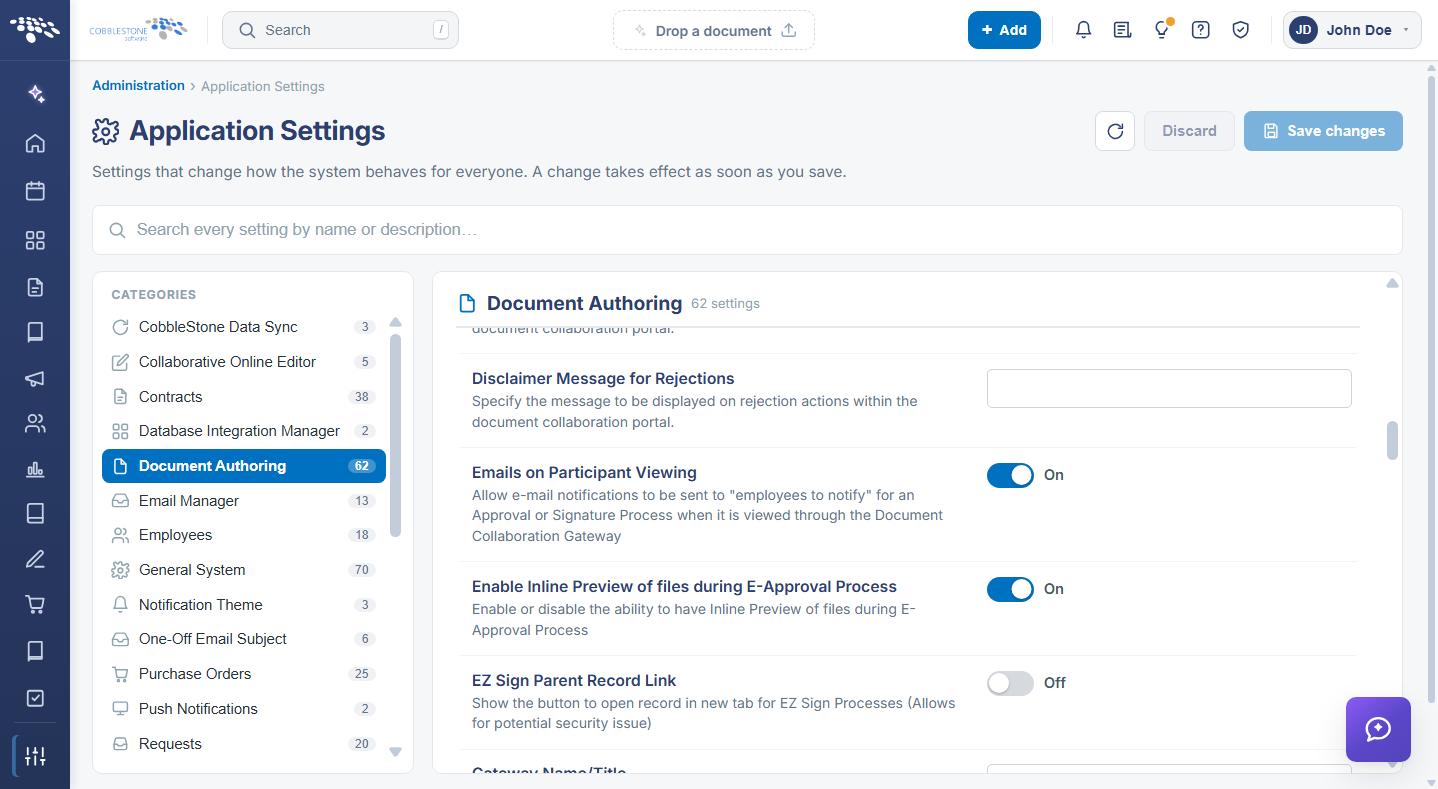
- Enable Inline Preview of files during E-Approval Process — Enables or disables inline preview of files during the e-approval process. Toggle.
- Emails on Participant Viewing — Allows email notifications to be sent to “employees to notify” for an approval or signature process when it is viewed through the gateway. Toggle.
- EZ Sign Parent Record Link — Shows the button to open the record in a new tab for EZ Sign processes. Toggle.
Note: The EZ Sign Parent Record Link setting is noted in the application as allowing a potential security issue, because it exposes a route to the parent record from the signing page. Leave it off unless the link is specifically required.
5.2 Gateway Branding and Titles
- Gateway Name/Title — The name your organization uses for the Document Collaboration Gateway. Text box.
- Terminology for Negotiations — The name your organization uses for negotiations, for example Negotiation or Document. Text box.
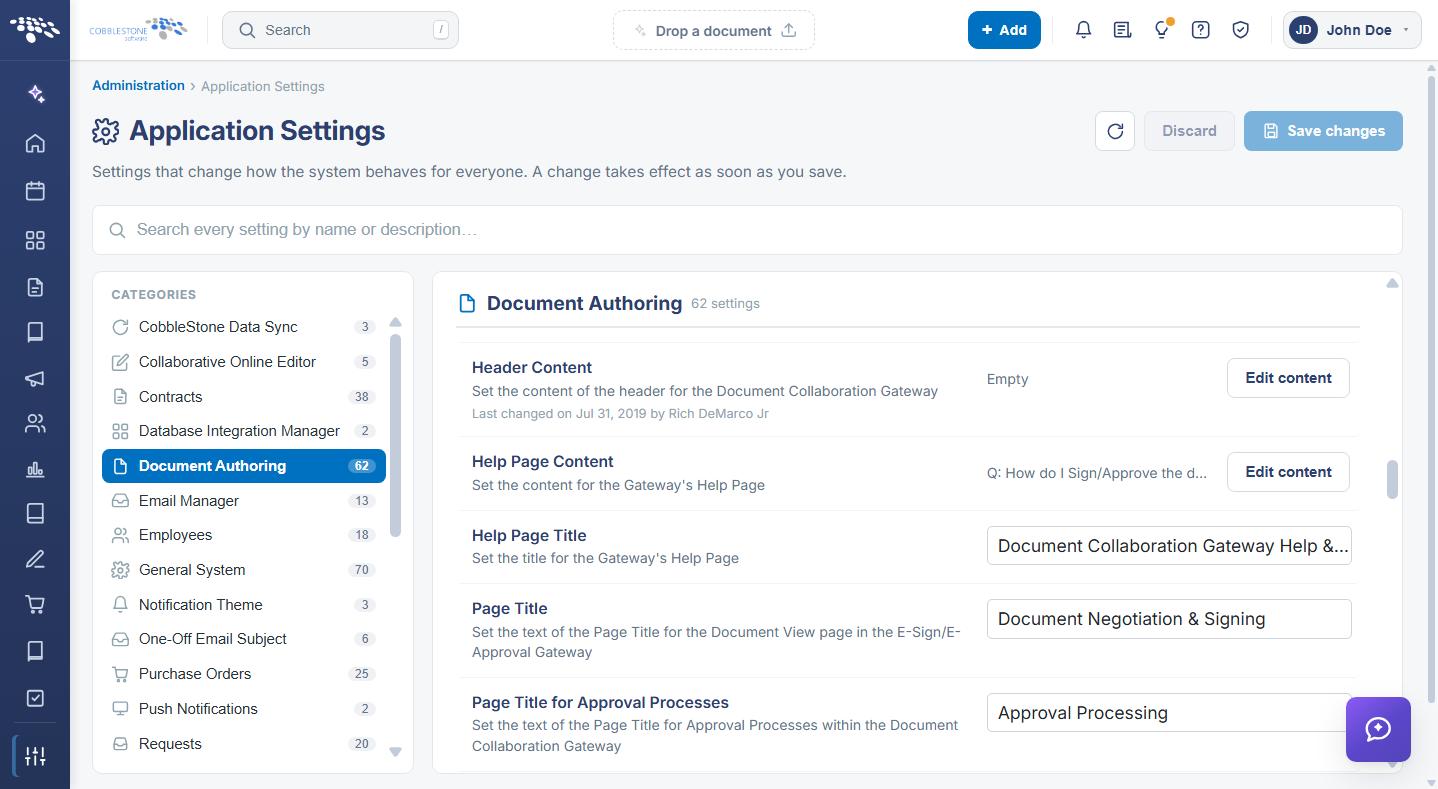
- Page Title — The page title text for the Document View page in the E-Sign/E-Approval gateway. Text box.
- Page Title for Signature Processes — The page title text for signature processes within the gateway. Text box.
- Page Title for Approval Processes — The page title text for approval processes within the gateway. Text box.
- Help Page Title — The title for the gateway’s Help page. Text box.
- Privacy Policy Title — The title for the gateway’s Privacy Policy page. Text box.
- Website Address — Stores the web address of the Document Collaboration Gateway. Set and maintained by the system.
5.3 Gateway Page Content
These settings hold page content rather than a simple value. Four are edited in the rich-text editor using Edit content, and the two disclaimer messages are entered in text boxes.
- Header Content — The content of the header for the Document Collaboration Gateway. Edit content.
- Confidentiality Message — The confidentiality message displayed at the bottom of every page on the Vendor/Client Gateway. Edit content.
- Help Page Content — The content for the gateway’s Help page. Edit content.
- Privacy Policy Content — The content for the gateway’s Privacy Policy page. Edit content.
- Disclaimer Message for Approvals — The message displayed on approval actions within the document collaboration portal. Text box.
- Disclaimer Message for Rejections — The message displayed on rejection actions within the document collaboration portal. Text box.
6. GENERAL Settings
The GENERAL subsection controls signature behavior, who may be selected as a signer, the signing engine and default e-sign tool, document building, and the Terms and Conditions section.
The GENERAL settings are:
- Signing Engine — The signature processing engine. Selected from a dropdown offering Adobe Acrobat Sign and IntelliSign.
- E-Sign Tool Default — A default e-sign tool, so the user can skip the tool selection prompt when starting an e-sign process. Selected from a dropdown offering AdobeSign, DocJuris, DocuSign, IntelliSign, SignNow, and None.
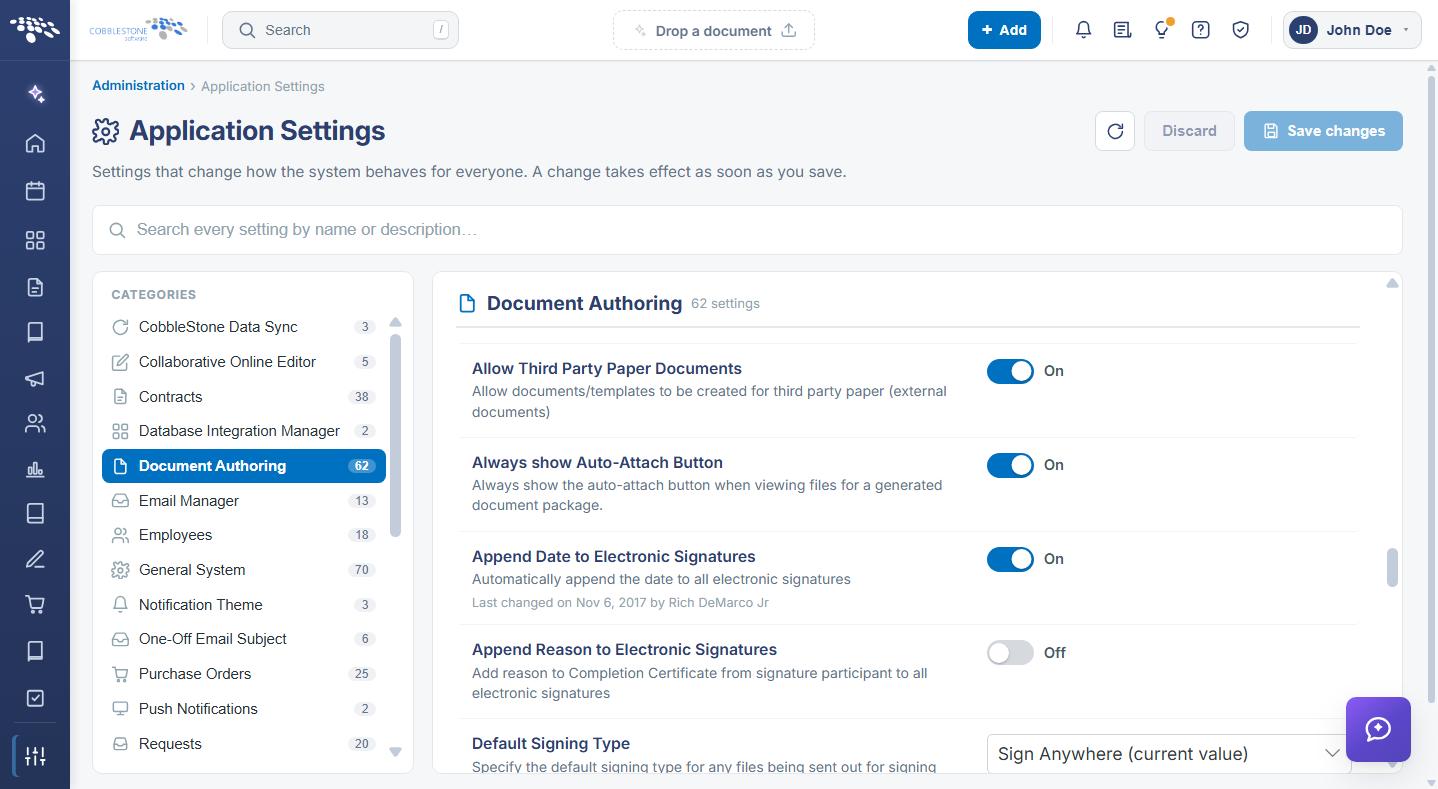
- Default Signing Type — The default signing type for files sent out for signing. Selected from a dropdown offering Sign Anywhere and Signature Placeholders.
- Allow Roles/Groups to be E-Signers — Denotes whether roles and groups can be selected as e-signers. Toggle.
- Append Date to Electronic Signatures — Automatically appends the date to all electronic signatures. Toggle.
- Append Reason to Electronic Signatures — Adds the reason from the signature participant to the Completion Certificate for all electronic signatures. Toggle.
- Prefill signature placeholders — When On, signature placeholders are prefilled with the signer’s first and last names. Toggle.
- Prevent Document Uploading for Approvers — When On, approvers cannot upload documents. Toggle.
- Allow Third Party Paper Documents — Allows documents and templates to be created for third party paper, meaning external documents. Toggle.
- Always show Auto-Attach Button — Always shows the auto-attach button when viewing files for a generated document package. Toggle.
- Show Document Builder — Shows the Document Builder. Toggle.
- Display clause library on the Doc Collab for Online Editor — Shows or hides the clause library option on the Doc Collab for Online Editor. Toggle.
- Show Content Control for add/edit Mergeable Clause — When On, content control is shown on add and edit of a mergeable clause. Toggle.
- Number of Thumbnails to Load — The number of thumbnails to load. Entered in a numeric text box.
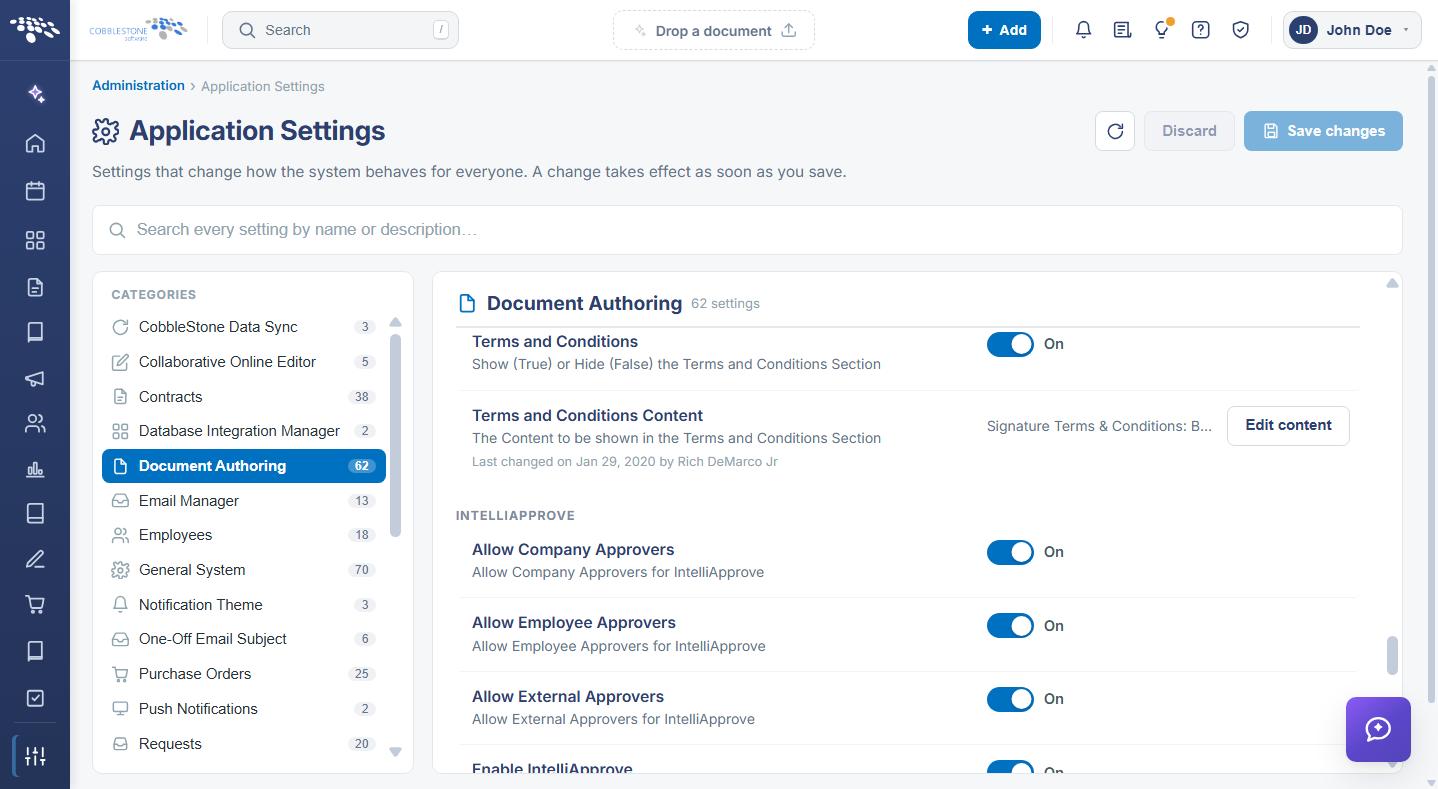
- Terms and Conditions — Shows or hides the Terms and Conditions section. Toggle.
- Terms and Conditions Content — The content shown in the Terms and Conditions section. Edited through the rich-text editor using Edit content.
Note: The Terms and Conditions toggle and Terms and Conditions Content work as a pair — the content has no effect while the section is hidden. The same applies to Signing Engine and the provider-specific tools: the engine determines which signing path is used, while E-Sign Tool Default only pre-selects the tool a user would otherwise choose.
7. INTELLISIGN and INTELLIAPPROVE Settings
These two subsections mirror one another. Each enables the feature on the attachments grid and then controls which participant types may be selected. All eight settings are toggles.
7.1 INTELLISIGN
- Enable IntelliSign — Enables or disables IntelliSign on the attachments grid.
- Allow Employee Signers — Allows employee signers for IntelliSign.
- Allow Company Signers — Allows company signers for IntelliSign.
- Allow External Signers — Allows external signers for IntelliSign.
7.2 INTELLIAPPROVE
- Enable IntelliApprove — Enables or disables IntelliApprove on the attachments grid.
- Allow Employee Approvers — Allows employee approvers for IntelliApprove.
- Allow Company Approvers — Allows company approvers for IntelliApprove.
- Allow External Approvers — Allows external approvers for IntelliApprove.
Note: The Enable setting in each subsection is the master switch. Where it is off, the three participant type settings beneath it have no effect because the feature does not appear on the attachments grid.
8. MASS PROCESS Settings
The MASS PROCESS subsection controls mass process jobs that present terms and conditions:
- Mass Process Jobs - Terms & Conditions Content — The default content for mass process jobs with terms and conditions. Edited through the rich-text editor using Edit content.
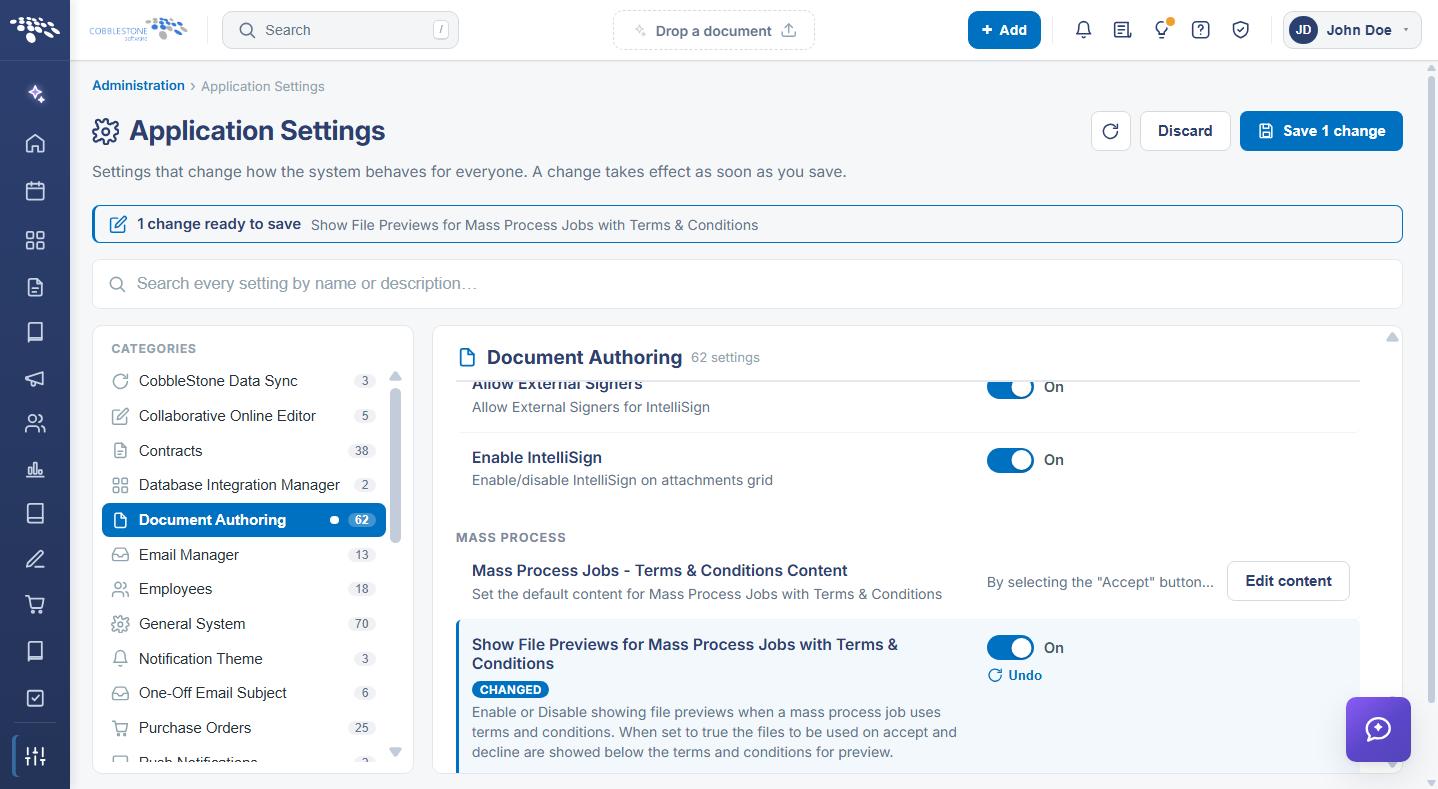
- Show File Previews for Mass Process Jobs with Terms & Conditions — Enables or disables file previews when a mass process job uses terms and conditions. When On, the files used on accept and decline are shown below the terms and conditions for preview. Toggle.
Mass process jobs themselves are run from the Mass Process Jobs administration page, reached from the Administration page under Templates & Presentation.
.png)
9. TIMERS Settings
The TIMERS subsection sets how often the document authoring background jobs run. All three are entered in numeric text boxes:
- Document Authoring Automation Timer — How often the queue is checked for requests to generate documents from templates.
- Document Collaboration Mass Sign Email Timer — How often mass signing job initial participant email alerts are sent, in minutes. Specify 0 to disable.
- Data Aggregator Timer — How often data is imported from the data aggregator service.
The system-wide job frequencies that these timers work alongside are set in the Schedule Manager configuration group, including the Document Authoring Expiration Link Timer and the e-signature document import timers.
.png)
10. Modifying a Document Authoring Setting
Function: Changes the value of a Document Authoring setting for the entire system.
Steps:
- From the Contract Insight homepage, click Administration at the bottom of the left navigation menu. On the Administration page, under Configuration & Fields, select Application Settings, then click Document Authoring in the CATEGORIES rail.
- Locate the setting by name under its subsection heading, or find it using the Search box, and read its description to confirm what the value controls.
- Change the value using the control on the right of the setting row — a toggle, a text box, a numeric text box for the timers and thumbnail count, one of the three dropdowns, or Edit content for the rich-text settings.
- For a rich-text setting, a drawer slides out from the right headed DOCUMENT AUTHORING and the setting name. Edit the content using the editor toolbar, then click Close to return to the settings list.
- The setting is marked with a CHANGED badge, an Undo link appears beneath it, a dot appears beside Document Authoring in the CATEGORIES rail, and a banner at the top of the screen reports how many changes are ready to save.
- Click Save changes in the upper right to commit the change, or Discard to put every changed setting back to its saved value. Undo on the setting row reverts that one setting only.
.png)
11. Related Document Authoring Administration
The Document Authoring group holds the system-wide settings. The templates, clauses, and generated documents themselves are administered on dedicated screens, reached from the Administration page under Templates & Presentation.
The related administration pages are:
- Document Templates — the document (DAC) merge templates
- Mergeable Clauses — the optional clauses offered when generating a document
- Merged Documents — every document generated from a template
- Mass Process Jobs — merging a template across many records, optionally routing for signature
- Watermarks — the document watermarks
External e-signature providers are configured on the External ESign page under Automation & Data, and their authorizations on the OAuth Authorizations page under Security & Access. The Collaborative Online Editor configuration group holds the settings for online document collaboration.
12. Quick Reference Summary
Task | How to Complete It |
Open the group | Homepage → Administration → Configuration & Fields → Application Settings → Document Authoring. |
Choose the signing engine | Signing Engine dropdown — Adobe Acrobat Sign or IntelliSign, then Save changes. |
Skip the tool prompt | E-Sign Tool Default dropdown — AdobeSign, DocJuris, DocuSign, IntelliSign, SignNow, or None. |
Set the signing type | Default Signing Type dropdown — Sign Anywhere or Signature Placeholders. |
Turn on IntelliSign | Enable IntelliSign, then the Allow Employee, Company, and External Signers toggles. |
Turn on IntelliApprove | Enable IntelliApprove, then the Allow Employee, Company, and External Approvers toggles. |
Attach signed files | Auto Attach File on Completed E-Signing toggle, then Save changes. |
Brand the gateway | Gateway Name/Title, the Page Title settings, and Edit content on Header Content. |
Set gateway page content | Edit content on Help Page Content, Privacy Policy Content, and Confidentiality Message. |
Set approval disclaimers | Disclaimer Message for Approvals and Disclaimer Message for Rejections text boxes. |
Show terms and conditions | Terms and Conditions toggle, then Edit content on Terms and Conditions Content. |
Control template alerts | The three Document Template: Notify on … toggles under EMAILS. |
Set document job timing | Document Authoring Automation Timer and Document Collaboration Mass Sign Email Timer. |
Undo a change | Undo on the setting row, or Discard in the upper right, before saving. |