COBBLESTONE SOFTWARE
Contract Insight — User Guide
Collaborative Online Editor
Collaborative Online Editor
Note: Each procedure in this guide begins at the Contract Insight homepage, so any section can be followed on its own. Custom fields are configurable, so the exact field list on a contract category record may vary between environments.
1. Overview
The Collaborative Online Editor lets you and your colleagues edit a record's document together in the browser. In the editor, a collaborative session is called a Joint Document Process. A session is started from the Collaborative edit action on any file in a record's Files / Attachments list (on the Attachments & Templates tab). Starting a session opens the document in the editor, where you can invite colleagues and outside parties to work on it with you; any colleague with edit access can join. While a session is active, the file shows an "In a joint process" badge in the file list, and anyone who clicks Collaborative edit on that file joins the existing session. Each collaborator's edits are tracked in their own color, the editor saves changes as you work, and the session finalizes as a new version of the file when it ends.
2. Key Elements
- Collaborative edit action: the fourth icon in the Actions column of each file row in Files / Attachments; it starts a new session or joins an active one.
- In a joint process badge: shown under the file name of any file with an active session.
- Start a document process? and Join this document process? dialogs: confirm before the editor opens, with Cancel and Start and open / Join and open buttons.
- Editor header: the record name and ID, the file name, avatars of the collaborators currently in the document, the Saved indicator, and the Share, Save, Print, and Help (?) buttons.
- Ribbon tabs: File, Home, Insert, Layout, Review, View, and References, with familiar word-processing tools.
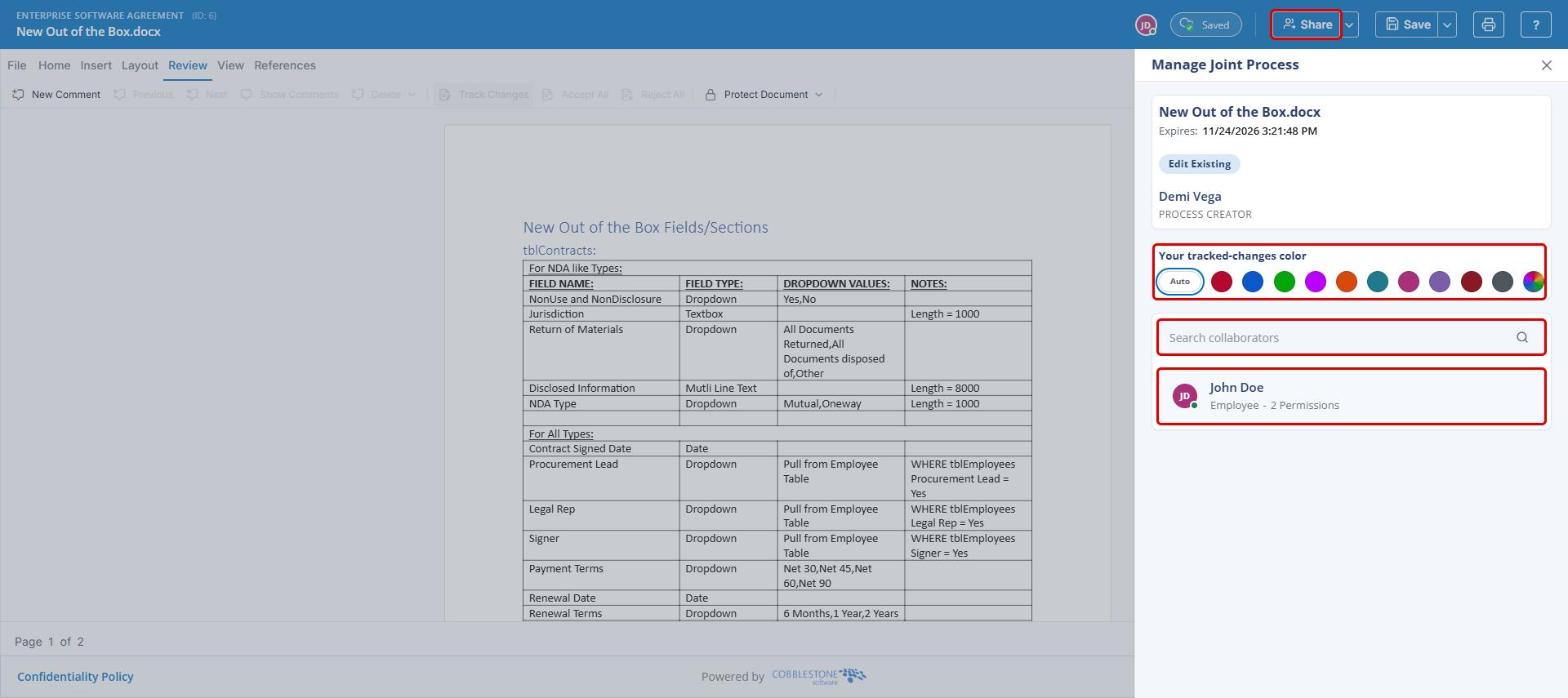
- Manage Joint Process panel: the file name, session expiration date, process type (for example, Edit Existing), the process creator, Your tracked-changes color, Search collaborators, and the list of current collaborators and their permissions.
- Review tab: New Comment, Previous / Next, Show Comments, Track Changes, Accept All / Reject All, and Protect Document.
- Save menu: Save, Save and Return to Record, and Save and End Session.
3. Navigating to a Record's Files
- From the Contract Insight homepage, hover over the Requests/Contracts icon in the left navigation bar.
- Select Contracts.
.jpg)
- Locate the contract (use the Search box to filter the list).
- Click Manage on the contract's row to open the record.
.jpg)
- On the contract record, click the Attachments & Templates tab.
.jpg)
The Files / Attachments section lists every file on the record, with row actions in the Actions column.
4. Starting or Joining a Collaborative Session
4a. Starting a New Session
- Navigate to the record's Files / Attachments list (see Section 3) and locate the file you want to edit.
- Click the Collaborative edit icon in the file's Actions column. Files that already have an active session show the In a joint process badge under the file name; to work on one of those, see Section 4b.
.jpg)
- In the Start a document process? dialog, review the file name and message, then click Start and open. Click Cancel to close the dialog without starting a session.
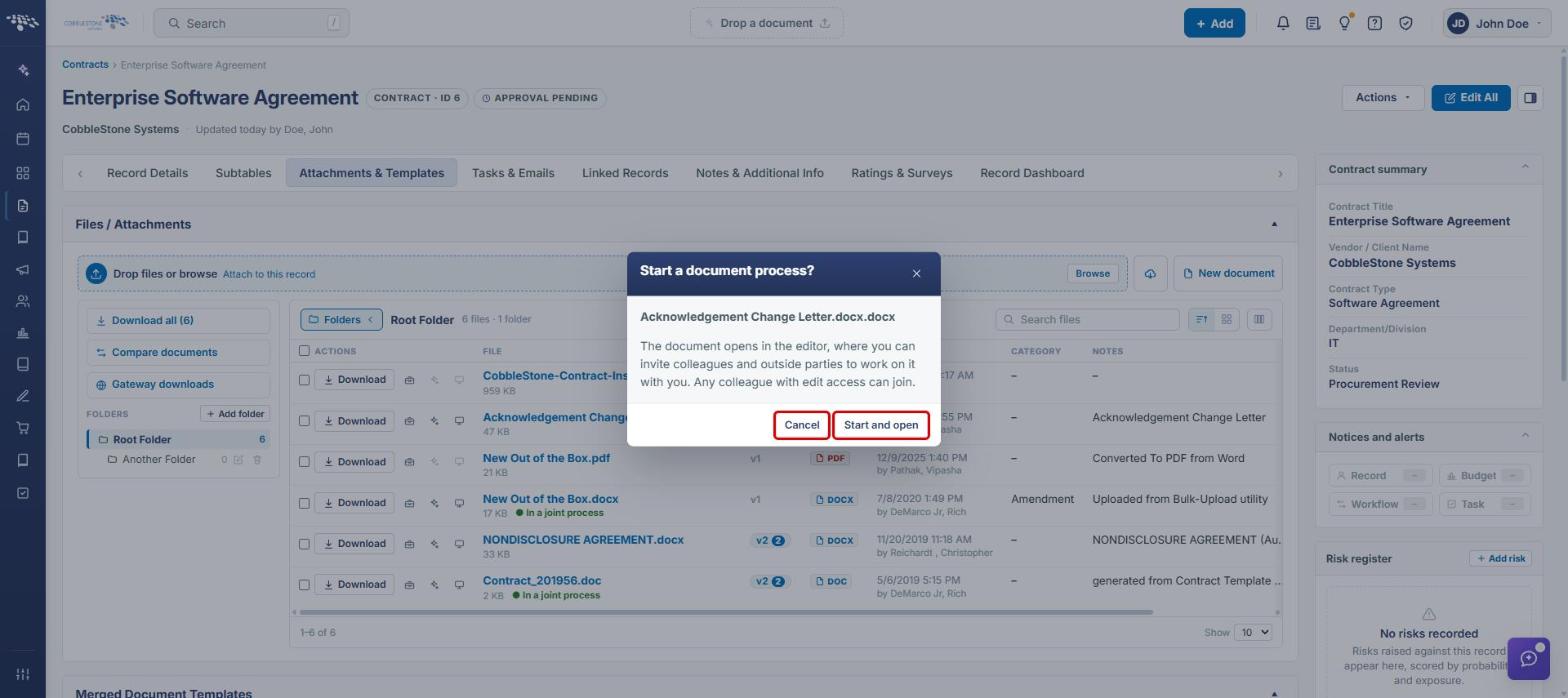
The document opens in the Collaborative Online Editor in a new browser tab, and the file is marked In a joint process in the file list.
4b. Joining an Existing Session
- In the record's Files / Attachments list, locate a file showing the In a joint process badge.
- Click the file's Collaborative edit icon.
- In the Join this document process? dialog, click Join and open.
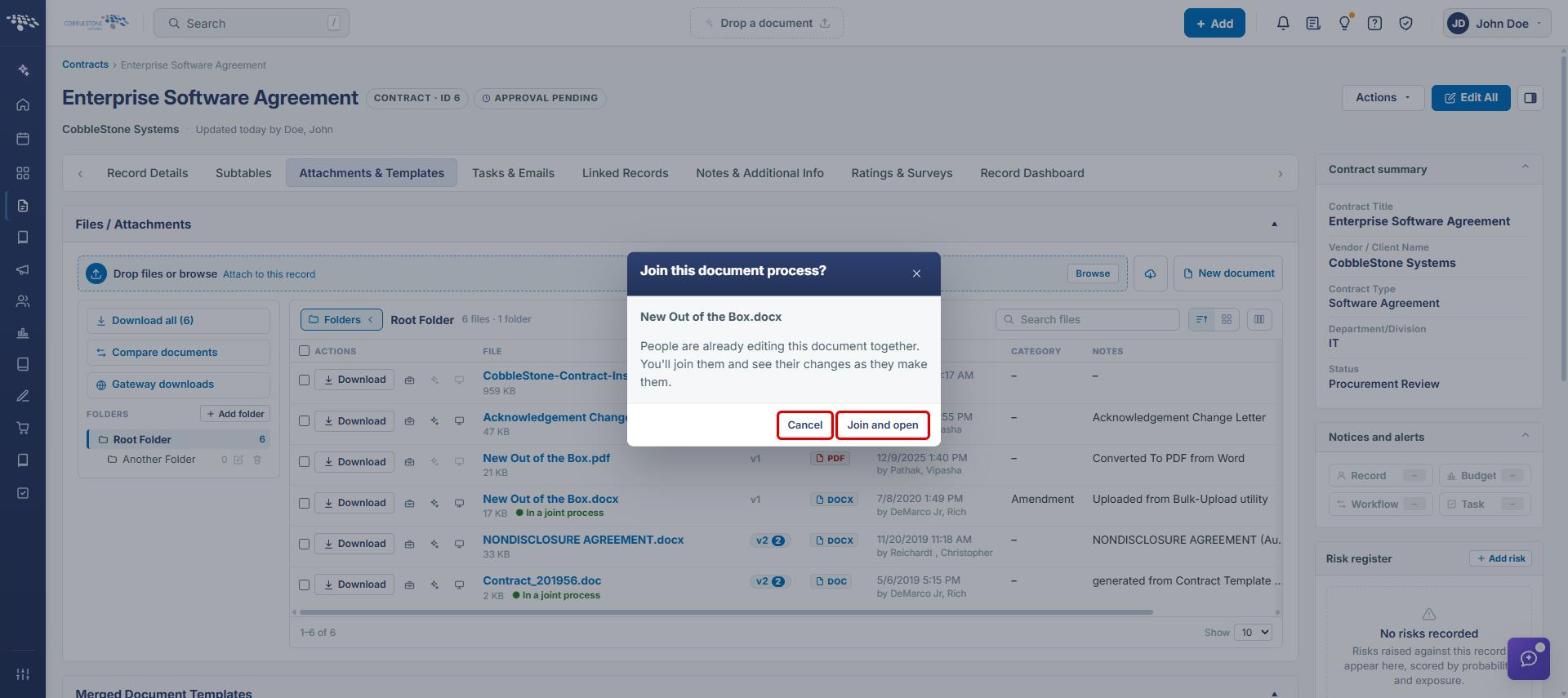
Note: When you join, you work alongside the colleagues already editing the document and see their changes as they make them.
5. Working in the Collaborative Online Editor
5a. Editor Layout
The editor header identifies the record (with its ID) and the file being edited. Collaborator avatars show who is currently in the document, and the Saved indicator confirms that your changes have been saved. Use the ribbon tabs below the header to format and edit the document.
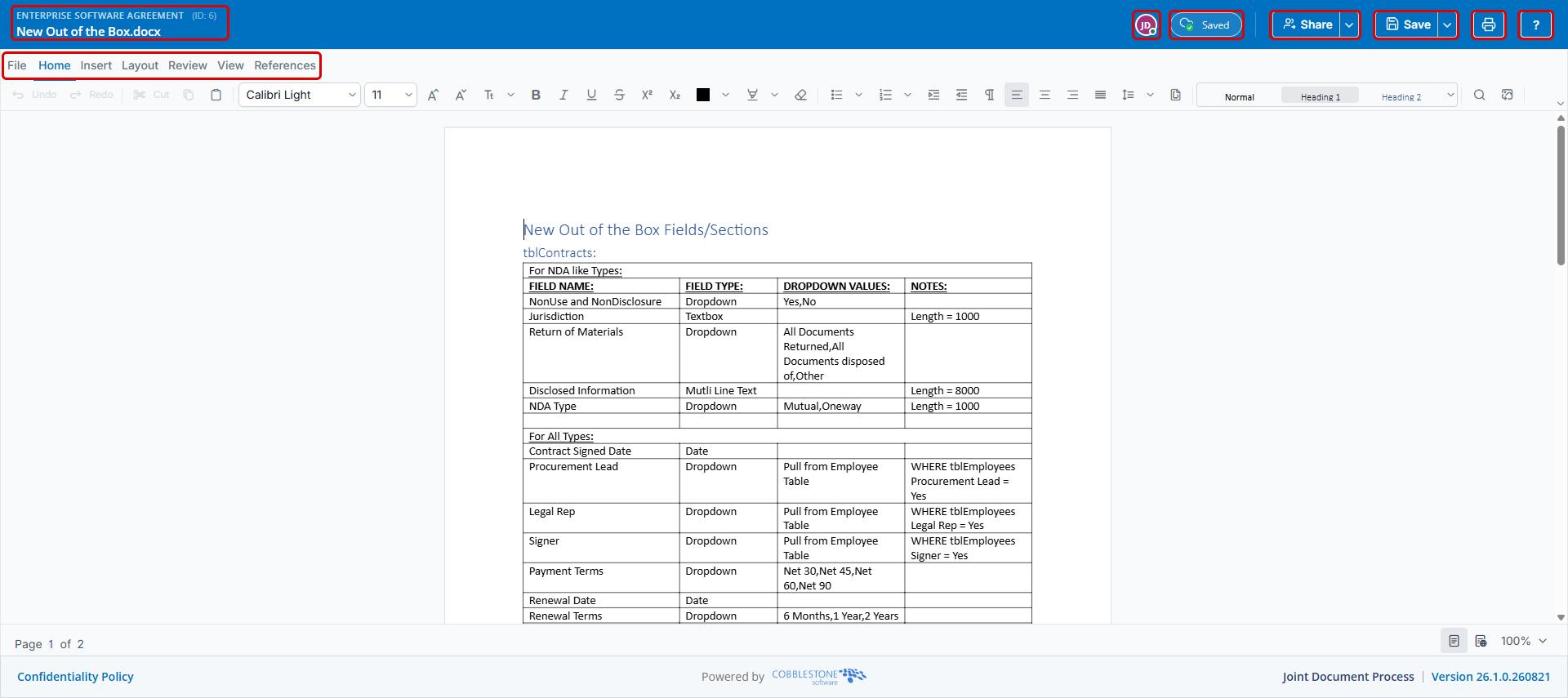
- Share: opens the Manage Joint Process panel (see Section 5b). The arrow next to it also offers Collab Management.
- Save: saves your changes; the arrow next to it opens more save options (see Section 5d).
- Print: prints the document.
- Help (?): opens help for the editor.
5b. Managing Collaborators and Your Tracked-Changes Color
- Click Share in the editor header to open the Manage Joint Process panel.
- Review the session details: the file name, the Expires date, the process type, and the Process Creator.
- Under Your tracked-changes color, keep Auto or select a color. Your edits are highlighted in this color for other collaborators.
- Use Search collaborators to find a colleague and invite them to the document. Current collaborators are listed below the search box with their role and permissions.
- Click the X to close the panel and return to the document.
5c. Comments and Tracked Changes
- Click the Review tab on the ribbon.
- Use New Comment to add a comment at the cursor, and Previous, Next, or Show Comments to move through existing comments.
- Use Track Changes to review collaborators' edits, then Accept All or Reject All to resolve them. Protect Document restricts editing of the document.
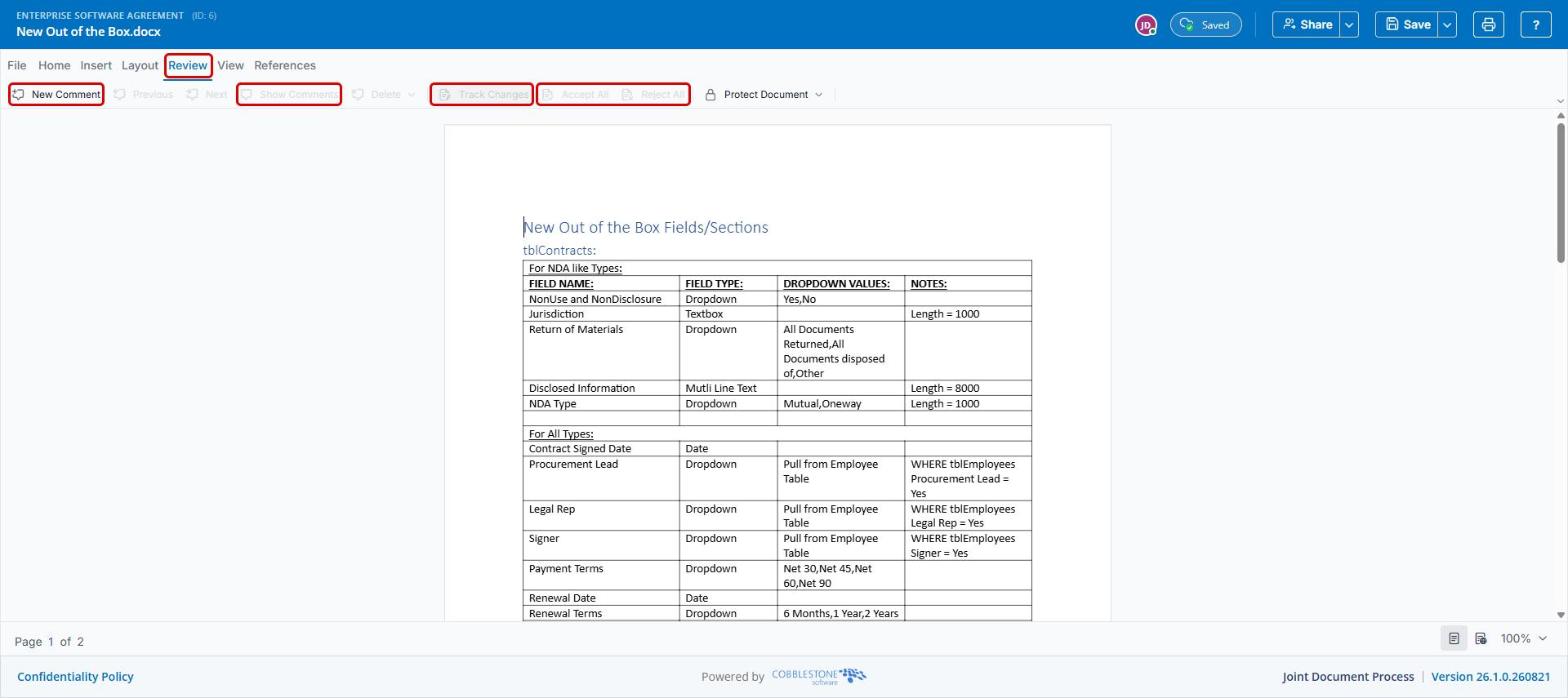
Note: Review buttons are enabled only when they apply; for example, Accept All and Reject All stay grayed out until the document contains tracked changes.
5d. Saving and Ending the Session
- Click the arrow next to Save in the editor header.
- Select one of the following:
- Save: saves your changes and keeps the document open.
- Save and Return to Record: saves your changes and returns you to the contract record.
- Save and End Session: saves your changes and ends the joint process, finalizing the document as a new version of the file.
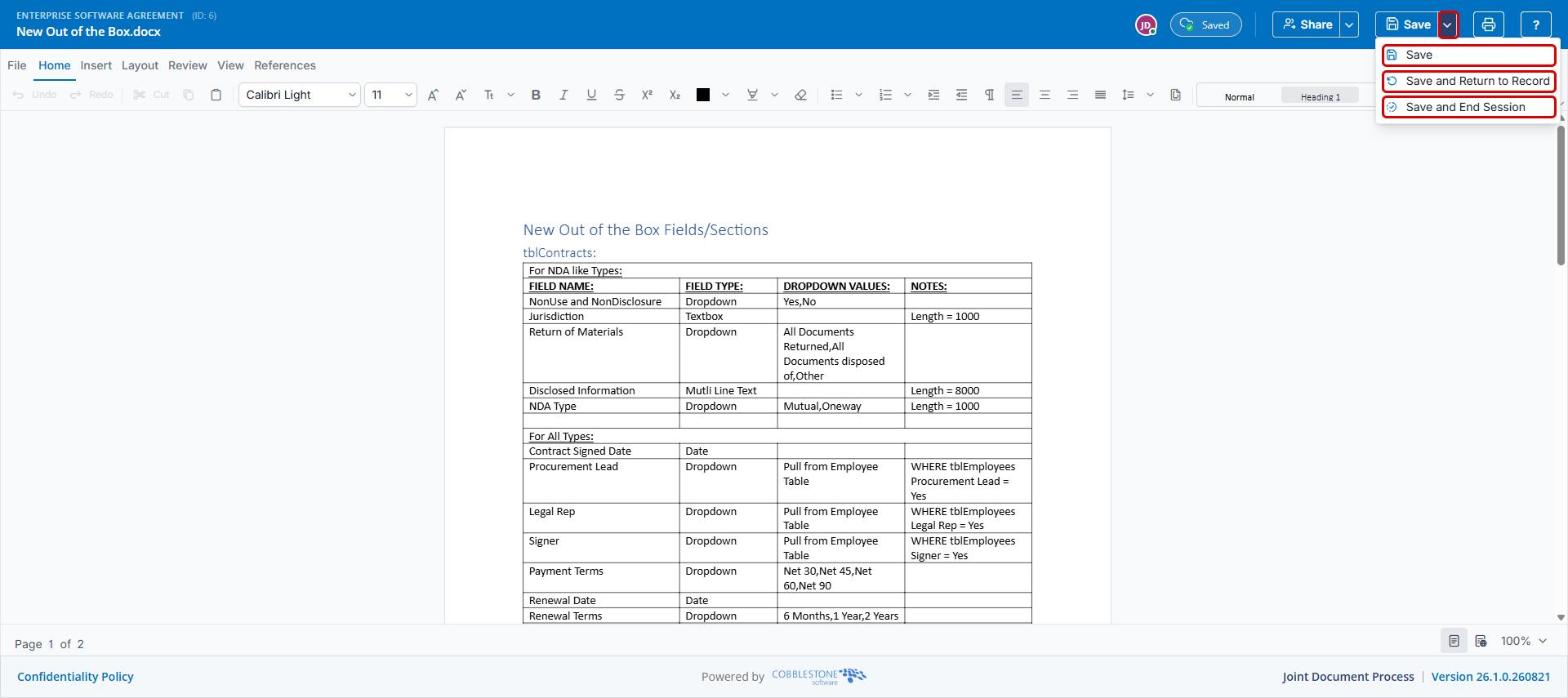
Note: Use Save and End Session only when all collaborators have finished; ending the session closes the joint process for the file.
6. Quick Reference Summary
| Task | How to Complete It |
|---|---|
| Open a record's files | Requests/Contracts → Contracts → Manage → Attachments & Templates tab. |
| Start a collaborative session | Files / Attachments → Collaborative edit icon → Start and open. |
| Join an active session | File with the In a joint process badge → Collaborative edit icon → Join and open. |
| Invite collaborators | Editor → Share → Search collaborators. |
| Change your tracked-changes color | Editor → Share → Your tracked-changes color. |
| Add a comment or review changes | Editor → Review tab → New Comment, Track Changes, Accept All / Reject All. |
| Save and return to the record | Editor → Save arrow → Save and Return to Record. |
| End the session | Editor → Save arrow → Save and End Session. |