COBBLESTONE SOFTWARE
Contract Insight — User Guide
Cloud Drives
04. End User General Information › Header Area and Top & Side Menus › Cloud Drives
Note: Each procedure in this guide begins at the Contract Insight homepage, so any section can be followed on its own. Custom fields are configurable, so the exact field list on a contract category record may vary between environments.
1. Overview
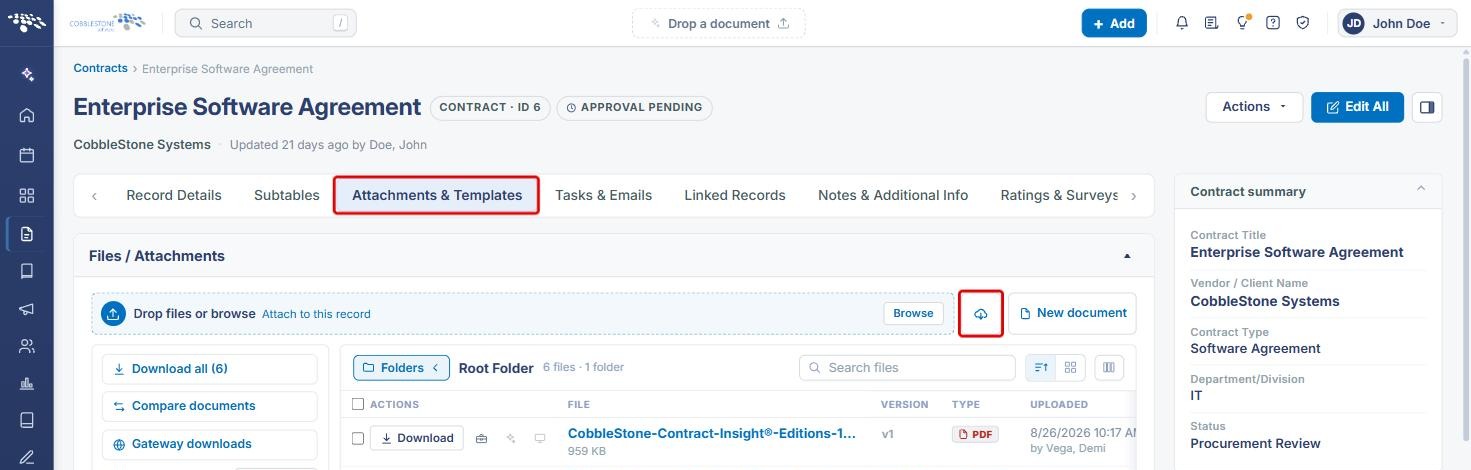
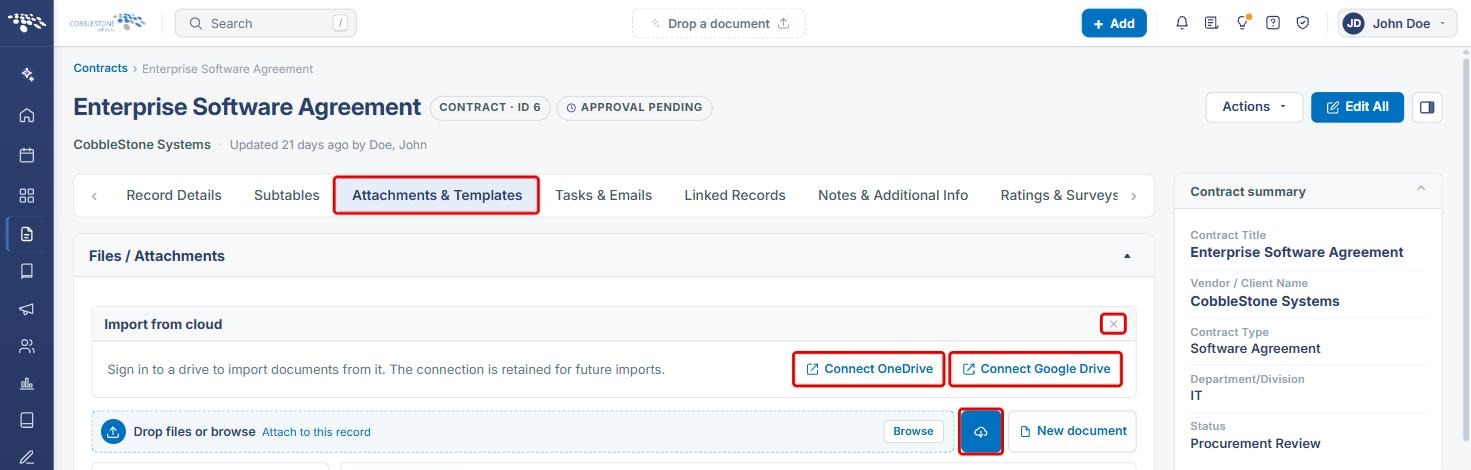
Cloud drives let users bring documents into Contract Insight directly from Microsoft OneDrive or Google Drive, instead of downloading them first and uploading them from their computer. The feature is reached from a record's Attachments & Templates tab: the Import from cloud button next to Browse opens an Import from cloud panel with Connect OneDrive and Connect Google Drive buttons.
The first time a user connects, they sign in to the chosen drive. As the panel states, "the connection is retained for future imports," so later imports do not require signing in again. Cloud drives are not configured from the account menu; that menu holds related personal tools such as My Links and My Pending Files.
2. Key Elements
- Import from cloud button: the cloud icon next to Browse in the Files / Attachments panel of a record's Attachments & Templates tab. Click it again (Cancel import) to close the panel.
- Import from cloud panel: "Sign in to a drive to import documents from it," with Connect OneDrive and Connect Google Drive buttons and a close (x) button.
- Retained connection: once a drive is connected, the connection is kept for future imports.
- Drop files or browse: the standard way to attach files from your computer, shown in the same panel.
3. Navigating to a Record's Attachments
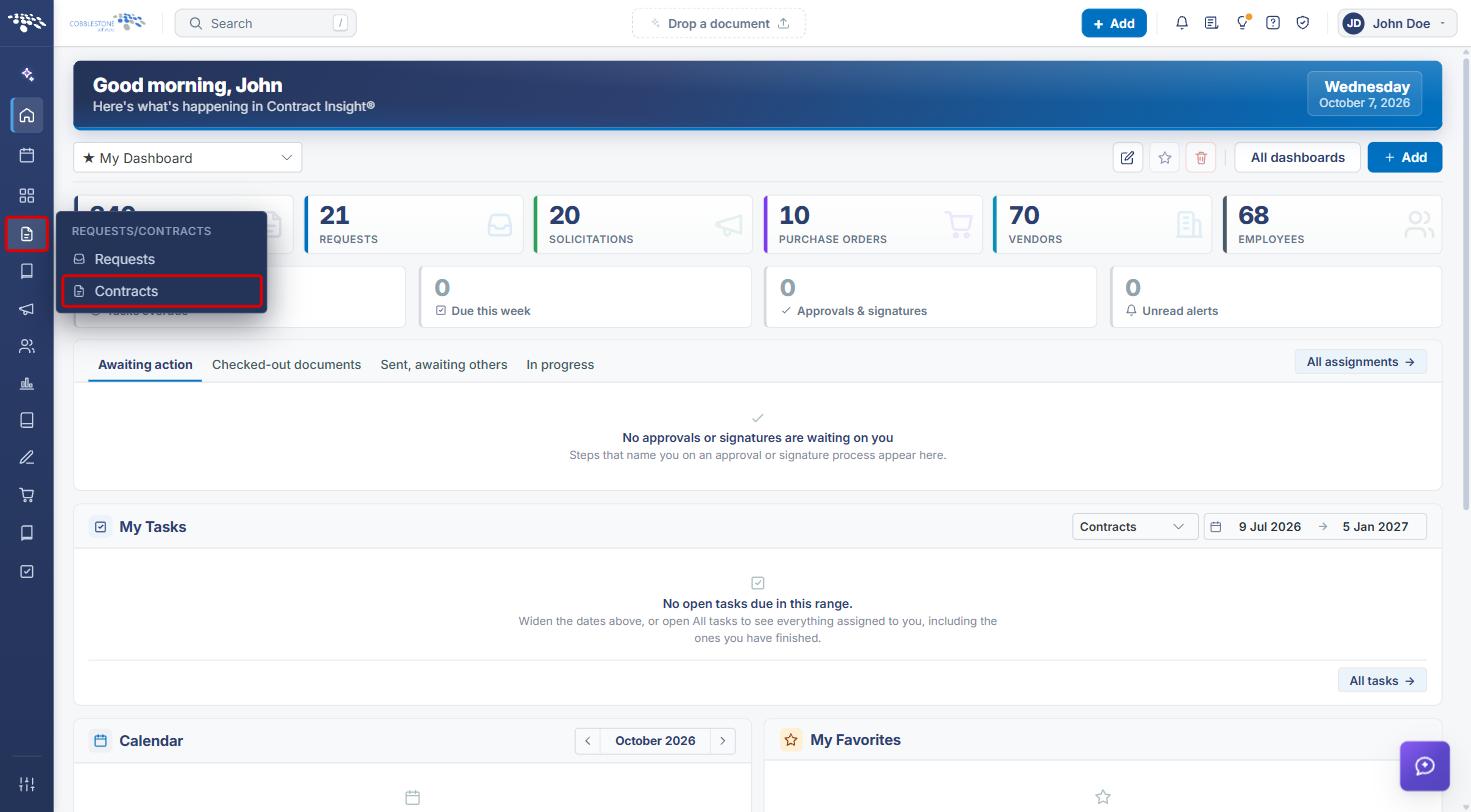
- From the Contract Insight homepage, hover over the Requests/Contracts icon in the left navigation bar and select Contracts.
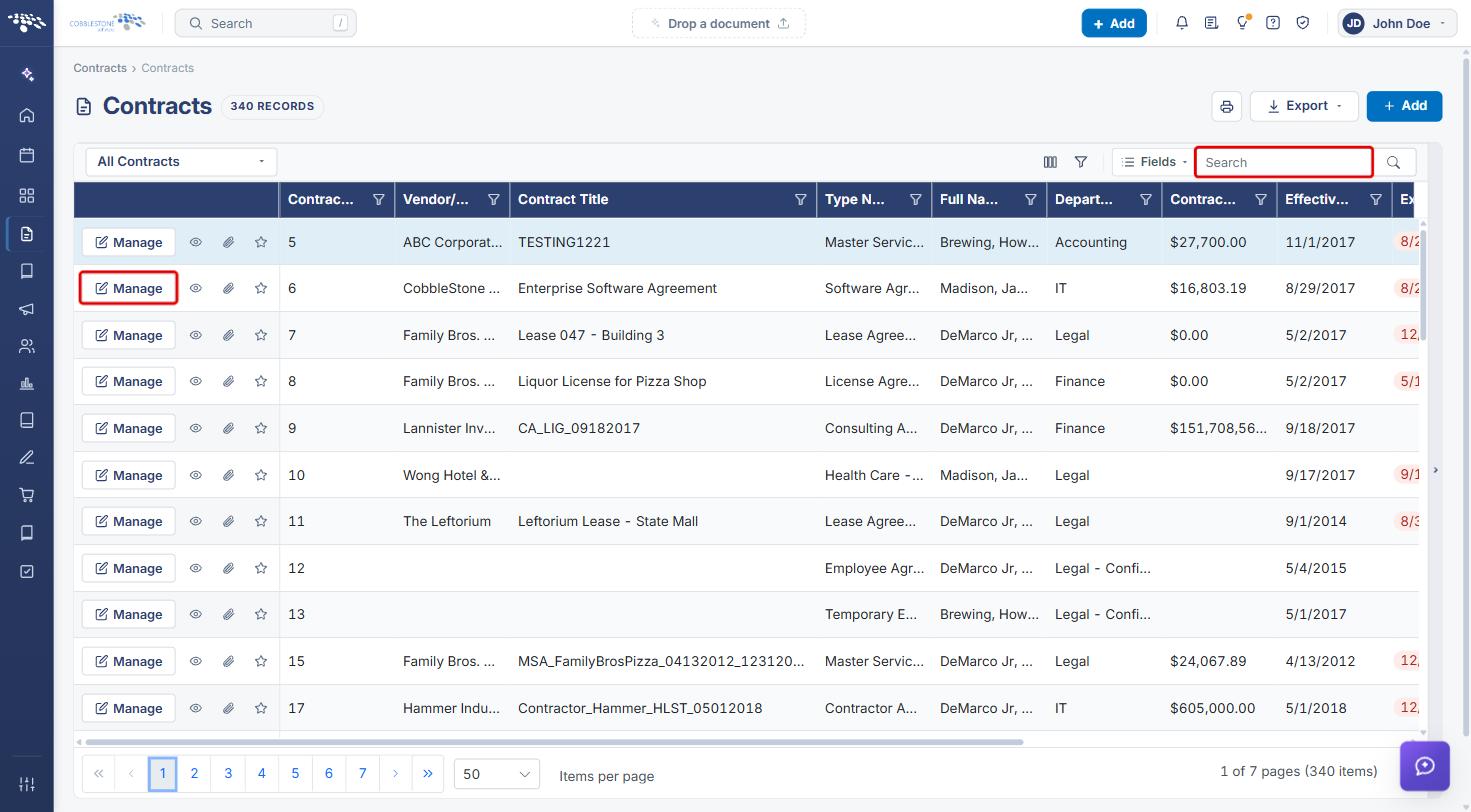
- Locate the record (use the Search box if needed) and click Manage.
- On the record, click the Attachments & Templates tab.
4. Importing a Document from a Cloud Drive
- In the Files / Attachments panel, click the Import from cloud button (the cloud icon next to Browse).
- In the Import from cloud panel, click Connect OneDrive or Connect Google Drive.
- Sign in to the drive in the window that opens and allow access.
- Choose the documents to import. They are attached to the record you opened the panel from.
- To close the panel without importing, click the x in the panel header or click the cloud button again (Cancel import).
Note: The drive connection is retained for future imports, so you only need to sign in the first time. If the Connect buttons are not available, check with your administrator that cloud drive access is enabled for your organization.
5. Quick Reference Summary
| Task | Where / How |
|---|---|
| Open the cloud import panel | Record › Attachments & Templates › Import from cloud (cloud icon next to Browse) |
| Connect OneDrive | Import from cloud › Connect OneDrive › sign in |
| Connect Google Drive | Import from cloud › Connect Google Drive › sign in |
| Close the panel | x in the panel header, or the cloud button (Cancel import) |
| Attach a file from your computer instead | Drop files or browse › Browse |