COBBLESTONE SOFTWARE
Contract Insight — User Guide
Changing Work Spaces
04. End User General Information › Header Area and Top & Side Menus › Changing Work Spaces
Note: Each procedure in this guide begins at the Contract Insight homepage, so any section can be followed on its own. Custom fields are configurable, so the exact field list on a contract category record may vary between environments.
1. Overview
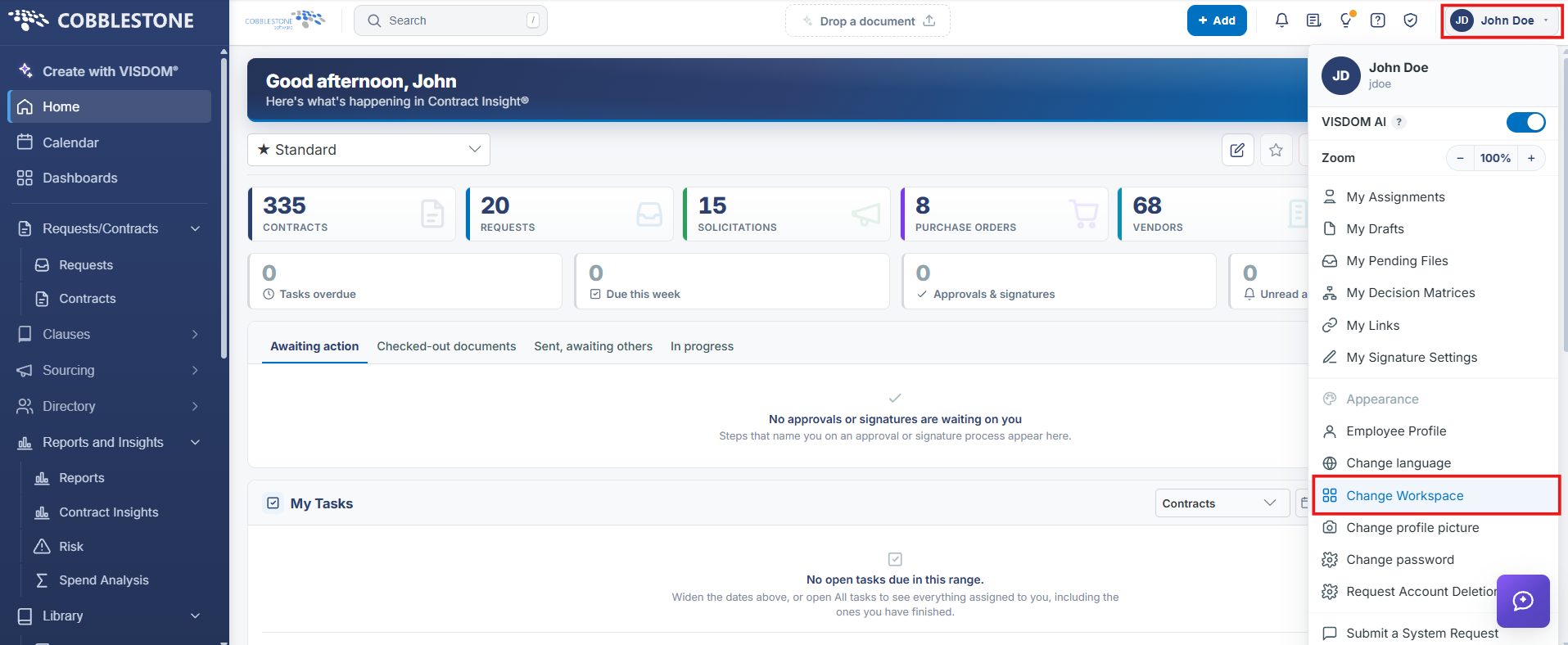
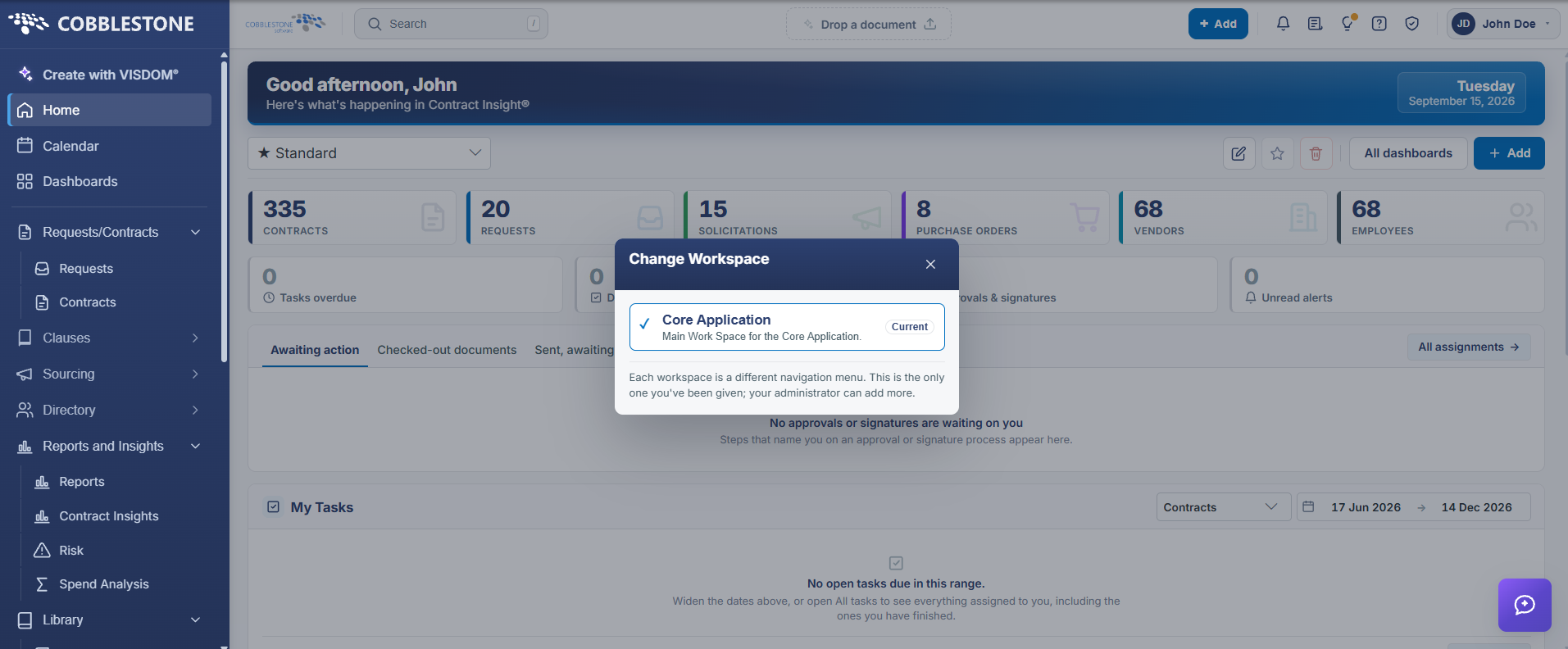
Change Workspace, in the account menu (click the user name/avatar in the top-right), opens a modal listing every work space an administrator has made available to the signed-in user, each with a name, a one-line description of who it's for, and a checkmark on whichever one is Current. In this QA environment three work spaces are configured: Core Application ("Main Work Space for the Core Application"), Purchasing Menu ("Main Work Space for e-Sourcing and PO User Type"), and Requester ("Main Work Space for Requester User Type"). The modal's own description sums it up: "Each workspace is a different navigation menu. Your administrator chooses which ones you can use." Selecting a different work space swaps the entire side-menu navigation to that role's configured set of top-level items without logging out.
2. Key Elements
- Account menu > Change Workspace opens a modal listing every work space available to the user, with the current one marked.
- This QA environment has three: Core Application, Purchasing Menu (e-Sourcing/PO users), and Requester.
- Switching swaps the side-menu navigation to that work space's configured items; which work spaces a user can access is set by an administrator.