COBBLESTONE SOFTWARE
Contract Insight — User Guide
Document Packages Without E-Approvals/Signatures
Document Templates: Generation/Merging › Generated Document Packages Without E-Approvals & E-Signatures › Document Packages Without E-Approvals/Signatures
Note: Each procedure in this guide begins at the Contract Insight homepage, so any section can be followed on its own. Custom fields are configurable, so the exact field list on a contract category record may vary between environments.
1. Overview
A document package can be generated and used without any approval or signature routing. Whether a template routes its generated documents is set on step 3. Approvals & signing of the template editor, which has separate E-Approvals and E-Signatures tabs. Each tab has its own Enabled checkbox. When both are unchecked, the page states that the flow “isn't copied onto generated documents,” even if approval groups or signature steps are configured underneath.
Packages generated from such a template are added to the record's Saved documents list with no approval flow and no template signers. You can download, manage, or share them right away, or add signers manually if a signature is needed later.
2. Key Elements
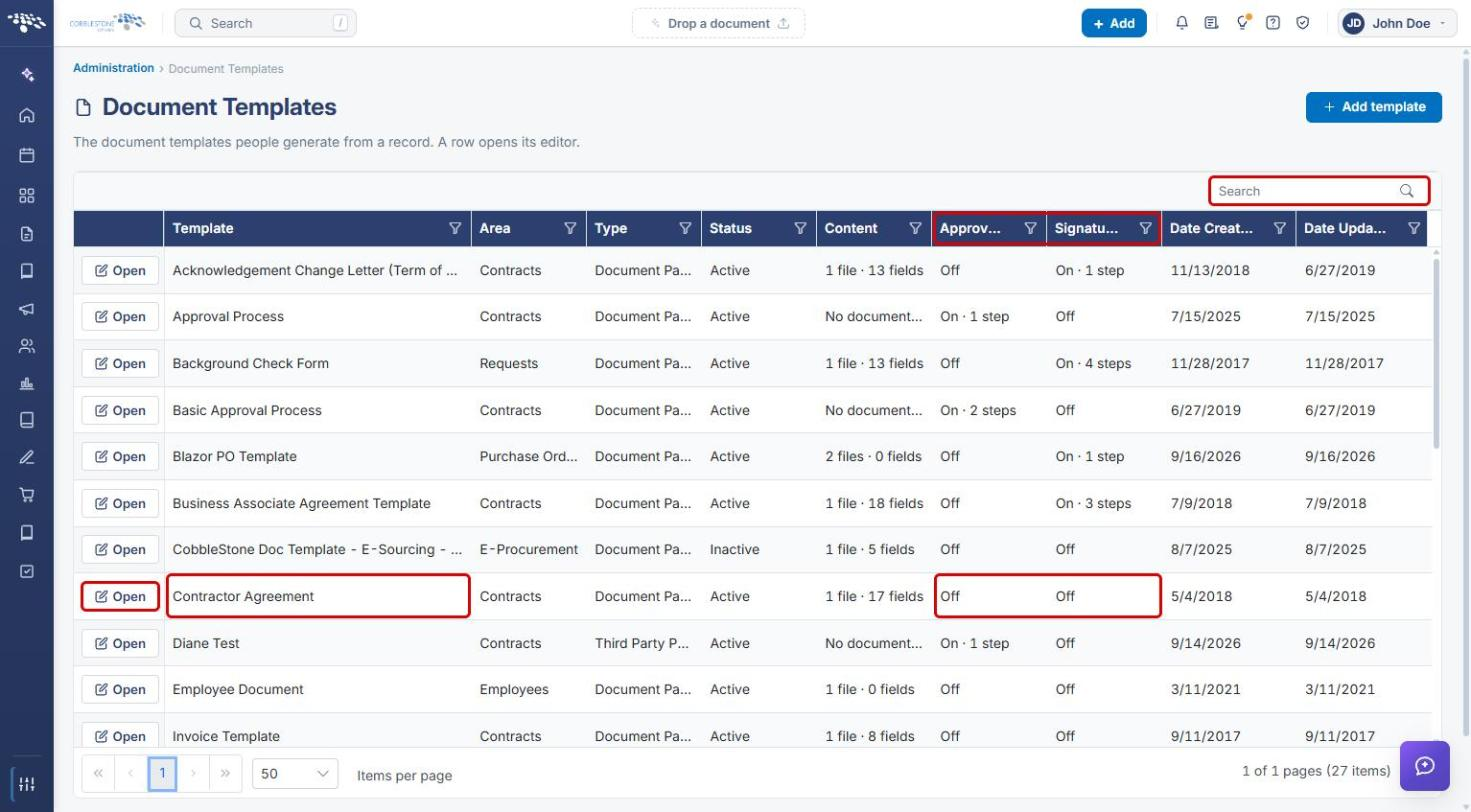
- Document Templates list: the Approvals and Signatures columns read Off for templates that don't route their documents (for example, Contractor Agreement, Invoice Template, and Invoicing Template (Sub) in QA).
- E-Approvals tab: Use E-Approvals (Enabled checkbox), Approval process, and Save approval settings.
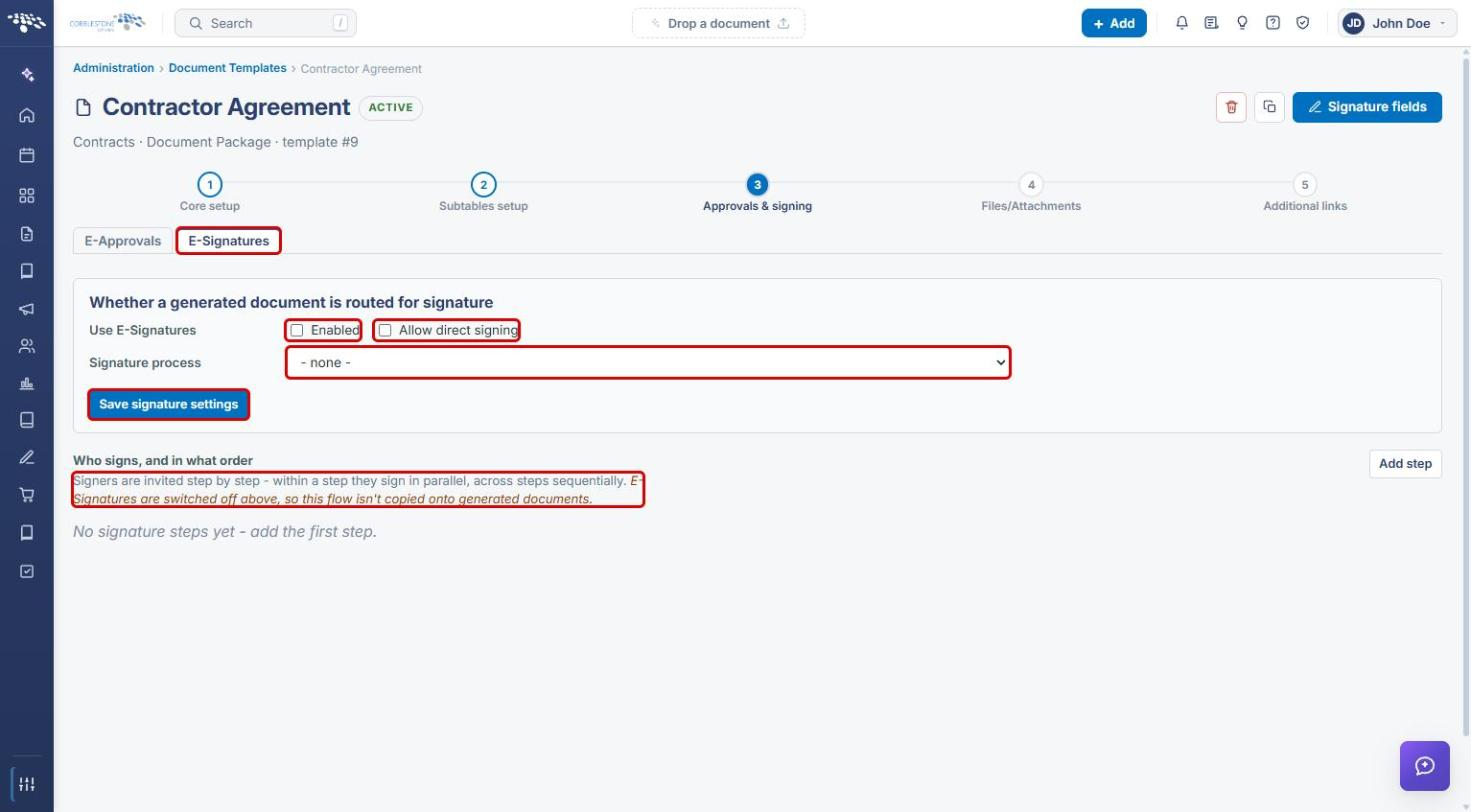
- E-Signatures tab: Use E-Signatures (Enabled and Allow direct signing checkboxes), Signature process (defaults to “- none -”), and Save signature settings.
- The two settings are independent. Leaving a checkbox unchecked means that flow is not copied onto generated documents.
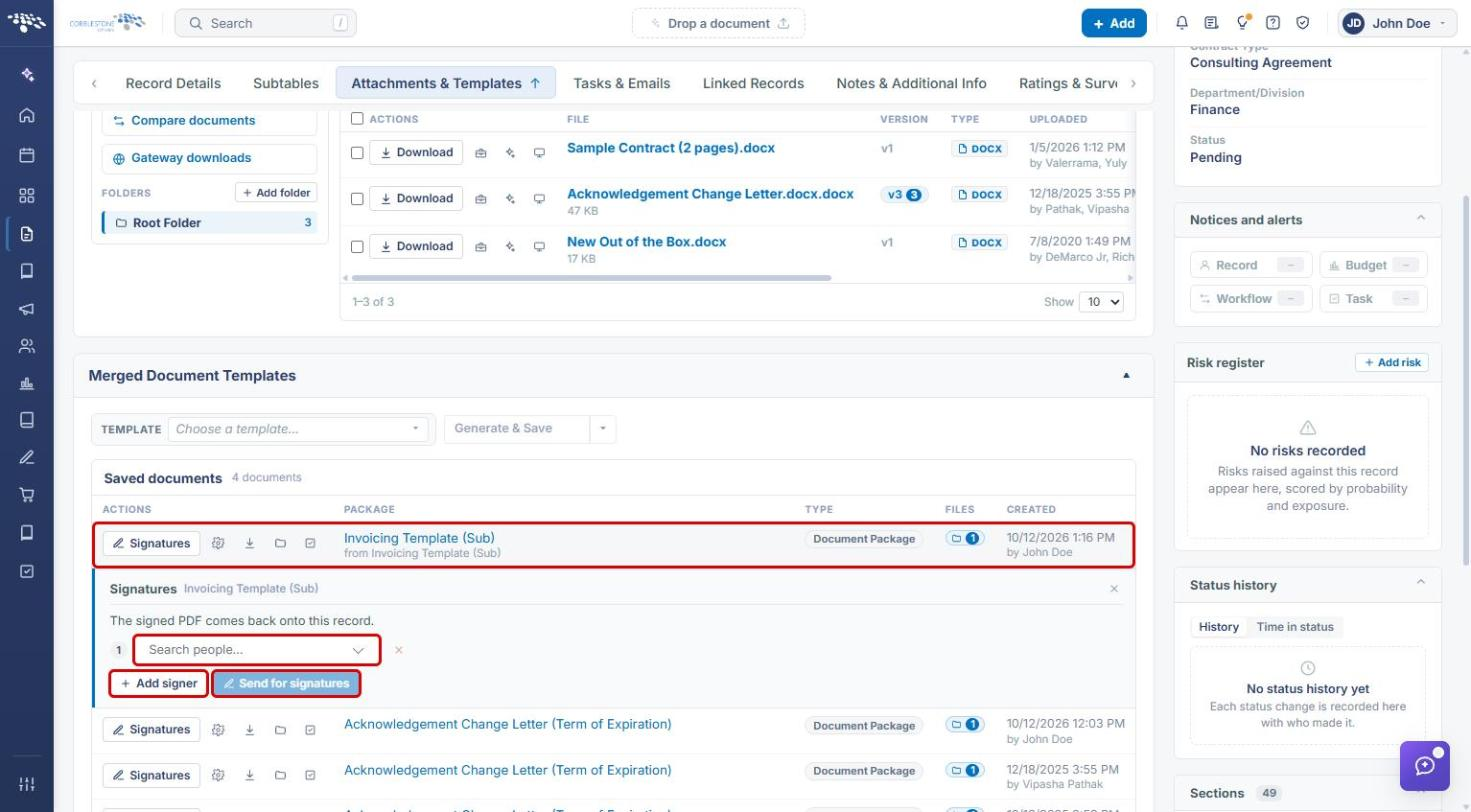
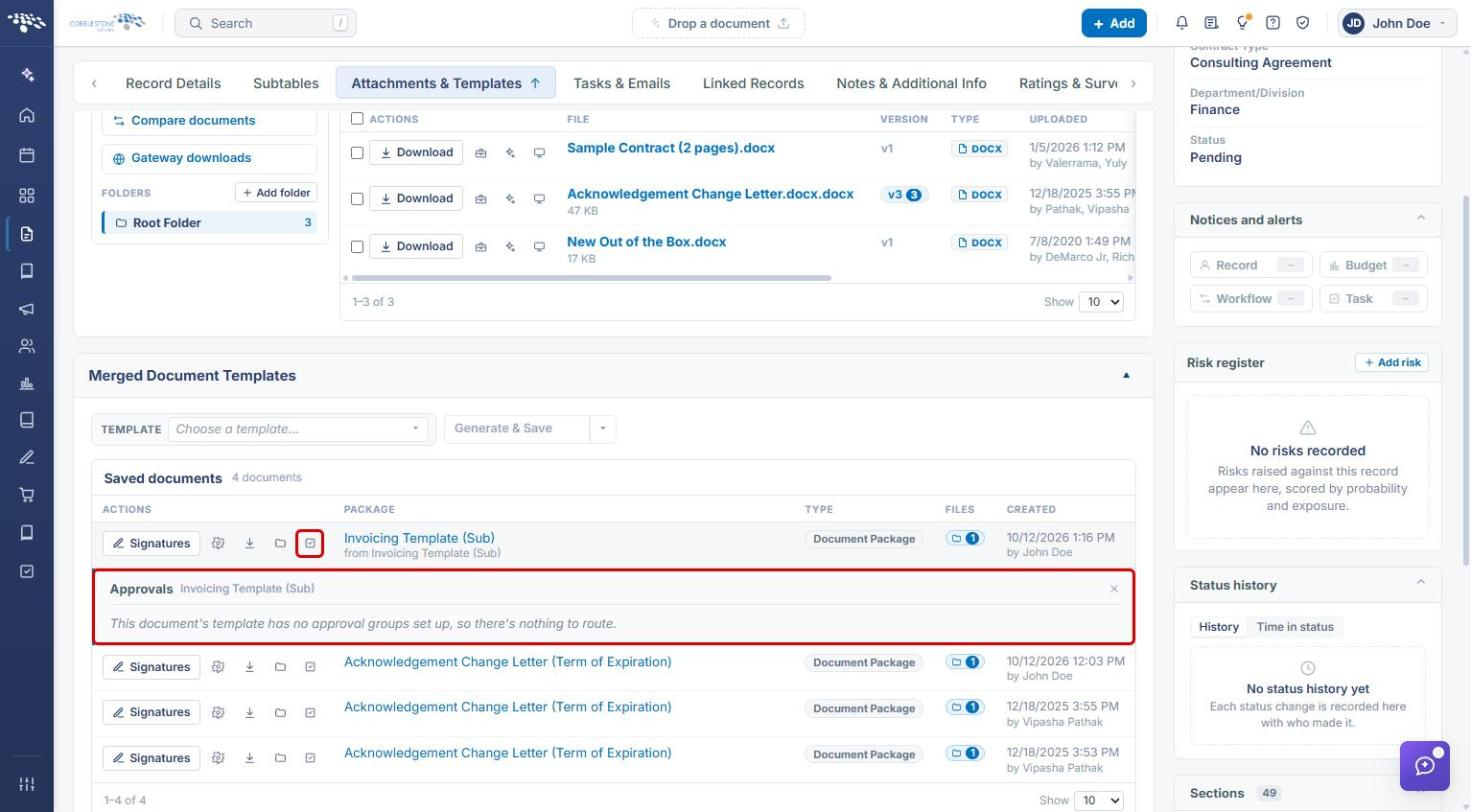
- Saved documents: a package generated with both settings off shows an empty Signatures panel (Add signer / Send for signatures) and an Approvals panel stating there is nothing to route.
3. Identifying Templates Without Approvals or Signatures
- From the Contract Insight homepage, click the Administration icon at the bottom of the left navigation bar.
- Search for and open Document Templates.
- Review the Approvals and Signatures columns. Templates showing Off in both generate documents with no routing. Use the Search box to find a specific template, and click Open to view its settings.
4. Turning Off E-Approvals and E-Signatures for a Template
4a. E-Approvals
- Open the template (see Section 3) and click step 3. Approvals & signing.
- On the E-Approvals tab, uncheck Use E-Approvals (Enabled).
- Click Save approval settings.
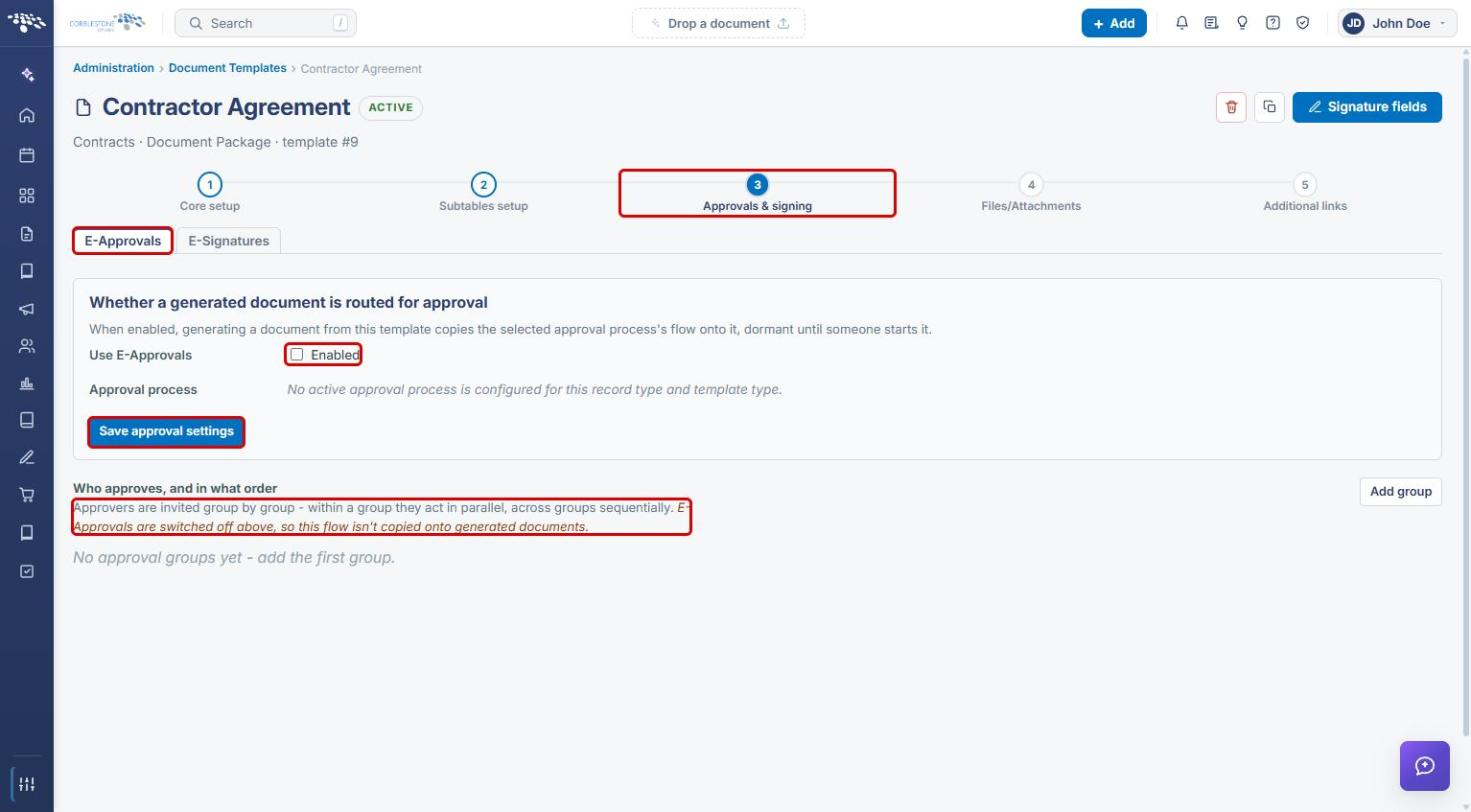
The Who approves, and in what order section now reads “E-Approvals are switched off above, so this flow isn't copied onto generated documents.” Any groups listed there are kept but not used.
4b. E-Signatures
- Click the E-Signatures tab.
- Uncheck Use E-Signatures (Enabled). Leave Allow direct signing unchecked and Signature process set to “- none -”.
- Click Save signature settings.
Note: E-Approvals and E-Signatures are independent. A template can have approvals on and signatures off, or the reverse. This article covers templates with both turned off.
5. Generating a Package Without Approvals or Signatures
- From the Contract Insight homepage, open the record (for example, Requests/Contracts → Contracts → Manage) and click the Attachments & Templates tab.
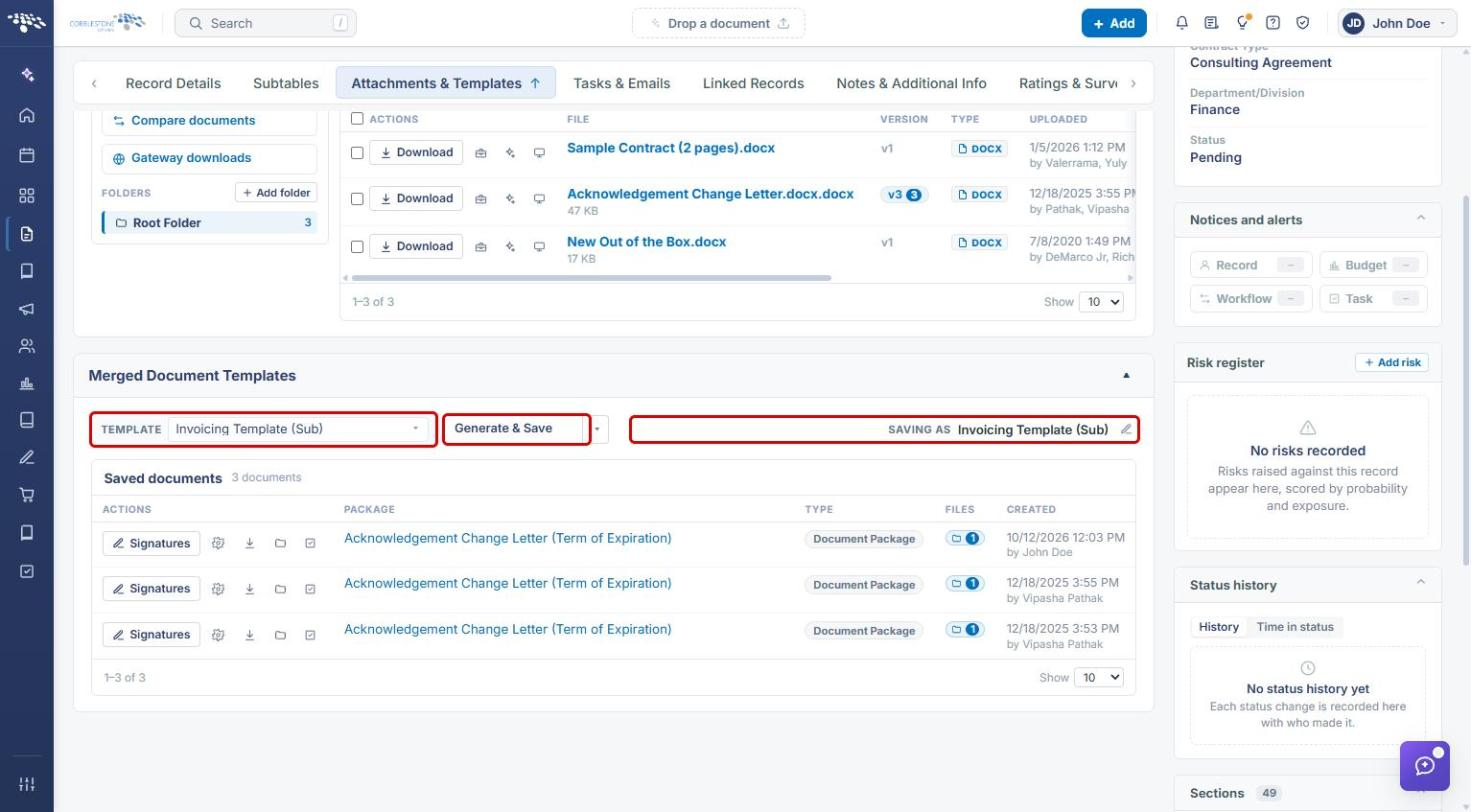
- In Merged Document Templates, click the TEMPLATE control and select a template whose approvals and signatures are off.
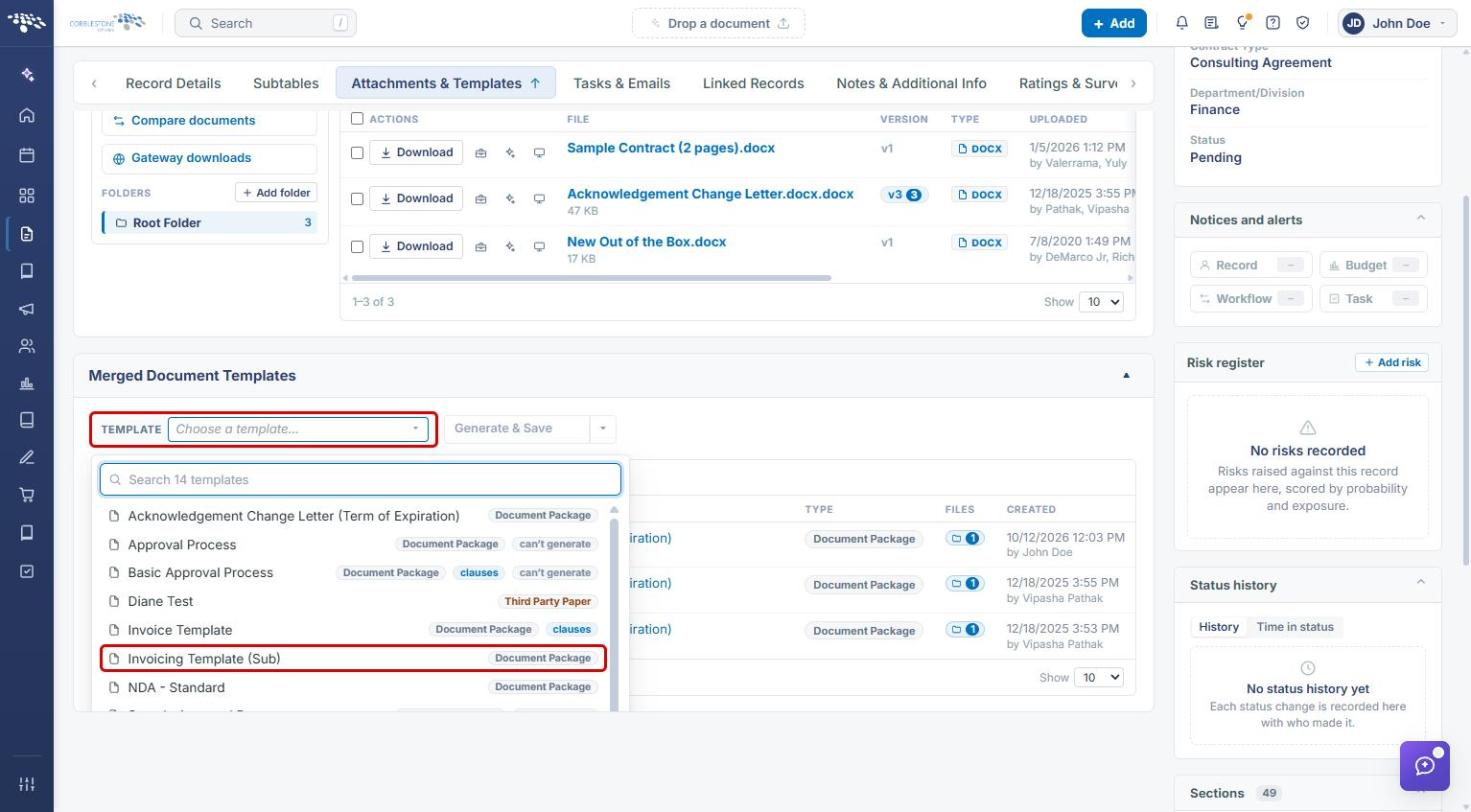
- Review the SAVING AS name and click Generate & Save.
See Generate New Document Package for more detail on generating packages.
6. Working With the Generated Package
- The new package appears at the top of Saved documents. A Signatures panel opens beneath it with no signers, because none come from the template. Nothing is sent unless you add signers.
- If a signature is needed after all, use Search people… and Add signer to build the signer list, then click Send for signatures. Otherwise close the panel with the × icon.
- Click the Approvals (checklist) icon on the package's row. The panel reads “This document's template has no approval groups set up, so there's nothing to route.”
Use the other row actions (Manage, Download, and Files) to work with the package. See Manage Generated Document Package for details.
7. Quick Reference Summary
| Task | How to Complete It |
|---|---|
| Find templates with no routing | Administration → Document Templates → Approvals and Signatures columns show Off. |
| Turn off e-approvals | Template → 3. Approvals & signing → E-Approvals → uncheck Use E-Approvals → Save approval settings. |
| Turn off e-signatures | Template → 3. Approvals & signing → E-Signatures → uncheck Use E-Signatures → Save signature settings. |
| Generate the package | Record → Attachments & Templates → TEMPLATE → select template → Generate & Save. |
| Add signers manually (optional) | Package's Signatures panel → Add signer → Send for signatures. |
| Confirm no approval routing | Package row → Approvals icon. |