COBBLESTONE SOFTWARE
Contract Insight — User Guide
Adding a Contract Attachment
07. End Users - Contracts › Contract Attachments › Adding a Contract Attachment
Note: Each procedure in this guide begins at the Contract Insight homepage, so any section can be followed on its own. Custom fields are configurable, so the exact field list on a contract category record may vary between environments.
1. Overview
A contract's Attachments & Templates tab has a Drop files or browse zone at the top of its Files / Attachments panel. Drag one or more files onto it, or click Browse to pick them from your computer, and they attach directly to that record. Next to the drop zone, the cloud button imports files from OneDrive or Google Drive, and New document drafts a document and attaches it to the record.
Below the drop zone, the Folders panel shows the record's folder structure (Root Folder plus any subfolders, each with a file count), and the file list shows every attached file with its name, size, Version, Type and Uploaded date and uploader. The same panel offers Download all and Compare documents.
2. Key Elements
- Drop files or browse: drag files onto this zone, or click Browse, to attach them to the record.
- Import from cloud (cloud icon) and New document: alternative ways to add a document, next to the drop zone.
- Folders: the Folders button above the file list shows or hides the folder panel, where you can select Root Folder or a subfolder, or click Add folder to create one.
- File list: each file's name and size, Version (with a badge showing how many versions exist), Type (PDF, DOCX, DOC and so on) and Uploaded date and uploader. Use Search files to find a file.
- Download all and Compare documents: download every attachment on the record at once, or compare two attached documents.
3. Navigating to a Contract's Attachments
- From the Contract Insight homepage, hover over the Requests/Contracts icon in the left navigation bar and select Contracts.
.jpg)
- Locate the contract (use the Search box if needed) and click Manage.
.jpg)
4. Adding an Attachment
- On the contract, click the Attachments & Templates tab.
- To add the file to a specific folder, select that folder (for example, Another Folder) in the Folders panel. If the panel is hidden, click Folders above the file list. To create a new folder first, click Add folder.
- Drag one or more files from your computer onto the Drop files or browse zone, or click Browse and select the files.
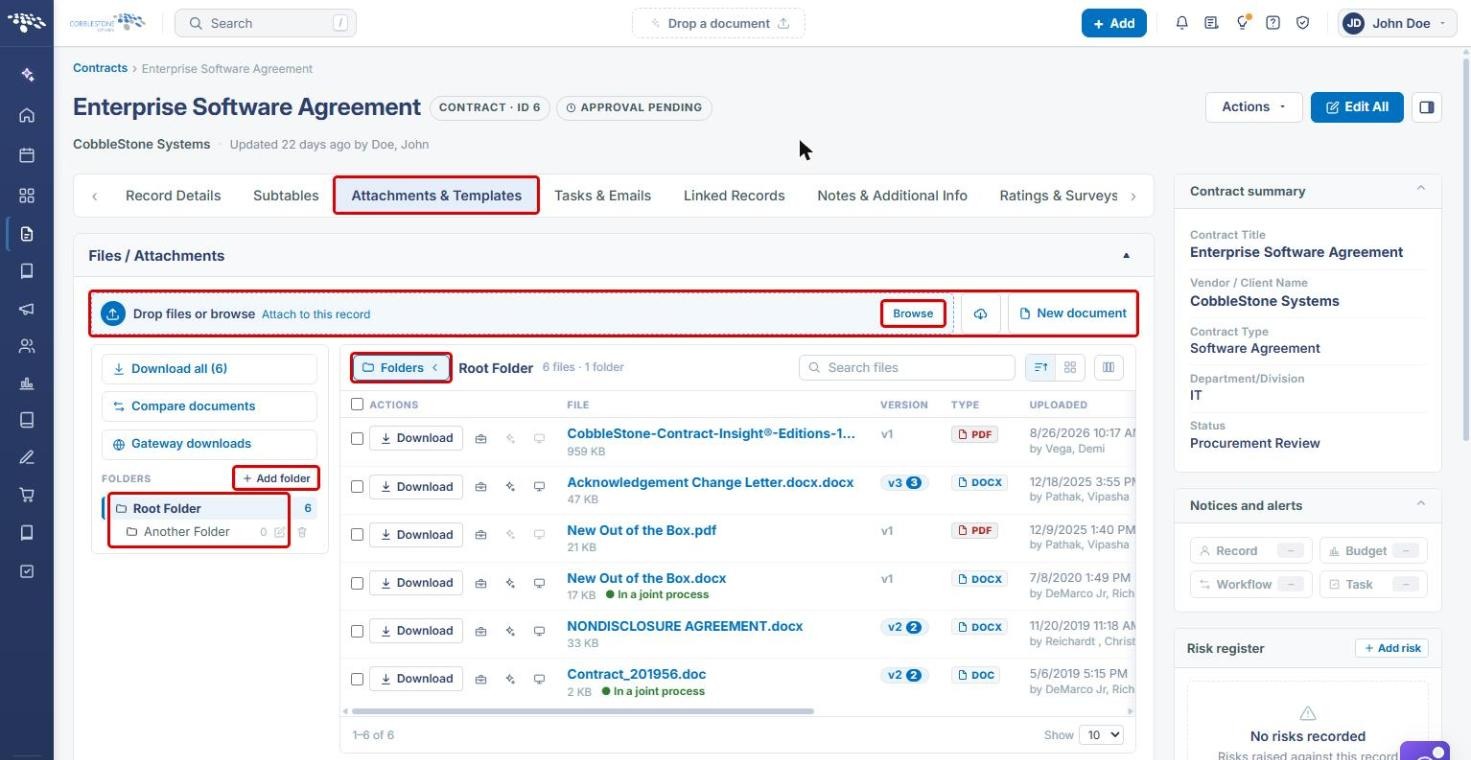
Tip: To bring in a file from OneDrive or Google Drive instead, click the cloud button next to Browse (see the Cloud Drives article). To draft a new document directly on the record, click New document.
5. Reviewing Attached Files
- Check that the new file appears in the file list with its Version, Type and Uploaded date and uploader.
- Use Search files to find a file quickly when the record has many attachments.
- Click Download all to download every attachment on the record, or Compare documents to compare two of them.
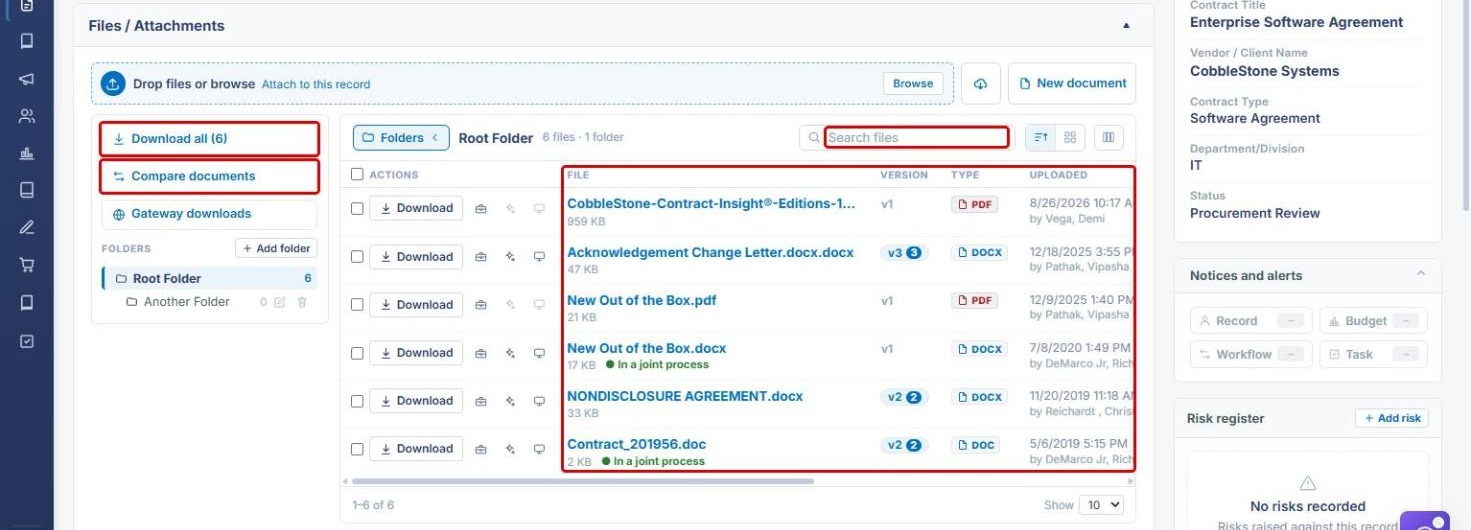
Note: A version badge (for example, v3 with a count) shows that a file has more than one saved version.
6. Quick Reference Summary
| Task | Where / How |
|---|---|
| Open a contract's attachments | Requests/Contracts › Contracts › Manage › Attachments & Templates |
| Attach files from your computer | Drag onto Drop files or browse, or click Browse |
| Attach to a specific folder | Select the folder in the Folders panel, then drop or browse |
| Create a folder | Folders panel › Add folder |
| Import from a cloud drive | Cloud button next to Browse |
| Find or download files | Search files, or Download all |