Assign Additional Vendors/Companies to a Contract
Contracts: Additionally Assigned: Adding/Assigning Additional Companies
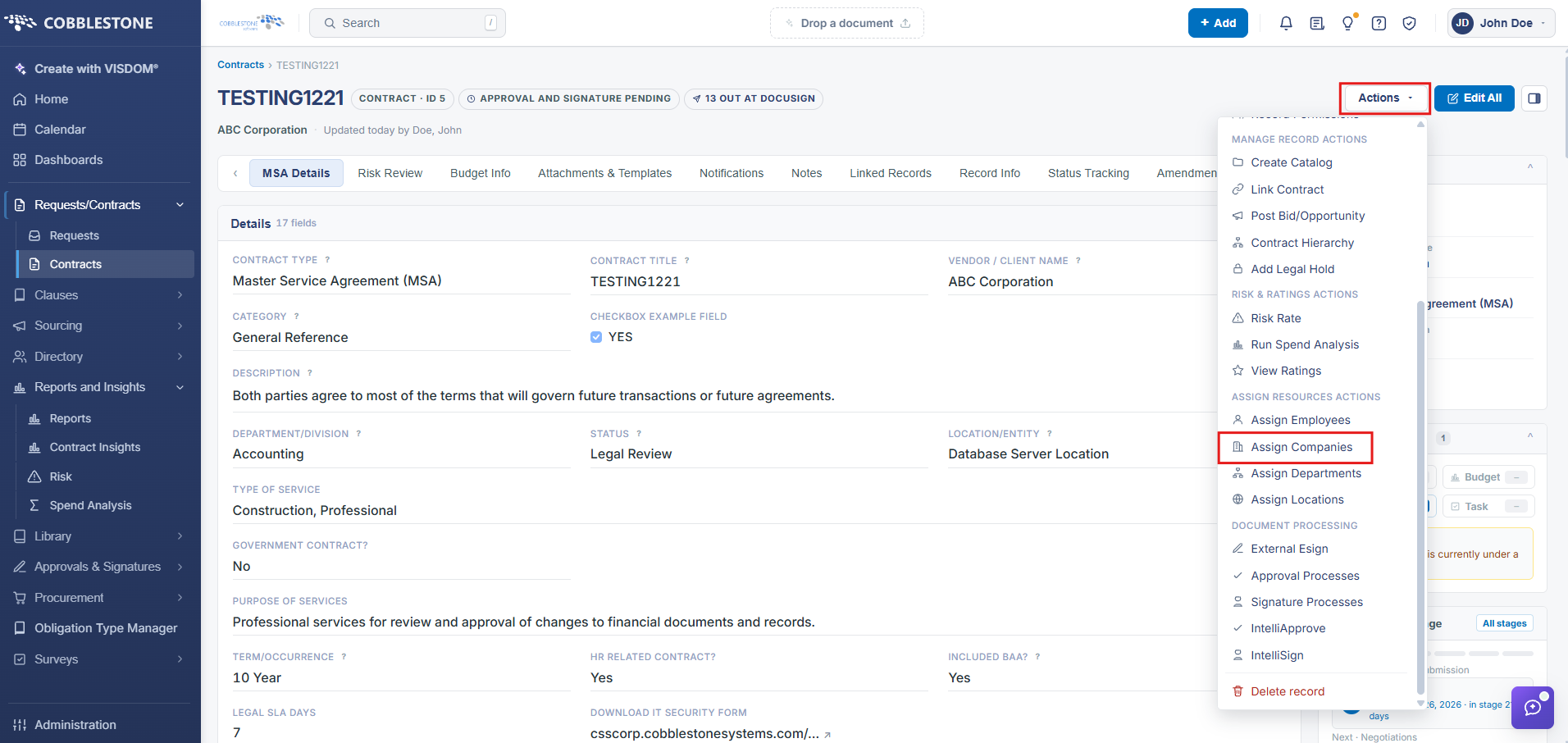
Beyond the contract's primary Vendor / Client Name, other companies or parties can be tied to the record — subcontractors or other interested organizations, for example. The Companies / Other Parties section of the Additional Parties, Locations, Departments panel lists every company currently assigned with an Add company button to attach more, and the same function is available from Actions → Assign Companies (Assign Resources Actions group).
- Vendor / Client Name remains the contract's primary company field
- Companies / Other Parties section lists every additional company or party assigned
- Add company attaches another company or party
- Actions → Assign Companies (Assign Resources Actions group) offers the same function
1. On the Contract Details screen, click the Actions dropdown > Assign Companies
2. The Assign Companies screen displays.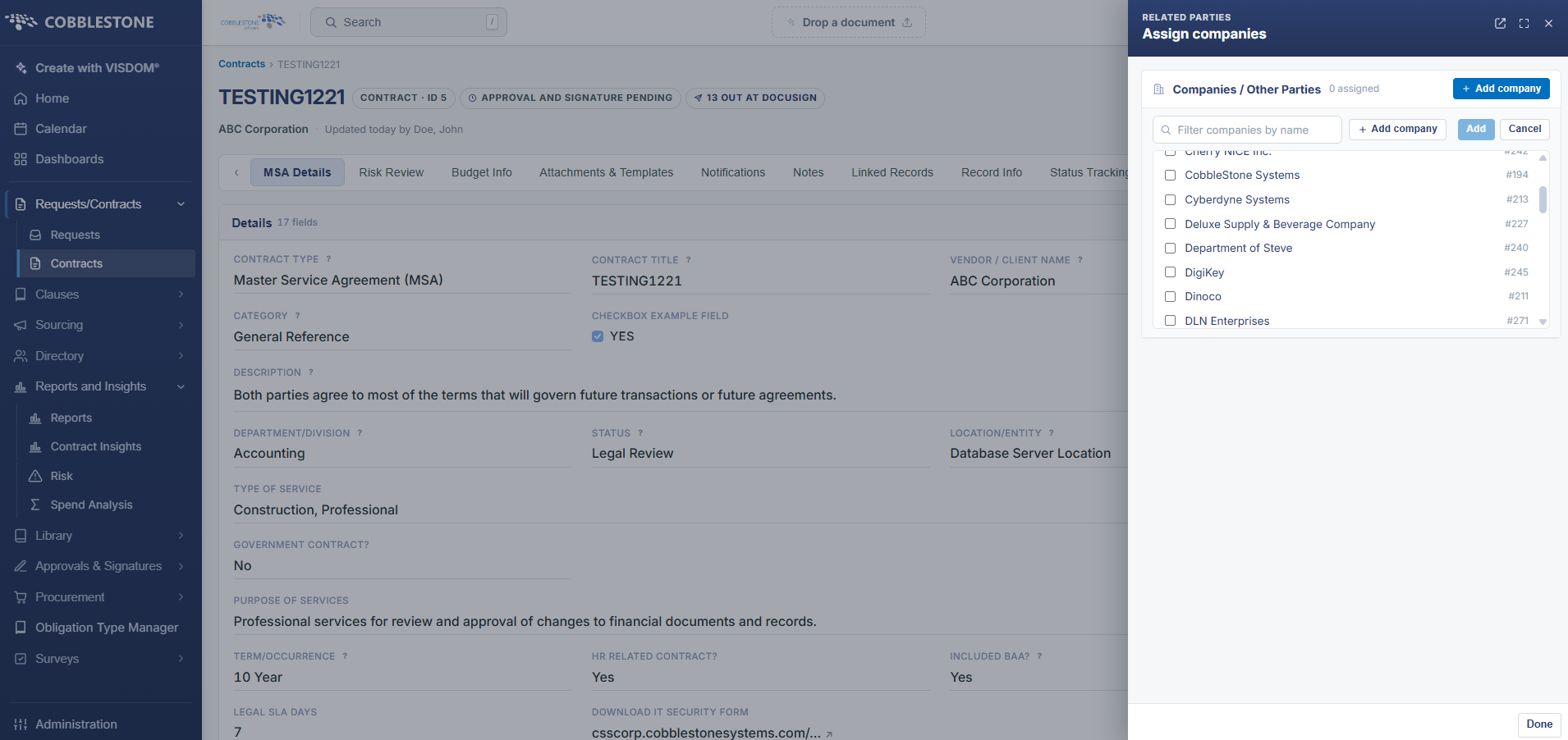
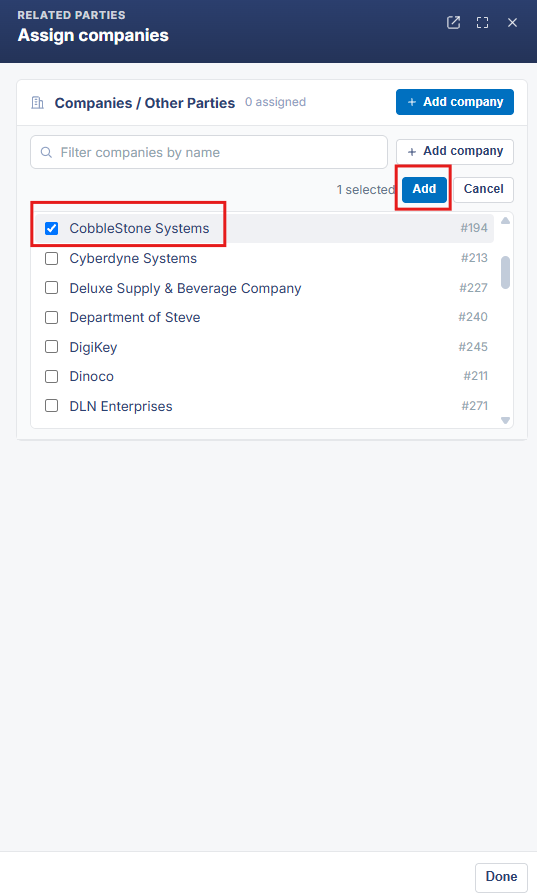
3. To assign a company to the contract, select/highlight the company name in the Available Companies box and click the Blue Add button to add the companyname to the Assigned Companies box.
4. To remove a location from the contract, select/highlight the location name in the Assigned Locations box and click the Red X to remove the location name from the Assigned Locations box.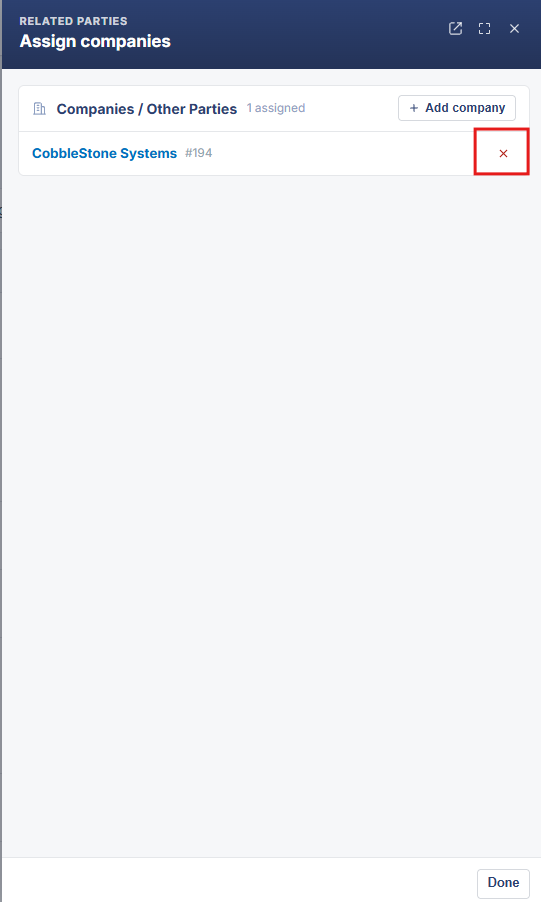
Note: Users with the proper permissions may add a company to the Contract Insight system from this screen as well. Click Add Company on the side menu of the Assign Additional Interested Parties screen. See the “Add a Company” page of the Wiki for an overview of how to add a company/vendor.