Application Translation
Static text on all pages in Contract Insight, on the Vendor Client Gateway, and the external signing portal using VISDOM Services. Once authenticated with VISDOM Services, users can translate text by clicking the globe icon at the top of the page. 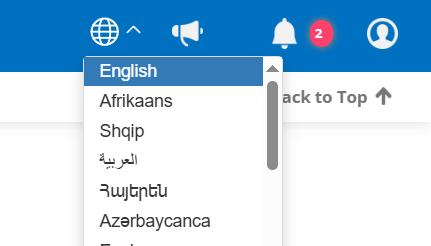
Text in the Core System and Vendor Client Gateway can also be controlled by the Regional Setting for the Employee or Company Contact.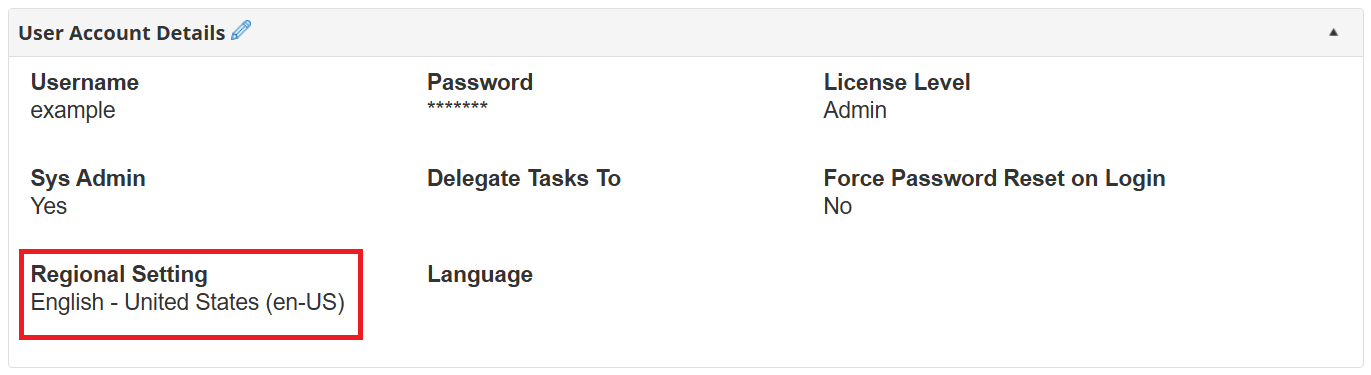
Manage Translations
To update inaccurate translations, users with access can navigate to the VISDOM Configuration page in the Core system (Application Menu -> Manage/Setup-> VISDOM Configuration). In the side menu, the last menu will have a Manage Translations option.
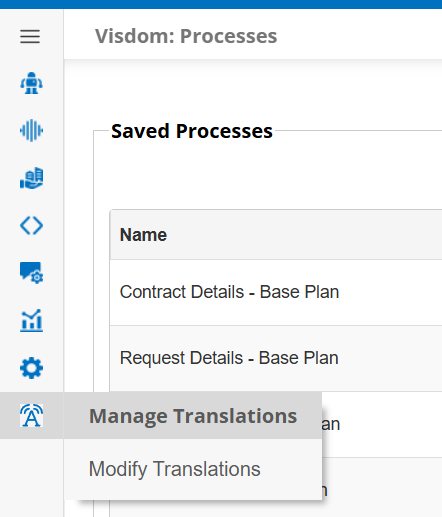
Once on the Manage Translations page, a dropdown is available to choose from Core, Vendor Client Gateway, or E-Sign portal. After selecting, the page will show all translations for the user's Regional Settings/dropdown language for the selected site. Clicking the pencil icon allows the the admin to edit the translation. Ensure to click the checkbox to indicate overriding the translation with the updated text.
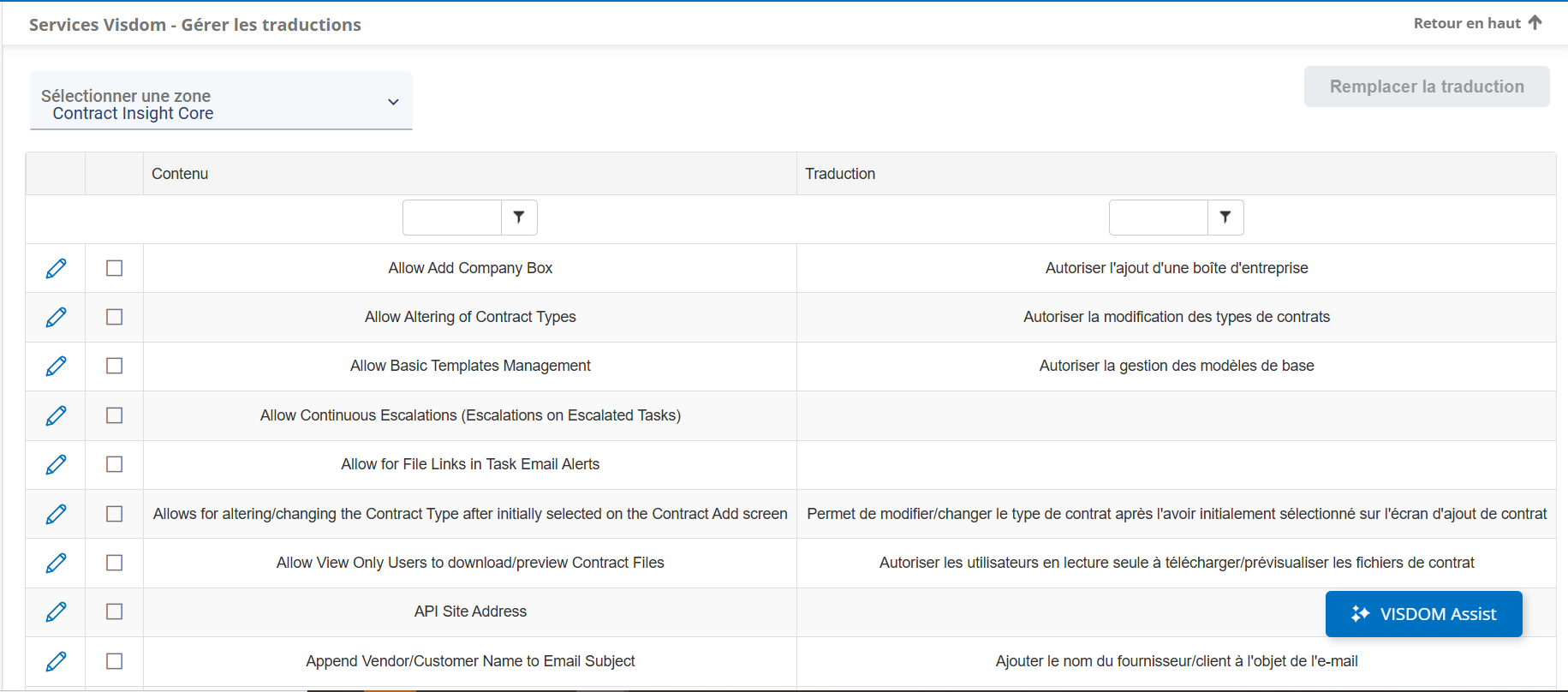
Clicking on the override translation button opens a popup where it'll ask the user which language does it want the translation to be stored in. A language must have already been used in order to appear in the override translations dropdown.
COBBLESTONE SOFTWARE
Contract Insight — User Guide
Application Translation
03. Admin User Manual › VISDOM & Risk Management › Application Translation
Note: Each procedure in this guide begins at the Contract Insight homepage, so any section can be followed on its own. Custom fields are configurable, so the exact field list on a contract category record may vary between environments.
1. Overview
Translations lets an administrator choose a language (from a long built-in and custom list including Spanish, French, German, Chinese, Japanese, Arabic and more) and then set the wording for field labels or top-menu items for a chosen table, so anyone using that language sees the translated text instead of English.
2. Key Elements
- Administration → Translations: choose a Language, then an Area (Field labels or Top menu), then a Table to edit
- Over two dozen languages are offered, including several custom/test languages an implementer has added
- Editing is per record area — the same long list of tables seen throughout Administration (Contract Details, Vendors/Customers, and every custom sub-table)
3. Quick Reference Summary
[TODO: content needed]