COBBLESTONE SOFTWARE
Contract Insight — User Guide
Advanced File Search
06. End Users: Searching & Reporting › Advanced File Search
Note: Each procedure in this guide begins at the Contract Insight homepage, so any section can be followed on its own. Custom fields are configurable, so the exact field list on a contract category record may vary between environments.
1. Overview
Advanced File Search lets you find records by the text inside their attached documents, not just by record fields. In Contract Insight, attachment search is built into the Search box in the top bar: it looks through record fields and the OCR'd text of attachments, and can be narrowed to Attachments only. Full search opens a results page with every field, exports, and an Attachments drawer that shows the matching passages in each file. The Search Engine page adds full-text searching with saved and recent searches. Results are always filtered to what you have permission to view.
Note: The legacy wiki describes a dedicated Risk Mitigation Tools screen for bulk-mining contract language (pipe-separated search terms, a surrounding-character-count setting, and an export to Excel). No standalone equivalent was found in this QA environment. The closest workflow is to search for the term, review the matching passages in the Attachments drawer, and Export the results (see Section 5).
2. Key Elements
- Search box (top bar; keyboard shortcut /): opens the Search records window. Enter at least 2 characters; results appear as you type.
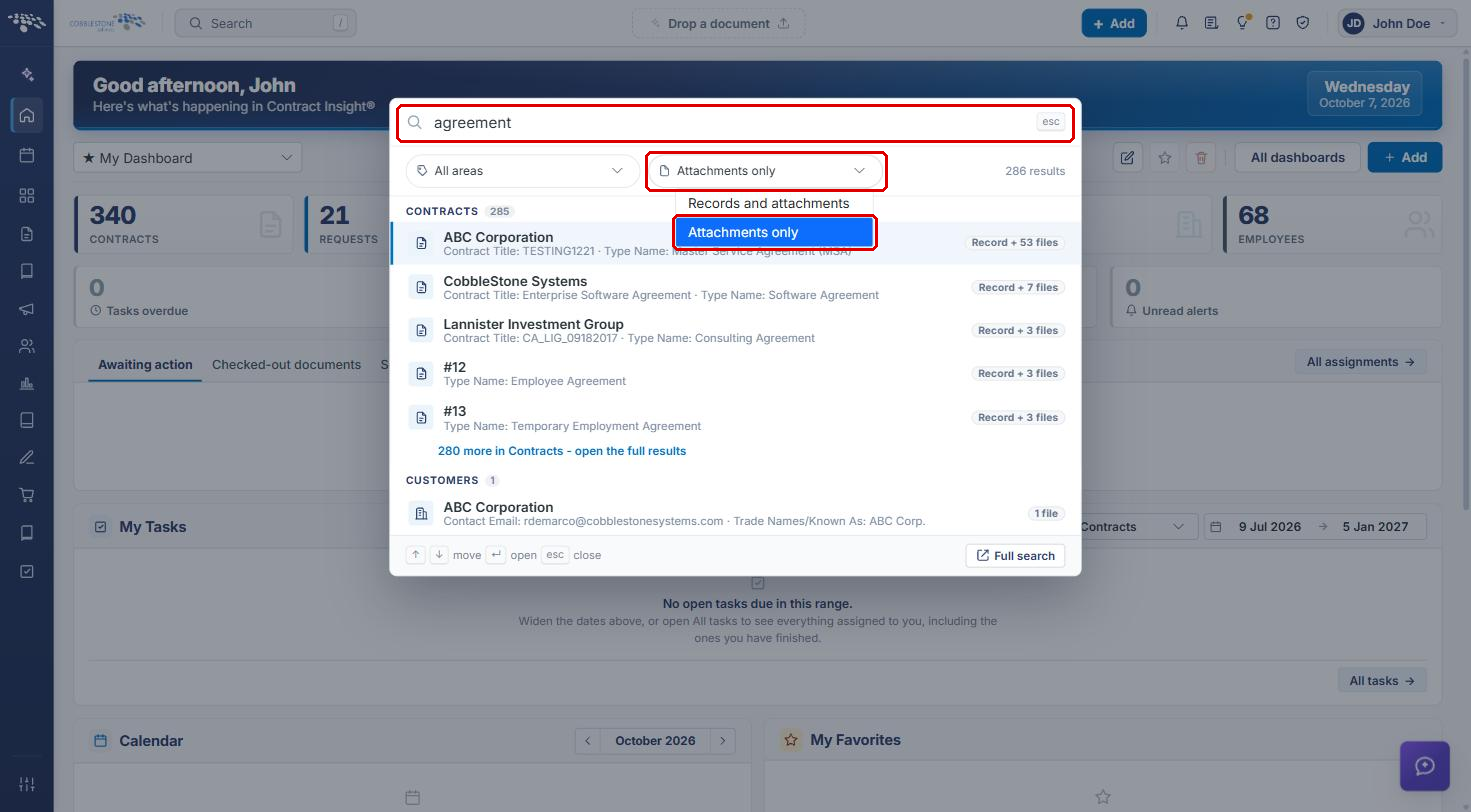
- Scope filter: Records and attachments (default) or Attachments only.
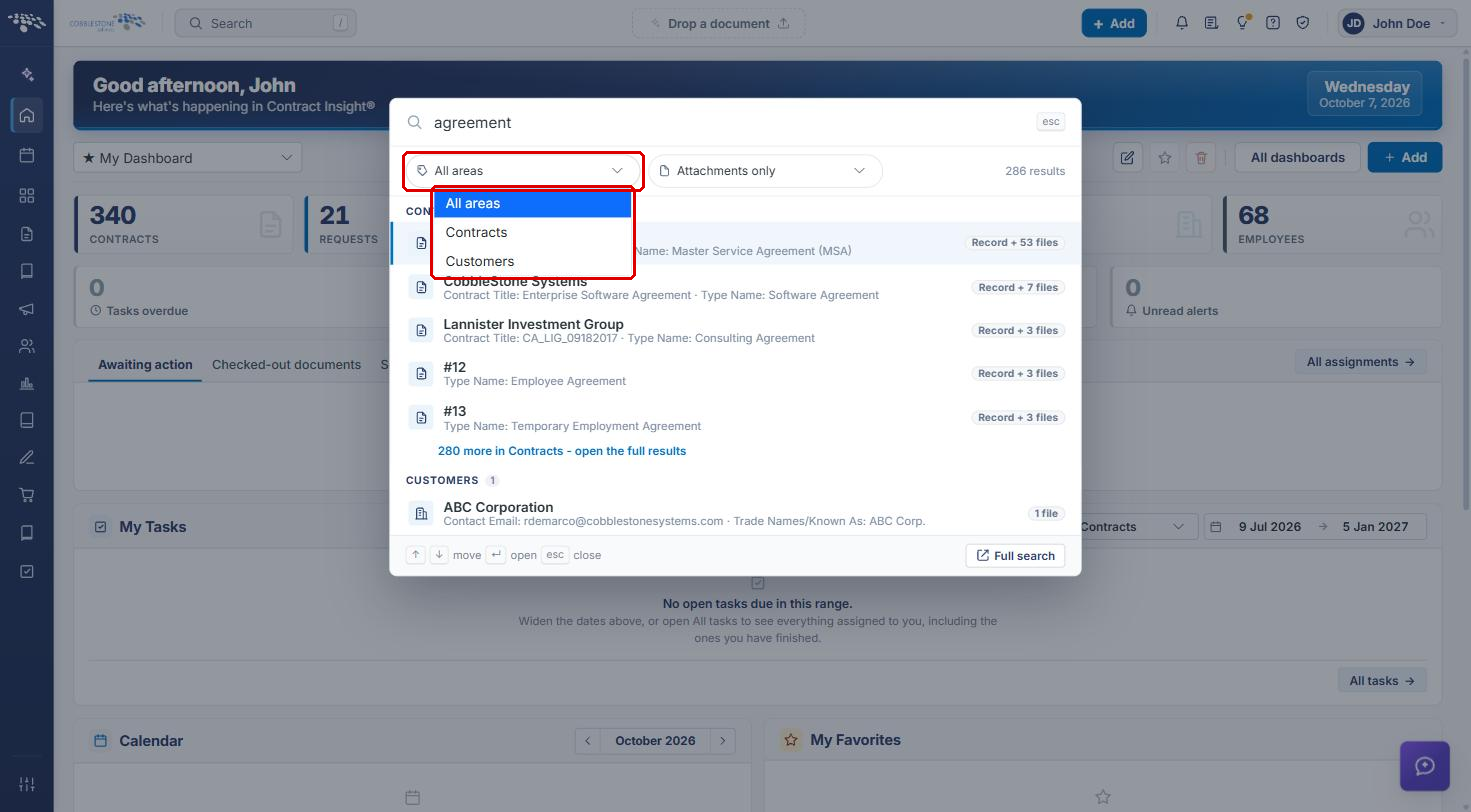
- Area filter: All areas, Contracts, or Customers.
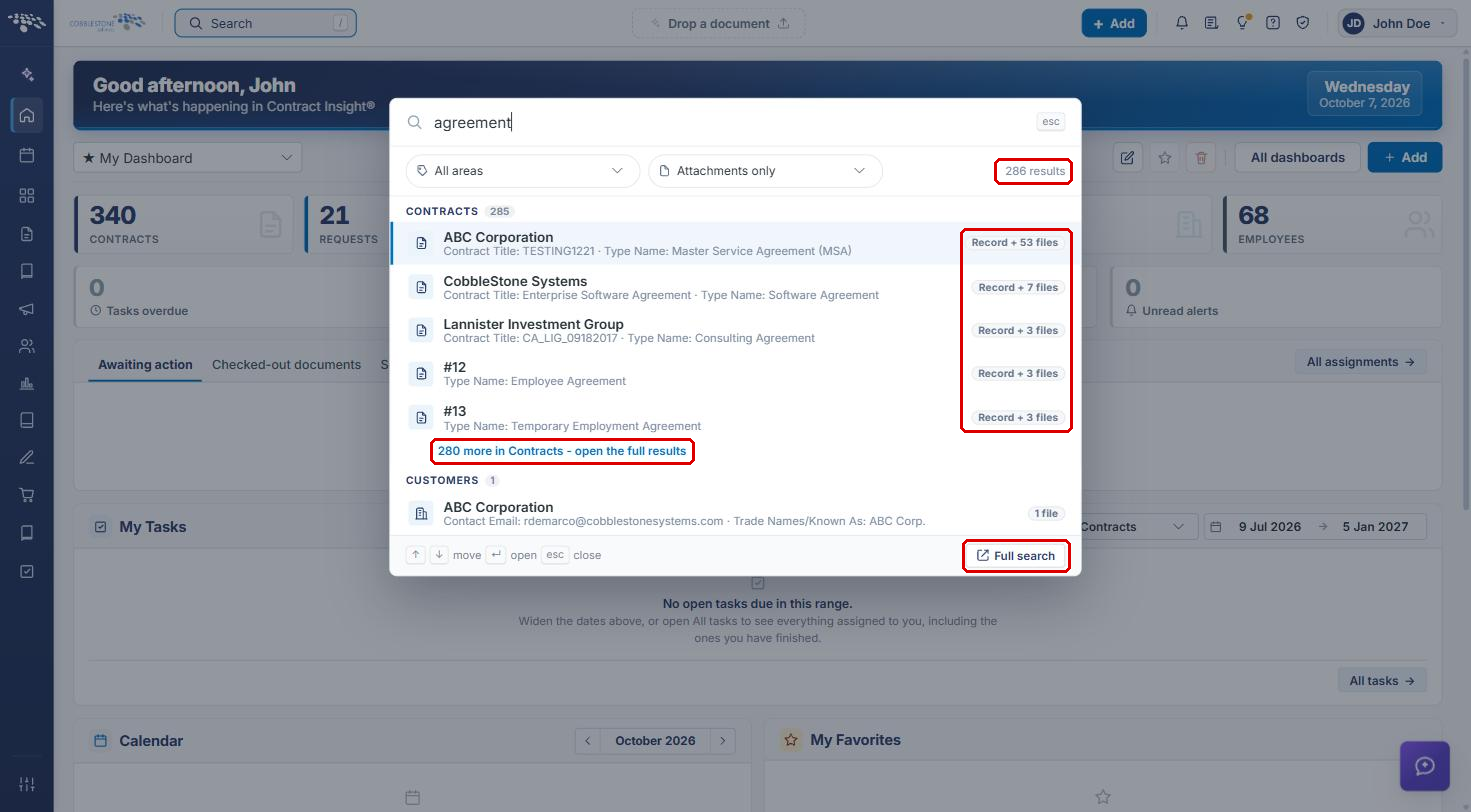
- Quick results are grouped by area with a total results count. Each row shows a badge such as Record + 53 files or 1 file to indicate where the match was found.
- Full search: opens the full search page — every field, exports, and the attachment drawer.
- Full search page: match count (including how many were found in attachment text), area tabs, Attachment matches only checkbox, Export (Excel, PDF, CSV), column chooser, and per-row Manage, Preview (eye), and Attachments (folder) actions.
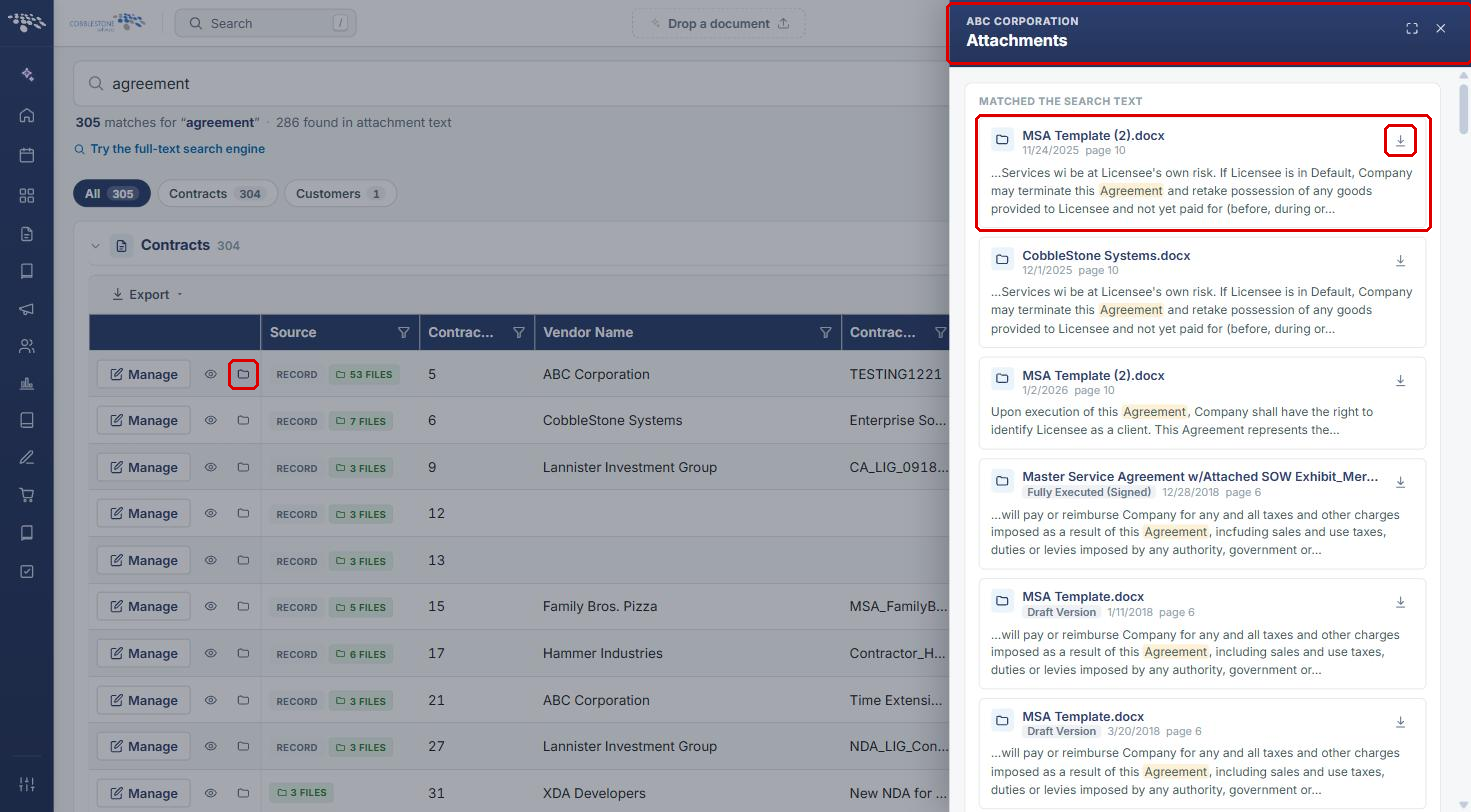
- Attachments drawer: lists each file under Matched the search text with its name, version label, date, page number, a highlighted snippet, and a download icon.
- Search Engine: full-text search page with Save this search, Saved searches, and Recent searches.
3. Opening the Search
- From the Contract Insight homepage, click the Search box in the top bar (or press / on your keyboard).
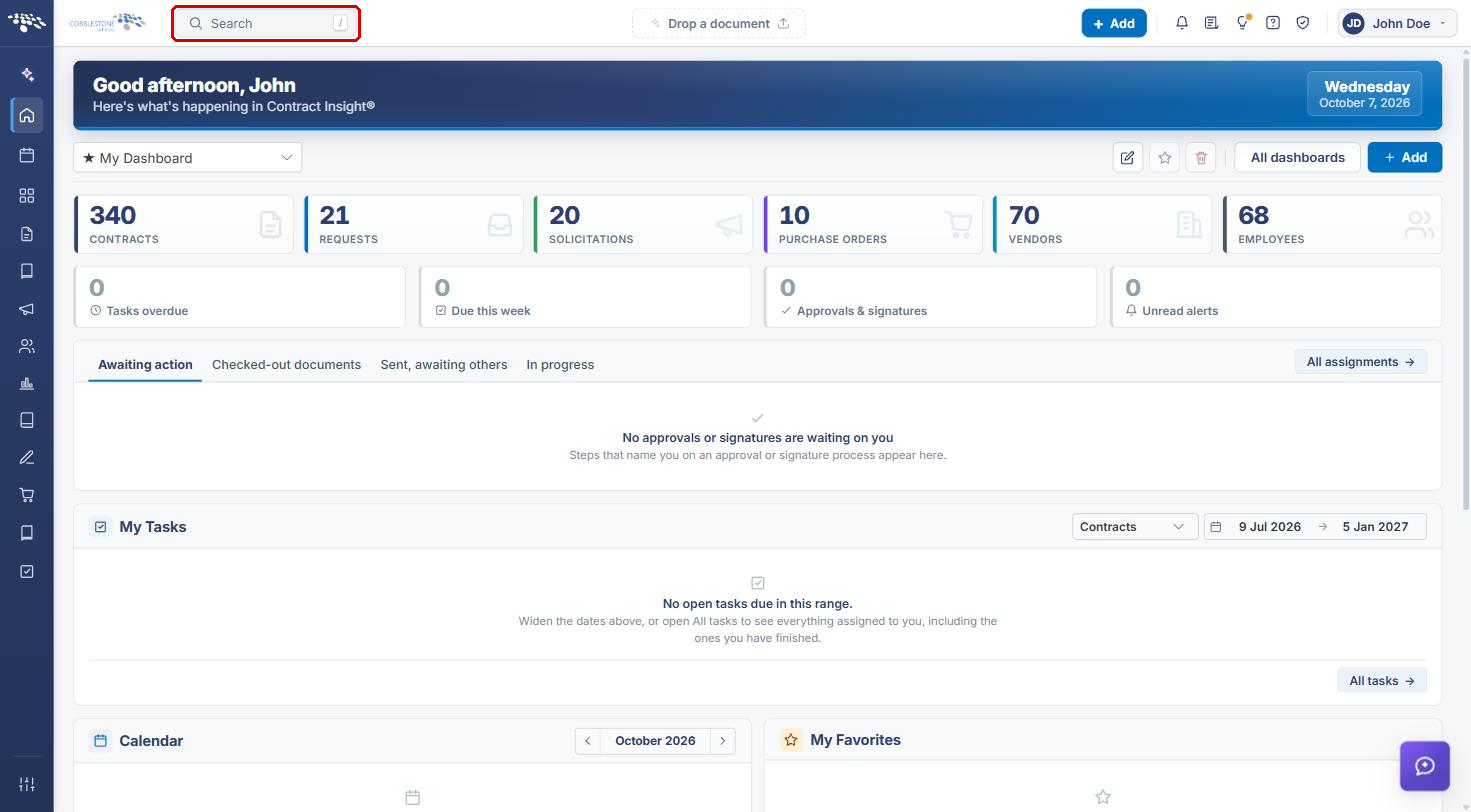
The Search records window opens.
4. Searching Attachment Text
4a. Entering a Search Term and Setting the Scope
- Open the Search records window (see Section 3).
- Type a word or phrase (at least 2 characters) in the search field.
- Click the scope drop-down (shows Records and attachments by default) and select Attachments only to return only records whose attached documents contain the term. Keep Records and attachments to search record fields as well.
4b. Narrowing by Area
- Click the All areas drop-down and select Contracts or Customers to limit results to one area, or keep All areas.
4c. Reviewing Quick Results
- Review the results, grouped by area. The count at the top right shows the total number of results, and the badge on each row (for example, Record + 53 files) shows whether the match is on the record, its attachments, or both.
- Use the arrow keys and Enter (or click a row) to open a record. To see every match, click [N] more in Contracts – open the full results or Full search.
5. Using the Full Search Page
5a. Filtering the Results
- In the Search records window, click Full search (see Section 4c).
- Review the summary under the search box, which shows the total matches and how many were found in attachment text. To change the term, edit the search box and click Search.
- Click an area tab (All, Contracts, Customers) to show one area.
- Check Attachment matches only to show only records whose attachment text matched.
- Optionally, click the column chooser icon at the top right of the grid to choose which fields the list shows, or use the filter icon on any column header.
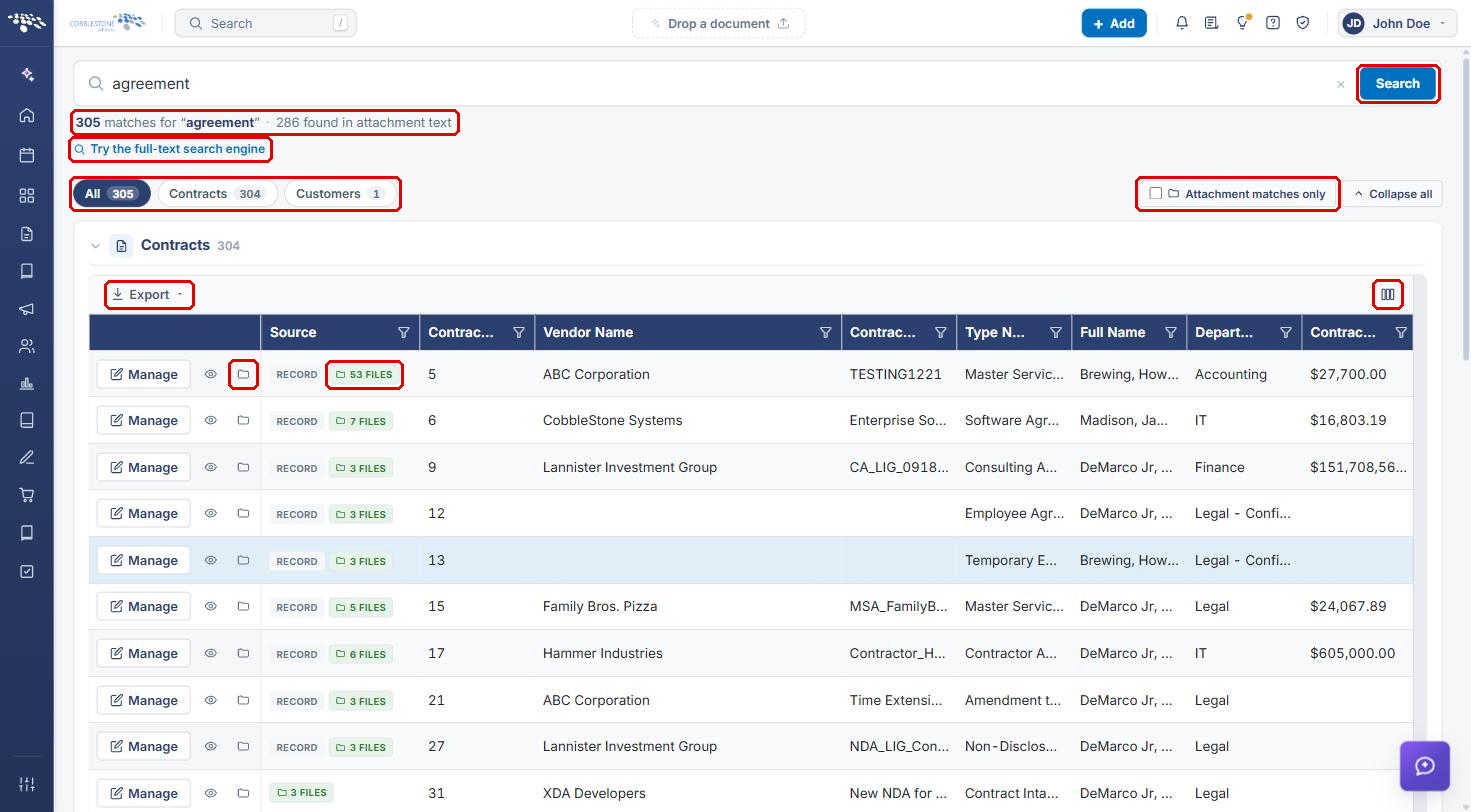
The Source column shows RECORD when record fields matched and a green [N] FILES badge when attachments matched. Click Manage to open the record, or the eye icon to Preview it.
5b. Viewing Matching Passages in Attachments
- On the full search page, click the Attachments (folder) icon on the record's row.
- The Attachments drawer opens. Under Matched the search text, each card shows the file name, version label (for example, Draft Version or Fully Executed (Signed)), date, page number, and a snippet with the search term highlighted.
- Click the download icon on a card to download that file. Use the expand icon to widen the drawer, and click X to close it.
5c. Exporting the Results
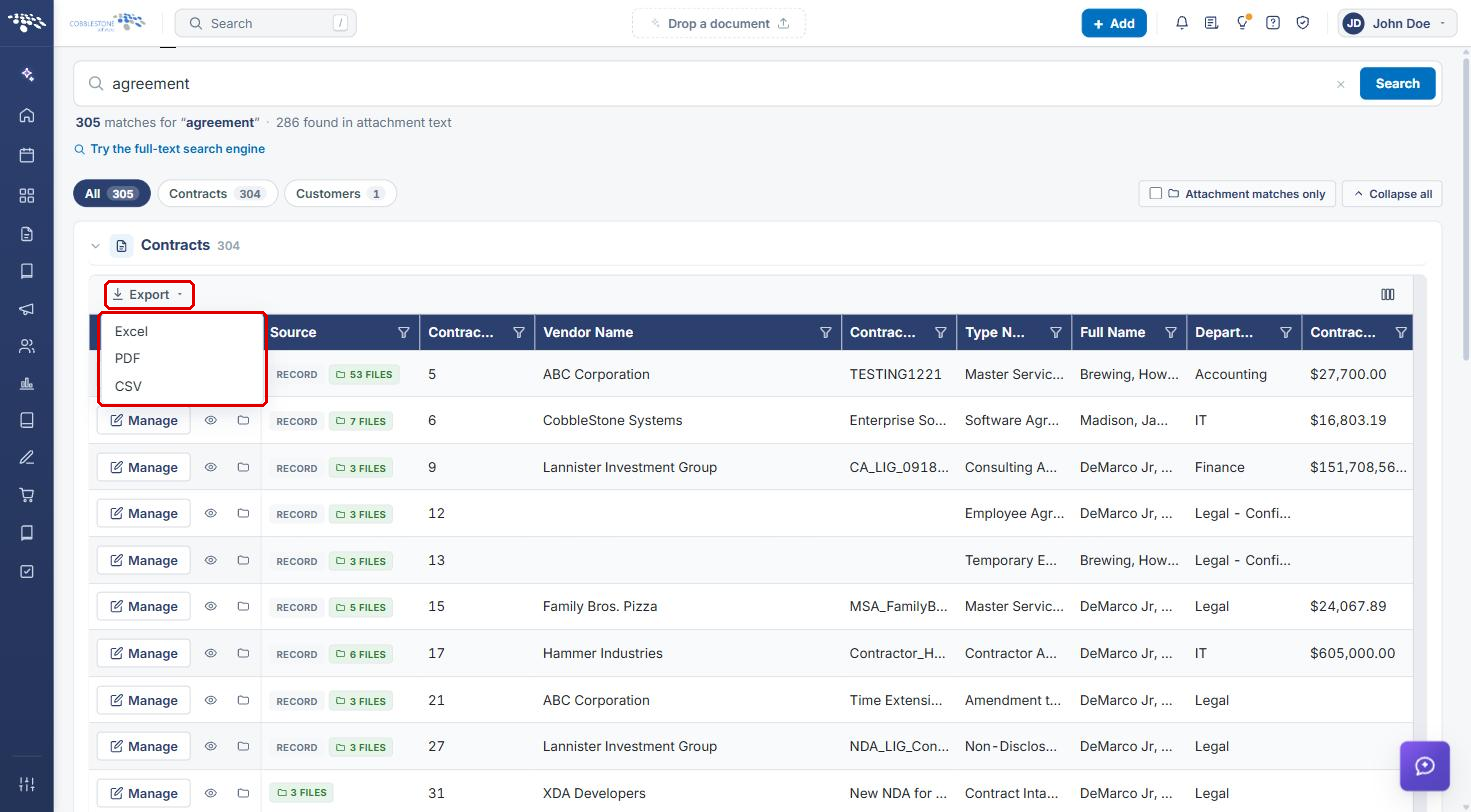
- On the full search page, click Export above the results grid.
- Select Excel, PDF, or CSV. The export downloads what the list is currently showing, so apply any tabs, filters, and columns first.
6. Using the Search Engine
- On the full search page, click Try the full-text search engine (see Section 5a).
- Enter your terms in the Search everything… box and click Search.
- Click Save this search to keep the search for later. Saved searches appear in the Saved searches panel, and searches you have run appear in Recent searches. Click View all in either panel to see the full list.
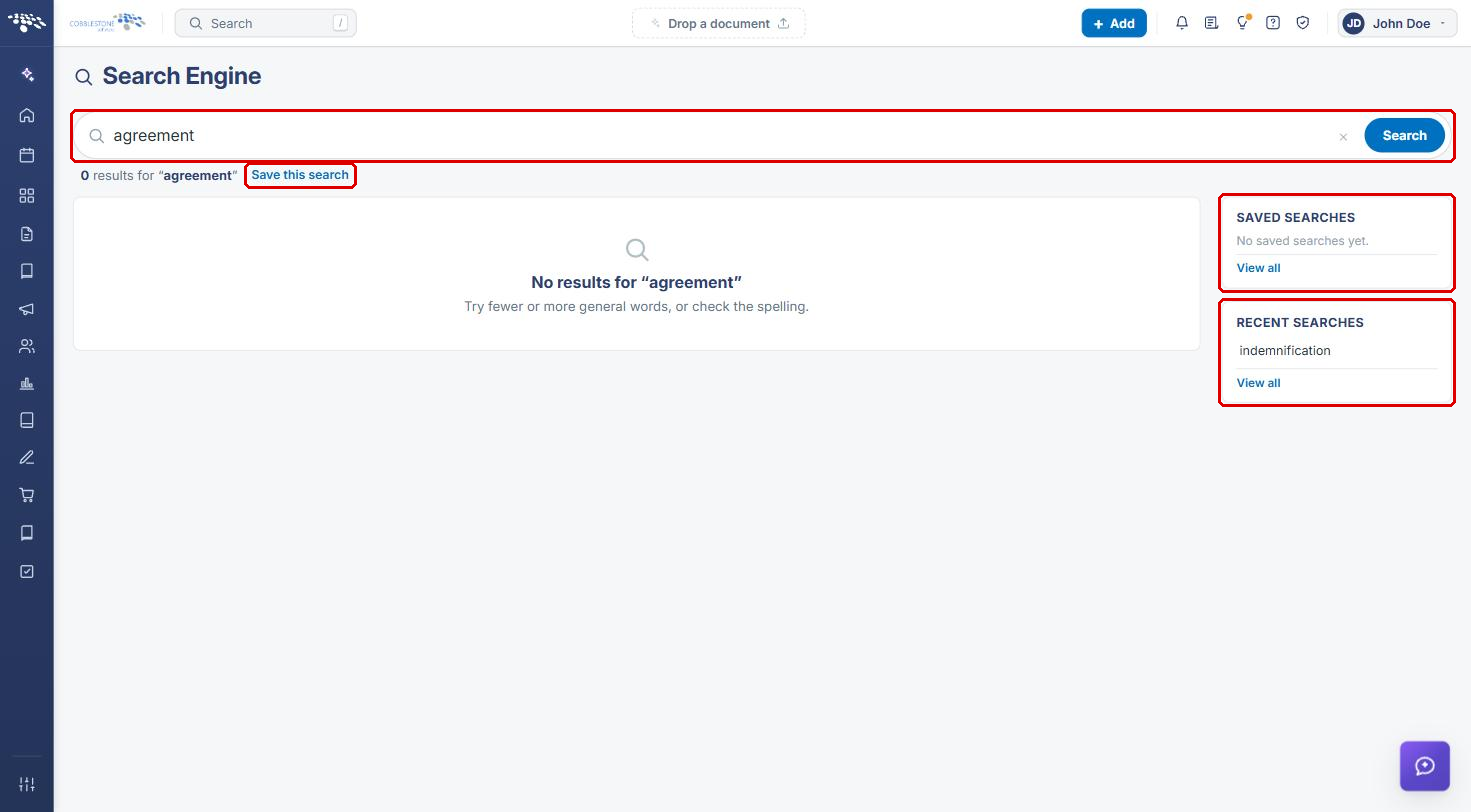
Note: The Search Engine uses a separate full-text index. If it returns no results for terms that the top-bar Search finds, the index may not be configured or built yet; ask your administrator to check Administration > Search Config > Search engine tab.
7. Quick Reference Summary
| Task | How to Complete It |
|---|---|
| Open the search | Click the Search box in the top bar (or press /). |
| Search attachment text only | Search records window → scope drop-down → Attachments only. |
| Limit results to an area | Search records window → All areas drop-down → Contracts or Customers. |
| See every match | Search records window → Full search (or open the full results link). |
| Show only attachment matches | Full search page → check Attachment matches only. |
| View the matching passages in a file | Full search page → Attachments (folder) icon on the row. |
| Download a matching file | Attachments drawer → download icon on the file card. |
| Export the results | Full search page → Export → Excel, PDF, or CSV. |
| Run and save a full-text search | Full search page → Try the full-text search engine → Search → Save this search. |