COBBLESTONE SOFTWARE
Contract Insight — User Guide
Adding a Participant to a Signature Group
Document Templates Management › E-Signature Flow/Groups › Adding a Participant to a Signature Group
Note: Each procedure in this guide begins at the Contract Insight homepage, so any section can be followed on its own. Custom fields are configurable, so the exact field list on a contract category record may vary between environments.
1. Overview
Adding a participant to a signature group ties a specific signer to one step of a signature process — the same mechanism used for approval-group participants. Each participant has a name, a source (Employees, Roles & Groups, or Vendor/Customer Contacts), and a title for that signing step. Participants can be added in three places: on the template's signature steps (so every generated document starts with them, marked FROM TEMPLATE), on a single generated document before its signature process starts, or in the process console while the signature process is running.
2. Key Elements
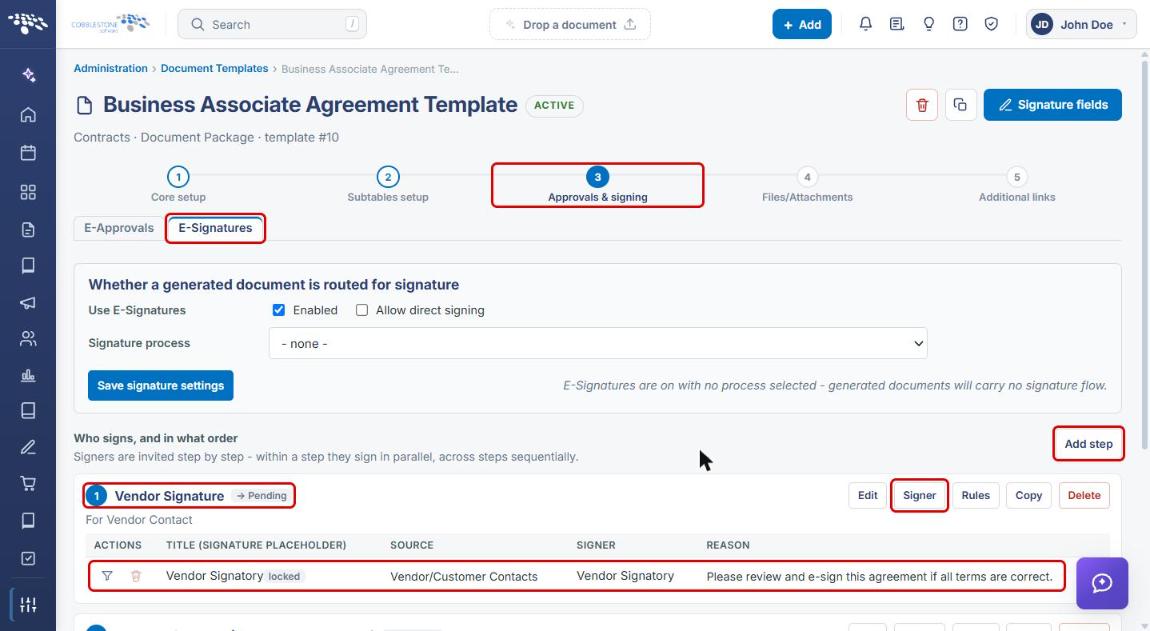
- Signer button — on each step of a template's Who signs, and in what order list (Approvals & signing step, E-Signatures tab).
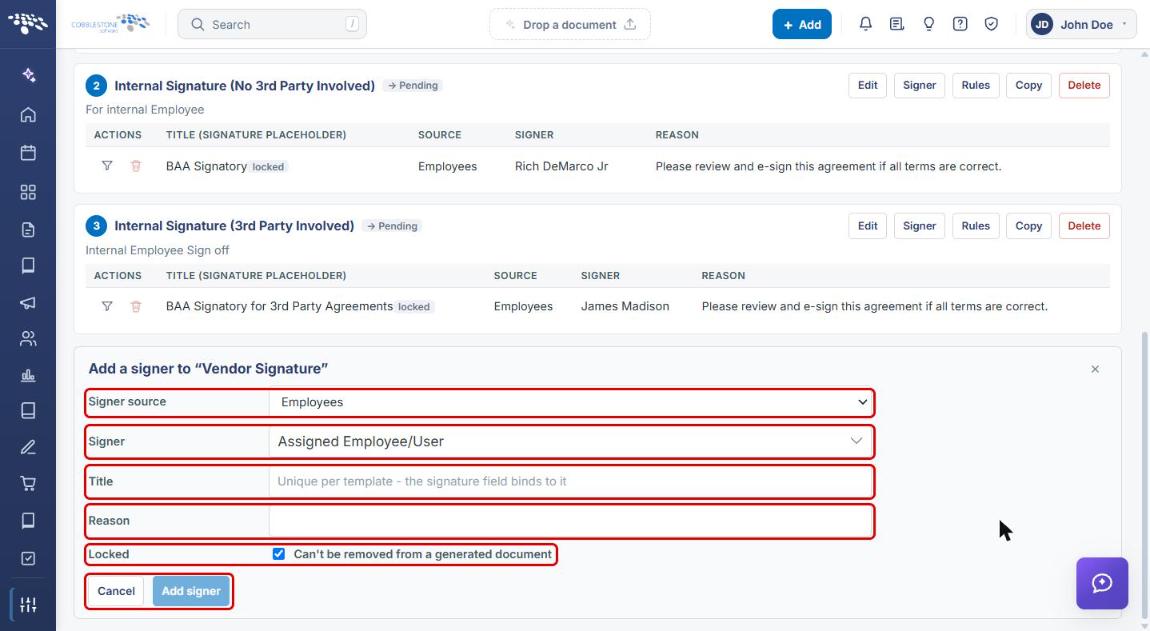
- Signer fields — Signer source, Signer, Title (unique per template; the signature field binds to it), Reason, and Locked (can't be removed from a generated document).
- FROM TEMPLATE participants — pre-configured on the template and copied onto each generated document.
- Document signing groups — on a generated document, participants can be added or changed until the signature process starts.
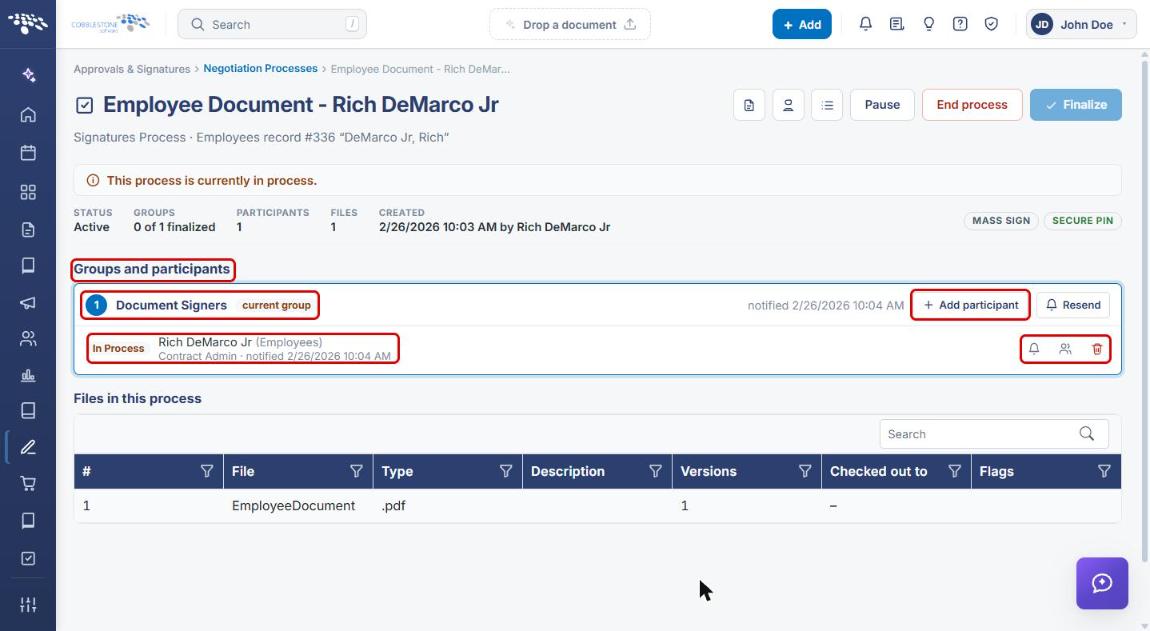
- Process console — while a signature process is running, Add participant on a group invites an External, Employee, or Company contact participant right away.
3. Adding a Signer to a Template's Signature Step
- From the Contract Insight homepage, click the Administration icon at the bottom of the left navigation bar, then click Document Templates.
- Click Open on the template, click step 3 Approvals & signing, and select the E-Signatures tab.
- Under Who signs, and in what order, find the step (or click Add step to create one). Existing signers are listed with their Title, Source, Signer, and Reason.
- Click Signer on the step.
- In the Add a signer form, choose the Signer source: Employees, Roles & Groups, or Vendor/Customer Contacts.
- Select the Signer (for example, Assigned Employee/User).
- Enter a Title. It must be unique on the template, and the signature field in the document binds to it.
- Optional: enter a Reason (for example, Please review and e-sign this agreement).
- Leave Locked checked if the signer can't be removed from a generated document.
- Click Add signer, or Cancel to close without saving.
4. Adding a Participant on a Generated Document
Signing groups copied from the template can be adjusted on a single document until its signature process starts.
- From the Contract Insight homepage, click Administration → Merged Documents, and click Open on the document. (You can also open the document package from its record.)
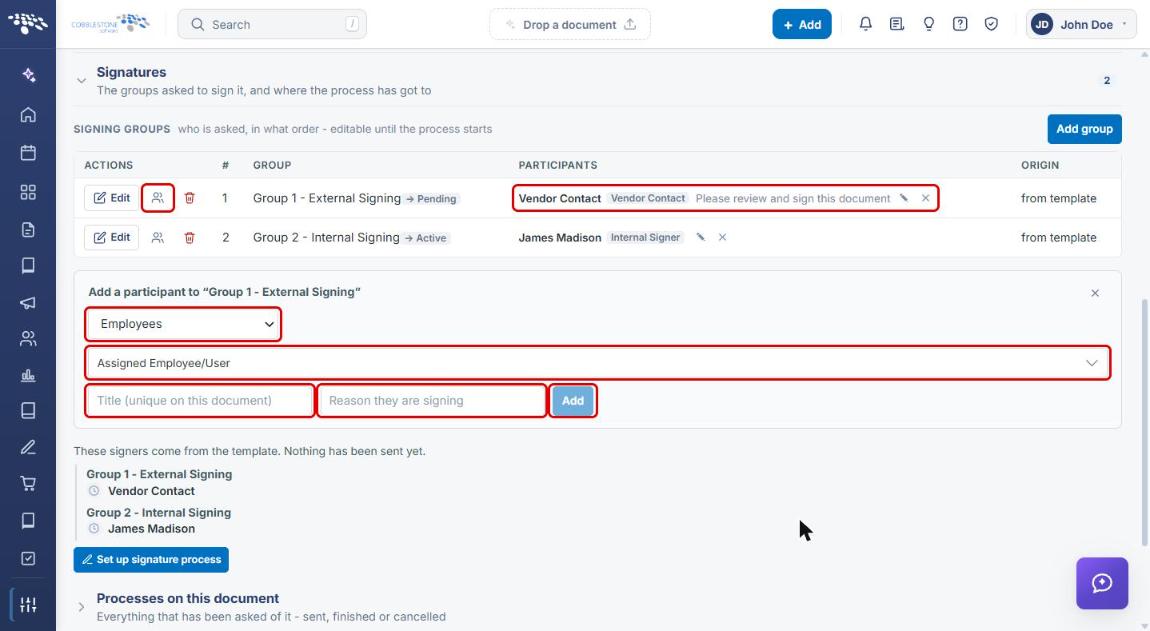
- Expand the Signatures section.
- Under Signing Groups, click the add-participant icon on the group's row.
- Choose the source (Employees, Roles & Groups, or Vendor/Customer Contacts) and select the person.
- Enter a Title (unique on this document) and, optionally, the Reason they are signing.
- Click Add. The participant appears in the group's Participants column. Click Set up signature process when the signing groups are ready.
5. Adding a Participant to a Running Signature Process
- From the Contract Insight homepage, open Approvals & Signatures → Negotiation Processes and click Open console on the signature process. (You can also click Open the process console from the document's Signatures section.)
- Under Groups and participants, find the group. The current group is labeled, and each participant shows a status badge such as In Process. Row icons let you re-send the invitation, replace the participant, or remove them.
- Click Add participant on the group.
- In Add a participant to [group], choose External participant, Employee participant, or Company contact participant.
- Enter the Full name and E-mail address (or pick the employee/contact), and optionally why they are being added.
- Click Add, or Cancel to close without adding.
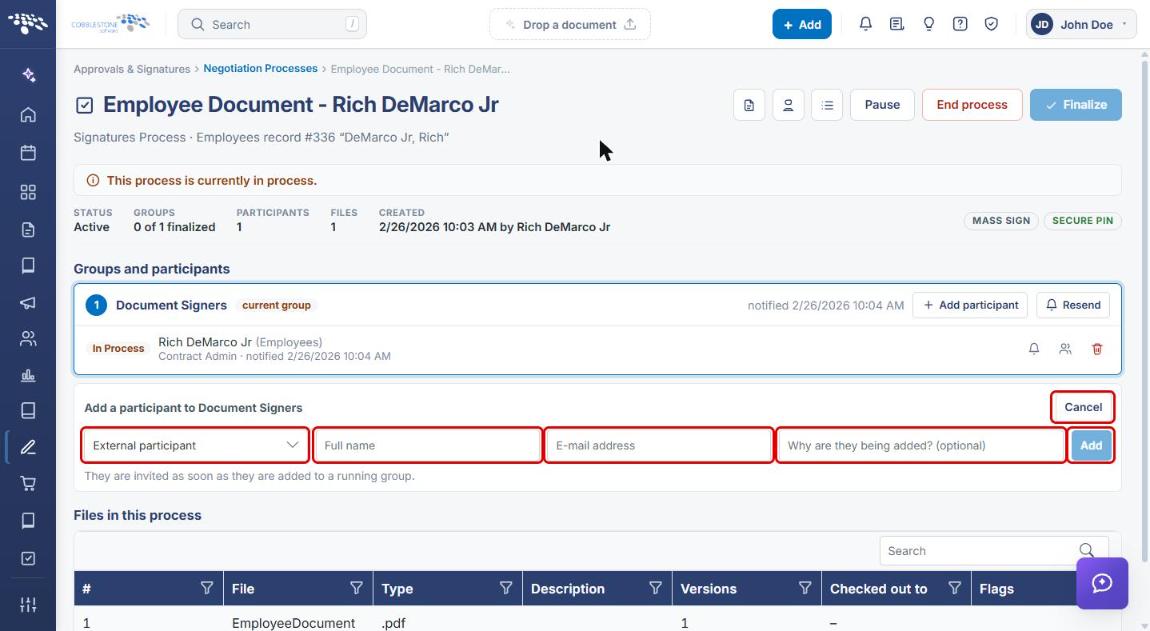
Note: Participants added to a running group are invited as soon as they are added.
6. Quick Reference Summary
| Task | How to Complete It |
|---|---|
| Add a signer to a template step | Administration → Document Templates → Open → Approvals & signing → E-Signatures → Signer → fill in source, signer, Title → Add signer. |
| Keep a signer on every generated document | Leave Locked checked when adding the signer to the template. |
| Add a signer to one document | Administration → Merged Documents → Open → Signatures → add-participant icon → Add (before the process starts). |
| Add a signer to a running process | Negotiation Processes → Open console → Groups and participants → Add participant → Add. |
| Re-send or replace a signer | Process console → participant row → re-send (bell) or replace (people) icon. |