COBBLESTONE SOFTWARE
Contract Insight — User Guide
Adding a Purchase Order
Module: Purchase Orders › Purchase Order Details › Adding a Purchase Order
Note: Each procedure in this guide begins at the Contract Insight homepage, so any section can be followed on its own. Custom fields are configurable, so the exact field list on a contract category record may vary between environments.
1. Overview
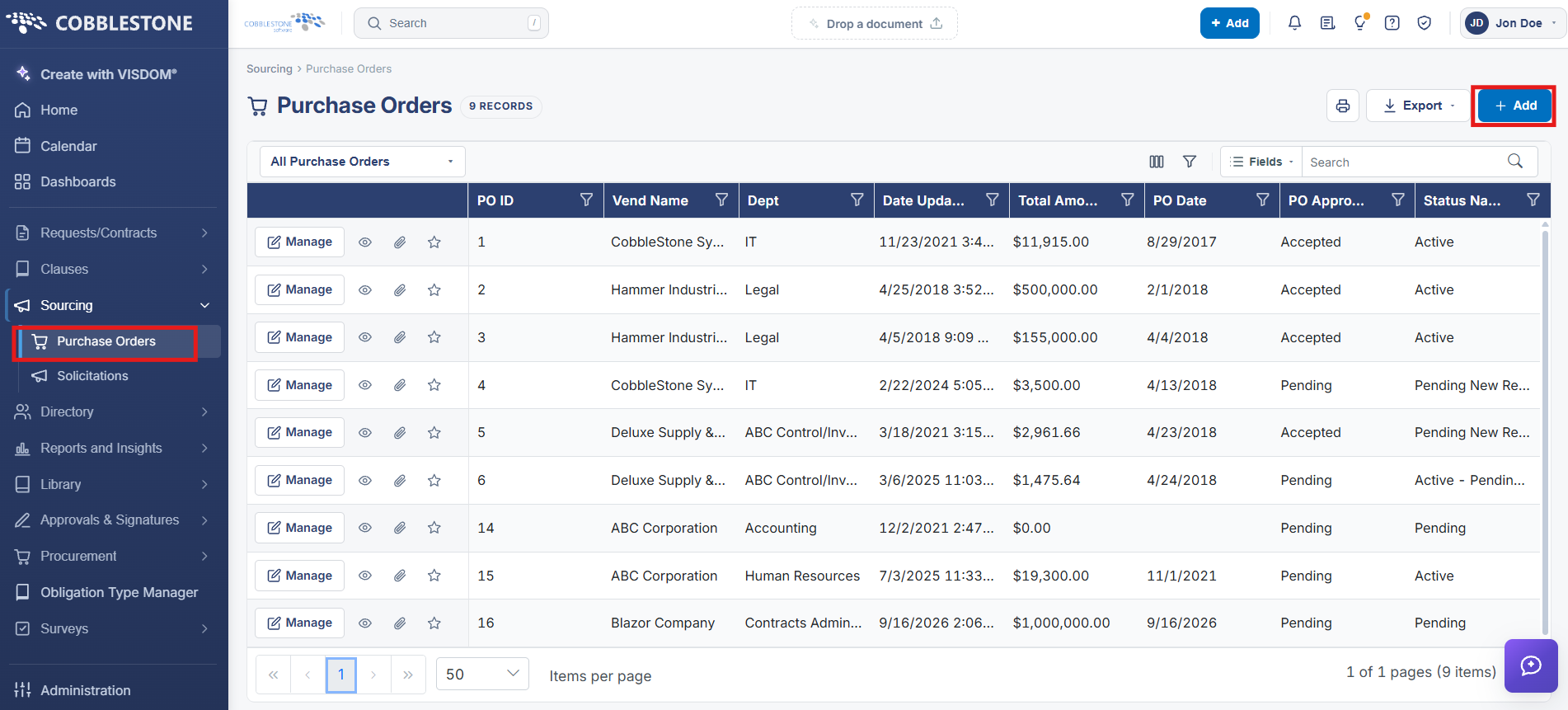
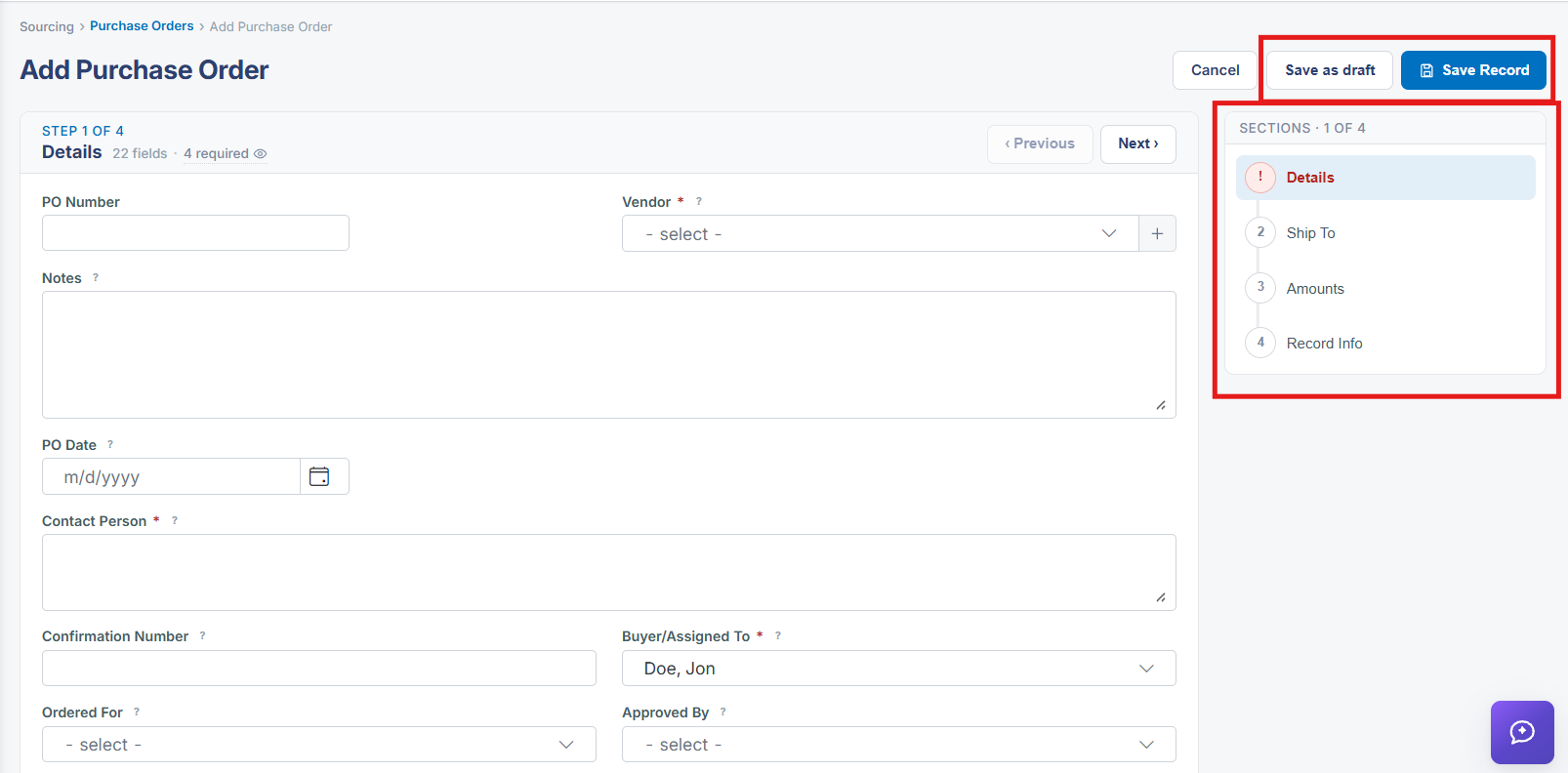
A new purchase order is created from + Add on the Purchase Orders list, which opens a multi-step Add Purchase Order wizard rather than a single long form. The wizard is organized into numbered steps shown as Step 1 of 7, with a Sections panel on the right listing every step (Details, Ship To, and several configured field groups) and Next / Previous buttons to move between them; Save as draft and Save Record are both available once the required fields are filled in.
2. Key Elements
- + Add → Add Contract equivalent for POs opens at /purchaseorders/new
- Step 1 of 7, Details, starts with PO Title (required), PO Date, PO Type, Ordered For, Vendor, and Contact Person
- Sections panel on the right tracks progress across all seven steps
- Save as draft keeps incomplete work; Save Record finalizes the PO
- A + shortcut next to Vendor allows adding a new vendor without leaving the wizard