COBBLESTONE SOFTWARE
Contract Insight — User Guide
Approval and Signature Process Templates
Document Templates Management › E-Signature Flow/Groups › Approval and Signature Process Templates
Note: Each procedure in this guide begins at the Contract Insight homepage, so any section can be followed on its own. Custom fields are configurable, so the exact field list on a contract category record may vary between environments.
1. Overview
Once a process is running, it appears on the Negotiation Processes page (Approvals & Signatures → Negotiation Processes), which lists "every approval and signature process, with the controls to intervene in a running one." The grid's Template column names the document template that started a process, tying a live approval or signature process back to the Document Templates configuration that defined its steps. Open console shows a single process's groups, participants, and files.
The signing steps themselves come from the template's Approvals & signing step, either set on the template directly or taken from a shared signing process under Administration → Approval & Signing Processes.
2. Key Elements
- Negotiation Processes grid: lists each process's Process name, Type (Approval or Signature), Status, Record, Template, Groups, Progress, Created by, and Updated date.
- Filters: a type filter (Approvals and signatures, Approvals only, Signatures only), a status filter (Any status, Active, Paused, Completed, Rejected, Cancelled after starting, Cancelled before starting), Started only, and Search.
- Template column: names the document template that started the process.
- Open console: opens the process to review its groups, participants, and files, and to pause, end, or finalize it.
- Approval & Signing Processes: the shared signing process templates (Kind = Signing) that document templates can follow.
3. Navigating to Negotiation Processes
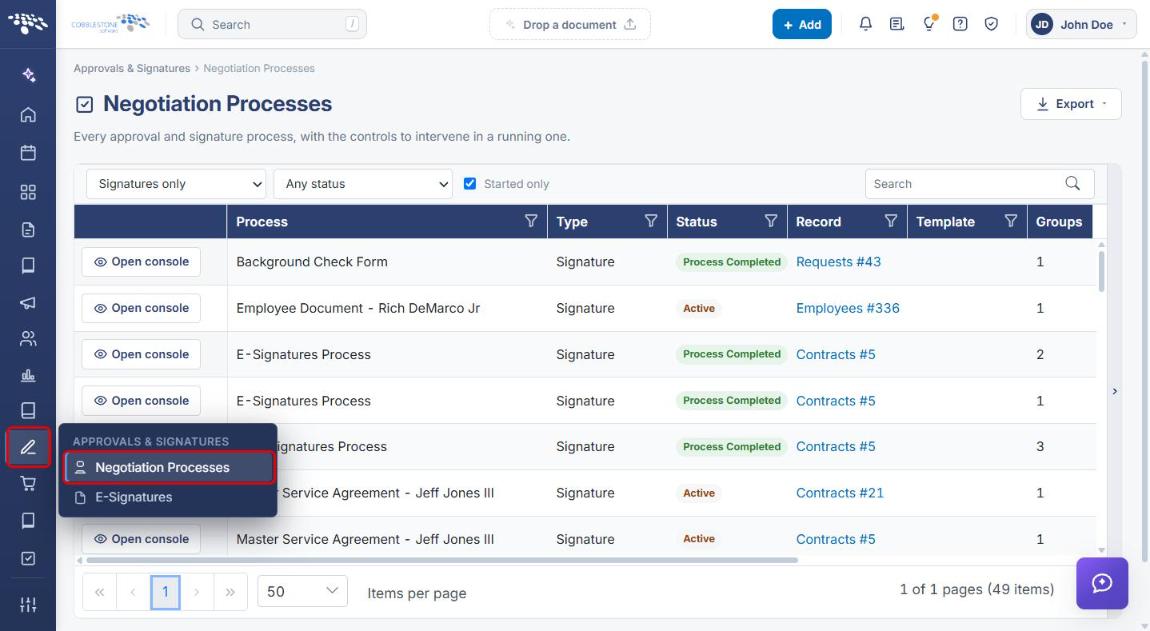
- From the Contract Insight homepage, click the Approvals & Signatures icon (pen) in the left navigation bar.
- Select Negotiation Processes.
4. Finding a Signature Process and Its Template
- On the Negotiation Processes page, set the type filter to Signatures only (or Approvals only for approval processes).
- Optionally choose a status (for example, Active) and leave Started only selected to hide processes that have not started.
- Use the Search box or column filters to find the process.
- Check the Template column to see which document template started the process. Click the Record link to open the record the process belongs to.
- Use Export to download the list.
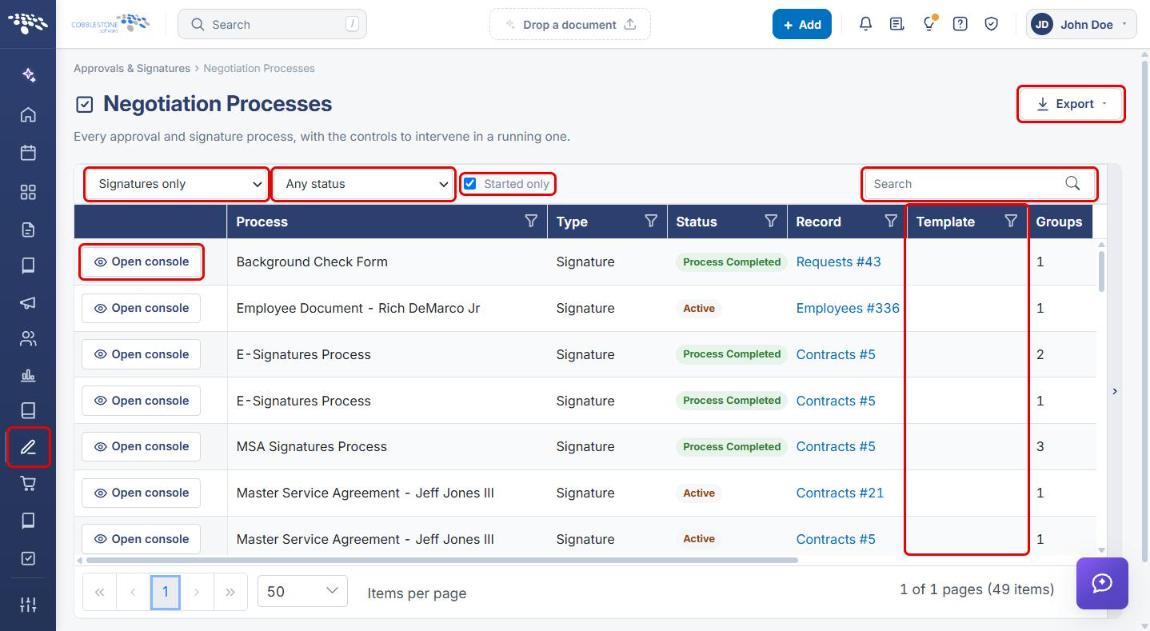
Note: The Template column may be blank for some processes. Open the process console (Section 5) for more detail on a process.
5. Opening a Process Console
- On the Negotiation Processes page, click Open console on the process's row.
- Review the summary: Status, Groups, Participants, Files, and Created date.
- Under Groups and participants, review each group and its participants. Use Add participant or Resend on a group, or the icons on a participant's row to re-send, replace, or delete that participant.
- Under Files in this process, review the files being signed.
- Use the buttons at the top to work with the whole process (see the table below).
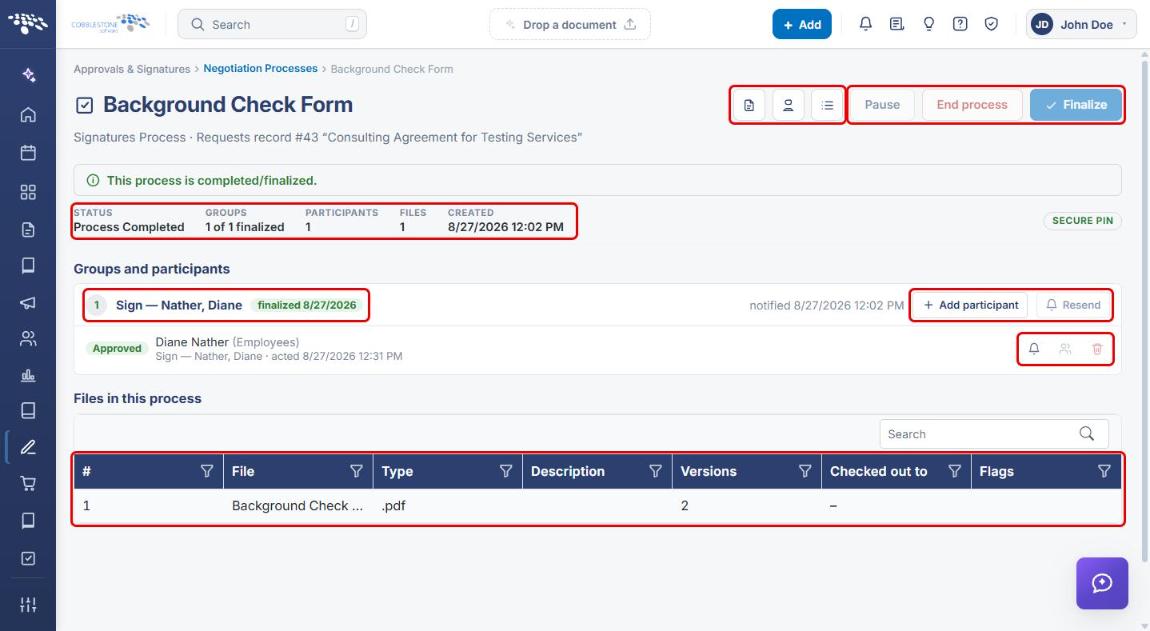
| Button | What it does |
|---|---|
| Open record (first icon) | Opens the record the process belongs to. |
| Signature receipt (second icon) | Shows who signed what, and when. |
| Place fields (third icon) | Pre-defines where each participant signs. |
| Pause | Pauses or resumes a running process. |
| End process | Ends a process that is not yet finished. |
| Finalize | Completes the process. |
Note: Controls that do not apply to the process's current status are greyed out. For example, Pause, End process, Finalize, and Resend are unavailable on a completed process.
6. Tracing a Process Back to Its Template Configuration
- From the Contract Insight homepage, click the Administration icon, search for Approval, and click Approval & Signing Processes.
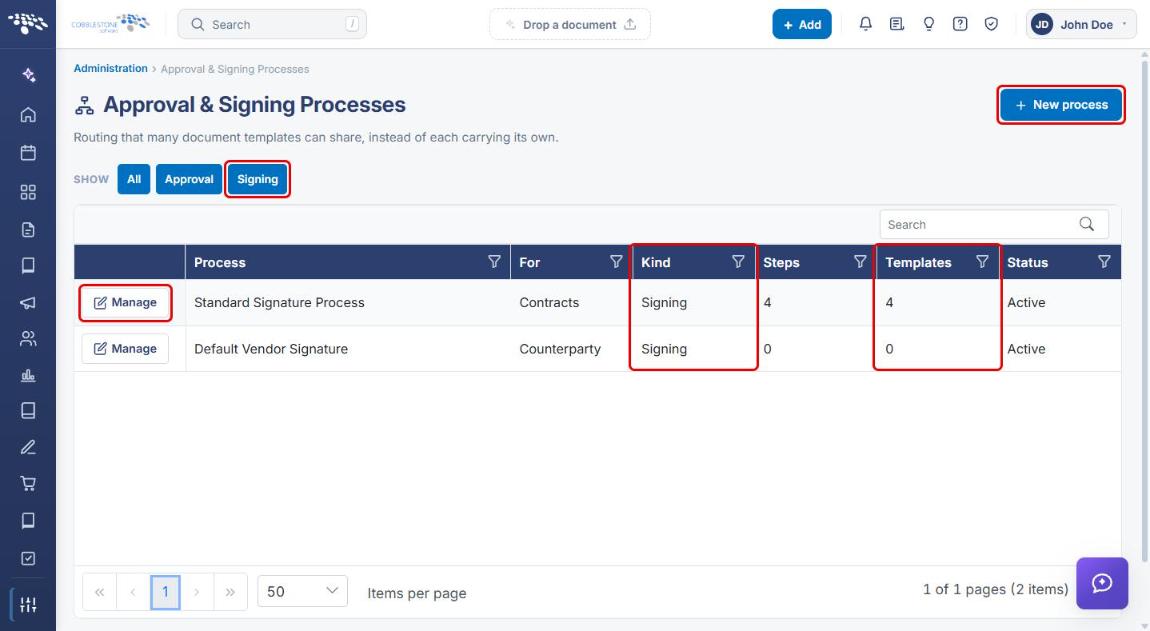
- Click Signing to show only signing process templates. The Templates column shows how many document templates follow each process.
- Click Manage to review a process's steps and the templates that follow it, or + New process to create one (see Approval and Signature Process Templates under E-Approval Flow/Groups).
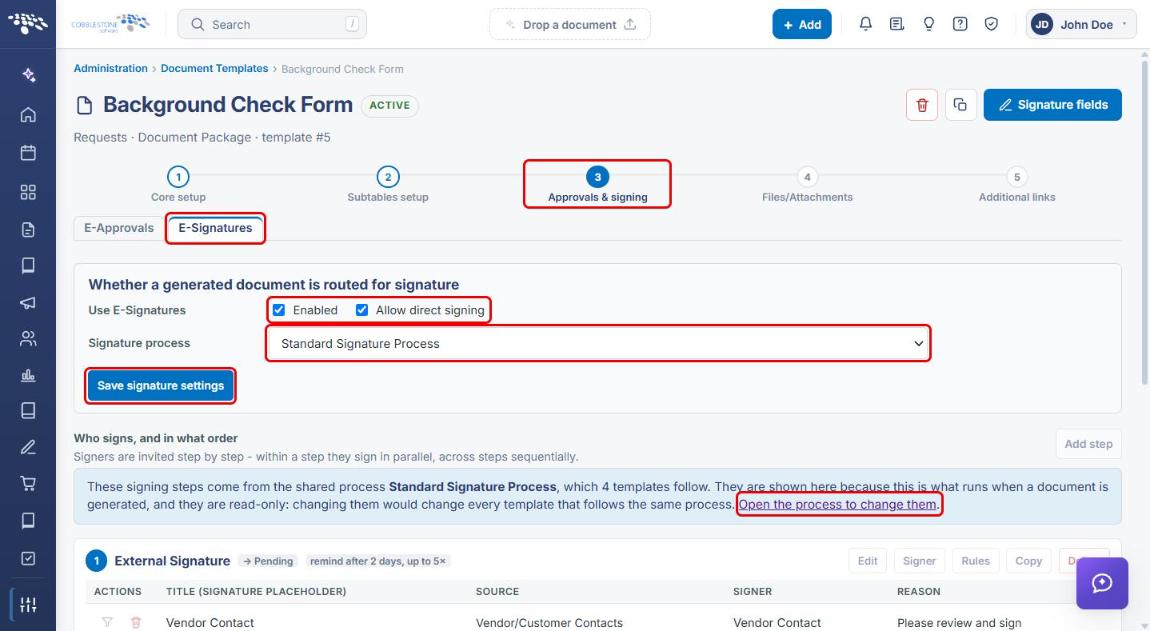
- To see which process a document template follows, go to Administration → Document Templates, click Open on the template, then click step 3 Approvals & signing and the E-Signatures tab.
- Review Use E-Signatures and the Signature process selection. To change it, choose another process and click Save signature settings. Use Open the process to change them to edit the shared steps.
7. Quick Reference Summary
| Task | Where / How |
|---|---|
| Open the list of running processes | Approvals & Signatures icon → Negotiation Processes |
| Show only signature processes | Type filter → Signatures only |
| See which template started a process | Template column |
| Review or intervene in a process | Open console → Pause, End process, Finalize, Add participant, Resend |
| See who signed and when | Console → Signature receipt icon |
| Review shared signing processes | Administration → Approval & Signing Processes → Signing |
| See which process a template follows | Template → step 3 Approvals & signing → E-Signatures → Signature process |