COBBLESTONE SOFTWARE
Contract Insight — User Guide
Accepting/Rejecting a Contract Request
09. End Users: Contract Requests › Contract Request Process › Accepting/Rejecting a Contract Request
Note: Each procedure in this guide begins at the Contract Insight homepage, so any section can be followed on its own. Custom fields are configurable, so the exact field list on a contract category record may vary between environments.
1. Overview
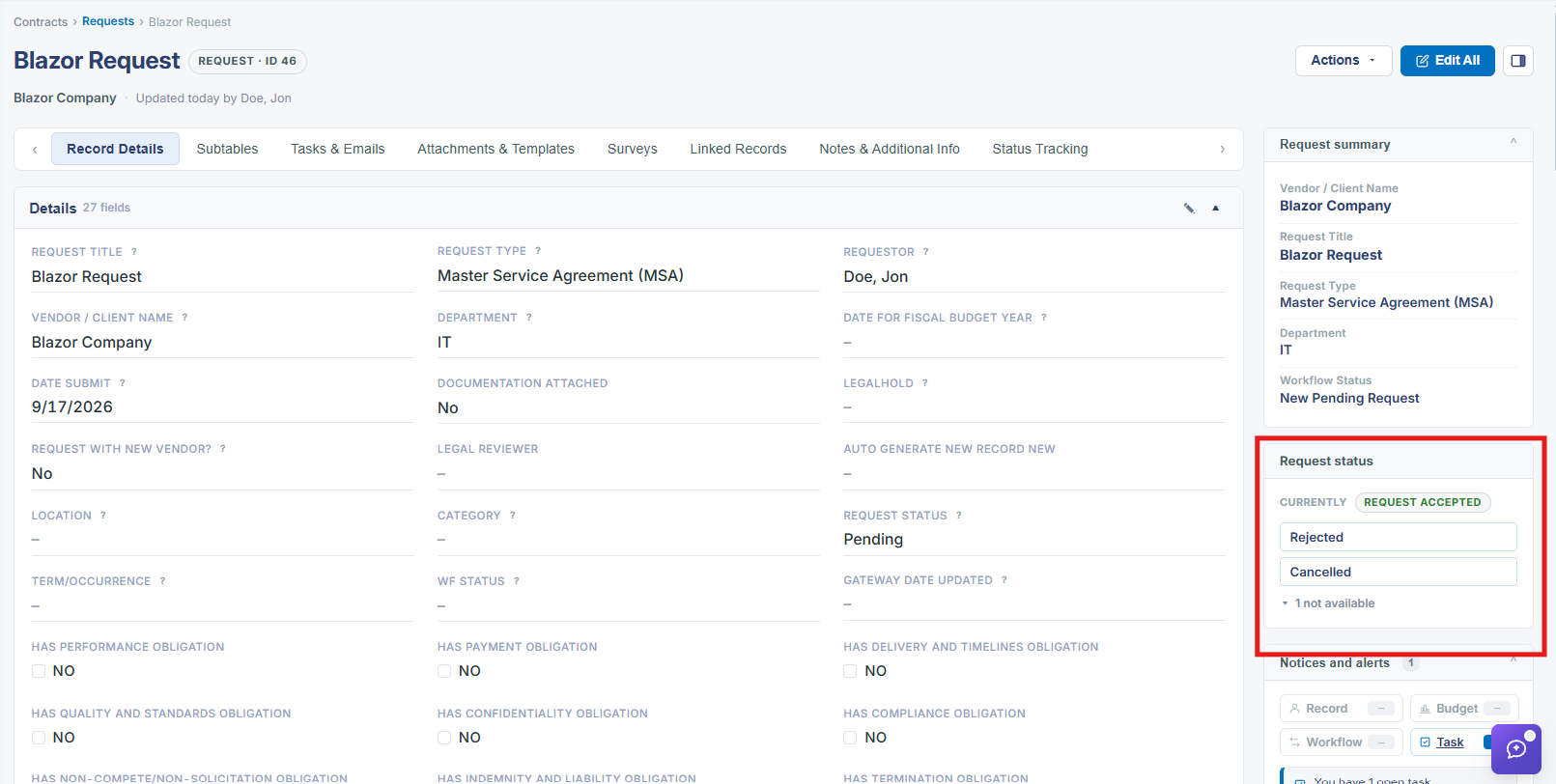
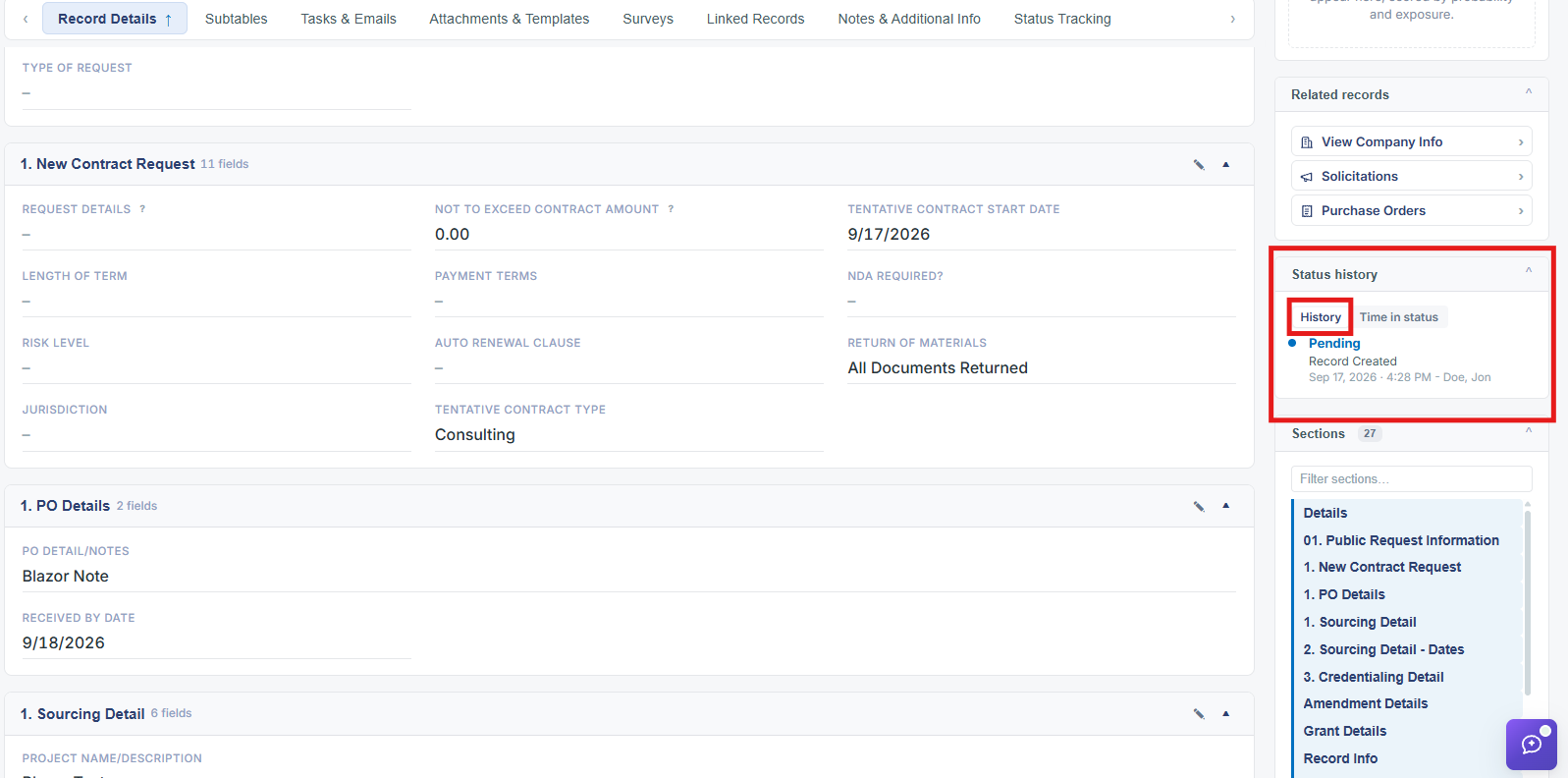
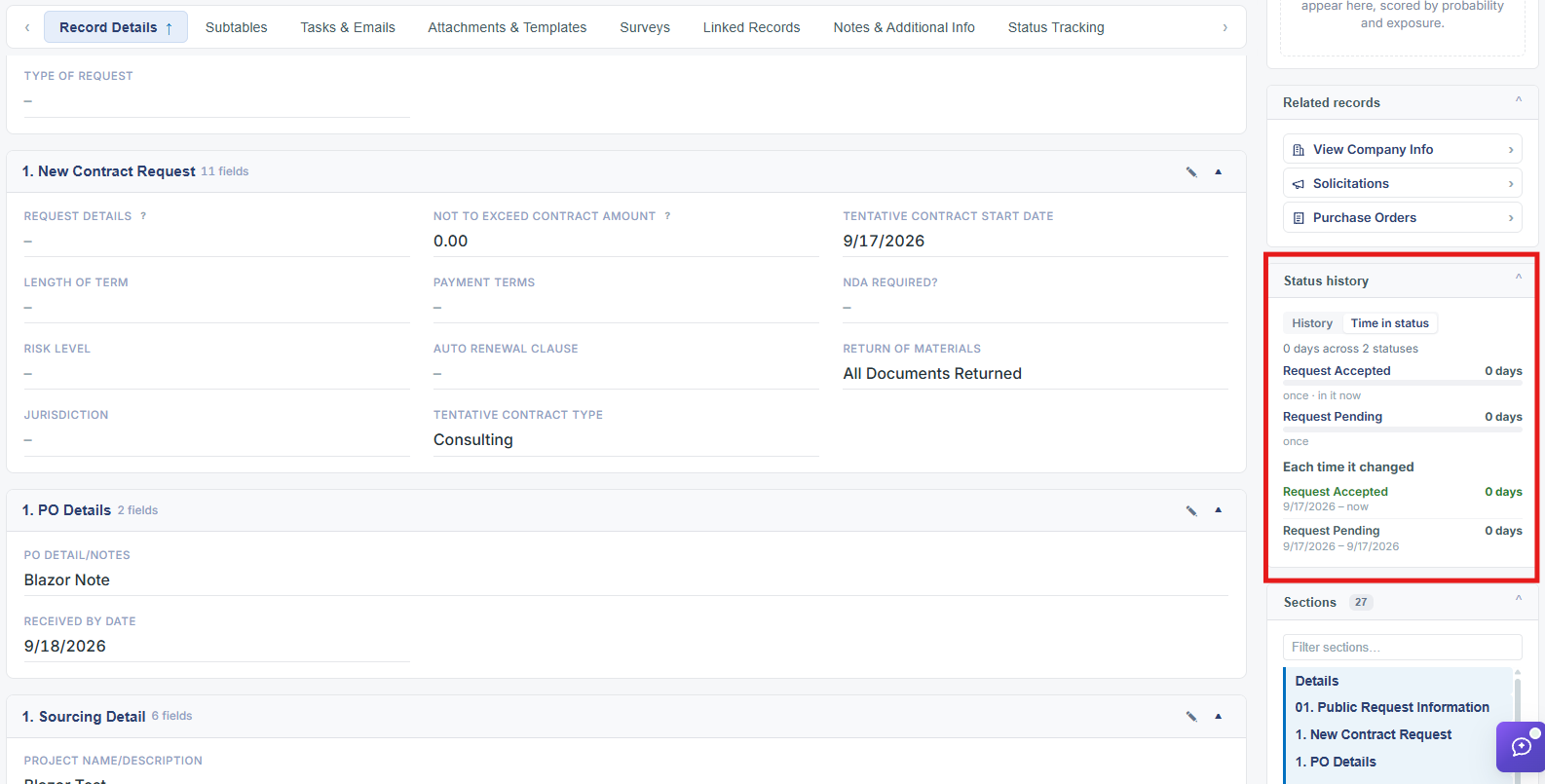
A Request record's right-hand side panel includes a Request status widget that shows the record's current state as a badge (CURRENTLY, e.g. REQUEST ACCEPTED or REQUEST CANCELLED) plus quick-action buttons for the other statuses the record can move to — typically Pending, Accepted, and Rejected (a record already in one of these states shows the remaining two as buttons, with a note such as "1 not available" for any status that quick-action button set doesn't offer directly, such as Cancelled). Clicking one of these buttons updates the request's status immediately from the record view, without navigating to a separate approval screen. The record's own Status and Request Status fields on the Record Details tab reflect the same value (for example "Request Accepted" or "Request Cancelled"), and a Status history panel further down the right-hand column lists every status change with a timestamp and the user who made it.
2. Key Elements
- The Request status widget in a Request record's side panel shows a CURRENTLY badge for the record's live status and one-click quick-action buttons for switching to Pending, Accepted, or Rejected.
- Clicking Accepted or Rejected on this widget updates the request's status directly from the record view — no separate approval workflow screen is required for a simple accept/reject decision.
- The Record Details tab's Status and Request Status fields mirror the same status value shown in the side panel.
- A Status history panel (with History and Time in status tabs) records every status change on the request, including who made it and when.
- A status the quick-action buttons don't cover directly (such as Cancelled) is called out separately, e.g. as "1 not available," rather than offered as a one-click button.