COBBLESTONE SOFTWARE
Contract Insight — User Guide
9. Copy a Solicitation Record
Module: Solicitations › Solicitations › 9. Copy a Solicitation Record
Note: Each procedure in this guide begins at the Contract Insight homepage, so any section can be followed on its own. Custom fields are configurable, so the exact field list on a contract category record may vary between environments.
1. Overview
Every solicitation record header carries an Actions menu next to Edit All, which is the expected home for a Copy/duplicate action per the legacy topic's description ("Copy This Sourcing Record" from the side menu). This review was not able to confirm the menu's specific contents live: the Actions dropdown closed immediately on every attempted click in this environment, a UI behavior observed intermittently across several other admin and record menus this session as well. Staff needing to duplicate a solicitation (for example, to recreate an auto-renewing bid) should open the Actions menu directly on a record to see its current options, since this could not be verified end-to-end in this pass.
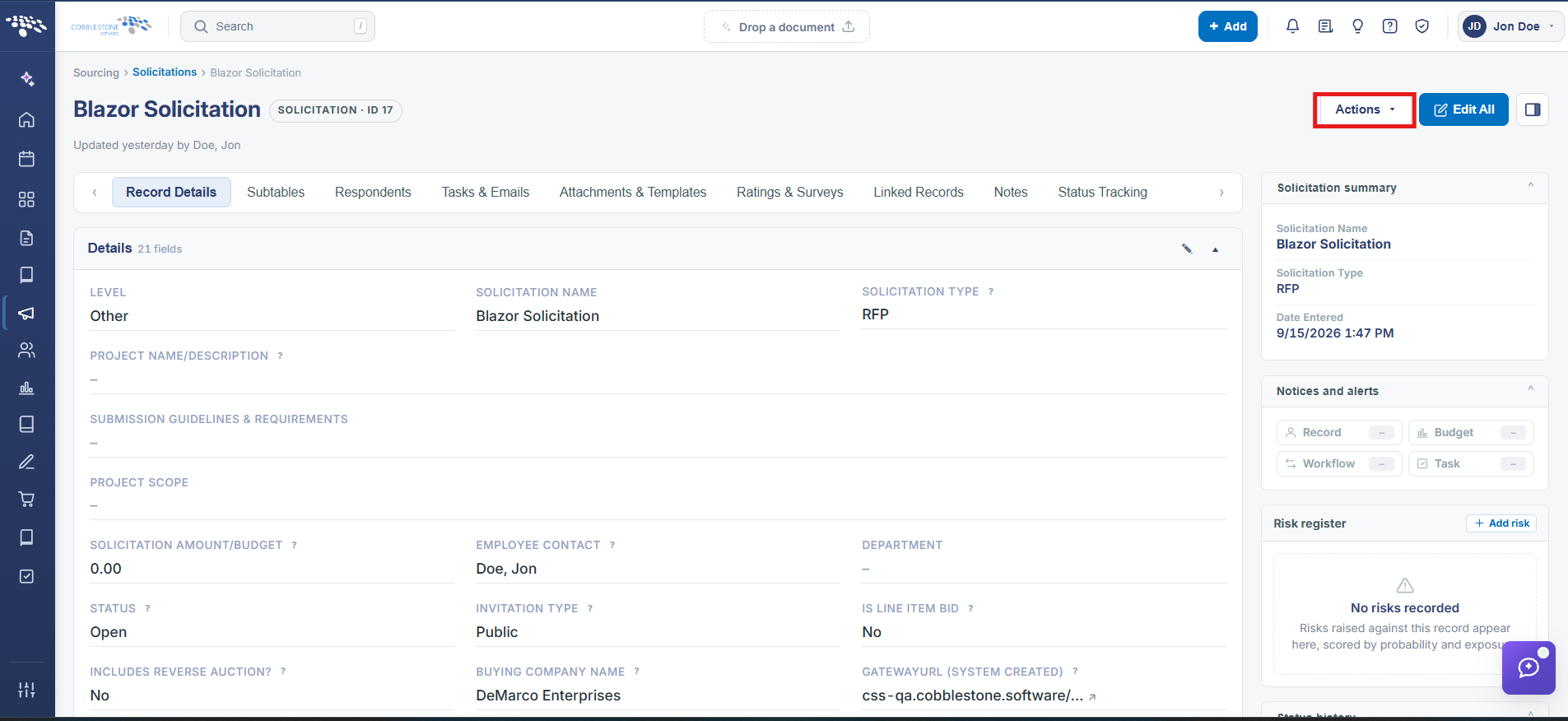 Solicitation Details - Actions Button
2. Key Elements
- The Actions menu sits at the top of every solicitation record, next to Edit All
- This is the expected location for a Copy/duplicate action based on the legacy record's "Copy This Sourcing Record" behavior
- This review could not keep the Actions dropdown open long enough to confirm its exact menu items in this QA environment
- Confirm the current copy/duplicate option directly on a live record's Actions menu rather than relying on this entry alone
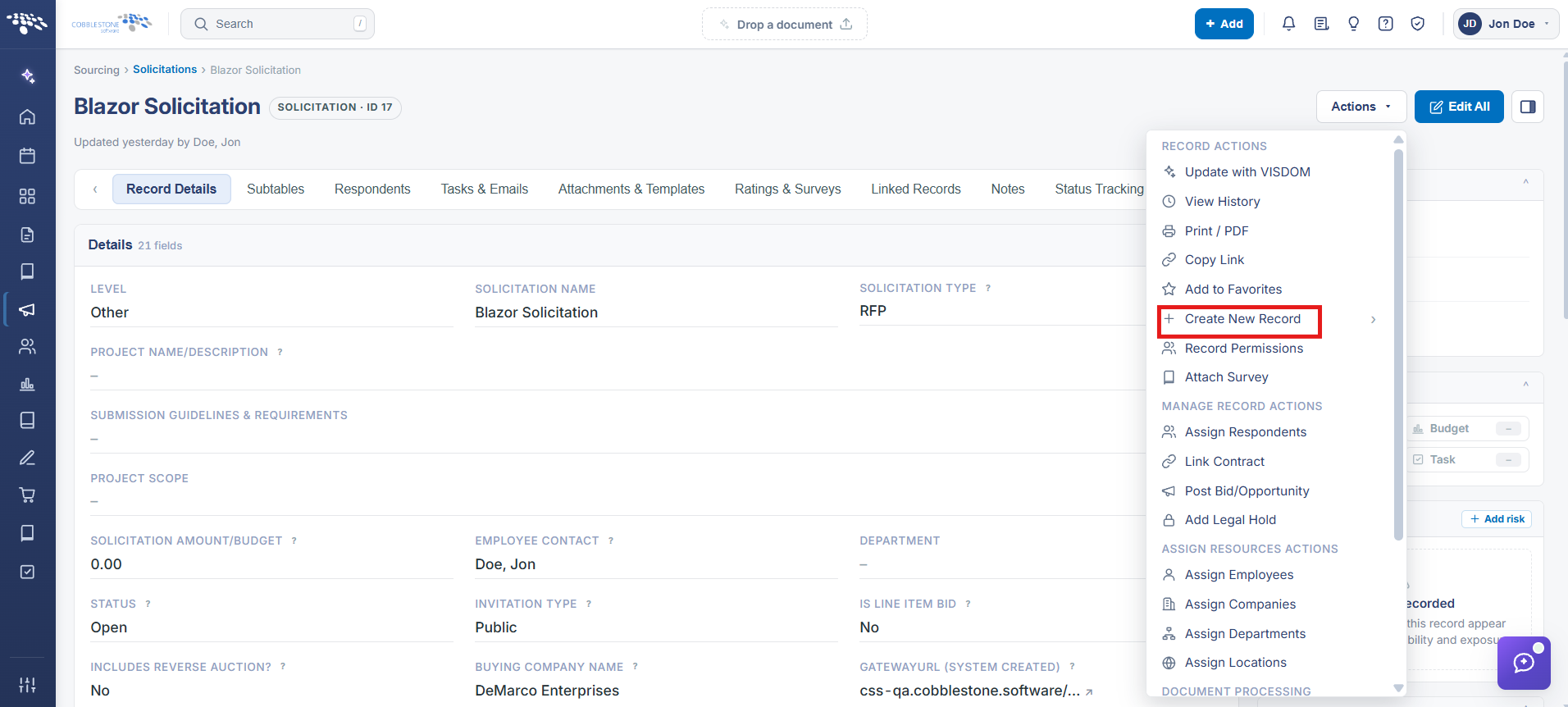 Solicitations Details - Create New Record
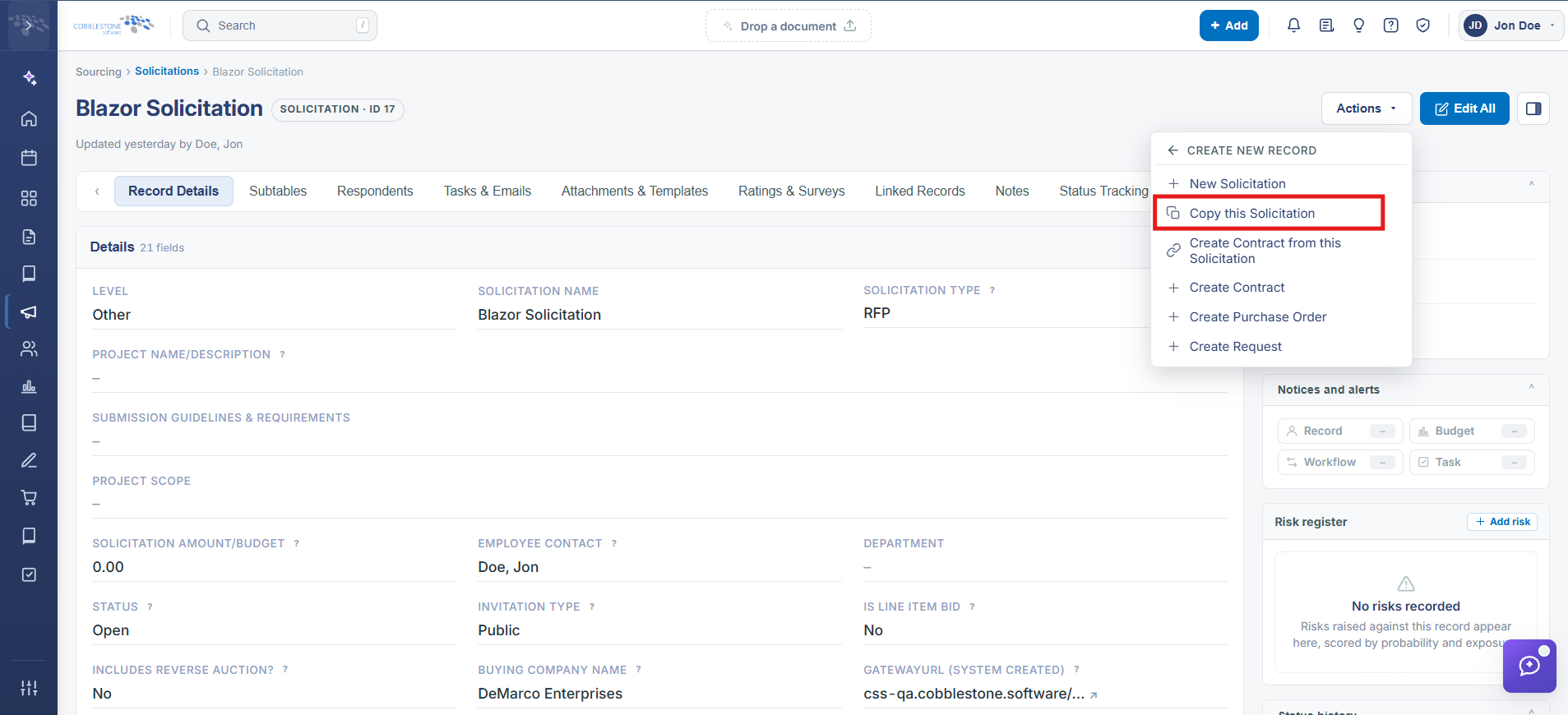 Solicitations Details - Copy this Solicitations
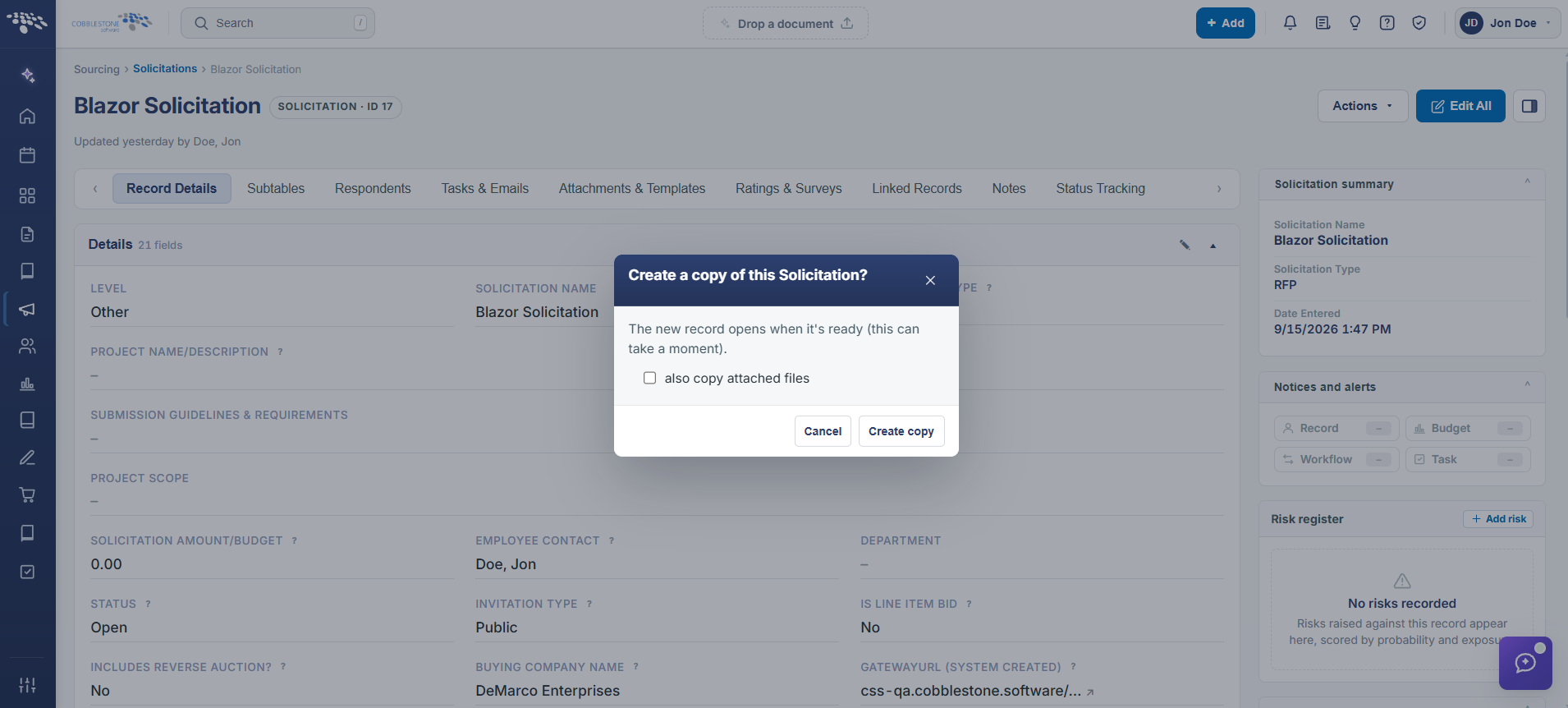 Solicitations Details - Copy this Solicitations Popup