COBBLESTONE SOFTWARE
Contract Insight — User Guide
10. Link a Contract to a Solicitation Record
Module: Solicitations › Solicitations › 10. Link a Contract to a Solicitation Record
Note: Each procedure in this guide begins at the Contract Insight homepage, so any section can be followed on its own. Custom fields are configurable, so the exact field list on a contract category record may vary between environments.
1. Overview
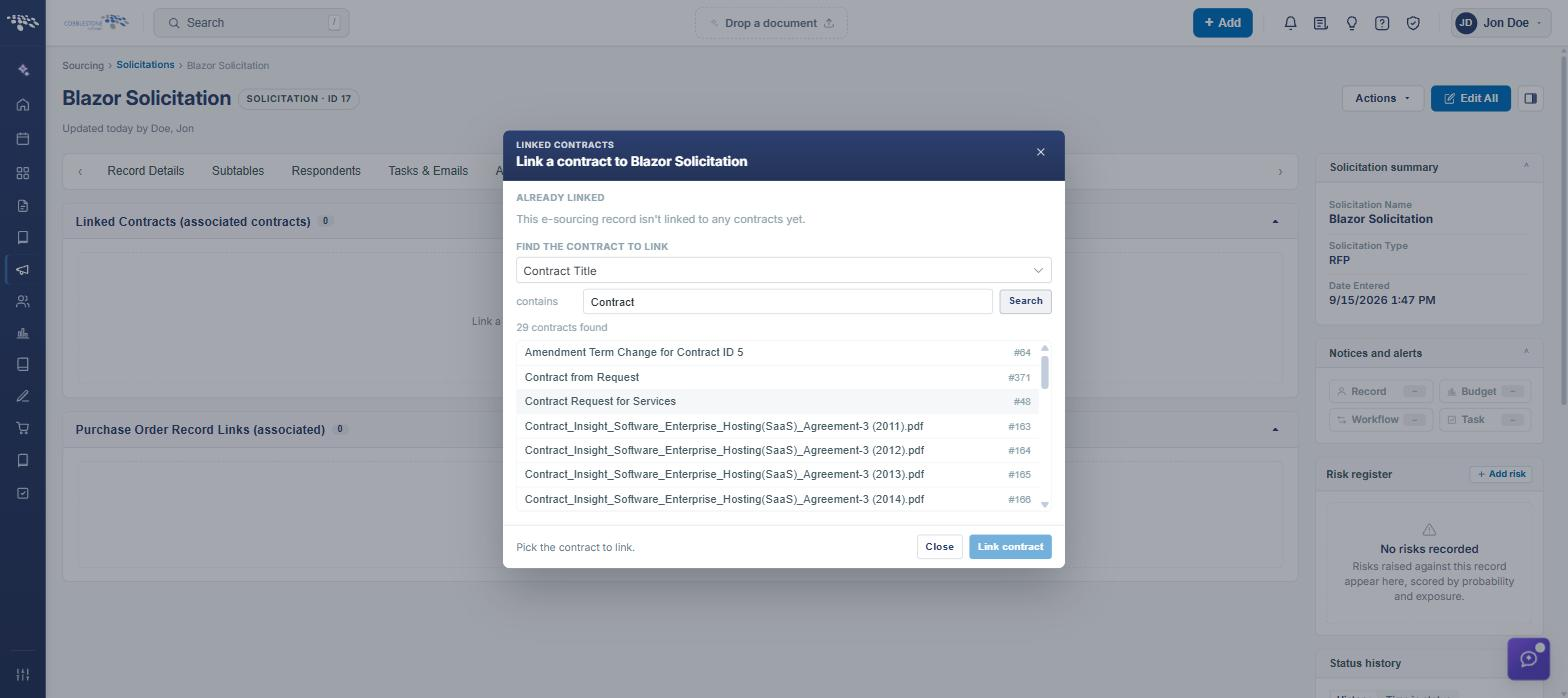
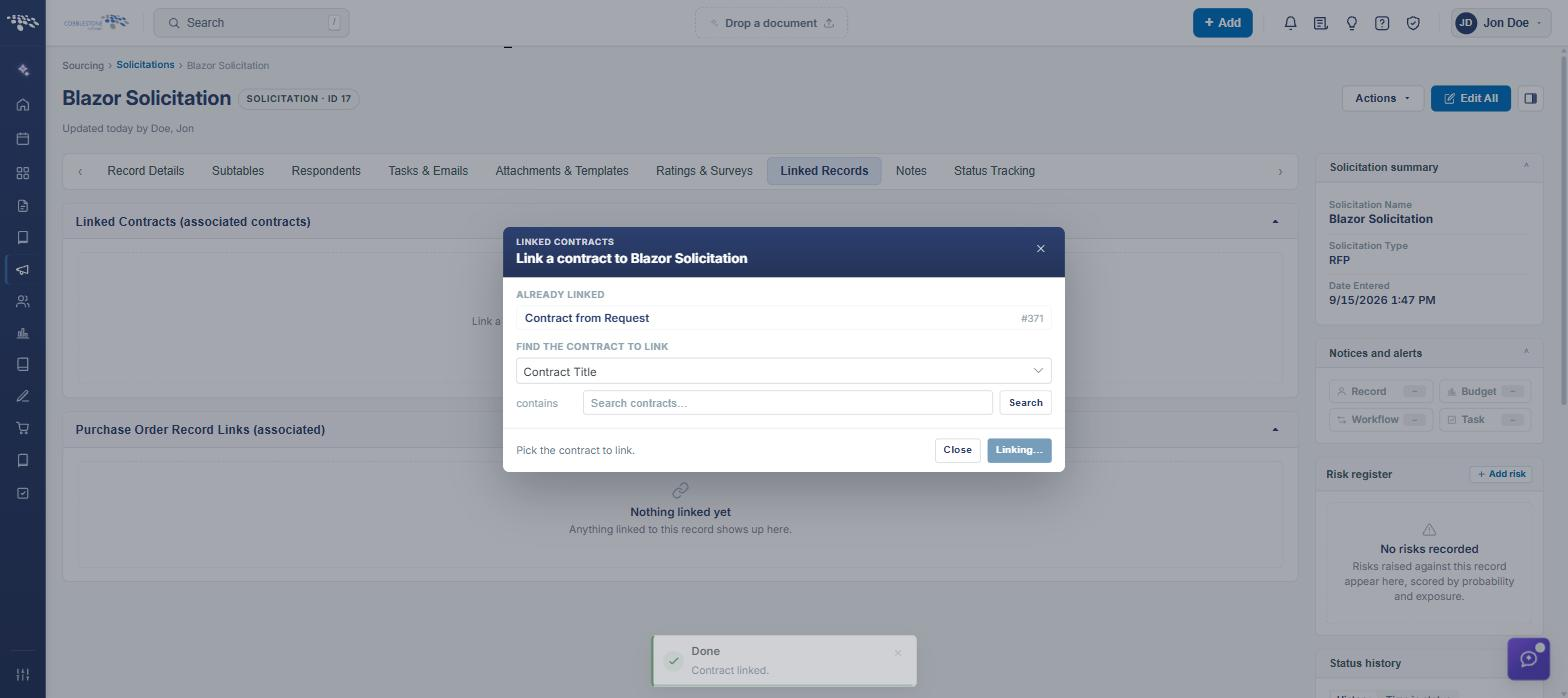
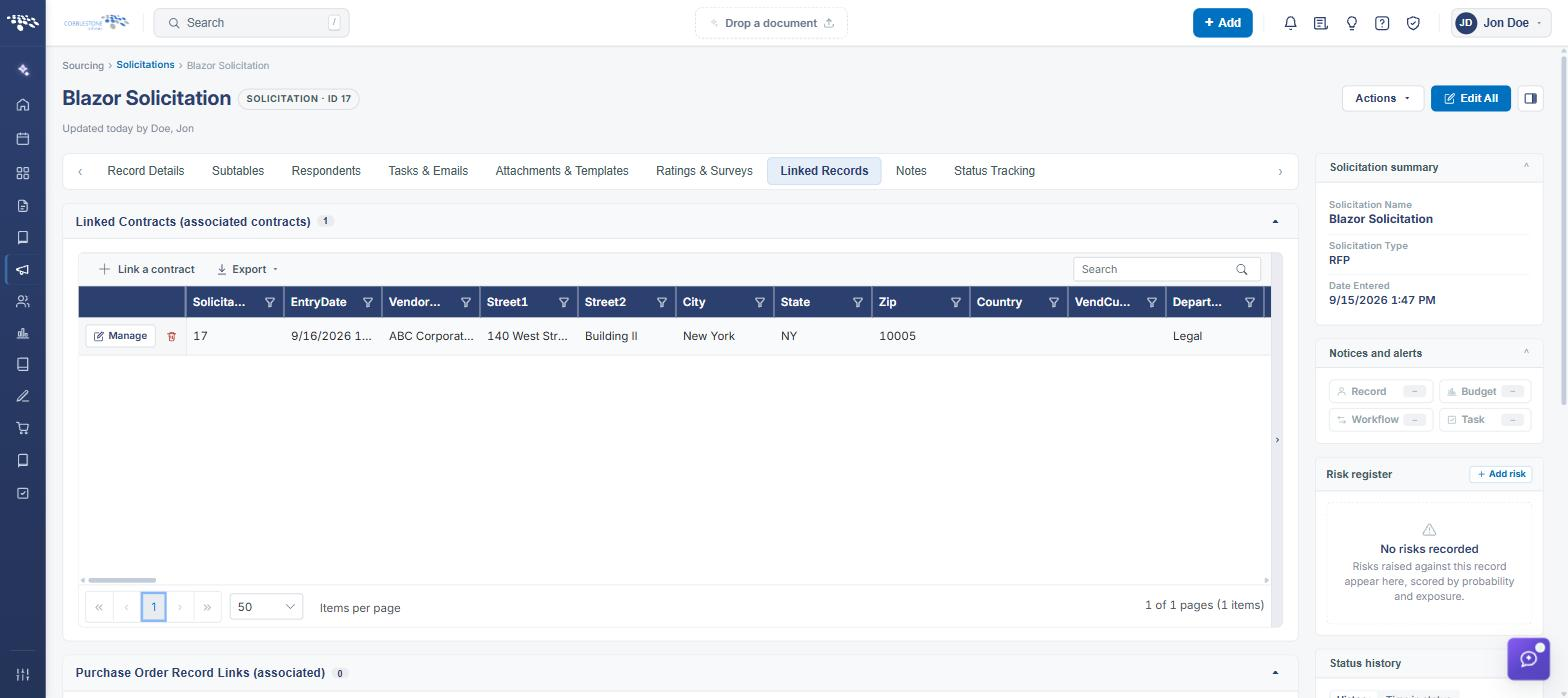
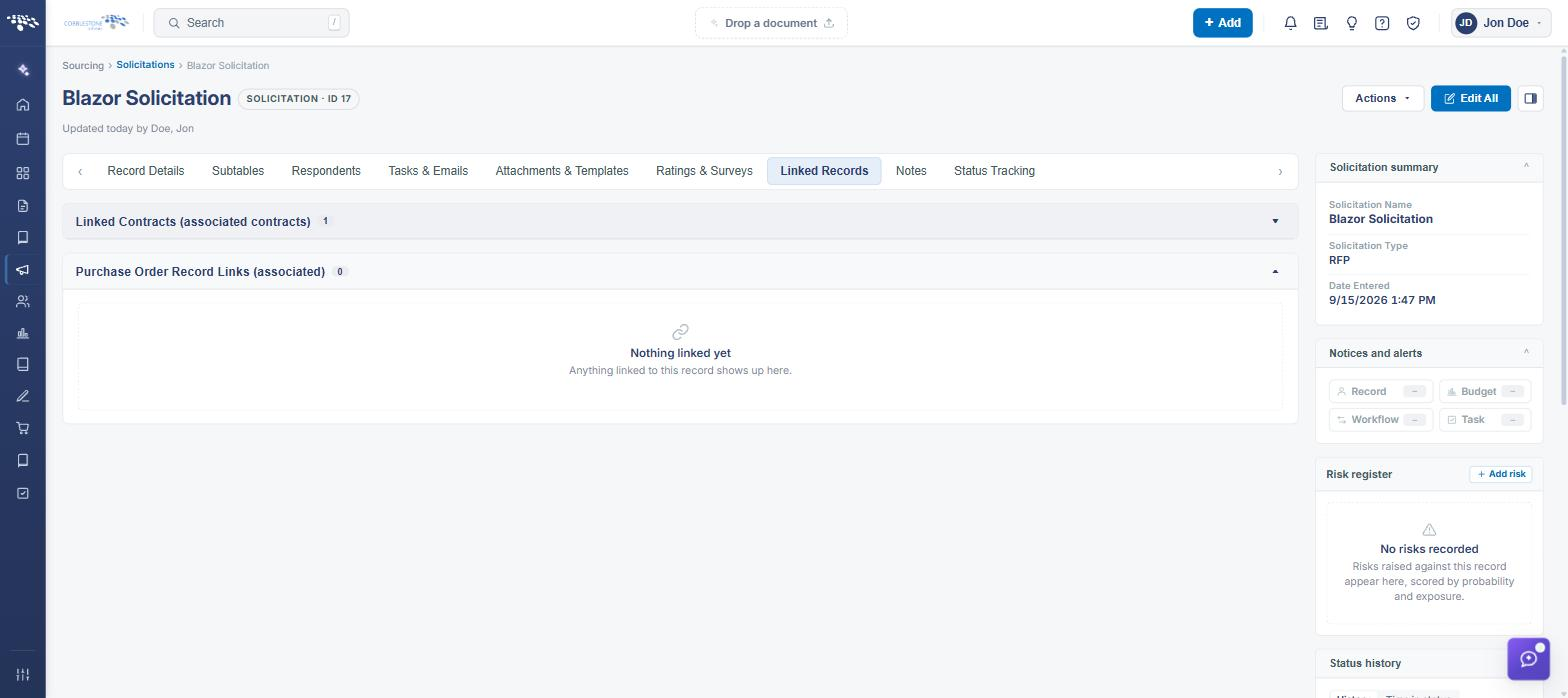
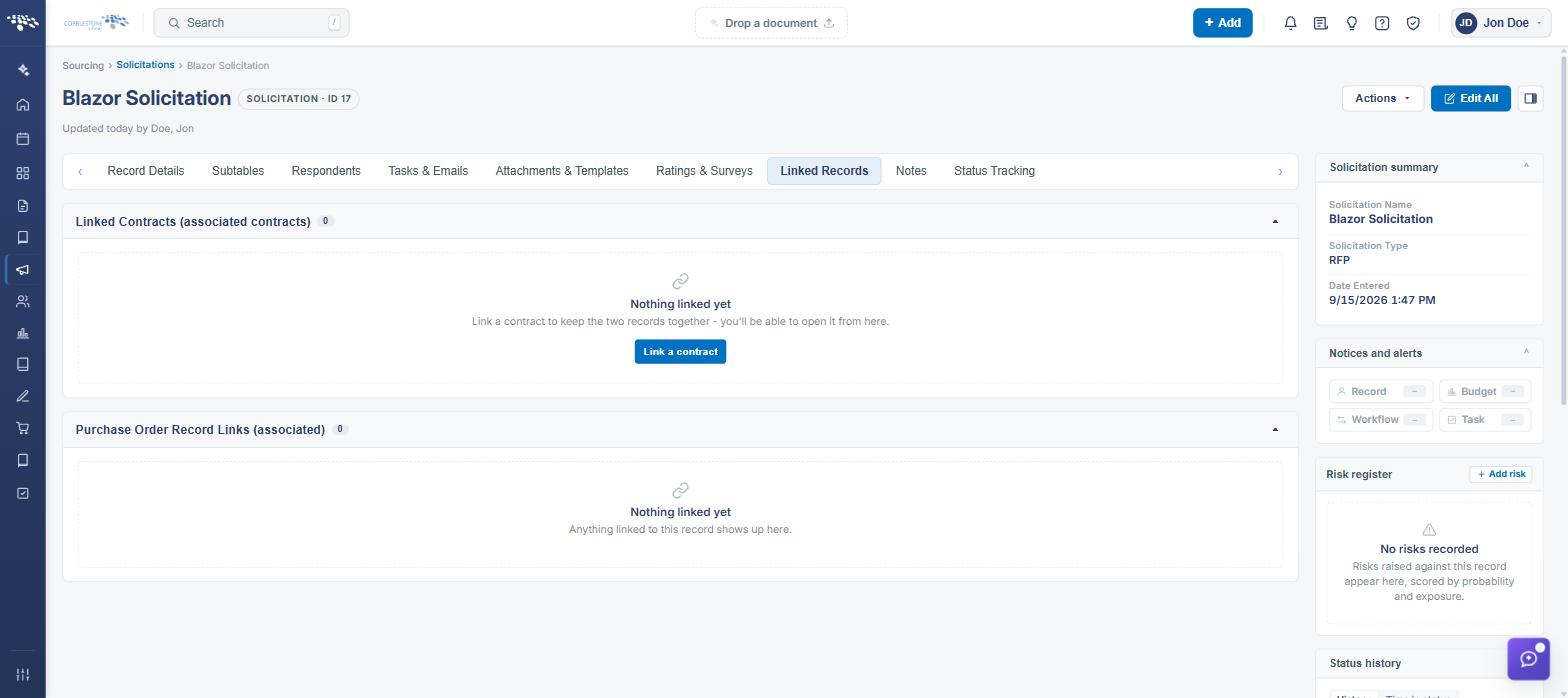
A solicitation's Linked Records tab holds a "Linked Contracts (associated contracts)" panel with a Link a contract button, matching the legacy workflow of connecting an existing contract once a respondent has been awarded. Clicking it opens a "Link a contract to [Bid Name]" dialog listing already-linked contracts (14 were already linked on the example record used for this review) and a "Find the contract to link" search (choose a field like Contract Title, enter a contains value, Search, then Link contract). The same Linked Records tab also has a separate "Purchase Order Record Links (associated)" panel for linking purchase orders.
2. Key Elements
- Open a solicitation > Linked Records tab > Linked Contracts (associated contracts) panel
- Link a contract opens a dialog showing already-linked contracts and a Find the contract to link search (field + contains + Search)
- Selecting a result and clicking Link contract adds it to the Already Linked list without leaving the dialog
- The same tab's Purchase Order Record Links (associated) panel links purchase orders to the solicitation the same way