COBBLESTONE SOFTWARE
Contract Insight — User Guide
5.5 Opting out of Email Messages
Module: Vendor/Client Gateway › Step 5: Vendors/Clients on the Gateway › 5.5 Opting out of Email Messages
Note: Each procedure in this guide begins at the Contract Insight homepage, so any section can be followed on its own. Custom fields are configurable, so the exact field list on a contract category record may vary between environments.
1. Overview
Contract Insight doesn't have a single "unsubscribe" screen. Instead, whether a person receives system email is controlled by fields on that person's record and by system-wide settings:
- Vendor/client contacts are opted in or out on their contact record in Directory → Vendors / Customers → Company Contacts, using the Send Email field (and, where used, SendOpportunityEmails).
- Employees have per-person email fields on their record in Directory → Employees: Notify If Item Added or Updated in the Details section, and Include in From Email List in the Record Info section.
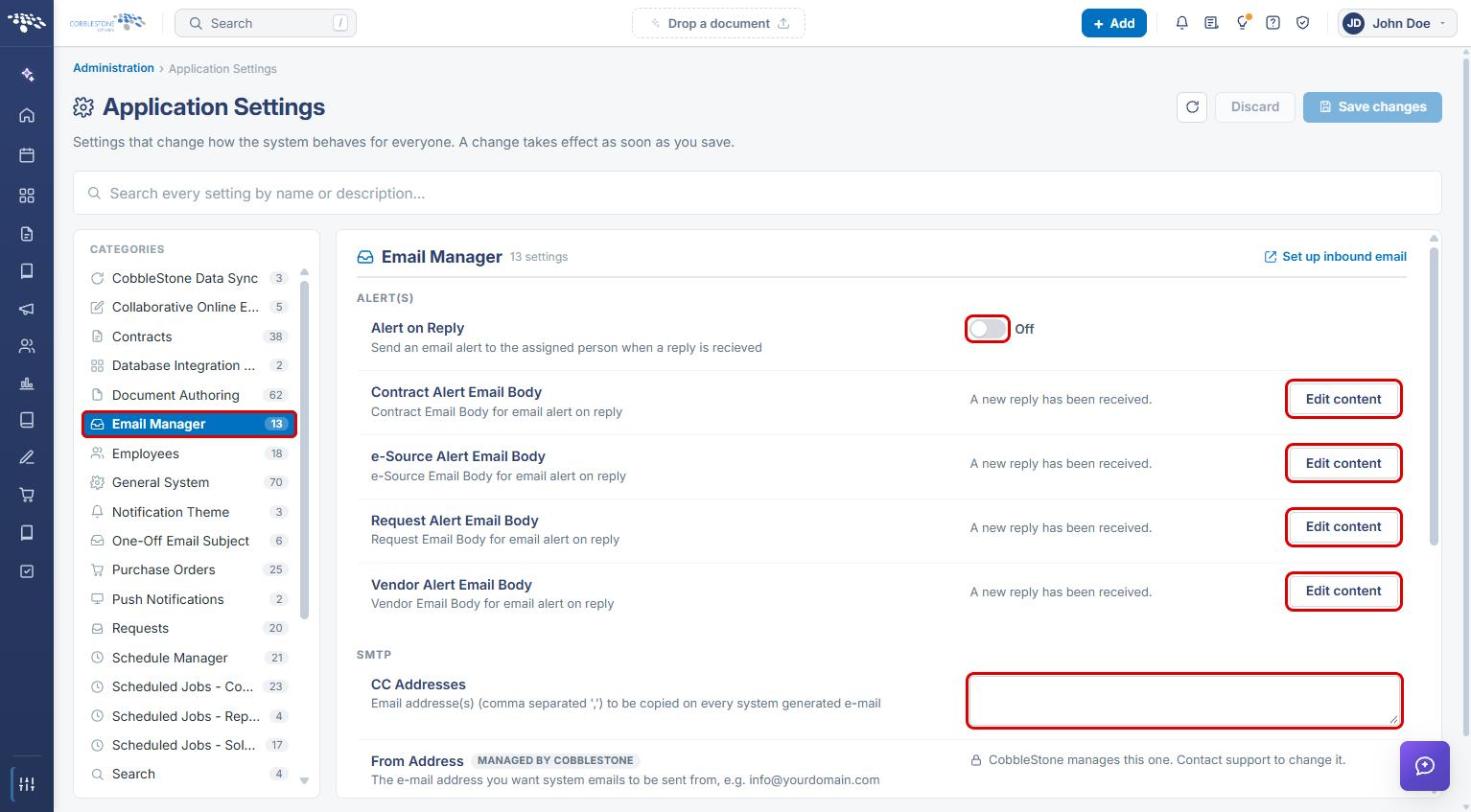
- System-wide email behavior is set by administrators in Administration → Application Settings, under Email Manager (reply alerts, alert email bodies, CC addresses, From address and display name) and Employees (employee task email timers, escalation timer, email content options, and the Reply To address).
2. Key Elements
- Send Email (vendor/client contact): set to Yes to include the contact in emails related to press releases and marketing, or No to opt them out.
- SendOpportunityEmails (vendor/client contact): a Yes/No value shown next to Send Email on the contact form.
- Notify If Item Added or Updated (employee, Details section): when Yes, the employee gets notifications when items are added or updated through the Gateway.
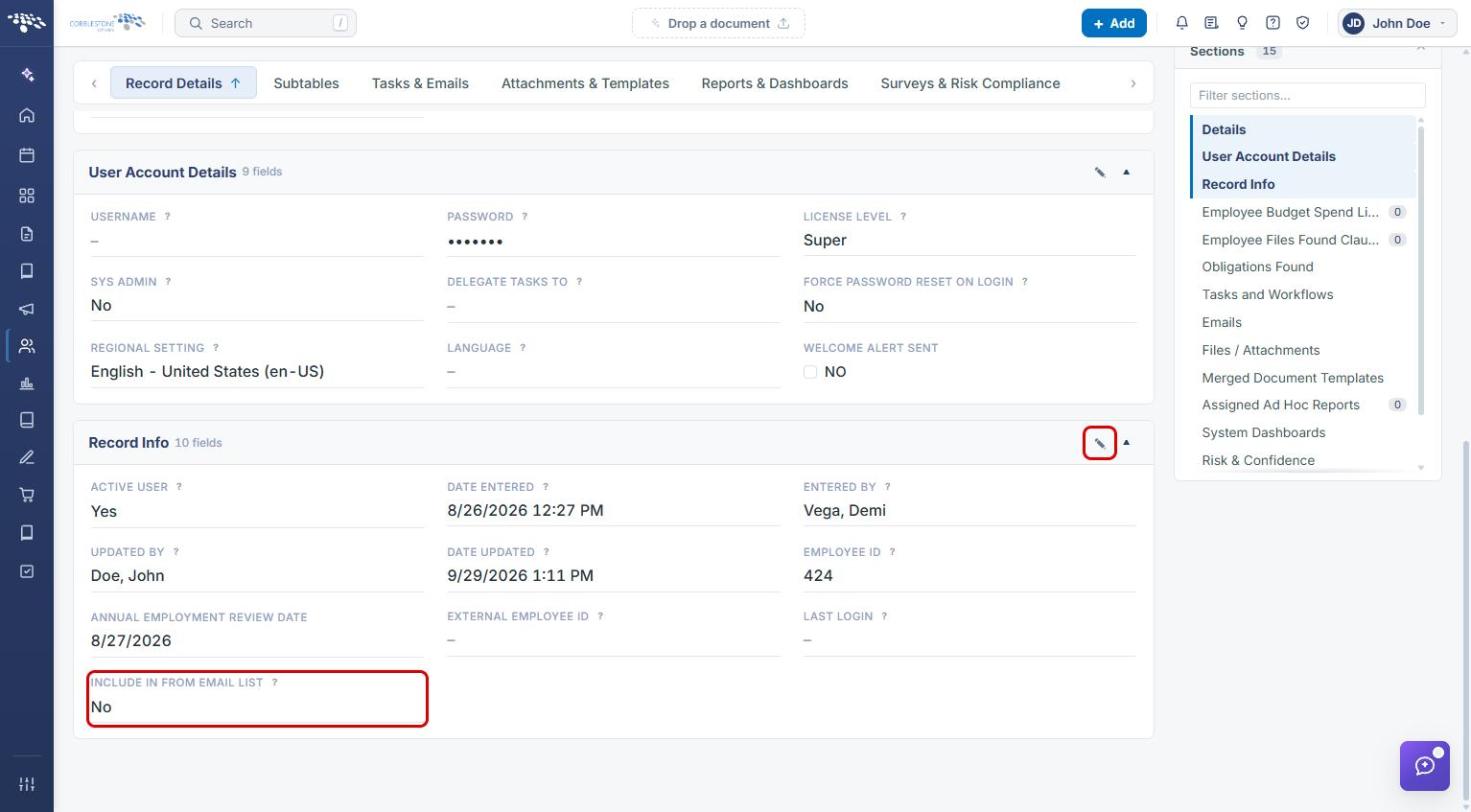
- Include in From Email List (employee, Record Info section): when Yes, the employee's email address can be selected in the "From" address bar when sending emails from within CobbleStone (non-SendGrid emails only). It controls sending, not receiving, and is set to No on the test record reviewed.
- Application Settings → Email Manager: Alert on Reply toggle, Contract/e-Source/Request/Vendor Alert Email Bodies, CC Addresses, and the From Address/From Display Name. The From Address is managed by CobbleStone; contact support to change it.
- Application Settings → Employees: Employee Tasks Email Timer and Employee Tasks Escalation Timer (in minutes; 0 disables), Include Email Info, Include task complete buttons in email, and Reply To Address for Email Tasks.
3. Opting a Vendor/Client Contact out of Email
- From the Contract Insight homepage, click the Directory icon in the left navigation bar and select Vendors / Customers.
- Find the company and click Manage on its row to open the record.
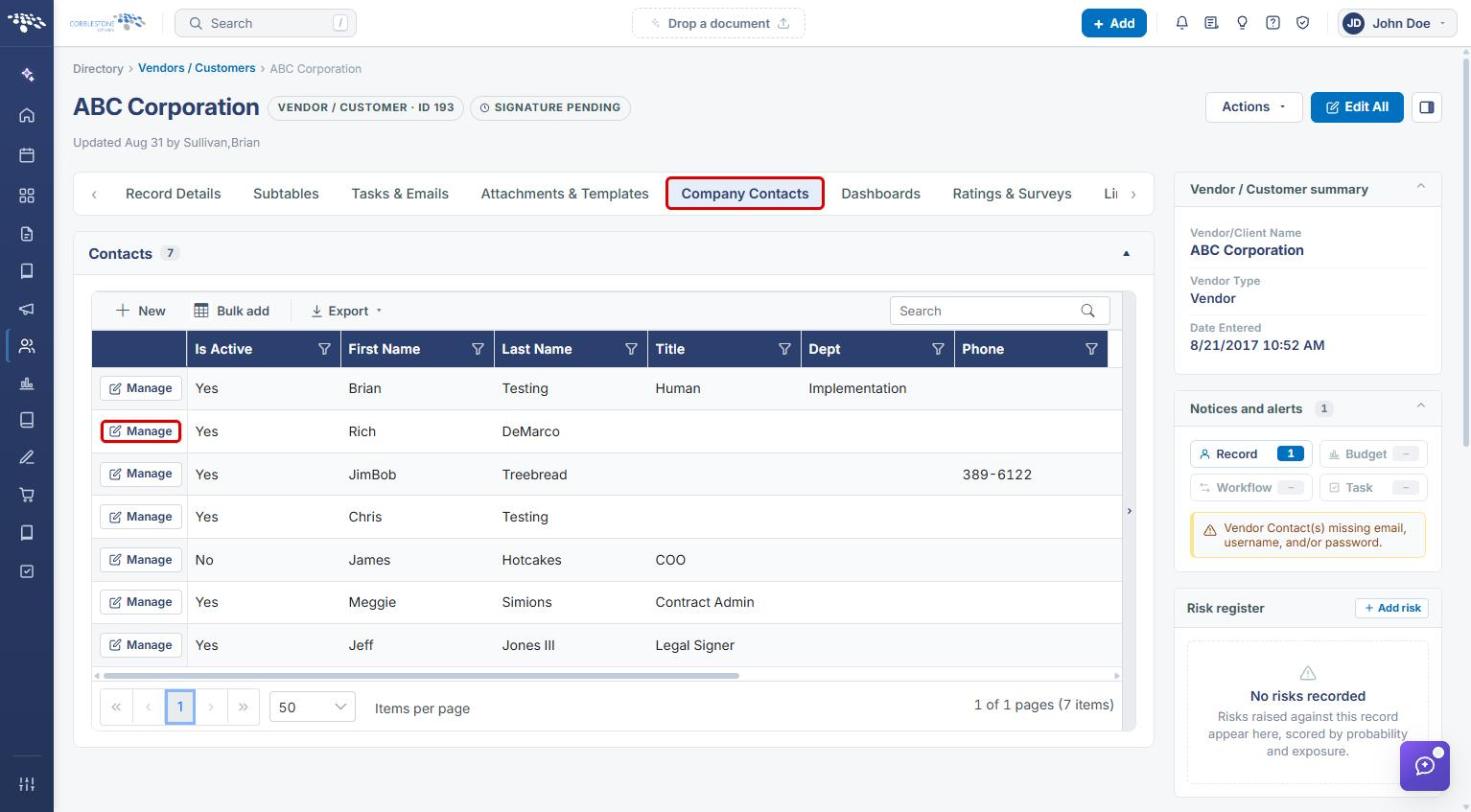
- Click the Company Contacts tab, then click Manage on the contact you want to update.
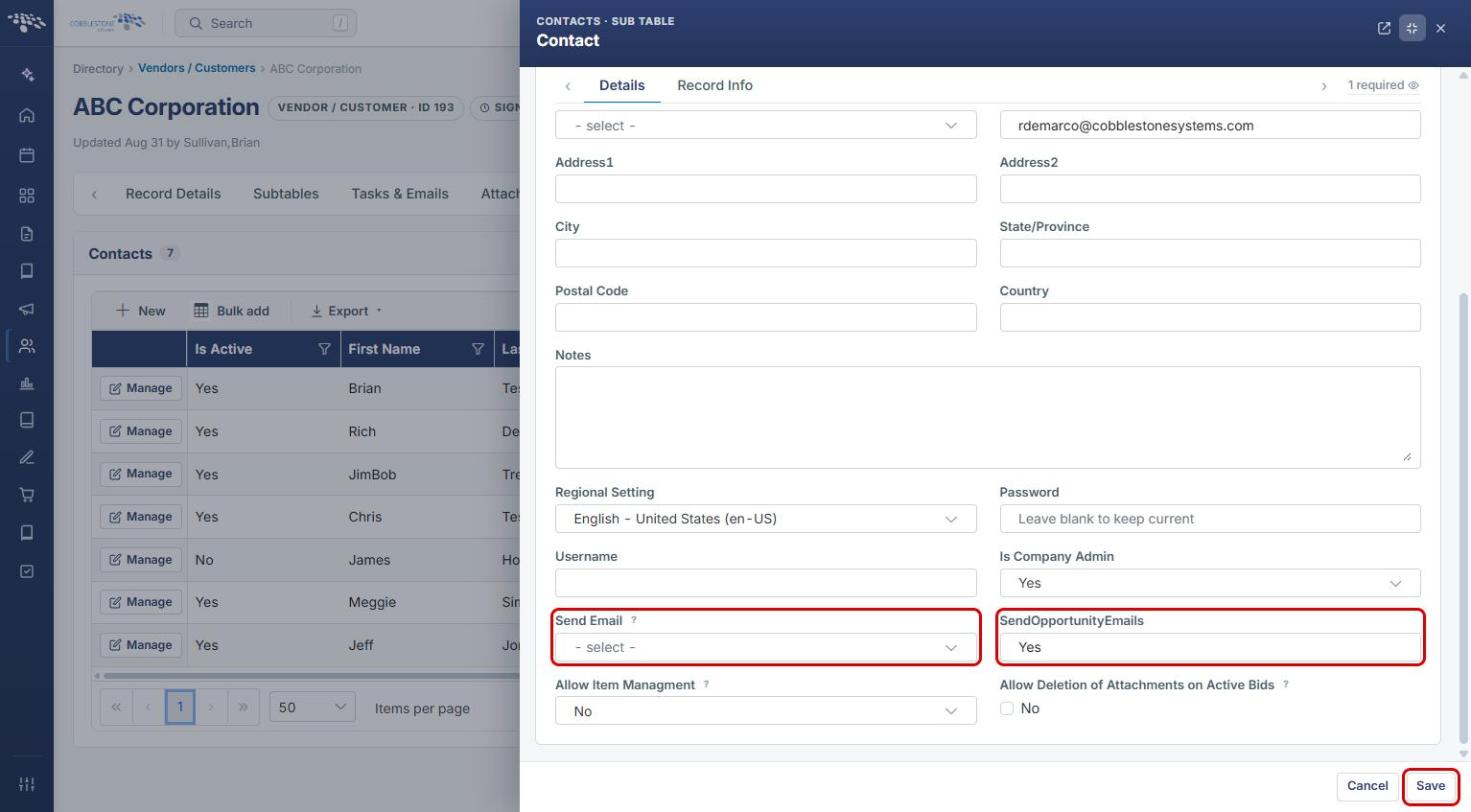
- The contact opens in a side panel. Click Edit at the bottom of the panel. Optionally, click the expand icon in the panel header to show the fields in columns.
- Scroll down to the gateway fields. Set Send Email to No to stop press release and marketing emails to this contact, or Yes to opt them back in.
- Update SendOpportunityEmails if your process uses it.
- Click Save, or Cancel to discard your changes.
4. Managing an Employee's Email Settings
4a. Opening the Employee Record
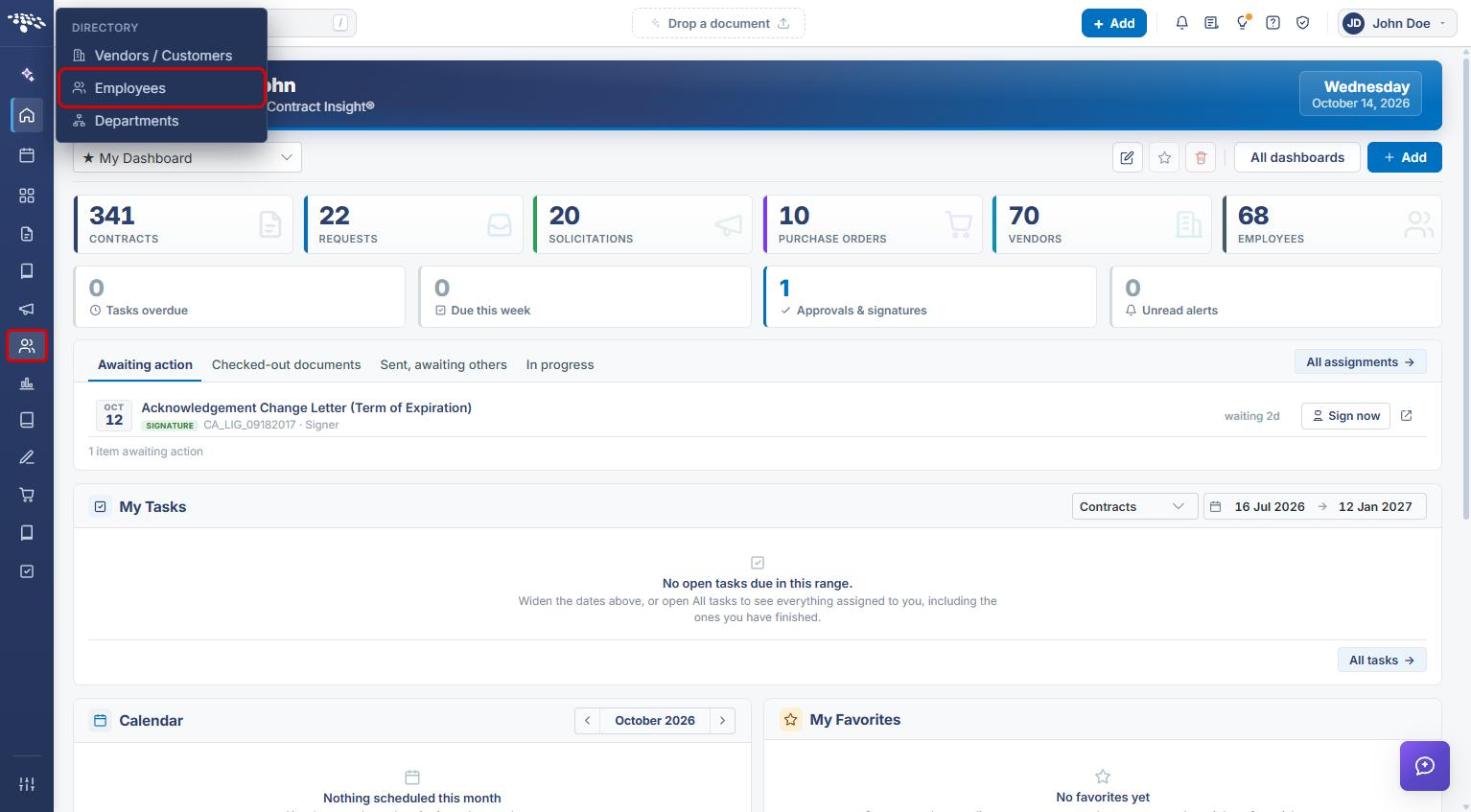
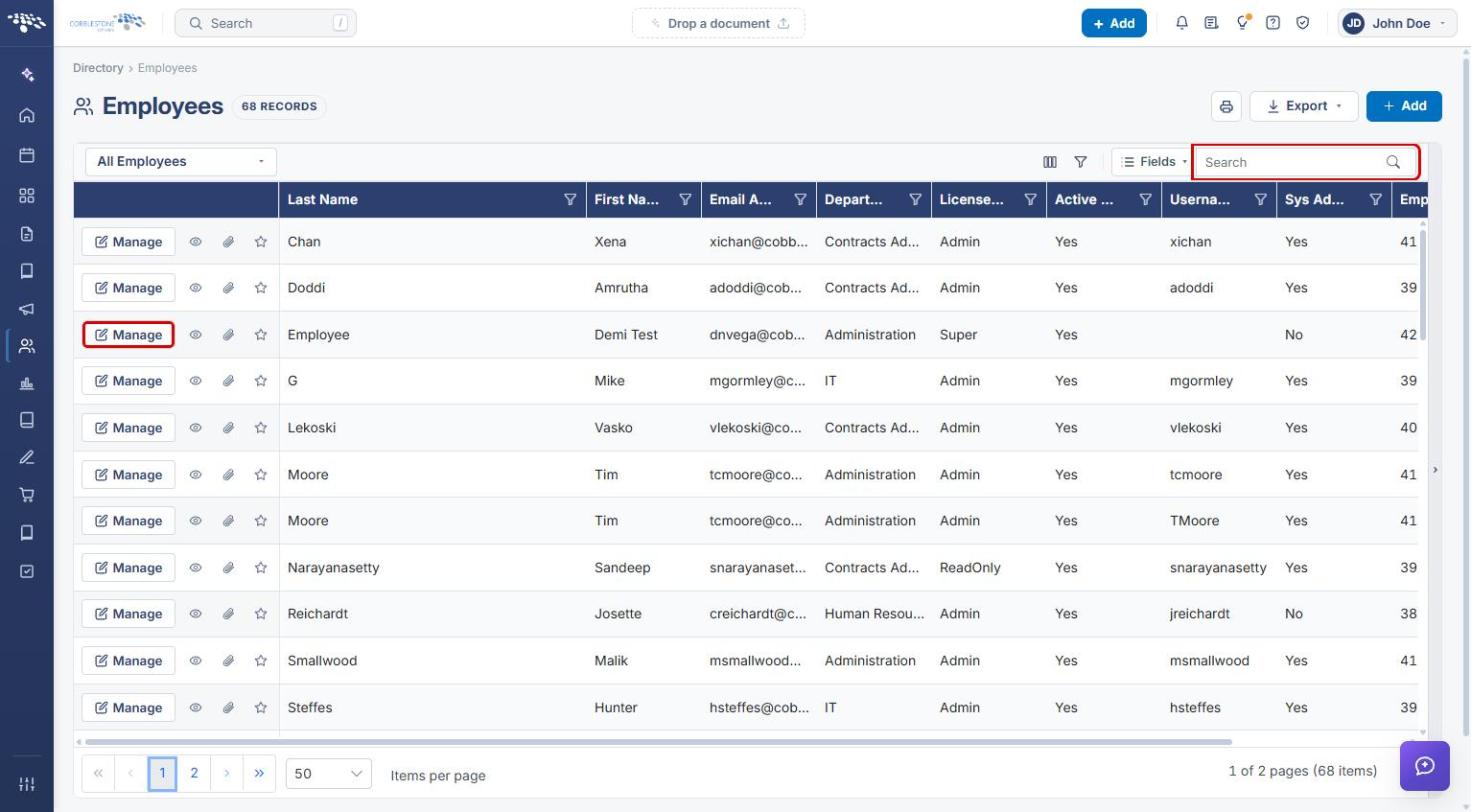
- From the Contract Insight homepage, click the Directory icon in the left navigation bar.
- Select Employees.
- On the Employees list, use the Search box to find the employee.
- Click Manage on the employee's row to open the record.
4b. Updating the Employee's Email Fields
- On the Record Details tab, the Details section contains Notify If Item Added or Updated. Set it to No to stop notifications about items added or updated through the Gateway. Click the pencil icon on the field or the section to edit it.
- Scroll down to the Record Info section (or click Record Info in the Sections list on the right). The Include in From Email List field shows its current value.
- Click the pencil icon in the Record Info header to edit the section.
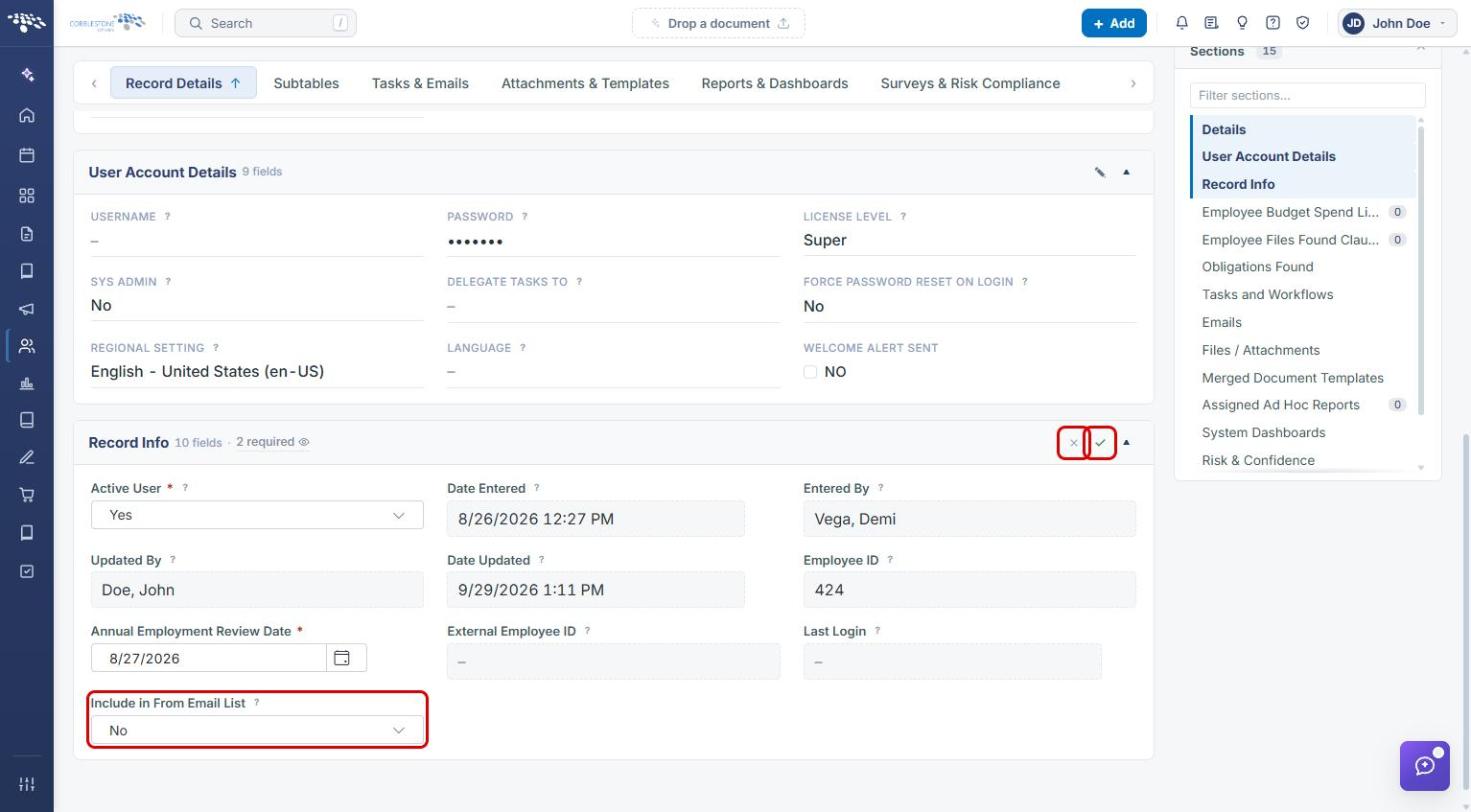
- Choose Yes or No in the Include in From Email List drop-down.
- Click the check mark in the section header to save, or the × to cancel.
5. Reviewing System-Wide Email Settings (Administrators)
5a. Opening Application Settings
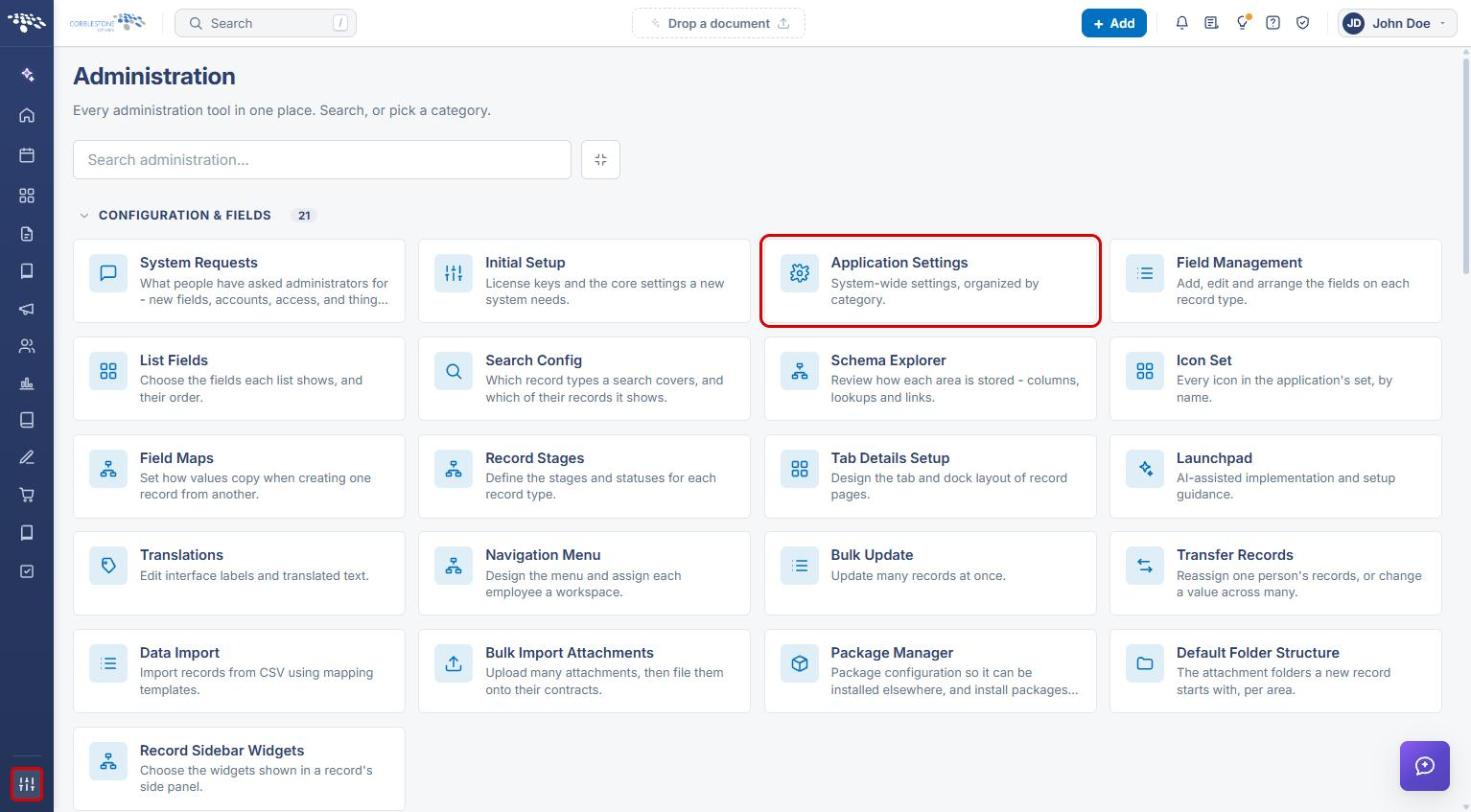
- From the Contract Insight homepage, click the Administration icon at the bottom of the left navigation bar.
- Under Configuration & Fields, click Application Settings.
5b. Email Manager Settings
- In the Categories list, click Email Manager.
- Use the Alert on Reply toggle to turn email alerts to the assigned person on or off when a reply is received.
- Click Edit content next to the Contract, e-Source, Request, or Vendor Alert Email Body to change the text of those alerts.
- Enter any addresses that should be copied on every system-generated email in CC Addresses, separated by commas.
- Scroll down to review the From Address (managed by CobbleStone) and From Display Name.
5c. Employees Email Settings
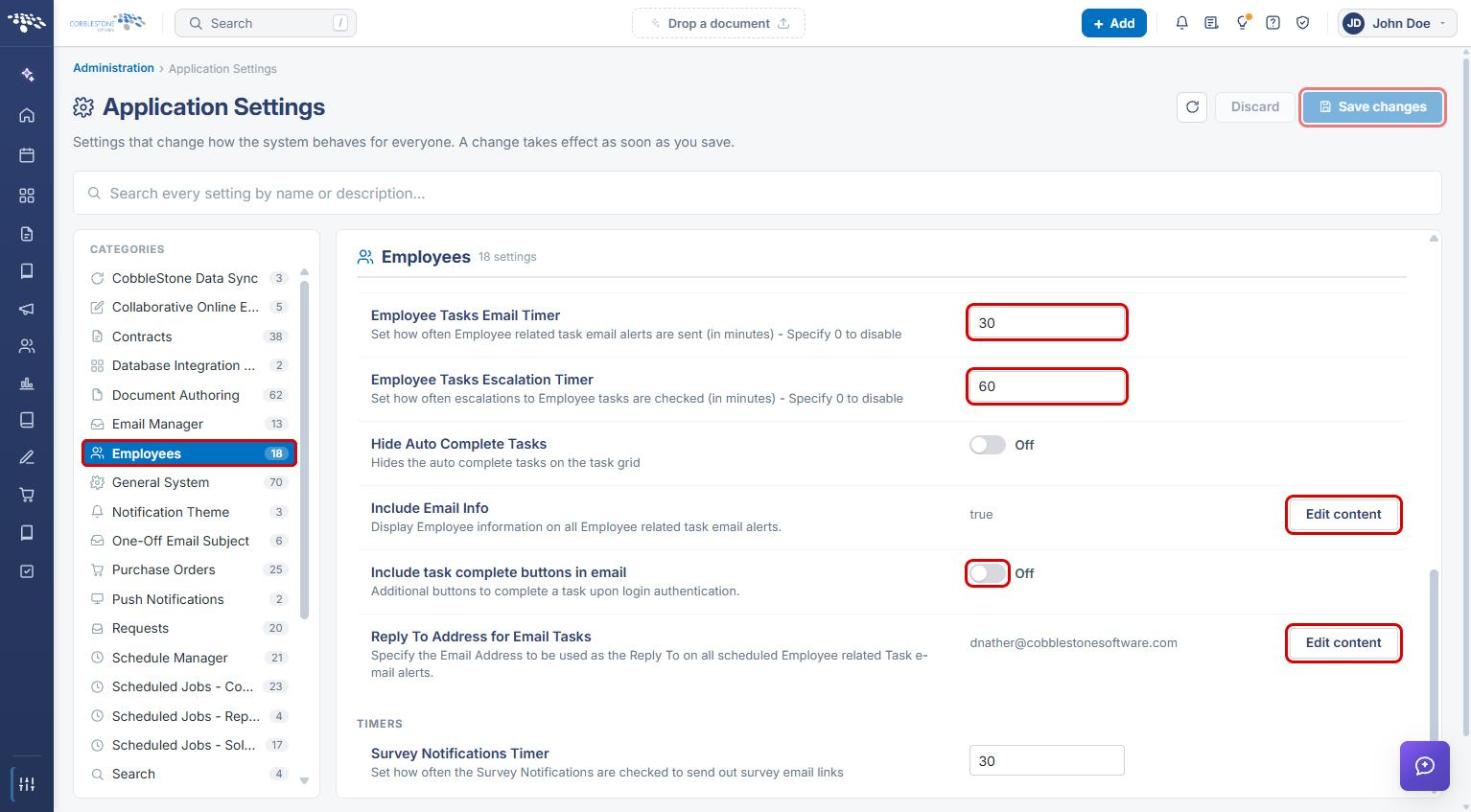
- In the Categories list, click Employees and scroll to the email settings.
- Set Employee Tasks Email Timer to how often employee task email alerts are sent, in minutes. Enter 0 to turn these alerts off for everyone.
- Set Employee Tasks Escalation Timer to how often escalations are checked, in minutes. Enter 0 to turn escalations off.
- Use Include Email Info (Edit content) to show or hide employee information in task email alerts, and the Include task complete buttons in email toggle to add task-complete buttons to the email.
- Click Edit content next to Reply To Address for Email Tasks to change the Reply To address on scheduled employee task email alerts.
- Click Save changes at the top of the page to apply your changes, or Discard to undo them. Changes take effect for everyone as soon as they are saved.