COBBLESTONE SOFTWARE
Contract Insight — User Guide
5.4 Changing Your Password
Module: Vendor/Client Gateway › Step 5: Vendors/Clients on the Gateway › 5.4 Changing Your Password
Note: Each procedure in this guide begins at the Contract Insight homepage, so any section can be followed on its own. Custom fields are configurable, so the exact field list on a contract category record may vary between environments.
1. Overview
Password changes and resets on the Gateway are timed by VCG Password Reset Timeout Duration (VCG Settings → General) — the number of minutes before a reset link expires, up to 1,440 (24 hours), defaulting to 20 — and communicated through the same Password Reset Emails content used for the forgot-password flow. Vendors and clients start a reset from the Forgot Password? link on the Gateway sign-in page.
2. Key Elements
- VCG Password Reset Timeout Duration (VCG Settings → General) sets how long a password-reset link stays valid, in minutes.
- Default value is 20 minutes; maximum configurable value is 1,440 minutes (24 hours). The Gateway's Reset Password page shows this value to users.
- Password Reset Emails Title and Password Reset Emails Body End (VCG Settings → Emails) cover the subject and closing content of the reset email.
- A password itself is stored on the contact record's Password field, configured under VCG Fields → Vendors/Customers Contacts.
- On the Gateway, Forgot Password? opens the Reset Password page, where users enter their Username and Company ID and click Send Reset Link.
3. Navigating to the Gateway Settings
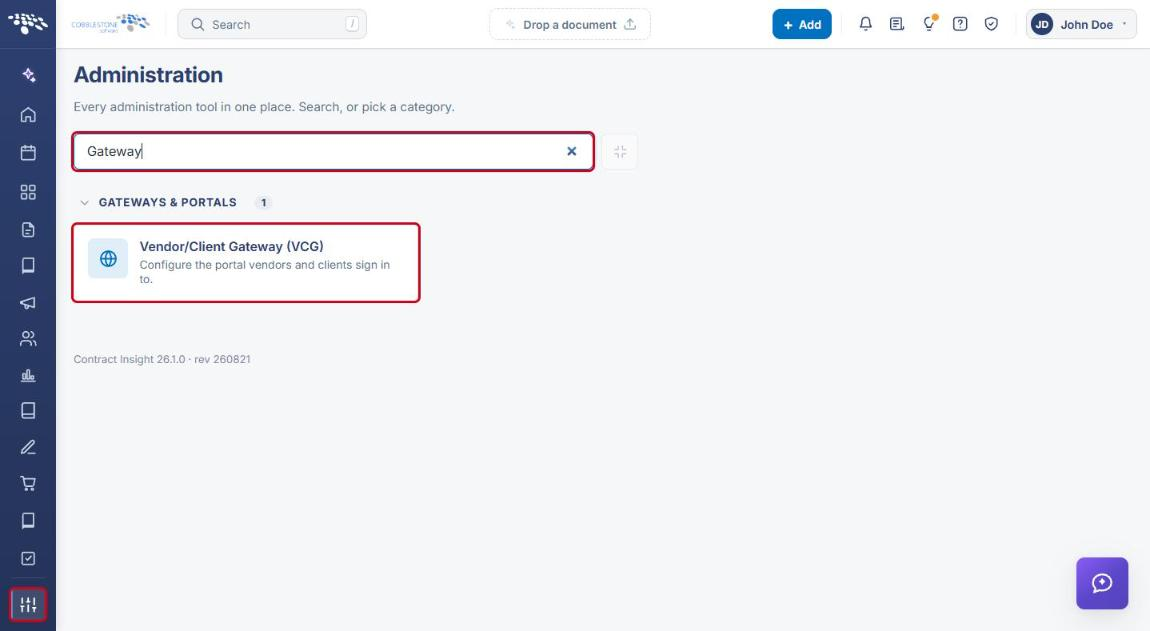
- From the Contract Insight homepage, click the Administration (settings) icon at the bottom of the left navigation bar.
- In the Search administration box, type Gateway, then click Vendor/Client Gateway (VCG).
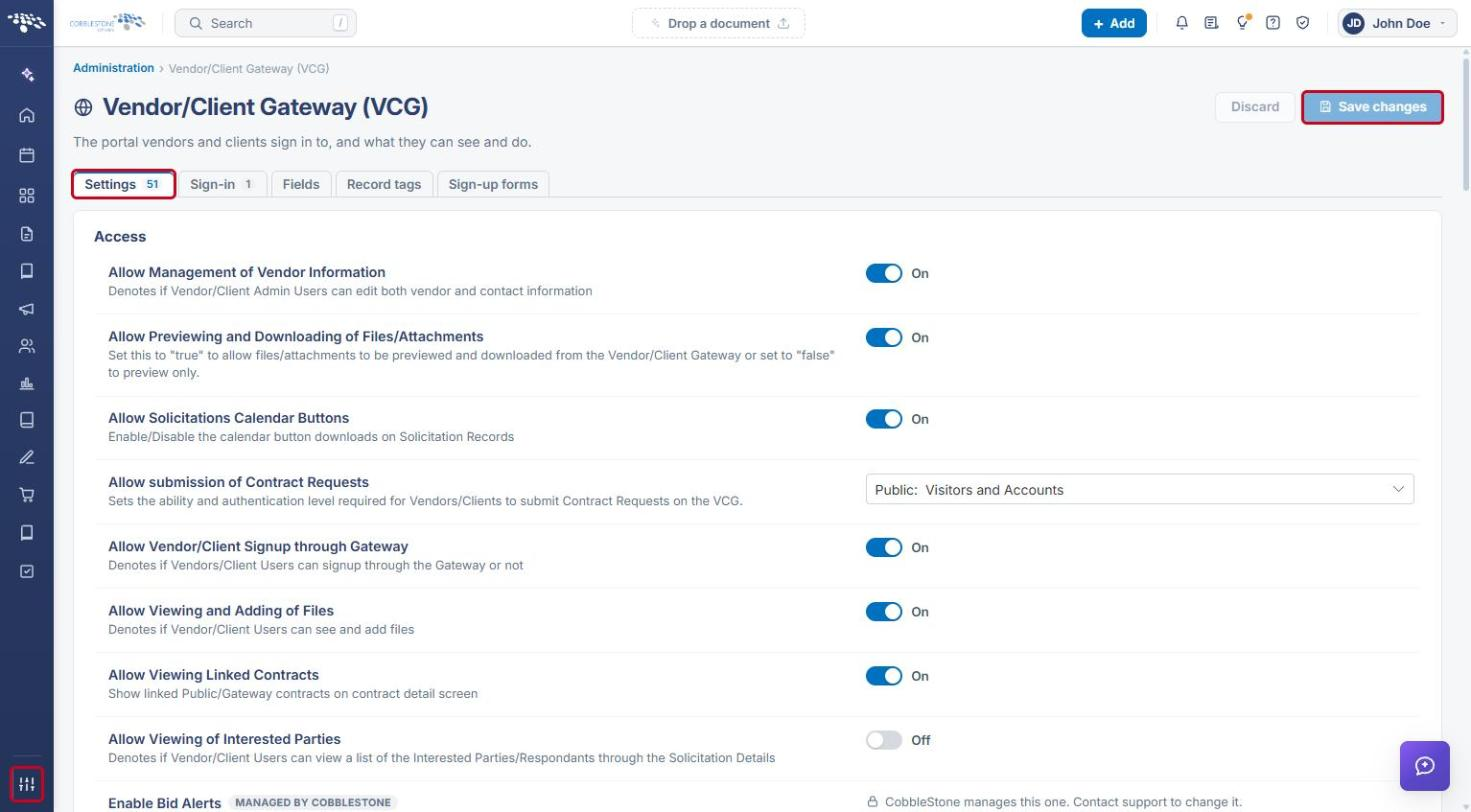
- The VCG page opens on the Settings tab. Settings are grouped into sections (Access, Emails, General, and so on). After changing any setting, click Save changes.
4. Setting the Password Reset Timeout
- Navigate to Administration → Vendor/Client Gateway (VCG) and stay on the Settings tab (see Section 3).
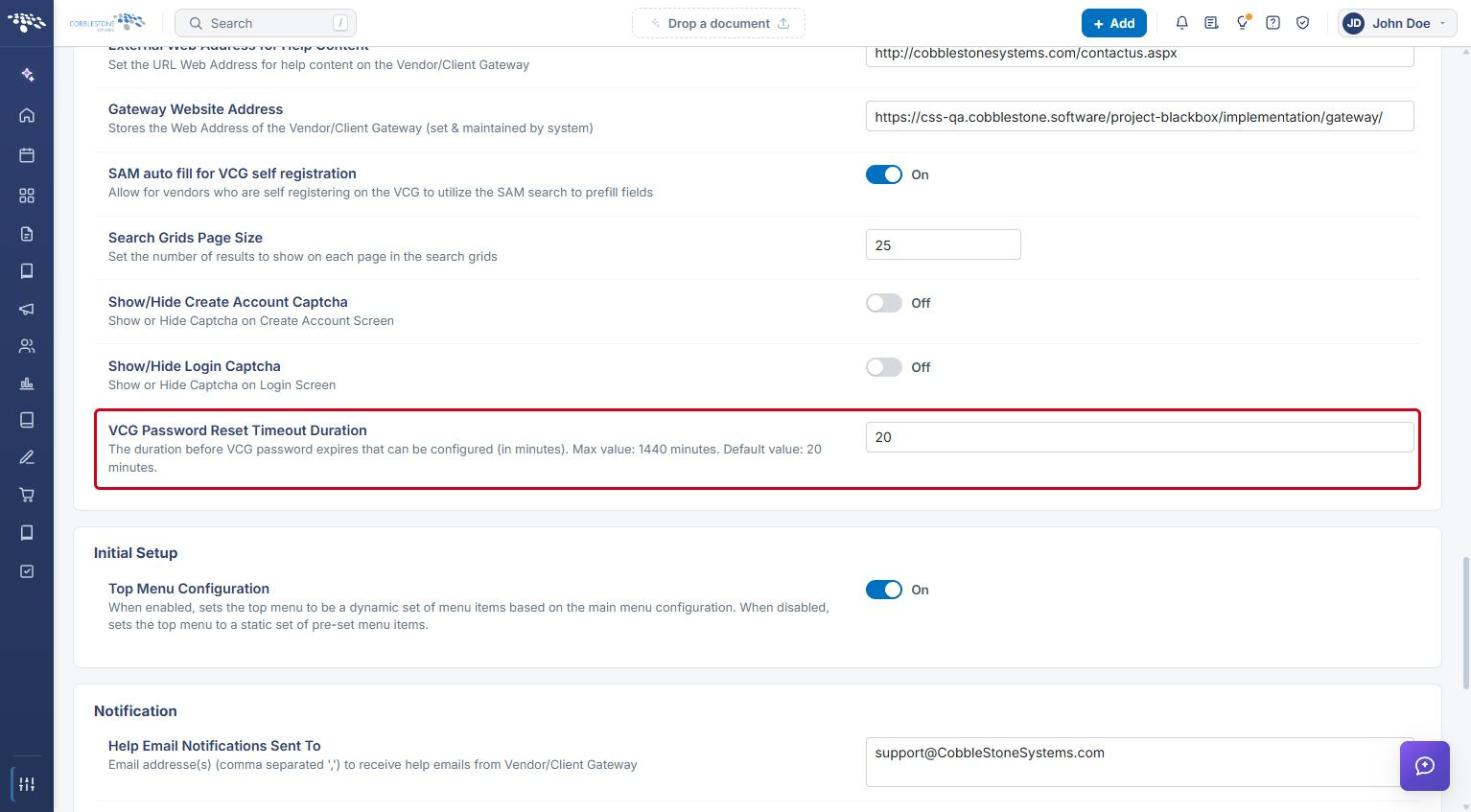
- Scroll to the General section and locate VCG Password Reset Timeout Duration.
- Enter the number of minutes a reset link should stay valid (maximum 1440; default 20).
- Scroll to the top of the page and click Save changes.
5. Customizing the Password Reset Email
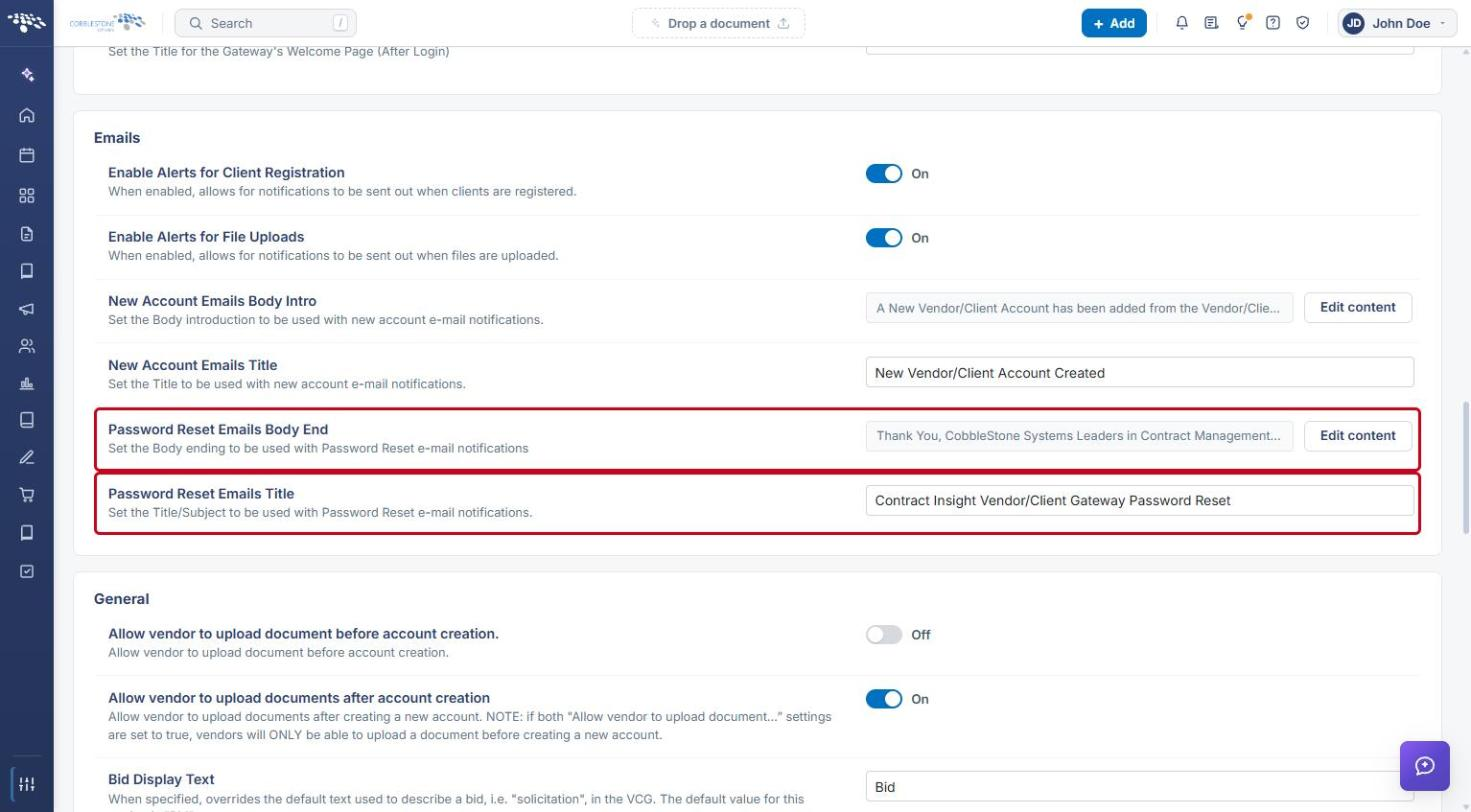
- On the VCG Settings tab, scroll to the Emails section.
- In Password Reset Emails Title, enter the subject line for the reset email.
- For Password Reset Emails Body End, click Edit content to change the closing text of the email.
- Click Save changes.
6. Configuring the Password Field for Gateway Contacts
- Navigate to Administration → Vendor/Client Gateway (VCG) (see Section 3) and click the Fields tab.
- In the Area dropdown, select Vendors/Customers Contacts.
- In the On the Gateway list, locate the Password field.
- Use the Search, Add, Edit, and Required checkboxes to control how the field behaves on the Gateway.
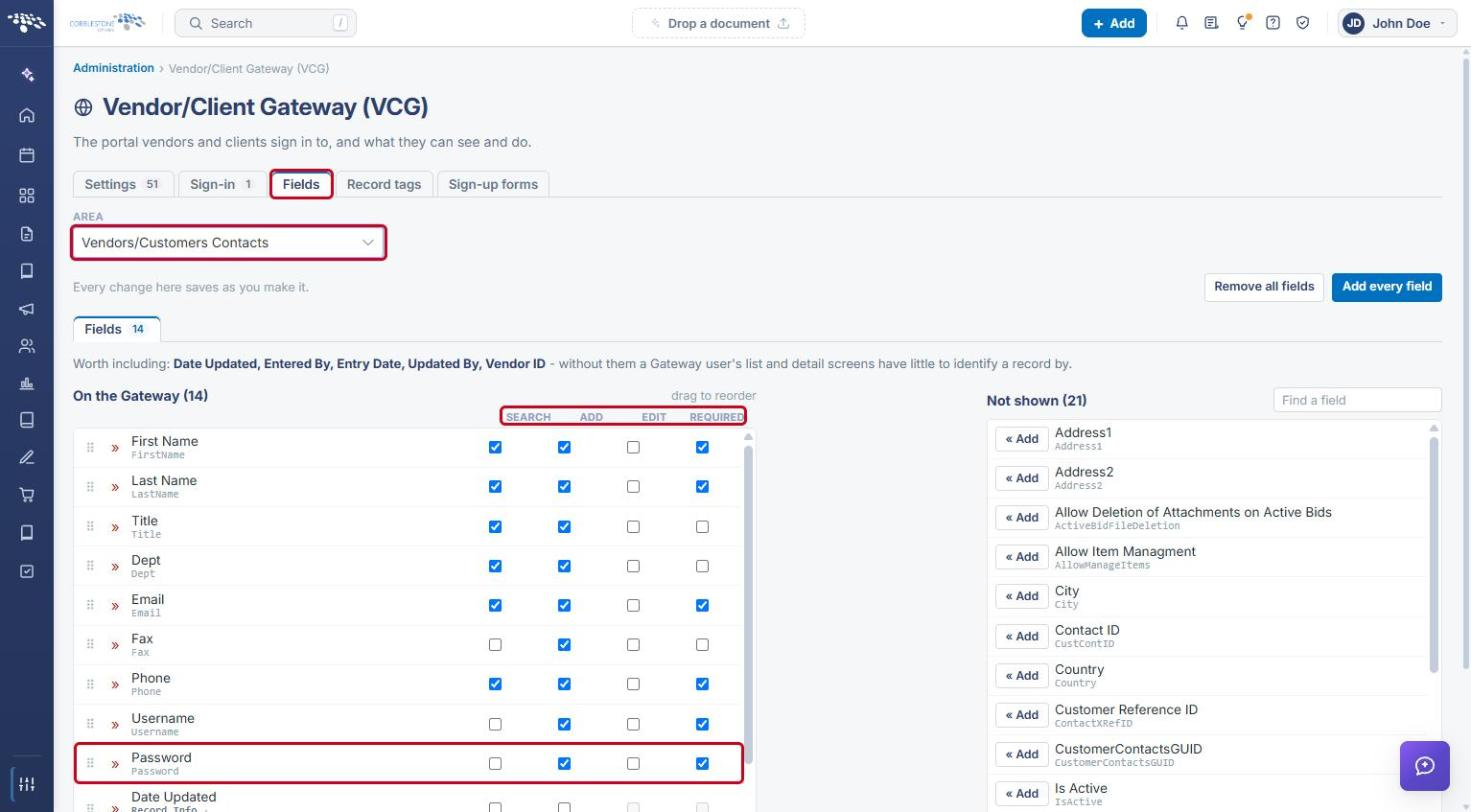
Note: Changes on the Fields tab save as you make them — there is no separate save step.
7. Resetting a Password on the Gateway
Vendors and clients reset their own passwords from the Gateway sign-in page.
- Open the Vendor/Client Gateway sign-in page.
- Click Forgot Password? below the sign-in fields.
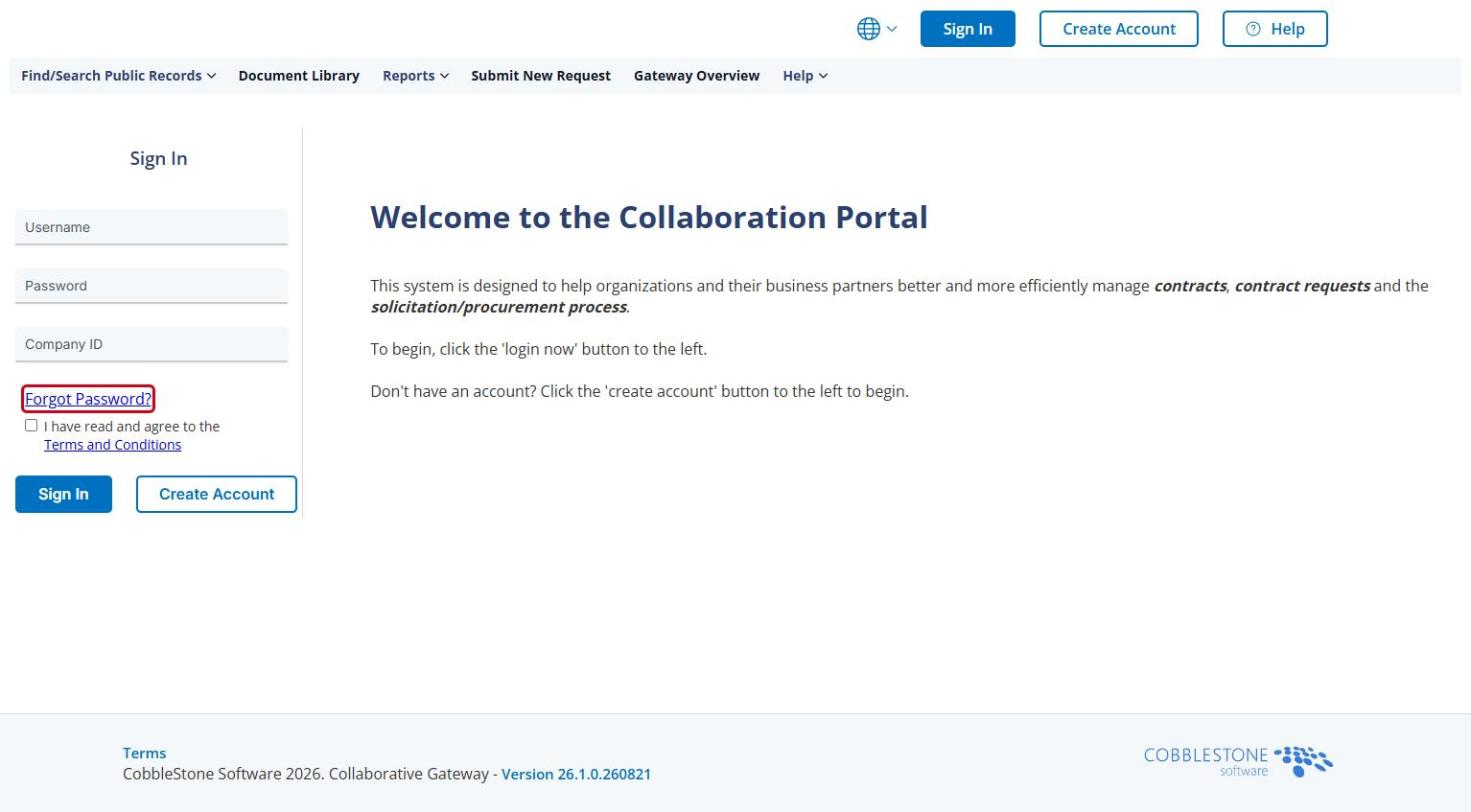
- On the Reset Password page, enter your Username and Company ID.
- Click Send Reset Link.
- Open the password reset email and follow the link to set a new password before it expires. The expiration time shown on this page comes from VCG Password Reset Timeout Duration (see Section 4).
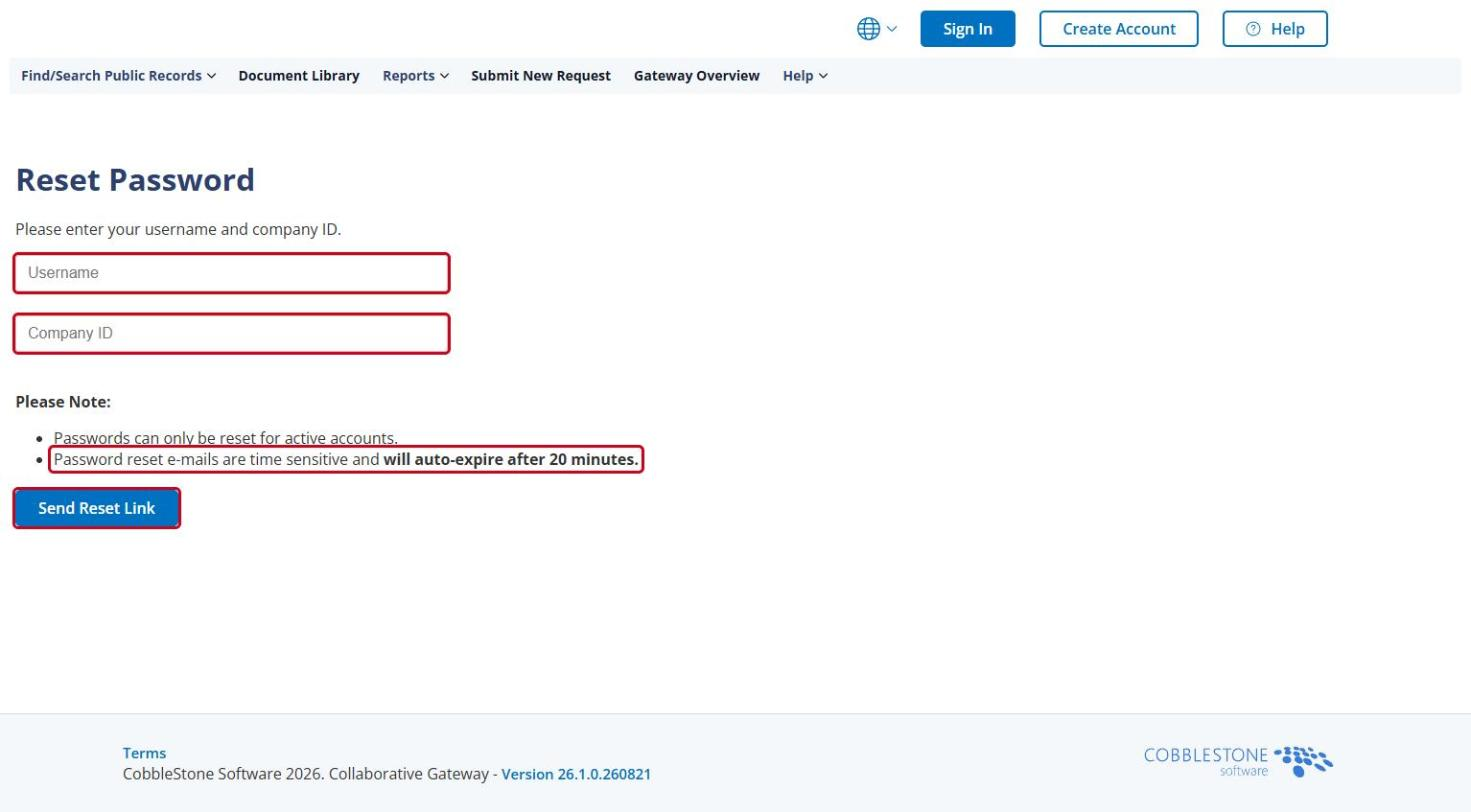
Note: Passwords can only be reset for active accounts.
8. Quick Reference Summary
| Task | How to Complete It |
|---|---|
| Open the Gateway settings | Administration → search “Gateway” → Vendor/Client Gateway (VCG). |
| Change how long reset links last | Settings tab → General → VCG Password Reset Timeout Duration → Save changes. |
| Change the reset email subject | Settings tab → Emails → Password Reset Emails Title → Save changes. |
| Change the reset email closing text | Settings tab → Emails → Password Reset Emails Body End → Edit content → Save changes. |
| Configure the Password field | Fields tab → Area: Vendors/Customers Contacts → Password row. |
| Reset a password (vendor/client) | Gateway sign-in page → Forgot Password? → enter Username and Company ID → Send Reset Link. |