COBBLESTONE SOFTWARE
Contract Insight — User Guide
5.3 Logging In Forgot Password
Module: Vendor/Client Gateway › Step 5: Vendors/Clients on the Gateway › 5.3 Logging In Forgot Password
Note: Each procedure in this guide begins at the Contract Insight homepage, so any section can be followed on its own. Custom fields are configurable, so the exact field list on a contract category record may vary between environments.
1. Overview
Sign-in behavior for the Gateway is set on the VCG Sign-in tab's VCG Login Method dropdown (Standard or Simplified), with an optional second Multifactor authentication for Gateway users step layered on top when Require a second step at sign-in is turned on. A forgot-password flow sends a Password Reset email, whose subject and closing content are editable under Settings → Emails.
2. Key Elements
- VCG → Sign-in tab → VCG Login Method switches between Standard and Simplified login screens.
- Multifactor authentication for Gateway users, when enabled, adds an emailed or texted verification code after the password.
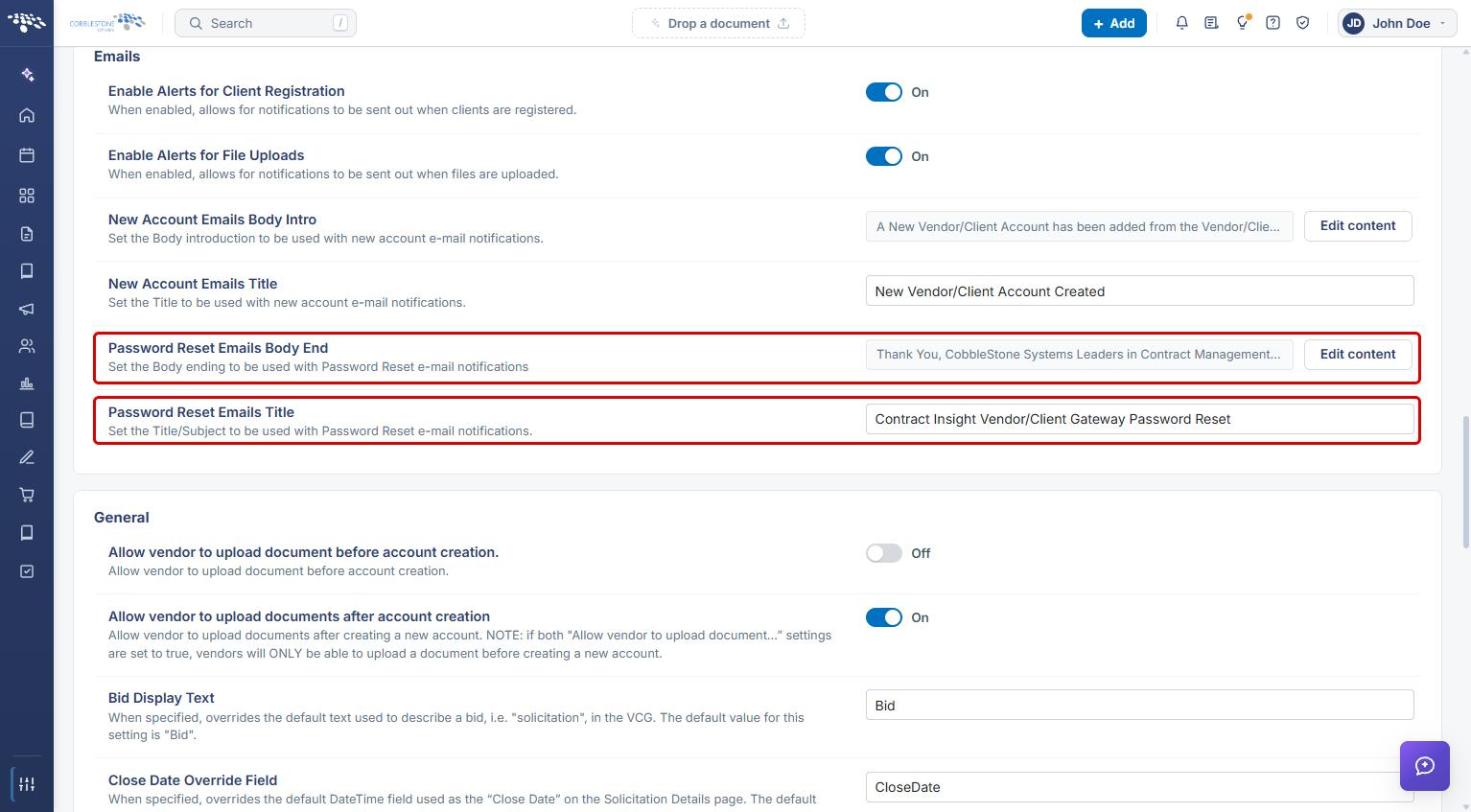
- Password Reset Emails Title and Password Reset Emails Body End (VCG Settings → Emails) control the reset email's subject and closing text.
- Show/Hide Login Captcha (VCG Settings → General) adds a captcha challenge to the sign-in screen itself.
- VCG Password Reset Timeout Duration (VCG Settings → General) sets how long a reset link stays valid, in minutes (default 20, maximum 1440).
- Passwords can only be reset for active contact accounts (see 4.2 Activating a Company Contact Account).
3. Navigating to the Vendor/Client Gateway Settings
- From the Contract Insight homepage, click the Administration (settings) icon at the bottom of the left navigation bar.
- In the Search administration box, type Gateway.
- Click Vendor/Client Gateway (VCG).
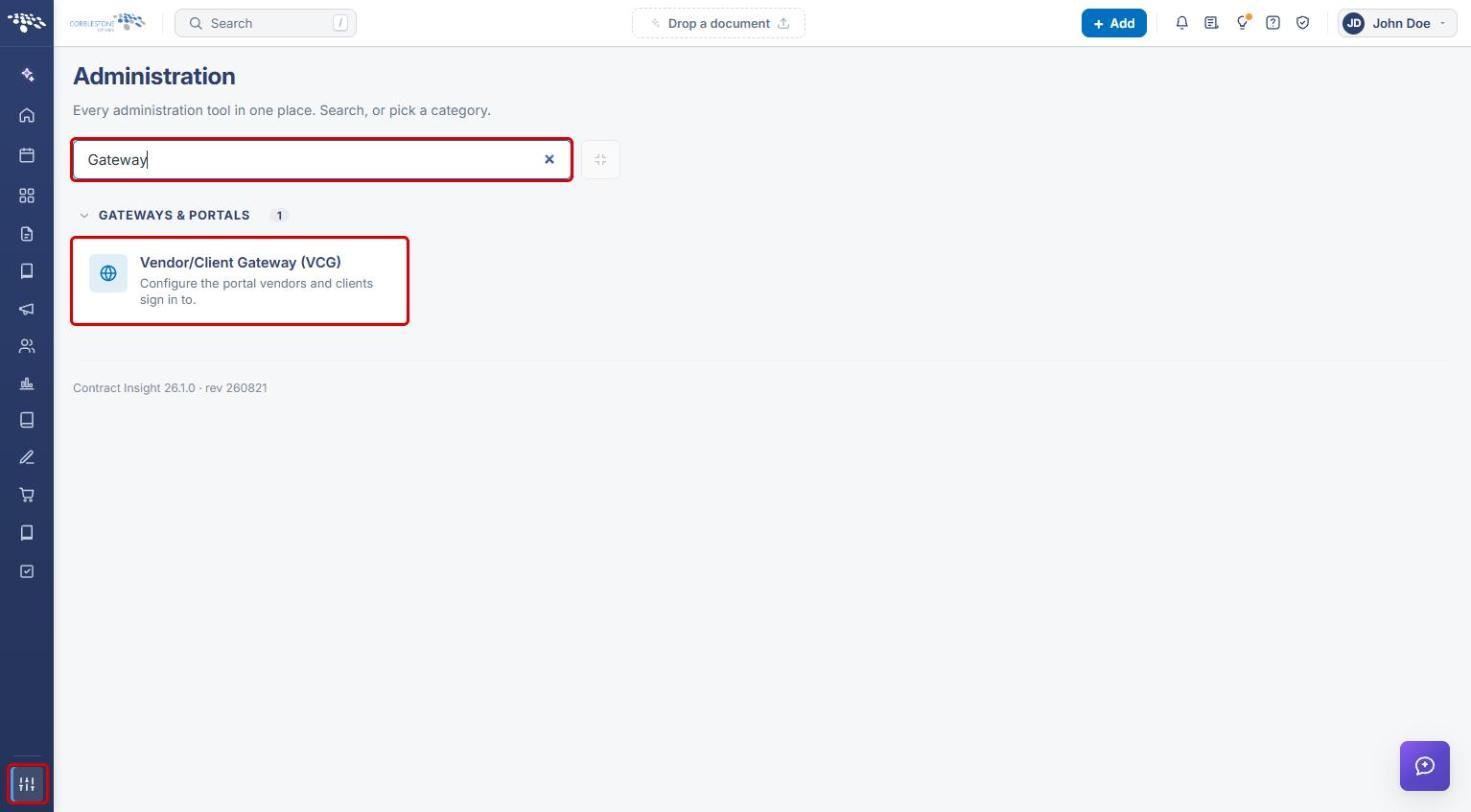
The Vendor/Client Gateway (VCG) page opens on the Settings tab. Changes on this page are not applied until you click Save changes; click Discard to undo them.
4. Configuring Gateway Sign-in
4a. Choosing the VCG Login Method
- On the Vendor/Client Gateway (VCG) page, click the Sign-in tab.
- Under Gateway Login Method, locate the VCG Login Method dropdown.
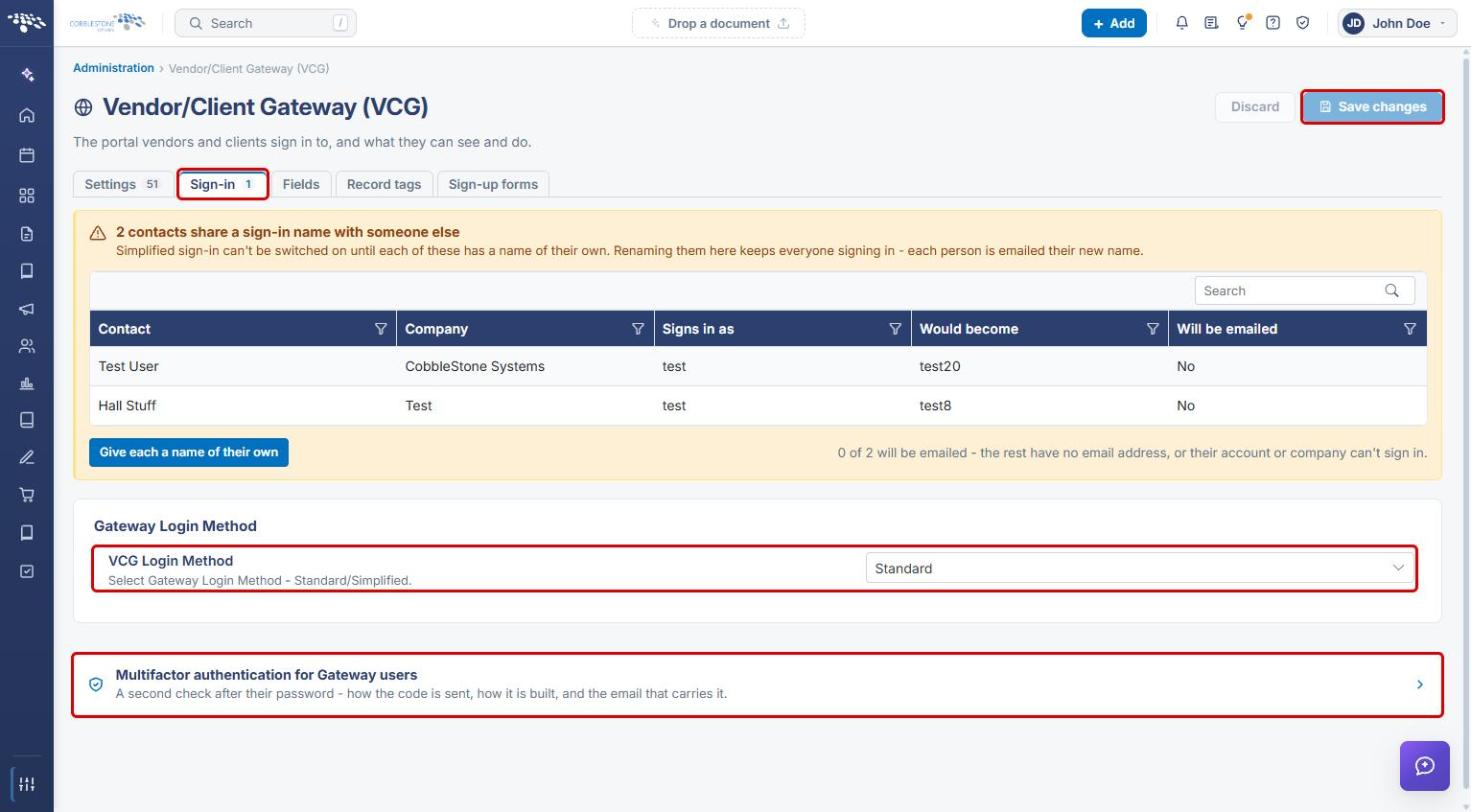
- Open the VCG Login Method dropdown and select Standard or Simplified.
- Click Save changes.
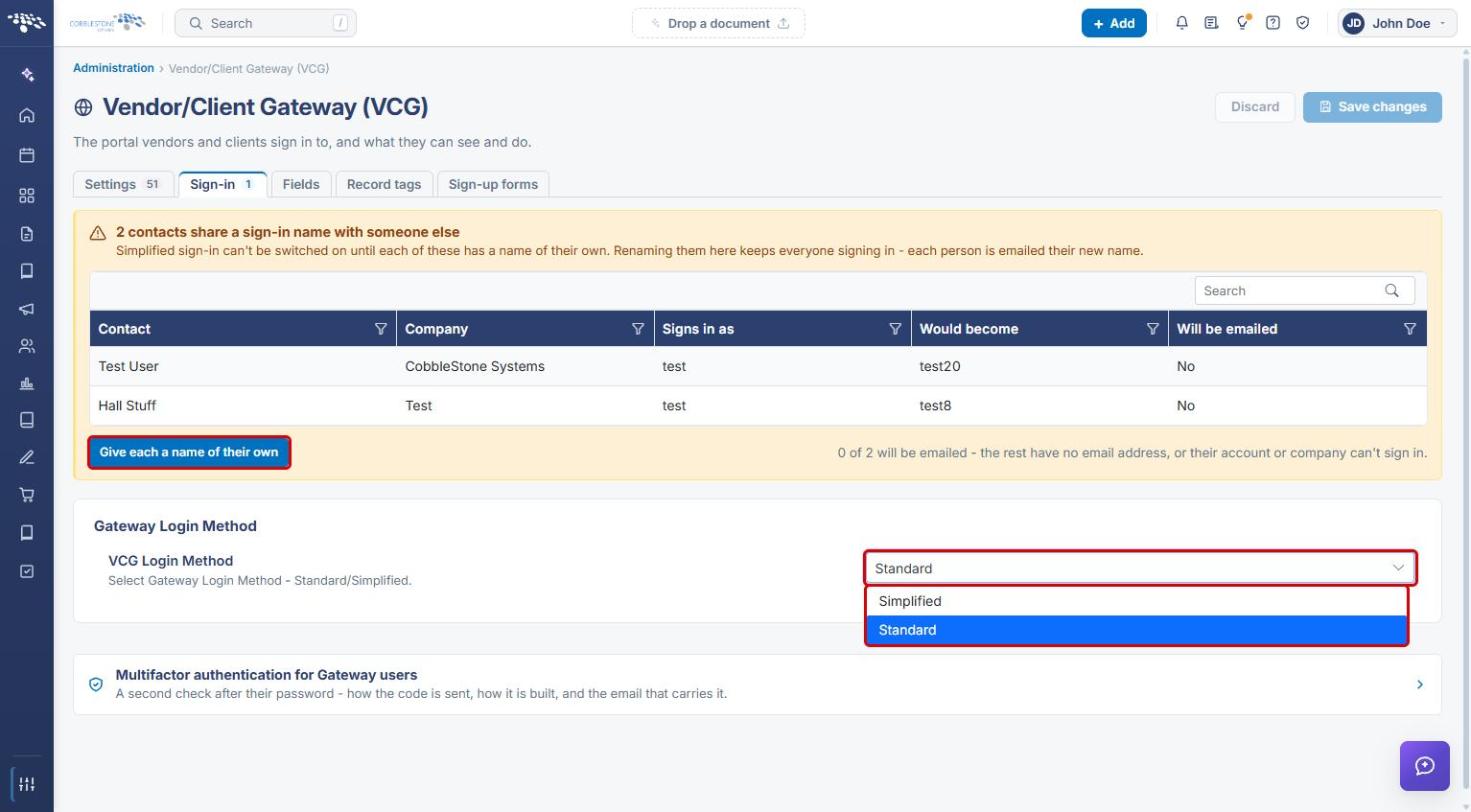
Note: Simplified sign-in can't be switched on while two or more contacts share the same sign-in name. When this happens, the Sign-in tab lists the affected contacts, the name each Would become, and whether they Will be emailed. Click Give each a name of their own to rename them; each contact with an email address is emailed their new sign-in name.
4b. Requiring Multifactor Authentication
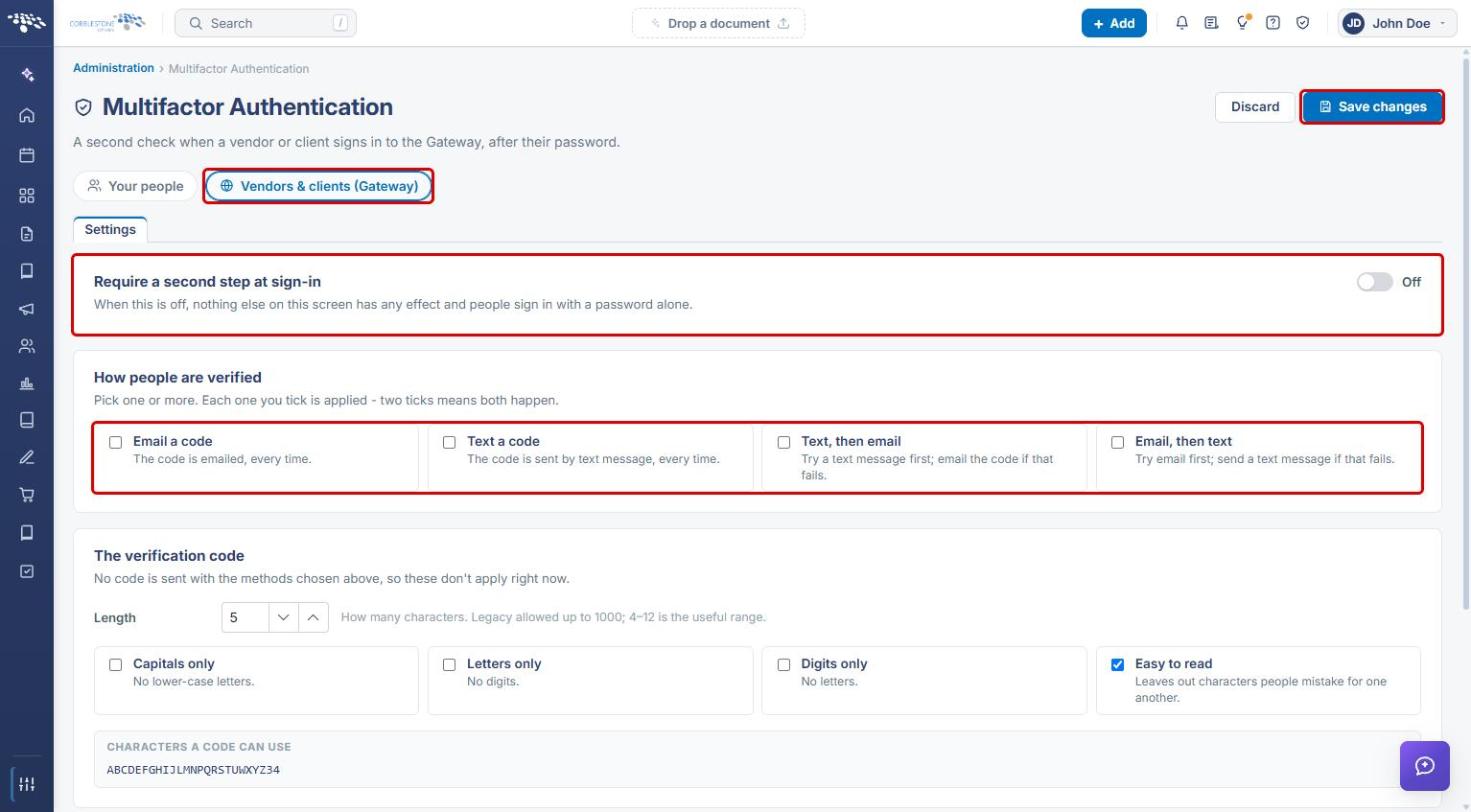
- On the Sign-in tab, click Multifactor authentication for Gateway users. The Multifactor Authentication page opens with Vendors & clients (Gateway) selected.
- Turn on Require a second step at sign-in. When this is off, nothing else on the page has any effect and people sign in with a password alone.
- Under How people are verified, tick one or more methods: Email a code, Text a code, Text, then email, or Email, then text. Each method you tick is applied.
- Optionally adjust The verification code settings (length and allowed characters).
- Click Save changes.
5. Configuring Password Reset Settings
5a. Customizing the Password Reset Email
- On the Vendor/Client Gateway (VCG) page, click the Settings tab and scroll to the Emails section.
- In Password Reset Emails Title, enter the subject line for the reset email.
- Next to Password Reset Emails Body End, click Edit content to change the closing text of the email.
- Click Save changes at the top of the page.
5b. Setting the Login Captcha and Reset Link Timeout
- On the Settings tab, scroll to the General section.
- Turn Show/Hide Login Captcha on to show a captcha on the Gateway sign-in screen.
- In VCG Password Reset Timeout Duration, enter how many minutes a reset link stays valid (default 20, maximum 1440).
- Click Save changes at the top of the page.
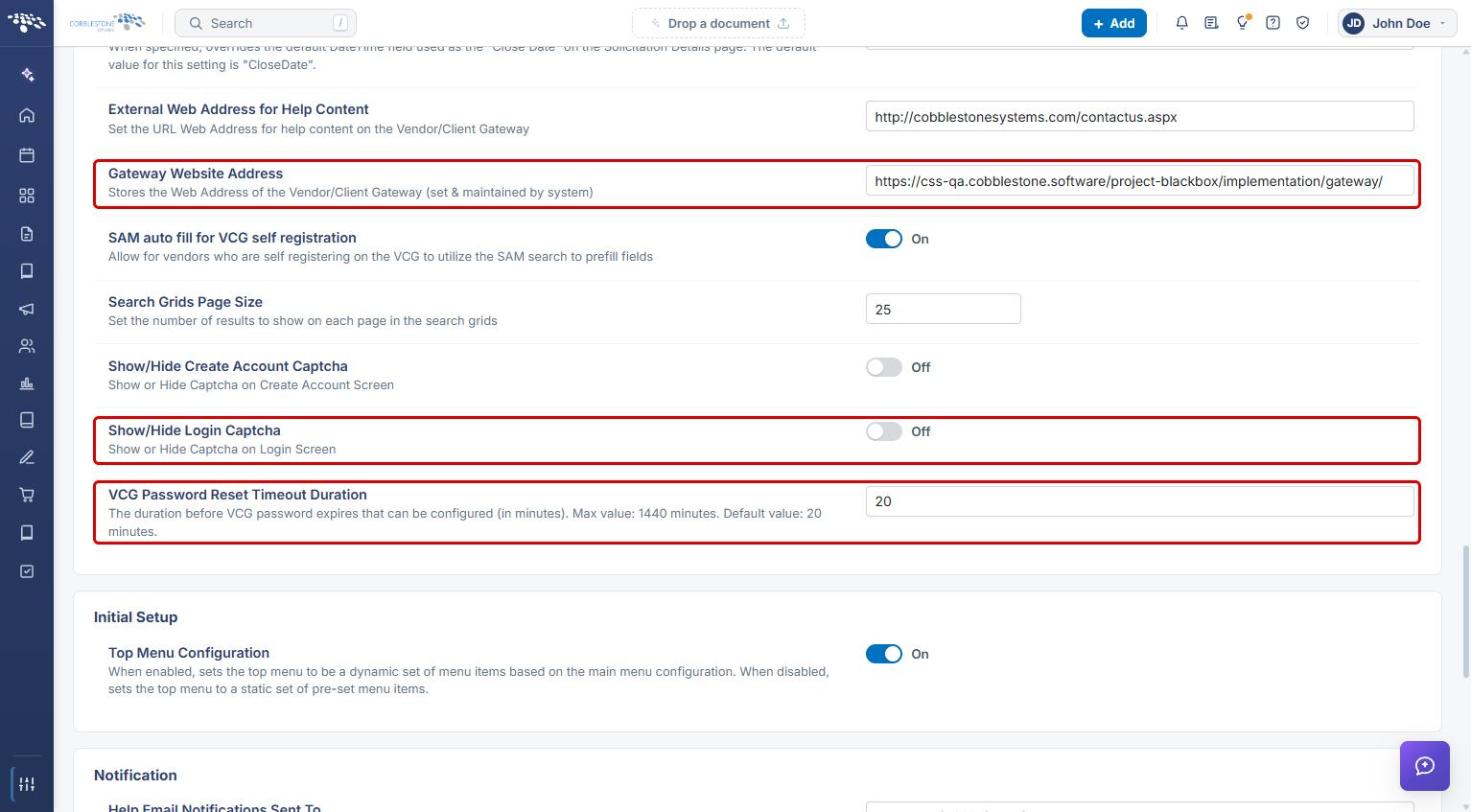
Tip: The Gateway Website Address in the same section shows the URL vendors and clients use to reach the Gateway. It is set and maintained by the system.
6. Logging In to the Gateway
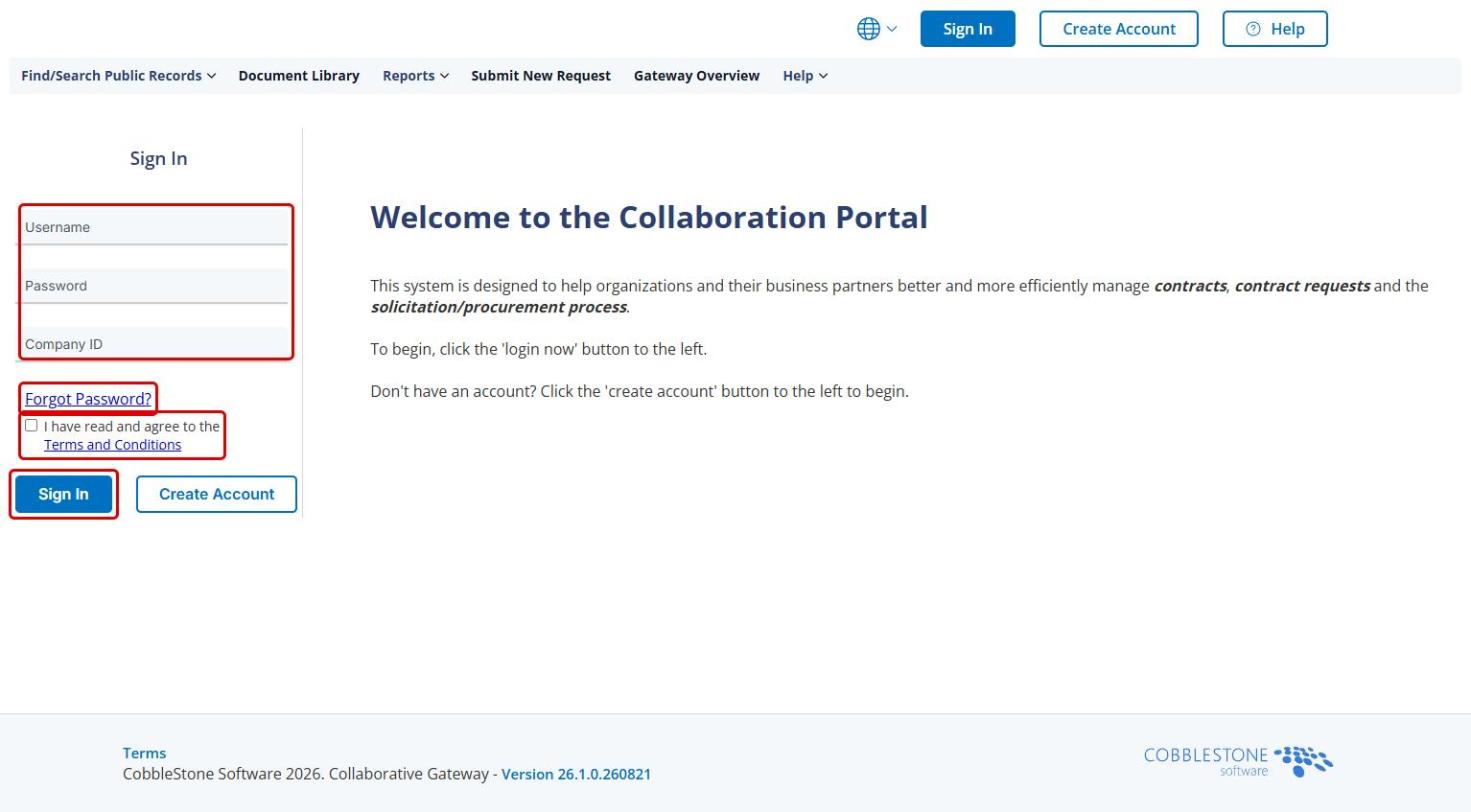
Vendors and clients sign in from the Gateway Website Address.
- Enter your Username, Password, and Company ID.
- Check I have read and agree to the Terms and Conditions.
- Click Sign In. If multifactor authentication is required, enter the verification code sent to you to finish signing in.
7. Resetting a Forgotten Password
- On the Gateway sign-in panel, click Forgot Password?.
- On the Reset Password page, enter your Username and Company ID.
- Click Send Reset Link.
- Open the Password Reset email and follow the link to set a new password before it expires.
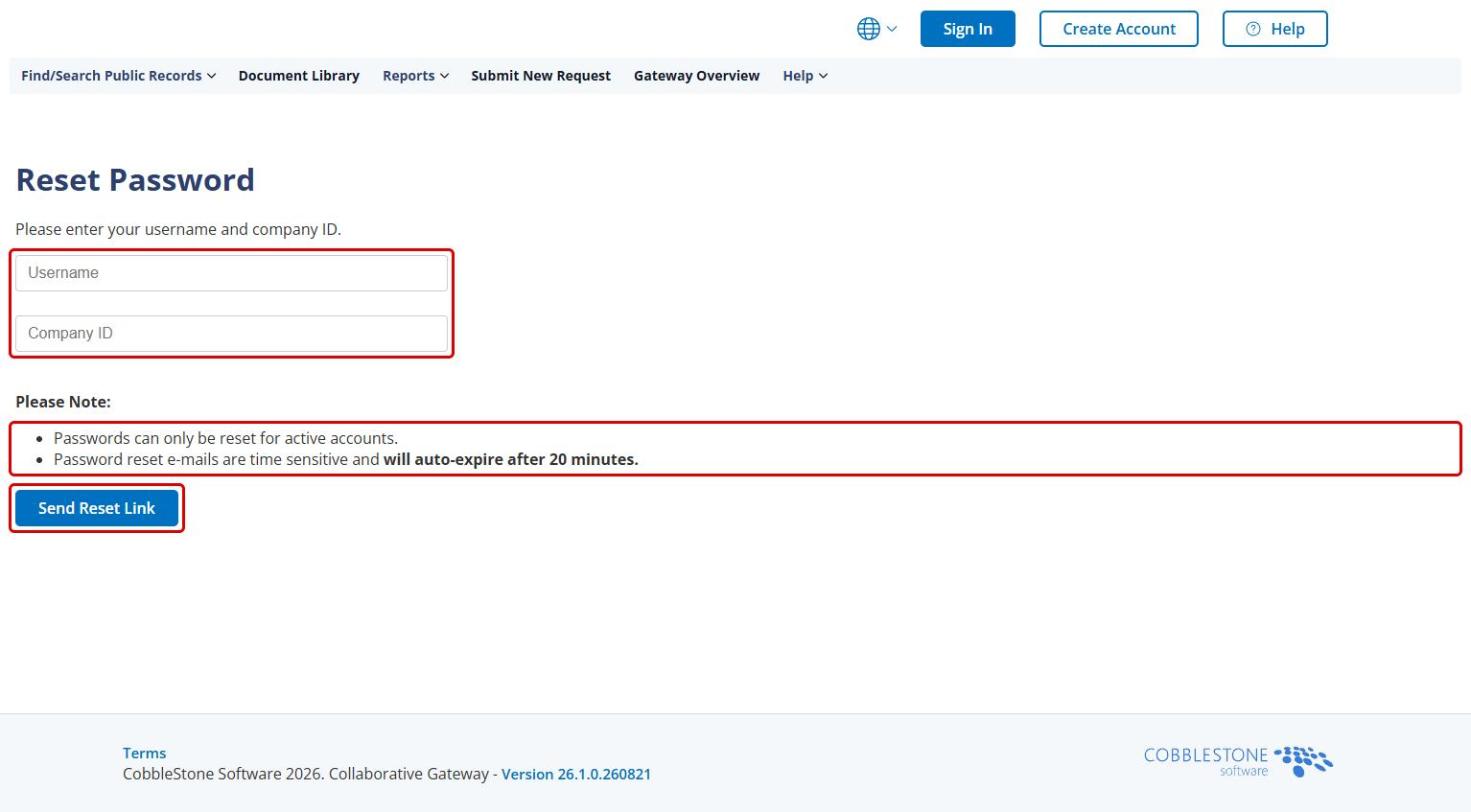
Note: Passwords can only be reset for active accounts. Reset emails are time sensitive and expire after the VCG Password Reset Timeout Duration (20 minutes by default). If the link has expired, repeat these steps to send a new one.
8. Quick Reference Summary
| Task | How to Complete It |
|---|---|
| Open the Gateway settings | Administration → search Gateway → Vendor/Client Gateway (VCG). |
| Change the login method | VCG → Sign-in tab → VCG Login Method → Standard or Simplified → Save changes. |
| Require multifactor authentication | VCG → Sign-in tab → Multifactor authentication for Gateway users → turn on Require a second step at sign-in → choose methods → Save changes. |
| Edit the password reset email | VCG → Settings tab → Emails → Password Reset Emails Title / Body End → Save changes. |
| Show a captcha on sign-in | VCG → Settings tab → General → Show/Hide Login Captcha → Save changes. |
| Change how long reset links last | VCG → Settings tab → General → VCG Password Reset Timeout Duration → Save changes. |
| Reset a forgotten password (vendor/client) | Gateway sign-in → Forgot Password? → enter Username and Company ID → Send Reset Link. |