COBBLESTONE SOFTWARE
Contract Insight — User Guide
5.2 Adding a Contact or User on the Gateway
Module: Vendor/Client Gateway › Step 5: Vendors/Clients on the Gateway › 5.2 Adding a Contact or User on the Gateway
Note: Each procedure in this guide begins at the Contract Insight homepage, so any section can be followed on its own. Custom fields are configurable, so the exact field list on a contract category record may vary between environments.
1. Overview
Once a company has an account, additional people are added as contacts through the gateway-side Contacts/Users menu group's Add Contact/User screen, whose fields are the same ones configured under VCG Fields → Area: Vendors/Customers Contacts — including the gateway-access fields Username, Password, Is Active, and Is Company Admin.
This article covers the internal configuration first (Sections 3 and 4), then the steps a company admin follows on the Gateway (Section 5).
2. Key Elements
- Gateway-side menu → Contacts/Users → Add Contact/User creates a new person under the existing company.
- Contact/User List shows everyone already added for that company, alongside My Company Info.
- Is Company Admin on the contact record determines whether that person can edit vendor/contact information company-wide.
- The Contacts/Users menu group is tagged both ADMIN and Gateways_VCC in Navigation Menu configuration.
- VCG → Fields → Area: Vendors/Customers Contacts controls which fields appear on the Add Contact/User screen. Changes on this tab save as you make them.
3. Configuring the Add Contact/User Fields
3a. Navigating to the Contact Fields
- From the Contract Insight homepage, click the Administration icon (settings sliders) at the bottom of the left navigation bar.
.png)
- On the Administration page, type Gateway in the Search administration box.
- Click Vendor/Client Gateway (VCG).
.png)
- Click the Fields tab.
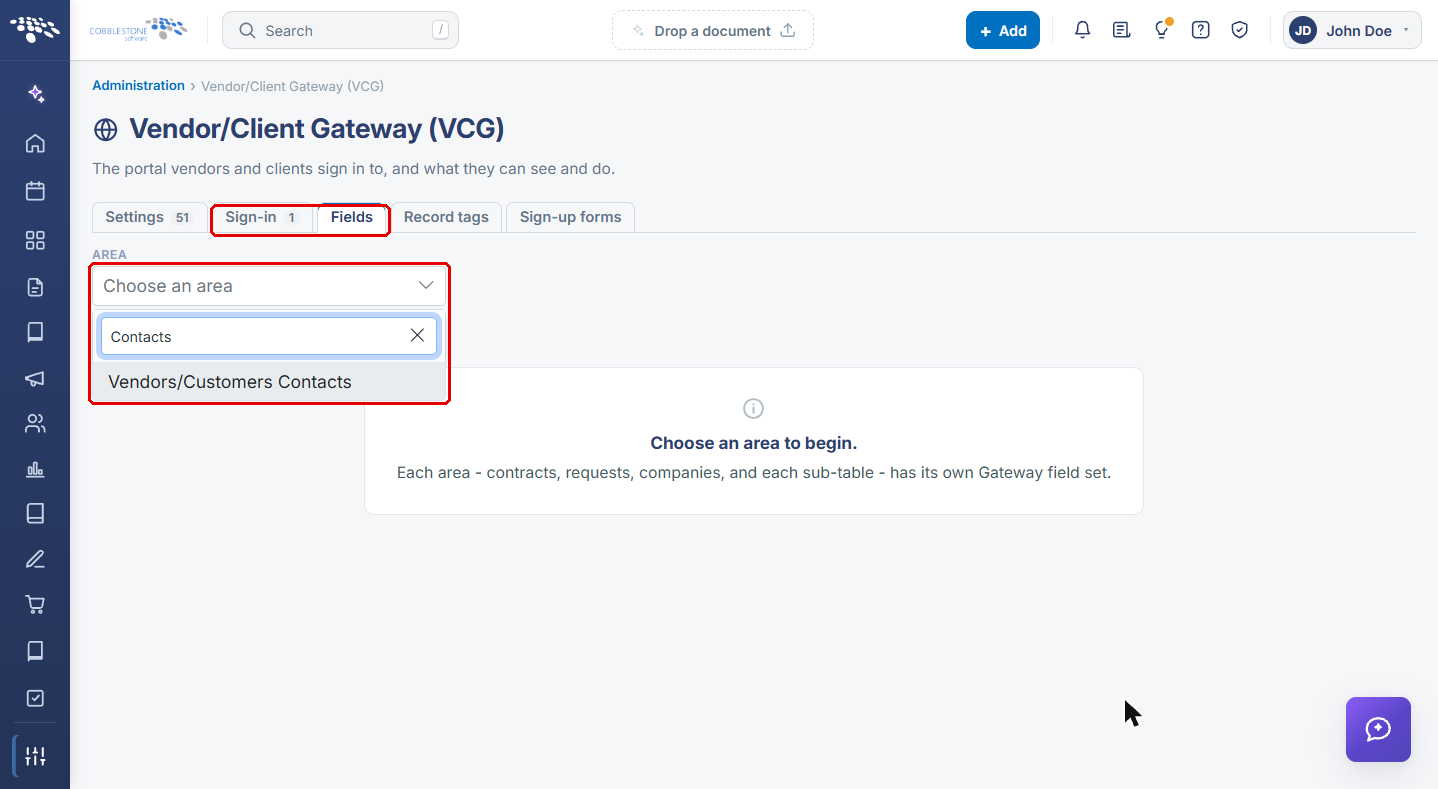
- Click the Area dropdown, type Contacts in its search box, and select Vendors/Customers Contacts.
3b. Reviewing the Contact Fields
The screen is split into two lists:
- On the Gateway — fields that appear on the Gateway. Use the SEARCH, ADD, EDIT and REQUIRED checkboxes to control where each field is used; the ADD column controls the Add Contact/User screen. Drag the handle on a row to reorder it, or click the red » arrow to move it off the Gateway.
- Not shown — fields that are available but hidden. Click « Add next to a field to put it on the Gateway.
Add every field and Remove all fields move every field at once.
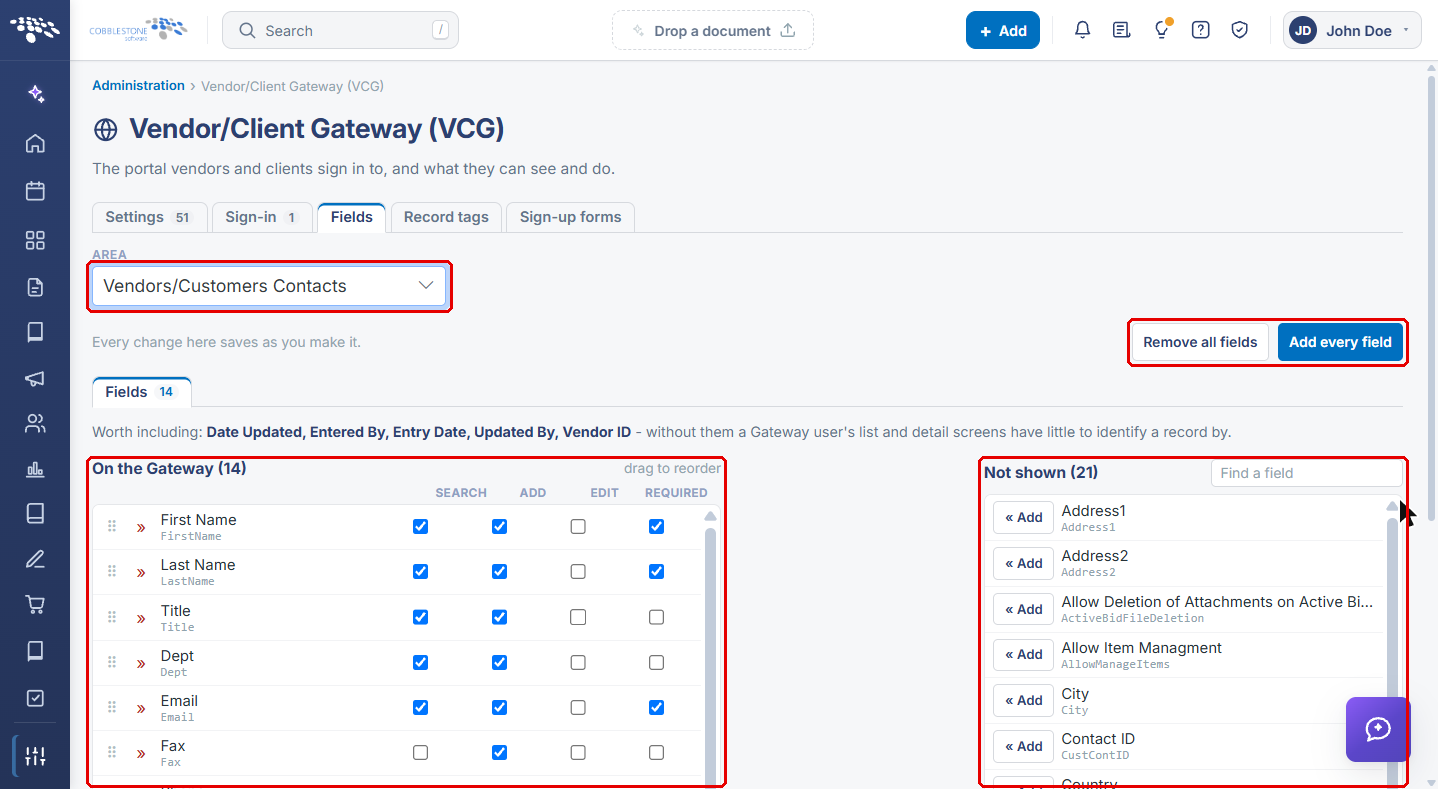
Note: Every change on this tab saves as you make it — there is no Save button. Avoid Add every field and Remove all fields unless you intend to change the whole list.
3c. Including the Gateway-Access Fields
- In the On the Gateway list, confirm Username and Password are present with ADD checked, so a company admin can set sign-in details for the new person.
- In the Not shown panel, type Is in the Find a field box to locate Is Active and Is Company Admin.
- If either field is listed under Not shown, click « Add next to it to place it on the Gateway, then check ADD for that row.
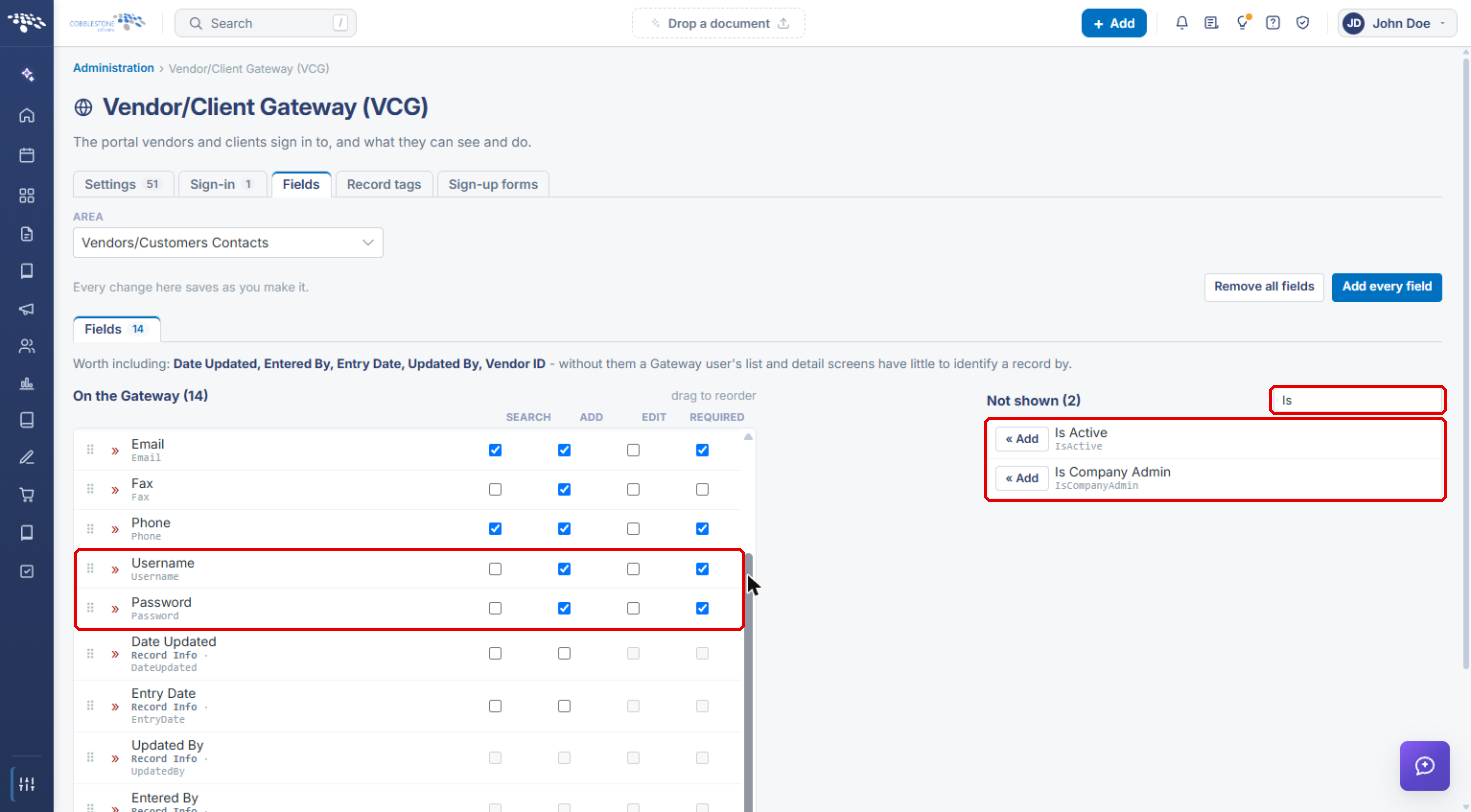
Note: Without Is Company Admin on the Gateway, a company admin cannot grant another contact the right to edit vendor/contact information company-wide from the Add Contact/User screen.
4. Confirming the Contacts/Users Menu Group
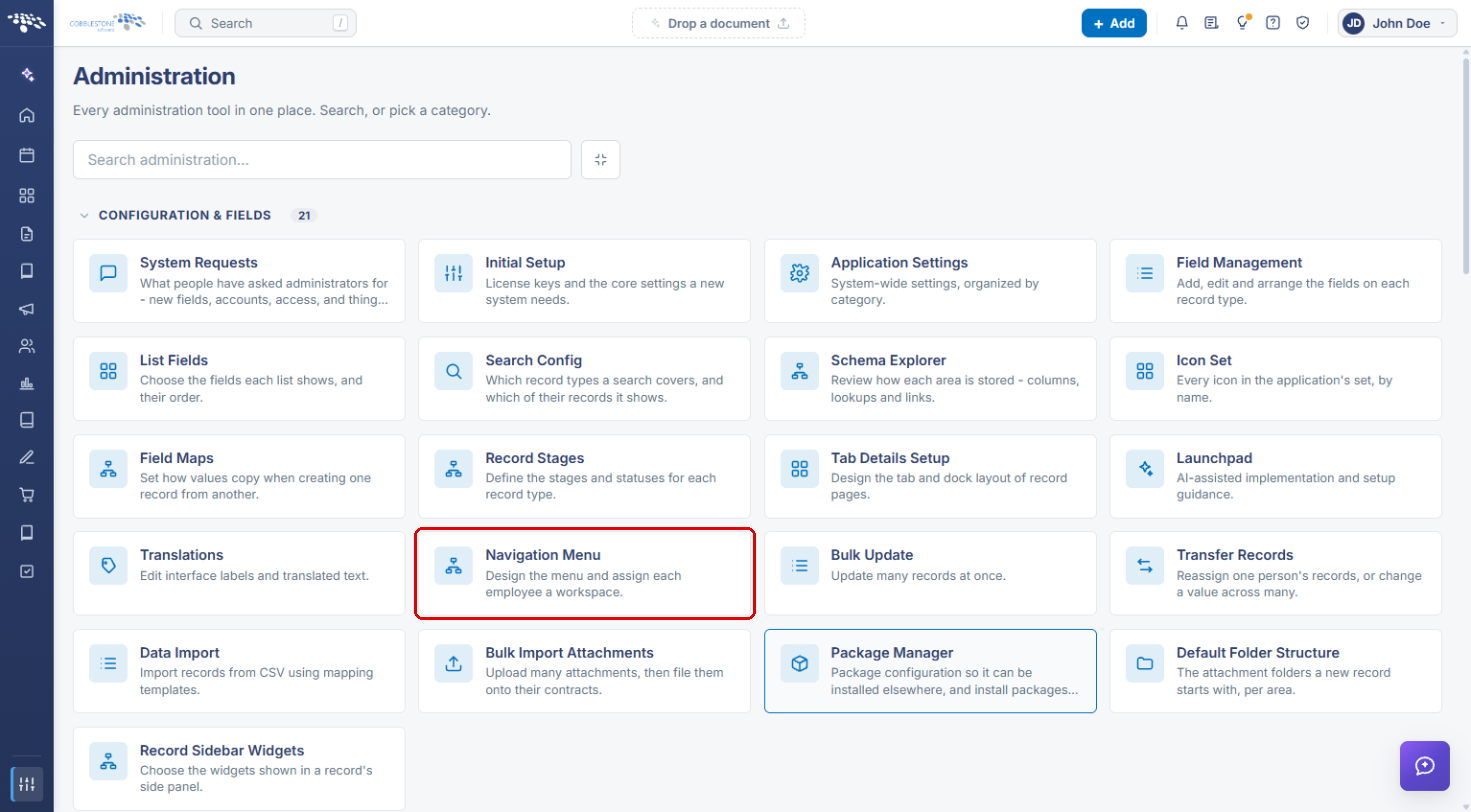
- From the Contract Insight homepage, click the Administration icon, then click Navigation Menu.
- In the Workspace dropdown, select the Vendor/Client Gateway workspace.
- Type Contact in the Filter items box.
- Confirm the Contacts/Users group carries the ADMIN and Gateways_VCC tags and contains the Add Contact/User, Contact/User List and My Company Info items.
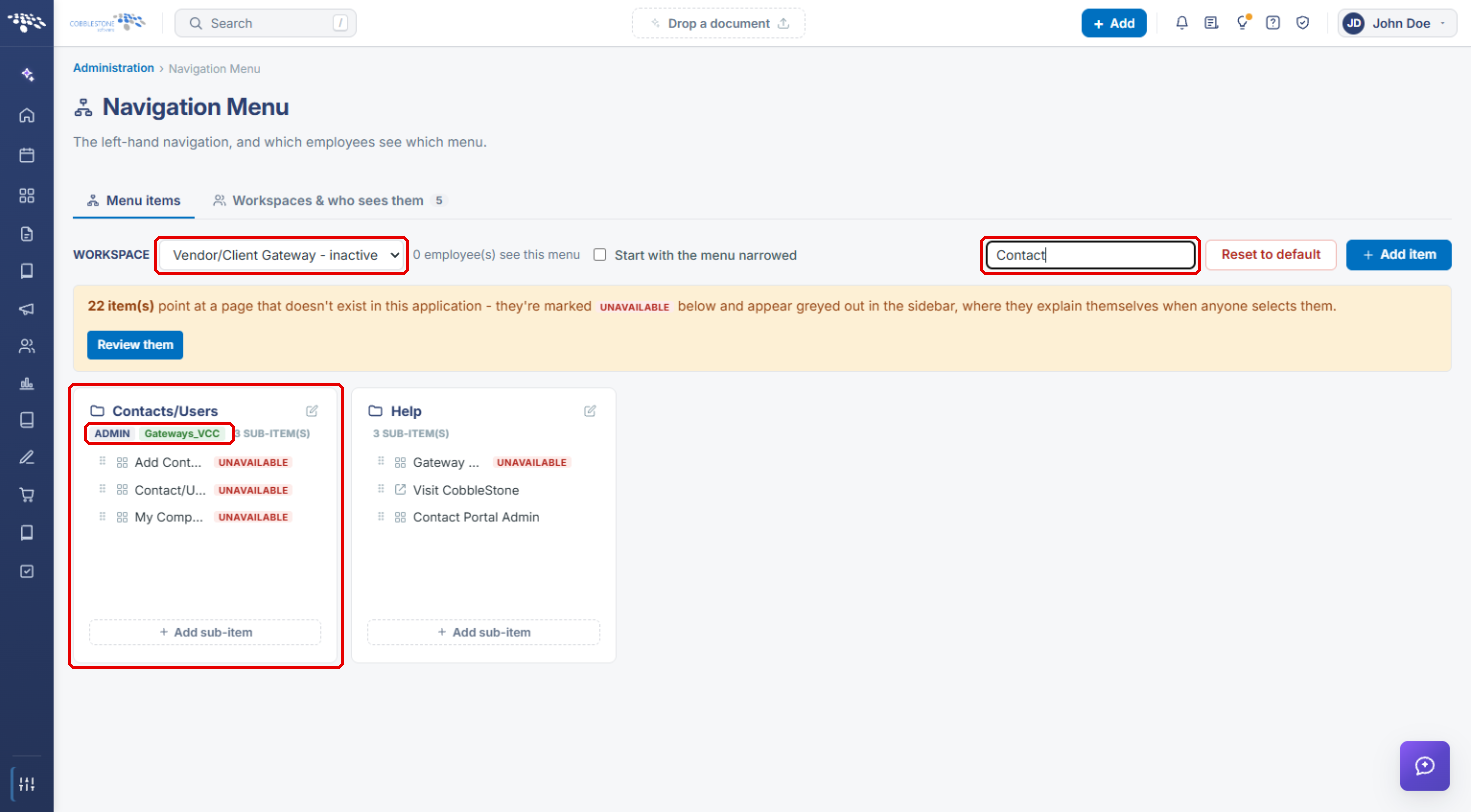
Note: Items marked UNAVAILABLE point at Gateway pages that do not exist in the internal application. This is expected: they open on the Gateway, not in Contract Insight.
5. Adding a Contact or User on the Gateway
- Sign in to the Vendor/Client Gateway as a company admin (a contact with Is Company Admin set).
- In the Gateway menu, open Contacts/Users and select Add Contact/User.
- Complete the contact fields, such as First Name, Last Name, Email and Phone. Required fields are the ones with REQUIRED checked in Section 3b.
- Enter a Username and Password for the new person.
- Set Is Active so the person can sign in, and set Is Company Admin only if they should be able to manage company and contact information.
- Submit the form. The new person appears under Contacts/Users → Contact/User List.