COBBLESTONE SOFTWARE
Contract Insight — User Guide
5.1 Creating an Account on the Gateway
Module: Vendor/Client Gateway › Step 5: Vendors/Clients on the Gateway › 5.1 Creating an Account on the Gateway
Note: Each procedure in this guide begins at the Contract Insight homepage, so any section can be followed on its own. Custom fields are configurable, so the exact field list on a contract category record may vary between environments.
1. Overview
Vendors and clients create their own accounts on the Gateway by completing a multi-step sign-up form. Sign-up forms are built and managed on the Sign-up forms tab of the Vendor/Client Gateway (VCG) administration page. Each form lists what record it Creates, how many Steps and Fields it has, and whether it is Offered on the Gateway. A company picks one of the offered forms when it registers.
Self-registration only works when Allow Vendor/Client Signup through Gateway is turned on in the VCG settings and at least one sign-up form is offered. The number of forms, and which are offered, varies by environment.
2. Key Elements
- Administration → Vendor/Client Gateway (VCG): the admin page where all Gateway sign-in, field, and sign-up settings live.
- Allow Vendor/Client Signup through Gateway (VCG Settings tab → Access): must be On for any sign-up form to be reachable.
- Sign-up forms tab: lists every registration form with its Form, Creates, Steps, Fields, and On the Gateway columns.
- Add form starts a new sign-up form; Open edits an existing one.
- In the form editor, Add a step adds a page to the wizard, Add a block adds a group of fields to a step, and Offer this form on the Gateway makes the form available to registrants.
- A form must include a block that fills in Vendors/Customers Contacts; otherwise registrants would have no way to sign in afterwards and the Gateway won't offer the form.
3. Enabling Self-Registration on the Gateway
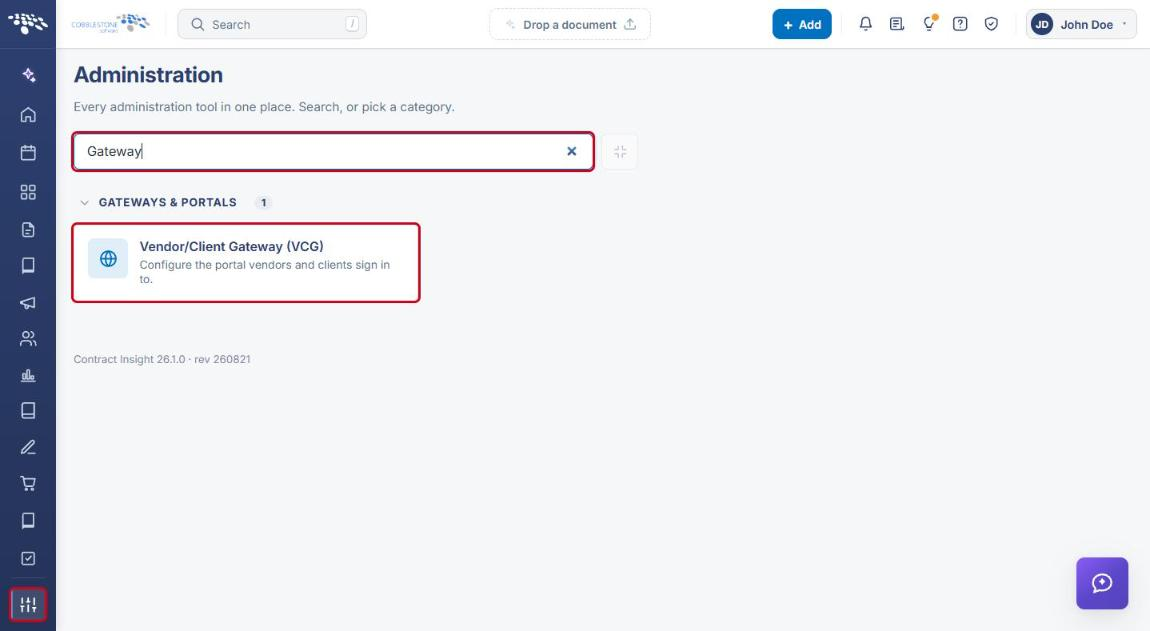
- From the Contract Insight homepage, click the Administration (settings) icon at the bottom of the left navigation bar.
- In the Search administration box, type Gateway, then click Vendor/Client Gateway (VCG).
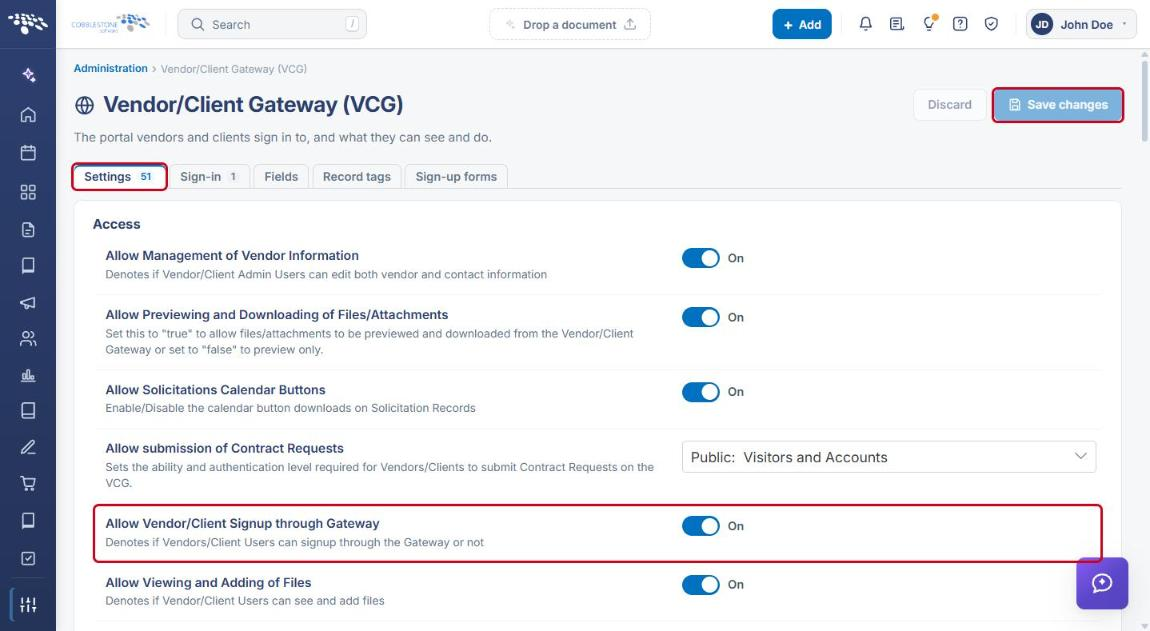
- On the Settings tab, locate Allow Vendor/Client Signup through Gateway in the Access section.
- Set the toggle to On.
- Click Save changes.
4. Viewing Sign-up Forms
- Navigate to Administration → Vendor/Client Gateway (VCG) (see Section 3).
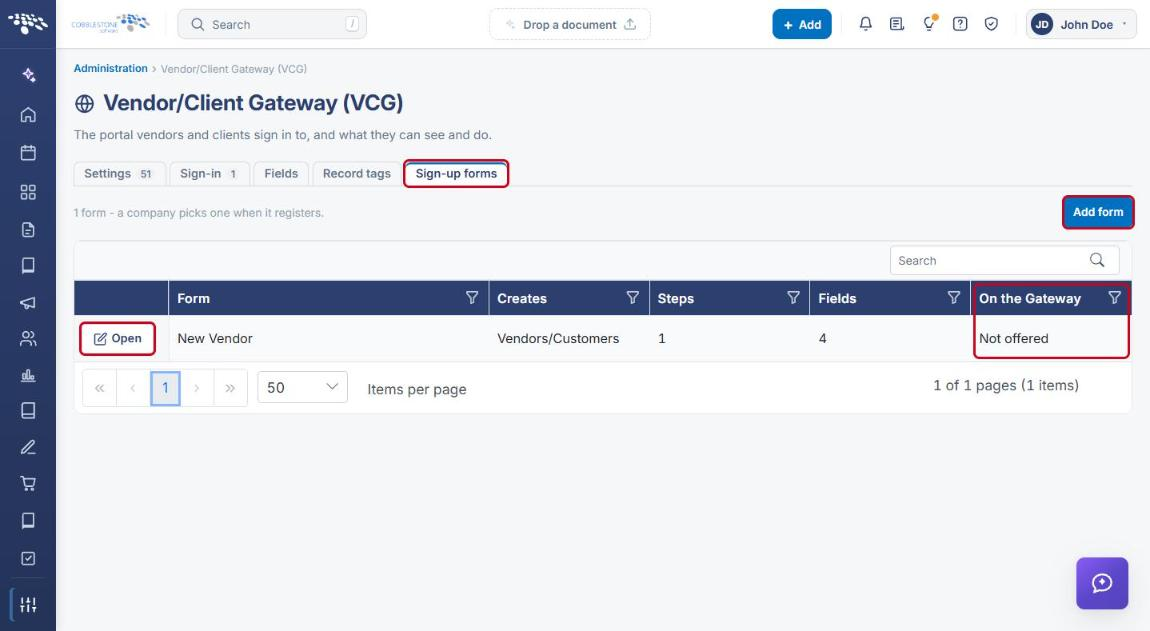
- Click the Sign-up forms tab.
- Review the list of forms. The On the Gateway column shows whether each form is Offered or Not offered to registrants.
- Click Open on a form's row to edit it, or click Add form to create a new one.
5. Building a Sign-up Form
5a. The Form Editor
Opening a form (or adding a new one) displays the form editor:
- All forms returns to the list of sign-up forms.
- Delete form removes the form; Add a step adds a new page to the registration wizard.
- Warning banners at the top explain anything that prevents the form from being offered, such as a missing contact block.
- In The form panel, enter or update the form's Name and Description. The Offer this form on the Gateway toggle controls whether registrants can use it (see Section 6).
.png)
5b. Adding a Step
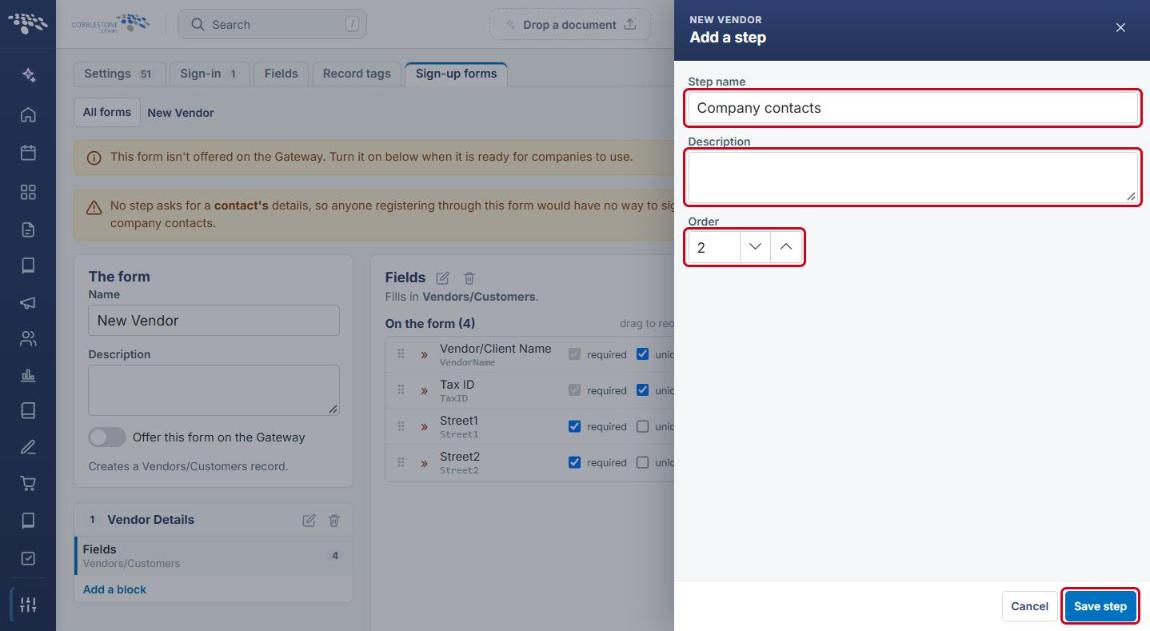
- In the form editor, click Add a step.
- In the Add a step panel, enter a Step name (for example, Company contacts) and an optional Description.
- Use Order to set where the step appears in the wizard.
- Click Save step.
5c. Adding a Block to a Step
Blocks group the fields on a step and determine which record those fields fill in.
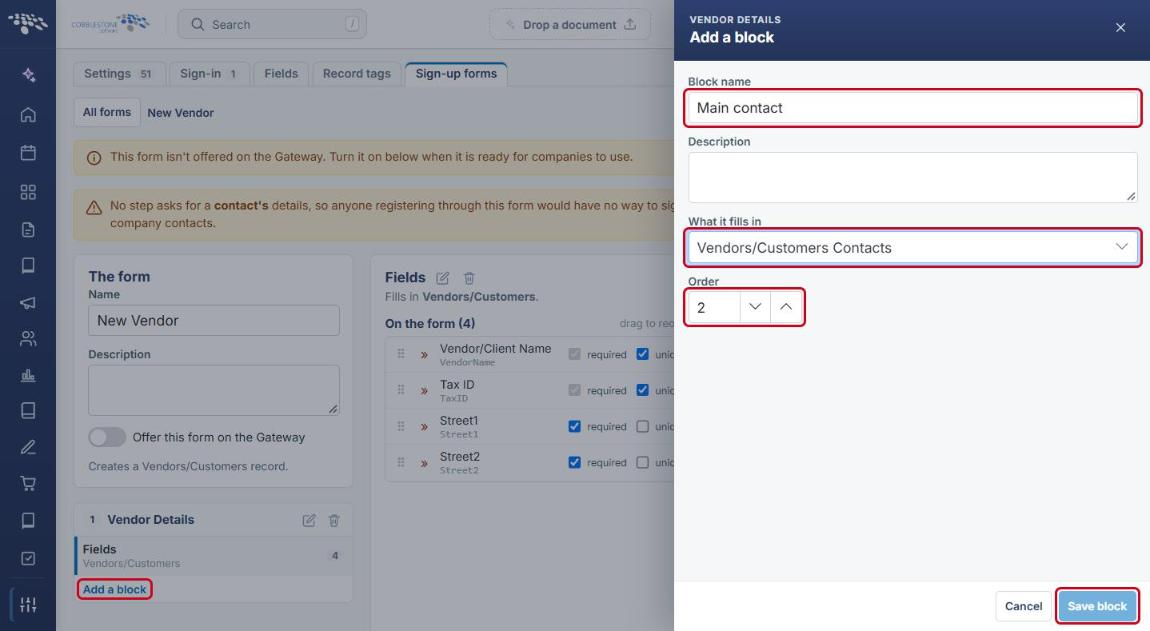
- Under the step in the left panel, click Add a block.
- Enter a Block name (for example, Main contact) and an optional Description.
- In What it fills in, select the record the block populates. To let registrants sign in after registering, at least one block on the form must fill in Vendors/Customers Contacts.
- Set the Order of the block within the step.
- Click Save block.
5d. Choosing the Fields in a Block
- Click a block (for example, Fields) under its step in the left panel. The block's fields appear on the right.
- In the Available list, use Find a field to search, then click « Add next to a field to place it on the form. Click « Add all to add every available field.
- In the On the form list, drag fields to reorder them, and check required and/or unique as needed.
- To take a field off the form, click the » arrow next to it, or click Remove all » to clear the block.
.png)
6. Offering the Form on the Gateway
- Open the form from the Sign-up forms tab (see Section 4).
- Confirm that no warning banners remain at the top of the editor (for example, that a block fills in Vendors/Customers Contacts).
- In The form panel, turn on Offer this form on the Gateway (see the screenshot in Section 5a).
- Return to All forms and confirm the On the Gateway column shows Offered for the form.
7. Related Gateway Settings
These settings on the VCG Settings tab also affect the registration experience:
| Setting | What It Controls |
|---|---|
| Allow Vendor/Client Signup through Gateway | Whether vendors/clients can sign up through the Gateway at all. |
| New Account Confirmation Top Content / Bottom Content | Text shown at the top and bottom of the confirmation page after a new account is submitted. |
| New Account Emails Title / Body Intro | The title and introduction used in new-account email notifications. |
| Enable Alerts for Client Registration | Whether notifications are sent when clients register. |
| Vendor document upload message | The message shown above the file upload box on the Create Account form. |
| Allow vendor to upload documents after account creation | Whether vendors can upload documents after creating a new account. |
| SAM auto fill for VCG self registration | Whether SAM.gov data can auto-fill details for self-registering vendors. |
8. Quick Reference Summary
| Task | How to Complete It |
|---|---|
| Open the Gateway settings | Administration → search “Gateway” → Vendor/Client Gateway (VCG). |
| Turn on self-registration | Settings tab → Access → Allow Vendor/Client Signup through Gateway → On → Save changes. |
| View sign-up forms | VCG → Sign-up forms tab. |
| Create or edit a sign-up form | Sign-up forms tab → Add form, or Open on a form's row. |
| Add a step | Form editor → Add a step → enter Step name and Order → Save step. |
| Add a block | Form editor → Add a block under a step → choose What it fills in → Save block. |
| Add or arrange fields | Select a block → « Add fields from Available → set required/unique → drag to reorder. |
| Offer a form to registrants | Form editor → Offer this form on the Gateway → On. |