COBBLESTONE SOFTWARE
Contract Insight — User Guide
4.2 Activating a Company Contact Account
Module: Vendor/Client Gateway › Step 4: Managing Vendors/Clients on the Gateway › 4.2 Activating a Company Contact Account
Note: Each procedure in this guide begins at the Contract Insight homepage, so any section can be followed on its own. Custom fields are configurable, so the exact field list on a contract category record may vary between environments.
1. Overview
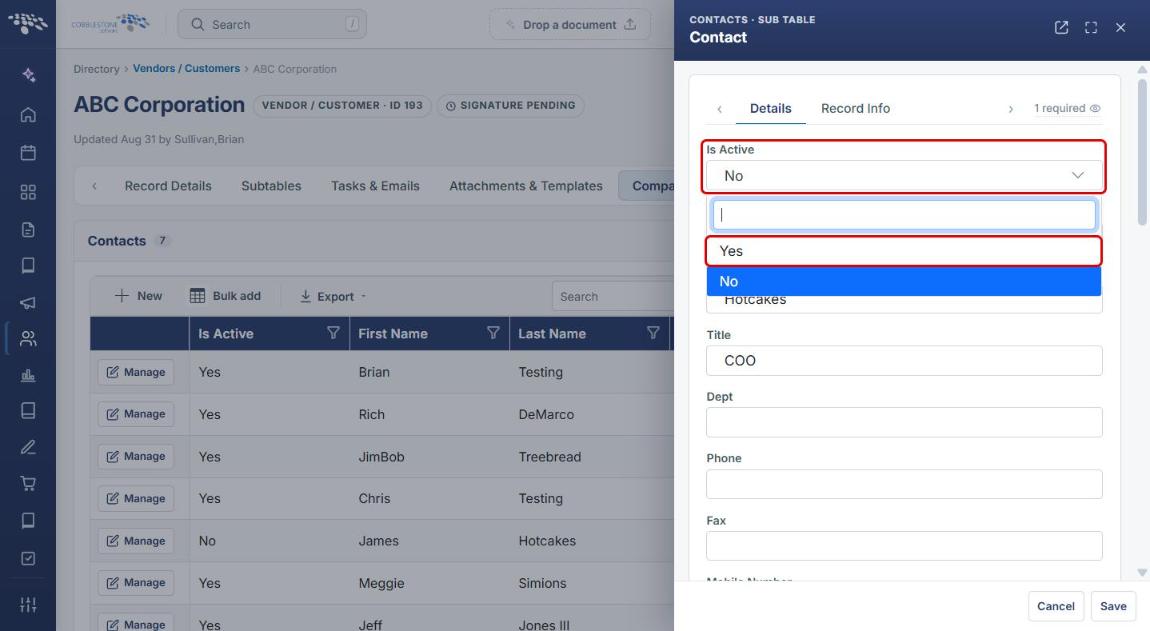
A contact's Is Active field, on their own Details form within the Contacts subtable, controls whether that person's Vendor/Client Gateway account is enabled — in the sample record examined, Is Active was set to No, and the parent company record's Notices and alerts panel flagged "Vendor does not have any contacts marked as Active" as a result. Send Email and Allow Item Management sit alongside Is Active and Is Company Admin as related gateway-access controls on the same form.
2. Key Elements
- Is Active on a contact's Details form enables or disables that contact's gateway account.
- A company with no active contacts is flagged on its own Notices and alerts panel.
- Send Email, Is Company Admin, and Allow Item Management are related access controls on the same form.
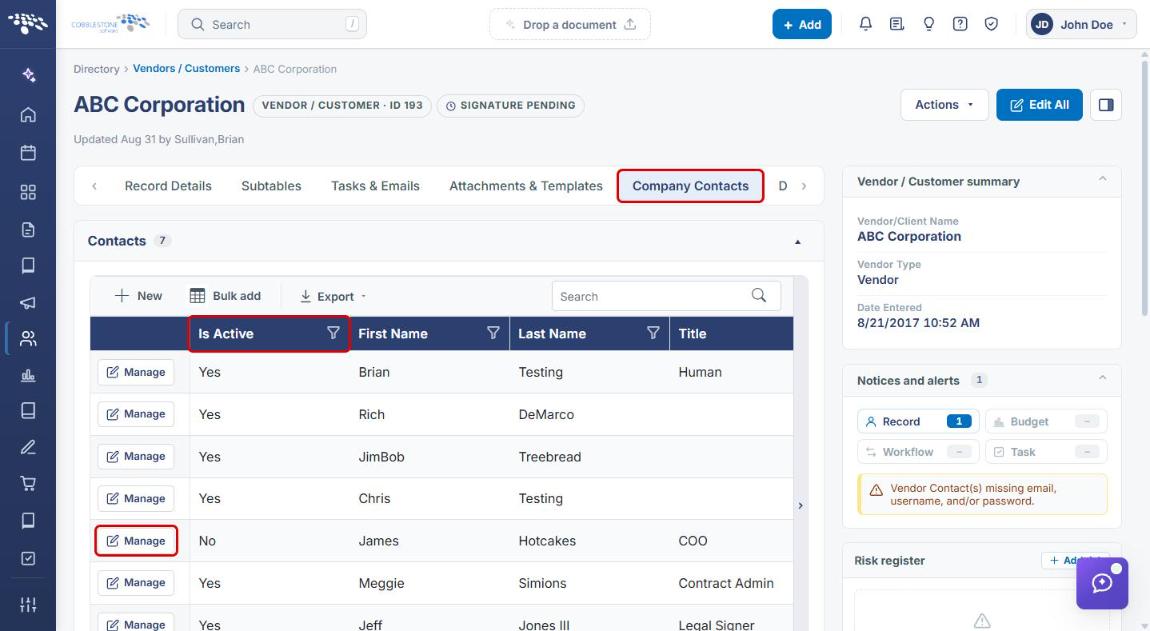
- A company's contacts are listed on the Company Contacts tab of the vendor/customer record, with an Is Active column showing each contact's status at a glance.
3. Navigating to the Company Record
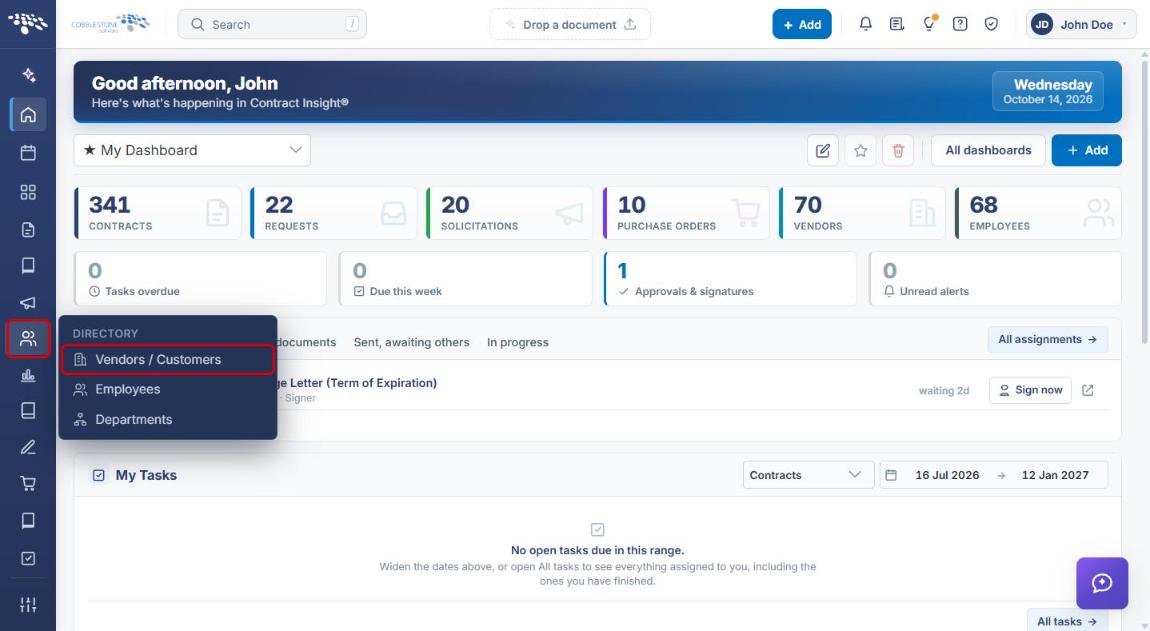
- From the Contract Insight homepage, click the Directory icon in the left navigation bar.
- Select Vendors / Customers.
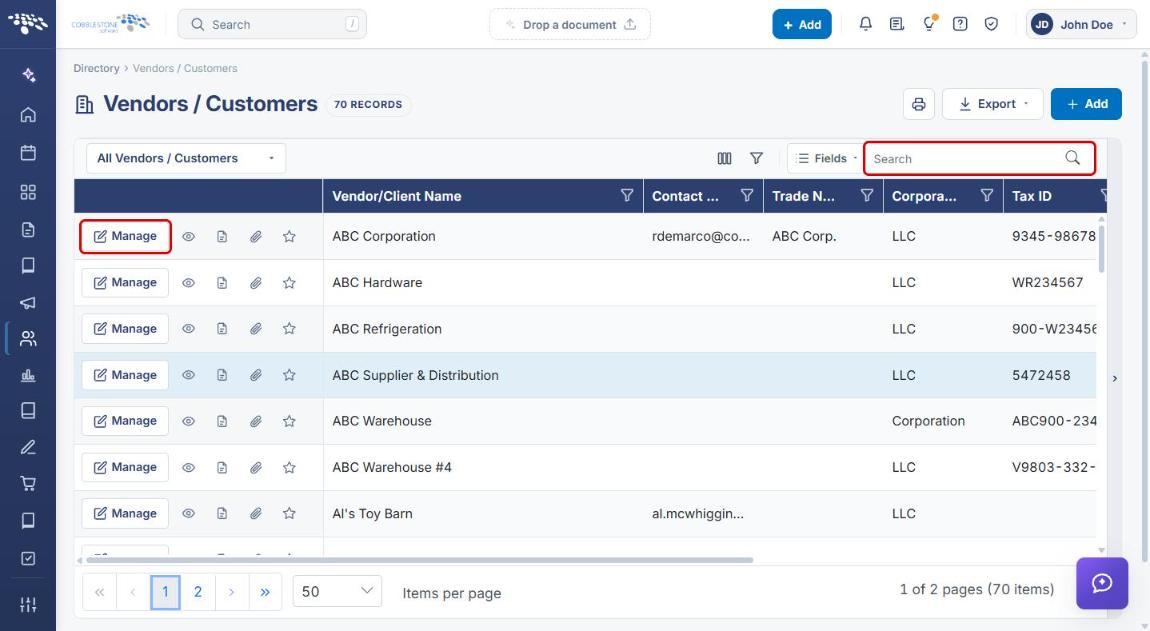
- Locate the company using the Search box or by scrolling the list.
- Click Manage on the company's row to open its record.
4. Activating the Contact
4a. Locating the Contact
- On the company record, click the Company Contacts tab. (If the tab isn't visible, use the arrows at either end of the tab bar to scroll.)
- In the Contacts subtable, review the Is Active column to find contacts set to No.
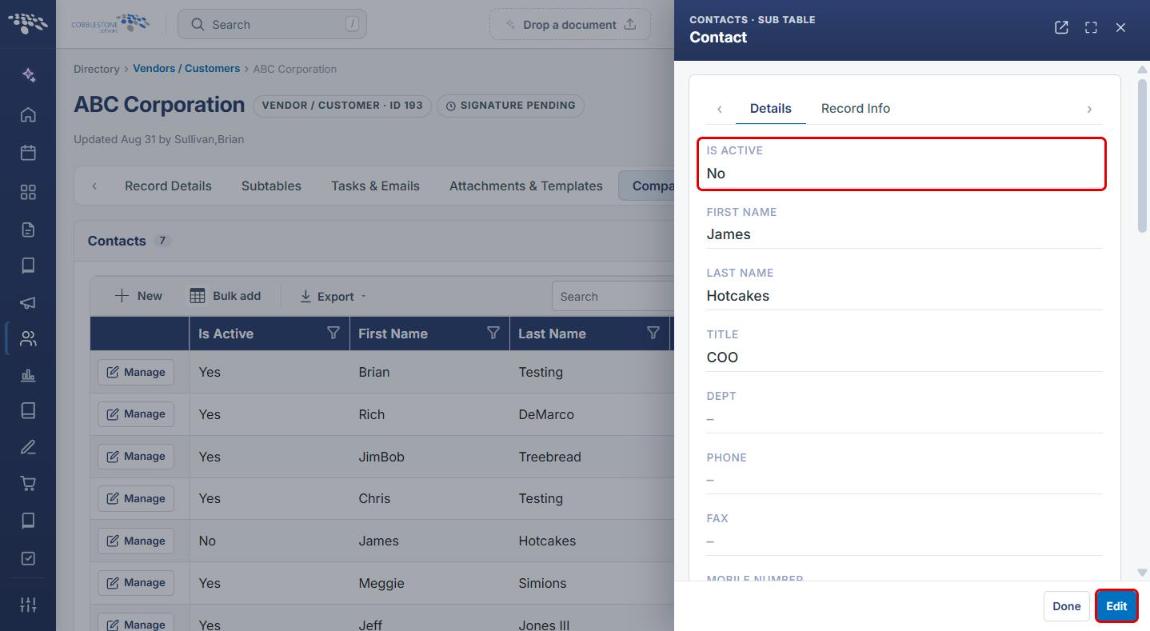
- Click Manage on the contact's row. The contact's form opens in a side panel on the Details tab.
4b. Setting Is Active to Yes
- Confirm the contact's current Is Active value at the top of the Details form, then click Edit at the bottom of the panel.
- Open the Is Active dropdown and select Yes.
4c. Reviewing Related Gateway Access Settings
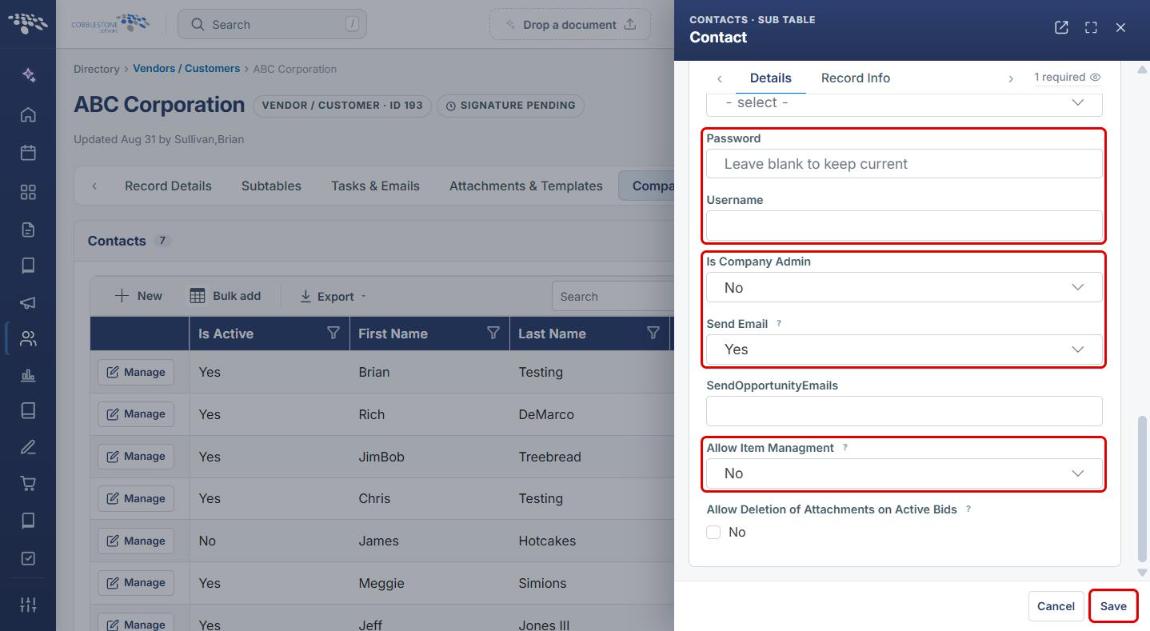
While the form is in edit mode, scroll down to review the contact's other gateway-access settings before saving:
- Email, Username, and Password — the contact's gateway sign-in details. Leave Password blank to keep the current password. The company record flags contacts missing an email, username, or password in its Notices and alerts panel.
- Is Company Admin — set to Yes to make this contact an administrator for the company's gateway account.
- Send Email — set to Yes to include the contact in emails related to press releases and marketing.
- Allow Item Management (labeled Allow Item Managment on the form) — set to Yes to let the contact edit and add new items through the gateway.
- Click Save to apply your changes.
5. Verifying the Activation
- Click Done to close the contact panel.
- On the Company Contacts tab, confirm the contact's Is Active column now reads Yes.
- Check the Notices and alerts panel on the right side of the company record. Once at least one contact is active, the "Vendor does not have any contacts marked as Active" notice no longer appears.
6. Quick Reference Summary
| Task | How to Complete It |
|---|---|
| Open a company record | Directory → Vendors / Customers → Manage on the company's row. |
| See which contacts are active | Company record → Company Contacts tab → Is Active column. |
| Activate a contact | Manage on the contact's row → Edit → Is Active = Yes → Save. |
| Make a contact a company admin | Contact form → Edit → Is Company Admin = Yes → Save. |
| Let a contact manage items on the gateway | Contact form → Edit → Allow Item Management = Yes → Save. |
| Confirm the company has an active contact | Company record → Notices and alerts panel shows no "no contacts marked as Active" notice. |