COBBLESTONE SOFTWARE
Contract Insight — User Guide
4.1 Adding a Company Contact in Contract Insight Core
Module: Vendor/Client Gateway › Step 4: Managing Vendors/Clients on the Gateway › 4.1 Adding a Company Contact in Contract Insight Core
Note: Each procedure in this guide begins at the Contract Insight homepage, so any section can be followed on its own. Custom fields are configurable, so the exact field list on a contract category record may vary between environments.
1. Overview
Company contacts are the people at a vendor or client company that you work with. Contacts are stored on the company's record in Directory → Vendors / Customers, on the Company Contacts tab. Clicking New on the Contacts subtable opens the Add new Contact panel, where you enter the contact's name, title, department, phone numbers, email, and address, plus a set of gateway-related fields — Username, Password, Regional Setting, Is Active, Is Company Admin, and Send Email — that control the contact's access if they'll log into the Vendor/Client Gateway.
2. Key Elements
- Directory → Vendors / Customers: the list of every vendor/client company record, with a Search box and a Manage button on each row.
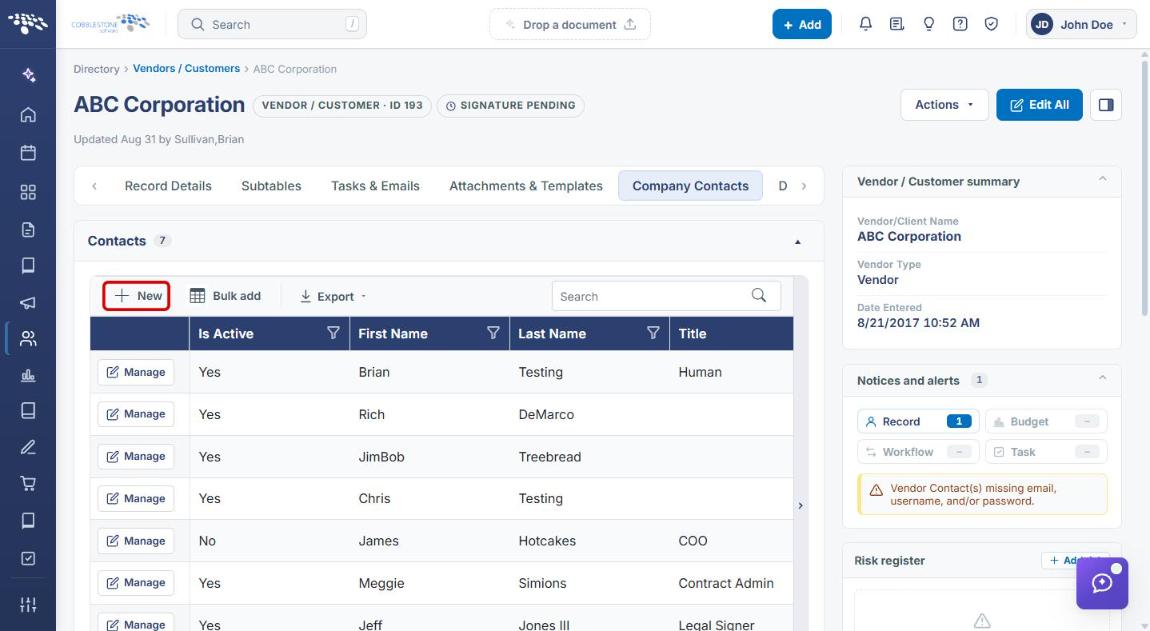
- Company Contacts tab: the tab on a company record that holds the Contacts subtable, with New, Bulk add, and Export toolbar buttons and a Manage button on each existing contact.
- Add new Contact panel — Details section: Is Active, First Name, Last Name (required), Title, Dept, Phone, Fax, Mobile Number, Mobile Number Location, Email, Address1, Address2, City, State/Province, Postal Code, Country, and Notes.
- Gateway fields in the same section: Regional Setting, Password, Username, Is Company Admin, Send Email, SendOpportunityEmails, Allow Item Managment, and Allow Deletion of Attachments on Active Bids.
- Record Info section: Updated By, Entered By, Requested By Vendor, Contact ID, Entry Date, and Vendor ID. These are filled in by the system.
- Save / Cancel: buttons at the bottom of the panel that create the contact or discard it.
3. Navigating to the Company Record
- From the Contract Insight homepage, click the Directory icon in the left navigation bar.
- Select Vendors / Customers.
.jpg)
- On the Vendors / Customers list, find the company you want to add a contact to. Use the Search box above the grid to narrow the list if needed.
- Click Manage on the company's row to open its record.
.jpg)
4. Adding a Company Contact
4a. Opening the Add new Contact Panel
- Navigate to the company record (see Section 3).
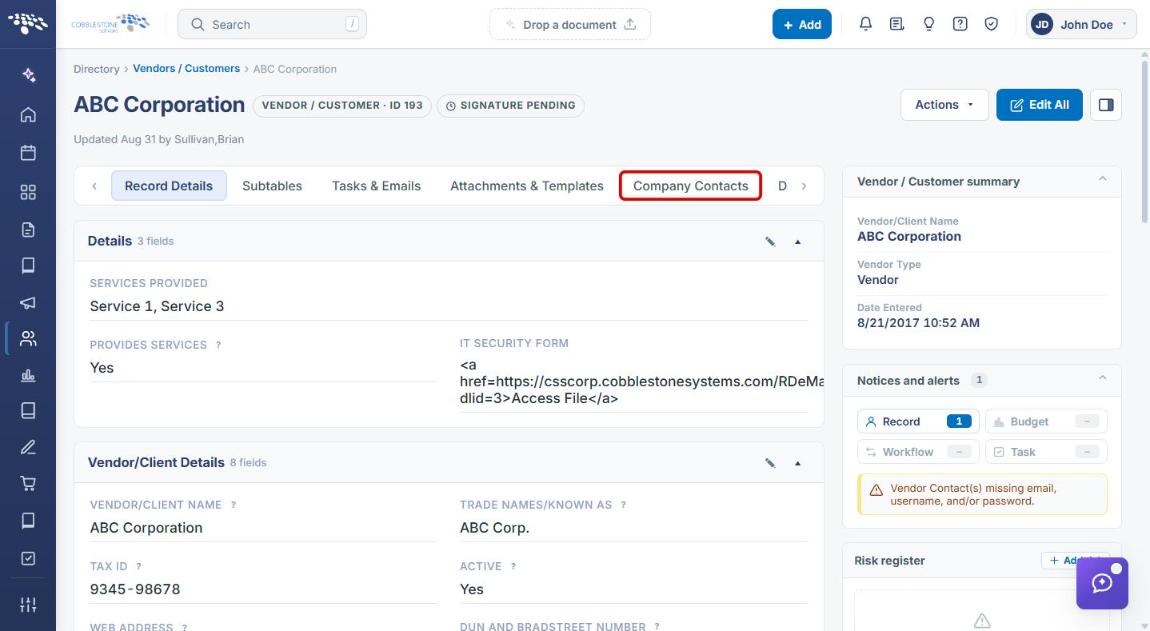
- Click the Company Contacts tab. If the tab isn't visible, use the arrows at either end of the tab bar to scroll to it.
- The Contacts subtable lists the company's existing contacts. Click New in the subtable toolbar.
- The Add new Contact panel opens on the right side of the page. Click the expand icon in the panel's header to widen it so the fields display in three columns, or the open-in-new icon to open the form as a full page.
4b. Entering the Contact's Details
- In the Details section, set Is Active to Yes so the contact is active.
- Enter the contact's First Name and Last Name. Last Name is required (marked with a red asterisk).
- Enter the contact's Email address. An email is needed if the contact will receive notifications or log into the Vendor/Client Gateway.
.jpg)
- Fill in the remaining details as needed: Title, Dept, Phone, Fax, Mobile Number, Mobile Number Location, the address fields (Address1, Address2, City, State/Province, Postal Code, Country), and any Notes.
Tip: Click the eye icon next to 1 required in the Details header to show only required fields.
4c. Setting Vendor/Client Gateway Access
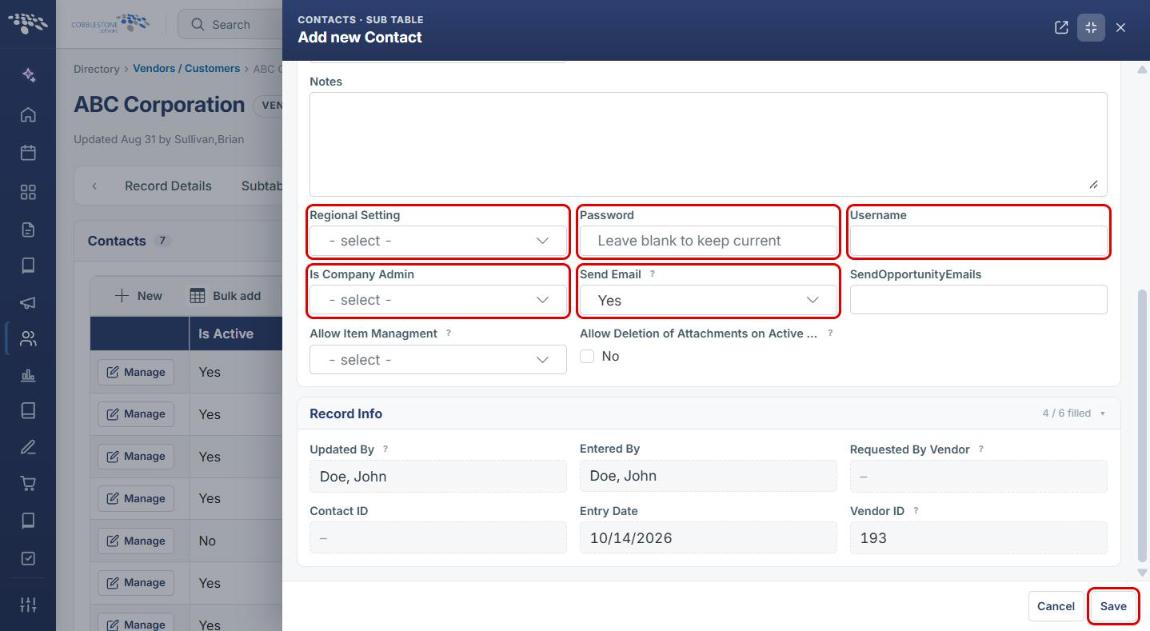
Complete these fields if the contact will log into the Vendor/Client Gateway. Scroll down in the panel, below Notes, to find them.
- Select the contact's Regional Setting.
- Enter a Username and Password for the contact's Gateway login.
- Set Is Company Admin to Yes if this contact should be an administrator for their company on the Gateway; otherwise set it to No.
- Set Send Email to Yes (the default) to include the contact in emails related to press releases and marketing, or No to exclude them.
- Optionally set SendOpportunityEmails, Allow Item Managment (lets the contact edit and add new items through the Gateway), and Allow Deletion of Attachments on Active Bids (lets the contact upload and delete attachments on active solicitation bids).
4d. Saving the Contact
- Review the Record Info section. Updated By, Entered By, Entry Date, and Vendor ID are filled in automatically, and Contact ID is assigned when the record is saved.
- Click Save to add the contact, or Cancel to close the panel without saving.
- The new contact appears in the Contacts subtable on the Company Contacts tab. Click Manage on the contact's row to edit it later.
Note: If any of the company's contacts are missing an email, username, and/or password, the Notices and alerts panel on the company record shows the alert Vendor Contact(s) missing email, username, and/or password. Complete those fields on the contact to clear it.