COBBLESTONE SOFTWARE
Contract Insight — User Guide
3.2 Solicitation and Procurement Content
Module: Vendor/Client Gateway › Step 3: Managing Content Visible on the Gateway › 3.2 Solicitation and Procurement Content
Note: Each procedure in this guide begins at the Contract Insight homepage, so any section can be followed on its own. Custom fields are configurable, so the exact field list on a contract category record may vary between environments.
1. Overview
The same Record tags mechanic, with Area set to Solicitations, defines the header values shown across the top of a solicitation record on the Gateway — separate per record type where needed, otherwise falling back to the Default (every type) set the same way contracts do.
2. Key Elements
- VCG → Record tags tab → Area: Solicitations configures the respondent-facing solicitation header.
- Record Type lets each record type override the default tag set, or inherit it if none of its own is defined.
- Tags here are typically identifying fields — status, close date, or solicitation number — rather than full narrative content.
- Purchase Orders has its own equivalent Record tags configuration under the Purchase Order Header Screen area.
- The Record tags tab has no Save button: every change saves as you make it.
3. Navigating to Record Tags
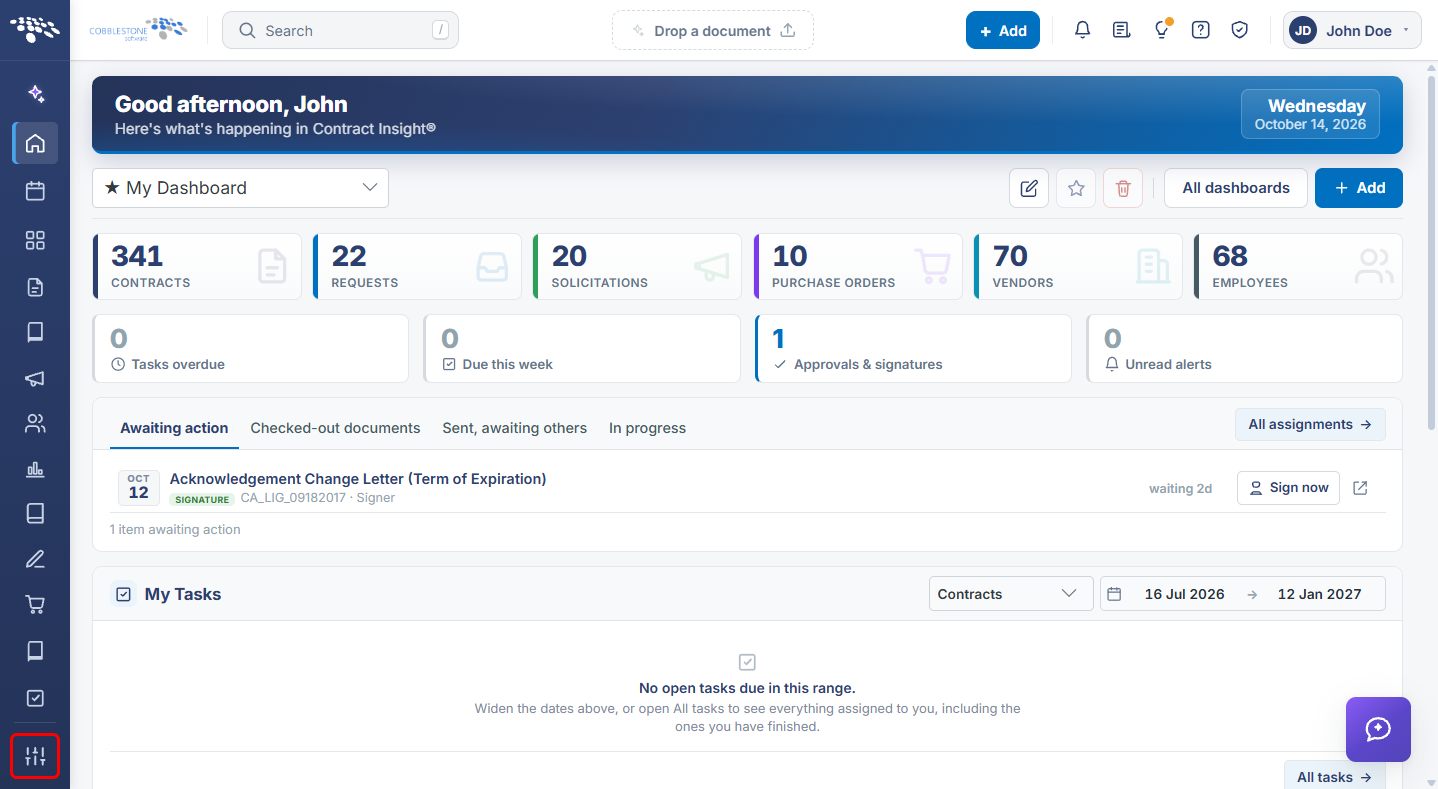
- From the Contract Insight homepage, click the Administration icon (settings sliders) at the bottom of the left navigation bar.
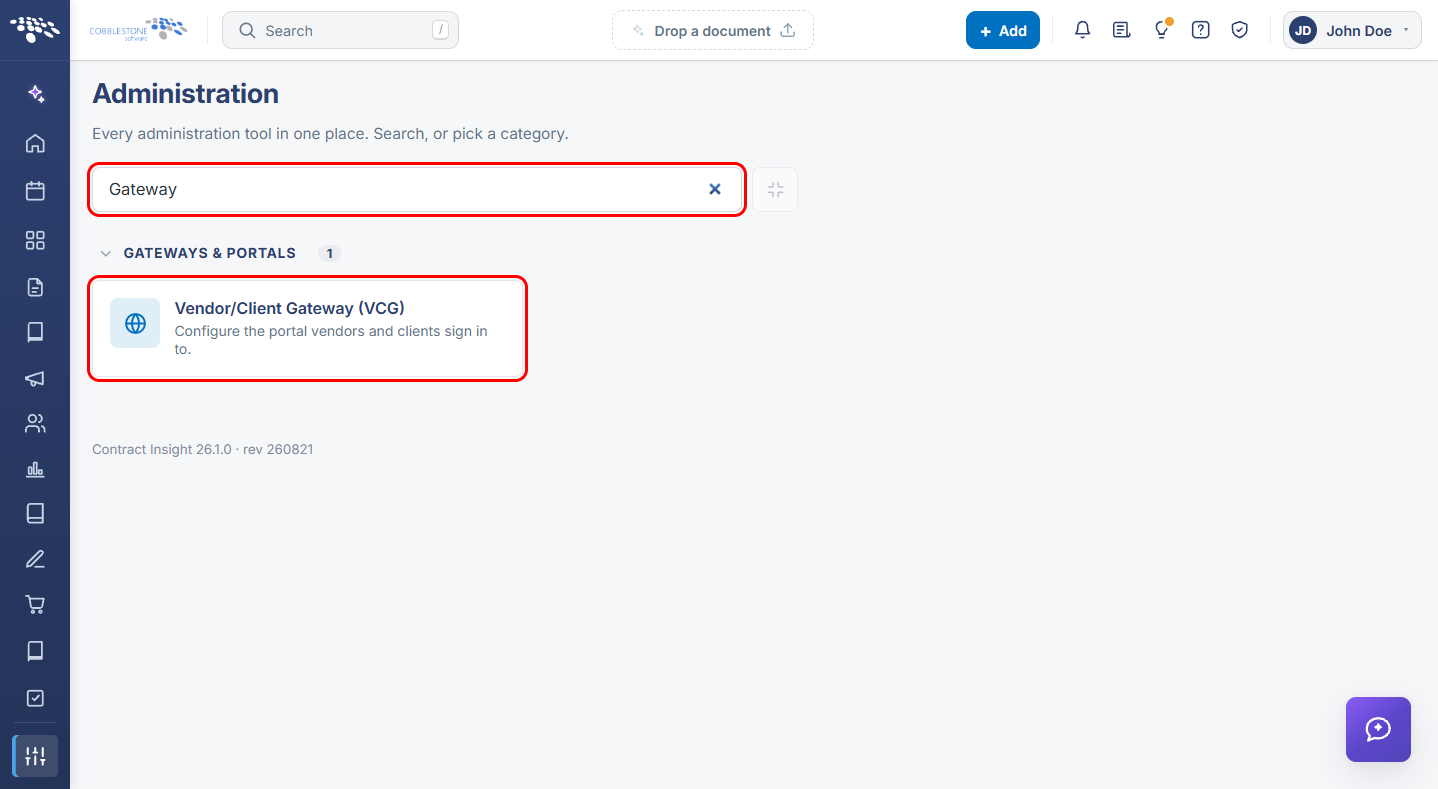
- On the Administration page, type Gateway in the Search administration box.
- Click Vendor/Client Gateway (VCG).
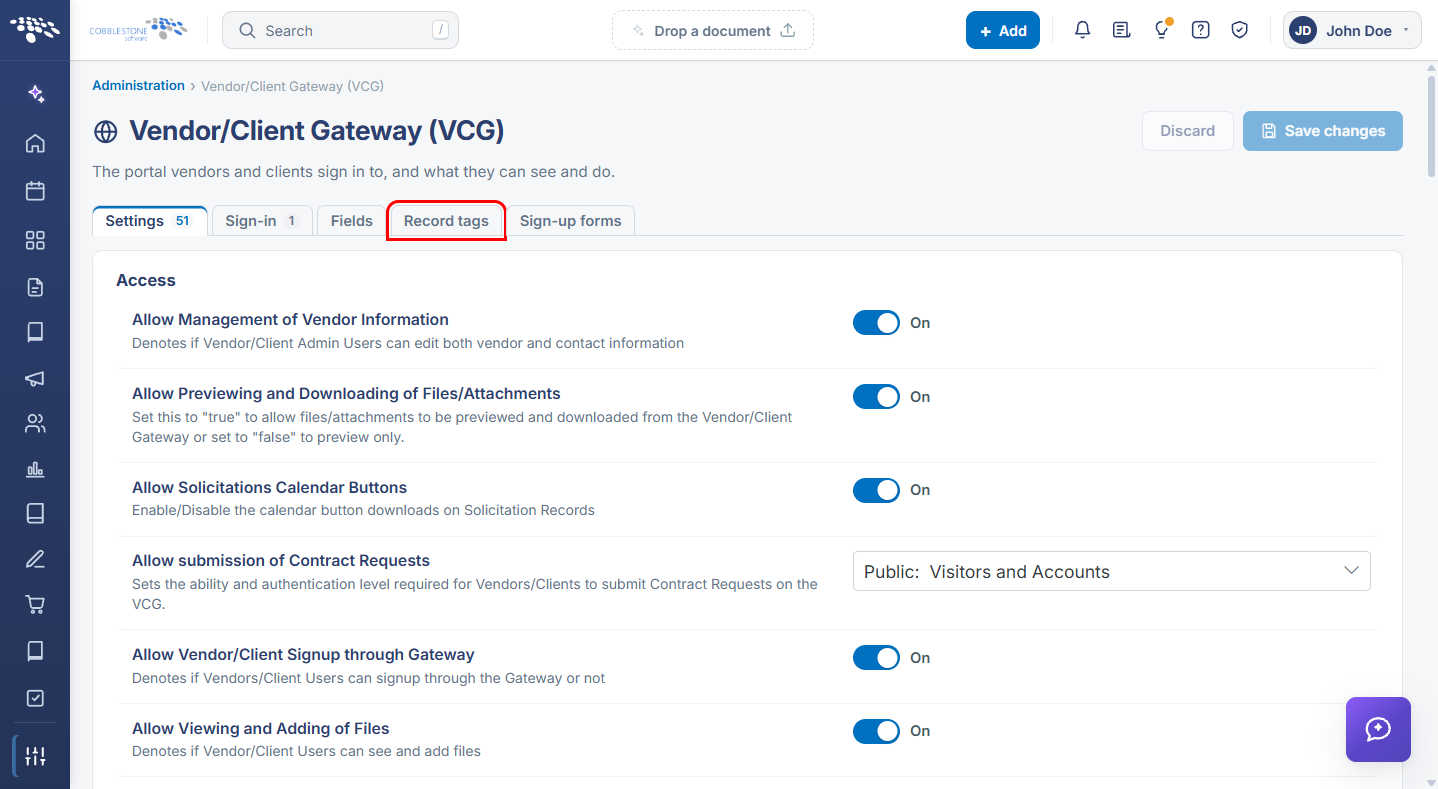
- The Vendor/Client Gateway (VCG) page opens on the Settings tab. Click the Record tags tab.
4. Configuring Solicitation Header Tags
4a. Selecting the Area
- On the Record tags tab, click the Area dropdown.
- Select Solicitations. You can also type in the search box at the top of the list to filter it.
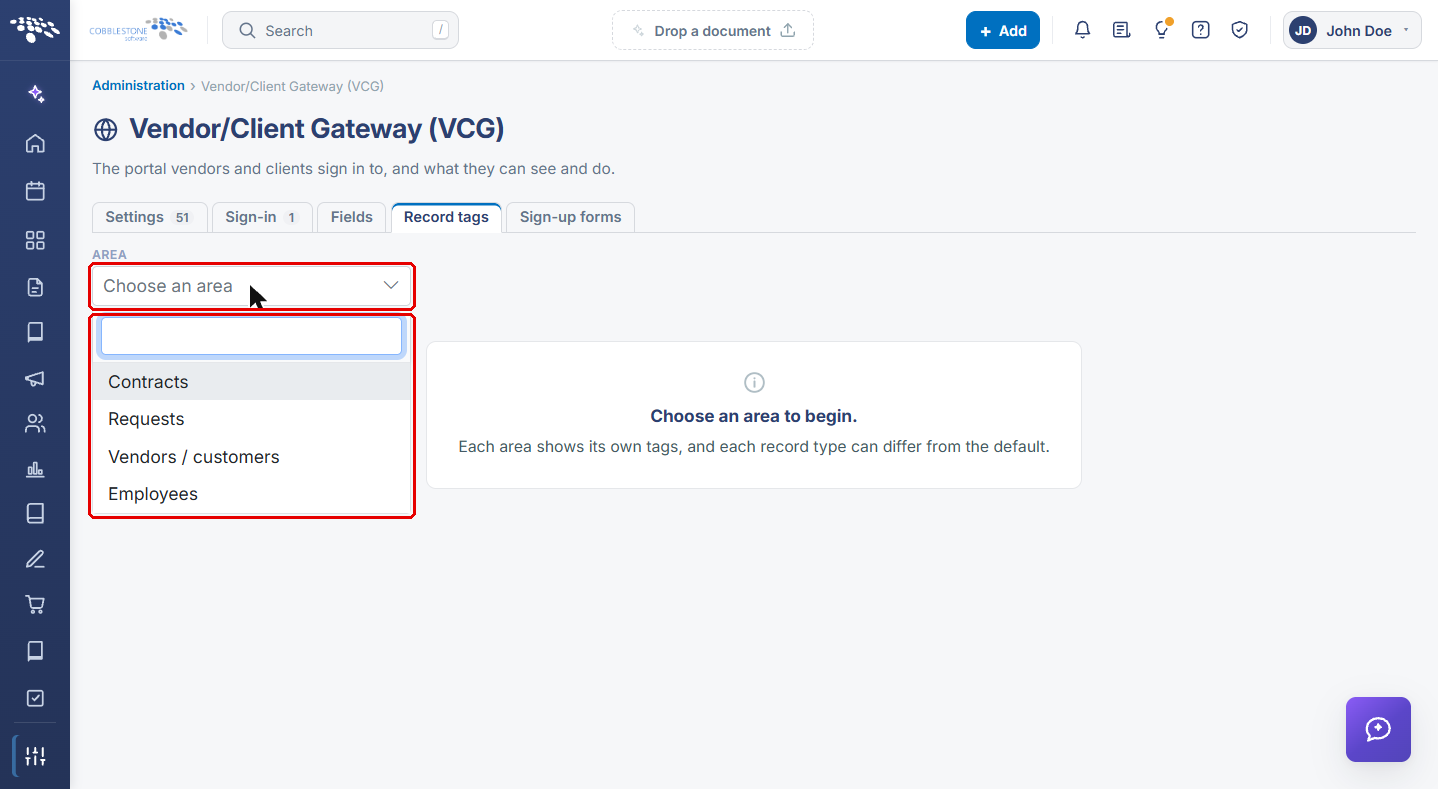
Note: The Area list only shows the areas enabled in your environment. In the current build (Contract Insight 26.1.0) the list contains Contracts, Requests, Vendors / customers and Employees; if Solicitations is not listed, the solicitation header cannot yet be configured from this tab.
4b. Choosing the Record Type
- After an Area is selected, the Record Type dropdown appears next to it.
- Leave Default (every type) selected to edit the tags used by every record type that has none of its own.
- To override the default for one record type, select that record type from the list. Its tags apply only to records of that type.
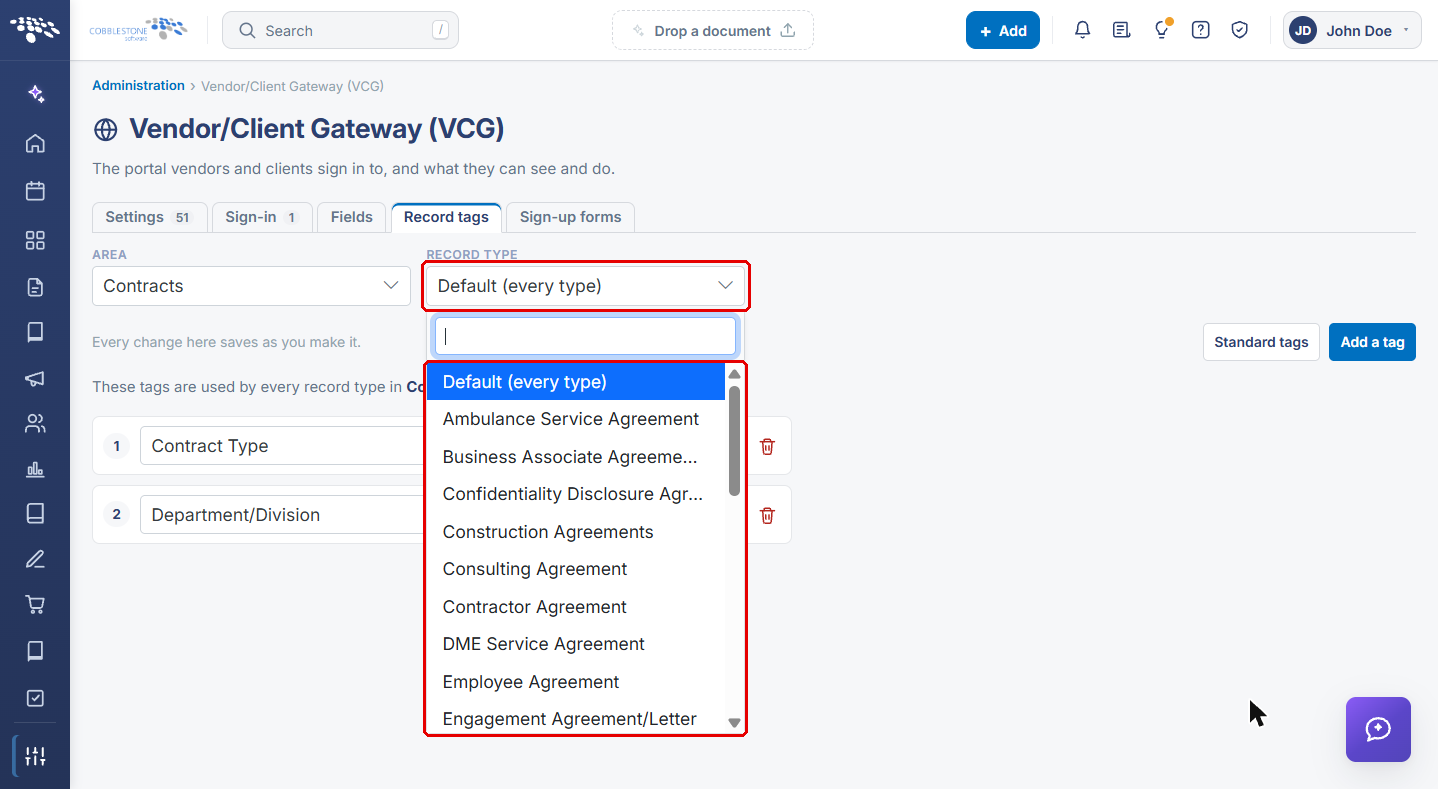
4c. Adding, Changing and Removing Tags
- Review the numbered list of tags. Each row is one header value, shown on the Gateway in the order listed.
- To change a tag, open the field dropdown on its row and select a different field.
- To add a tag, click Add a tag, then pick the field for the new row. Standard tags sits next to it.
- To remove a tag, click the red trash icon at the end of its row.
.png)
Example shown with Area set to Contracts. The controls are the same for every area.
Note: Changes on this tab save immediately, so there is no Save or Discard step. Make edits deliberately, especially on the Default (every type) set, which affects every record type without its own tags.
5. Configuring Purchase Order Header Tags
- Navigate to the Record tags tab (see Section 3).
- In the Area dropdown, select Purchase Order Header Screen.
- Choose the Record Type and add, change, or remove tags as described in Sections 4b and 4c.
Note: As with Solicitations, Purchase Order Header Screen only appears in the Area list when it is available in your environment.