COBBLESTONE SOFTWARE
Contract Insight — User Guide
4. Add/View a Survey on a Record
12. Surveys & Decision Trees › 2. Surveys/Questionnaires › 4. Add/View a Survey on a Record
Note: Each procedure in this guide begins at the Contract Insight homepage, so any section can be followed on its own. Custom fields are configurable, so the exact field list on a contract category record may vary between environments.
1. Overview
Individual records — contracts, requests, and others — have their own Surveys tab (labeled Ratings & Surveys on contract records) for viewing any surveys already attached to that record. A survey template is added to a specific record via the "Attach Survey" action in that record's Actions dropdown menu, under Record Actions alongside other record-level operations like Update with VISDOM and Print / PDF. Once attached and completed, the resulting responses surface centrally in Surveys > Survey Results, where each row shows the Survey name, the specific record it's On, a Due date, and a Responses completion count (e.g. "5/5 completed"); "View results" opens the full response grid for that survey instance, with respondents as columns and questions grouped by section, and an optional "Show scores" view.
2. Key Elements
- A record's own Surveys tab (Ratings & Surveys on contracts) lists the surveys already attached to that specific record, with each survey's Participants, Complete count, Date Due, and Status.
- The "Attach Survey" action, found in a record's Actions dropdown under Record Actions, is how a survey template gets added to that individual record. The + Add survey button on the record's Surveys tab does the same.
- The Attach a Survey page sets the survey template, a unique Survey Title, open and due dates, who responds (Respondent Type), and whether respondents may re-take it.
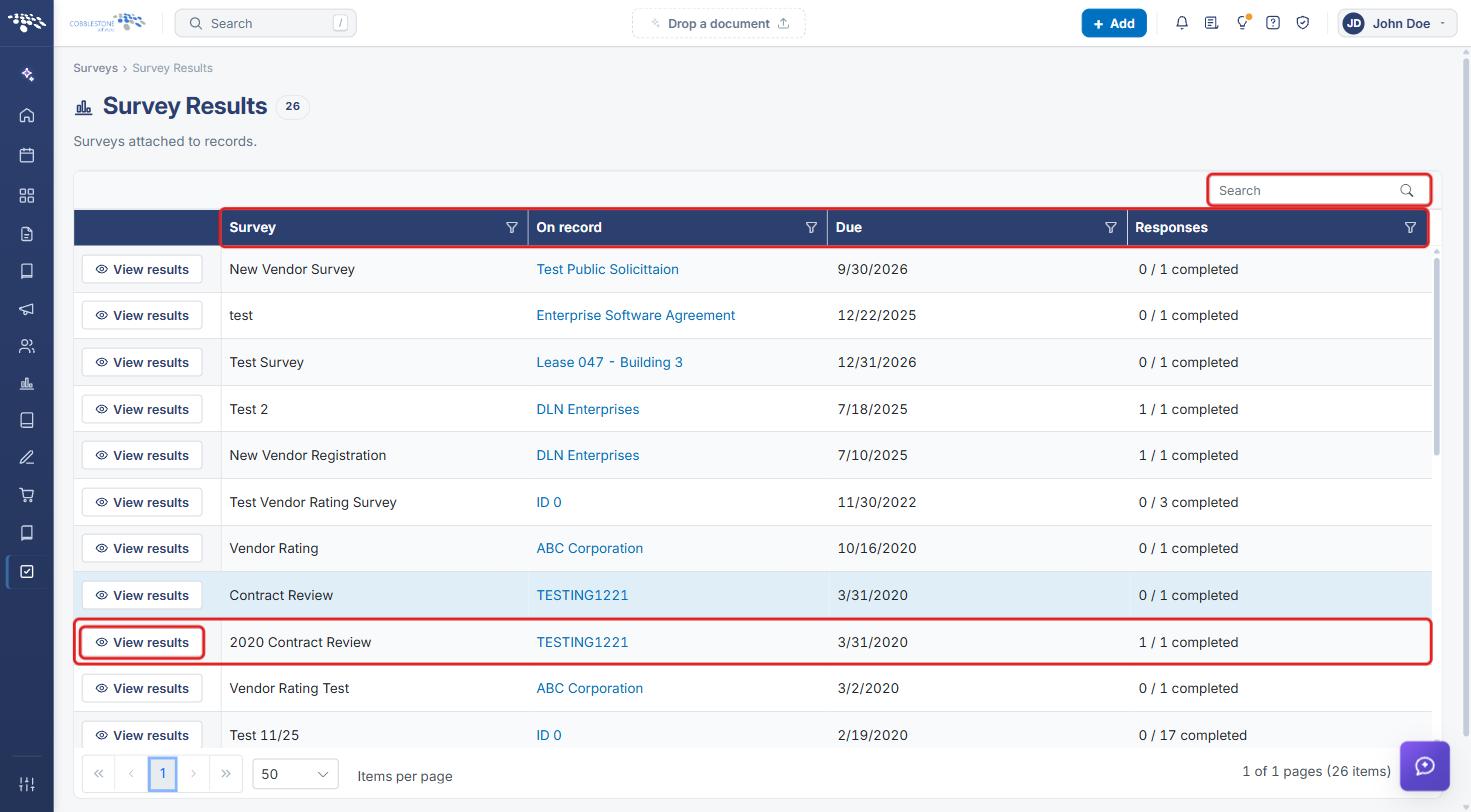
- Surveys > Survey Results centralizes every survey instance attached to any record, showing the Survey name, the On record it belongs to, a Due date, and a Responses completion count.
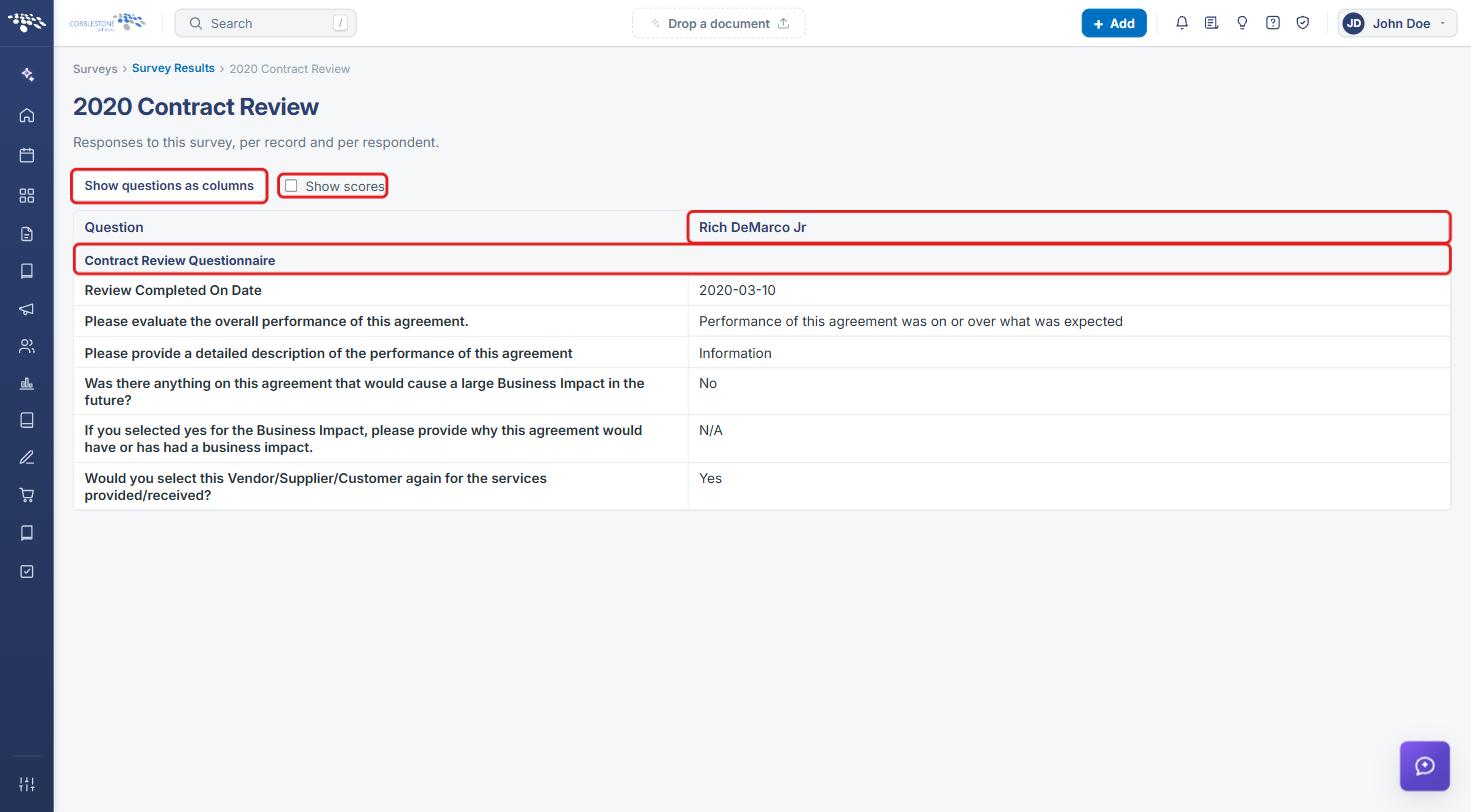
- "View results" on a Survey Results row (or Review results on the record) opens the full response grid for that instance, with respondents as columns and questions grouped by their Section.
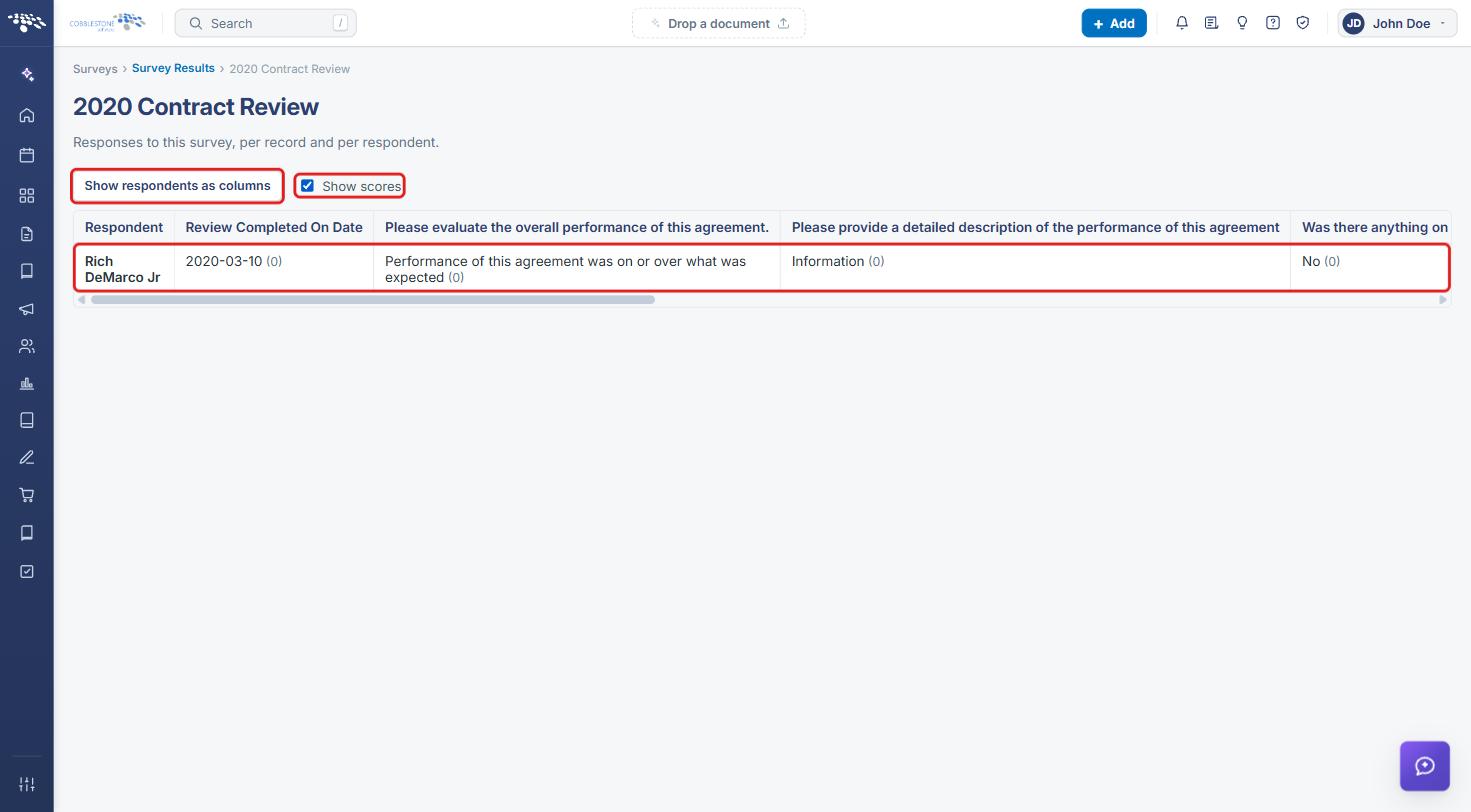
- A "Show questions as columns" toggle and a "Show scores" checkbox in the results grid offer alternate views of the same response data.
3. Navigating to a Record
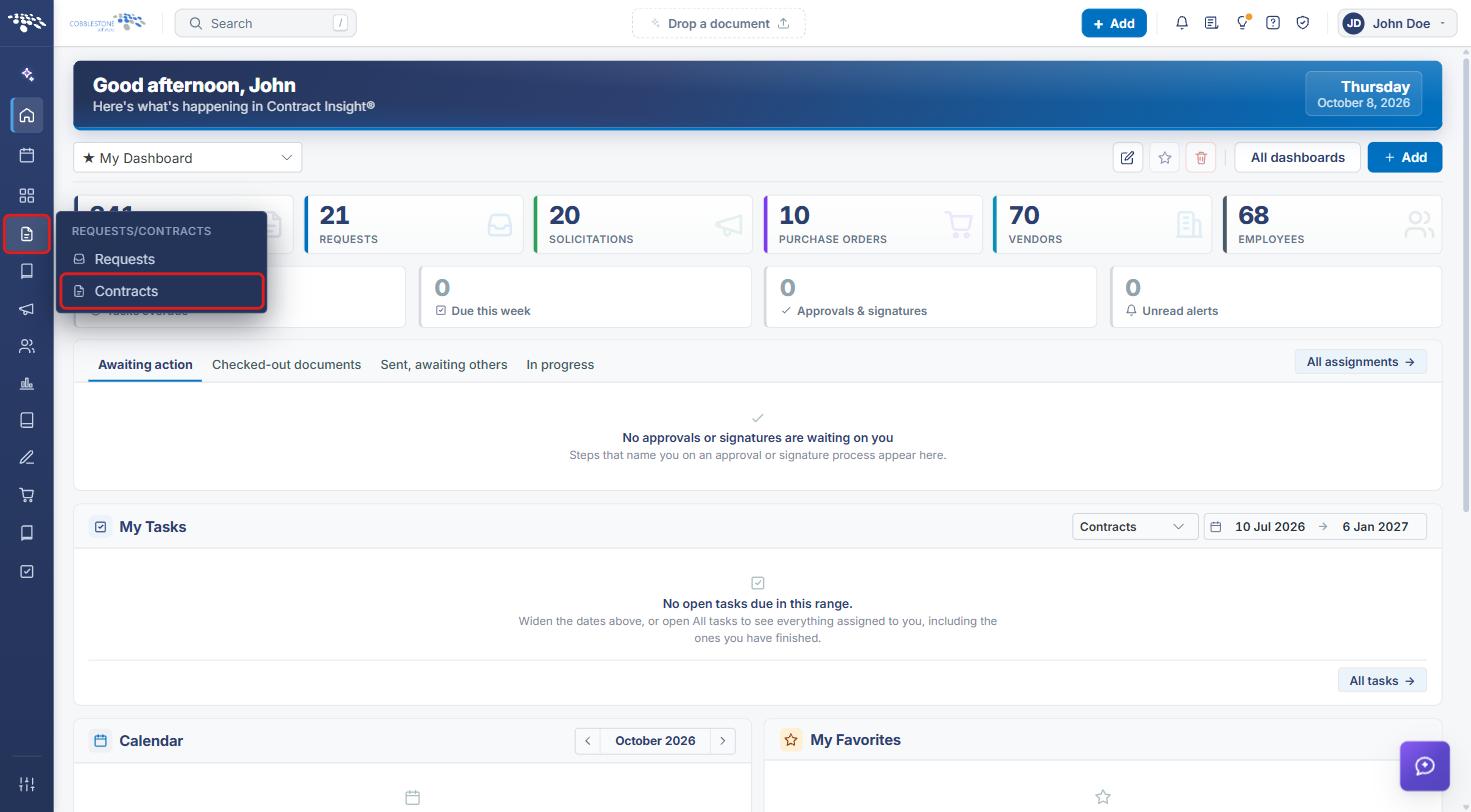
- From the Contract Insight homepage, click the Requests/Contracts icon in the left navigation bar.
- Select Contracts (or Requests, depending on the record type).
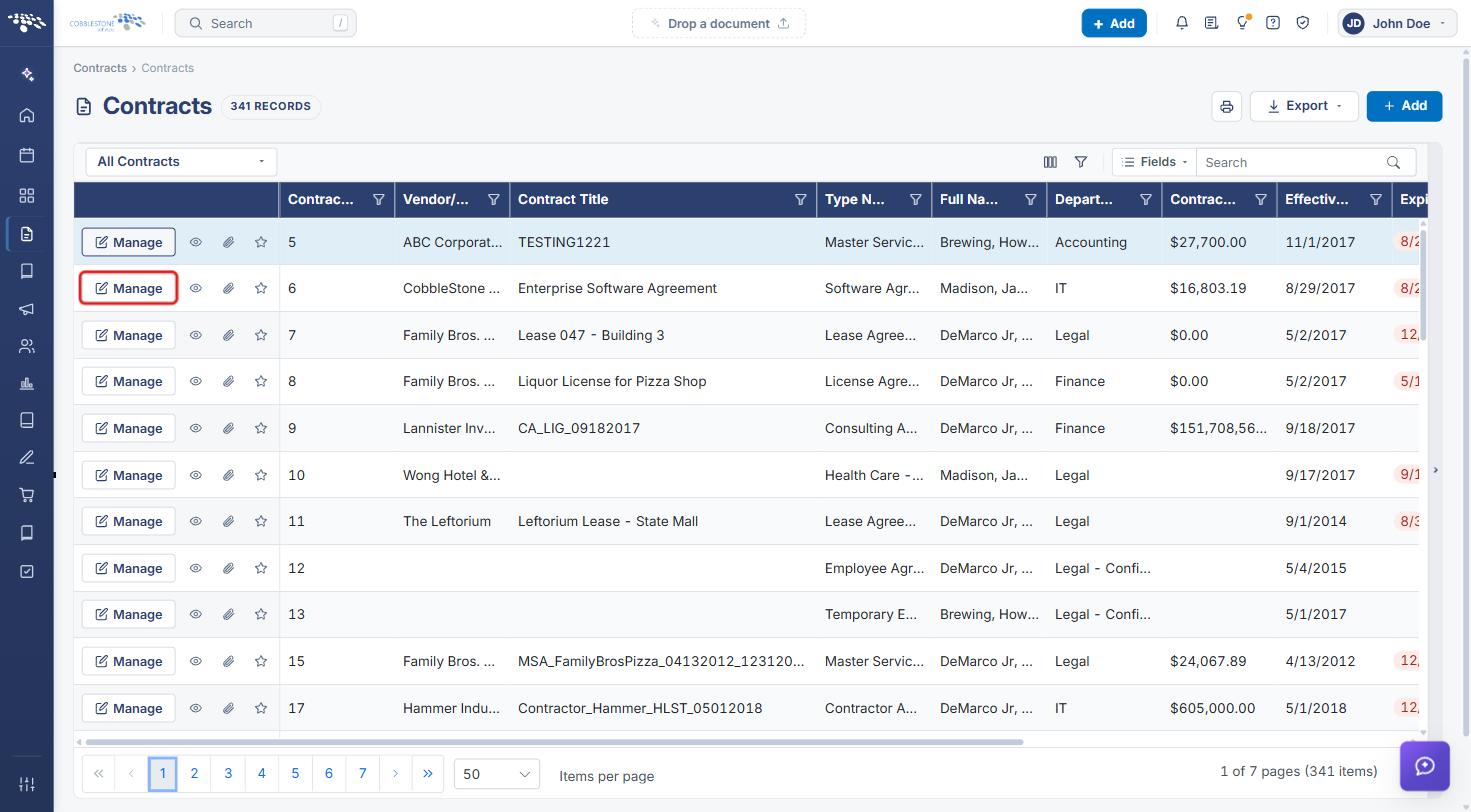
- Locate the record in the list (use the Search box or column filters if needed).
- Click Manage on the record's row to open it.
4. Attaching a Survey to a Record
4a. Opening Attach Survey
- Open the record (see Section 3).
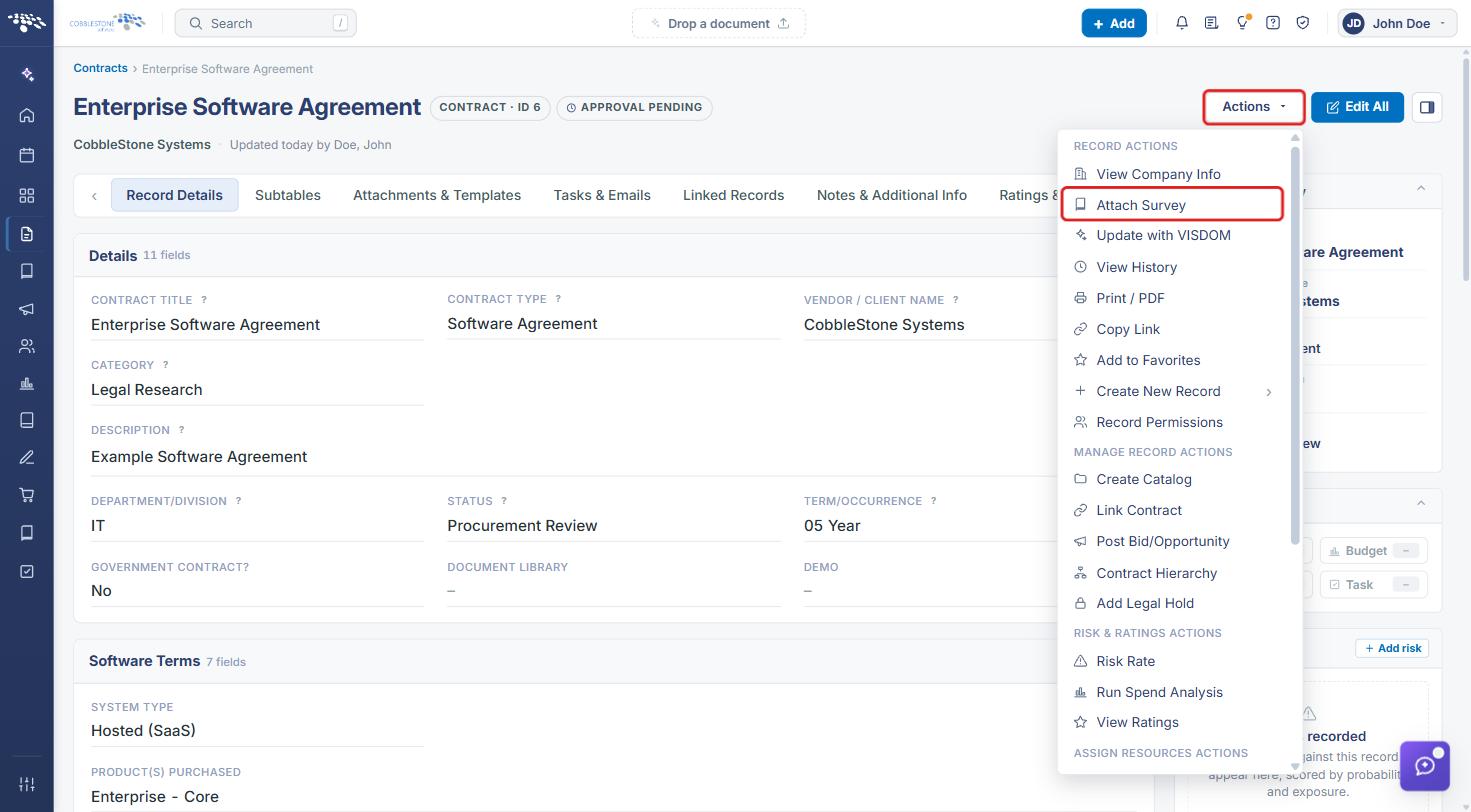
- Click the Actions dropdown in the upper-right corner of the record.
- Under Record Actions, select Attach Survey.
Tip: You can also click + Add survey on the record's Surveys / Ratings & Surveys tab (see Section 5).
4b. Completing the Attach a Survey Form
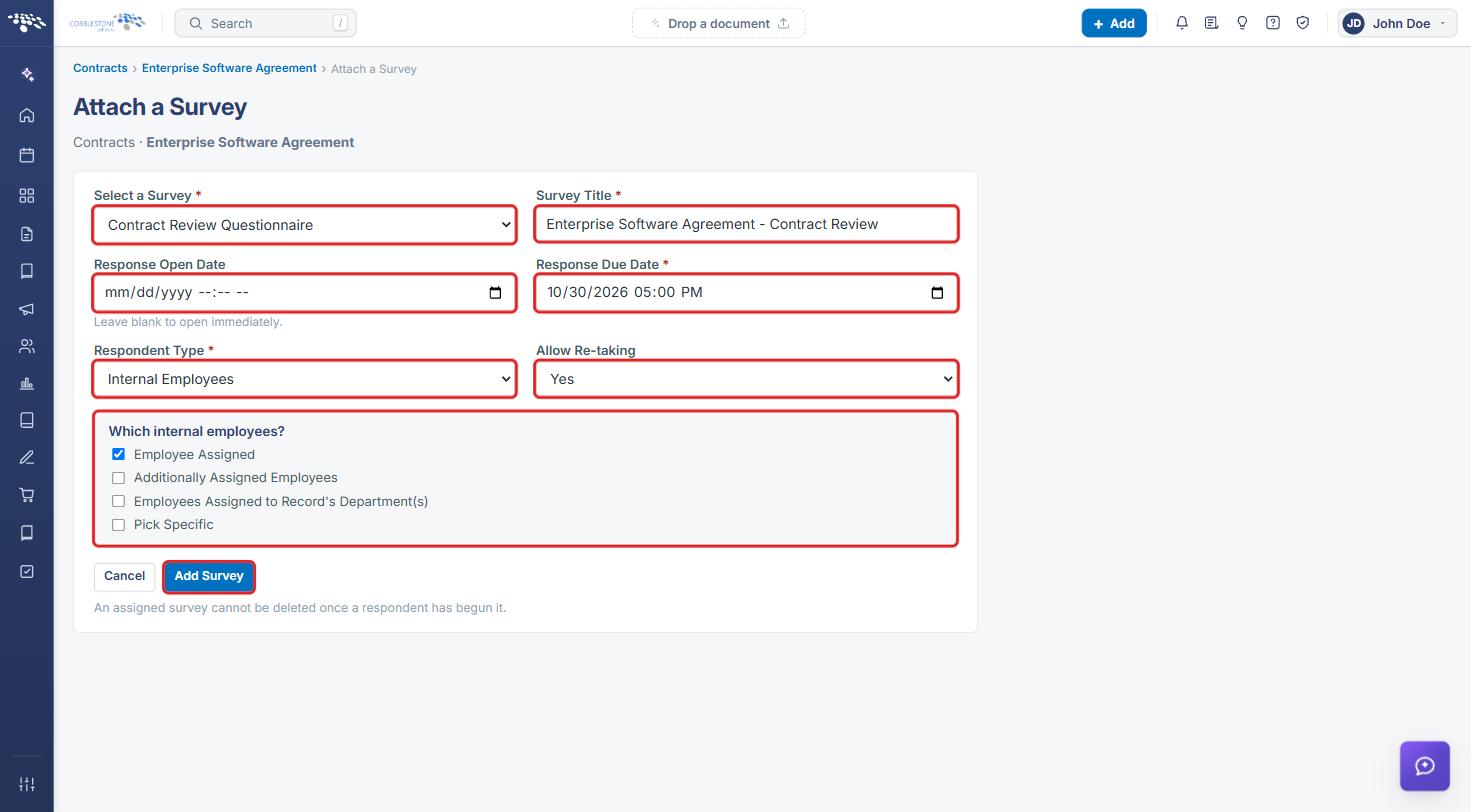
The Attach a Survey page opens, showing the record type and record name beneath the title.
- Select a Survey (required): choose the survey template to send.
- Survey Title (required): enter a unique name for this record's survey.
- Response Open Date: optionally set when responses open. Leave blank to open immediately.
- Response Due Date (required): set the date and time responses are due.
- Respondent Type (required): choose Assigned Vendors or Internal Employees.
- If you chose Internal Employees, select Which internal employees? should respond: Employee Assigned, Additionally Assigned Employees, Employees Assigned to Record's Department(s), and/or Pick Specific.
- Allow Re-taking: choose Yes or No.
- Click Add Survey. Click Cancel to return to the record without attaching the survey.
Note: An assigned survey cannot be deleted once a respondent has begun it.
5. Viewing Surveys on a Record
- Open the record (see Section 3).
- Click the Surveys tab (Ratings & Surveys on contract records). Use the arrows at either end of the tab bar if the tab is not visible.
- Review the Surveys list, which shows each attached survey's Title, Participants, Complete count, Date Due, and Status. Click + Add survey to attach another survey.
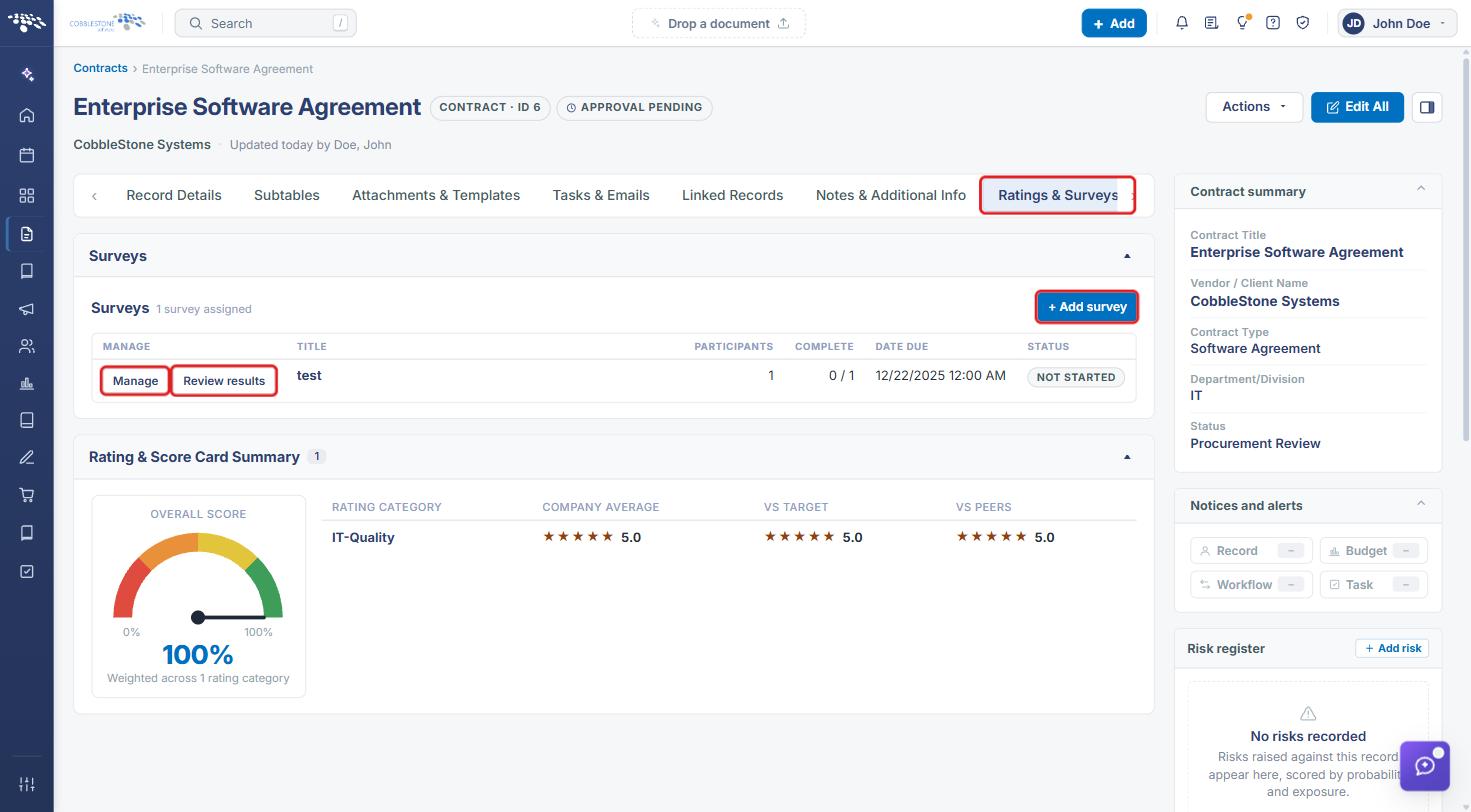
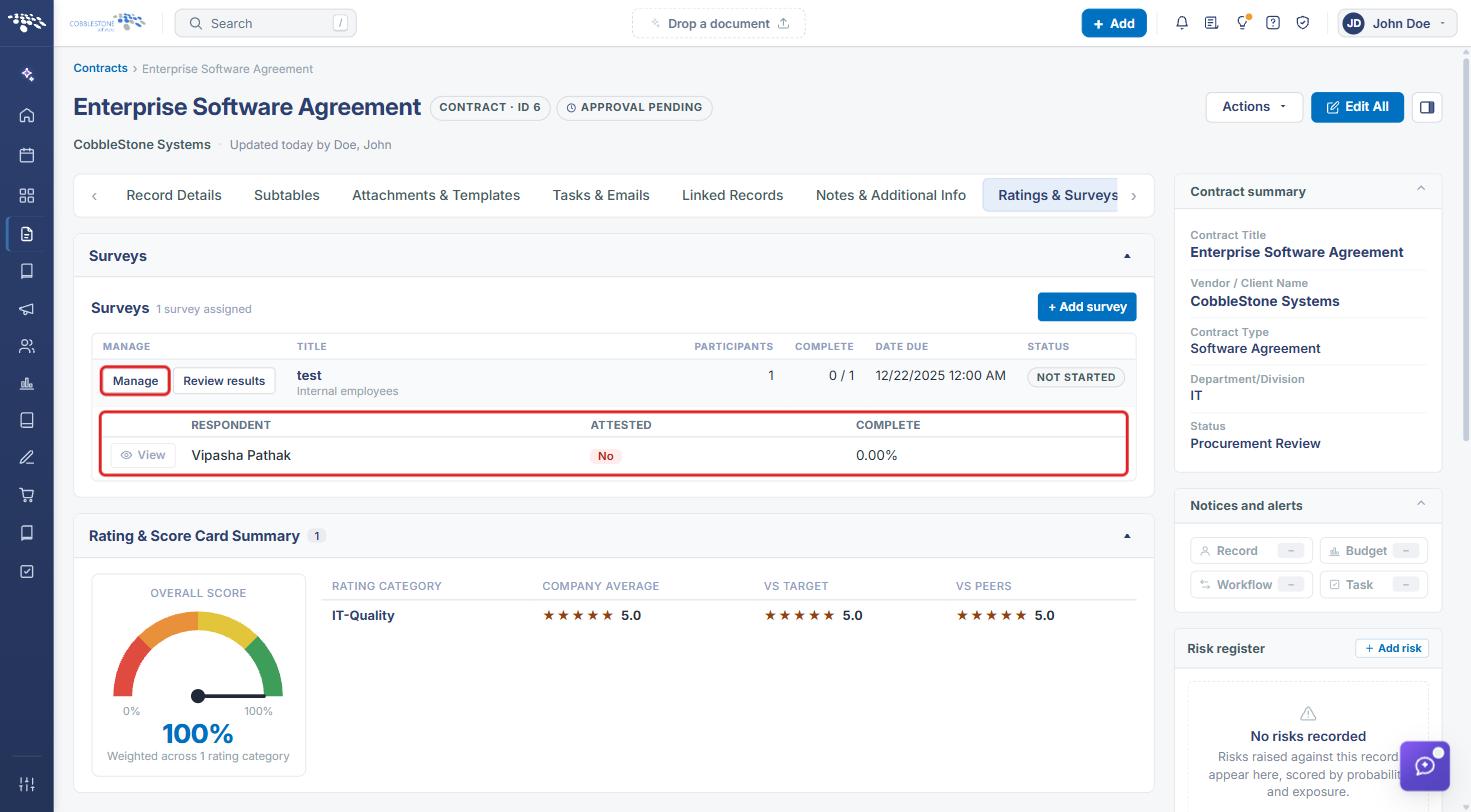
- Click Manage on a survey's row to expand its respondents, showing each Respondent, whether they have Attested, and their percent Complete. Click View next to a respondent to open their individual response.
- Click Review results to open the survey's full response grid (see Section 6c).
6. Viewing Survey Results
6a. Navigating to Survey Results
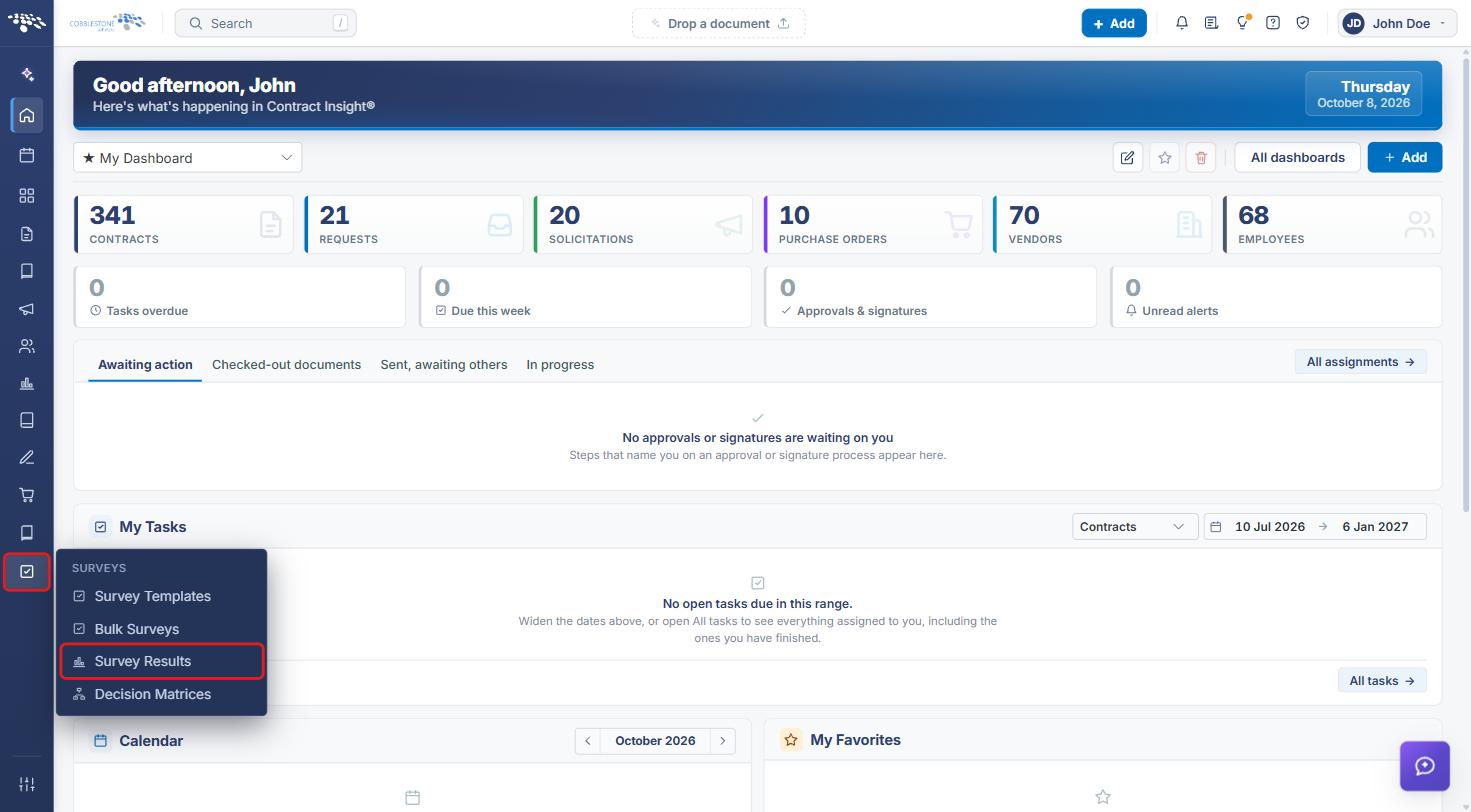
- From the Contract Insight homepage, click the Surveys icon in the left navigation bar.
- Select Survey Results.
6b. Using the Survey Results List
The Survey Results page lists every survey attached to a record, with the Survey name, the On record it belongs to (click the record name to open it), the Due date, and the Responses completion count.
- Use the Search box or the column filters to find a survey.
- Click View results on the survey's row.
6c. Reading the Results Grid
The results page shows the responses to that survey, per record and per respondent. By default, each respondent is a column and questions are listed as rows, grouped under their section heading.
6d. Changing the Results View
- Click Show questions as columns to flip the grid so each respondent is a row and each question is a column. The button then reads Show respondents as columns; click it to switch back.
- Check Show scores to display each answer's score in parentheses next to the response.
7. Quick Reference Summary
| Task | How to Complete It |
|---|---|
| Open a record | Requests/Contracts → Contracts (or Requests) → Manage on the record's row. |
| Attach a survey to a record | Record → Actions → Attach Survey (or + Add survey on the Surveys tab) → complete the form → Add Survey. |
| View surveys on a record | Record → Surveys tab (Ratings & Surveys on contracts). |
| See who has responded | Record's Surveys tab → Manage on the survey's row. |
| View all survey results | Surveys → Survey Results. |
| Open a survey's responses | Survey Results → View results, or record's Surveys tab → Review results. |
| Change the results layout or show scores | Results page → Show questions as columns / Show scores. |