COBBLESTONE SOFTWARE
Contract Insight — User Guide
3.1 Contract and Committal Content
Module: Vendor/Client Gateway › Step 3: Managing Content Visible on the Gateway › 3.1 Contract and Committal Content
Note: Each procedure in this guide begins at the Contract Insight homepage, so any section can be followed on its own. Custom fields are configurable, so the exact field list on a contract category record may vary between environments.
1. Overview
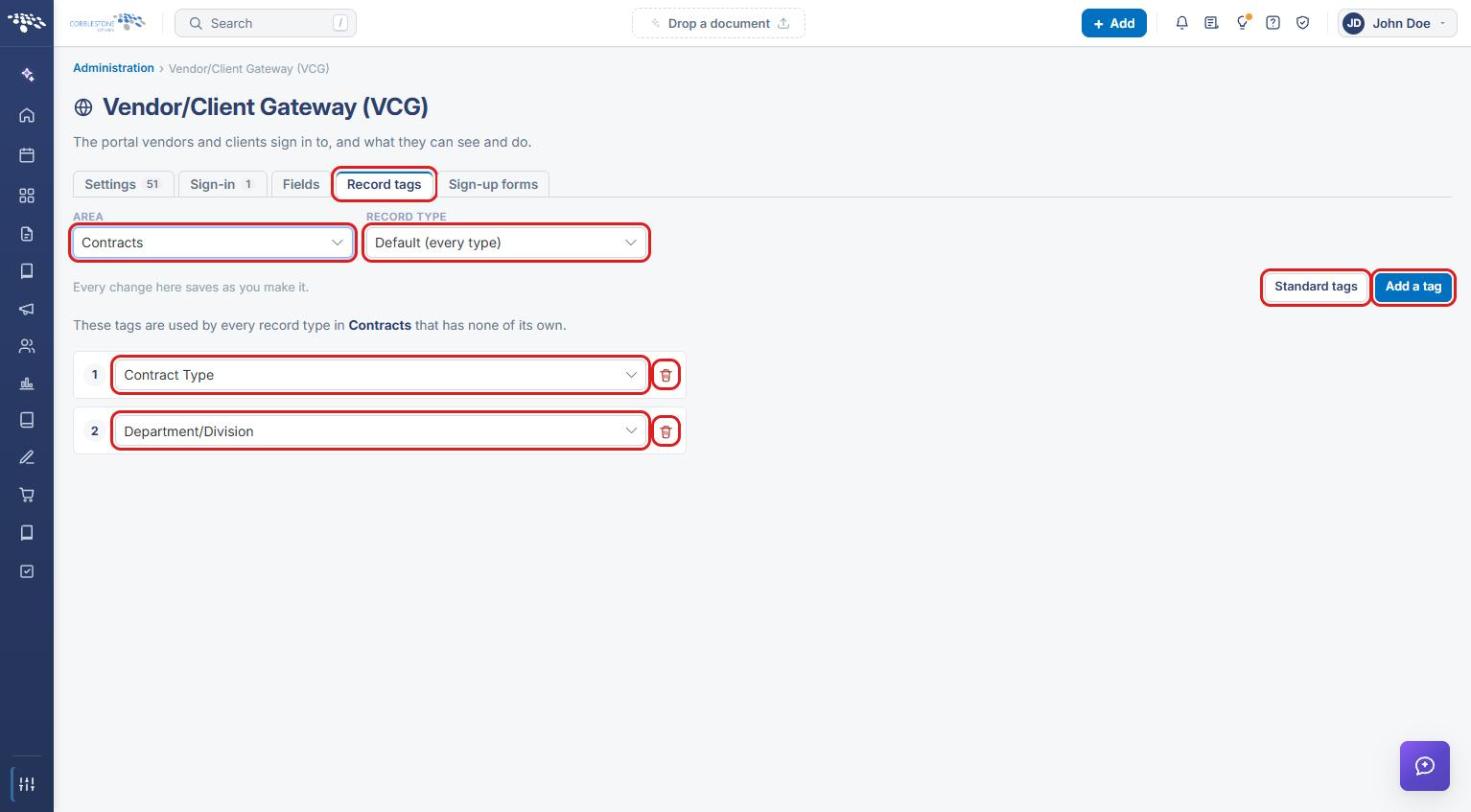
The VCG Record tags tab, with Area set to Contracts, controls the small set of values shown across the top of a contract record on the Gateway — a lightweight header distinct from the full field set on the Fields tab. Record Type defaults to "Default (every type)," and up to a handful of tag slots each pick one field; a Standard tags shortcut and an Add a tag button manage the list, and an empty slot is flagged with a warning since it would show nothing.
2. Key Elements
- VCG → Record tags tab → Area: Contracts, Record Type: Default (every type) sets the tags used by any type without its own override
- Each numbered slot (1, 2, 3…) picks one field via a Choose a field dropdown, e.g. Employee Assigned and Date in this environment
- Standard tags resets to the system's built-in default set; Add a tag appends another numbered slot
- "A tag with no field chosen shows nothing on the Gateway" — the screen warns rather than silently displaying a blank
3. Navigating to Record Tags
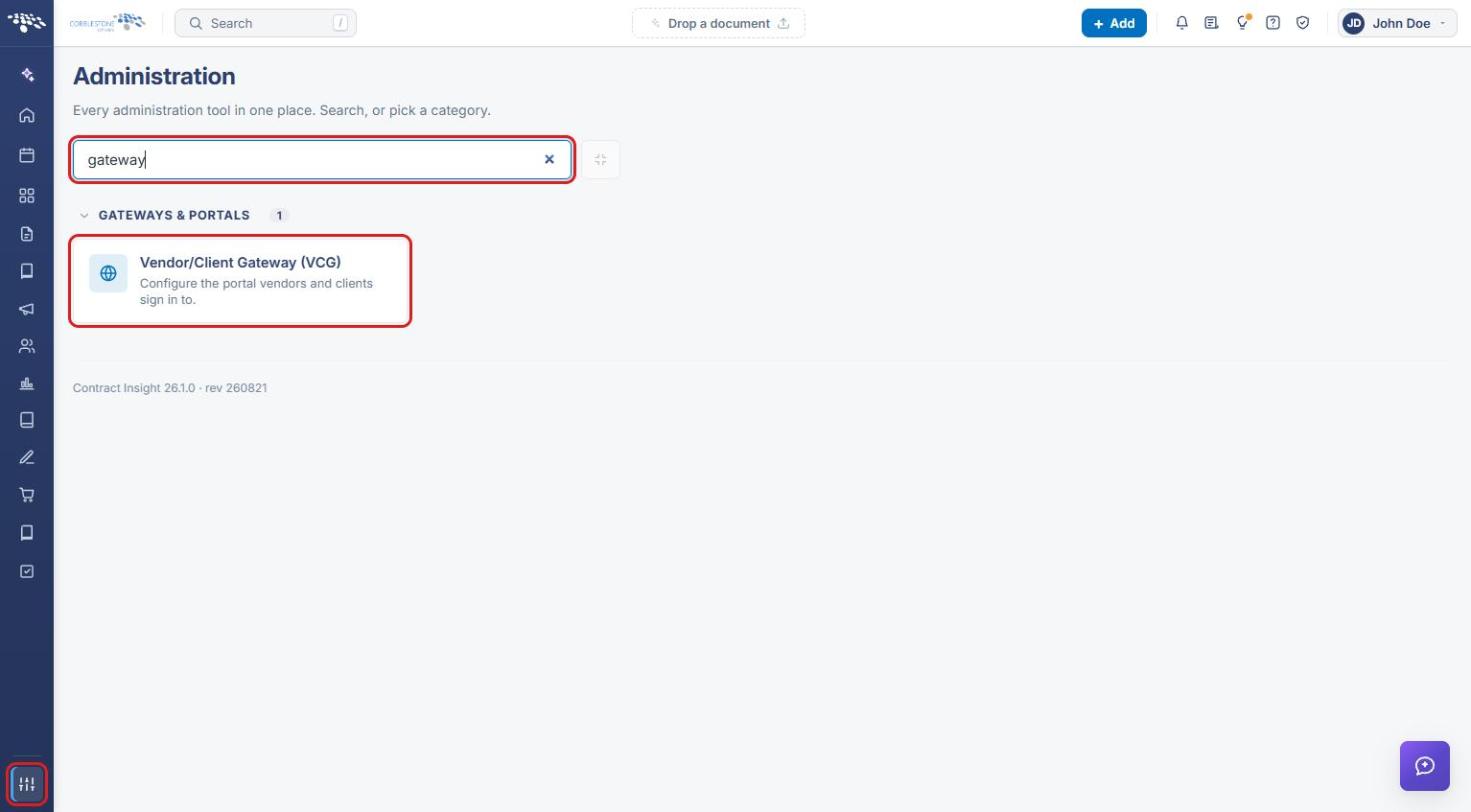
- From the Contract Insight homepage, click the Administration icon at the bottom of the left navigation bar.
- In the Search administration box, type gateway, then click Vendor/Client Gateway (VCG).
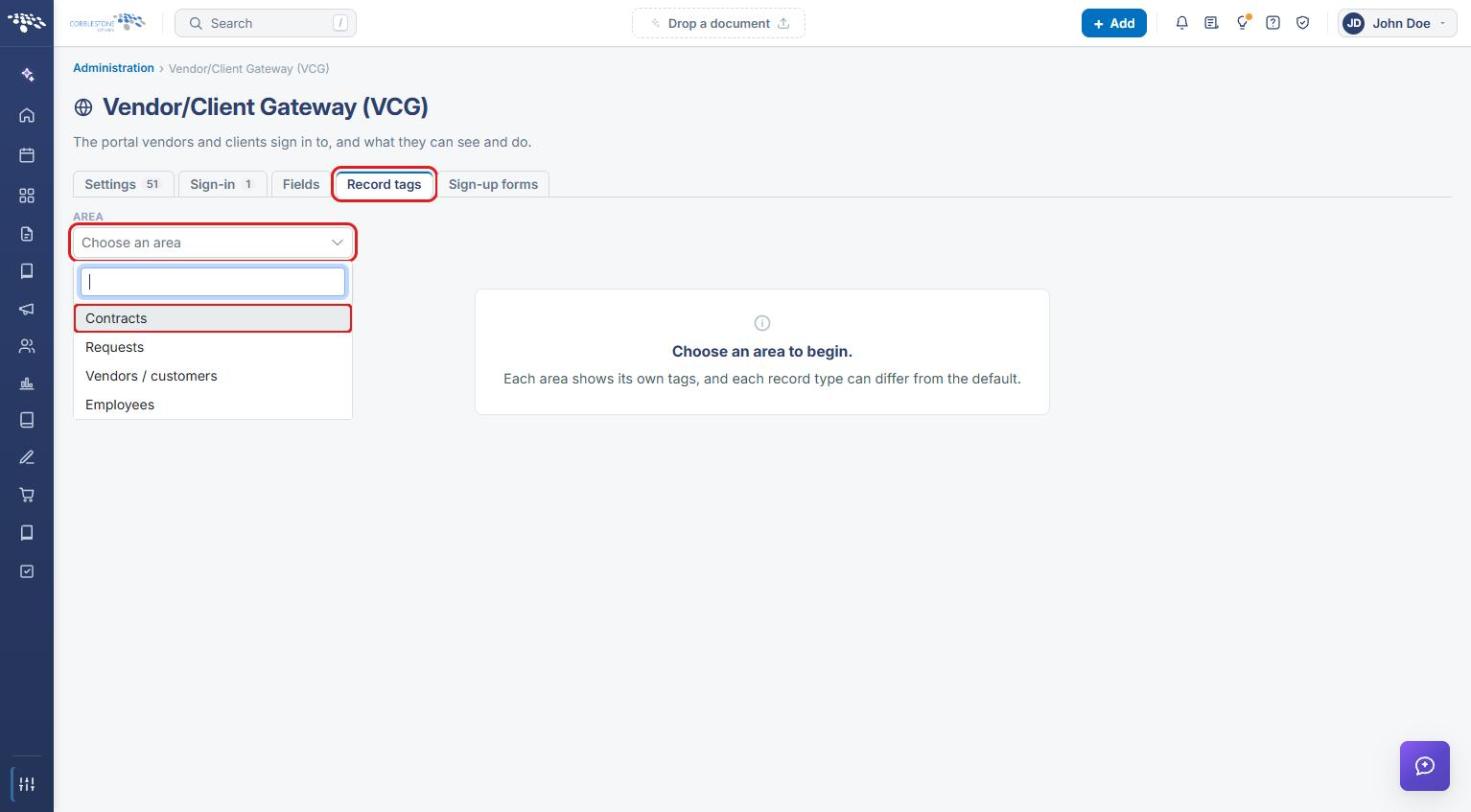
- Click the Record tags tab.
- Click the Area drop-down and select Contracts.
4. Setting the Default Contract Tags
- Leave Record Type set to Default (every type). These tags are used by every contract type that has none of its own.
- Review the numbered tag slots. Each slot shows one field across the top of the contract on the Gateway.
- Click Add a tag to add another slot, or click the delete icon next to a slot to remove it.
- Click Standard tags to go back to the built-in default set.
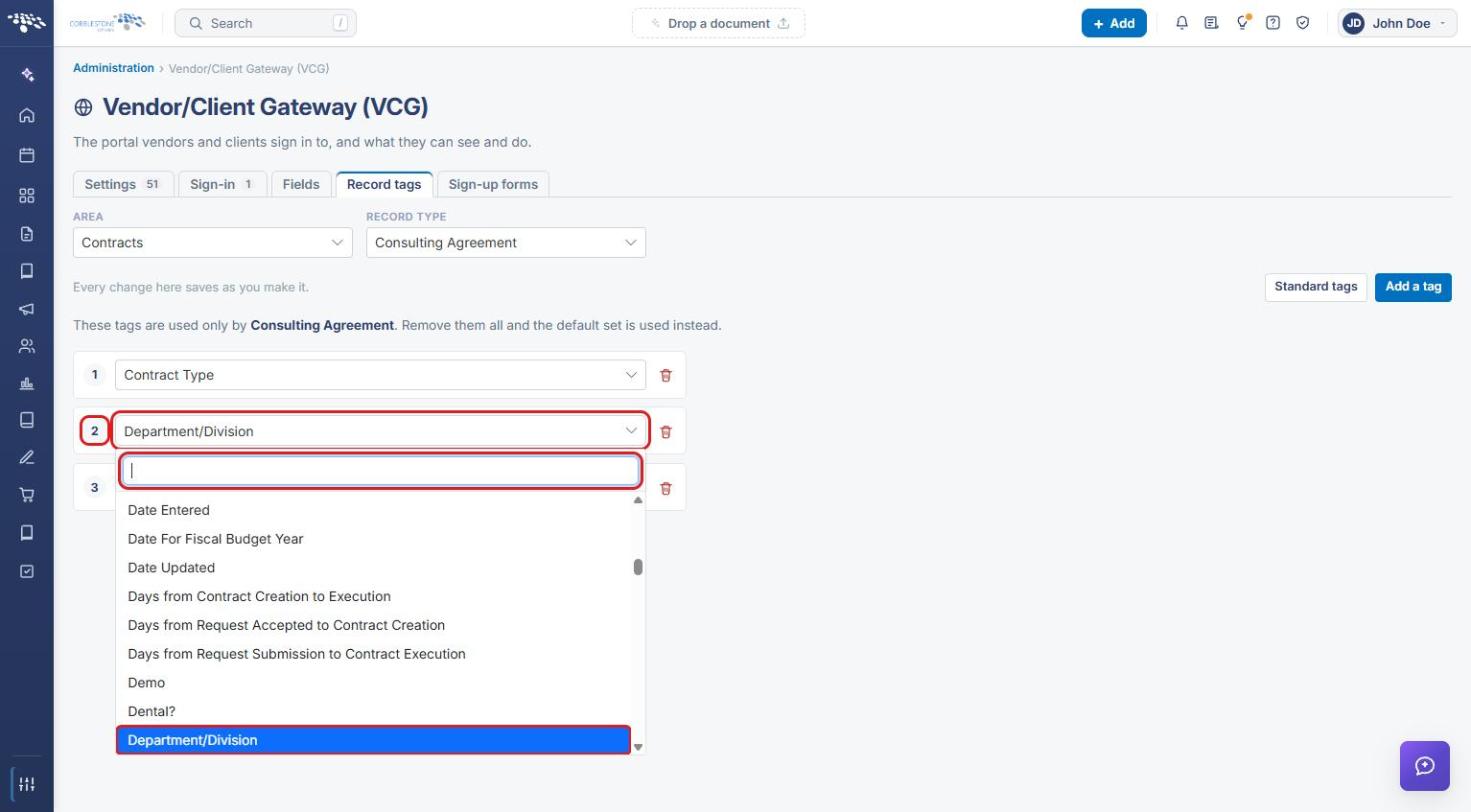
- To change what a slot shows, click its field drop-down.
- Type in the search box to find a field, then select it.
Note: Every change on the Record tags tab saves as you make it. There is no Save button. Choose a field for every slot, since a tag with no field shows nothing on the Gateway.
5. Giving a Contract Type Its Own Tags
- Click the Record Type drop-down and select a contract type (for example, Consulting Agreement).
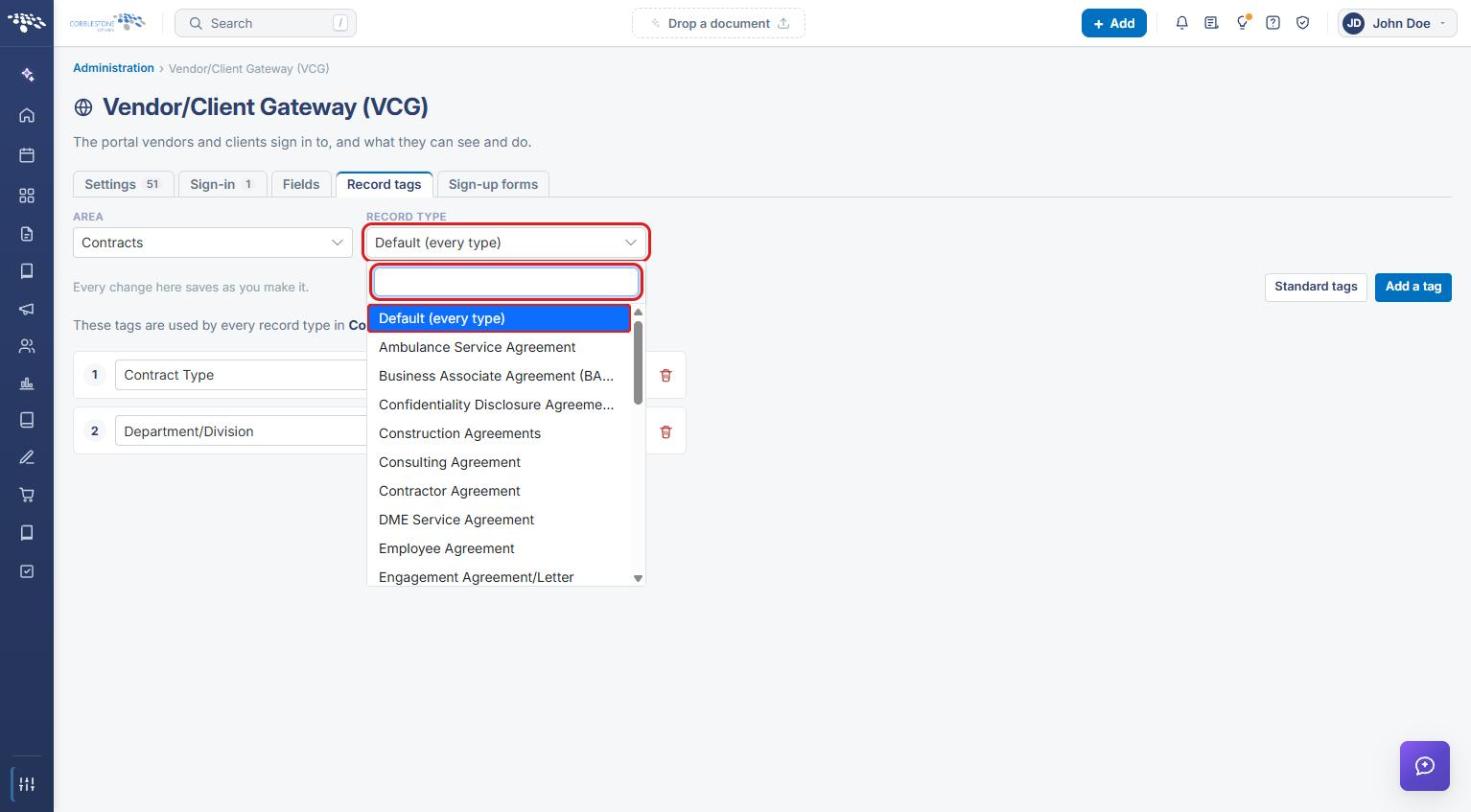
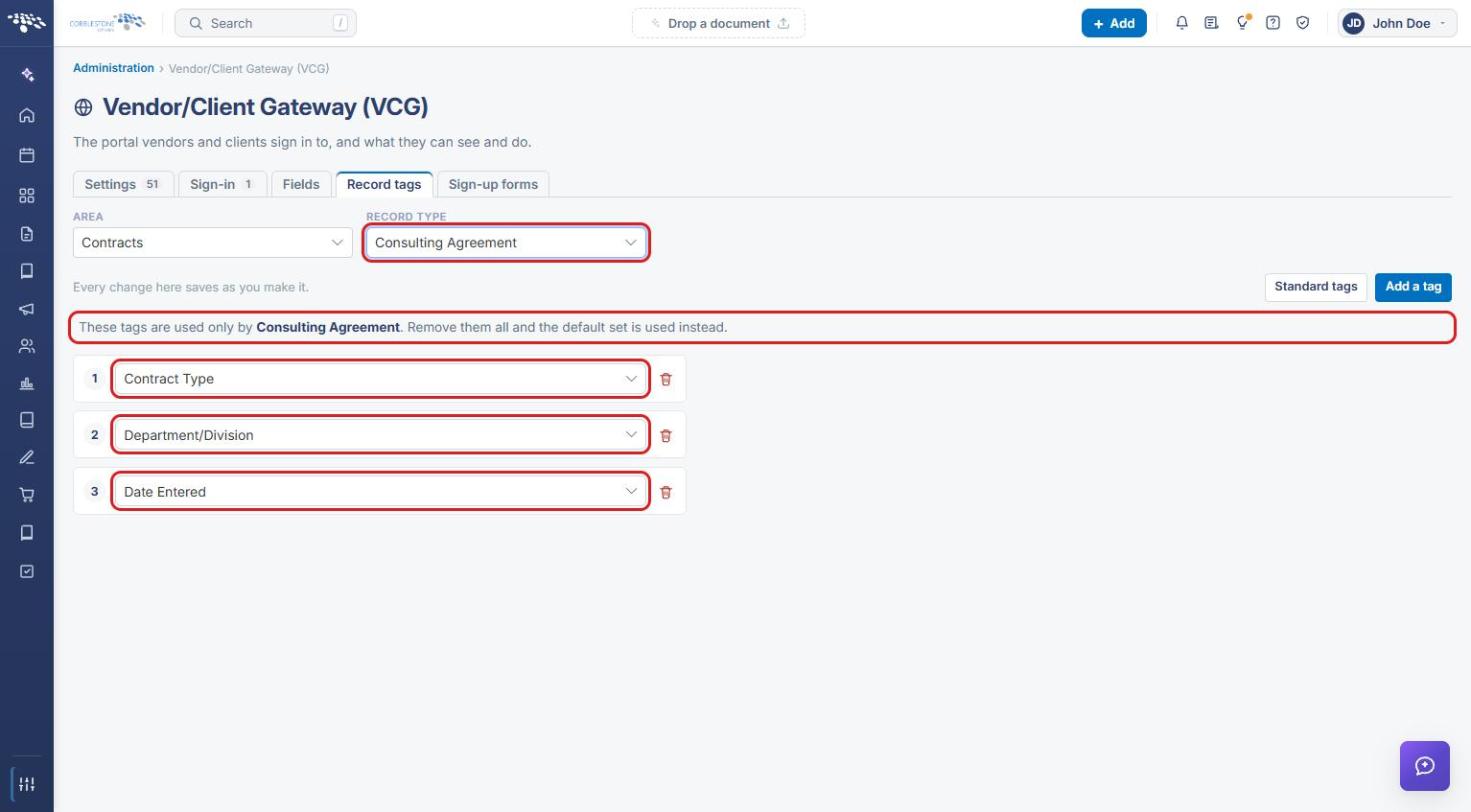
- Add, change, or remove tags for that type the same way as in Section 4. The message above the slots confirms the tags are used only by that type.
- To go back to the default tags for that type, remove all of its tags.
6. Quick Reference Summary
| Task | How to Complete It |
|---|---|
| Open contract record tags | Administration → Vendor/Client Gateway (VCG) → Record tags → Area: Contracts. |
| Set tags for all contract types | Record Type: Default (every type) → edit the tag slots. |
| Add or remove a tag | Add a tag, or the delete icon next to a slot. |
| Change a tag's field | Click the slot's field drop-down → search → select a field. |
| Reset to the built-in tags | Click Standard tags. |
| Give one type its own tags | Record Type → choose the type → edit its slots. Remove them all to use the default set again. |