COBBLESTONE SOFTWARE
Contract Insight — User Guide
2.5 Vendor/Customer Information Fields
Module: Vendor/Client Gateway › Step 2: Managing Gateway Fields › 2.5 Vendor/Customer Information Fields
Note: Each procedure in this guide begins at the Contract Insight homepage, so any section can be followed on its own. Custom fields are configurable, so the exact field list on a contract category record may vary between environments.
1. Overview
With Area set to Vendors/Customers, the VCG Fields tab controls which fields a vendor or client can see and edit about their own company record on the Gateway — separate from the individual-contact fields under Vendors/Customers Contacts — gated overall by the Allow Management of Vendor Information setting.
2. Key Elements
- VCG → Fields tab → Area: Vendors/Customers configures the company-level record's Gateway field set
- Allow Management of Vendor Information (VCG Settings → Access) must be on for a Vendor/Client Admin user to edit these fields at all
- Fields chosen here surface on the gateway-side Contacts/Users → My Company Info screen
- Sourcing Record Product Service Codes and Vendor Product Service Codes are separate, related areas in the same Area dropdown for procurement-catalog fields
- Each company Record Type (for example, Vendor, Customer, or Supplier) has its own Gateway field set.
3. Turning On Vendor Information Management
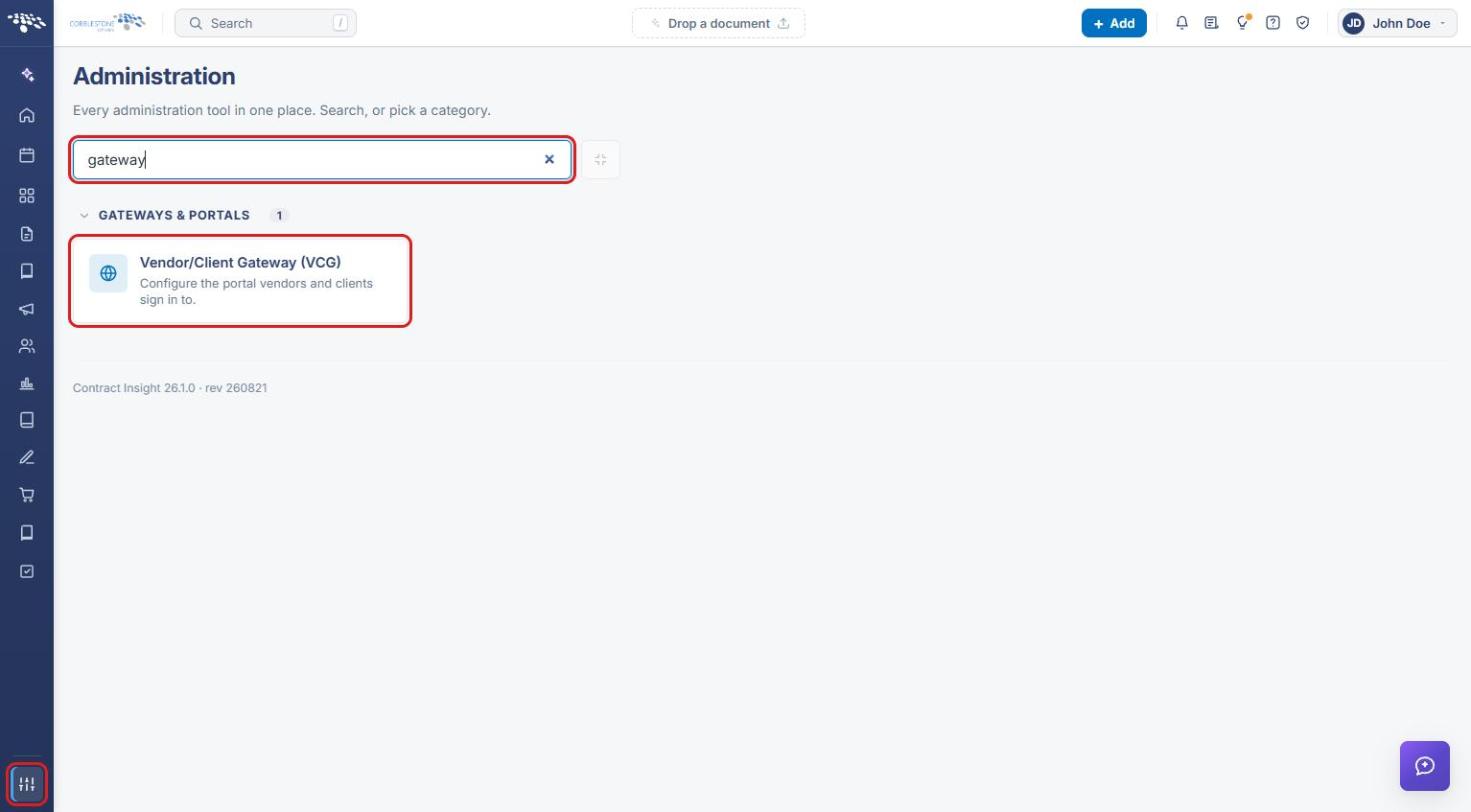
- From the Contract Insight homepage, click the Administration icon at the bottom of the left navigation bar.
- In the Search administration box, type gateway, then click Vendor/Client Gateway (VCG).
- On the Settings tab, scroll to the Access group.
- Turn on Allow Management of Vendor Information.
- Click Save changes.
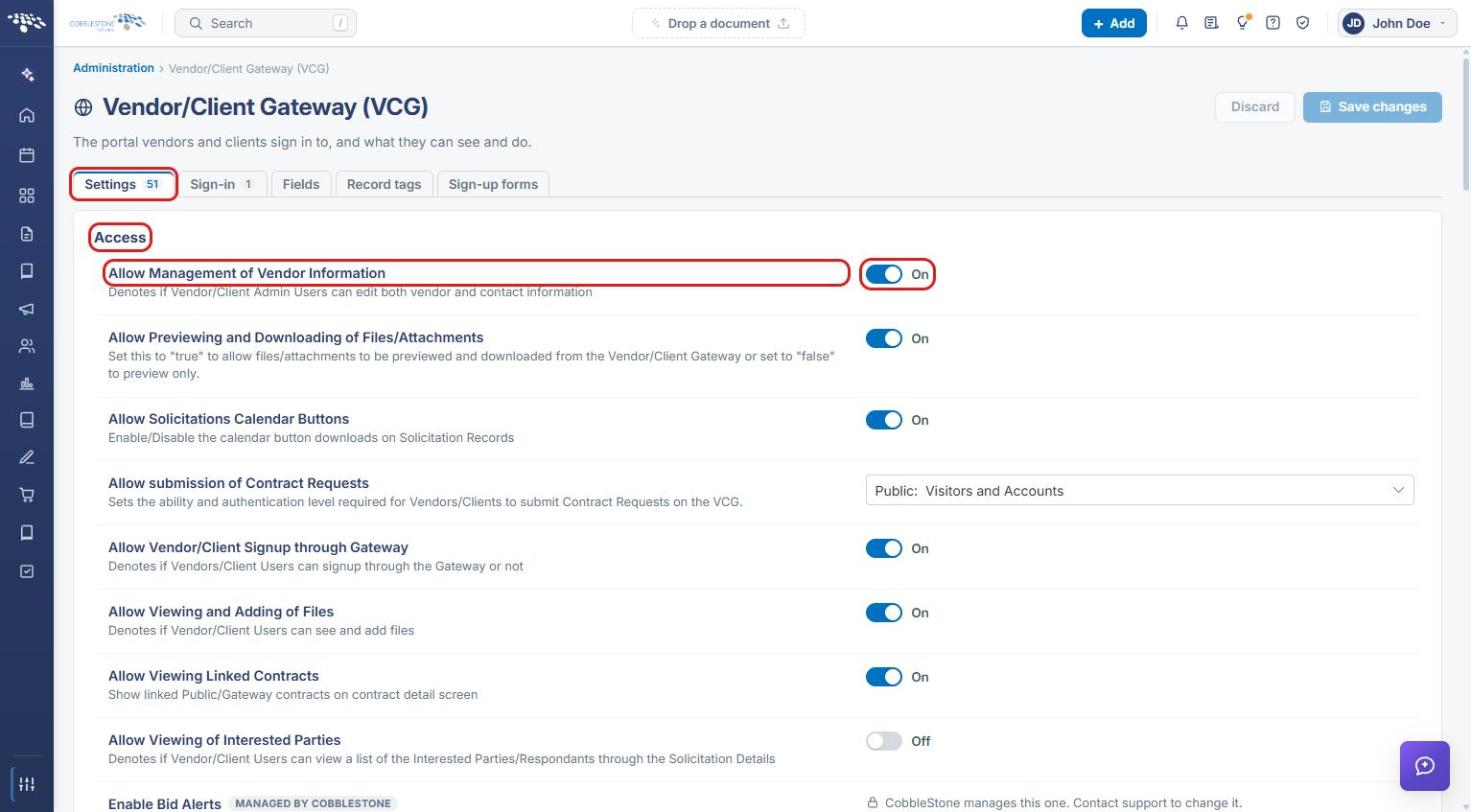
Note: If this setting is off, Vendor/Client Admin users cannot edit their company information on the Gateway, even when fields are set up below.
4. Choosing the Vendors/Customers Area
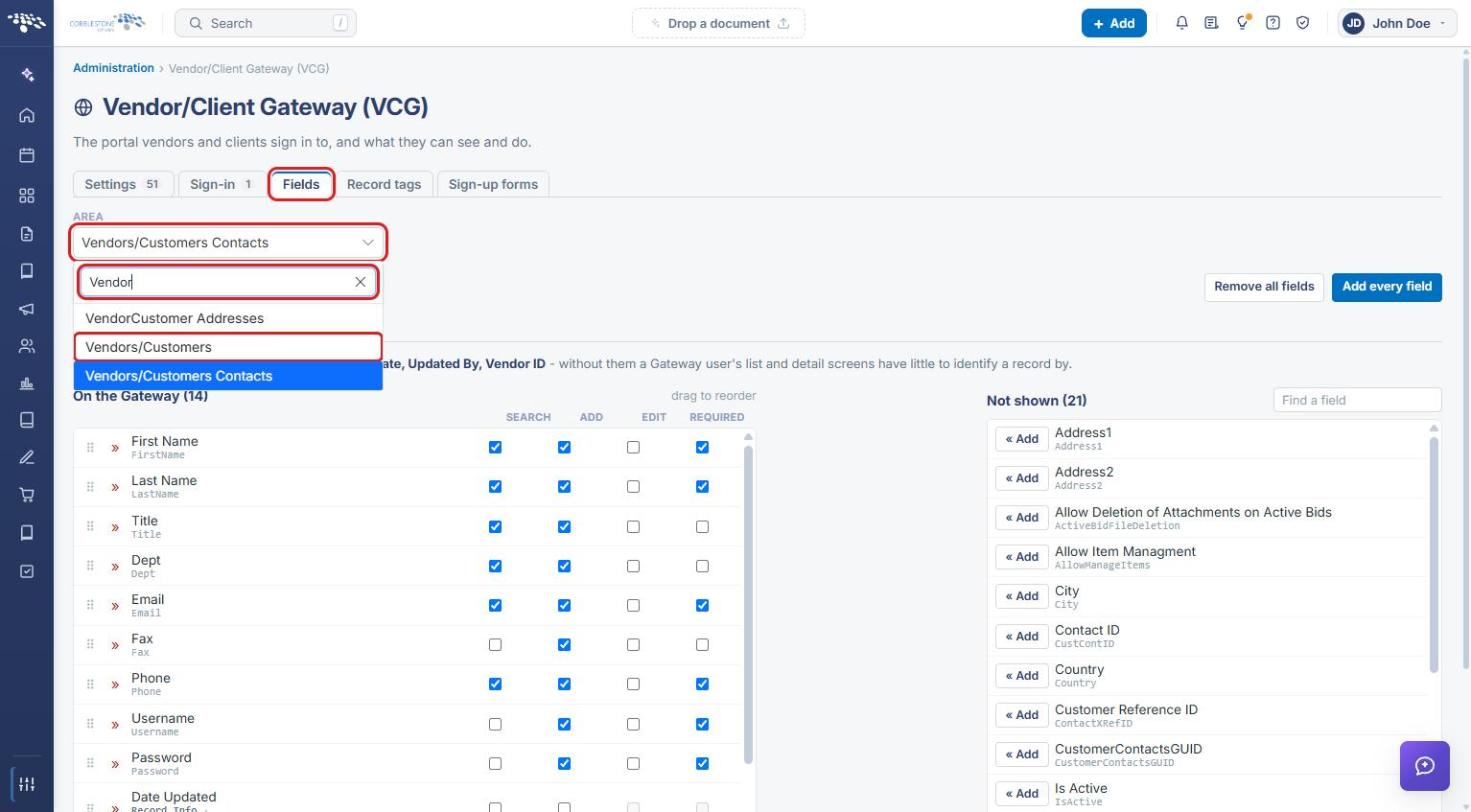
- Open Vendor/Client Gateway (VCG) (see Section 3) and click the Fields tab.
- Click the Area drop-down. Type Vendor in its search box to narrow the list.
- Select Vendors/Customers. (Use Vendors/Customers Contacts for individual-contact fields and VendorCustomer Addresses for address fields.)
5. Choosing a Record Type
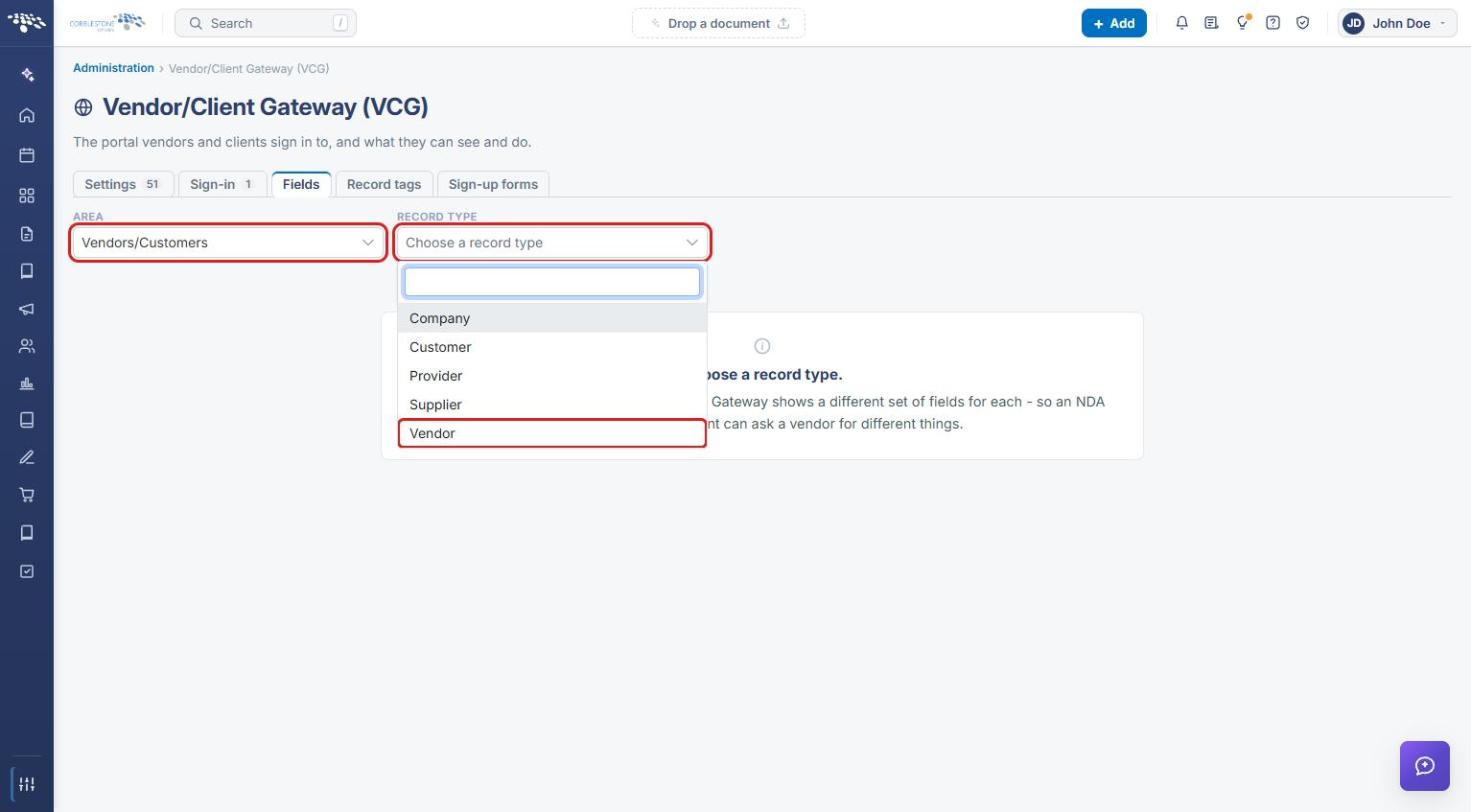
- Click the Record Type drop-down.
- Select the company type to set up (for example, Vendor). Each type keeps its own list of Gateway fields.
6. Managing Fields on the Gateway
- Turn on Offer this company type to Gateway users so Gateway users can choose this company type.
- Review the On the Gateway list. These are the fields vendors and clients see on My Company Info.
- Drag a field by its handle to change the order it appears on the Gateway.
- For each field, check the options that apply: Search, Add, Edit, Required, and Unique.
- Click » (Take off the Gateway) to remove a field from the Gateway.
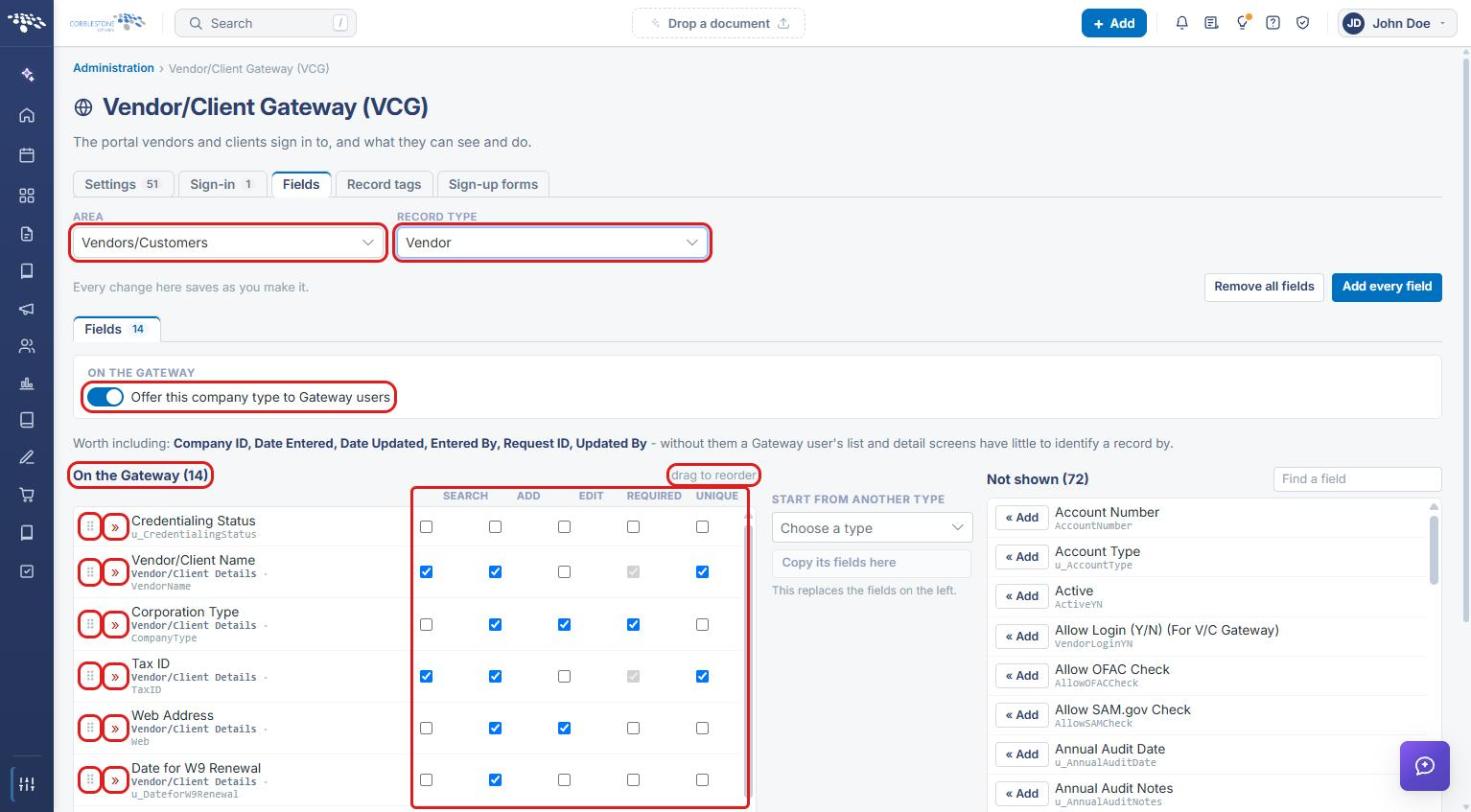
Note: Changes on the Fields tab save as you make them. There is no Save button.
7. Adding Fields or Copying a Field Set
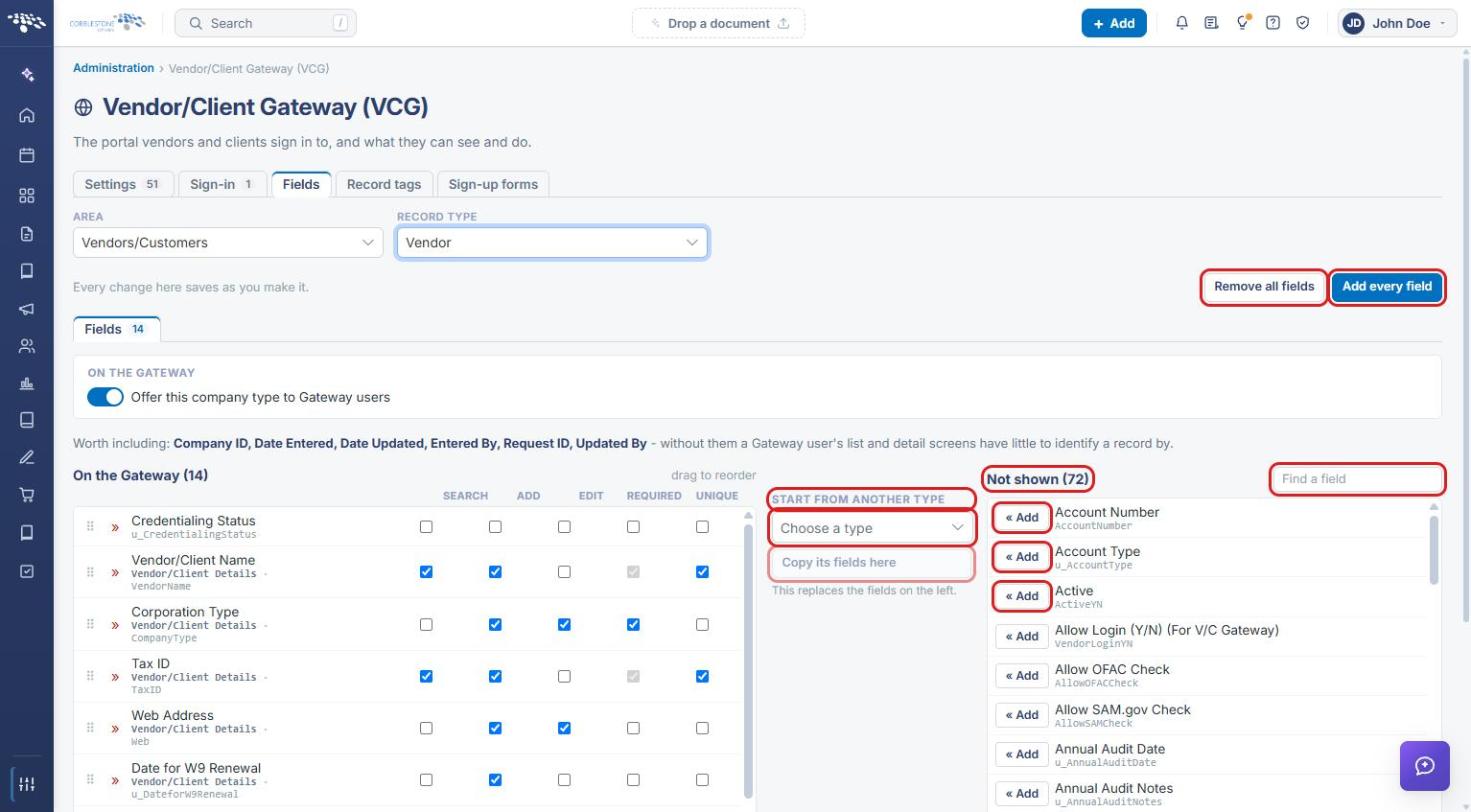
- Under Not shown, use Find a field to search the fields not yet on the Gateway.
- Click « (Add) next to a field to put it on the Gateway. Click Add every field to add them all.
- To reuse another company type's setup, under Start from another type, pick a type from Choose a type and click Copy its fields here.
- Click Remove all fields to clear the Gateway list and start over.
8. Quick Reference Summary
| Task | How to Complete It |
|---|---|
| Let vendors edit company info | Administration → Vendor/Client Gateway (VCG) → Settings → Access → turn on Allow Management of Vendor Information → Save changes. |
| Open company-level fields | Fields tab → Area: Vendors/Customers → choose a Record Type. |
| Offer a company type on the Gateway | Turn on Offer this company type to Gateway users. |
| Set field options | On the Gateway → check Search, Add, Edit, Required, or Unique. |
| Add or remove a field | « under Not shown to add; » under On the Gateway to remove. |
| Copy another type's fields | Start from another type → Choose a type → Copy its fields here. |