COBBLESTONE SOFTWARE
Contract Insight — User Guide
3. Adding a Solicitation
Module: Solicitations › Solicitations › 3. Adding a Solicitation
Note: Each procedure in this guide begins at the Contract Insight homepage, so any section can be followed on its own. Custom fields are configurable, so the exact field list on a contract category record may vary between environments.
1. Overview
Sourcing > Solicitations > Add opens a type picker ("Select a solicitation type to proceed") with Recently Used quick-picks (RFP, RFI, Dutch Auction on this environment) plus a full "Select one" dropdown, matching the legacy flow of picking a solicitation type before completing the record. Choosing a type (RFP, confirmed live) opens a 7-step Add wizard — Details, A Set of Test Fields, Common Clauses, Dates, Dutch Auction Settings, Projected Contract Data, and Record Info — with the Details step alone holding 17 fields (4 required), including a pre-filled Employee Contact and a required Status, Invitation Type, and Line Item Bid/Reverse Auction. Save as draft and Save Record both appear on every step.
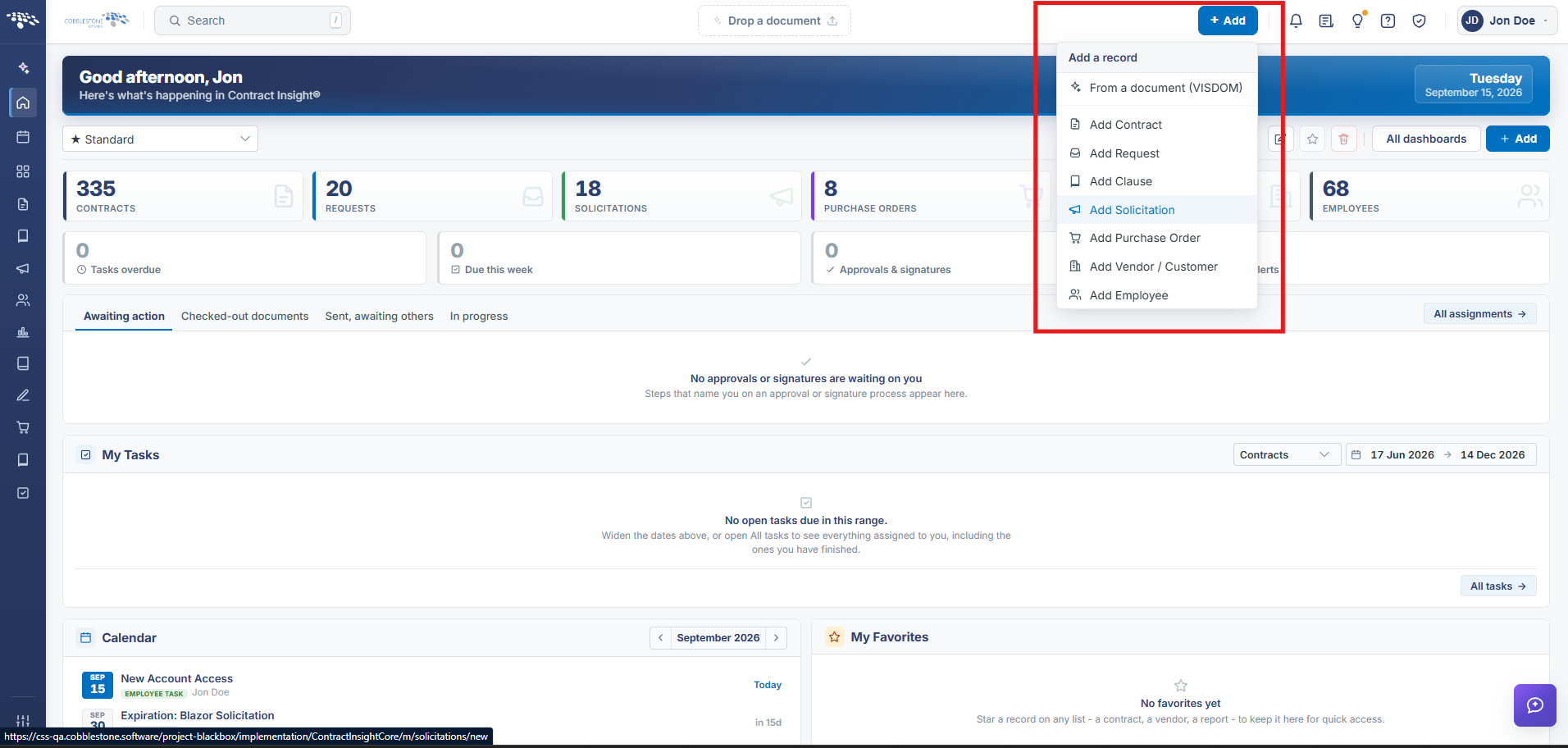 Add Solicitation
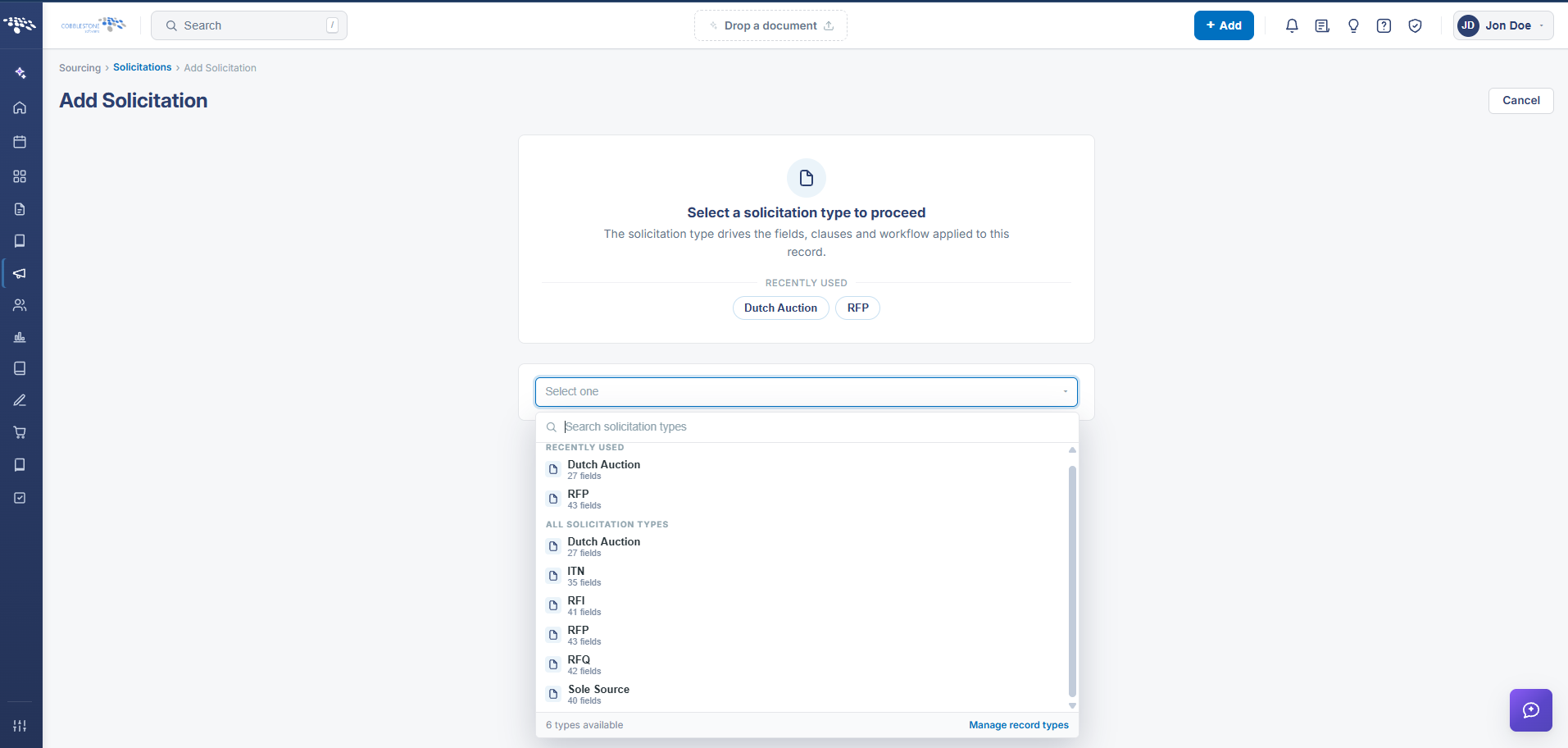 Solicitation Add - Types
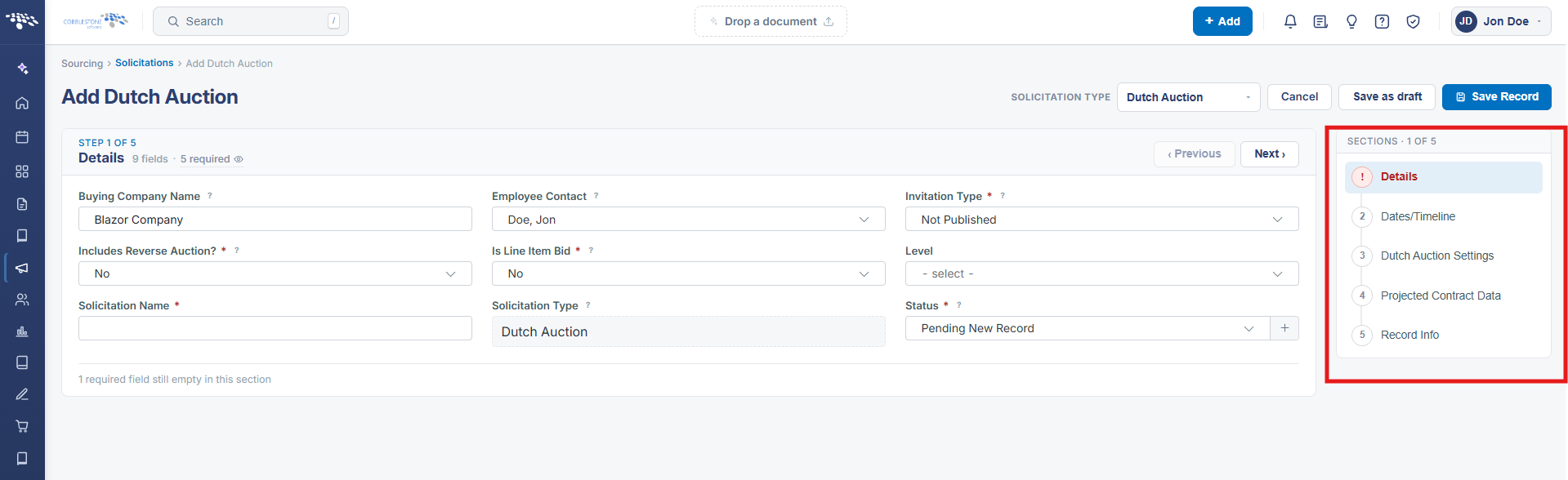 Solicitation Add - Wizard Steps
2. Key Elements
- Sourcing > Solicitations > Add > Select a solicitation type to proceed (Recently Used quick-picks plus a full type dropdown)
- Selecting a type opens a multi-step Add wizard; for RFP this environment shows 7 steps: Details, A Set of Test Fields, Common Clauses, Dates, Dutch Auction Settings, Projected Contract Data, Record Info
- Details (step 1) has 17 fields, 4 required, including Status, Invitation Type, and Line Item Bid/Reverse Auction
- Save as draft and Save Record are both available at every step of the wizard
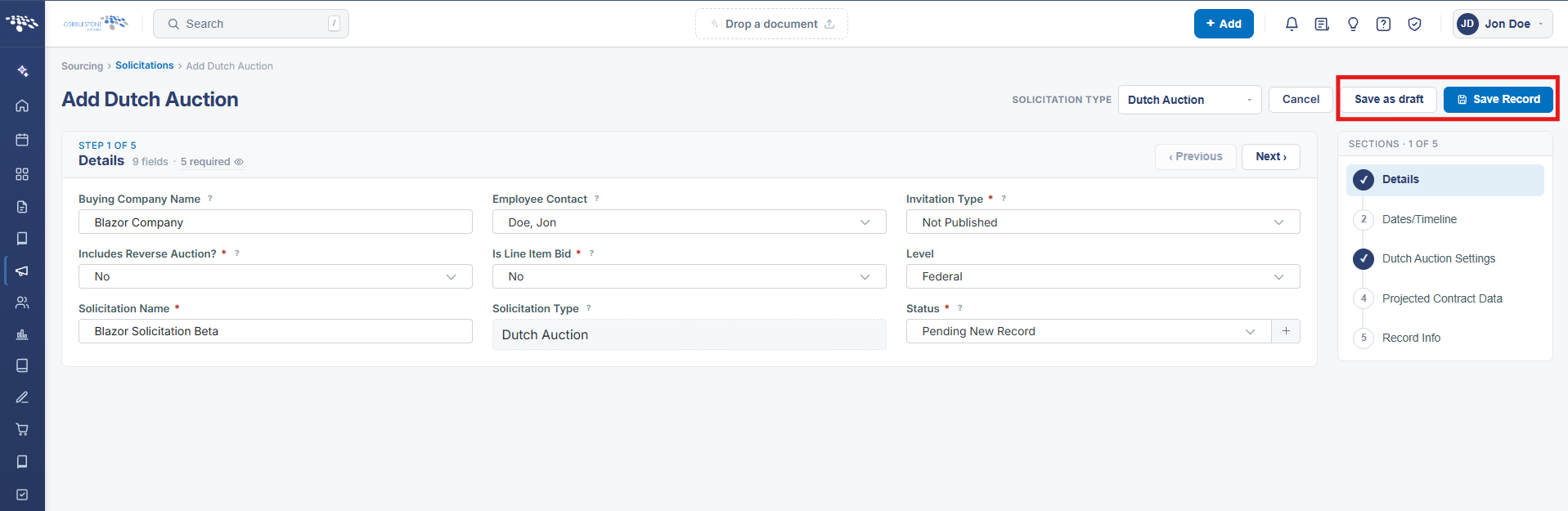 Solicitation Add - Save Draft & Record