COBBLESTONE SOFTWARE
Contract Insight — User Guide
2.3 Contract and Committals Requests Fields
Module: Vendor/Client Gateway › Step 2: Managing Gateway Fields › 2.3 Contract and Committals Requests Fields
Note: Each procedure in this guide begins at the Contract Insight homepage, so any section can be followed on its own. Custom fields are configurable, so the exact field list on a contract category record may vary between environments.
1. Overview
When the Fields tab's Area on the Vendor/Client Gateway (VCG) configuration screen is set to Contract Requests, it controls which fields appear on the request form a vendor or client submits when Allow submission of Contract Requests is turned on. It uses the same On the Gateway / Not shown two-panel layout as every other area, scoped to the chosen Contract Requests record type. Each field can also be set to appear in Search, on the Add (submission) form, on the Edit form, and as Required.
2. Key Elements
- VCG → Fields tab → Area: Contract Requests configures the submission form's field set for each request Record type.
- It works together with Allow submission of Contract Requests (VCG Settings → Access), which controls who can reach the form at all.
- Let Gateway users raise a request of this type turns the chosen record type on or off for Gateway submission.
- The fields chosen here make up the request form opened from the Gateway's Requests → Create New Request menu item.
- The Start from another type option copies a field set from another record type.
- Changes on the Fields tab save as you make them.
3. Navigating to the Gateway Configuration
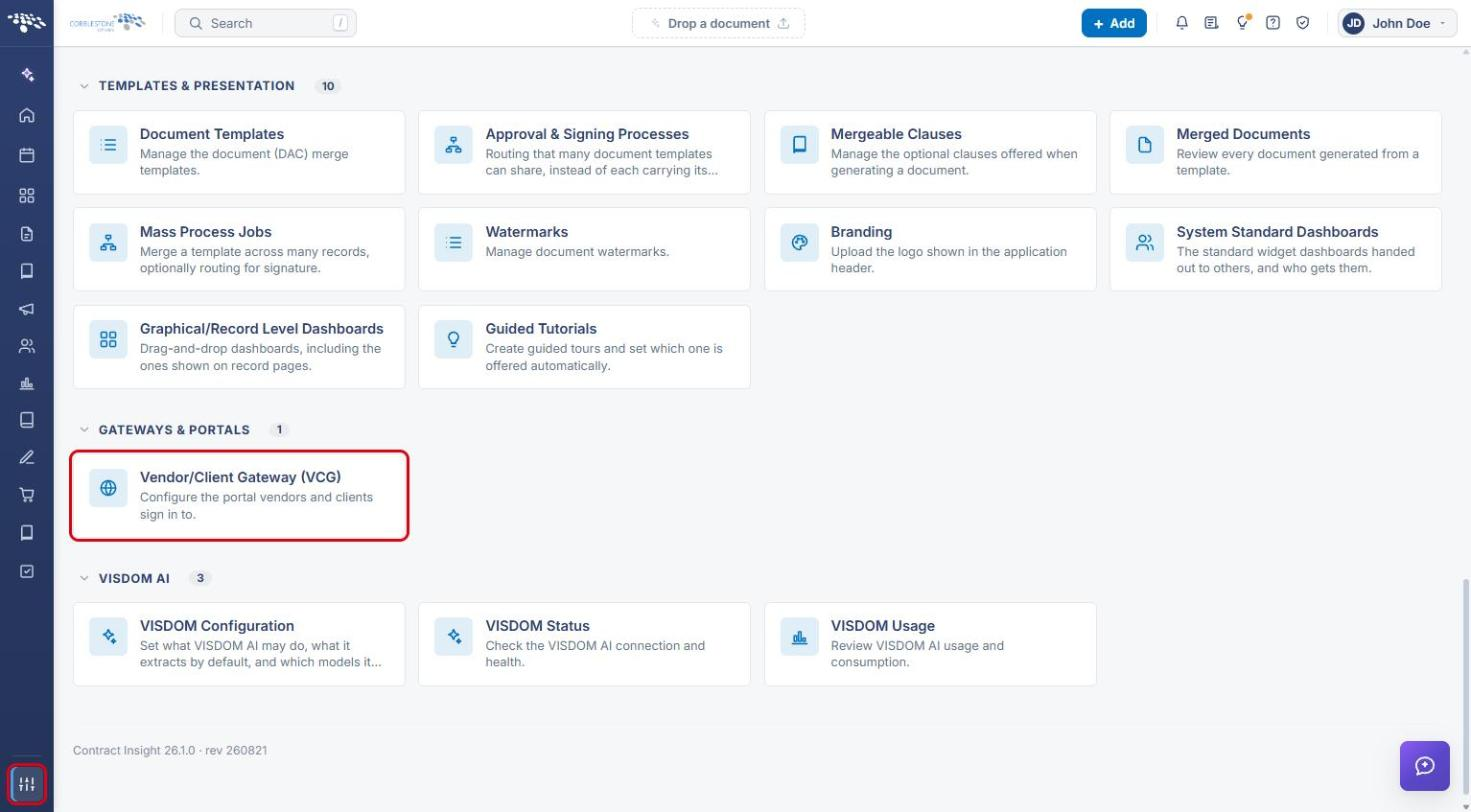
- From the Contract Insight homepage, click the Administration icon at the bottom of the left navigation menu.
- Under Gateways & Portals, click Vendor/Client Gateway (VCG).
4. Allowing Contract Request Submission
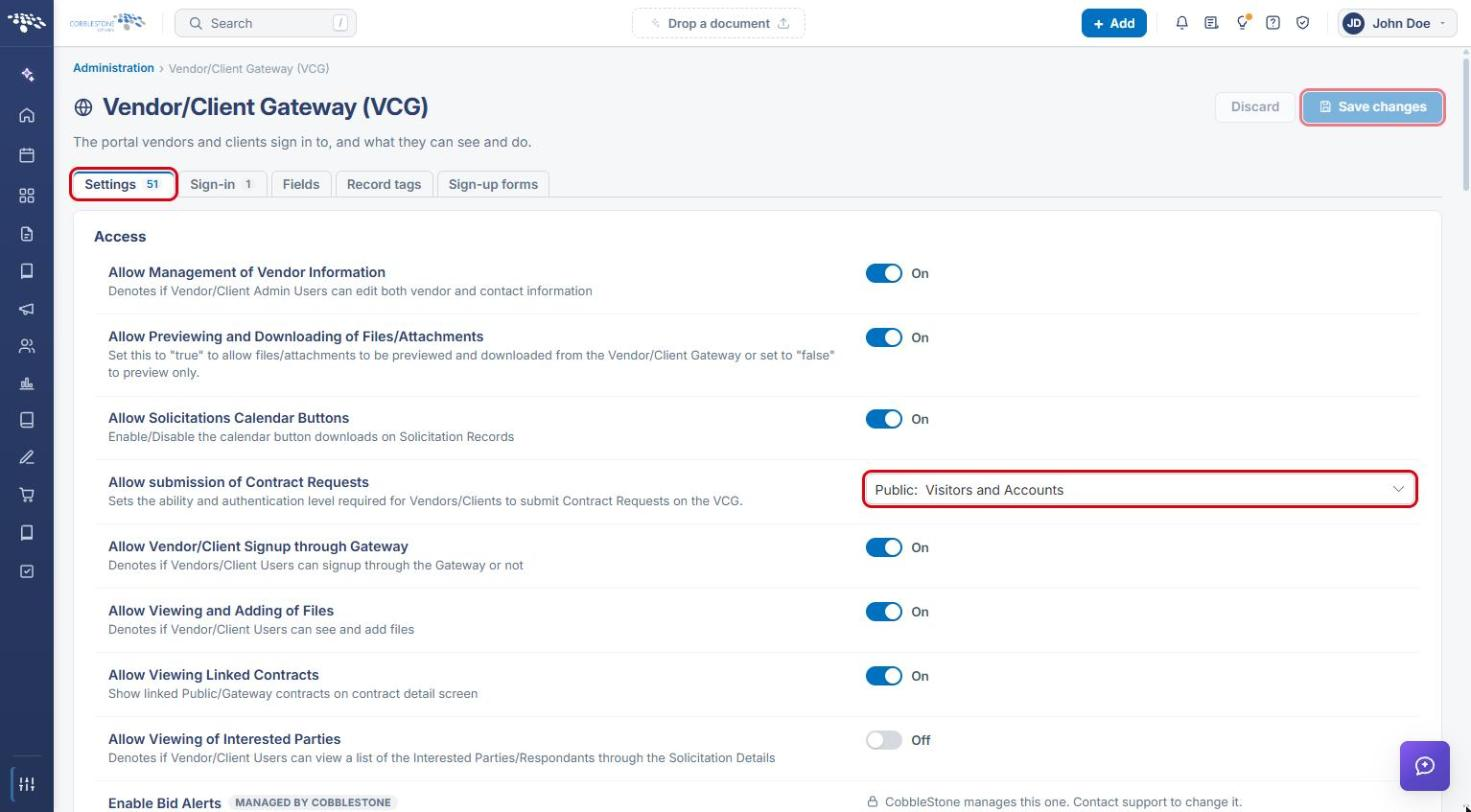
- On the Settings tab, in the Access group, find Allow submission of Contract Requests.
- Choose the access level Gateway users need to submit Contract Requests (for example, Public: Visitors and Accounts).
- Click Save changes.
5. Choosing the Contract Requests Area and Record Type
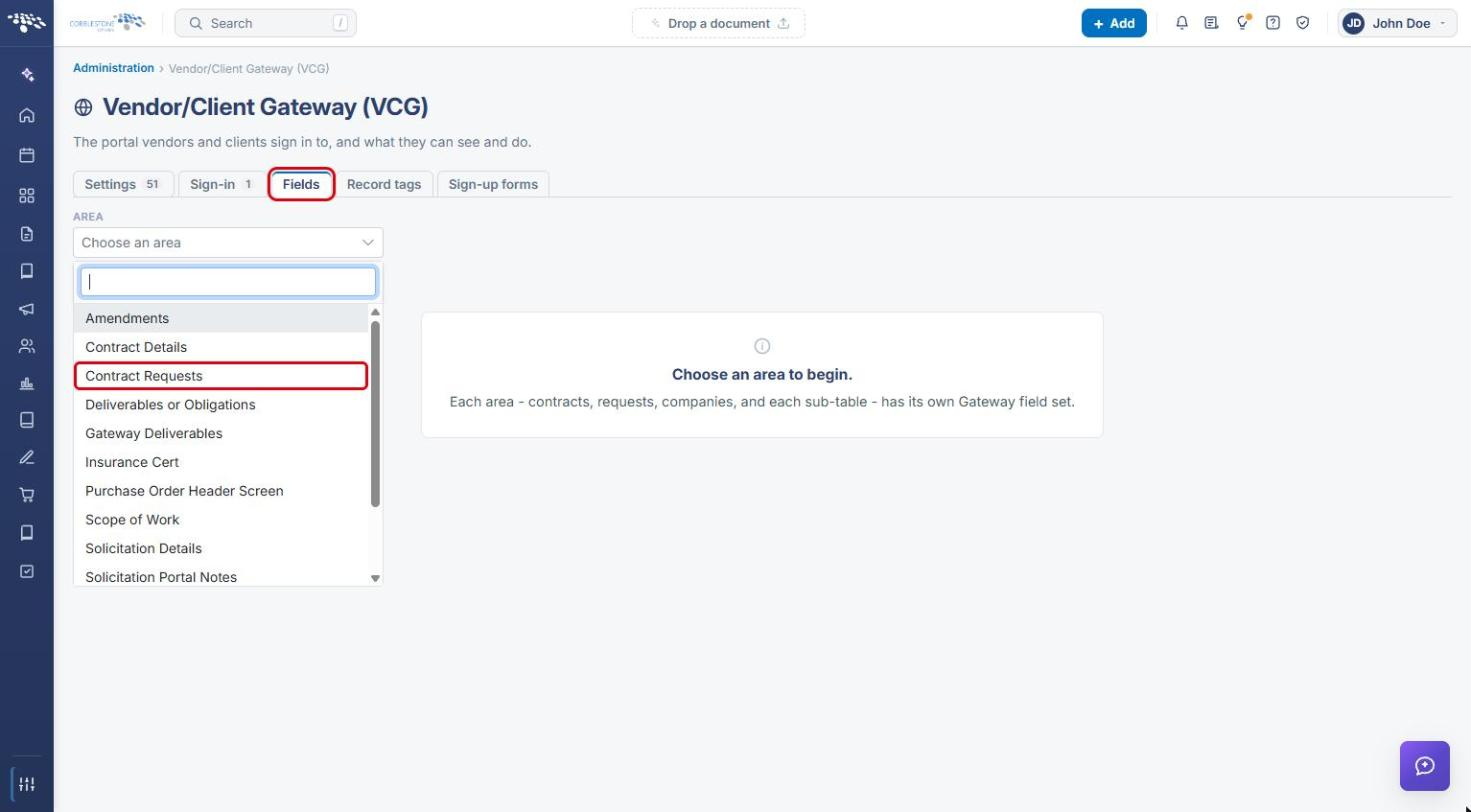
- Click the Fields tab.
- Open the Area dropdown and select Contract Requests.
- Select a Record type (for example, Contract Intake Form). Each request type has its own Gateway field set.
- Under On the Gateway, turn on Let Gateway users raise a request of this type so the type is offered on the Gateway.
- The Fields sub-tab shows how many fields are on the Gateway. The Requests they can raise sub-tab lists the request types Gateway users can raise from this record type. Use Add every field or Remove all fields to change the whole list at once.
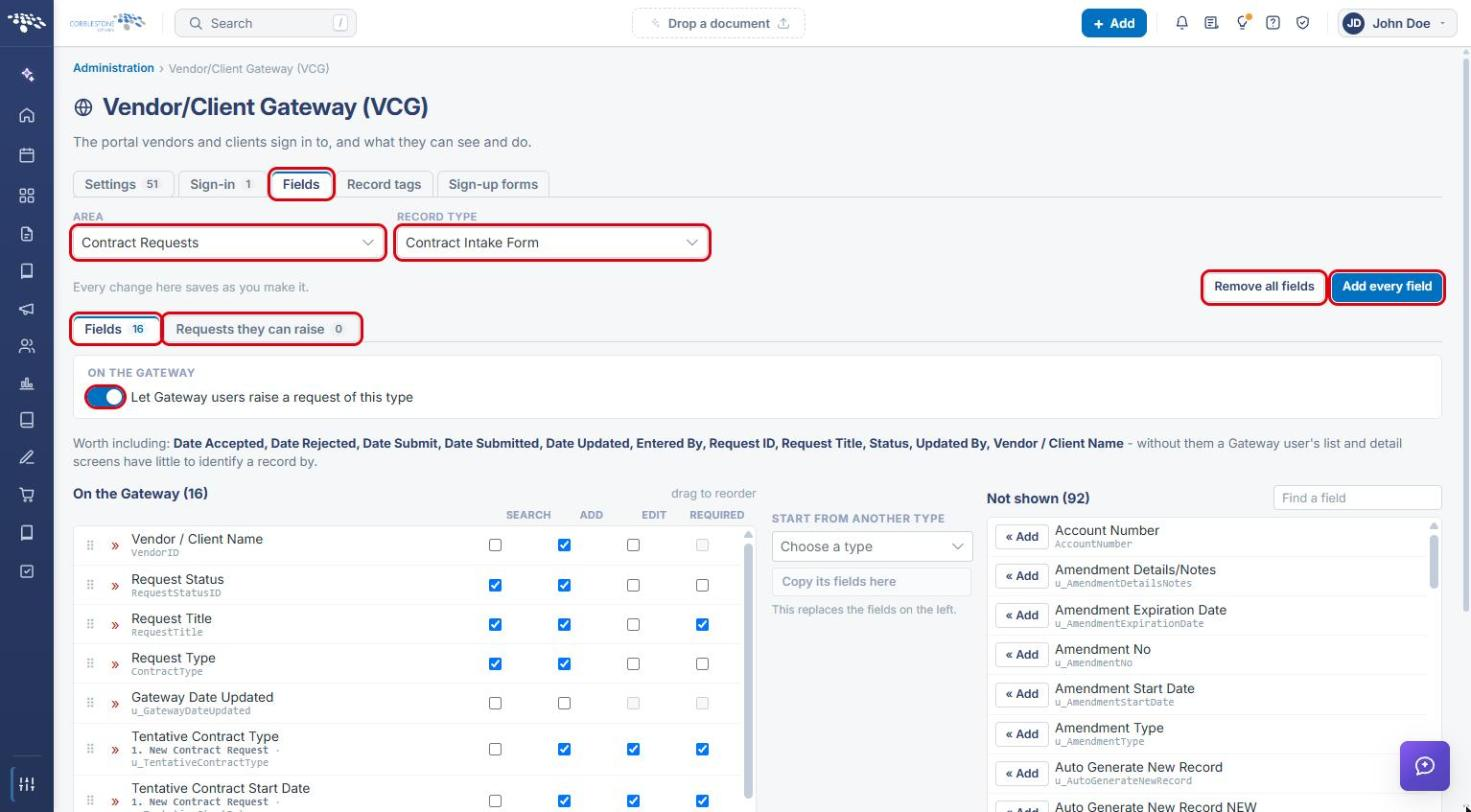
Note: Every change on this tab saves as you make it. There is no separate Save button.
6. Managing the Request Form Fields
- In Not shown, use Find a field to locate a field, then click « Add to move it to On the Gateway.
- For each field in On the Gateway, tick the columns that apply:
- Search: shown as a search option on the Gateway's request list.
- Add: shown on the new request (submission) form.
- Edit: editable after the request is submitted.
- Required: must be completed before the request can be submitted.
- Drag a field by its handle to change the order it appears on the form, or click » (Take off the Gateway) to remove it.
- To reuse another type's setup, choose it in Start from another type and click Copy its fields here. This replaces the fields on the left.
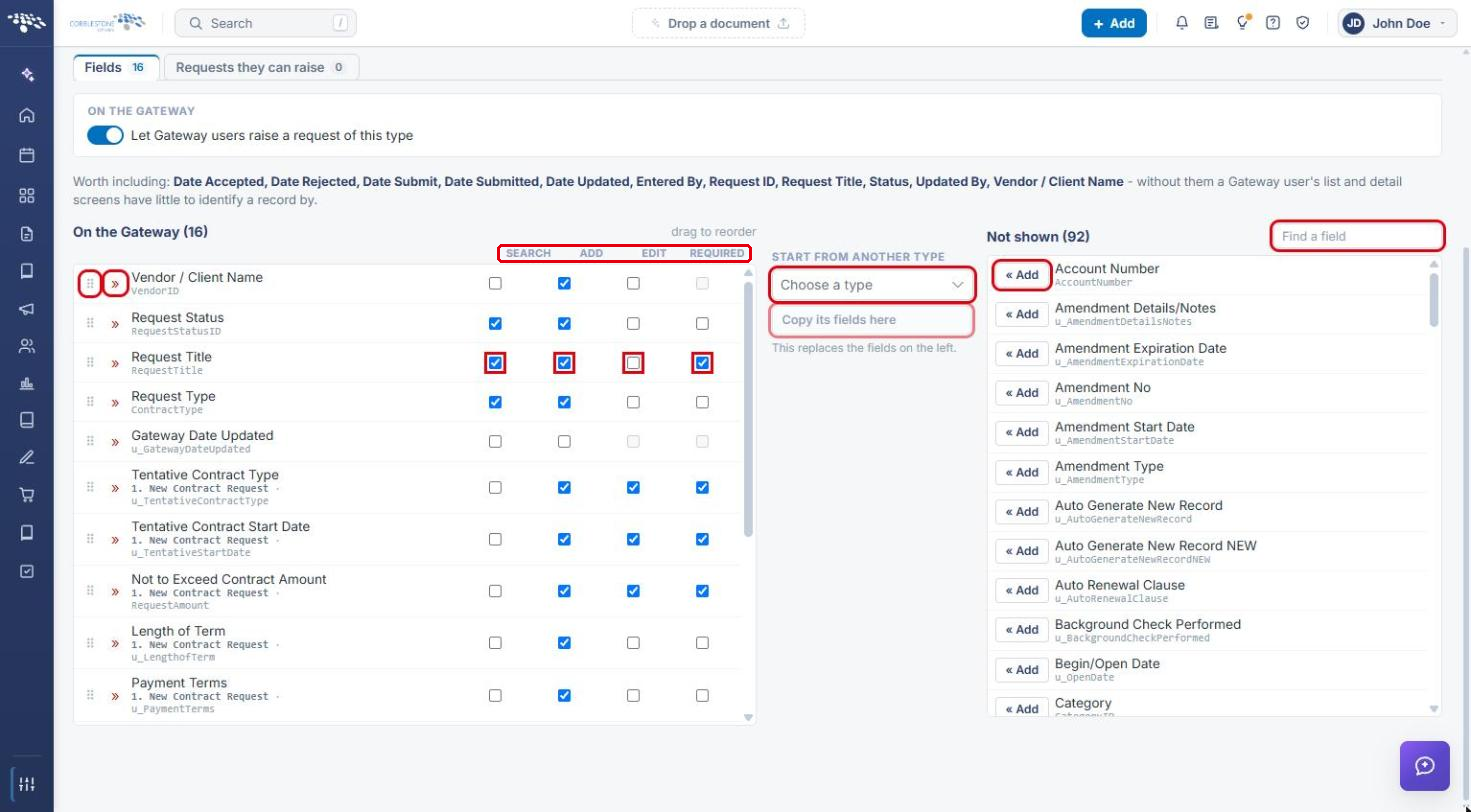
Note: The Worth including list suggests fields (for example, Request ID, Request Title, Status and Vendor / Client Name) that help Gateway users identify a request on their list and detail screens.
7. Quick Reference Summary
| Task | How to Complete It |
|---|---|
| Allow request submission | VCG → Settings → Access → Allow submission of Contract Requests → Save changes. |
| Open request form fields | VCG → Fields → Area: Contract Requests → Record type. |
| Offer a request type | Turn on Let Gateway users raise a request of this type. |
| Add a field to the form | Not shown → Find a field → « Add. |
| Set field behavior | Tick Search, Add, Edit, Required. |
| Reorder or remove a field | Drag the handle, or click » (Take off the Gateway). |
| Copy another type's fields | Start from another type → Copy its fields here. |