COBBLESTONE SOFTWARE
Contract Insight — User Guide
2.2 Solicitation and Procurement Fields
Module: Vendor/Client Gateway › Step 2: Managing Gateway Fields › 2.2 Solicitation and Procurement Fields
Note: Each procedure in this guide begins at the Contract Insight homepage, so any section can be followed on its own. Custom fields are configurable, so the exact field list on a contract category record may vary between environments.
1. Overview
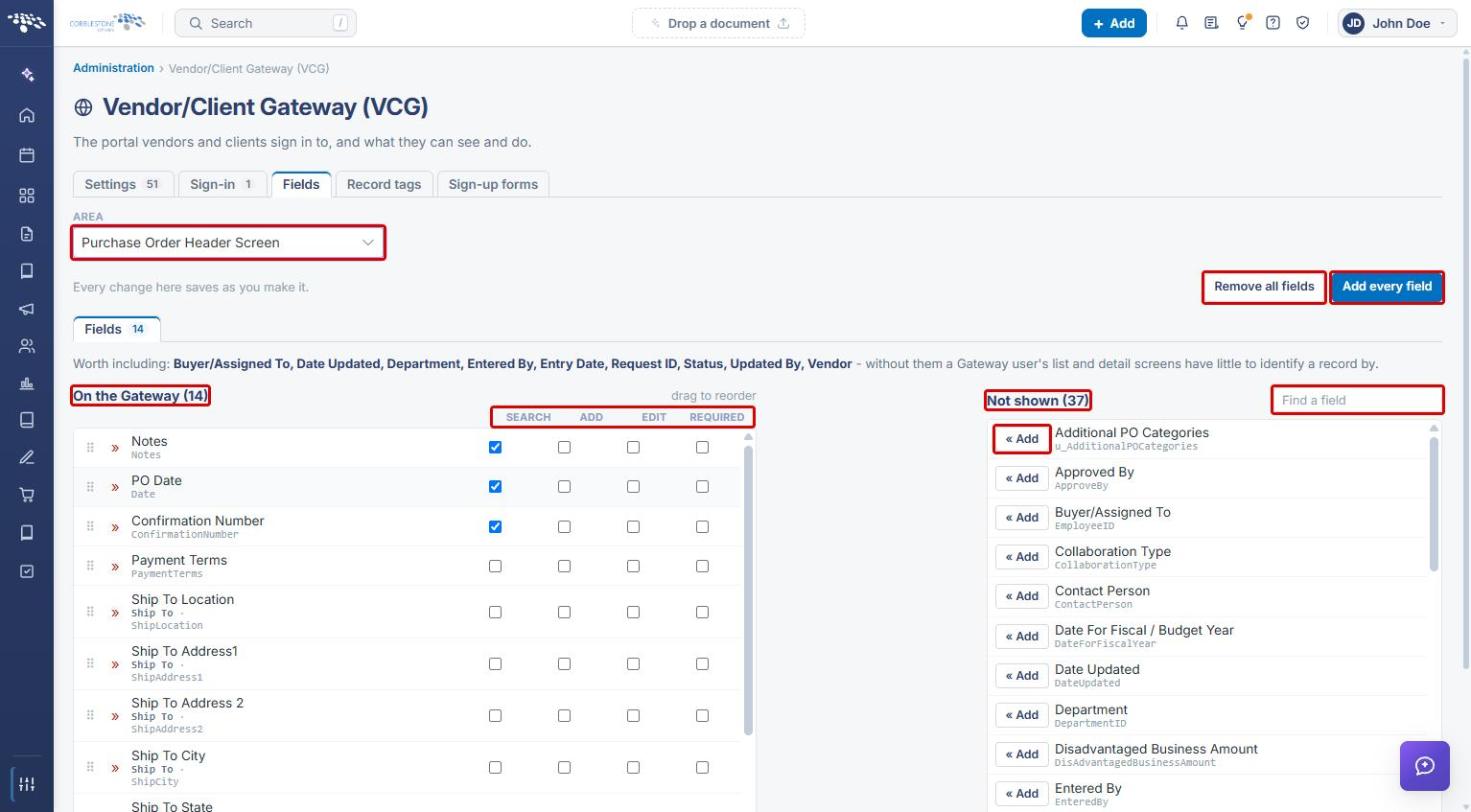
The VCG Fields tab, with Area set to Solicitation Details, governs which fields a respondent sees when viewing or responding to a solicitation on the Gateway. It uses the same On the Gateway / Not shown / drag-to-reorder mechanic used for contracts, scoped to whichever solicitation Record Type is selected (for example, RFP, RFQ, or RFI). Purchase Orders have their own parallel area, Purchase Order Header Screen, for PO-specific Gateway fields.
Note: Every change on the Fields tab saves as you make it — there is no separate Save button.
2. Key Elements
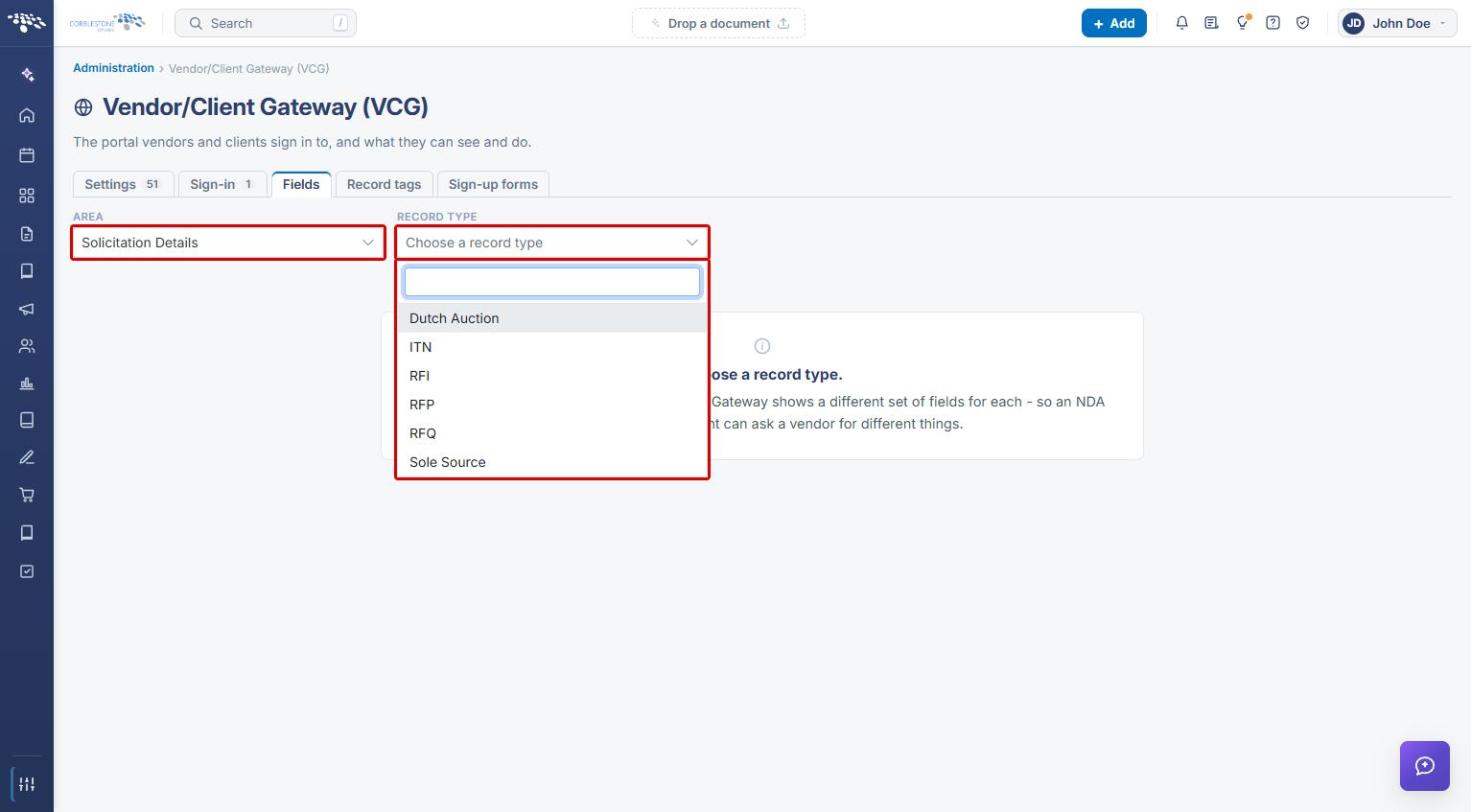
- VCG → Fields tab → Area: Solicitation Details, then choose the solicitation's Record Type (Dutch Auction, ITN, RFI, RFP, RFQ, or Sole Source in this environment). Each record type has its own Gateway field set.
- Fields listed under On the Gateway appear on the respondent-facing solicitation detail page, separate from the internal Sourcing record view. Fields under Not shown are hidden from the Gateway.
- The Search, Add, Edit, and Required columns work the same way as on Contract Details. For Solicitation Details, only Search can be set — Add, Edit, and Required are unavailable because respondents do not create or edit solicitation records.
- Start from another type copies the field set from a different record type, replacing the fields on the left.
- Remove all fields and Add every field move every field off or onto the Gateway at once.
- Purchase Order Header Screen is a parallel area for PO-specific Gateway fields. It has no record type, and its Search, Add, Edit, and Required columns are all available.
3. Navigating to the Gateway Fields Tab
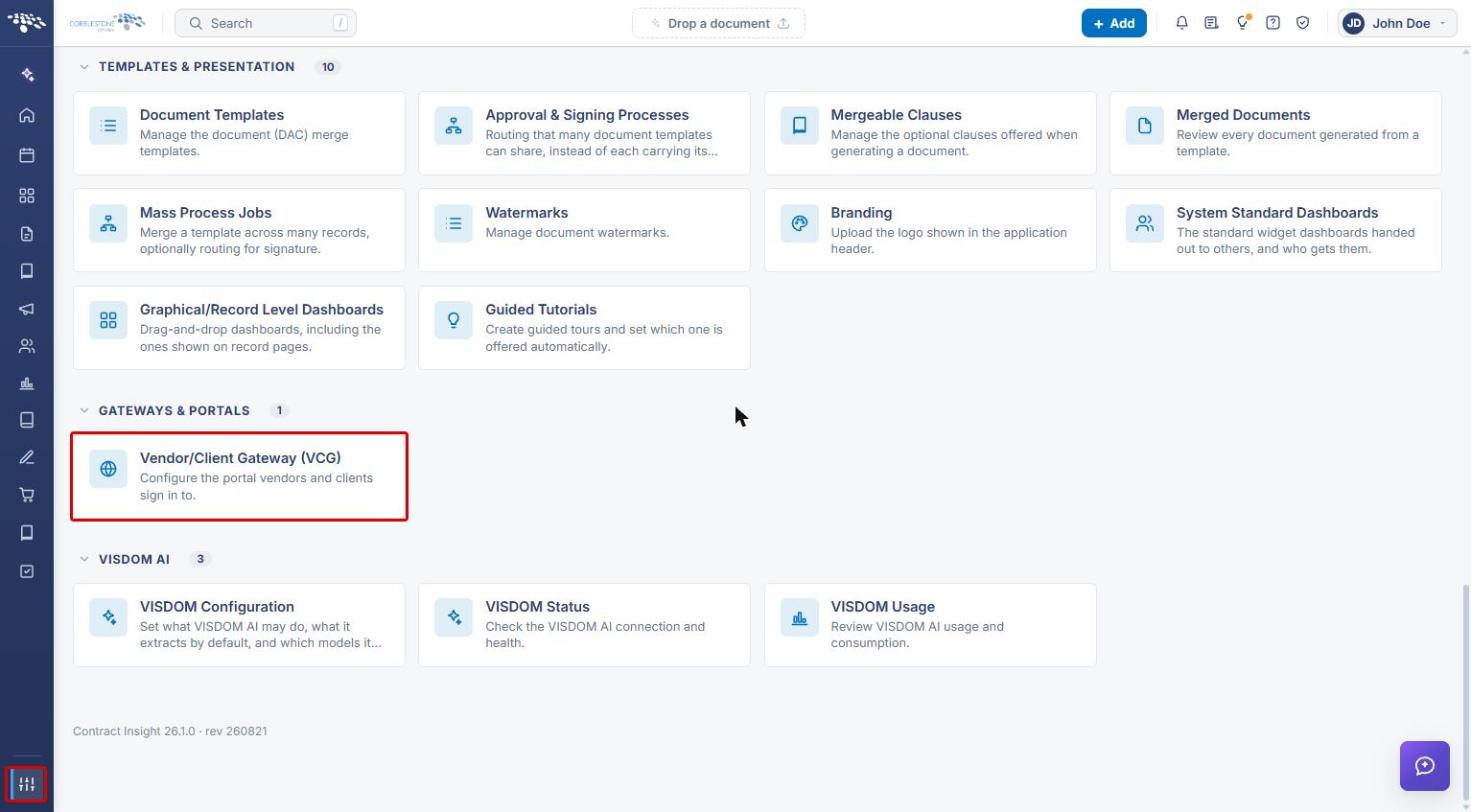
- From the Contract Insight homepage, click the Application settings icon at the bottom of the left navigation bar.
- Under Gateways & Portals, click Vendor/Client Gateway (VCG).
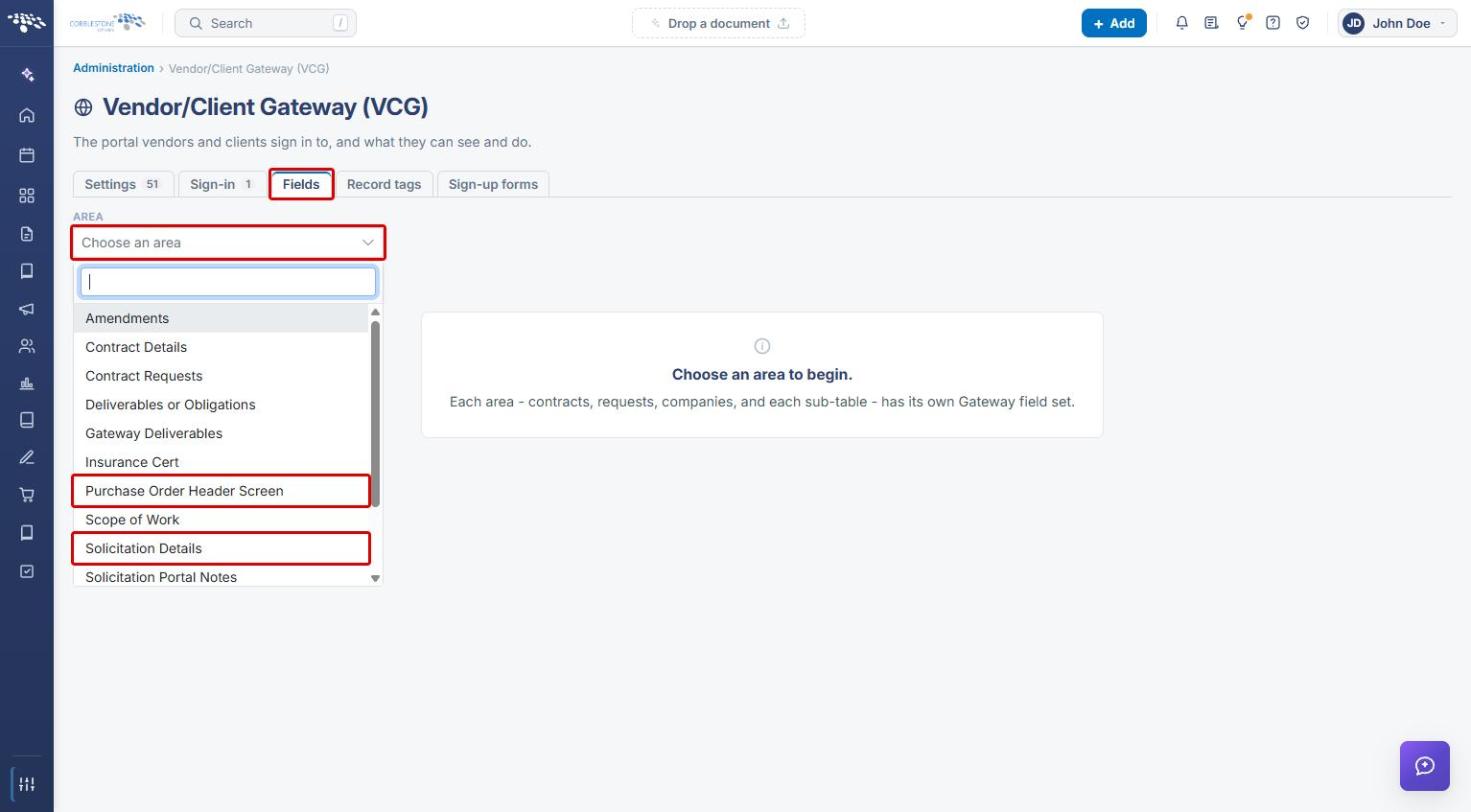
- Click the Fields tab.
- Click the Area dropdown and select Solicitation Details (or Purchase Order Header Screen for purchase orders — see Section 7).
4. Selecting the Solicitation Record Type
- With Area set to Solicitation Details, click the Record Type dropdown.
- Select the solicitation type to configure (for example, RFP).
5. Managing Solicitation Gateway Fields
The field set for the selected record type opens. The left column lists the fields On the Gateway; the right column lists the fields Not shown.
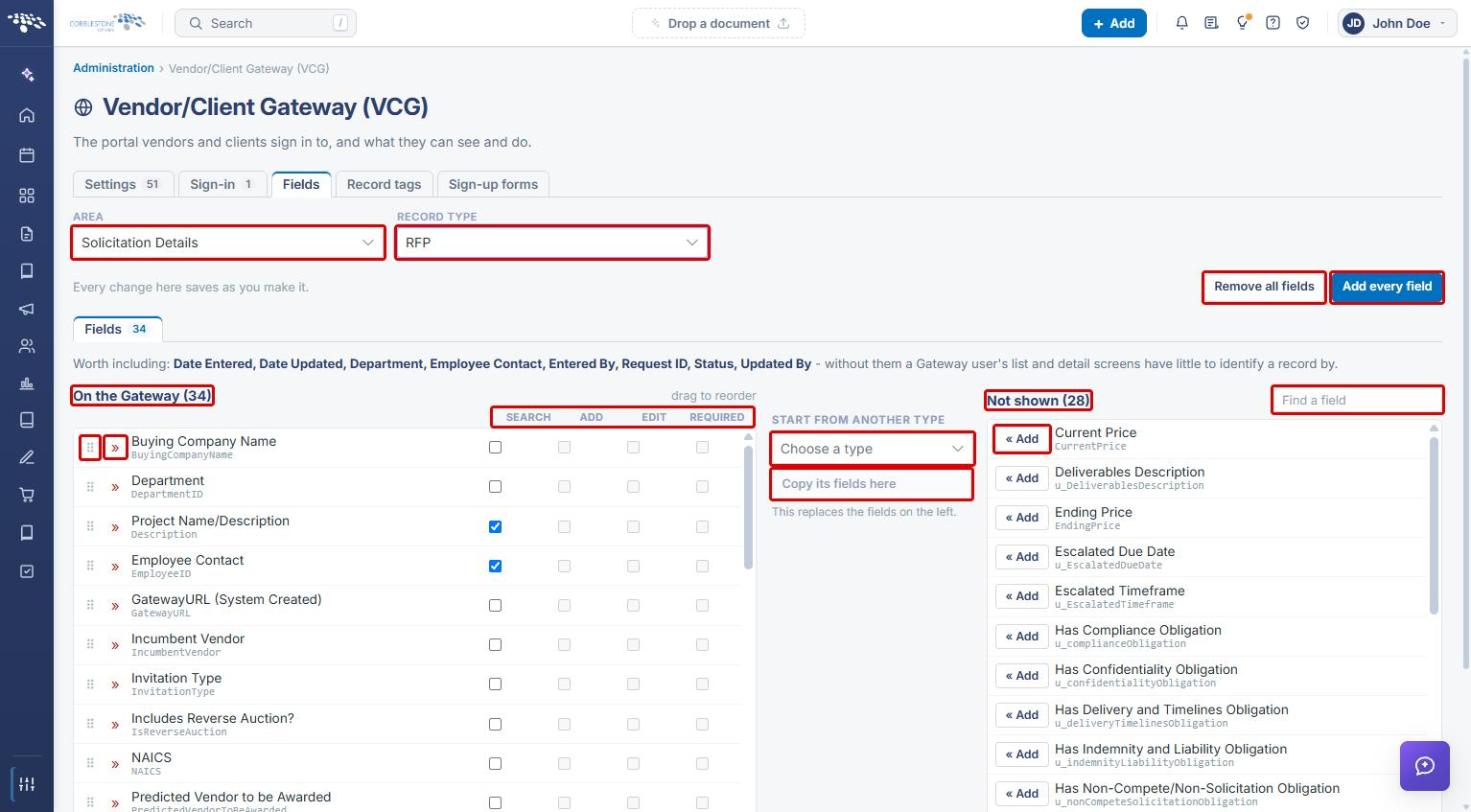
- Add a field to the Gateway: under Not shown, use Find a field to locate it, then click « Add.
- Remove a field from the Gateway: click the » (Take off the Gateway) icon next to the field.
- Reorder fields: drag a field by its handle (⠿), or focus the handle and use the arrow keys.
- Make a field searchable: tick Search for that field.
- Copy another type's fields: under Start from another type, choose a type and click Copy its fields here. This replaces the fields on the left.
- Bulk changes: click Add every field or Remove all fields.
Note: The page lists recommended fields under Worth including. Without them, a Gateway user's list and detail screens have little to identify a record by.
6. Column Reference
| Column | What it controls |
|---|---|
| Search | The field can be used to search records on the Gateway. |
| Add | The field appears when a Gateway user creates a record. (Unavailable for Solicitation Details.) |
| Edit | A Gateway user can edit the field. (Unavailable for Solicitation Details.) |
| Required | A Gateway user must fill in the field. (Unavailable for Solicitation Details.) |
7. Purchase Order Header Screen Fields
- On the Fields tab, set Area to Purchase Order Header Screen. No record type is needed.
- Add, remove, and reorder fields the same way as in Section 5.
- Tick Search, Add, Edit, or Required for each field as needed — all four columns are available for purchase orders.