COBBLESTONE SOFTWARE
Contract Insight — User Guide
2.1 Contract and Committal Fields
Module: Vendor/Client Gateway › Step 2: Managing Gateway Fields › 2.1 Contract and Committal Fields
Note: Each procedure in this guide begins at the Contract Insight homepage, so any section can be followed on its own. Custom fields are configurable, so the exact field list on a contract category record may vary between environments.
1. Overview
The VCG Fields tab, with Area set to Contract Details, controls which fields a vendor or client sees on a contract — chosen per record type since an NDA and a master agreement can ask for different things. Picking a Record Type shows an “On the Gateway” list of currently-shown fields (drag to reorder, with Search/Add/Edit/Required toggles per field) beside a searchable “Not shown” pool of every other field on that record type, plus a Start from another type option to copy an existing type’s field set.
2. Key Elements
- VCG → Fields tab → Area: Contract Details, then choose a Record Type (e.g. Addendum)
- “On the Gateway” fields are draggable to reorder, each with its own Search, Add, Edit, and Required toggles
- “Not shown” lists every other field defined on that record type, searchable, each with an « Add control
- Start from another type replaces the current field set with a copy of another record type’s Gateway fields
3. Navigating to the Gateway Fields Tab
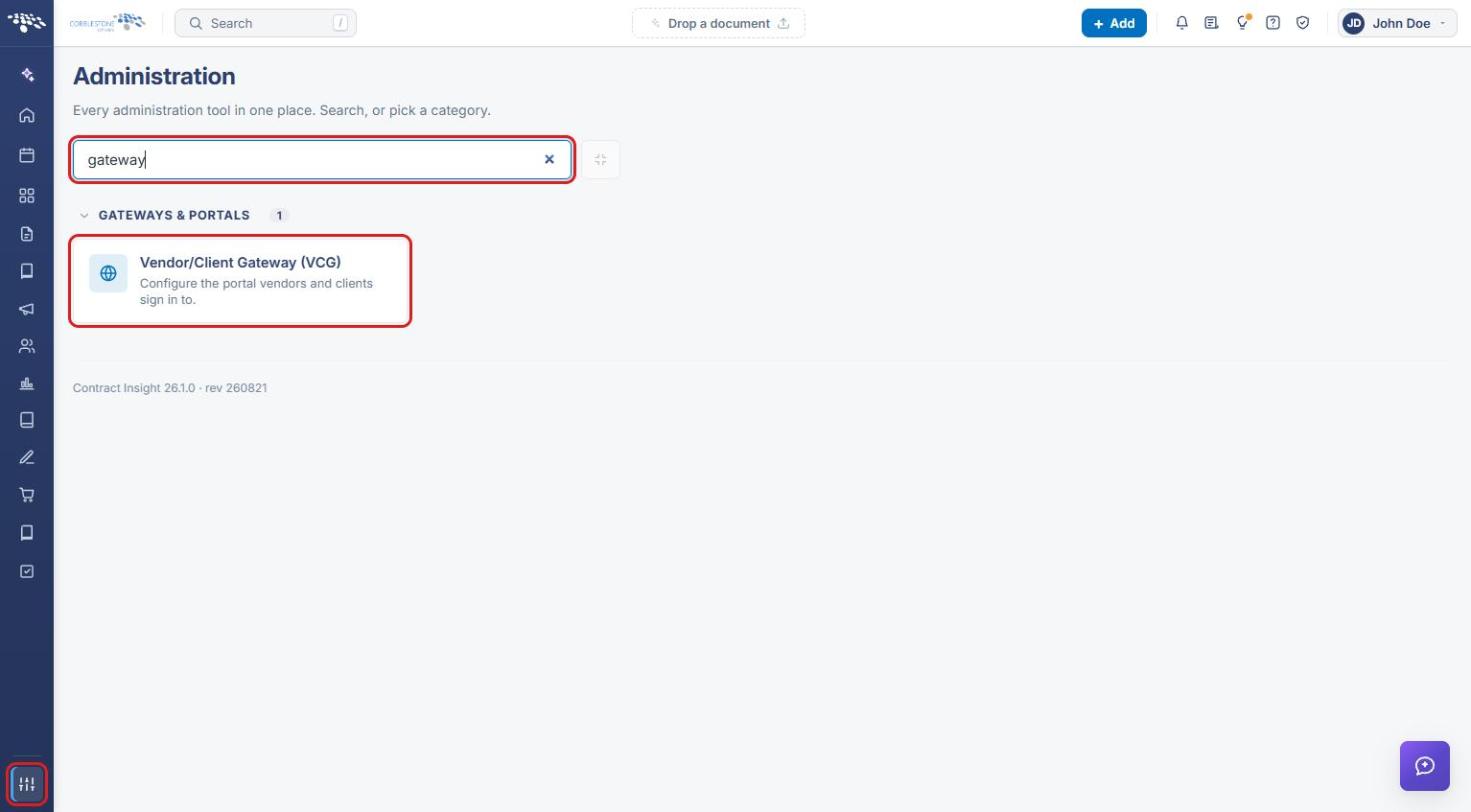
- From the Contract Insight homepage, click the Administration icon at the bottom of the left navigation bar.
- In the Search administration box, type gateway, then click Vendor/Client Gateway (VCG).
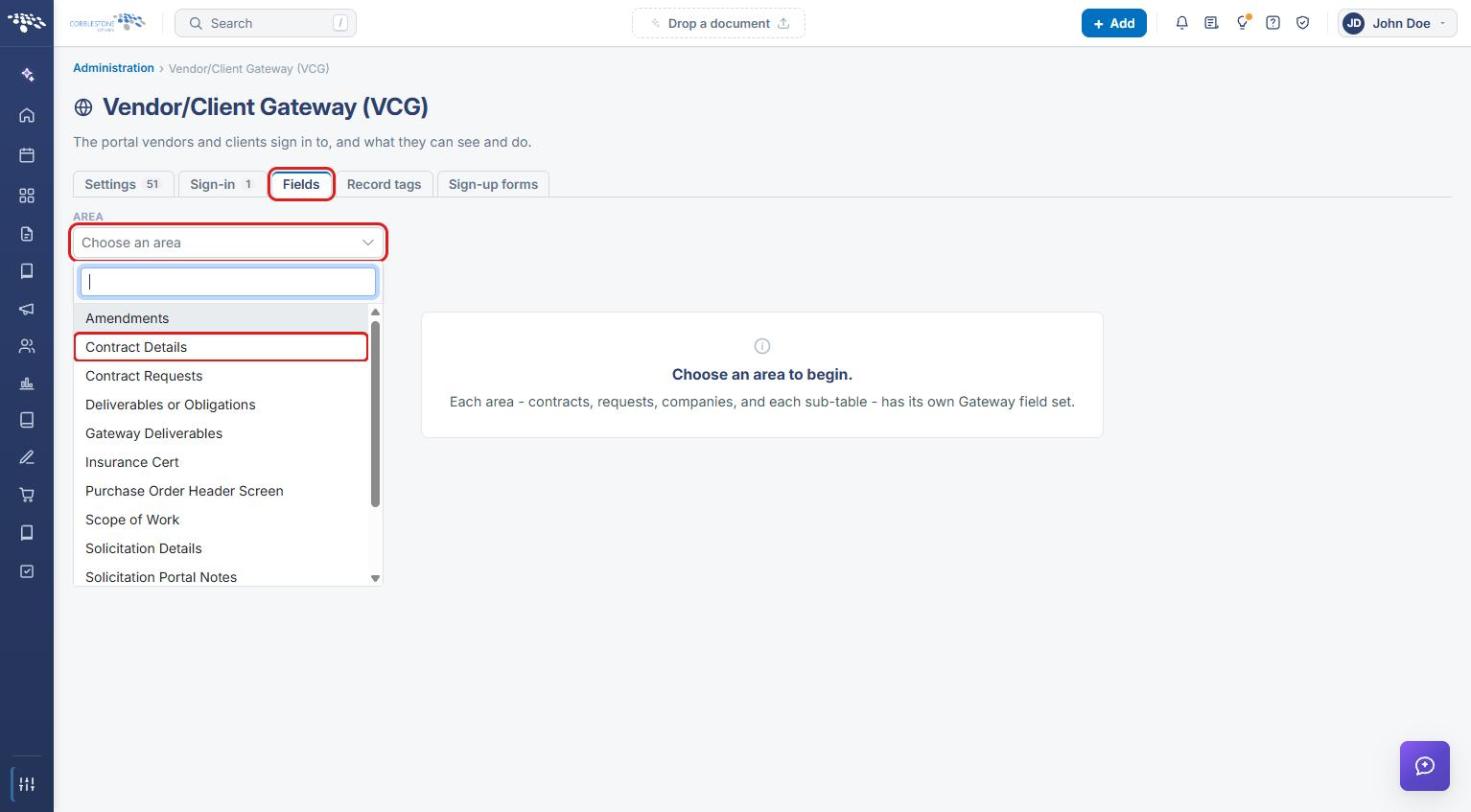
- Click the Fields tab.
- Open the Area drop-down and select Contract Details. Each area (contracts, requests, companies, and each sub-table) has its own Gateway field set.
4. Choosing a Record Type
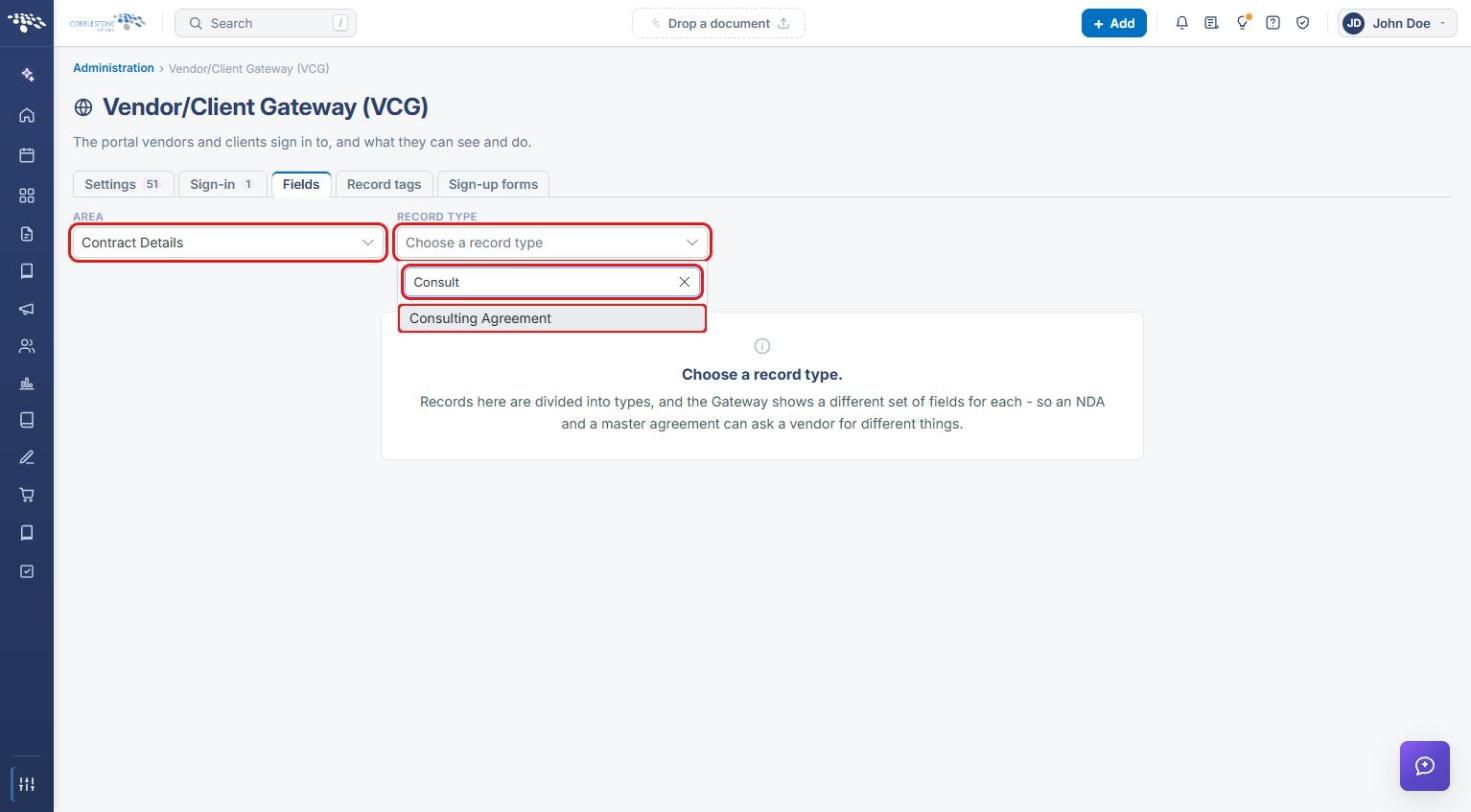
- Open the Record Type drop-down. Type in its search box to filter the list.
- Select the record type to configure, for example Master Service Agreement (MSA) or Consulting Agreement.
Note: Every change on this screen saves as you make it; there is no separate Save button. If a record type has no fields chosen, the Gateway shows every field for that type until you pick specific ones.
5. Managing Fields Shown on the Gateway
- Review the On the Gateway list. The count beside the heading shows how many fields are shown.
- Drag a field by its handle to change the order (drag to reorder).
- For each field, set the toggles:
- Search: the field can be searched on the Gateway.
- Add: the field appears when a vendor or client adds a record.
- Edit: the vendor or client can edit the field.
- Required: the field must be filled in.
- Click the » (Take off the Gateway) button to move a field back to the Not shown pool.
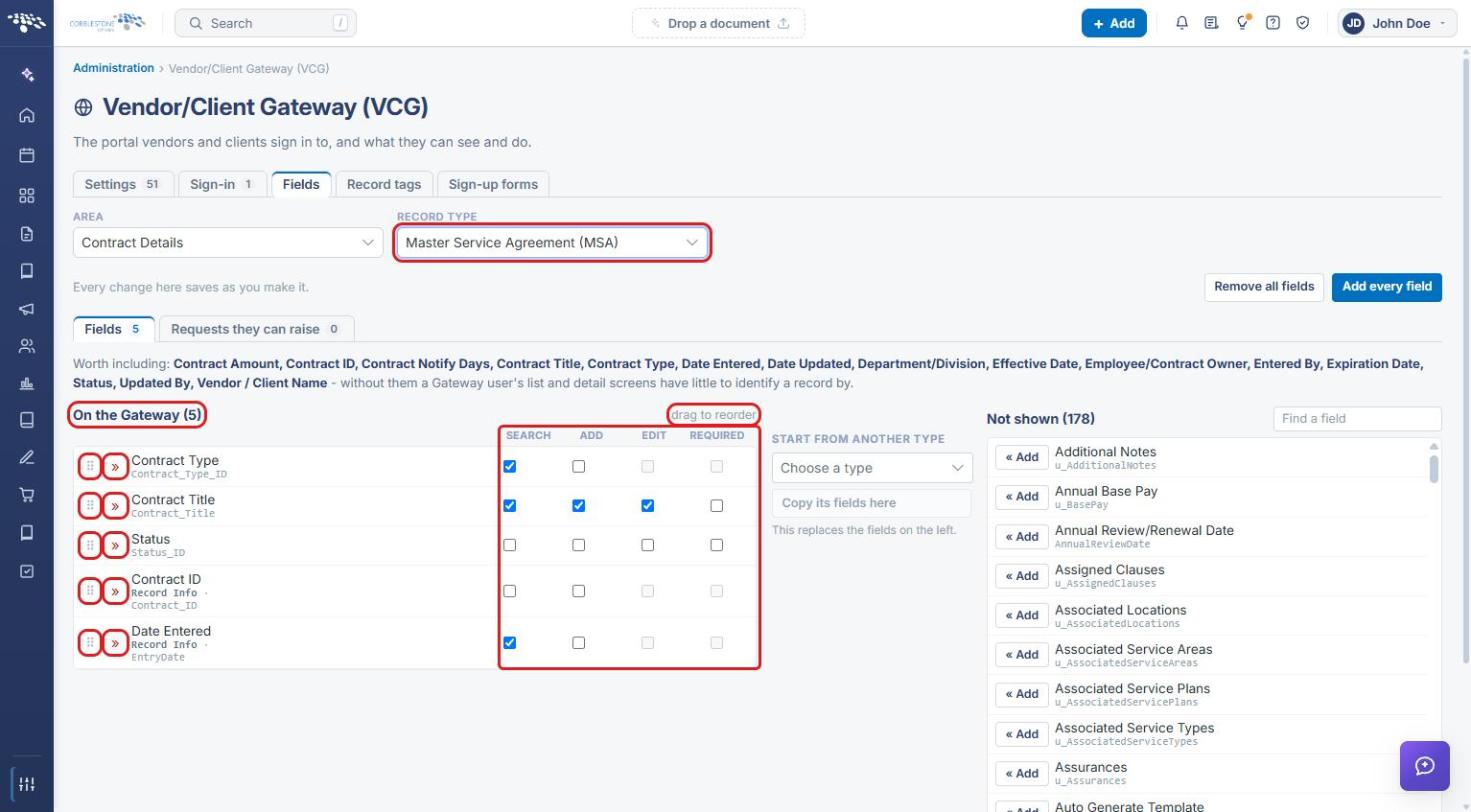
Note: Some toggles are greyed out for system fields, such as Contract ID and Date Entered, that vendors and clients cannot add or edit.
6. Adding Fields and Copying a Field Set
6a. Adding Fields from the Not Shown Pool
- In Not shown, type in Find a field to narrow the list.
- Click « Add next to a field to move it to On the Gateway.
- To change the whole set at once, click Add every field or Remove all fields at the top right.
6b. Starting from Another Record Type
- Under Start from another type, choose a record type from Choose a type.
- Click Copy its fields here. This replaces the fields on the left with that type’s Gateway fields.
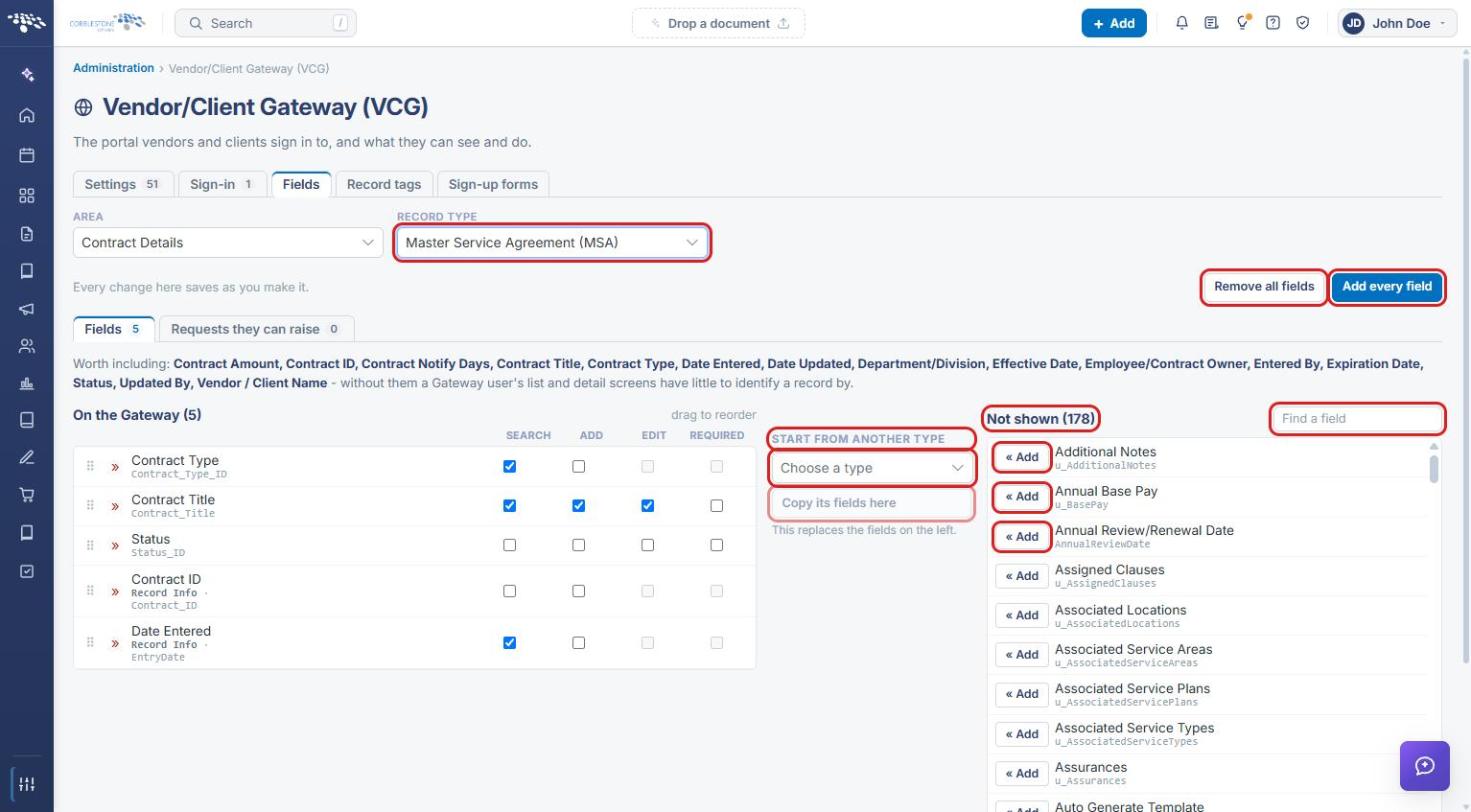
Note: The Worth including line above the lists suggests fields, such as Contract Title, Status, and Vendor / Client Name, that help Gateway users identify a record.
7. Quick Reference Summary
| Task | How to Complete It |
|---|---|
| Open Gateway field settings | Administration → Vendor/Client Gateway (VCG) → Fields tab. |
| Pick contract fields for a type | Area: Contract Details → Record Type. |
| Show a field | Not shown → « Add. |
| Hide a field | On the Gateway → ». |
| Reorder fields | Drag by the handle. |
| Set Search/Add/Edit/Required | Check the boxes on the field’s row. |
| Copy another type’s fields | Start from another type → choose type → Copy its fields here. |