COBBLESTONE SOFTWARE
Contract Insight — User Guide
1.9 Multi-Factor Authentication
Module: Vendor/Client Gateway › Step 1: Vendor/Client Gateway Configuration › 1.9 Multi-Factor Authentication
Note: Each procedure in this guide begins at the Contract Insight homepage, so any section can be followed on its own. Custom fields are configurable, so the exact field list on a contract category record may vary between environments.
1. Overview
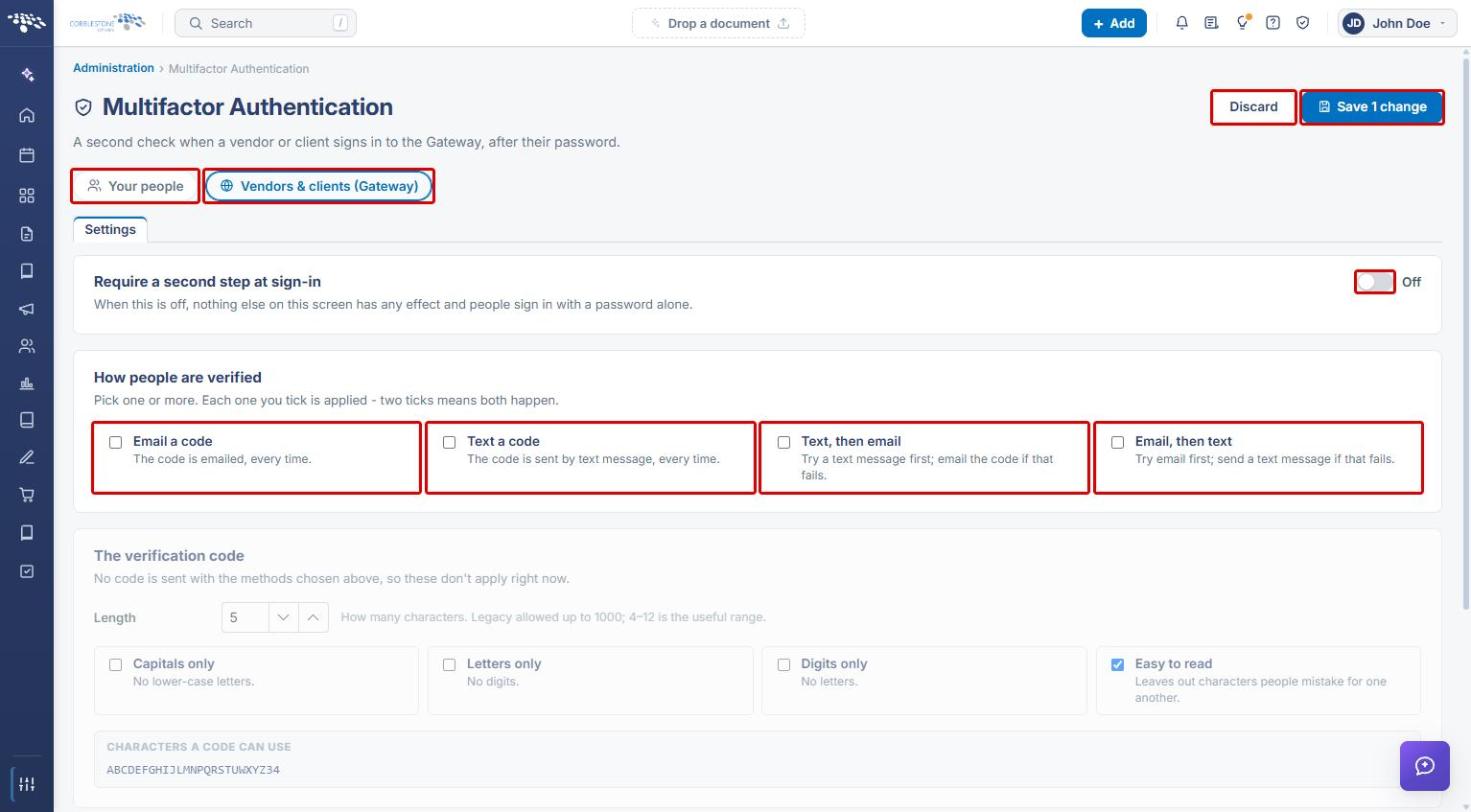
Gateway-side multifactor authentication (MFA) is configured on the same Multifactor Authentication screen used for internal users, reached from the VCG Sign-in tab's Multifactor authentication for Gateway users link. An audience toggle switches the screen between Your people and Vendors & clients (Gateway). Turning on Require a second step at sign-in activates how the code is delivered, how it's built, and the email template that carries it.
2. Key Elements
- VCG Sign-in tab → Multifactor authentication for Gateway users opens the Gateway audience view of the MFA screen.
- Require a second step at sign-in is the master switch. When it is off, nothing else on the screen has any effect and people sign in with a password alone.
- How people are verified offers Email a code, Text a code, Text, then email, or Email, then text. More than one can be ticked at once — each one ticked is applied.
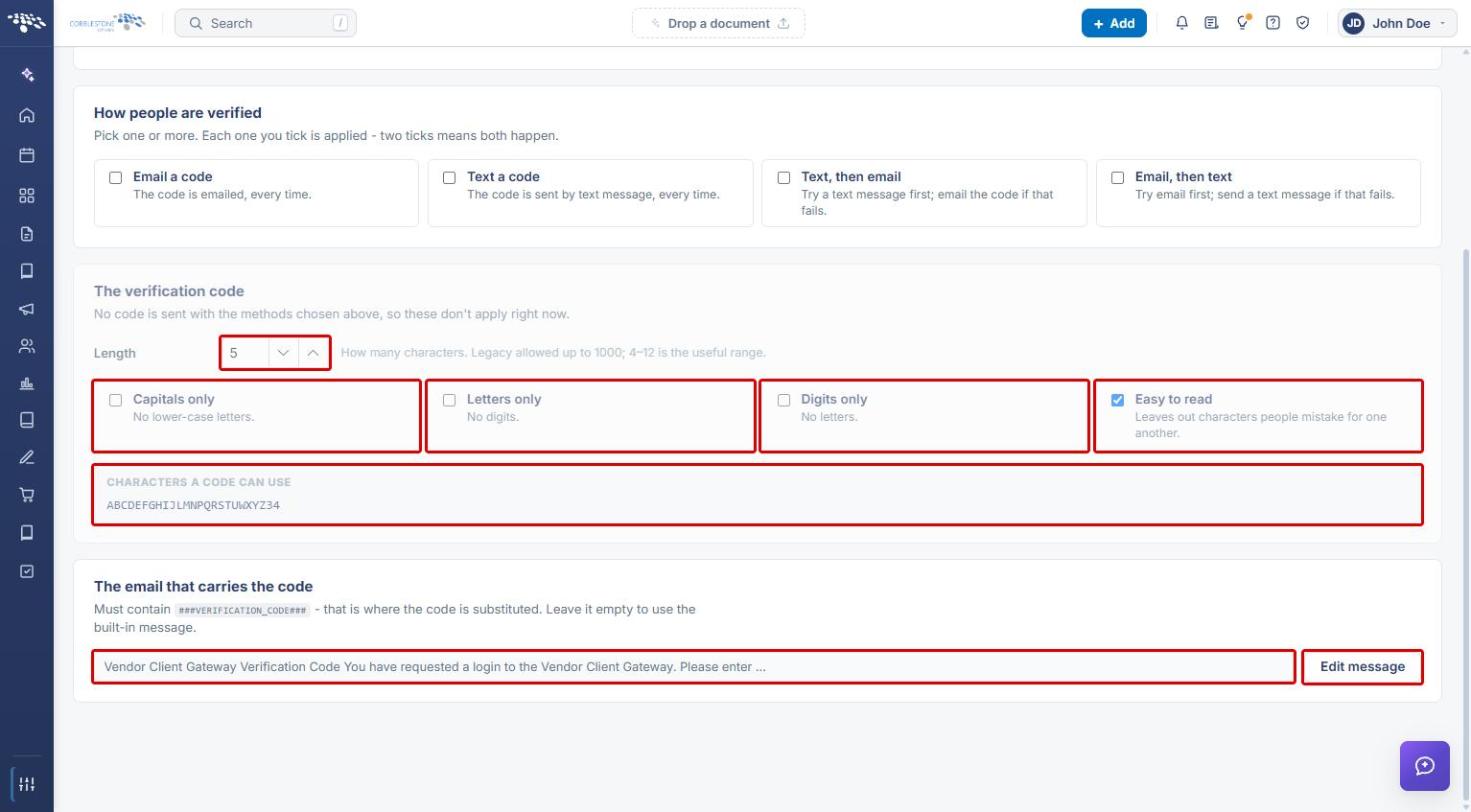
- The verification code section sets the code Length and character rules (Capitals only, Letters only, Digits only, Easy to read). Characters a code can use previews the resulting character set.
- The email that carries the code must contain ###VERIFICATION_CODE###, which is where the code is substituted. Leave it empty to use the built-in message.
- Changes are applied with Save (top right). Discard abandons unsaved changes.
3. Navigating to Gateway MFA Settings
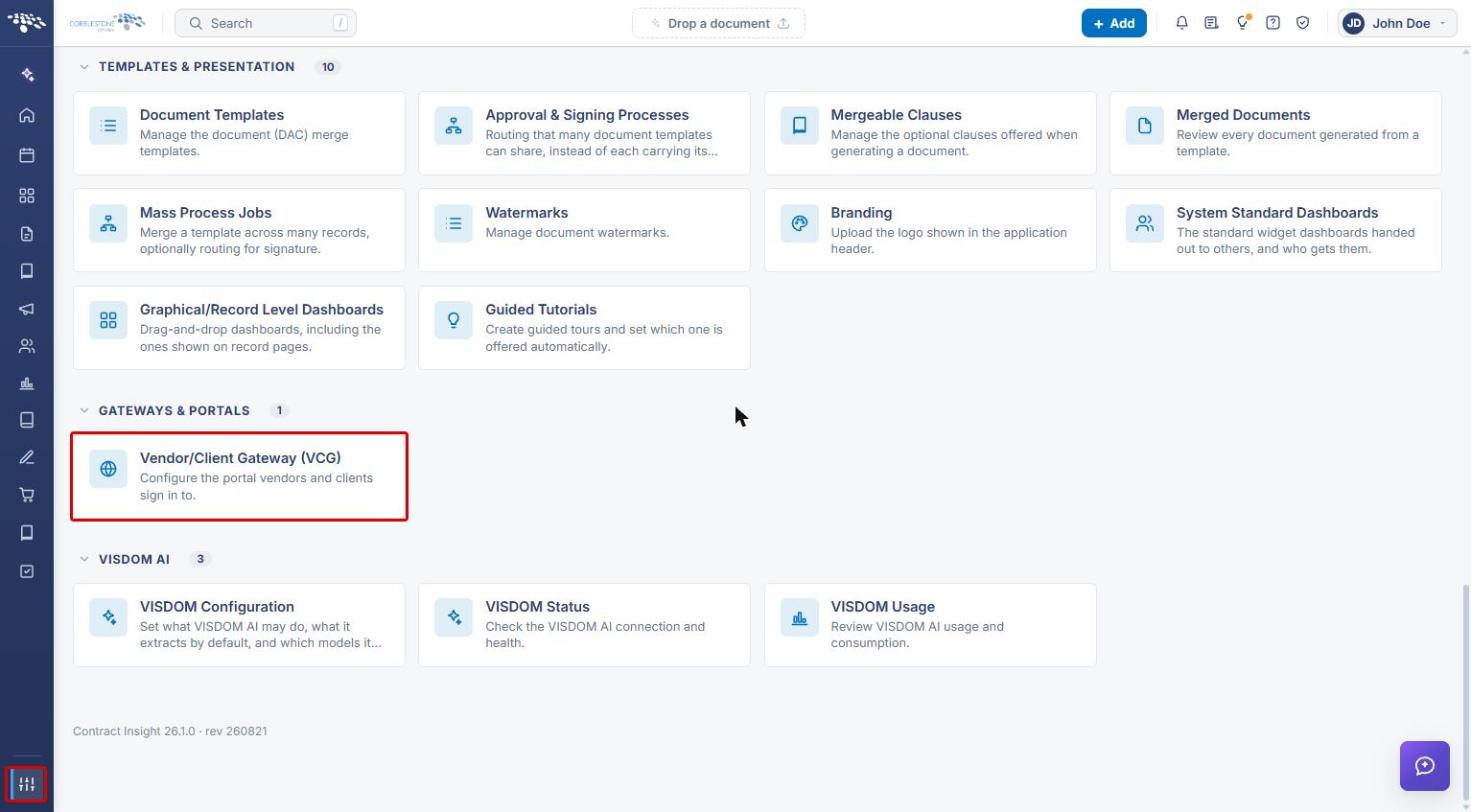
- From the Contract Insight homepage, click the Application settings icon at the bottom of the left navigation bar.
- Under Gateways & Portals, click Vendor/Client Gateway (VCG).
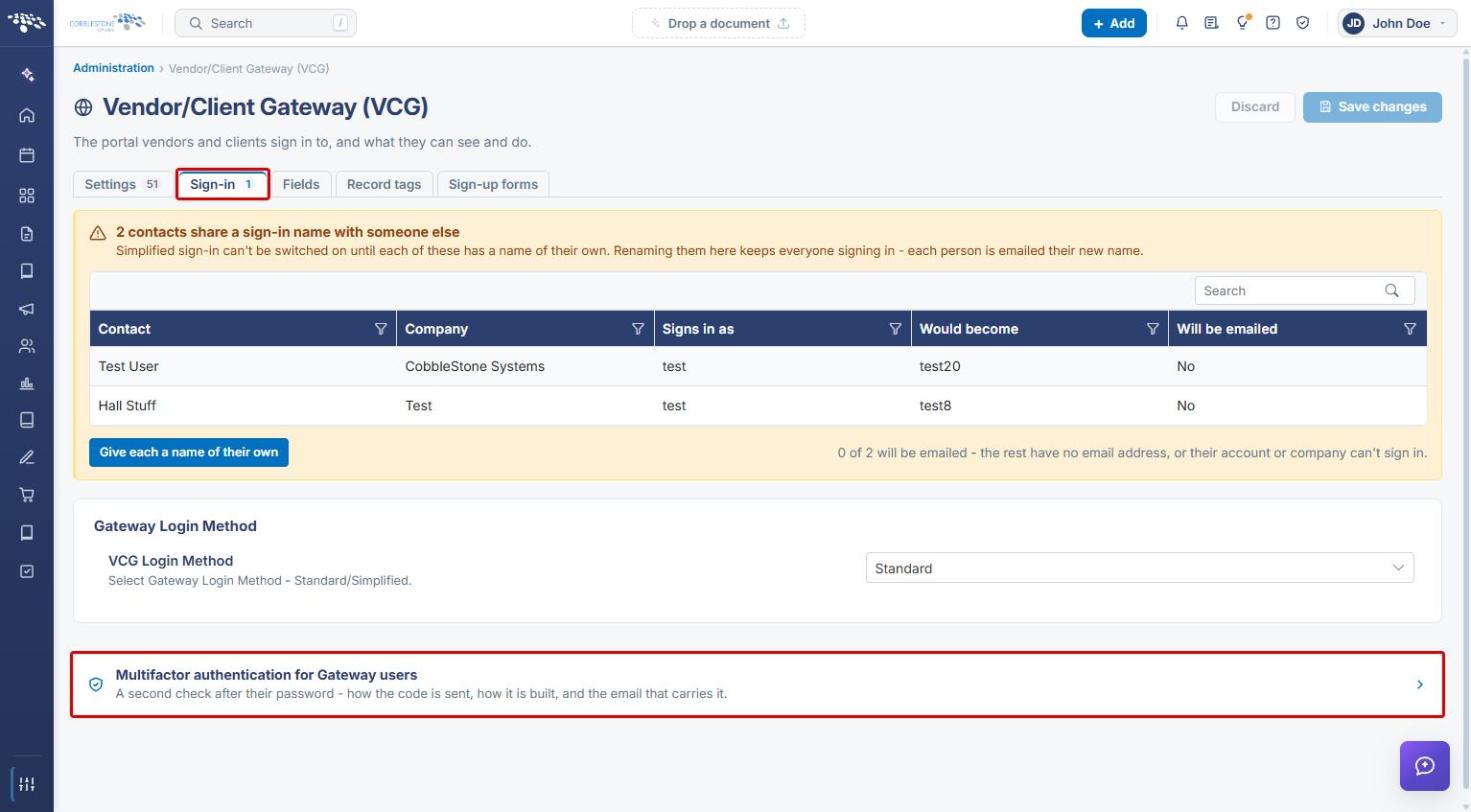
- Click the Sign-in tab.
- Click Multifactor authentication for Gateway users.
Note: The Multifactor Authentication screen can also be reached from Administration › Security & Access › Multifactor Authentication (MFA). Use the Vendors & clients (Gateway) toggle at the top of the screen to switch to the Gateway audience.
4. Turning On MFA and Choosing How People Are Verified
- Confirm that Vendors & clients (Gateway) is selected at the top of the screen. (Select Your people to configure MFA for internal users instead.)
- Turn on Require a second step at sign-in.
- Under How people are verified, tick one or more delivery methods:
- Email a code — the code is emailed every time.
- Text a code — the code is sent by text message every time.
- Text, then email — try a text message first; email the code if that fails.
- Email, then text — try email first; send a text message if that fails.
5. Configuring the Verification Code and Email
- Under The verification code, set the code Length using the field or the arrows. 4–12 characters is the useful range.
- Tick the character rules to apply:
- Capitals only — no lower-case letters.
- Letters only — no digits.
- Digits only — no letters.
- Easy to read — leaves out characters people mistake for one another.
- Review Characters a code can use to confirm the resulting character set.
- Under The email that carries the code, click Edit message to customize the email. The message must contain ###VERIFICATION_CODE###. Leave it empty to use the built-in message.
Note: The verification code settings only apply when at least one delivery method is ticked under How people are verified.
6. Saving Your Changes
- Scroll back to the top of the screen.
- Click Save to apply your MFA settings. To abandon unsaved changes, click Discard.
7. Quick Reference Summary
| Setting | What it does |
|---|---|
| Your people / Vendors & clients (Gateway) | Switches the MFA screen between internal users and Gateway users. Each audience is configured separately. |
| Require a second step at sign-in | Master switch. When off, people sign in with a password alone and no other setting applies. |
| Email a code | Emails the verification code every time. |
| Text a code | Texts the verification code every time. |
| Text, then email | Texts first; falls back to email if the text fails. |
| Email, then text | Emails first; falls back to text if the email fails. |
| Length | Number of characters in the code (4–12 recommended). |
| Capitals only / Letters only / Digits only | Restrict the characters used in the code. |
| Easy to read | Leaves out look-alike characters. |
| The email that carries the code | Custom email template. Must include ###VERIFICATION_CODE###; leave empty for the built-in message. |
| Save / Discard | Apply or abandon changes on the screen. |