COBBLESTONE SOFTWARE
Contract Insight — User Guide
1.7 Manage Main Menu Vendor Client Gateway
Module: Vendor/Client Gateway › Step 1: Vendor/Client Gateway Configuration › 1.7 Manage Main Menu Vendor Client Gateway
Note: Each procedure in this guide begins at the Contract Insight homepage, so any section can be followed on its own. Custom fields are configurable, so the exact field list on a contract category record may vary between environments.
1. Overview
The Vendor/Client Gateway's left-hand menu is managed like any other workspace menu, from Administration → Navigation Menu (“The left-hand navigation, and which employees see which menu”). Switching the Workspace selector to Vendor/Client Gateway loads the Gateway's menu items, such as My Dashboard, Main, Find/Search Public Records, Document Library, News, Requests, Contracts, Purchase Orders, Reports, Solicitations, Contacts/Users, Submit New Request, Electronic Documents, Manage Items, Help, Log Out, and Support Center. Each item can be edited, reordered, given sub-items, and limited to a licensed module.
2. Key Elements
- Workspace dropdown: switches the page to the menu of the selected workspace. The Gateway's workspace is listed as Vendor/Client Gateway.
- Menu item cards: each top-level item is a card listing its sub-items, with an edit (pencil) icon and Add sub-item.
- Tags on each card: the module the item requires (for example, Gateways_VCC, Modules_POM, Modules_SMM, Modules_DAC), plus HIDDEN, ADMIN, or UNAVAILABLE where they apply.
- UNAVAILABLE items point at a page that doesn't exist in this application. They appear greyed out in the sidebar and explain themselves when selected. Review them lists each one with a suggested fix.
- Filter items, Reset to default, and Add item sit above the cards.
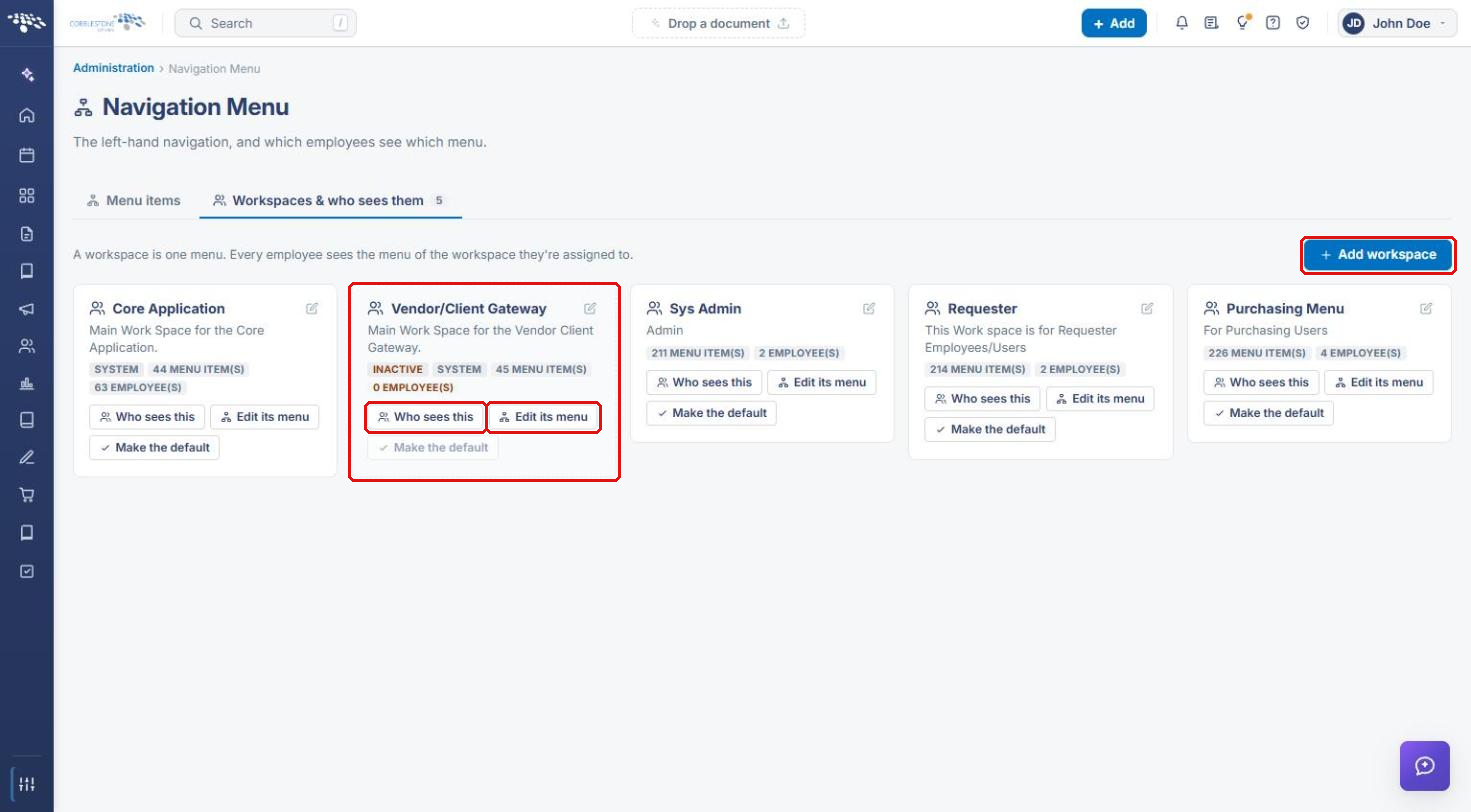
- Workspaces & who sees them tab: each workspace with its menu-item and employee counts.
3. Navigating to the Gateway Menu
- From the Contract Insight homepage, click the Administration icon at the bottom of the left navigation bar.
- In Search administration, type navigation (or find it under Configuration & Fields).
- Click Navigation Menu.
.png)
- On the Menu items tab, change Workspace to Vendor/Client Gateway. The Gateway's menu items load as cards.
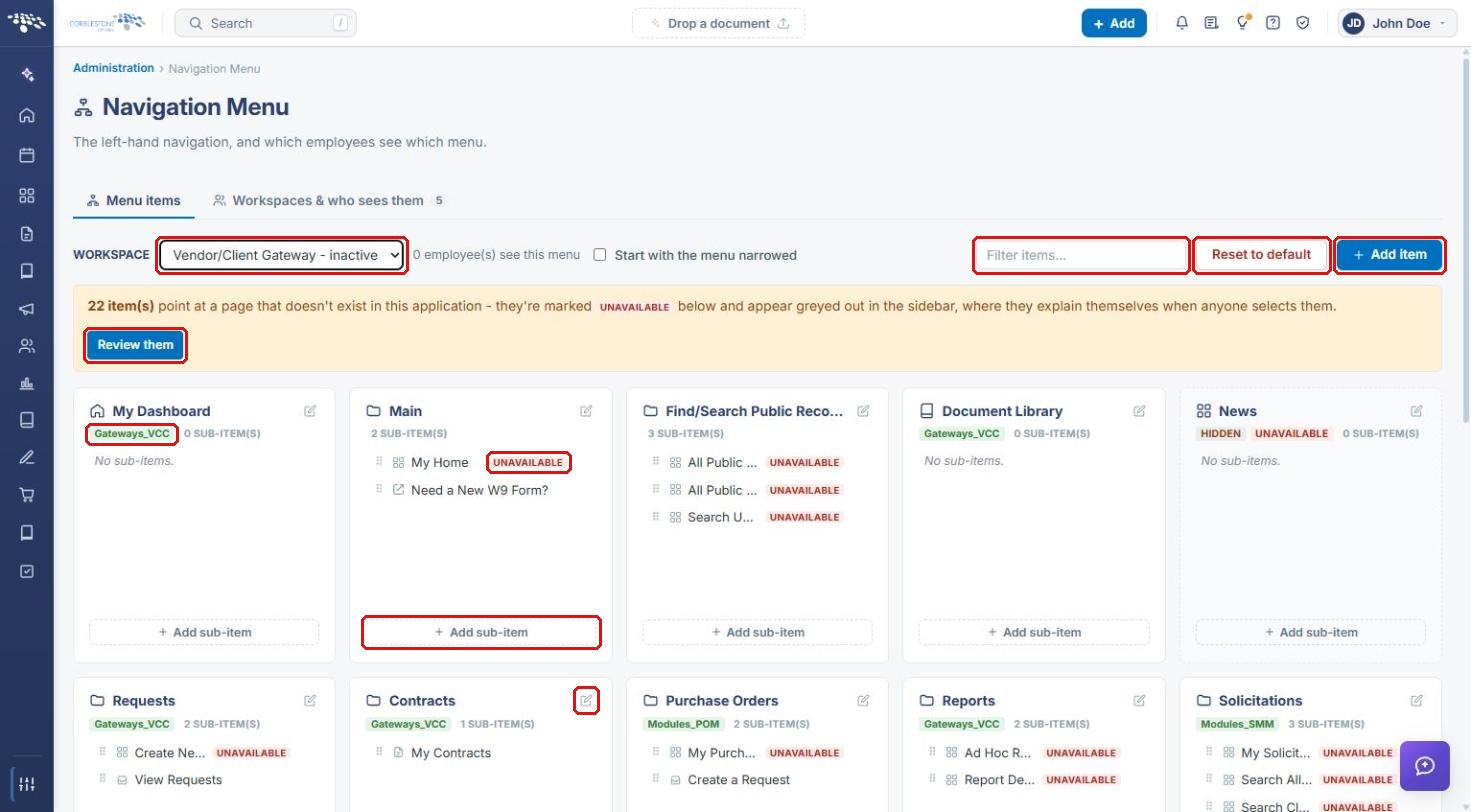
Tip: Use Filter items to find an item quickly. Drag sub-items by their handle to reorder them within a card.
4. Editing a Menu Item
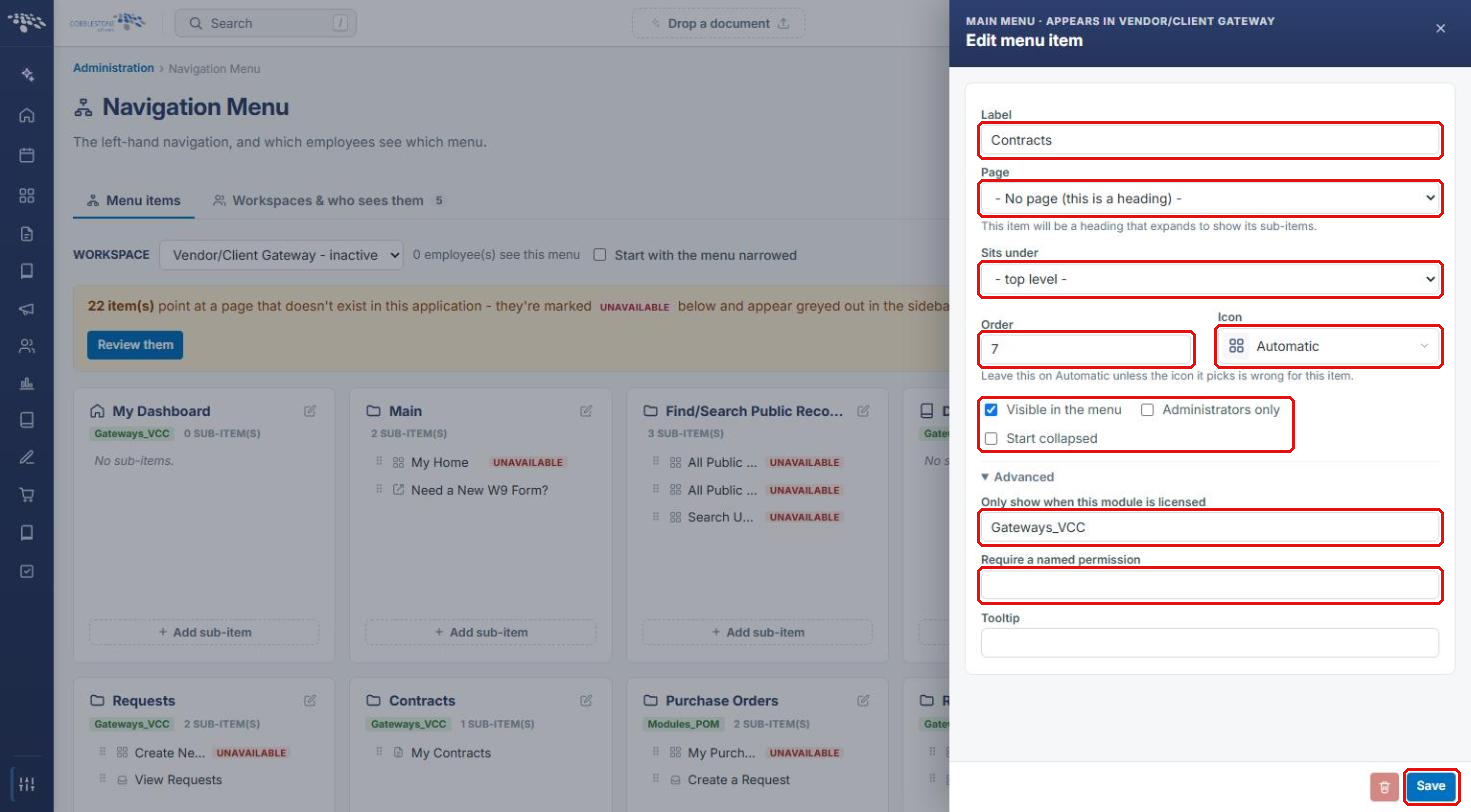
- Click the edit (pencil) icon on the item's card.
- Update the Label.
- Choose the Page it opens. Choose No page (this is a heading) to make it a heading that expands to show its sub-items, or Enter a link manually… for an external link.
- Choose where it Sits under (top level or a parent item), and set its Order and Icon (leave the icon on Automatic unless it picks the wrong one).
- Set Visible in the menu, Administrators only, and Start collapsed as needed.
- Expand Advanced to set Only show when this module is licensed (for example, Gateways_VCC), Require a named permission, and a Tooltip.
- Click Save. To close without saving, click the X at the top of the panel.
5. Adding a Menu Item or Sub-Item
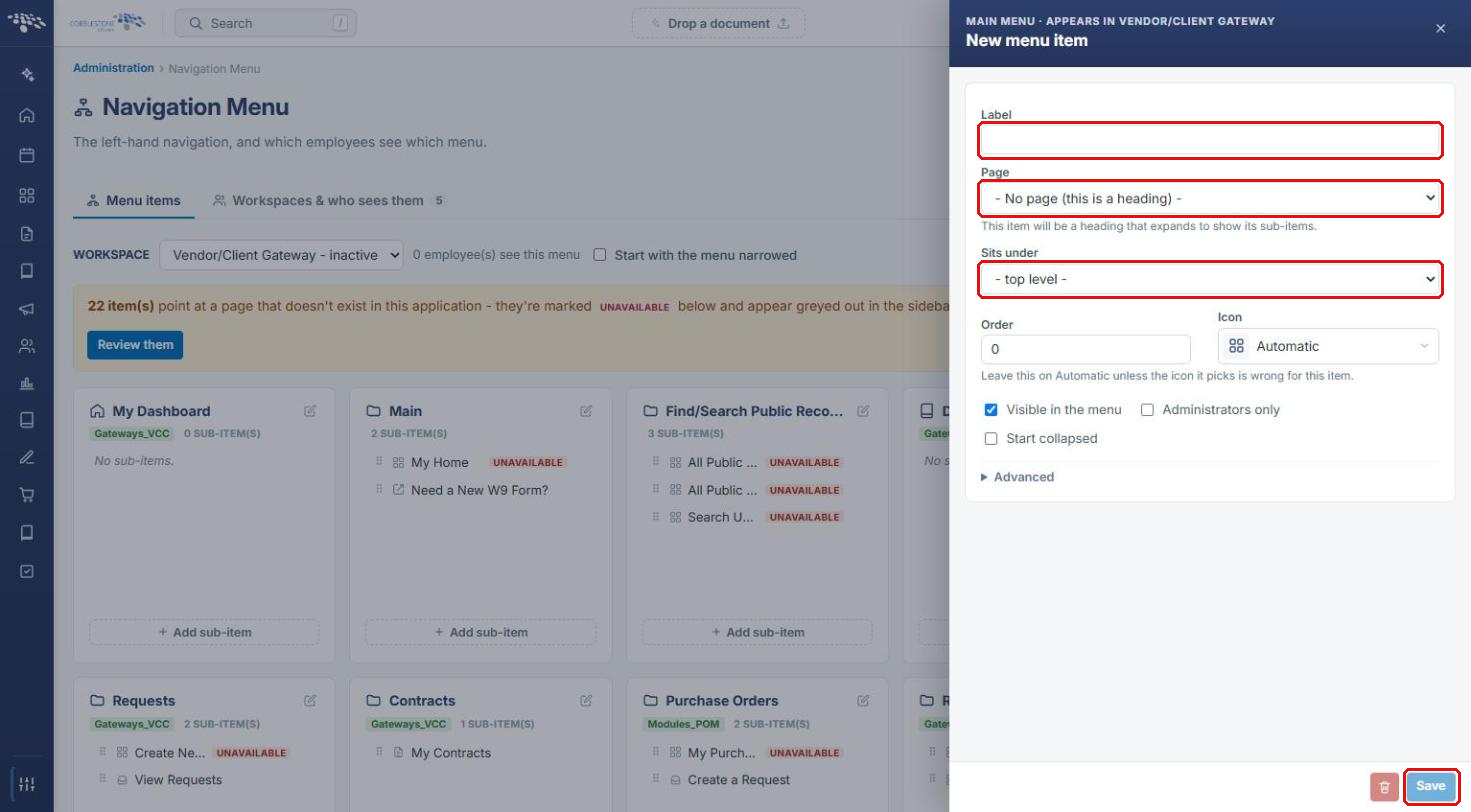
- Click Add item above the cards to add a top-level item, or Add sub-item at the bottom of a card to add an item under it.
- Fill in the New menu item panel the same way as in Section 4.
- Click Save.
6. Reviewing Unavailable Items
- In the warning above the cards, click Review them.
- For each item under Needs a decision, either click the suggested Use … button, choose a page in Point somewhere else…, or click Hide.
- Click Done when finished.
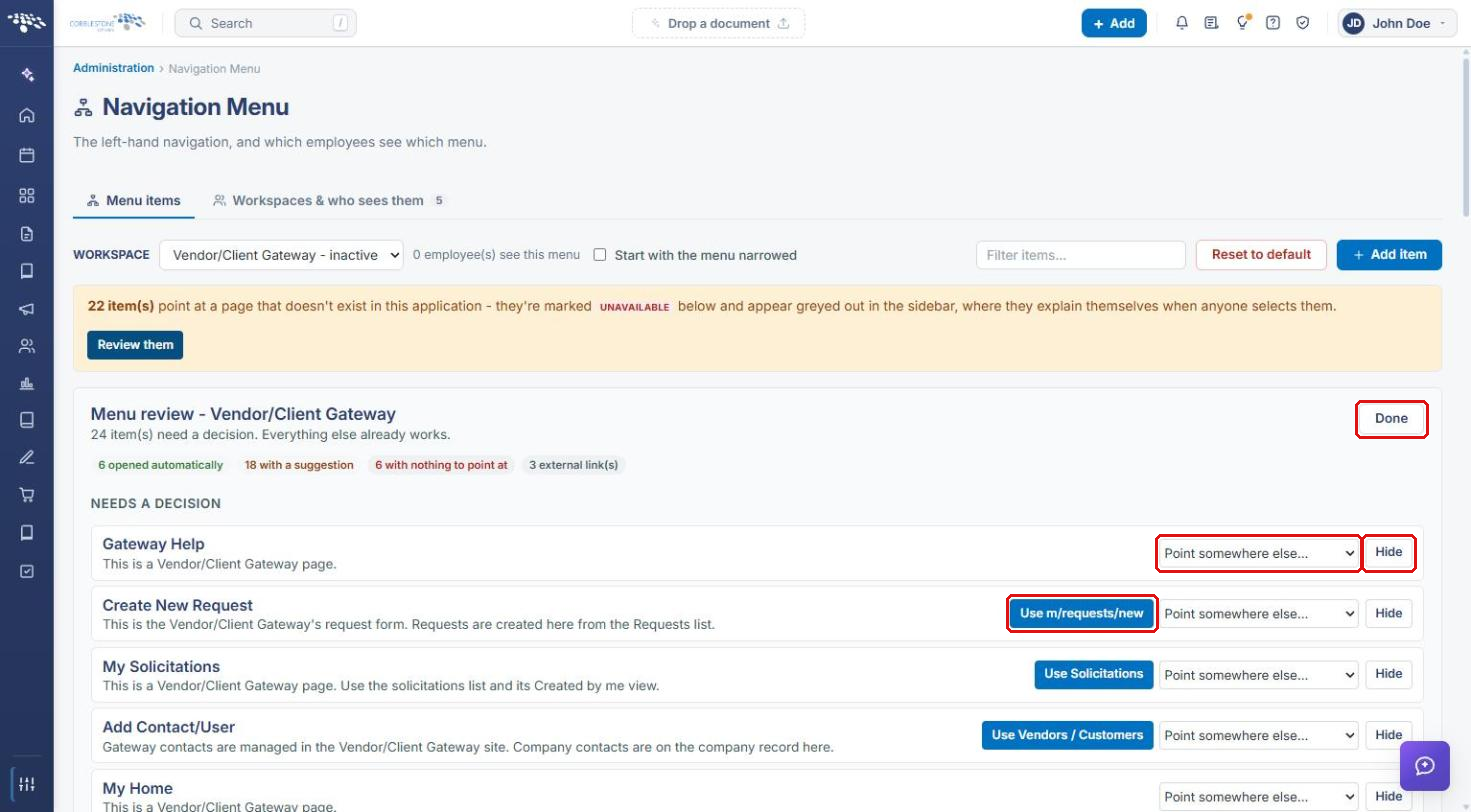
Note: The review summary shows how many items opened automatically, have a suggestion, have nothing to point at, or are external links.
7. Gateway Workspace Settings
- Click the Workspaces & who sees them tab.
- On the Vendor/Client Gateway card, click Edit its menu to jump to its menu items, or Who sees this to see who is assigned. The card also shows whether the workspace is Inactive and how many menu items it has.
Caution: Reset to default on the Menu items tab resets the workspace's menu. Don't use it unless you mean to discard your customizations.
8. Quick Reference Summary
| Task | How to Complete It |
|---|---|
| Open the Gateway menu | Administration → Navigation Menu → Workspace: Vendor/Client Gateway. |
| Edit a menu item | Pencil icon on the card → edit → Save. |
| Add a top-level item | Add item → fill in the panel → Save. |
| Add a sub-item | Add sub-item on the parent card → Save. |
| Limit an item to a module | Edit item → Advanced → Only show when this module is licensed. |
| Hide an item | Edit item → clear Visible in the menu → Save. |
| Fix unavailable items | Review them → Use …, Point somewhere else…, or Hide → Done. |
| See the Gateway workspace | Workspaces & who sees them tab → Vendor/Client Gateway card. |