COBBLESTONE SOFTWARE
Contract Insight — User Guide
1.6 Additional Gateway Configuration Settings
Module: Vendor/Client Gateway › Step 1: Vendor/Client Gateway Configuration › 1.6 Additional Gateway Configuration Settings
Note: Each procedure in this guide begins at the Contract Insight homepage, so any section can be followed on its own. Setting values shown in the screenshots are examples from a test environment.
1. Overview
Contract Insight also offers configuration settings for several other parts of the Vendor/Client Gateway: help content, the Gateway web address, search grid page size, captcha on the sign-up and login pages, and who is notified about help requests and new sign-ups. These settings are on the Settings tab of Administration → Vendor/Client Gateway (VCG), in the General and Notification groups.
2. Key Elements
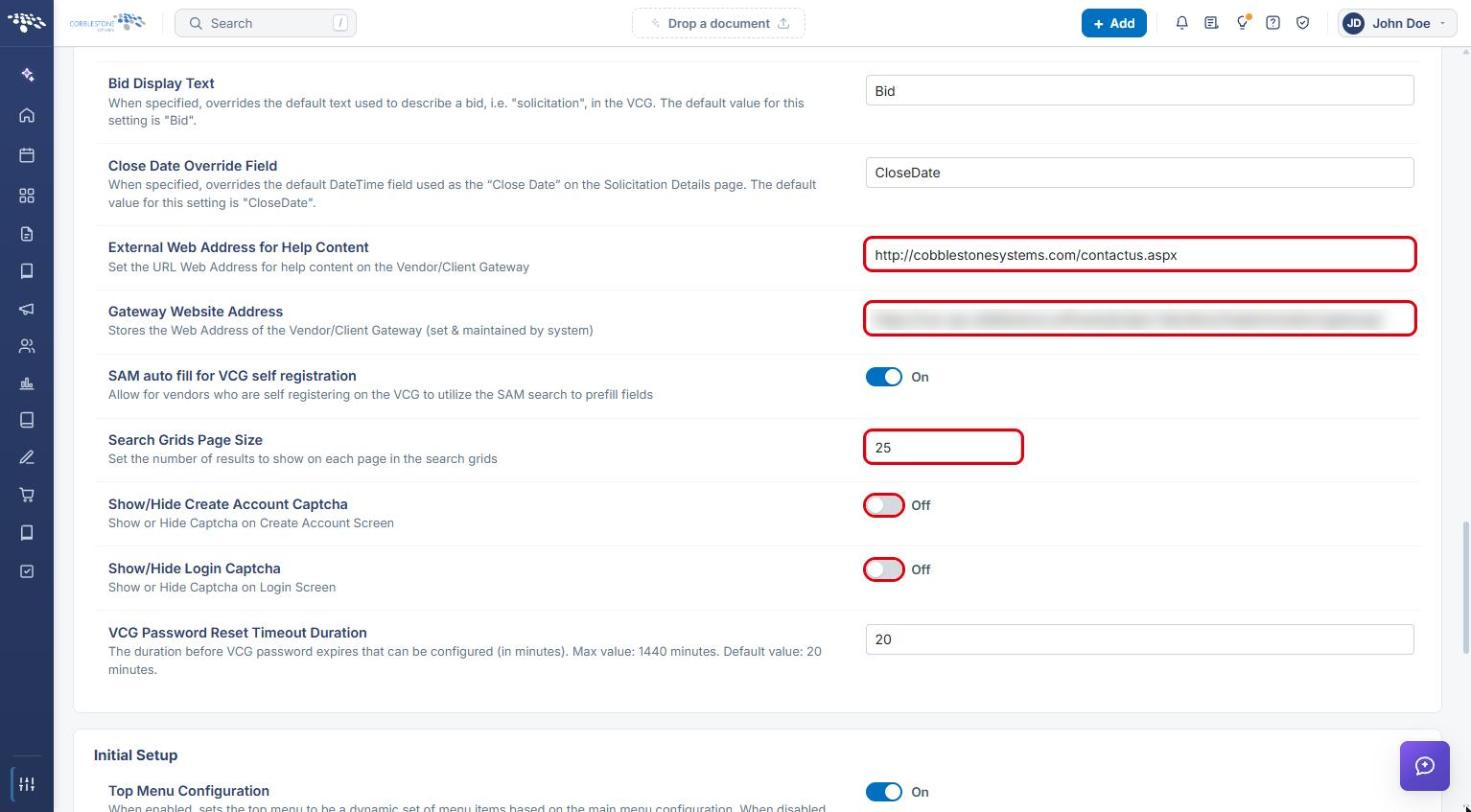
- External Web Address for Help Content: the URL Web Address for help content on the Vendor/Client Gateway.
- Gateway Website Address: stores the Web Address of the Vendor/Client Gateway. This is set and maintained by the system and should not be changed.
- Search Grids Page Size: the default number of results displayed on each page of the Gateway search grids.
- Show/Hide Create Account Captcha: whether the built-in captcha is used on the sign-up (Create Account) page.
- Show/Hide Login Captcha: whether the built-in captcha is used on the login page.
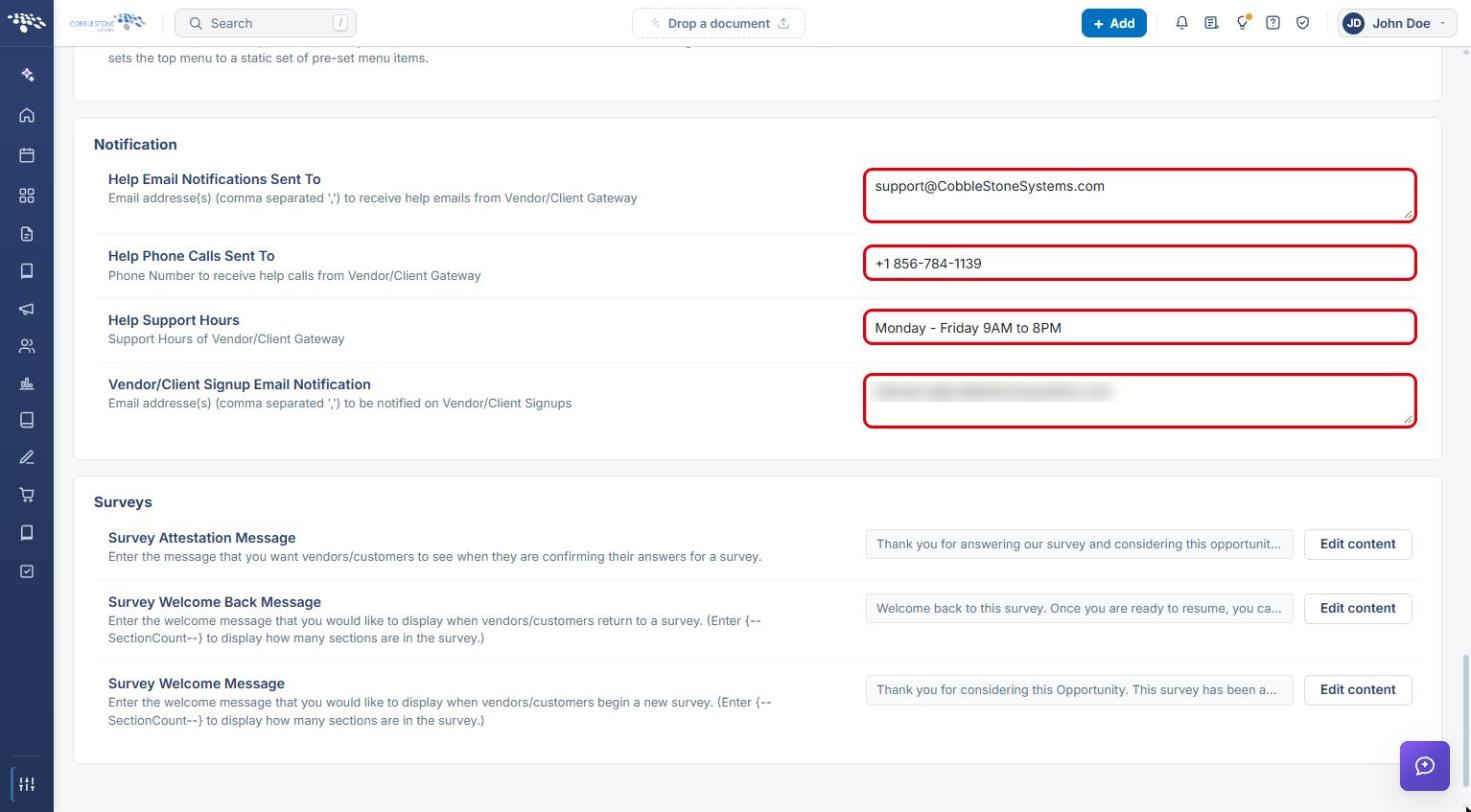
- Help Email Notifications Sent To: email address(es), comma separated, that receive Help emails submitted from the Vendor/Client Gateway.
- Help Phone Calls Sent To and Help Support Hours: the phone number and support hours shown to Gateway users for help.
- Vendor/Client Signup Email Notification: email address(es), comma separated, notified when vendors/clients sign up to the Gateway.
3. Navigating to the Gateway Settings
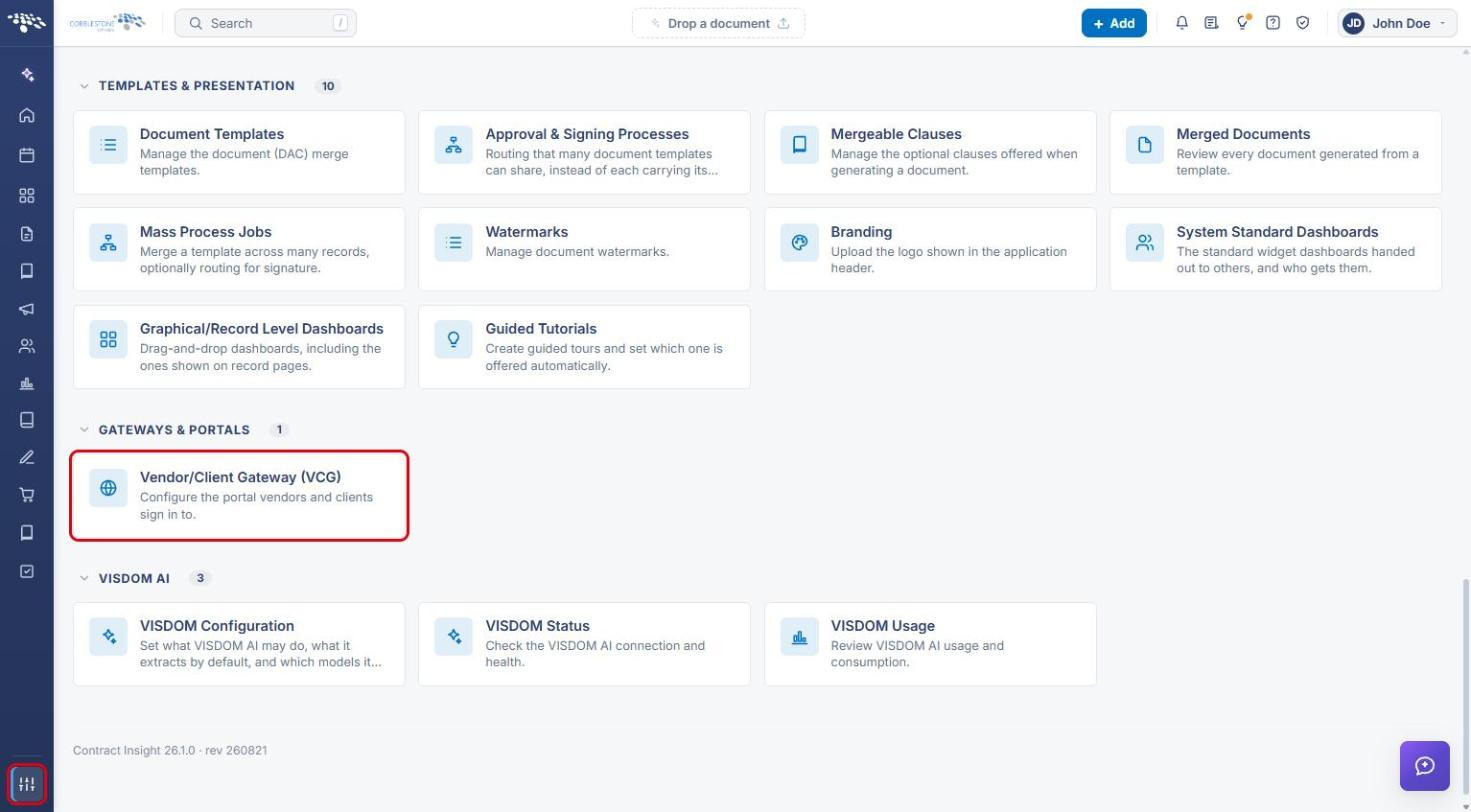
- From the Contract Insight homepage, click the Administration icon at the bottom of the left navigation menu.
- Under Gateways & Portals, click Vendor/Client Gateway (VCG).
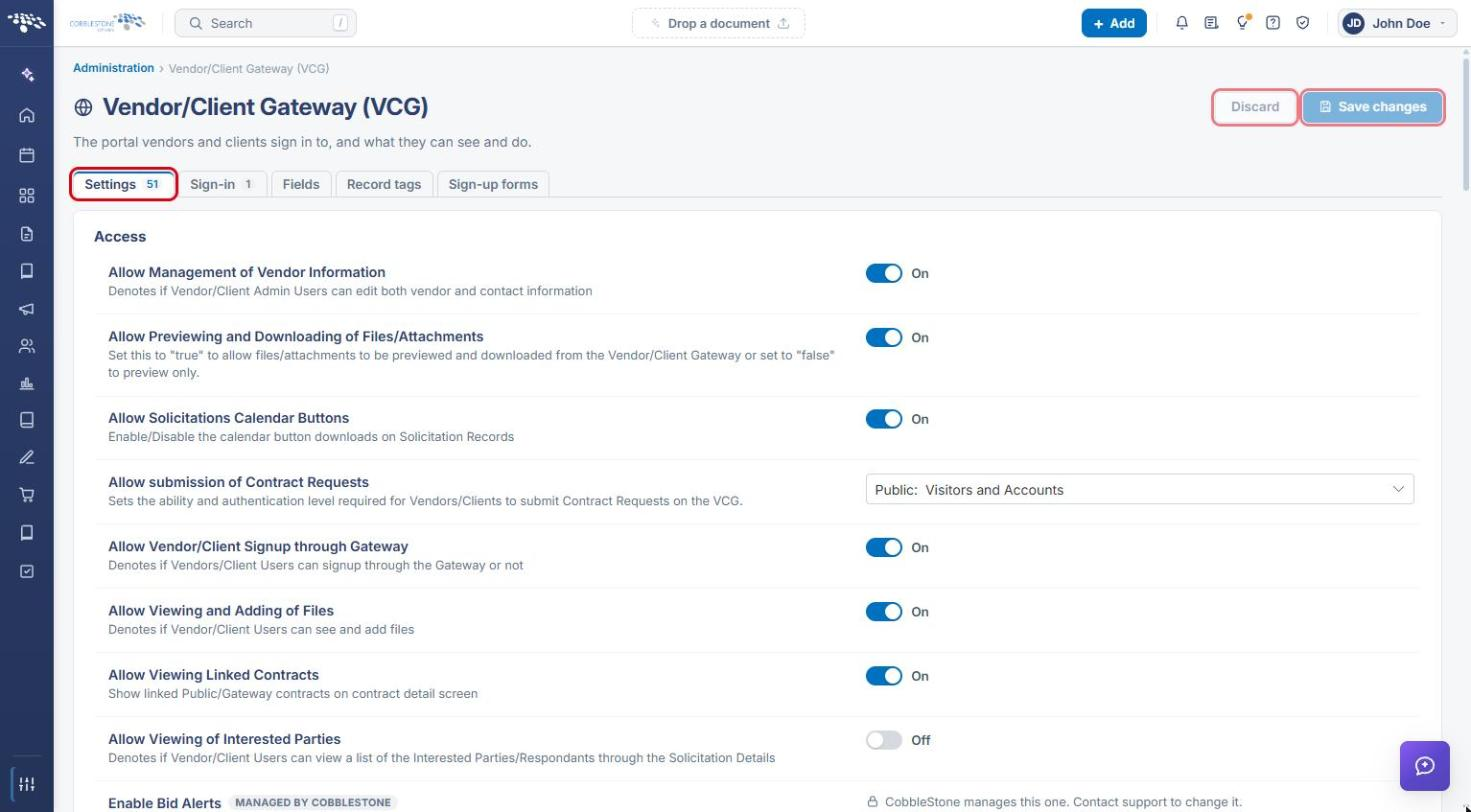
- The page opens on the Settings tab. Settings are grouped into Access, Content, Emails, General, Initial Setup, Notification and Surveys. After making changes, click Save changes (or Discard to undo them).
4. General Settings
- Scroll to the General group.
- In External Web Address for Help Content, enter the URL Gateway users should be sent to for help.
- Leave Gateway Website Address unchanged; it is maintained by the system.
- In Search Grids Page Size, enter the default number of results per page (for example, 25).
- Turn Show/Hide Create Account Captcha and Show/Hide Login Captcha On to require the built-in captcha on the sign-up and login pages, or Off to hide it.
- Click Save changes.
5. Notification Settings
- Scroll to the Notification group.
- In Help Email Notifications Sent To, enter the email address(es) that should receive Help emails from the Gateway. Separate multiple addresses with commas.
- Optionally enter Help Phone Calls Sent To and Help Support Hours to show Gateway users how to reach support.
- In Vendor/Client Signup Email Notification, enter the email address(es) to notify when a vendor or client signs up. Separate multiple addresses with commas.
- Click Save changes.
6. Quick Reference Summary
| Task | How to Complete It |
|---|---|
| Open Gateway settings | Administration → Gateways & Portals → Vendor/Client Gateway (VCG) → Settings tab. |
| Set the help content URL | General → External Web Address for Help Content. |
| Change grid page size | General → Search Grids Page Size. |
| Turn captcha on or off | General → Show/Hide Create Account Captcha / Show/Hide Login Captcha. |
| Route help emails | Notification → Help Email Notifications Sent To. |
| Get notified of sign-ups | Notification → Vendor/Client Signup Email Notification. |
| Apply changes | Save changes (top-right). |