COBBLESTONE SOFTWARE
Contract Insight — User Guide
1.5 Managing Emails on the Gateway
Module: Vendor/Client Gateway › Step 1: Vendor/Client Gateway Configuration › 1.5 Managing Emails on the Gateway
Note: Each procedure in this guide begins at the Contract Insight homepage, so any section can be followed on its own. Custom fields are configurable, so the exact field list on a contract category record may vary between environments.
1. Overview
The Emails group on the Vendor/Client Gateway (VCG) Settings tab controls the notifications the Gateway sends: whether administrators are alerted when a client registers or a file is uploaded, and the title/body content used on new-account and password-reset emails. New Account Emails Body Intro and Password Reset Emails Body End are both editable rich-text blocks, each paired with its own Title field for the email subject line.
2. Key Elements
- Enable Alerts for Client Registration and Enable Alerts for File Uploads are on/off toggles that control whether notifications are sent when clients register or upload files.
- New Account Emails Title sets the subject line used whenever a new Gateway account email goes out.
- New Account Emails Body Intro is the customizable introduction text placed before the system's standard account details. It is edited with Edit content.
- Password Reset Emails Title and Password Reset Emails Body End follow the same title/body pattern for the password reset flow.
- Changes are not applied until you click Save changes at the top of the page. Discard abandons unsaved changes.
3. Navigating to the Gateway Settings
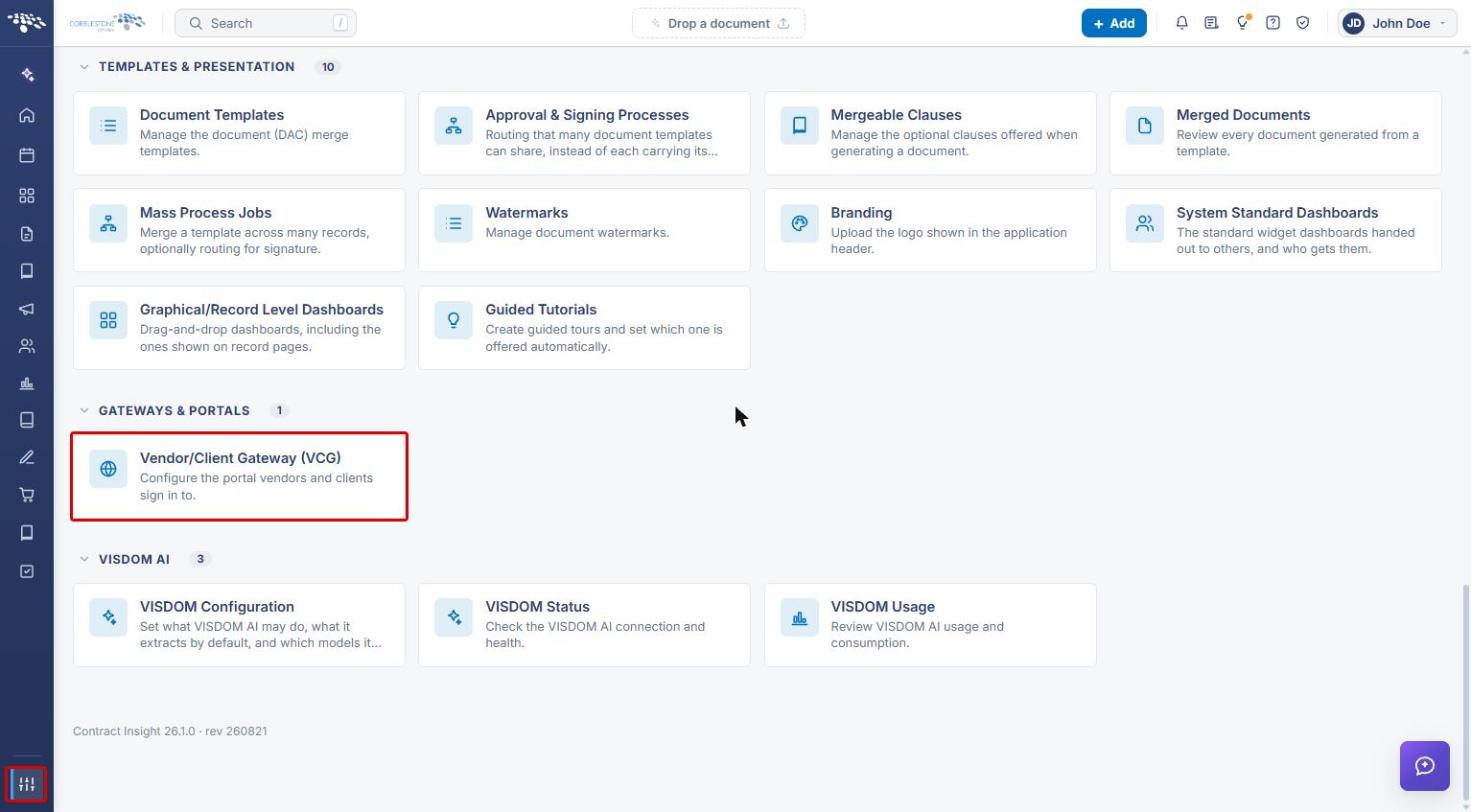
- From the Contract Insight homepage, click the Application settings icon at the bottom of the left navigation bar.
- Under Gateways & Portals, click Vendor/Client Gateway (VCG).
- The page opens on the Settings tab. Scroll down to the Emails group.
4. Configuring Email Alerts and Titles
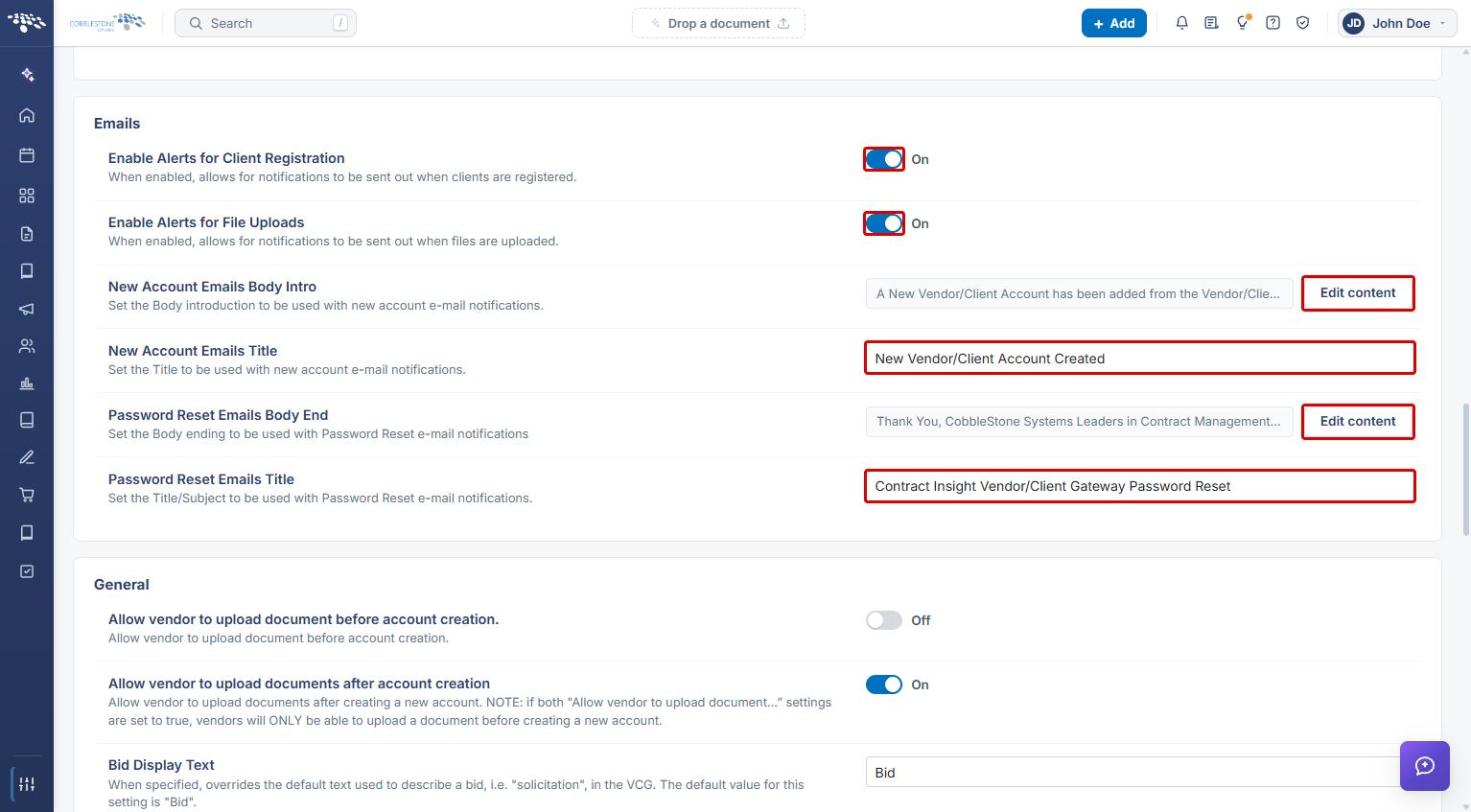
- Click Enable Alerts for Client Registration to turn notifications for new client registrations On or Off.
- Click Enable Alerts for File Uploads to turn notifications for Gateway file uploads On or Off.
- In New Account Emails Title, enter the subject line for new-account emails.
- In Password Reset Emails Title, enter the subject line for password-reset emails.
| Setting | Type | What it controls |
|---|---|---|
| Enable Alerts for Client Registration | Toggle | Sends notifications when clients register on the Gateway. |
| Enable Alerts for File Uploads | Toggle | Sends notifications when files are uploaded on the Gateway. |
| New Account Emails Body Intro | Rich text (Edit content) | Introduction text at the start of new-account email notifications. |
| New Account Emails Title | Text | Subject line of new-account email notifications. |
| Password Reset Emails Body End | Rich text (Edit content) | Closing text at the end of password-reset email notifications. |
| Password Reset Emails Title | Text | Subject line of password-reset email notifications. |
5. Editing Email Body Content
- Click Edit content next to New Account Emails Body Intro or Password Reset Emails Body End.
- A side panel opens with a rich-text editor. Use the toolbar (bold, italic, underline, paragraph style, alignment, quote, numbered and bulleted lists) to format the text.
- Click Close to return to the Settings tab.
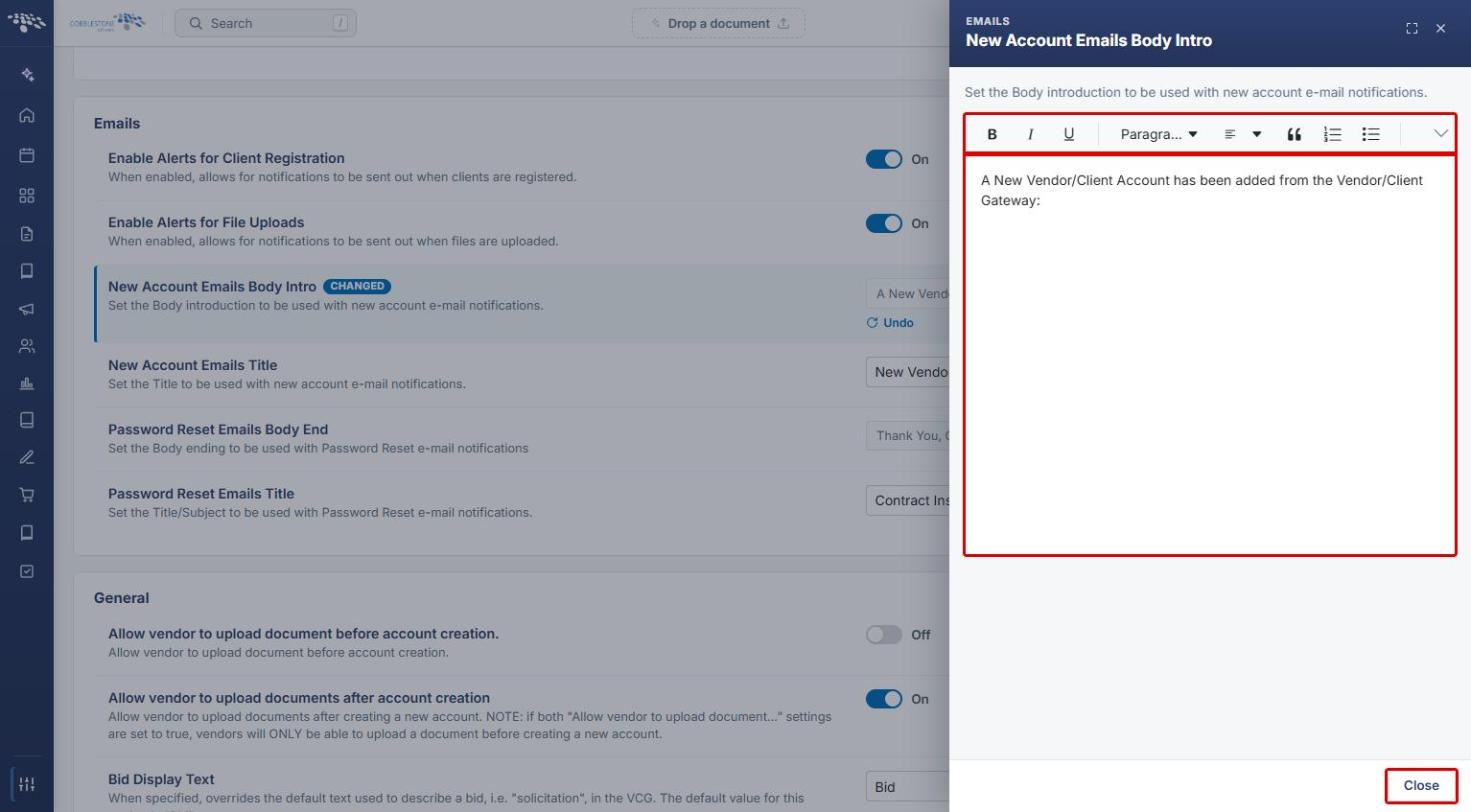
Note: Once a setting has been edited, it is flagged CHANGED on the Settings tab. Click Undo beneath the setting to revert that one change.
6. Saving Your Changes
- Scroll back to the top of the page.
- Click Save changes to apply your email settings. To abandon unsaved changes, click Discard.
Note: Save changes is disabled until at least one setting has been changed.
7. Related Articles
- 1.3 Managing Access to the Gateway
- 1.4 Managing Content on the Gateway