COBBLESTONE SOFTWARE
Contract Insight — User Guide
1.4 Managing Content on the Gateway
Module: Vendor/Client Gateway › Step 1: Vendor/Client Gateway Configuration › 1.4 Managing Content on the Gateway
Note: Each procedure in this guide begins at the Contract Insight homepage, so any section can be followed on its own. Custom fields are configurable, so the exact field list on a contract category record may vary between environments.
1. Overview
The Content group on the VCG Settings tab holds every block of text shown to vendors and clients on the portal itself: the Default/Intro Page, the post-login Welcome Page, the Help Page, the New Account Confirmation page’s top and bottom sections, the Header, a Confidentiality Message shown on every page, and the Gateway Login Terms and Conditions. Each is a title/body pair with its own Edit content link opening a rich text editor.
2. Key Elements
- Default/Intro Page Content and Welcome Page Content each pair with their own Title field
- Header Content and Confidentiality Message appear on every page of the Gateway
- Gateway Login Terms and Conditions and Solicitations Terms and Conditions are separate agreements shown at different points in the flow
- New Account Confirmation Top Content and Bottom Content frame the page a new registrant lands on after signing up
3. Navigating to the Vendor/Client Gateway Settings
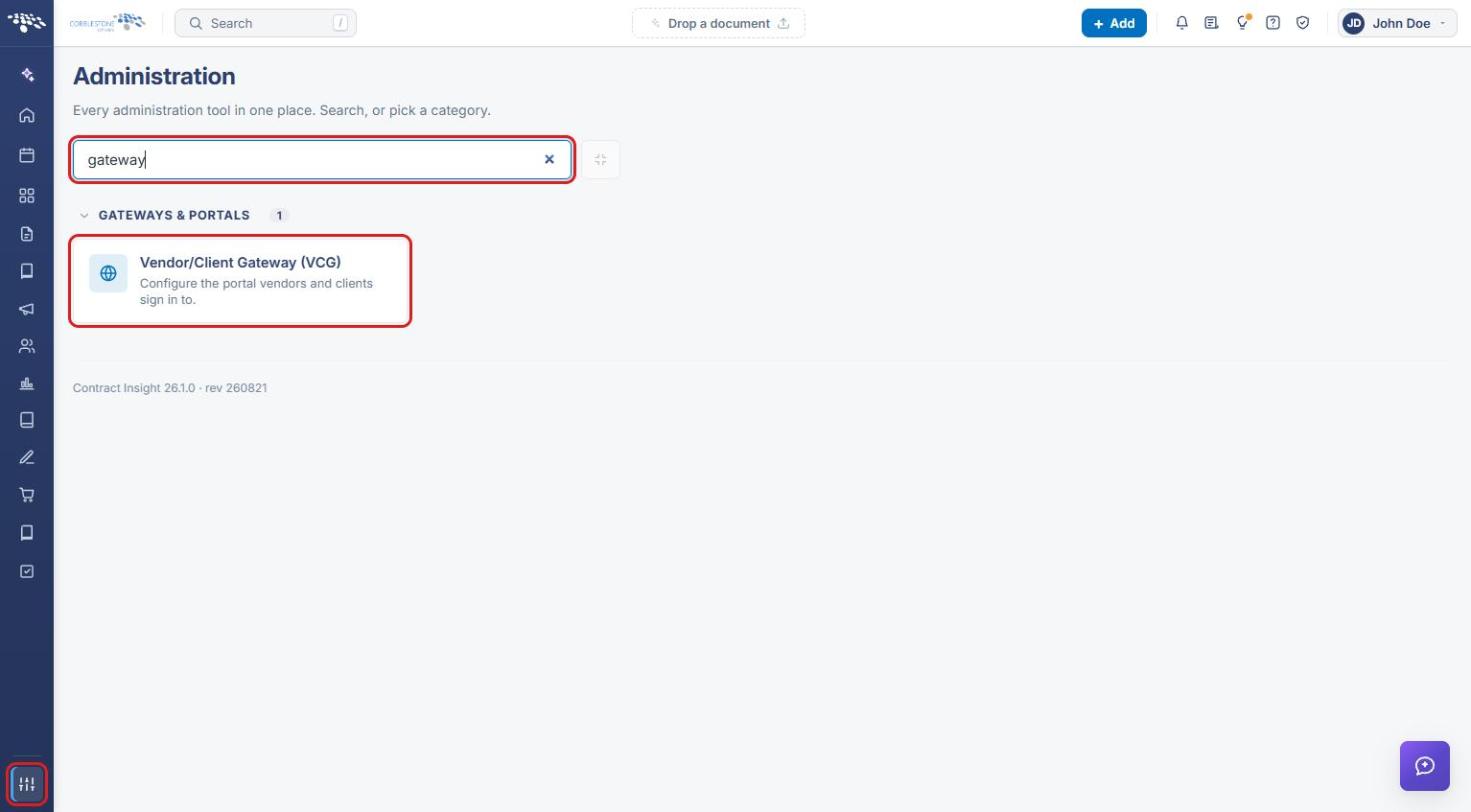
- From the Contract Insight homepage, click the Administration icon at the bottom of the left navigation bar.
- In the Search administration box, type gateway, or scroll to the Gateways & Portals category.
- Click Vendor/Client Gateway (VCG). The page opens on the Settings tab.
4. Locating the Content Settings
4a. The Content Group
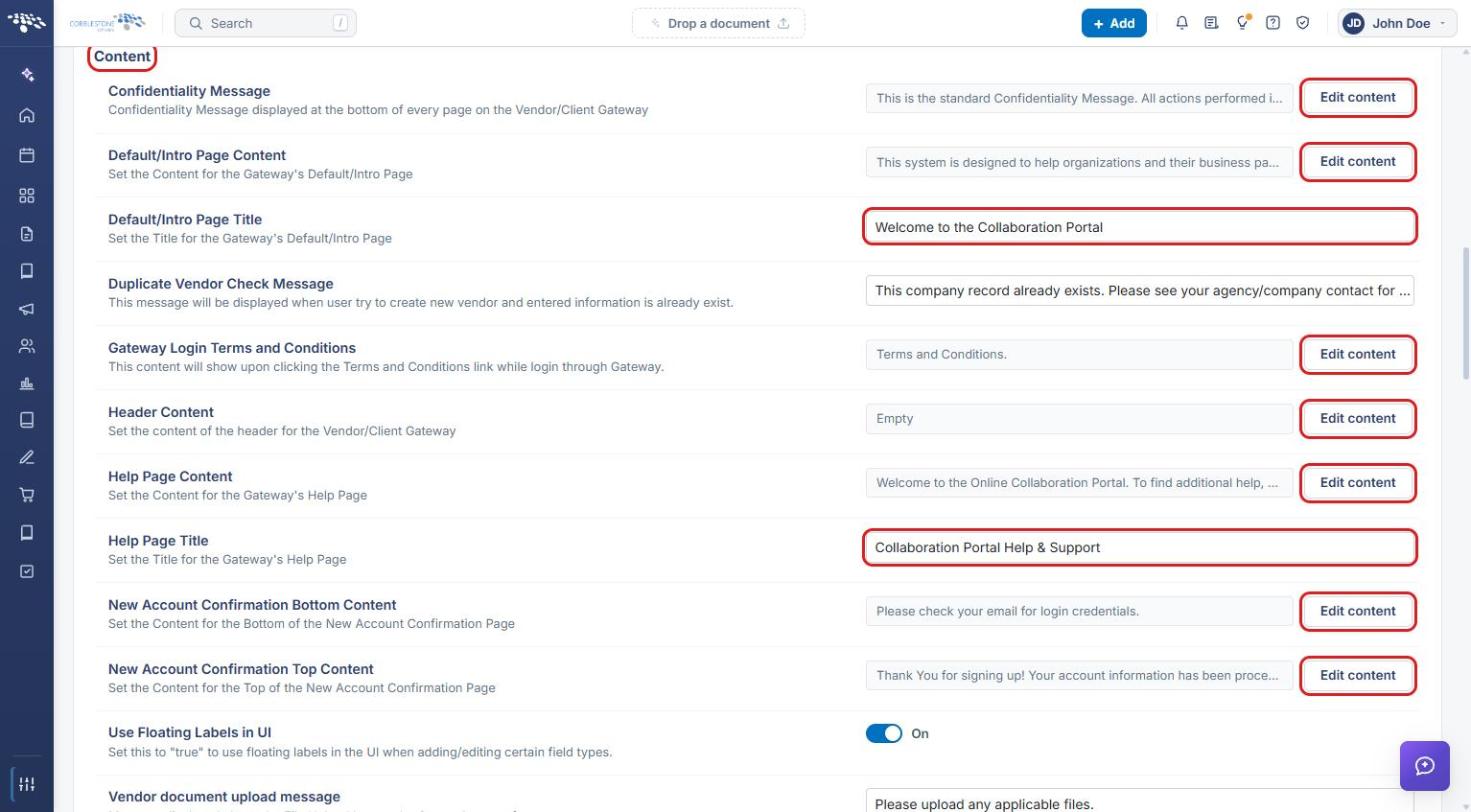
- On the Settings tab, scroll down to the Content group.
- Each rich-text item shows a preview of its current text and an Edit content button: Confidentiality Message, Default/Intro Page Content, Gateway Login Terms and Conditions, Header Content, Help Page Content, and New Account Confirmation Bottom/Top Content.
- Page titles, such as Default/Intro Page Title and Help Page Title, are plain text boxes you type into directly.
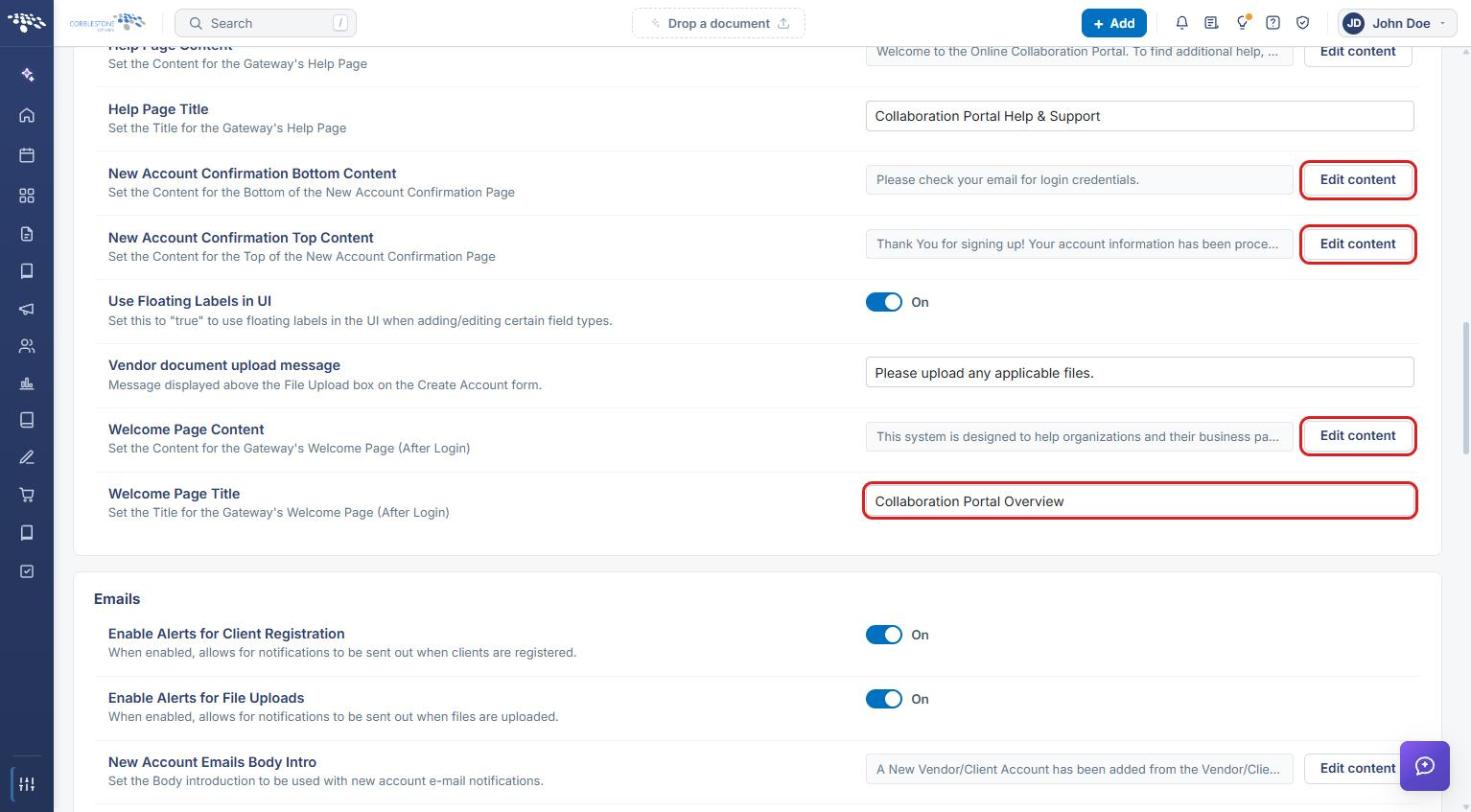
- Continue scrolling to the end of the Content group for Welcome Page Content (with Edit content) and Welcome Page Title, which vendors and clients see after they sign in.
4b. Solicitations Terms and Conditions
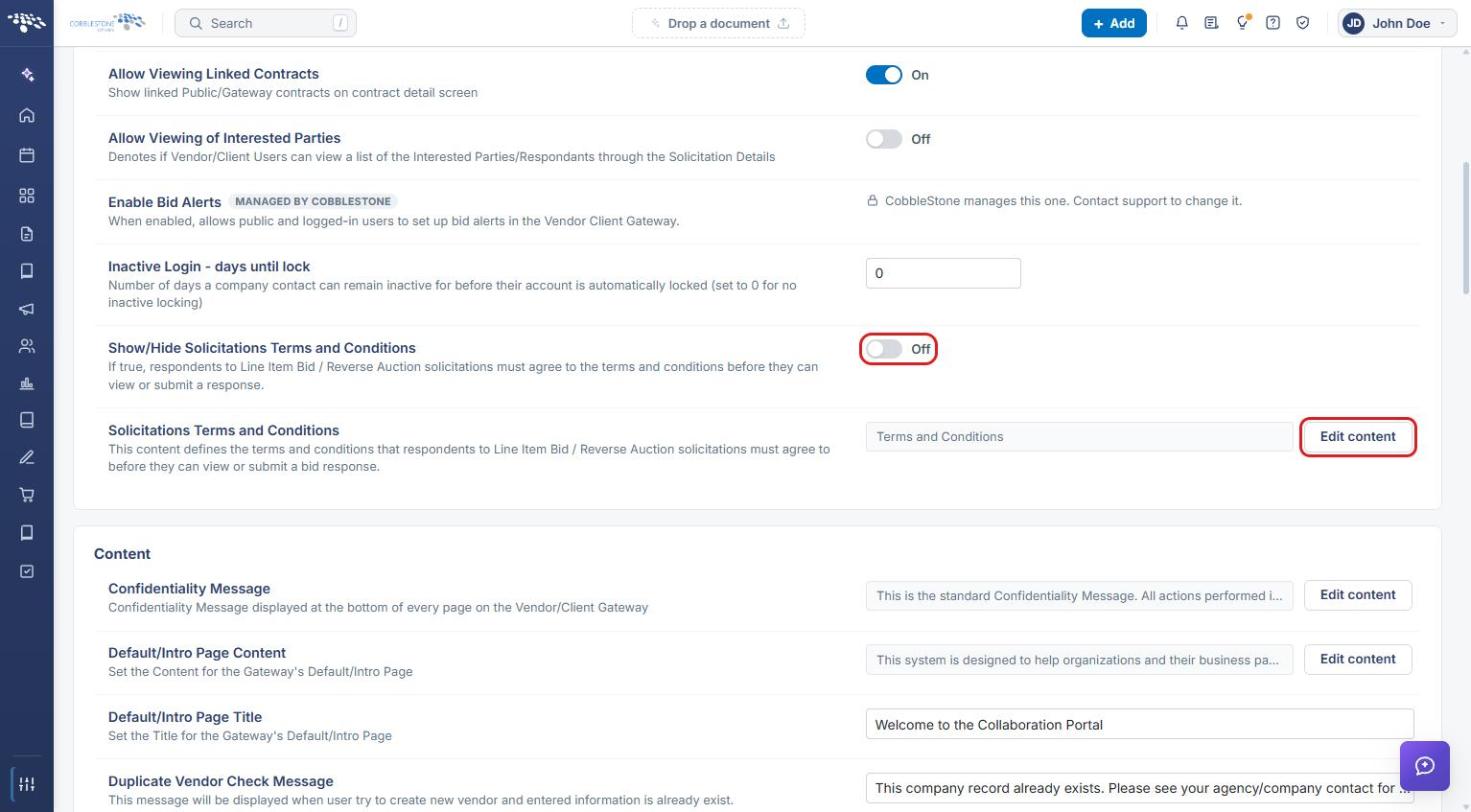
- Solicitations Terms and Conditions sit just above the Content group, at the end of the Access group.
- Turn on Show/Hide Solicitations Terms and Conditions to require respondents to Line Item Bid / Reverse Auction solicitations to agree before they can view or submit a response.
- Click Edit content on Solicitations Terms and Conditions to change the agreement text.
5. Editing Content
- Click Edit content on the item to change. A panel opens on the right showing the item’s name and description.
- Edit the text in the rich text editor. Use the toolbar for bold, italic, underline, paragraph style, alignment, quotes, and lists; click the arrow at the right of the toolbar for more options. Click the expand icon in the panel header for a larger editor.
- Click Close when finished. The item is marked CHANGED in the list; click Undo under it to revert that item.
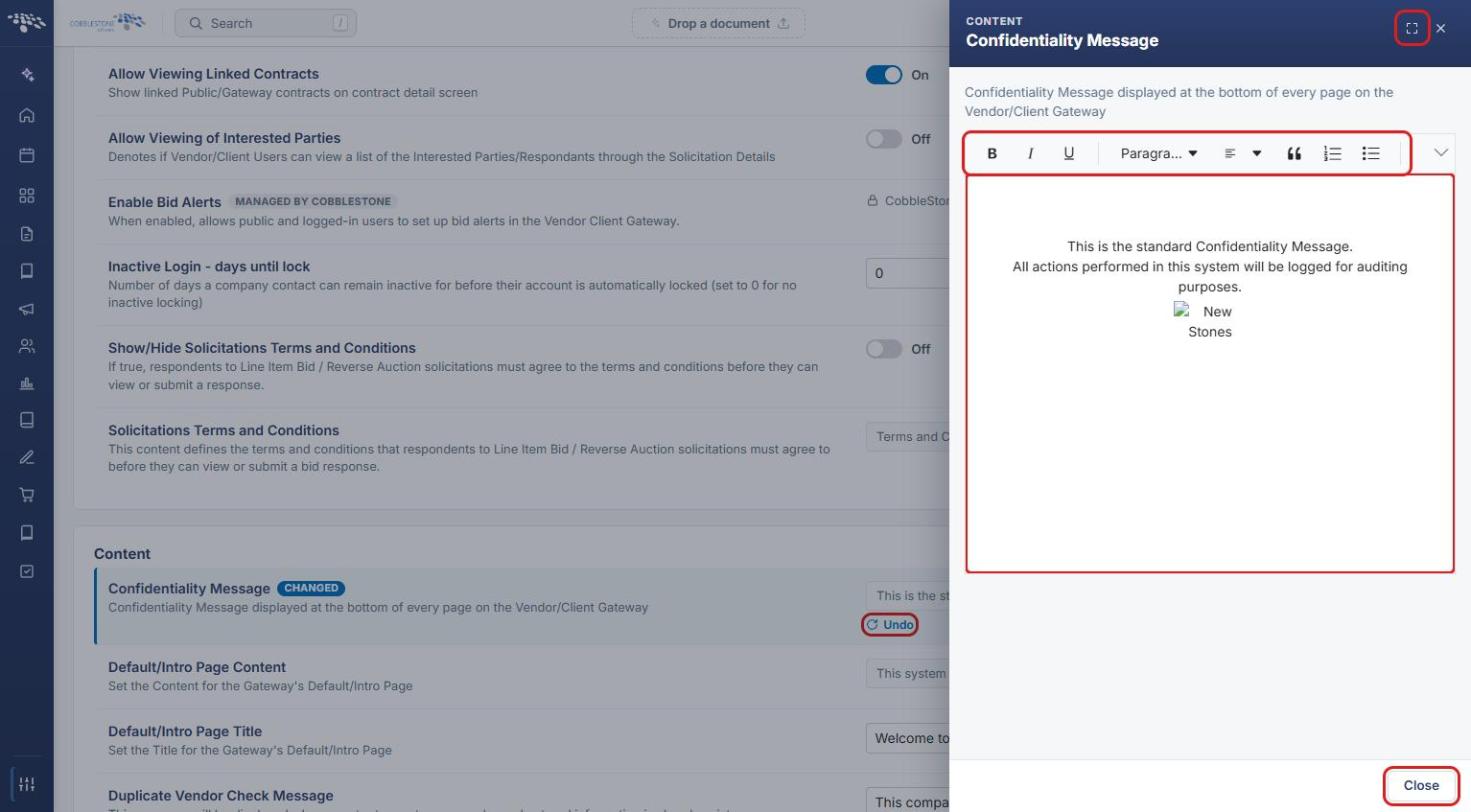
Note: Changes are not saved when you close the editor. They are held until you save them on the page (see Section 6).
6. Saving or Discarding Changes
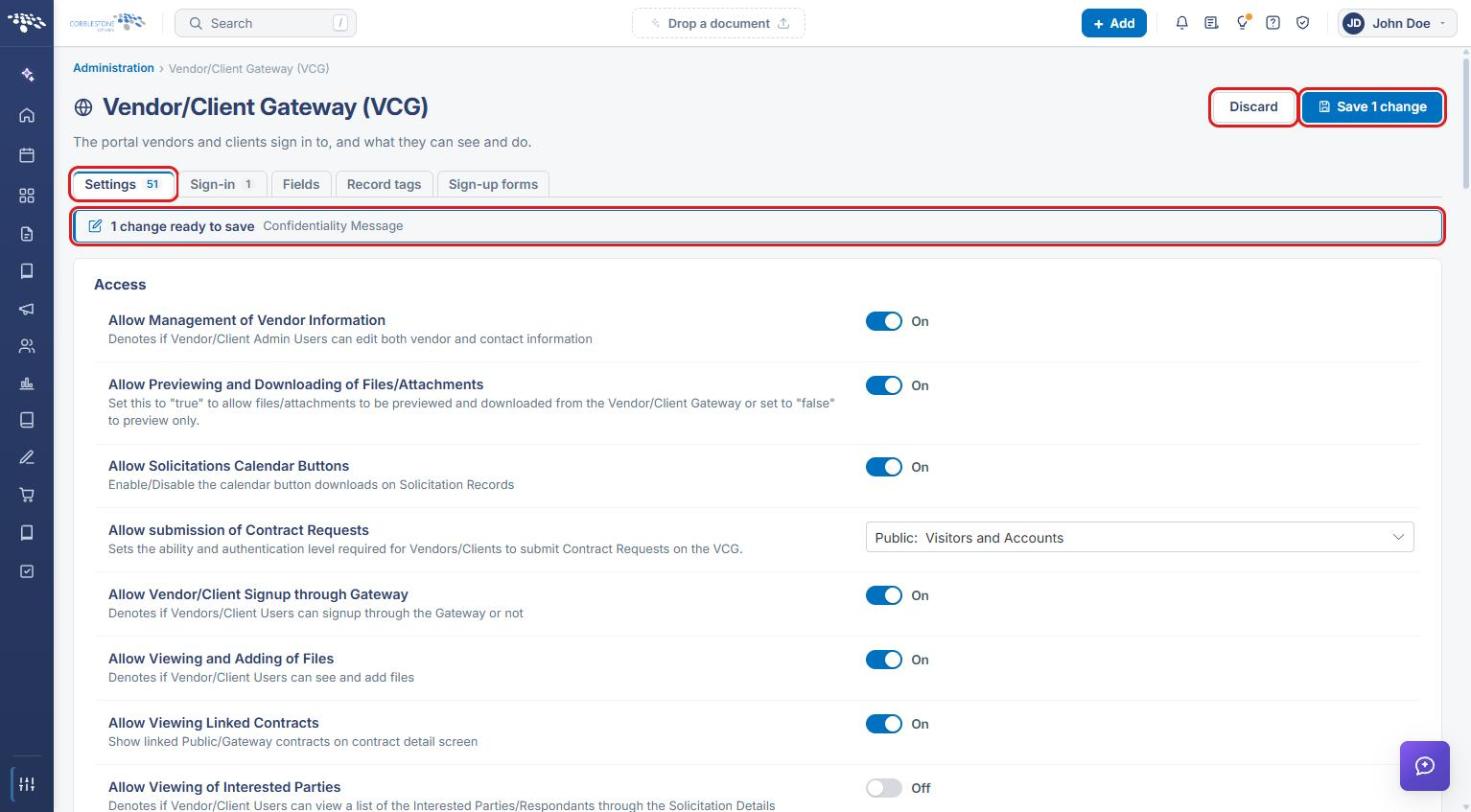
- Scroll back to the top of the page. A banner lists the changes waiting to be saved, for example 1 change ready to save.
- Click Save changes (shown as Save 1 change, Save 2 changes, and so on) to apply them to the Gateway.
- Click Discard to throw away every unsaved change instead.
7. Quick Reference Summary
| Task | How to Complete It |
|---|---|
| Open the Gateway settings | Administration → search gateway → Vendor/Client Gateway (VCG) → Settings tab. |
| Find the portal text | Settings tab → Content group. |
| Edit a page’s body text | Item → Edit content → edit → Close. |
| Change a page title | Type in the item’s Title box. |
| Require Solicitations T&C | Access group → Show/Hide Solicitations Terms and Conditions → On. |
| Revert one item | Undo under the changed item. |
| Apply or cancel all changes | Save changes or Discard at the top of the page. |