COBBLESTONE SOFTWARE
Contract Insight — User Guide
1.1 Vendor/Client Gateway Overview
Module: Vendor/Client Gateway › Step 1: Vendor/Client Gateway Configuration › 1.1 Vendor/Client Gateway Overview
Note: Each procedure in this guide begins at the Contract Insight homepage, so any section can be followed on its own. Custom fields are configurable, so the exact field list on a contract category record may vary between environments.
1. Overview
The Vendor/Client Gateway (VCG) is the separate portal that vendors and clients sign in to. It is a scoped-down view of the application, built around what an outside company should see and do: submit requests, respond to solicitations, manage their own contact and company records, upload files, and handle their own approval and signature steps. Everything about it is configured from one Administration screen: behavior, sign-in, fields, record tags and sign-up forms. Its left-hand menu is managed separately, as its own workspace under Administration → Navigation Menu.
2. Key Elements
- Administration → Vendor/Client Gateway (VCG), under the Gateways & Portals category, is the single configuration hub.
- Its five tabs are Settings, Sign-in, Fields, Record tags and Sign-up forms.
- Settings are grouped into Access, Content, Emails, General, Initial Setup, Notification and Surveys. Changes are kept with Save changes or undone with Discard.
- Fields, Record tags and Sign-up forms save each change as you make it.
- The Gateway has its own left-navigation menu, assigned as a distinct workspace (Vendor/Client Gateway) separate from the internal Core Application menu.
- Gateway menu groups include Contracts, Requests, Solicitations, Contacts/Users, Electronic Documents, Purchase Orders and Reports.
3. Navigating to the Gateway Configuration
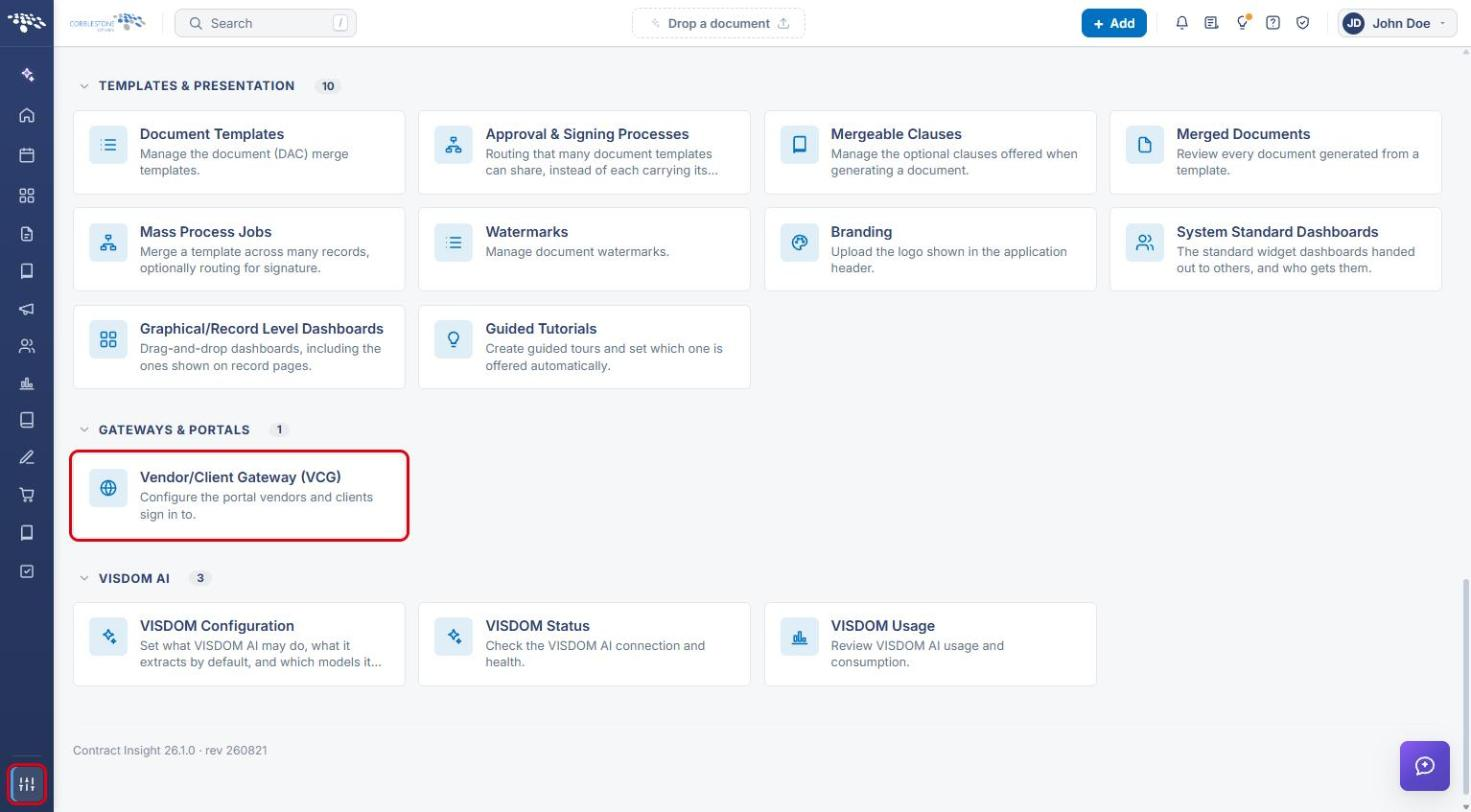
- From the Contract Insight homepage, click the Administration icon at the bottom of the left navigation menu.
- Scroll to Gateways & Portals and click Vendor/Client Gateway (VCG).
4. Gateway Configuration Tabs
4a. Settings
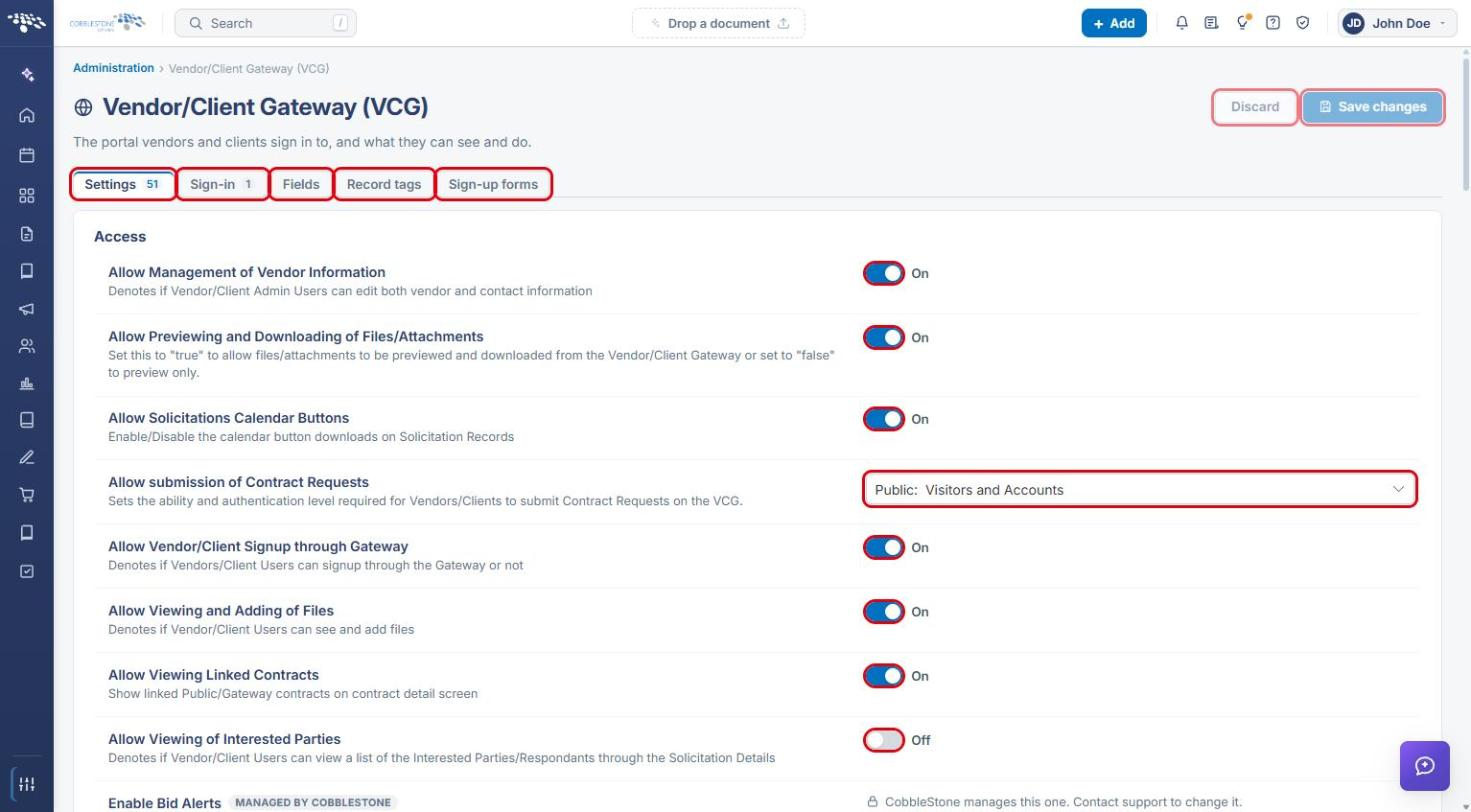
The Settings tab controls what Gateway users can see and do. The count beside the tab shows how many settings are available.
- Review each setting in its group (for example, Access). Use the toggle to turn a setting On or Off, or pick a value from its dropdown (for example, Allow submission of Contract Requests).
- Settings marked Managed by CobbleStone can only be changed by contacting support.
- Click Save changes to apply your edits, or Discard to undo them.
4b. Sign-in
- Click the Sign-in tab.
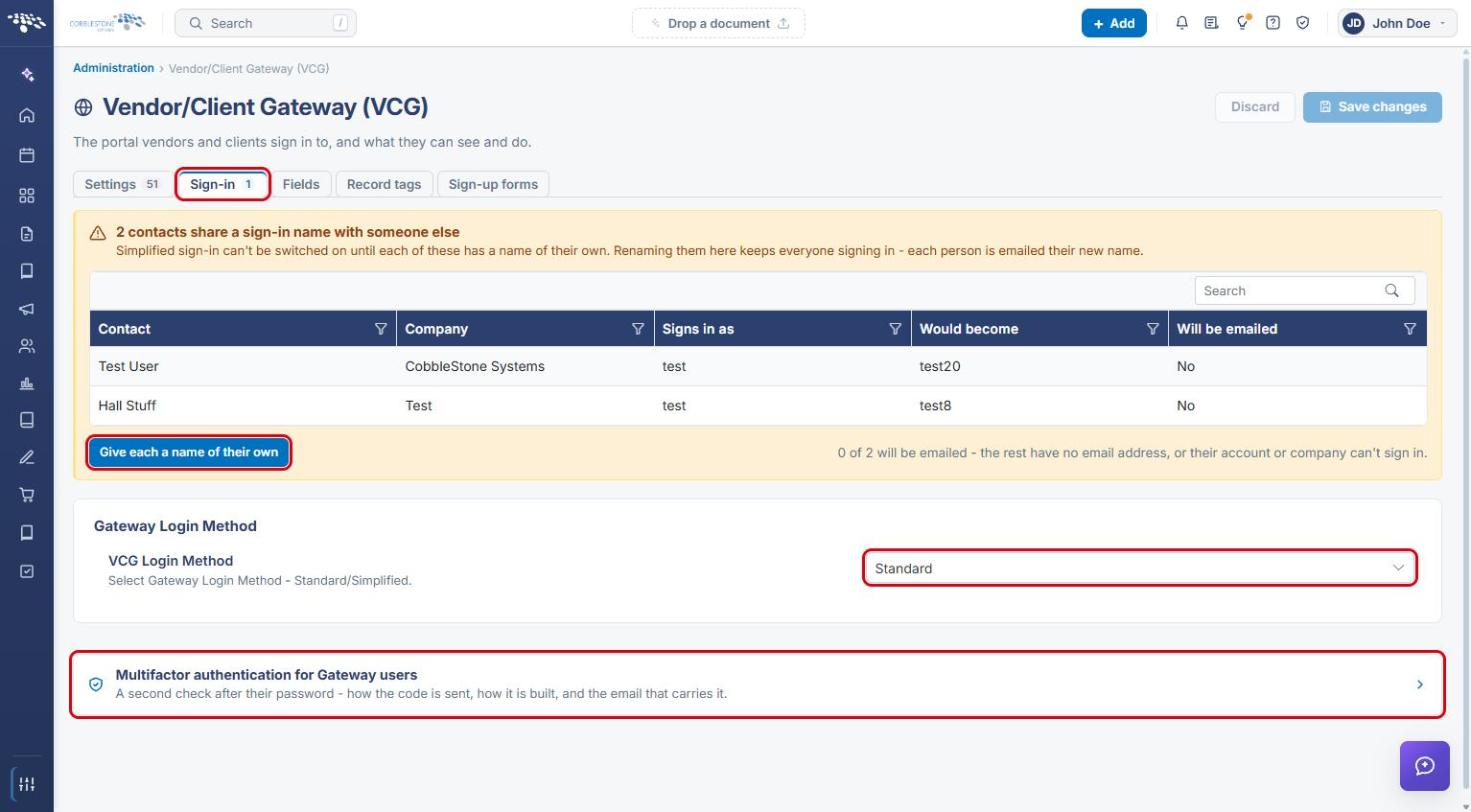
- Set the VCG Login Method: Standard (user name, password and company ID) or Simplified (email address and password).
- If contacts share a sign-in name, a warning lists them. Simplified sign-in can't be switched on until each one has a unique name. Click Give each a name of their own to rename them; each person with an email address is emailed their new name.
- Click Multifactor authentication for Gateway users to set how the second sign-in check works.
Note: SAML or ADFS single sign-on for Gateway users is set up separately, on Administration → Single Sign-On → Vendors & clients (Gateway) tab.
4c. Fields
- Click the Fields tab and choose an Area (for example, Contract Details) and a Record type. Each area, and each record type, has its own Gateway field set.
- Under Not shown, use Find a field and click « Add to move a field into On the Gateway. Drag fields there to reorder them.
- Use Add every field or Remove all fields to change the list in one step, or Start from another type → Copy its fields here to reuse another record type's list.
- Use the Requests they can raise sub-tab to choose which requests Gateway users can submit for this record type.
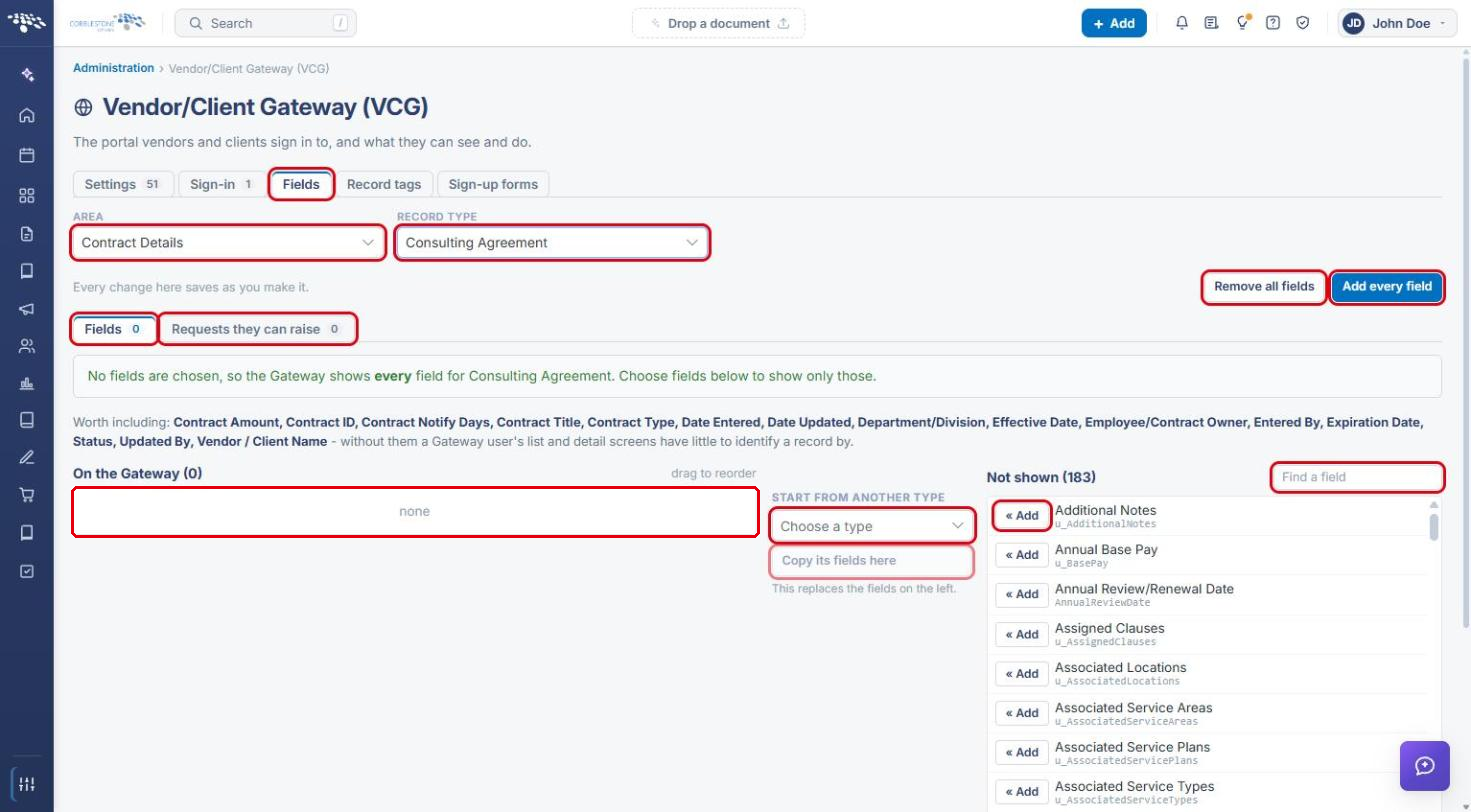
Note: If no fields are chosen, the Gateway shows every field for that record type. Changes on this tab save as you make them.
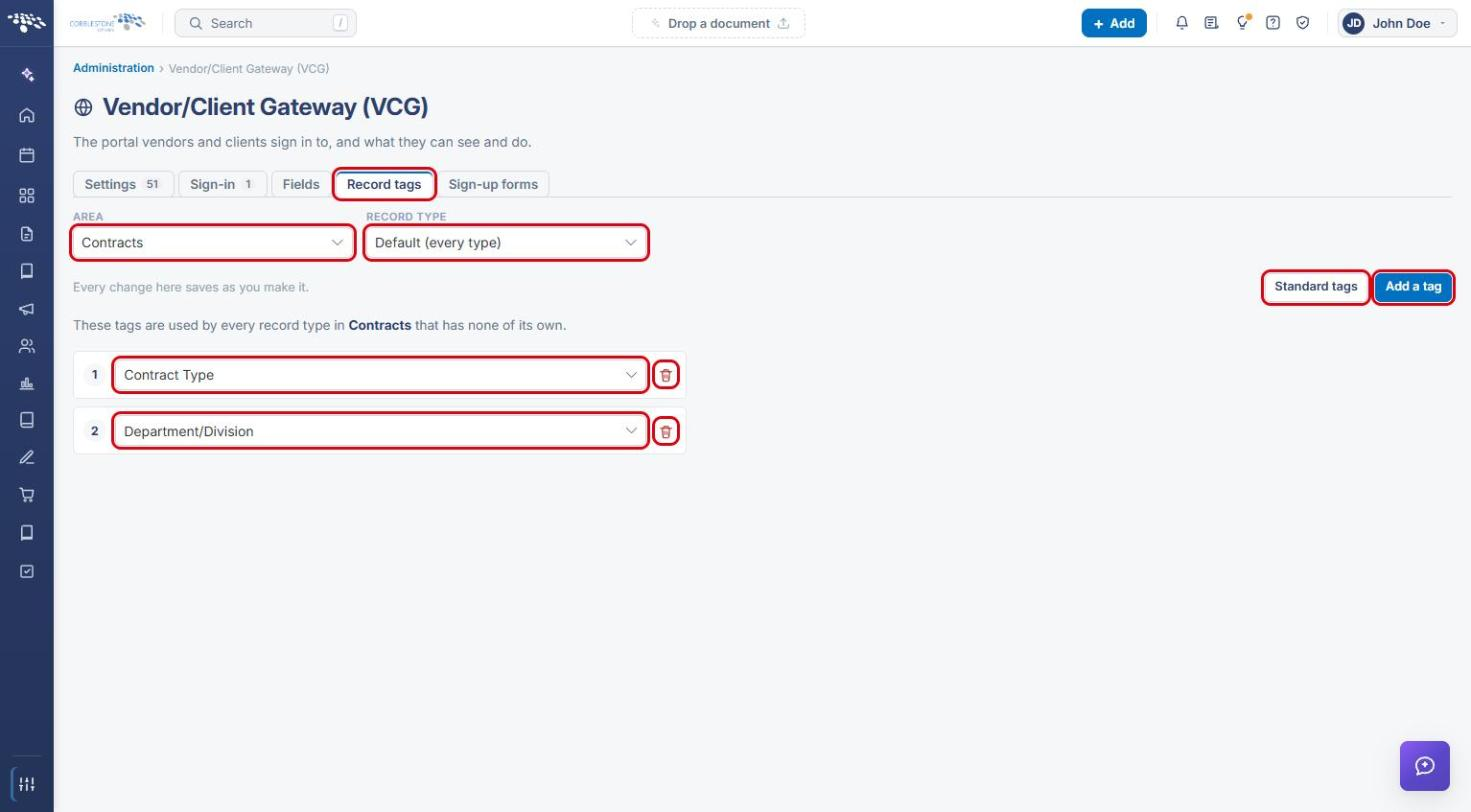
4d. Record Tags
- Click the Record tags tab and choose an Area (Contracts, Requests, Vendors / customers or Employees) and a Record type. Default (every type) applies to every type without tags of its own.
- Choose the field for each tag from its dropdown. Use the trash icon to remove a tag.
- Click Add a tag to add another, or Standard tags to return to the standard set.
4e. Sign-up Forms
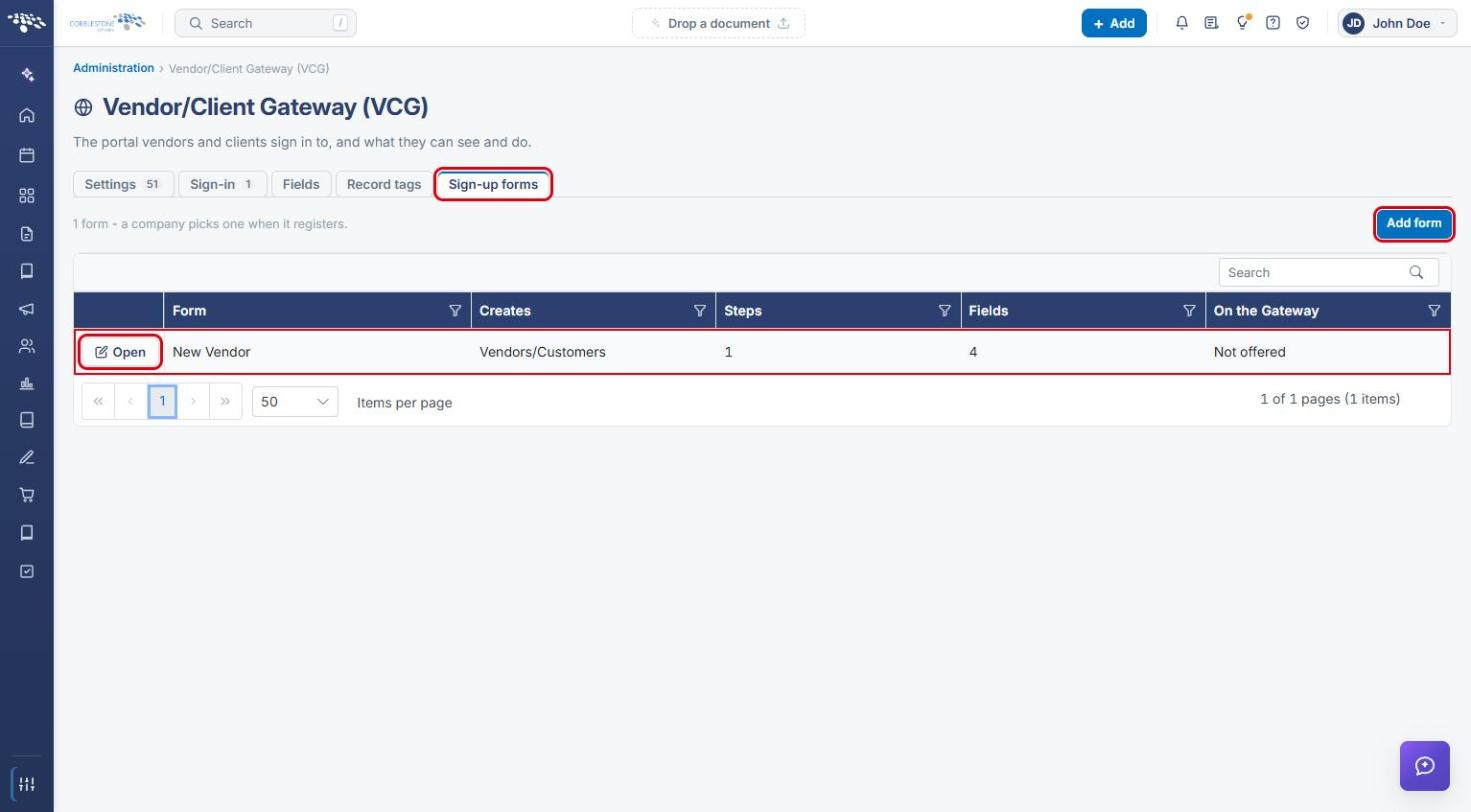
- Click the Sign-up forms tab to see the registration forms a company can pick from when it signs up, along with what each form Creates, its Steps, Fields, and whether it is offered On the Gateway.
- Click Open to edit a form, or Add form to create a new one.
5. Gateway Navigation Menu
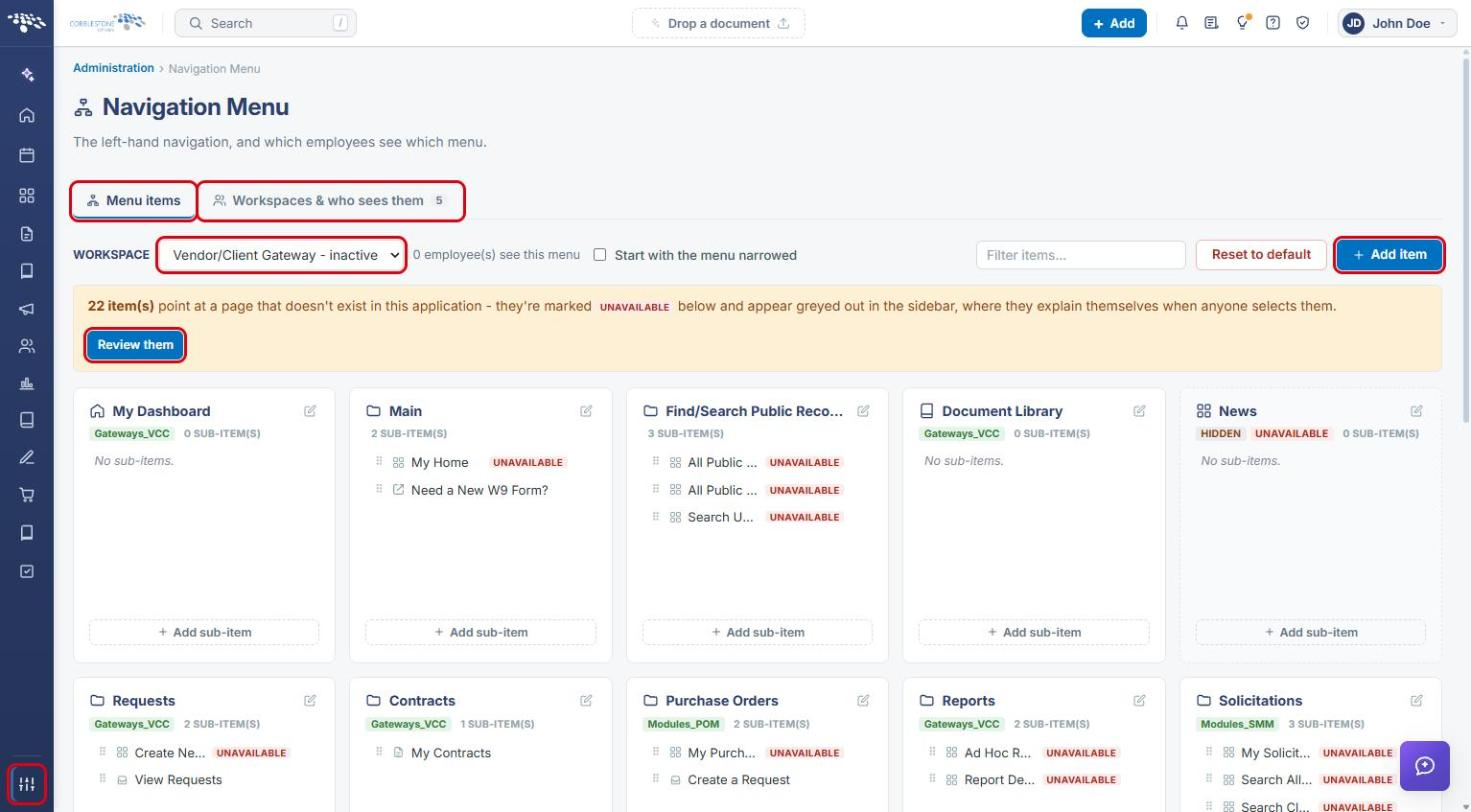
- From Administration, open Navigation Menu (under Configuration & Fields).
- On the Menu items tab, set Workspace to Vendor/Client Gateway to see the Gateway's own menu groups and sub-items.
- Use Add item or Add sub-item to extend the menu. If items point to pages that aren't available, click Review them.
- Use the Workspaces & who sees them tab to control which workspace is assigned.
6. Quick Reference Summary
| Task | How to Complete It |
|---|---|
| Open Gateway configuration | Administration → Gateways & Portals → Vendor/Client Gateway (VCG). |
| Change Gateway behavior | Settings tab → toggle or choose values → Save changes. |
| Set how users sign in | Sign-in tab → VCG Login Method (Standard / Simplified); MFA via Multifactor authentication for Gateway users. |
| Choose visible fields | Fields tab → Area → Record type → « Add fields to On the Gateway. |
| Set record tags | Record tags tab → Area → Record type → Add a tag. |
| Manage sign-up forms | Sign-up forms tab → Open or Add form. |
| Edit the Gateway menu | Administration → Navigation Menu → Workspace: Vendor/Client Gateway. |