COBBLESTONE SOFTWARE
Contract Insight — User Guide
1.2 Overview of Application Configuration: Gateway
Module: Vendor/Client Gateway › Step 1: Vendor/Client Gateway Configuration › 1.2 Overview of Application Configuration: Gateway
Note: Each procedure in this guide begins at the Contract Insight homepage, so any section can be followed on its own. Custom fields are configurable, so the exact field list on a contract category record may vary between environments.
1. Overview
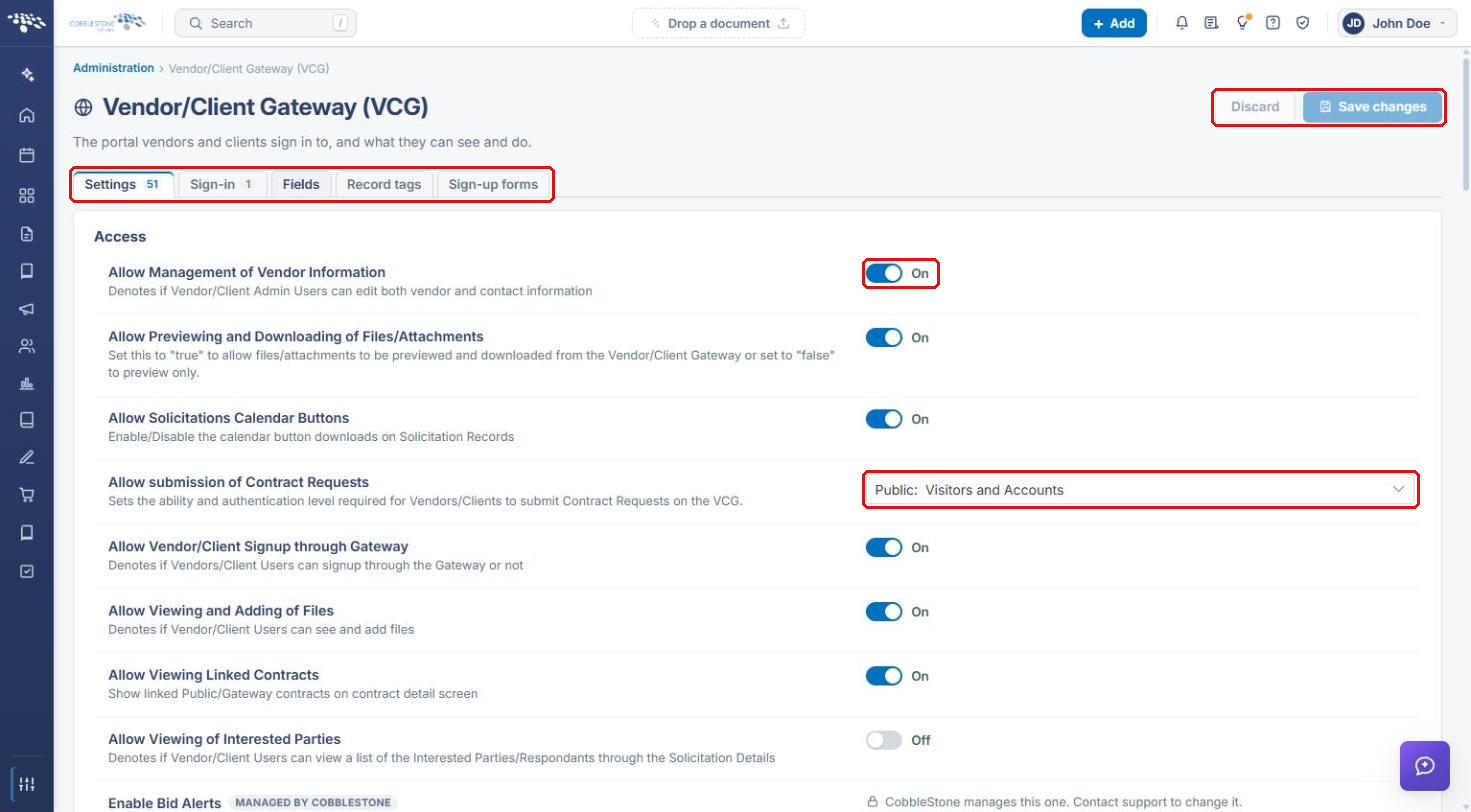
Gateway configuration lives under Administration → Vendor/Client Gateway (VCG): “The portal vendors and clients sign in to, and what they can see and do.” The page has five tabs: Settings for the Gateway's behavior toggles and content blocks, Sign-in for the Gateway login method and multifactor authentication, Fields for which fields the Gateway shows per area and record type, Record tags for the values shown across the top of a Gateway record, and Sign-up forms for the self-registration forms a new company can use.
2. Key Elements
- Administration → Gateways & Portals → Vendor/Client Gateway (VCG) is the single entry point.
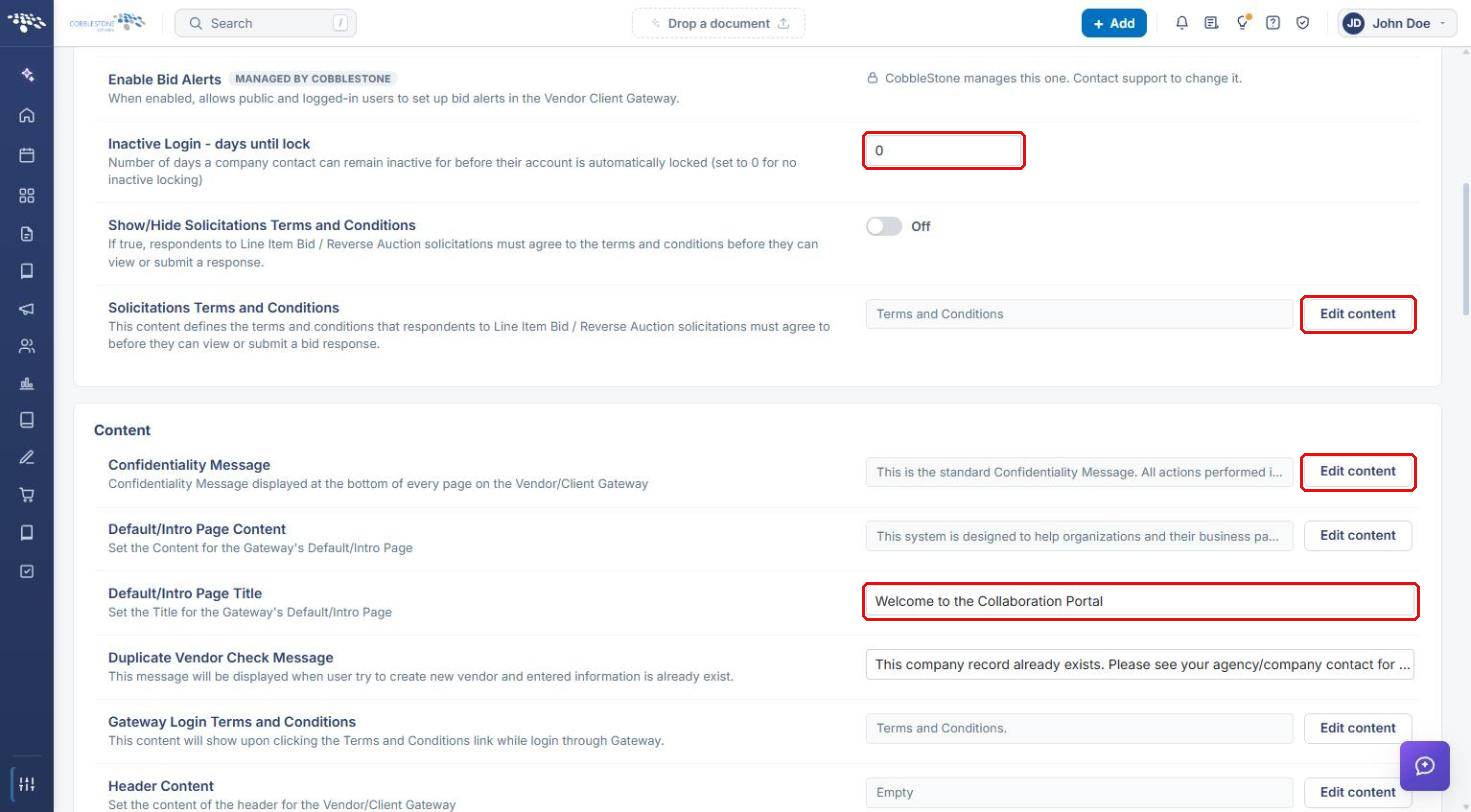
- Settings groups its items under Access, Content, Emails, General, Initial Setup, Notification, and Surveys. Items marked Managed by CobbleStone can only be changed by CobbleStone support.
- Discard and Save changes sit at the top of the page. Changed items are marked Changed with an Undo link until you save.
- On the Fields and Record tags tabs, “Every change here saves as you make it.”
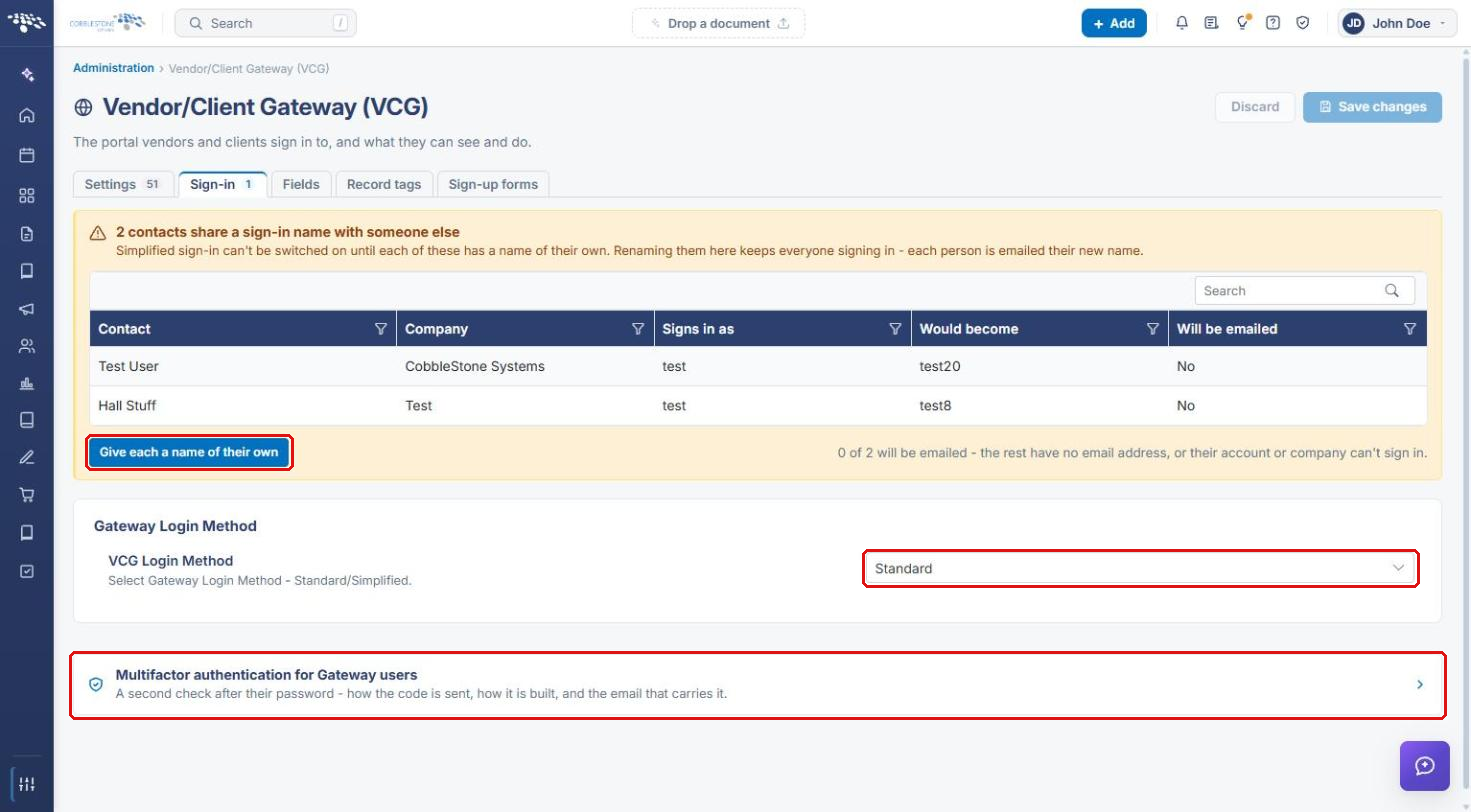
- Sign-in sets the VCG Login Method (Standard or Simplified) and links to Multifactor authentication for Gateway users.
3. Navigating to the Gateway Configuration
- From the Contract Insight homepage, click the Administration icon at the bottom of the left navigation bar.
- In Search administration, type gateway (or scroll to the Gateways & Portals category).
- Click Vendor/Client Gateway (VCG).
.png)
4. Settings Tab
4a. Changing Settings
- On the Settings tab, find the setting under its heading (Access, Content, Emails, General, Initial Setup, Notification, or Surveys).
- Change it with its toggle, dropdown, or text box. For example, Allow submission of Contract Requests sets the authentication level vendors need to submit requests.
- Click Save changes at the top of the page, or Discard to throw away unsaved changes.
4b. Editing Content Blocks
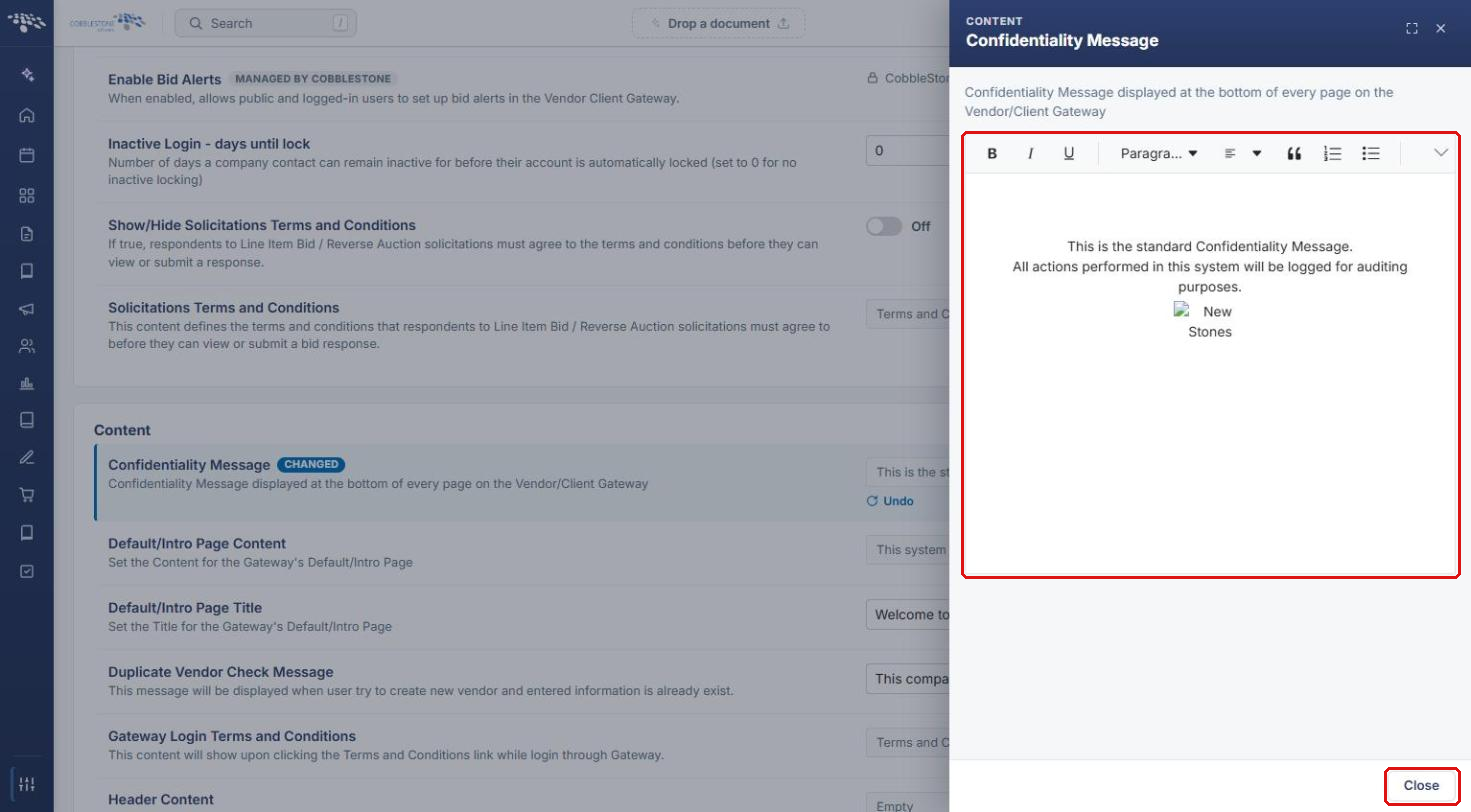
Content settings (such as the Confidentiality Message, Welcome Page Content, and Help Page Content) are edited in a rich-text editor. Shorter values, such as page titles and numbers, are typed directly into their box.
- Click Edit content beside the setting.
- Edit the text in the panel that opens, then click Close.
- The setting is marked Changed. Click Undo to revert it, or Save changes at the top of the page to keep it.
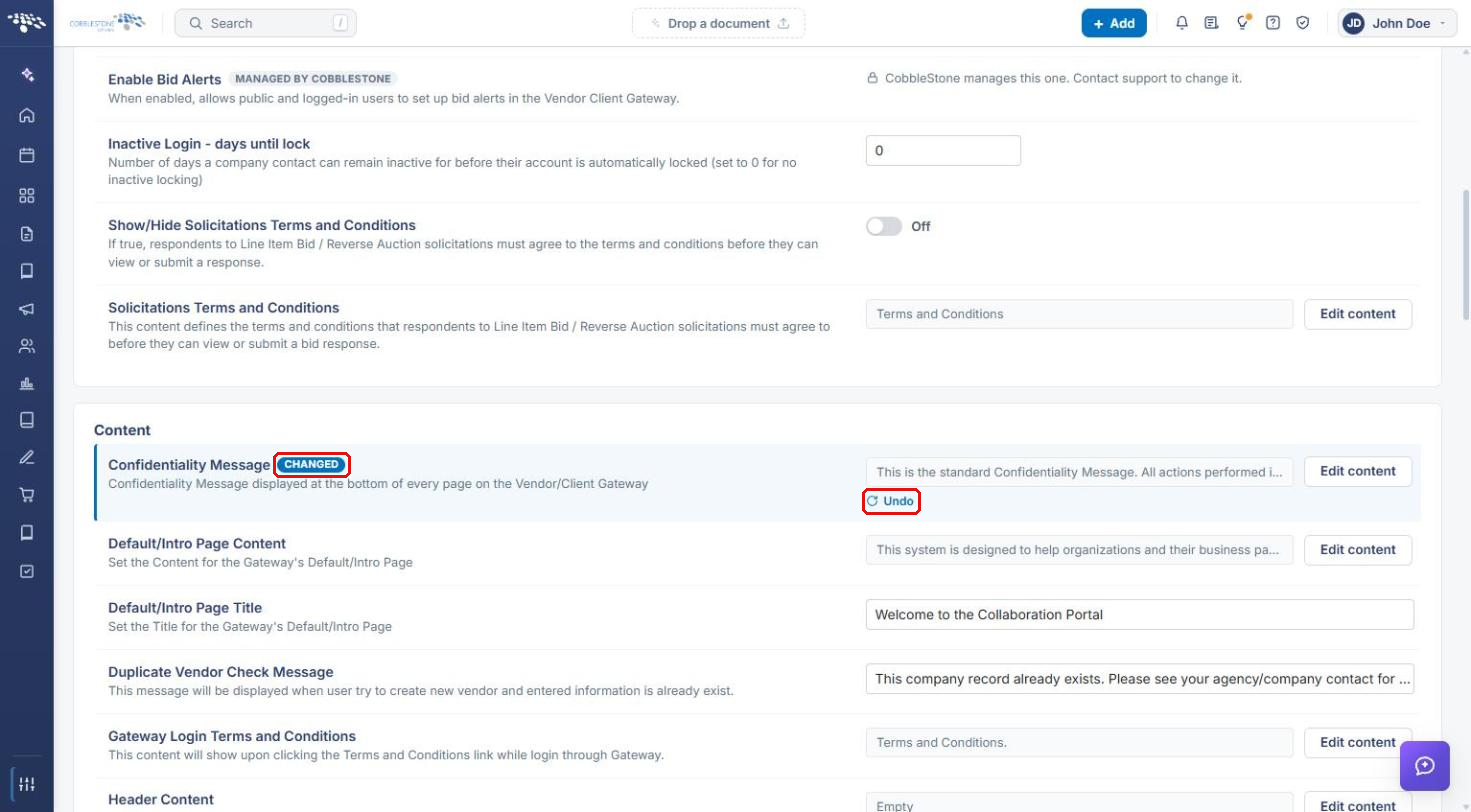
Note: Opening a content block in the editor can mark it Changed even if you didn't edit it. If you only meant to look, click Undo before saving.
5. Sign-in Tab
- Click the Sign-in tab.
- Under Gateway Login Method, choose the VCG Login Method: Standard or Simplified.
- If a warning lists contacts that share a sign-in name, Simplified sign-in can't be turned on until each has a name of their own. Click Give each a name of their own to rename them. Each person with an email address is emailed their new name.
- Click Multifactor authentication for Gateway users to set up a second sign-in step.
5a. Multifactor Authentication for Gateway Users
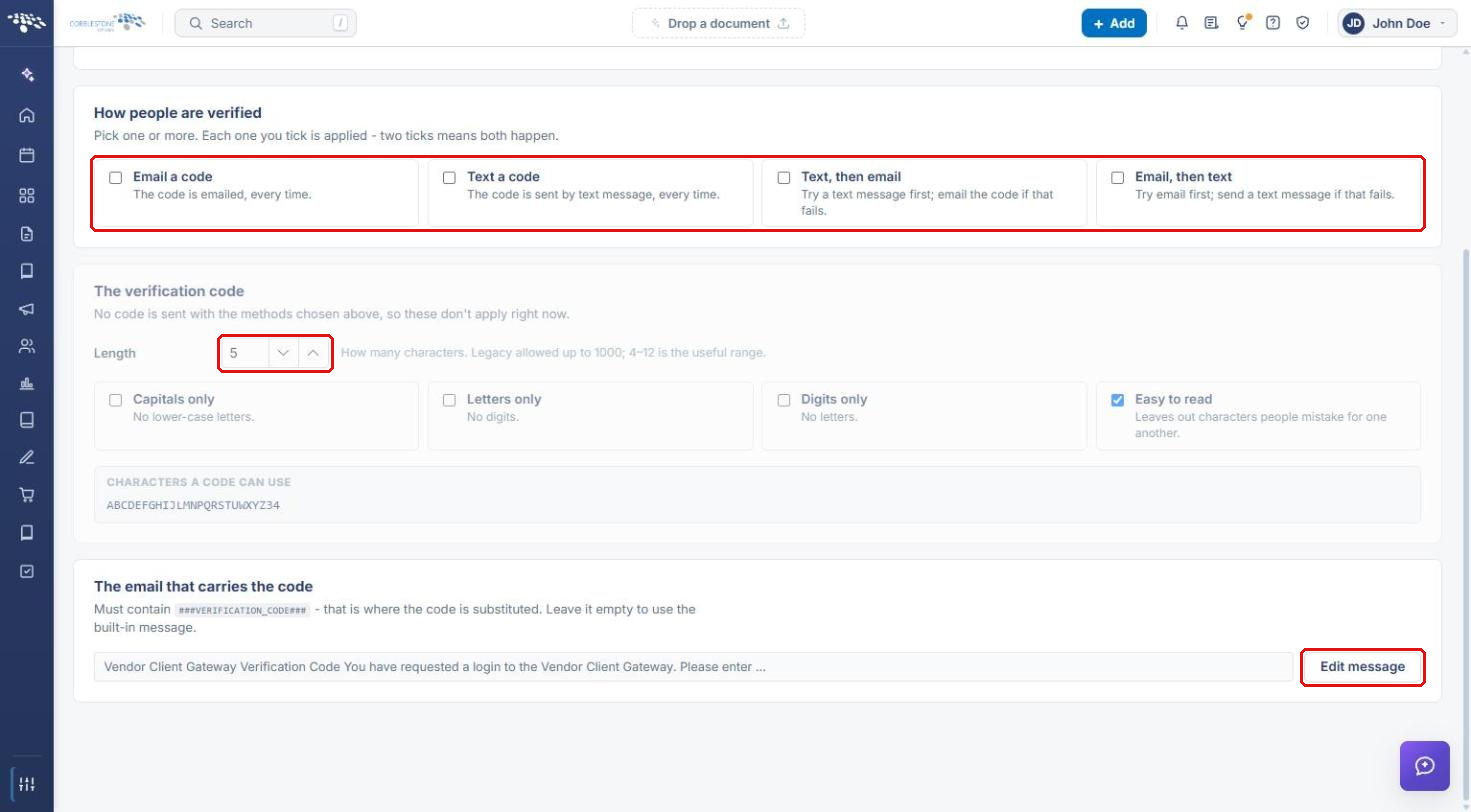
- Turn on Require a second step at sign-in. When it's off, nothing else on the screen has any effect.
- Under How people are verified, tick one or more of Email a code, Text a code, Text, then email, or Email, then text.
- Under The verification code, set the Length and character options (Capitals only, Letters only, Digits only, Easy to read).
- Under The email that carries the code, click Edit message. The message must contain ###VERIFICATION_CODE###; leave it empty to use the built-in message.
- Click Save at the top of the page.
6. Fields Tab
- Click the Fields tab.
- Choose an Area (for example, Contract Details, Contract Requests, or a sub-table), then a Record Type. Each area and record type has its own Gateway field set.
- Under On the Gateway, tick Search, Add, Edit, and Required for each field, and drag rows to reorder them.
- Click « Add beside a field under Not shown to add it, or use Add every field / Remove all fields.
- To reuse another type's setup, choose it under Start from another type and click Copy its fields here (this replaces the current fields).
- Use the Requests they can raise tab to choose which requests Gateway users can raise from this record type.
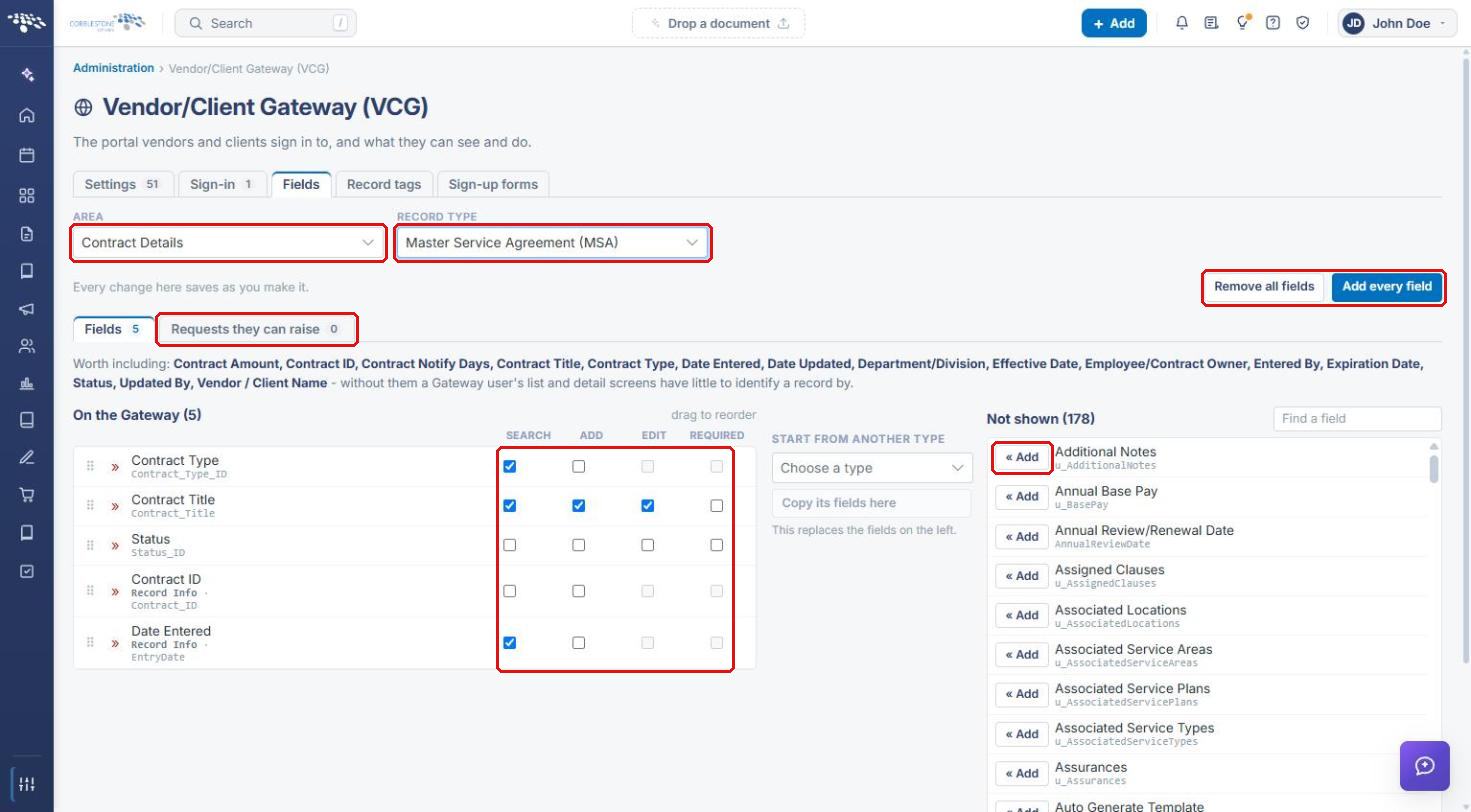
Note: Changes on this tab save as you make them. The “Worth including” line lists fields that help Gateway users identify a record.
7. Record Tags Tab
- Click the Record tags tab.
- Choose an Area (Contracts, Requests, Vendors / customers, or Employees) and a Record Type. Default (every type) applies to every record type that has no tags of its own.
- Pick the field for each numbered tag, click Add a tag to add one, or click the trash icon to remove one. Standard tags resets to the standard set.
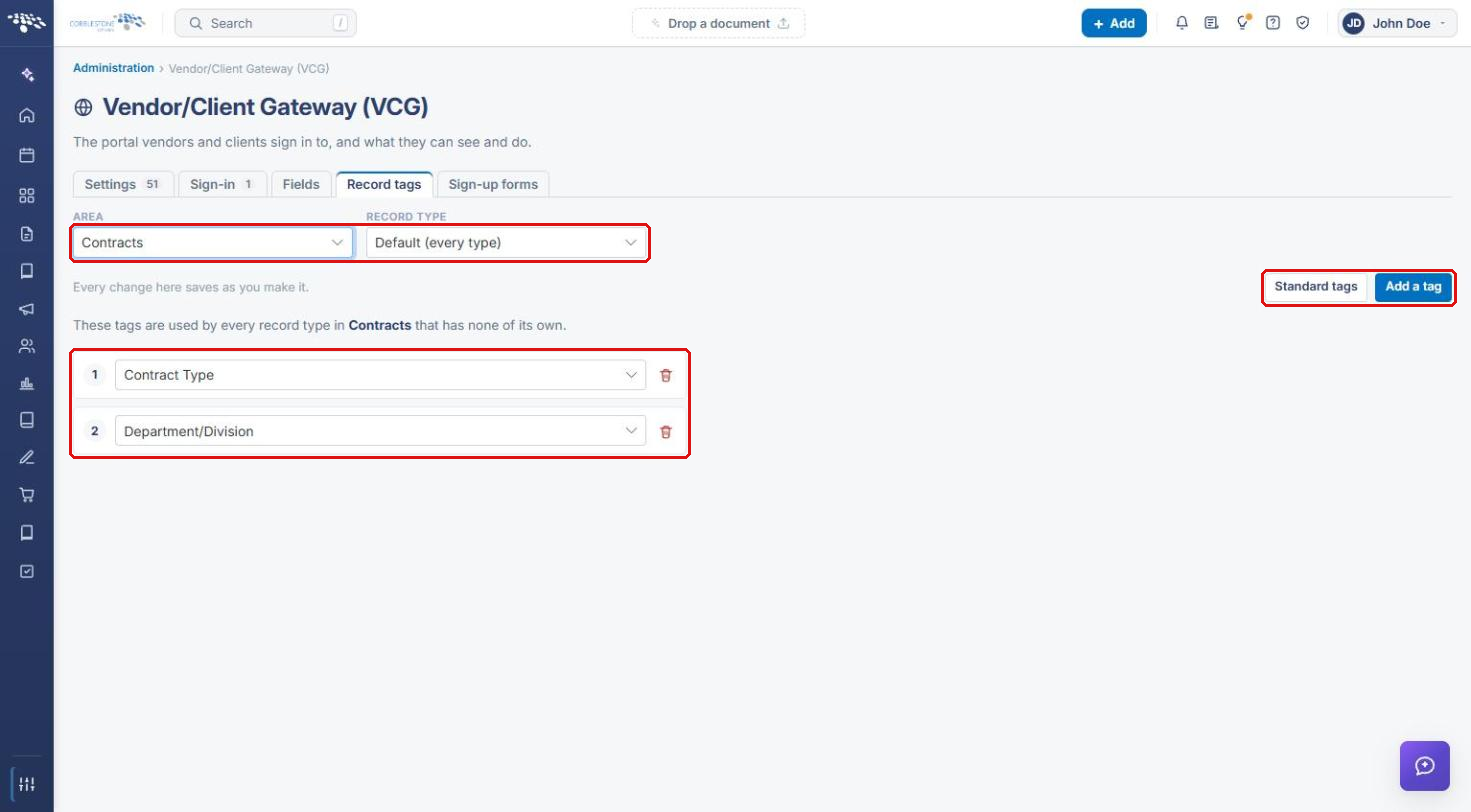
Note: Changes on this tab save as you make them.
8. Sign-up Forms Tab
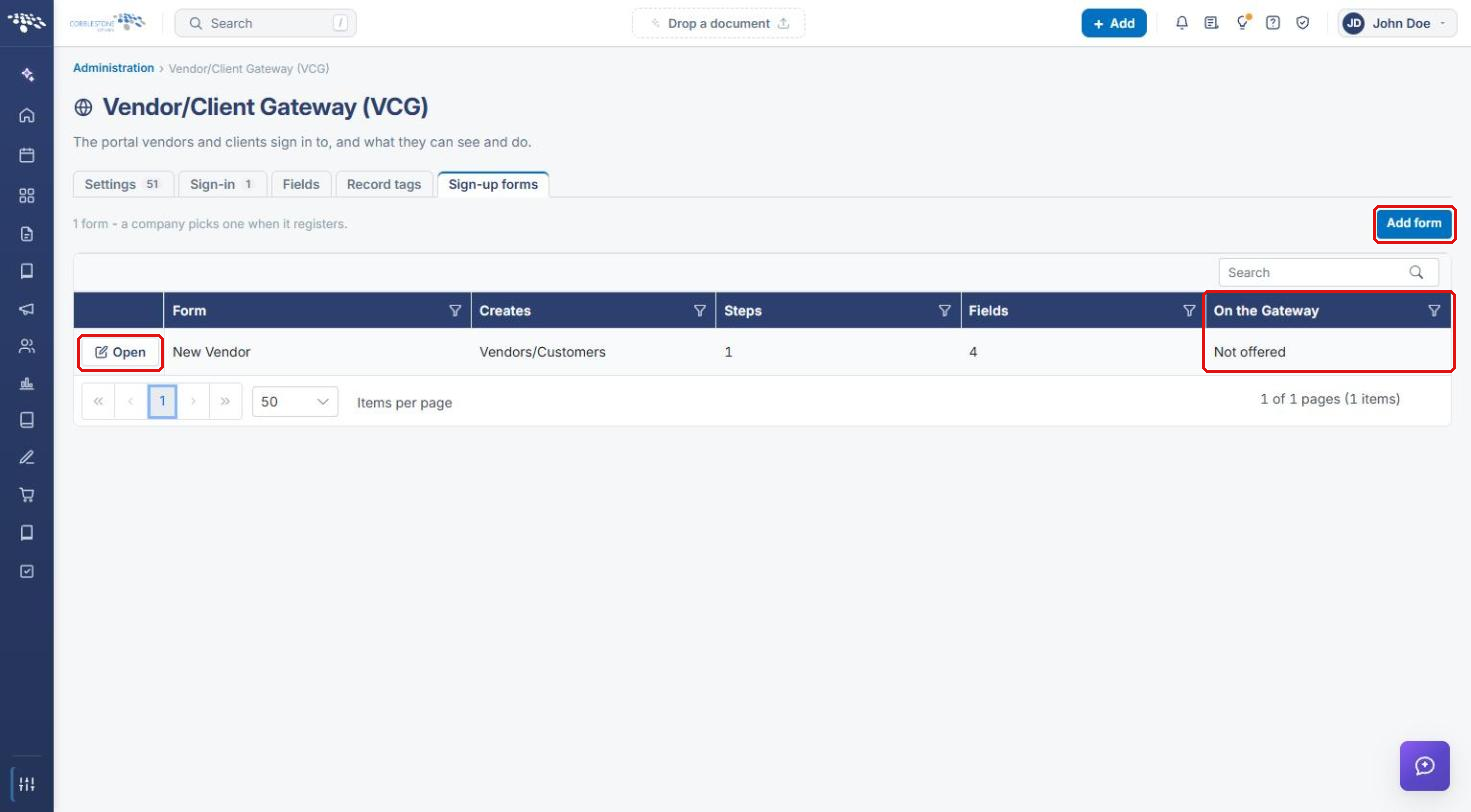
- Click the Sign-up forms tab. Each form is listed with what it Creates, its Steps and Fields, and whether it is offered On the Gateway.
- Click Add form to create one, or Open to edit an existing form.
- On the form, enter a Name and Description, then add steps with Add a step and blocks with Add a block.
- For each block, add fields from Available with « Add, and set required and unique for each field on the form.
- When the form is ready, turn on Offer this form on the Gateway.
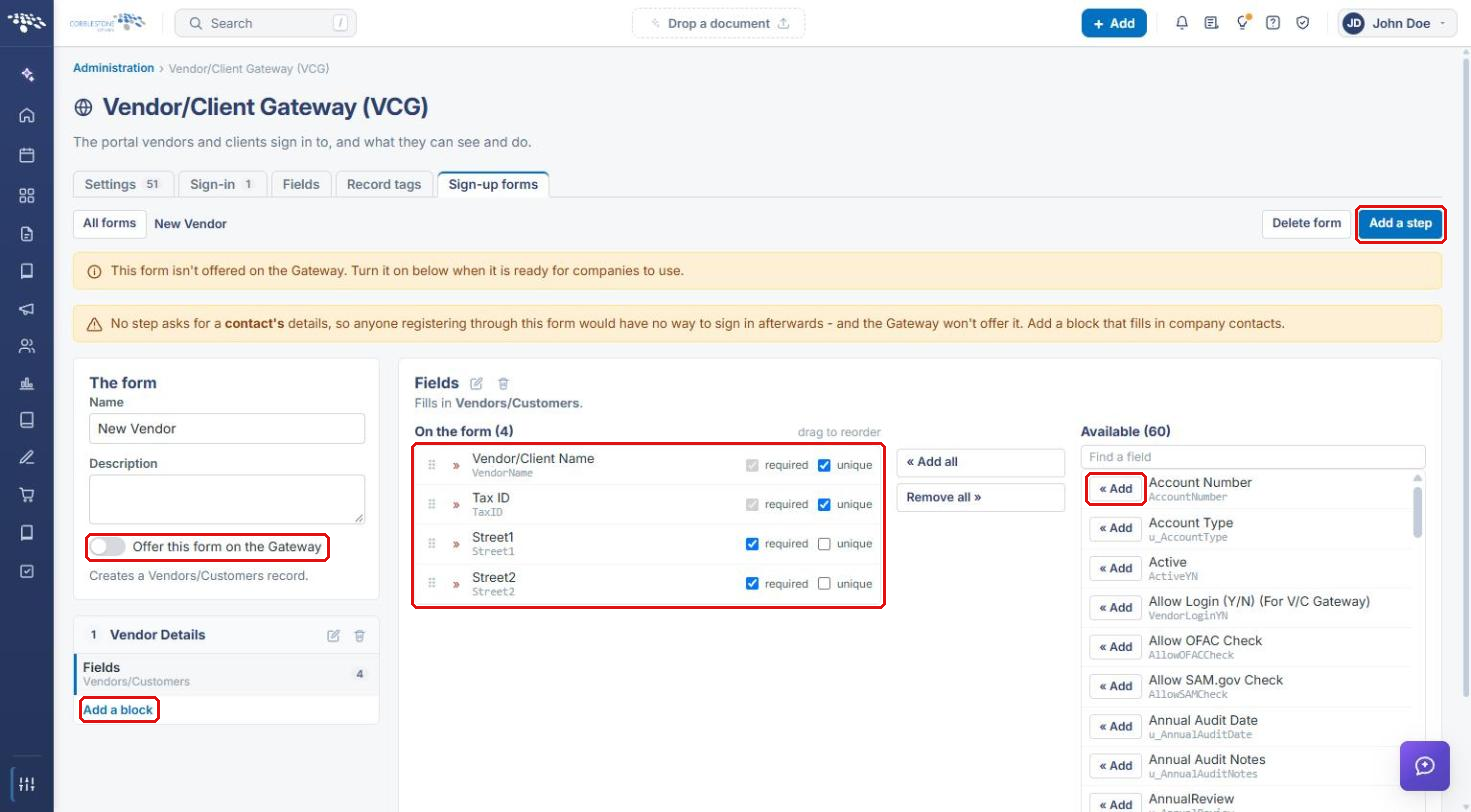
Note: A form must include a block that fills in company contacts. Without one, people who register would have no way to sign in, and the Gateway won't offer the form.
9. Quick Reference Summary
| Task | How to Complete It |
|---|---|
| Open Gateway configuration | Administration → search “gateway” → Vendor/Client Gateway (VCG). |
| Change a Gateway setting | Settings tab → change the value → Save changes. |
| Edit Gateway page text | Settings → Edit content → edit → Close → Save changes. |
| Change the Gateway login method | Sign-in tab → VCG Login Method. |
| Set up Gateway MFA | Sign-in → Multifactor authentication for Gateway users. |
| Choose fields the Gateway shows | Fields tab → Area → Record Type → tick or add fields. |
| Set record tags | Record tags tab → Area → Record Type → pick tags. |
| Build a sign-up form | Sign-up forms → Add form or Open → steps, blocks, fields → Offer this form on the Gateway. |