COBBLESTONE SOFTWARE
Contract Insight — User Guide
11. Create a Contract from a Solicitation Record
Module: Solicitations › Solicitations › 11. Create a Contract from a Solicitation Record
Note: Each procedure in this guide begins at the Contract Insight homepage, so any section can be followed on its own. Custom fields are configurable, so the exact field list on a contract category record may vary between environments.
1. Overview
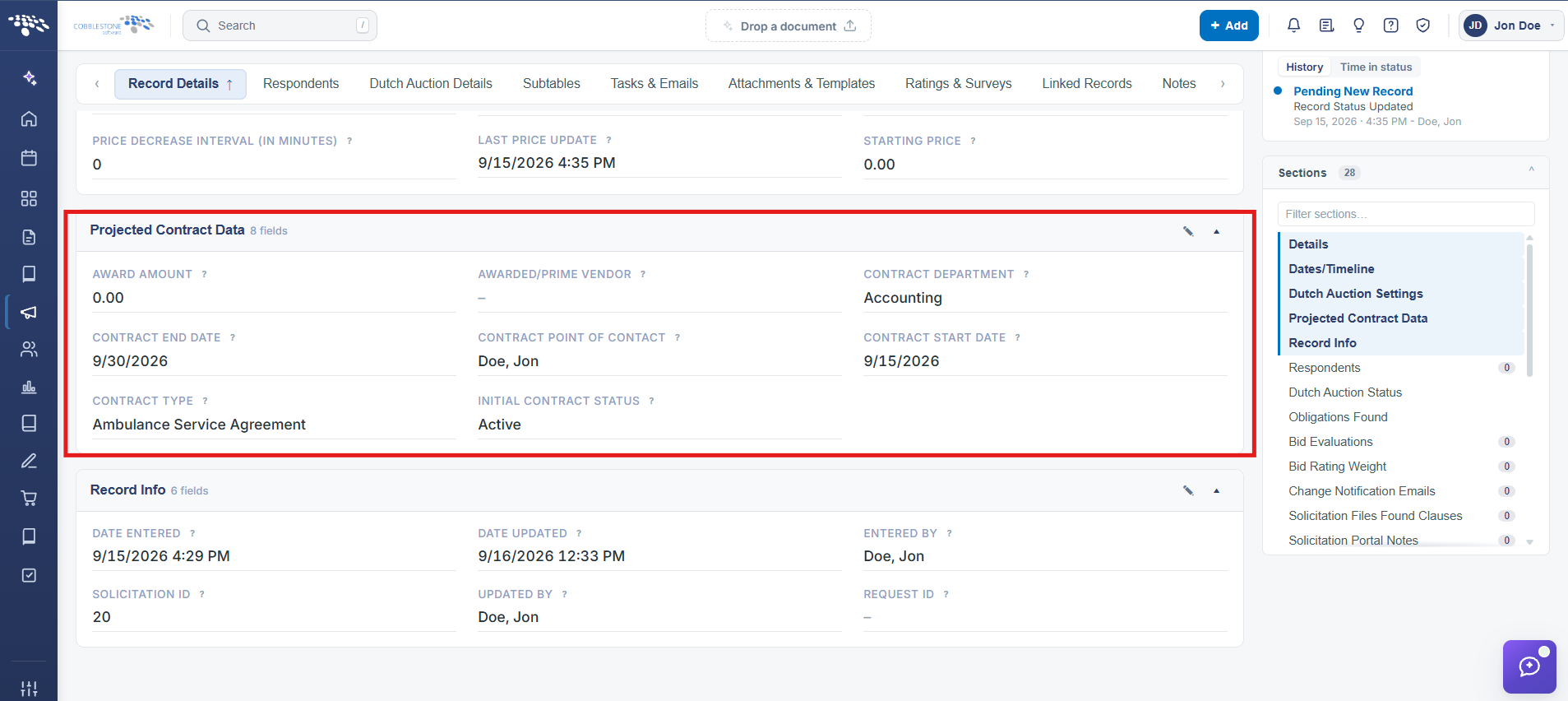
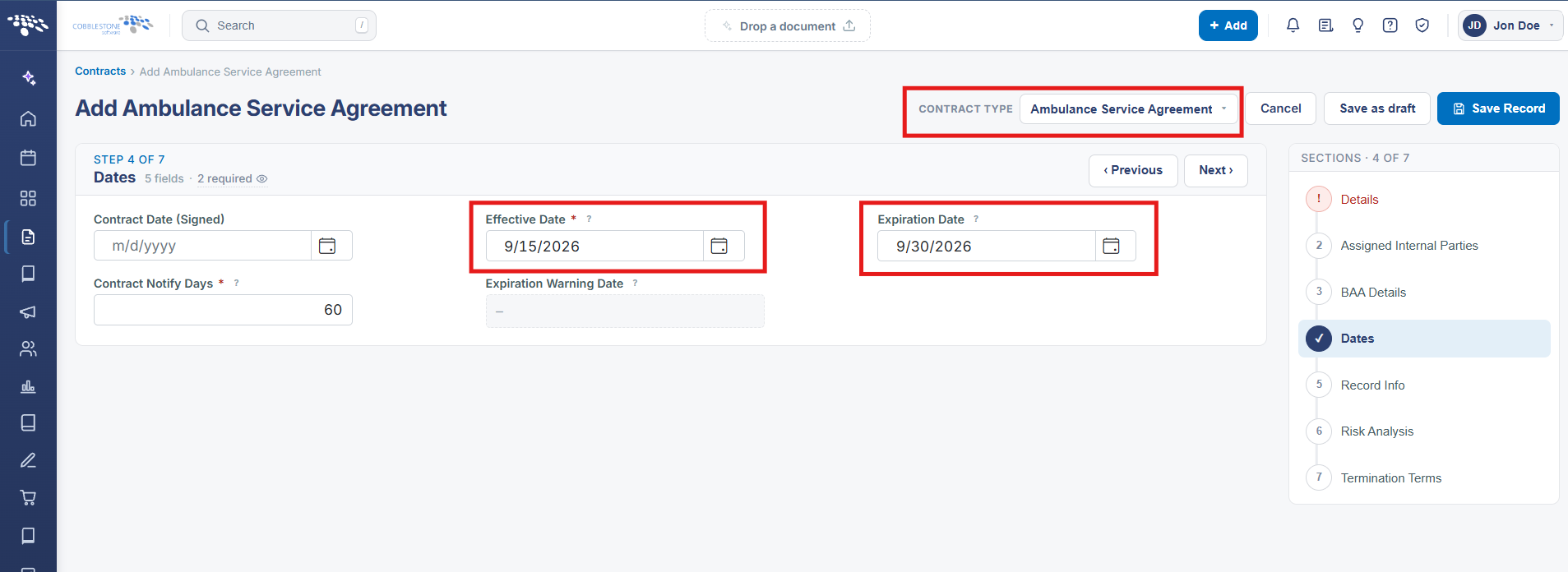
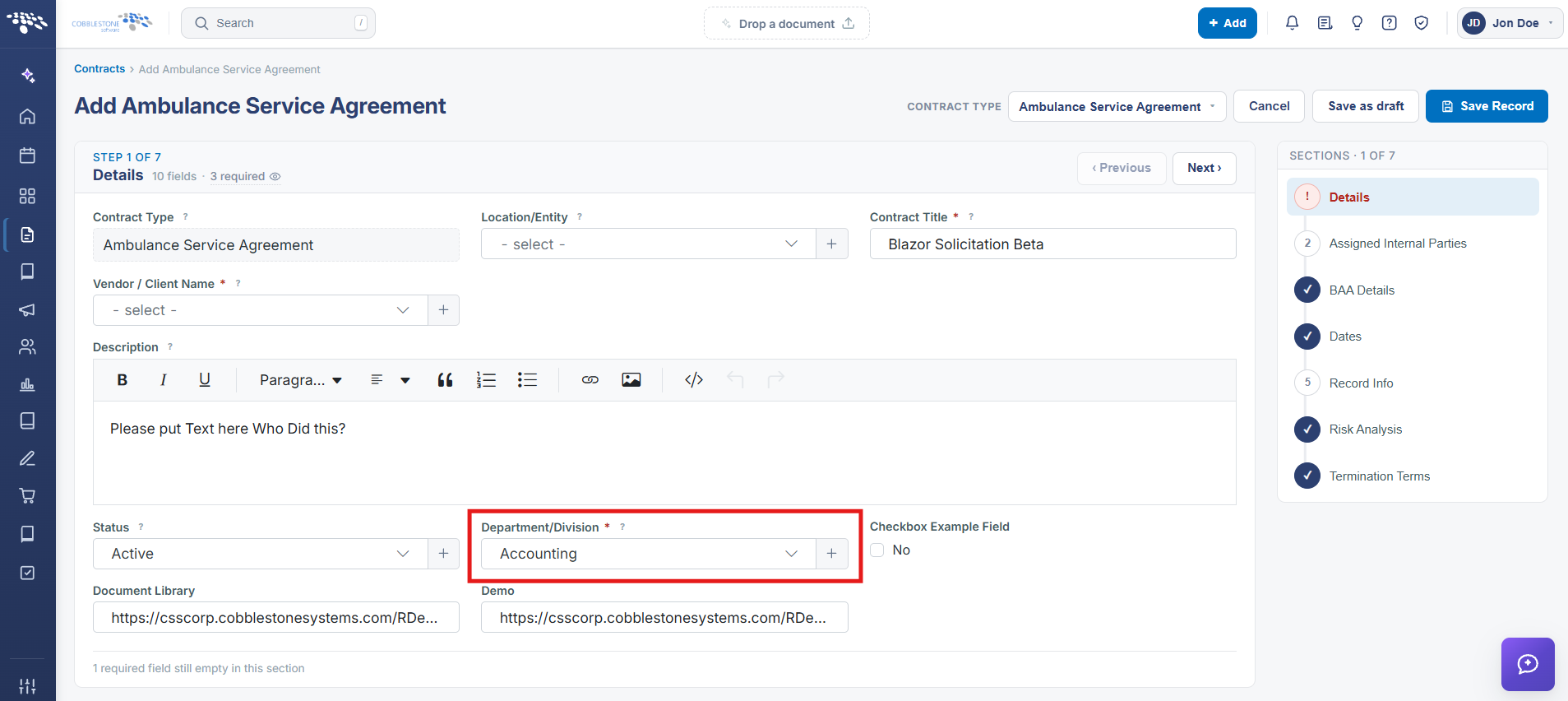
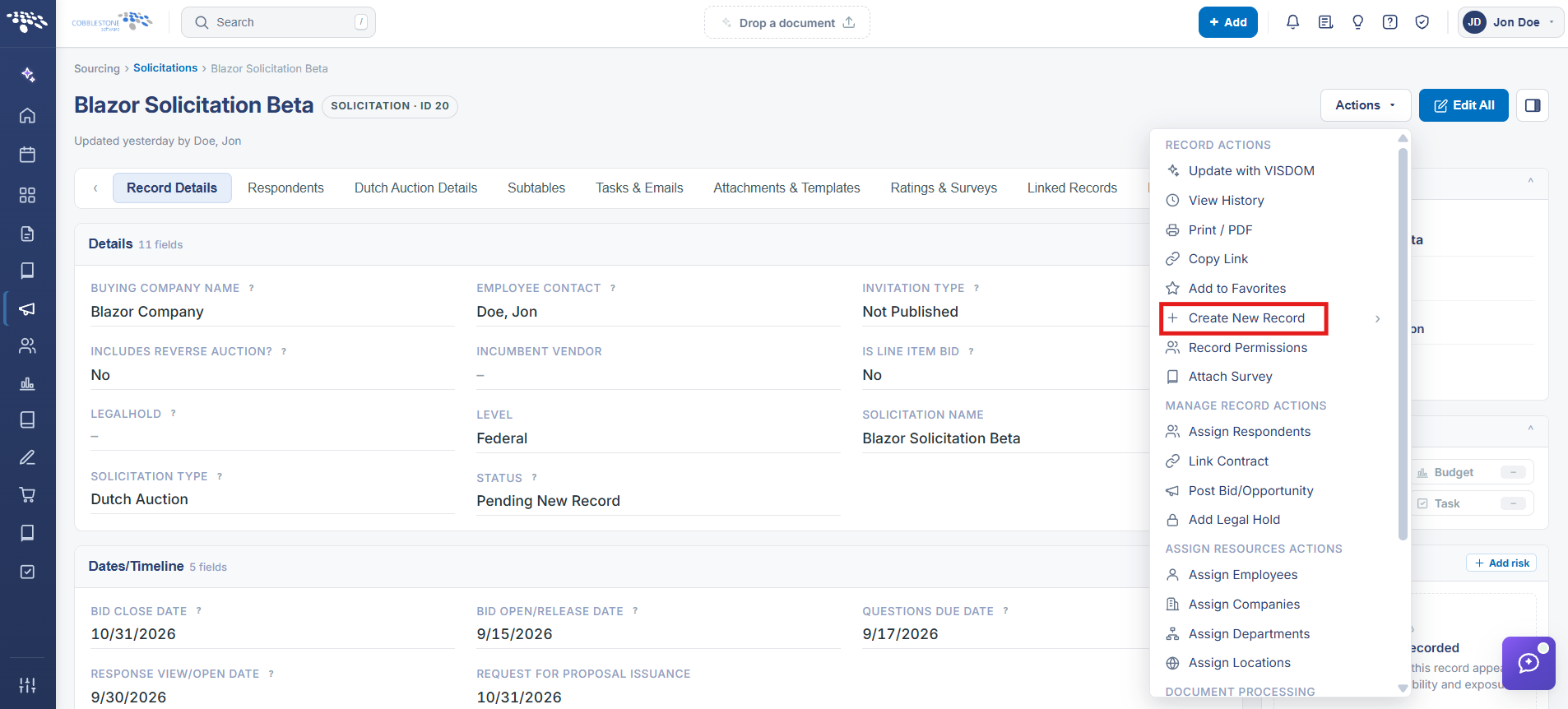
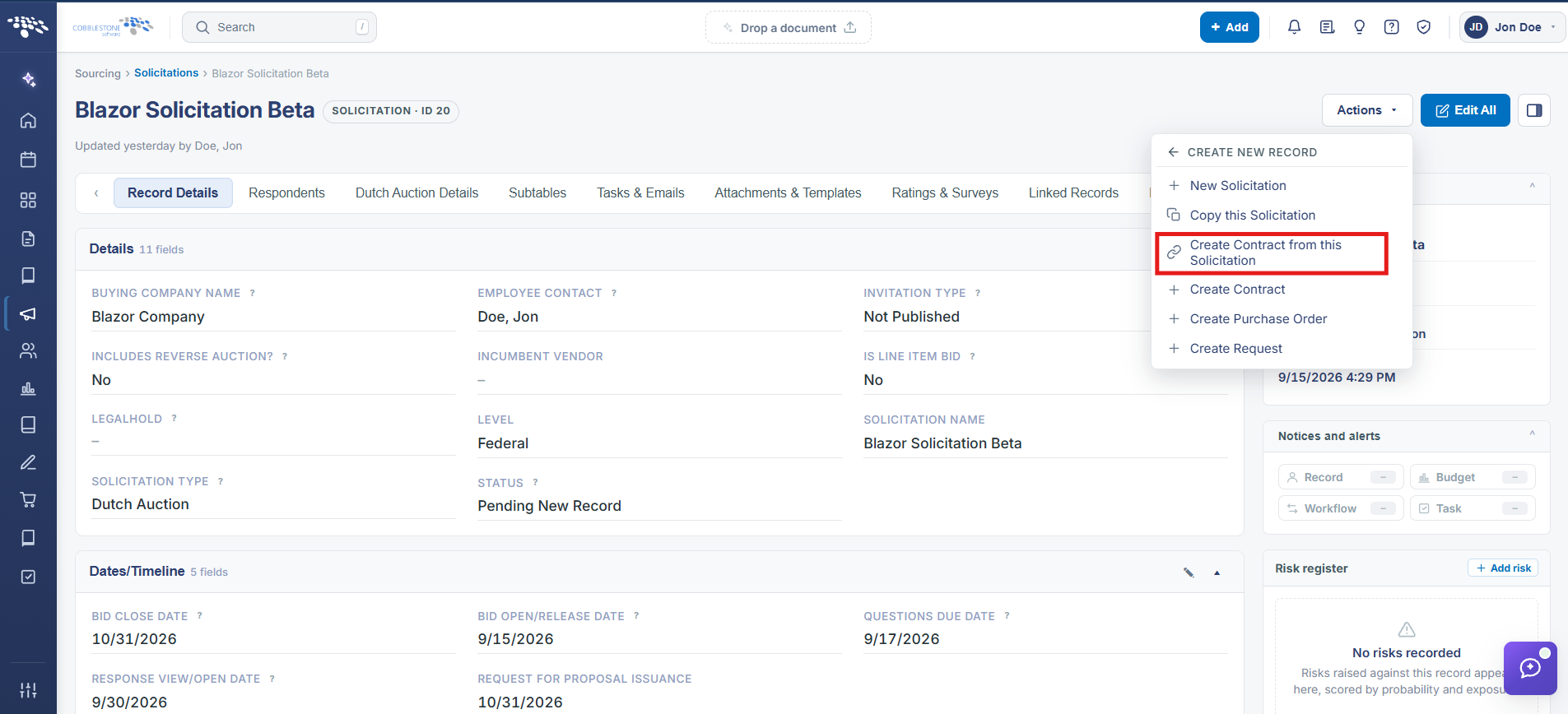
This review did not locate a dedicated "New Contract Record" action on a solicitation's Linked Records tab or Actions menu in this QA environment (the Actions dropdown would not stay open long enough to confirm its contents live). What is confirmed is the data the legacy topic says carries over: a Record Details section named Projected Contract Data holds exactly the fields a resulting contract would need — Awarded/Prime Vendor, Award Amount, Contract Start Date, Contract End Date, Contract Type, Contract Department/Business Unit, and Contract Point of Contact — pre-populated on the example solicitation reviewed (Awarded/Prime Vendor: Elmer's Glue, Award Amount: $500,025.00, Contract Type: Contractor Agreement). This section is the live staging area for a subsequently created or linked contract, even where the specific "create" button could not be confirmed this session.
2. Key Elements
- Record Details > Projected Contract Data section holds Awarded/Prime Vendor, Award Amount, Contract Start/End Date, Contract Type, Contract Department/Business Unit, and Contract Point of Contact
- These fields are the data a generated contract would carry over, matching the legacy record's described behavior
- A direct "Create Contract" action could not be confirmed live in this environment during this review; Linked Records > Link a contract (previous topic) is the confirmed way to associate an existing contract
- Once awarded, updating Projected Contract Data and then linking or generating the resulting contract record keeps the solicitation and contract connected