COBBLESTONE SOFTWARE
Contract Insight — User Guide
VISDOM Assist Chat Bot
VISDOM+ › VISDOM Assist Chat Bot
Note: Each procedure in this guide begins at the Contract Insight homepage, so any section can be followed on its own. Custom fields are configurable, so the exact field list on a contract category record may vary between environments.
1. Overview
A persistent chat bubble (a purple icon in the bottom-right corner of the screen) opens the VISDOM Assistant from almost anywhere in the application. It offers a dropdown to switch between General and VISDOM+ modes and shows record-context chips so the assistant can be asked questions about the specific record currently open, or about the application generally. On the Create with VISDOM / Compare documents screens an "Ask VISDOM" button offers the same assistant scoped to that task. In this QA environment the assistant runs in sample mode, meaning it responds without a live AI connection, so answers here should be treated as a preview of the interaction pattern rather than production-quality AI output.
2. Key Elements
- Persistent chat bubble (purple icon, bottom-right) available across most of the application.
- General and VISDOM+ mode dropdown, with record-context chips for asking about the currently open record.
- Runs in sample mode in this QA environment (no live AI connection); production environments connect to CobbleStone VISDOM Services.
3. Opening the VISDOM Assistant
- From the Contract Insight homepage (or almost any other screen), click the purple chat bubble in the bottom-right corner.
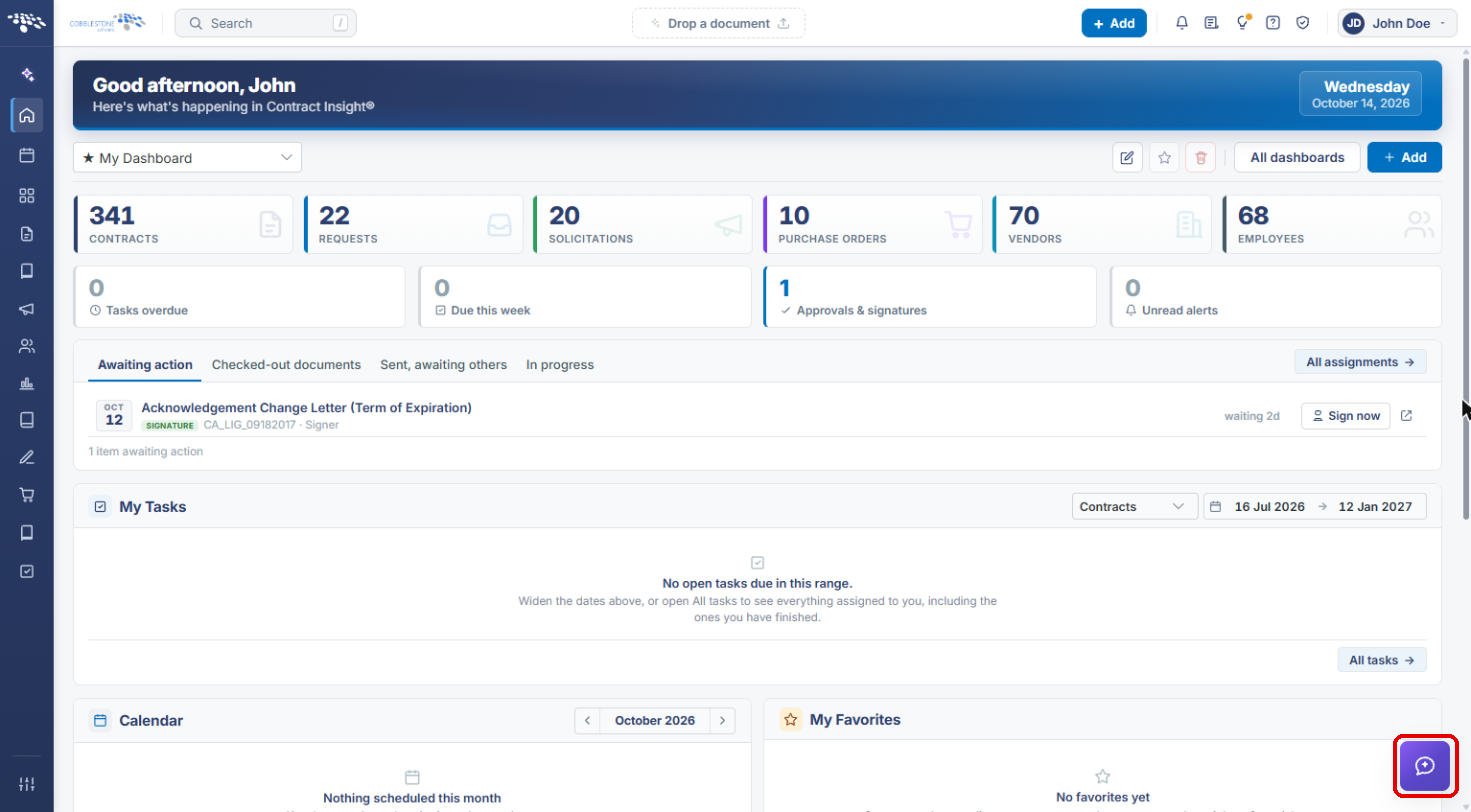
- The VISDOM Assistant panel opens on the right. Previous conversations stay in the panel until you clear them.
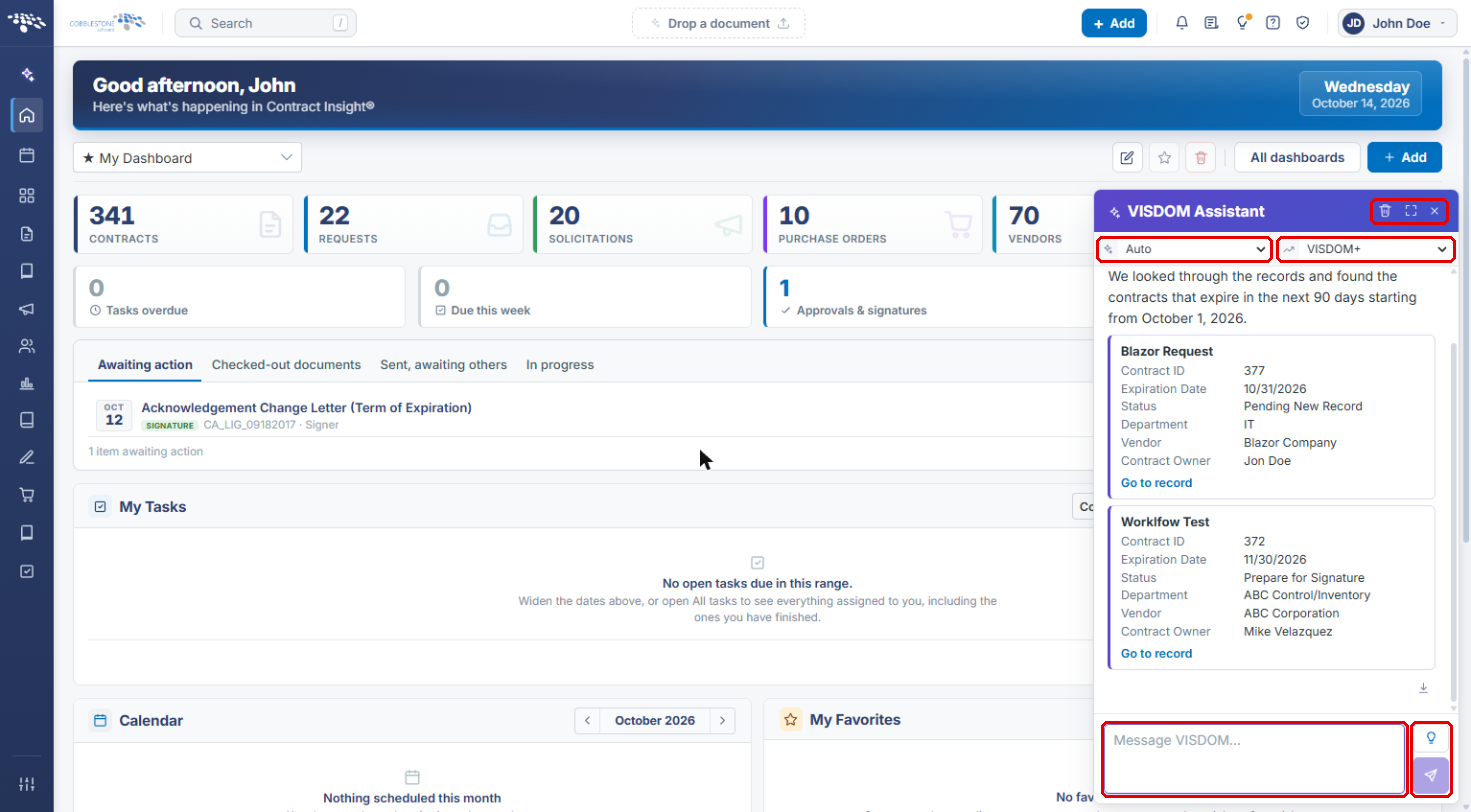
- Use the icons in the panel header to Clear this chat's history (trash can), Widen the assistant, or Close the panel.
- Type your question in the Message VISDOM… box, then press Enter or click Send. Click the light-bulb icon (Things to ask) for suggested questions.
4. Choosing Which Assistant Answers
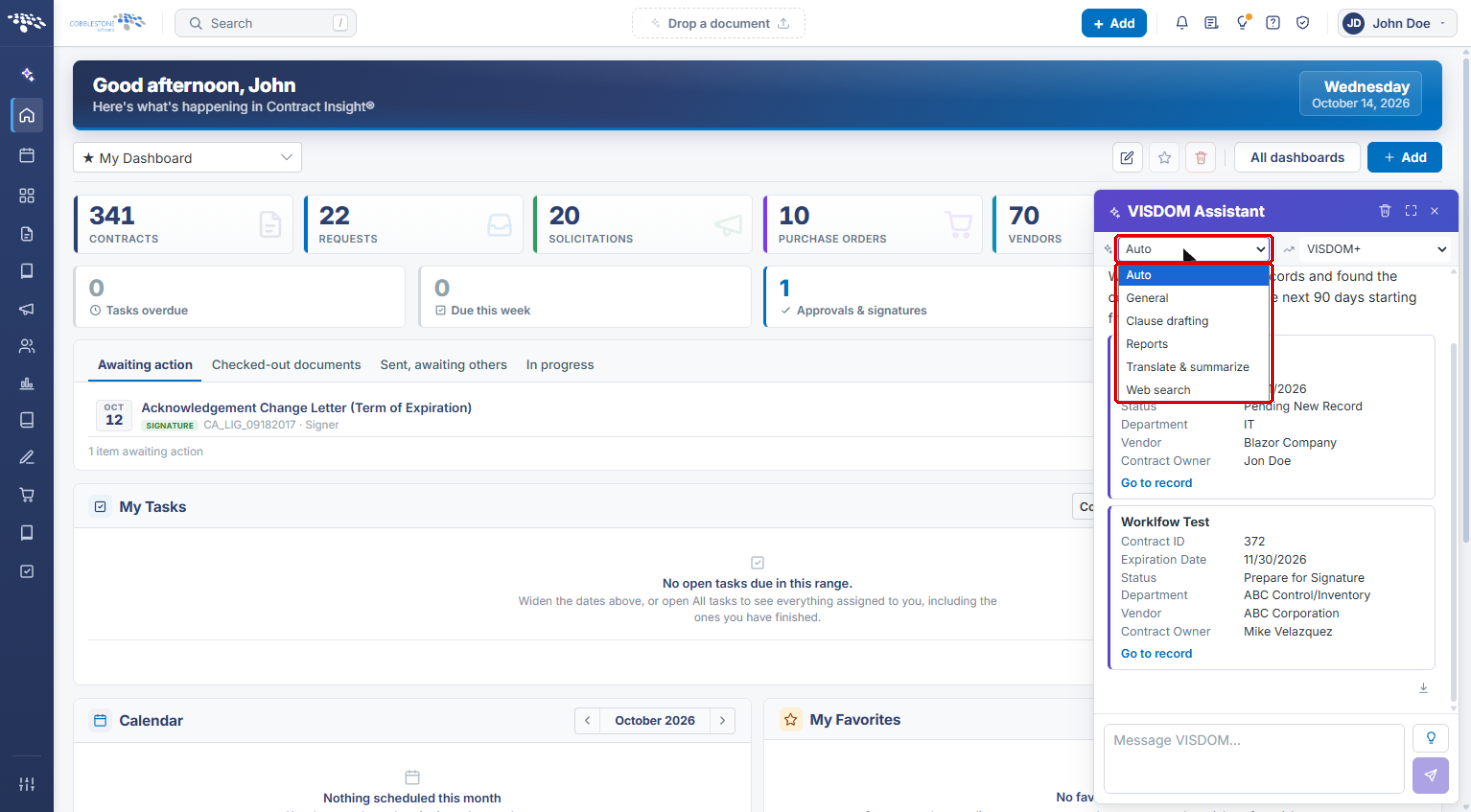
- Click the first dropdown (Which assistant answers) at the top of the panel.
- Select Auto to let VISDOM pick, or choose a specialist: General, Clause drafting, Reports, Translate & summarize or Web search.
- The second dropdown shows the VISDOM tier in use (for example, VISDOM+).
5. Asking a Question
- Click the light-bulb icon (Things to ask) to see suggested questions, and click one to ask it, or type your own question.
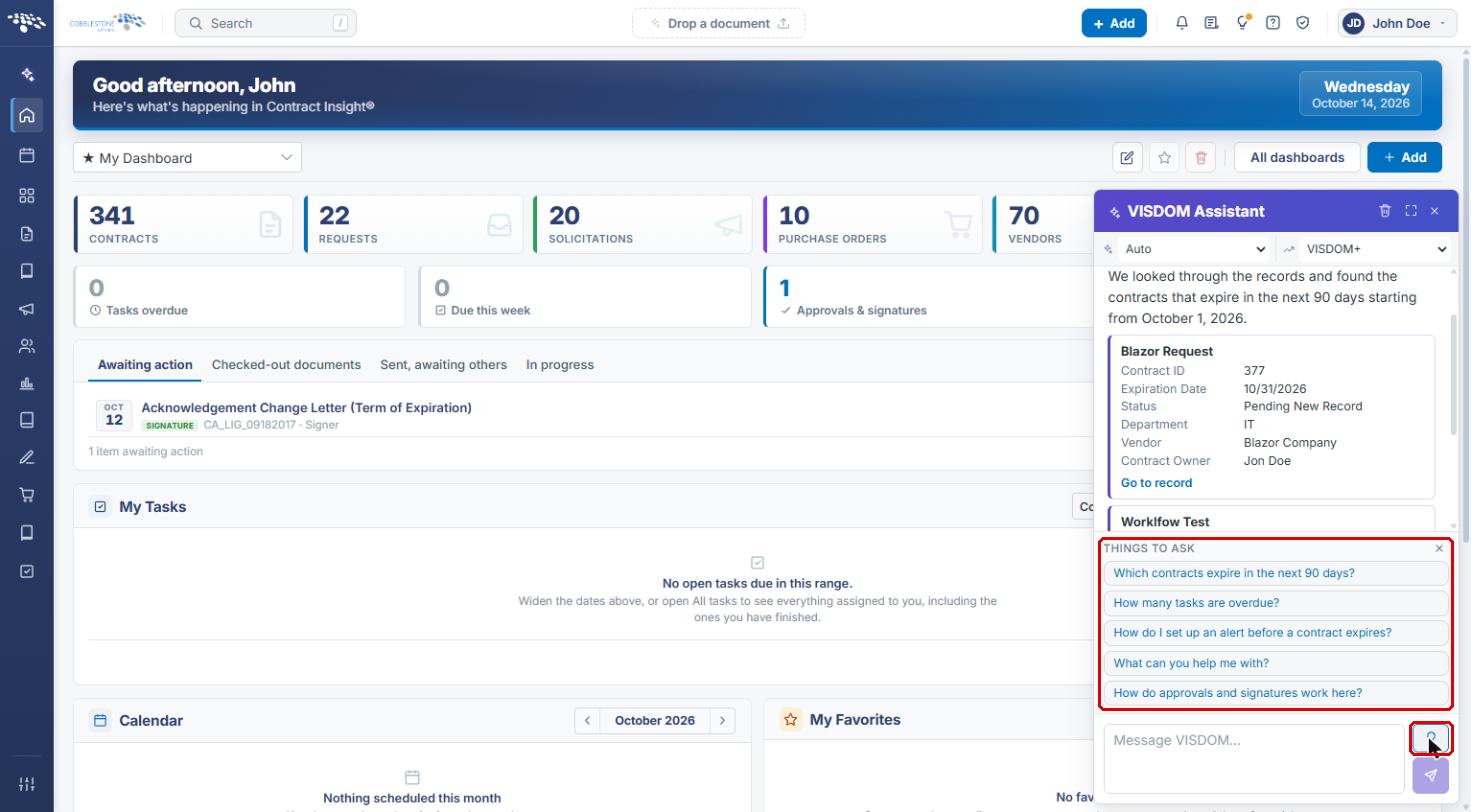
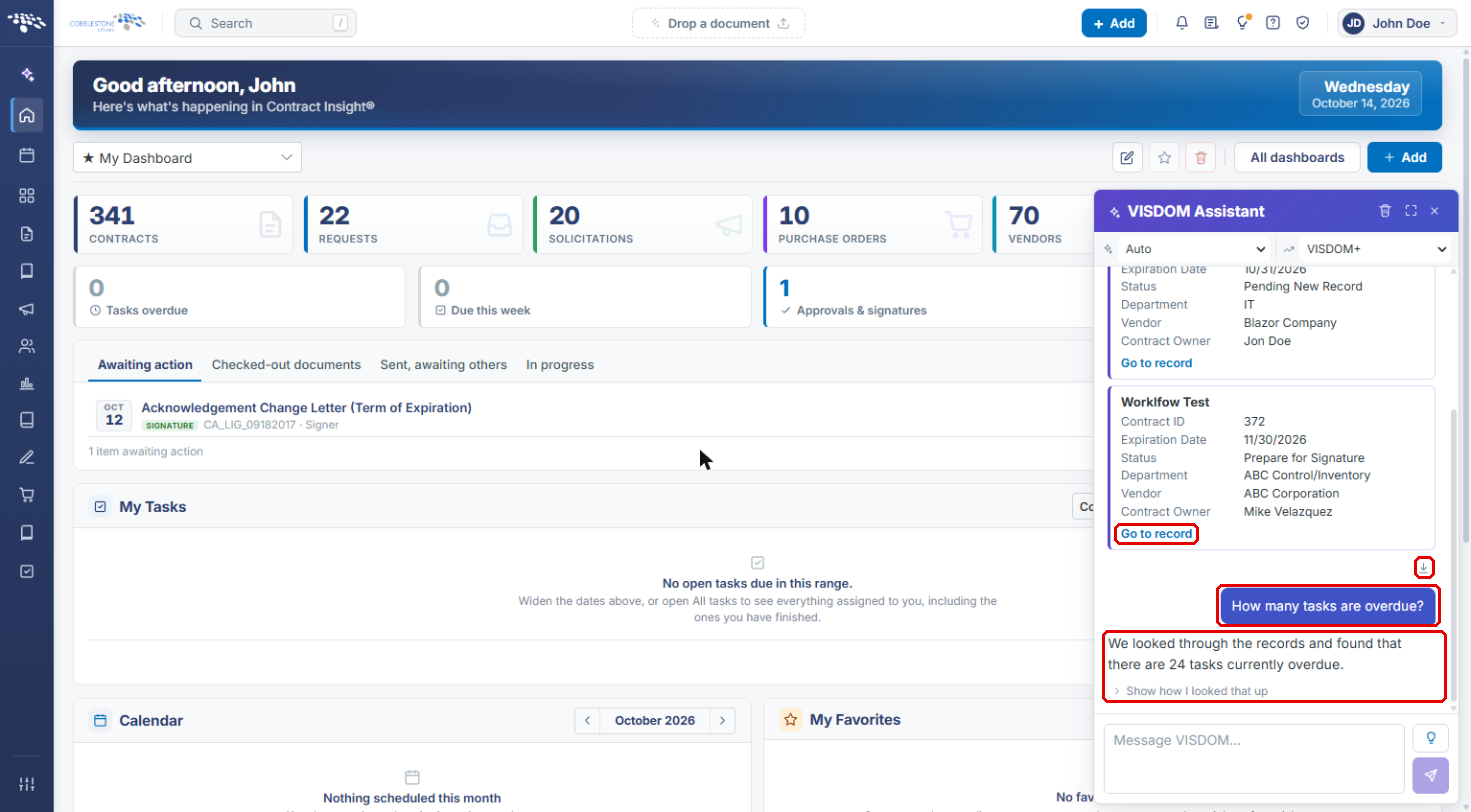
- Your question appears in a purple bubble with VISDOM's answer below it.
- Click Show how I looked that up to see how the answer was found. When an answer lists records, click Go to record to open one, or use the download icon to export the list.
- Hover over an answer and click Copy this answer to copy its text.
6. Asking About the Record You Have Open
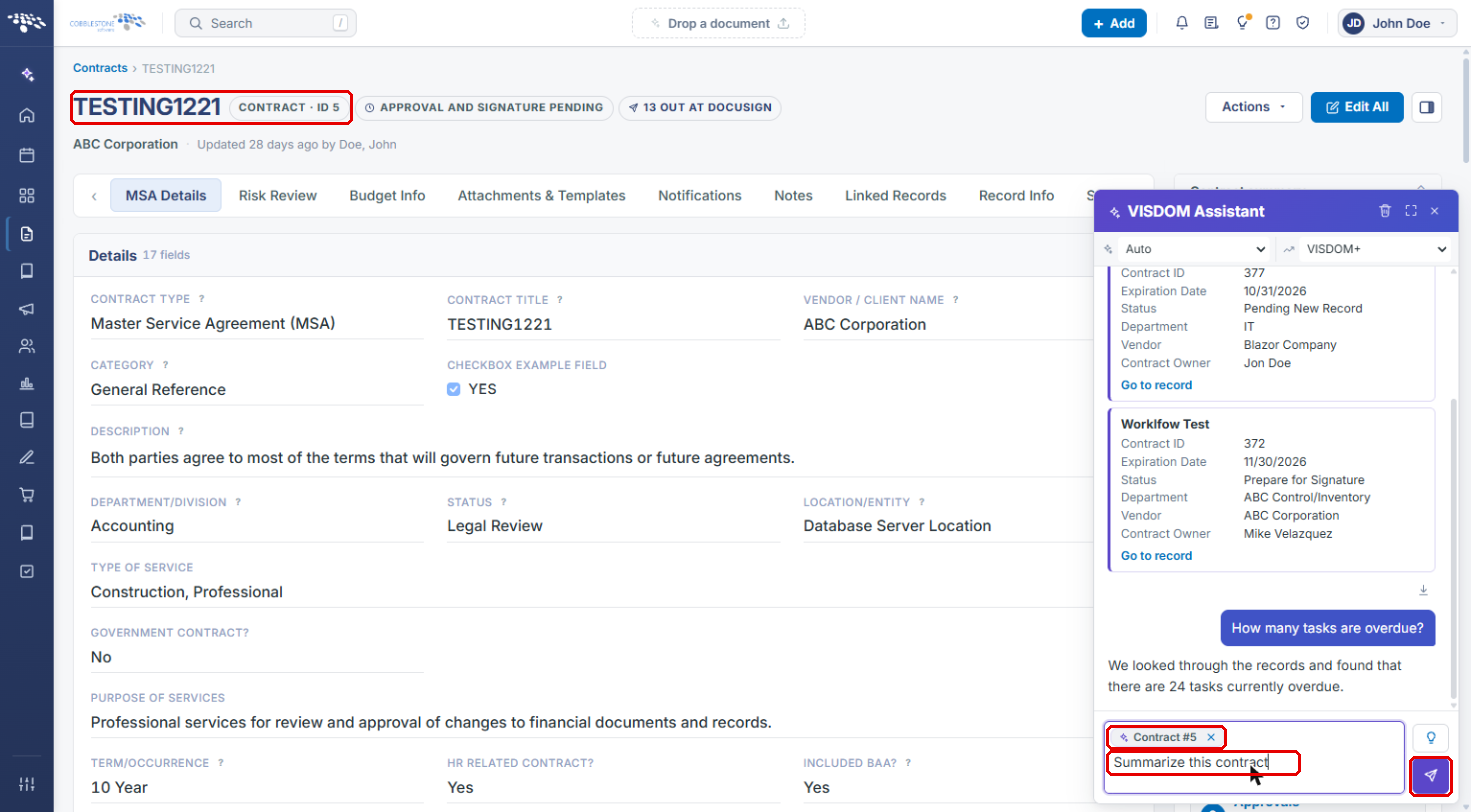
- Open a record (for example, a contract) and click the chat bubble.
- A record-context chip (for example, Contract #5) appears in the message box, so your question is about that record. Click the × on the chip to ask a general question instead.
- Type your question, such as Summarize this contract, and press Enter or click Send.
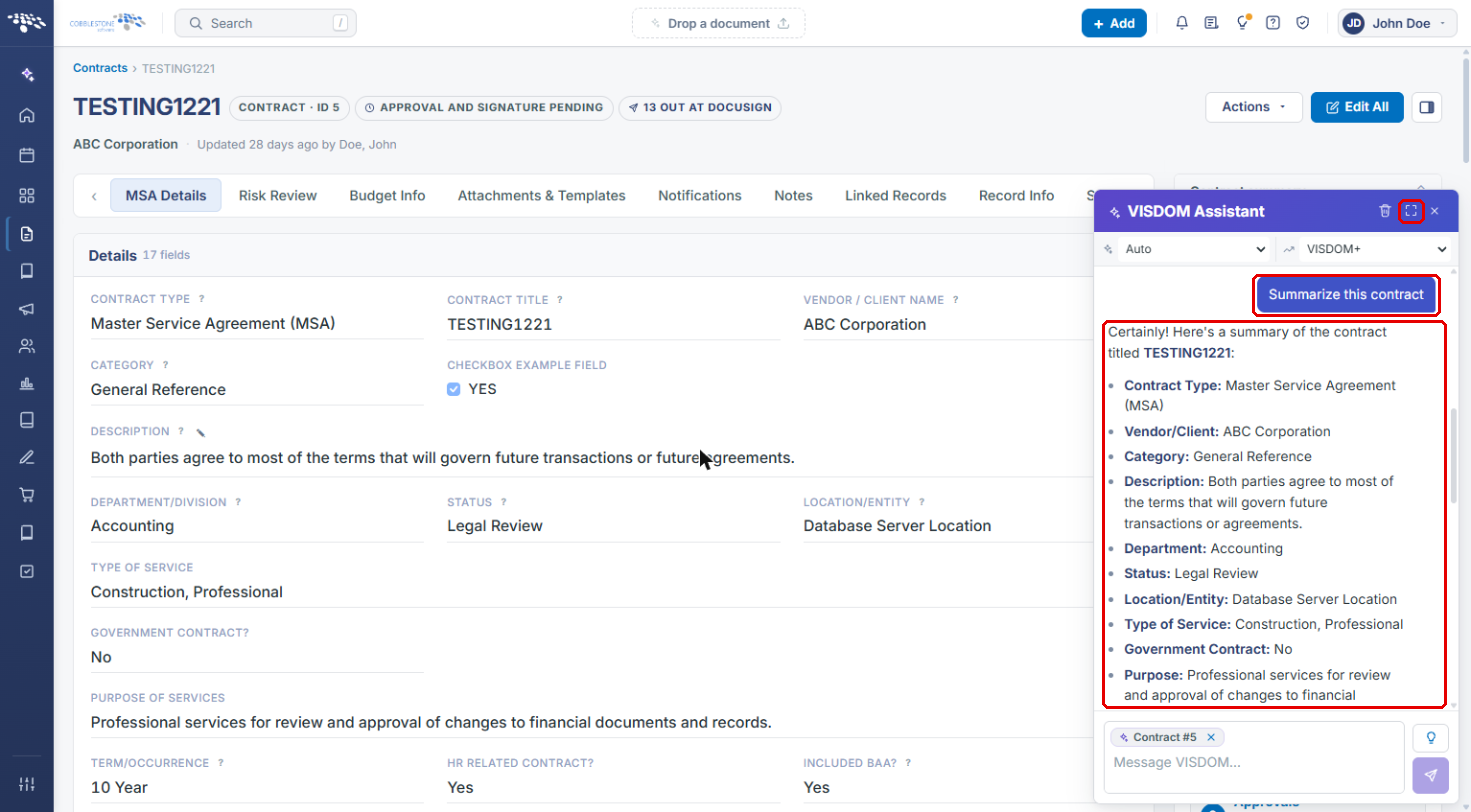
- VISDOM answers using the open record's details. Click Widen the assistant for more room to read longer answers.
Note: VISDOM can make mistakes. Check important details against the record before acting on an answer.