Optional Add-On Module for the collaboration of documents between internal and external users/participants. This module utilizes E-Approval (Electronic Approval) and/or E-Signature (Electronic Signature) processing to support full online negotiation via a secure online portal.
DOCUMENT COLLABORATION & E-SIGNATURE
NEW FEATURES
NEW FEATURE: Complimentary Approval and Signing Access
Reference #: 251212.345.1367
We’ve introduced a way for all clients to experience the benefits of IntelliSign/IntelliApprove and E-Signature/E-Approval—even without a full license.
What’s New?
- Free Monthly Usage:
- Get 3 free IntelliApprove/E-Approval processes and 3 free IntelliSign/E-Signature processes each month.
- Usage resets on the first of every month.
- Usage Banner:
- When starting a signing or approval process, you’ll see a banner showing how many free processes you’ve used out of your monthly total.
- Upgrade Option:
- Once you reach your limit, you’ll see a prompt with a link to email sales@cobblestonesoftware.com to upgrade to the unlimited version.
Important Details:
- Free processes count when the process is created, not when recipients start signing or approving.
- Licensed clients will not see the banner or upgrade prompt.
Why This Matters:
This enhancement gives you a chance to try IntelliApprove/E-Approve and IntelliSign/E-Signature at no cost—streamlining document collaboration and helping you decide if unlimited access is right for your organization.
DOCUMENT COLLABORATION & E-SIGNATURE
ENHANCEMENTS
ENHANCEMENT: Expiration Settings for Document Signing and Approval Links
Reference #: 251212.1157.6201
We’ve introduced an important security enhancement to help you maintain better control over your document workflows.
What’s New?
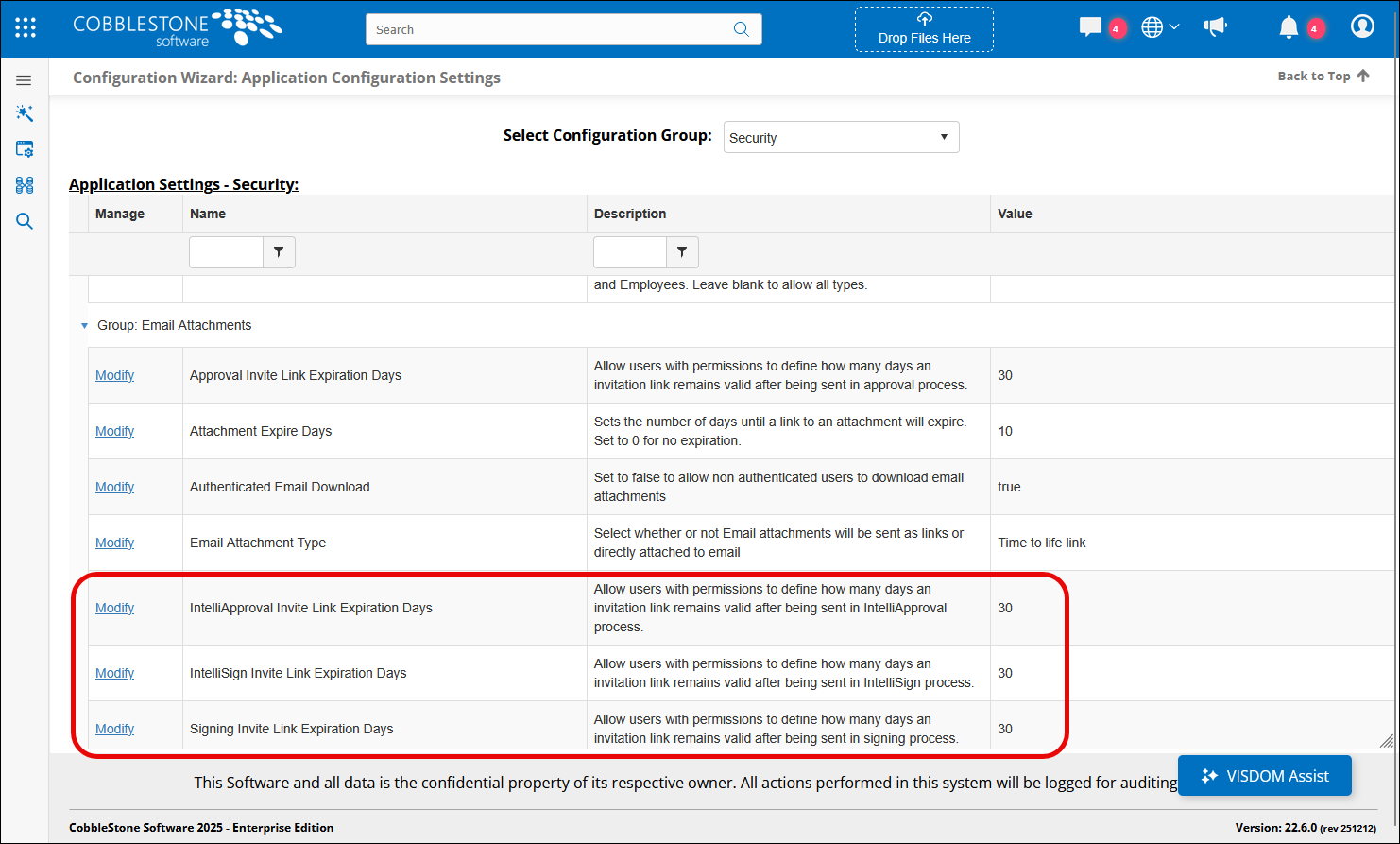
Invitation links for document signing and approval sent via email can now have an expiration date. This means you can set a time limit for how long these links remain active, reducing security risks and ensuring timely action.
How It Works:
- Administrators can configure expiration periods (in days) for both signing and approval links under Application Configuration -> Config Settings -> Security .
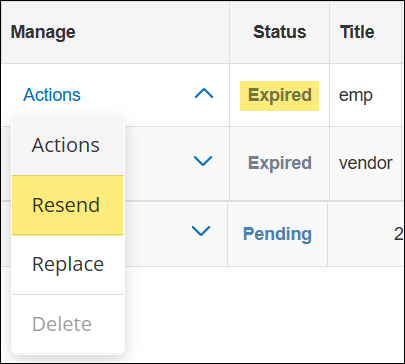
 - If a link expires, the system will automatically notify the recipient via email.
- Need to resend an expired link? Simply go to the Signing/Approval dashboard, select Actions, and resend the invitation.
Why This Matters:
This update gives you greater control over sensitive documents and helps enforce deadlines for signing and approval processes.
ENHANCEMENT: Improved IntelliSign Experience: Simplified Signing Actions
Reference #: 251212.345.7673
We’ve made IntelliSign even easier to use by reducing clicks and streamlining the signing process.
What’s New?
When starting a new IntelliSign process, the Signing Action options have been redesigned for a more intuitive experience. Instead of selecting from a dropdown menu, you’ll now see active/inactive buttons for:
- Sign Anywhere
- Signature Placeholders
Why This Matters:
This update simplifies the workflow, reduces unnecessary clicks, and provides a cleaner, more user-friendly interface for managing signing actions.
DOCUMENT COLLABORATION & E-SIGNATURE
RESOLUTIONS
RESOLUTION: E-Signature Process Not Finalizing
Reference #: 251212.1157.17738
We resolved an issue where certain e-signature processes did not finalize even after all participants had completed their signatures. This prevented the document from returning to the system and blocked users from starting a new signing process on the same record.
- The system now correctly finalizes the e-signature process once all signatures are complete.
- Updated the Finalize Process button to improve reliability.
- Removed the Pause toggle button to streamline the process.
RESOLUTION: Updating Signers in an Active Signature Process
Reference #: 251212.1157.18592
Previously, if a signer was deleted as a Company Contact from a Vendor record while a signature process was still in progress, the system did not allow replacing that signer.
Users can now successfully replace a Company Contact signer during an active signature process, even if the original contact was deleted from the Vendor Record's Company Contact table. This ensures smoother handling of signer changes without interrupting the process.
RESOLUTION: Placeholder Signature Blocks Could Not Be Resized
Reference #: 251212.1157.19353
We resolved an issue where placeholder signature blocks could not be resized during the signing process. This limitation was reported by clients and confirmed in certain versions.
- Users can now resize placeholder signature blocks within defined limits for better flexibility.
- If the process involves placeholder signing, the signature will display according to the specified height for signing.
- A new styling feature has been introduced, allowing users to apply a preferred signature style for a more personalized experience.
RESOLUTION: Unintended “.Test” Text in E-Signature Description
Reference #: 251212.1092.20964
We resolved an issue where a “.Test” string was incorrectly appended to the description when initiating an E-Signature process. This caused confusion for users during signature workflows.
The extra “.Test” text has been removed. Users will now see only the intended description when starting an E-Signature process.
RESOLUTION: IntelliSign Process Completion Status
Reference #: 251212.345.21664
We have addressed an issue where completed IntelliSign processes were not being properly recognized by the system. As a result, signed documents and Certificates of Completion were not automatically generated or attached, and the process continued to display as “In Process” even after all signers had finished.
The system now correctly registers the completion of IntelliSign processes. Signed versions and Certificates of Completion will be automatically generated and attached as expected once all signers have completed their actions.
RESOLUTION: Correct Version Titles Displayed When Starting IntelliSign
Reference #: 251212.337.18375
Clients reported confusion when starting an IntelliSign process from a completed E-Approval. The file drop down displayed File Titles instead of Version Titles, making it appear as though the initial (archived) version was being selected. In cases where later versions had different titles, this caused uncertainty about which version was being signed.
The drop down now displays Version Titles instead of File Titles when selecting files for IntelliSign. This ensures users can clearly identify and select the correct version for signing.