The Core System provides Contract Insight’s core components and functionality for full lifecycle management of your organization’s contracts and committals.
CORE SYSTEM
NEW FEATURES
NEW FEATURE: Collaborative Online Document Editing
Reference #: 251212.1203.12700
We’re excited to announce a major upgrade to our document editing experience with the launch of a new Collaborative Online Editor.
What’s New?
- Real-Time Collaboration: Invite other employees, company contacts, or share a link via email to collaborate on documents in real time.
- Modern Interface: A sleek, updated design with all the text editing capabilities of the legacy editor—and more.
- Track Changes Enabled: Changes are tracked automatically, and you can grant permissions for collaborators to accept or reject edits.
- Easy Workflow: When collaboration is complete, simply click Save and End Session to finalize your work.
Access:
- The new editor is available from Core system via the Files/Attachments table and Company Contacts can be invited through the editor. There is a configuration setting in the new Collaborative Online Editor configuration group that allows the option to invite collaborators solely with an email address, without a corresponding Employee Record or Company Contact Record.
Why This Matters:
This enhancement brings powerful real-time collaboration to your document workflows, helping teams work together seamlessly and stay competitive.
CORE SYSTEM
ENHANCEMENTS
ENHANCEMENT: Improved Tabbed Details Screens and Inline Editing
Reference #: 251212.337.20502
We’ve enhanced the tabbed details screens introduced in version 22.4.0 (Rev 241230) to deliver better performance.
What’s New?
Faster Tab Loading:
- When you click a tab for the first time, it will take a moment to load.
- After the initial load, tabs remain ready for quick access unless the page is refreshed.
Inline Editing by Field Group:
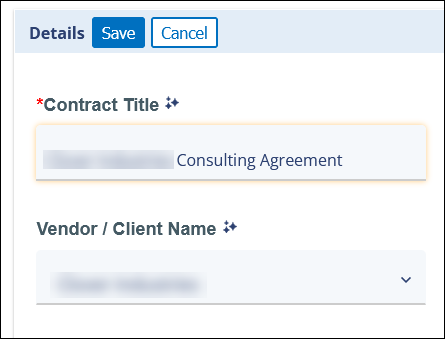
- To aid in performance, we’ve updated editing to occur at the Field Group level instead of individual fields.
- Click the pencil icon next to a field group name to edit all fields in that group inline.
- Changed fields are outlined in yellow for easy tracking.
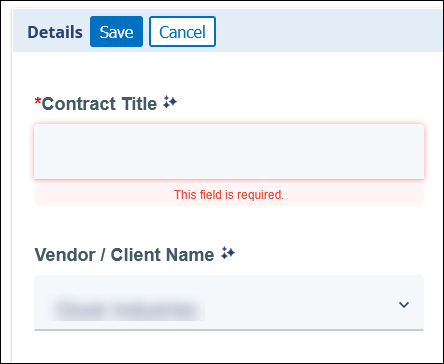
- Required fields without values are highlighted red with a notice.
Save or Cancel with Ease:
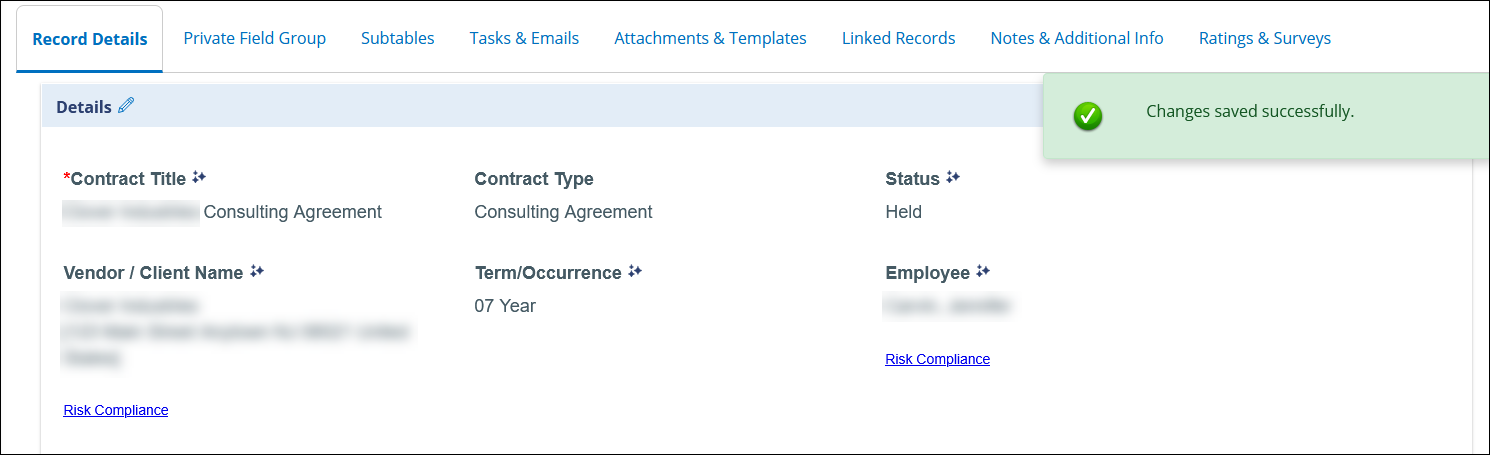
- Click Save next to the field group name to confirm changes (a green confirmation message will appear).
- Click Cancel to discard changes and revert to original values.
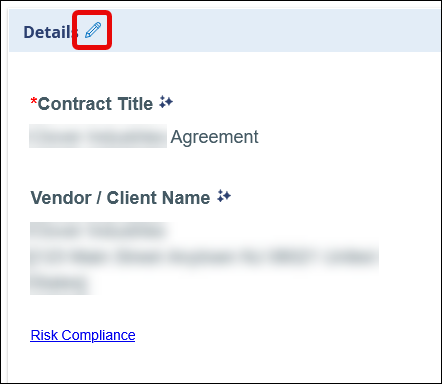
Why This Matters:
These updates improve performance and streamline editing, making it faster and easier to manage record details.
ENHANCEMENT: Collapsible Side Panel for a Cleaner View
Reference #: 251212.386.16829
We’ve added a simple way to reduce visual clutter and give you more space to focus on your work.
What’s New?
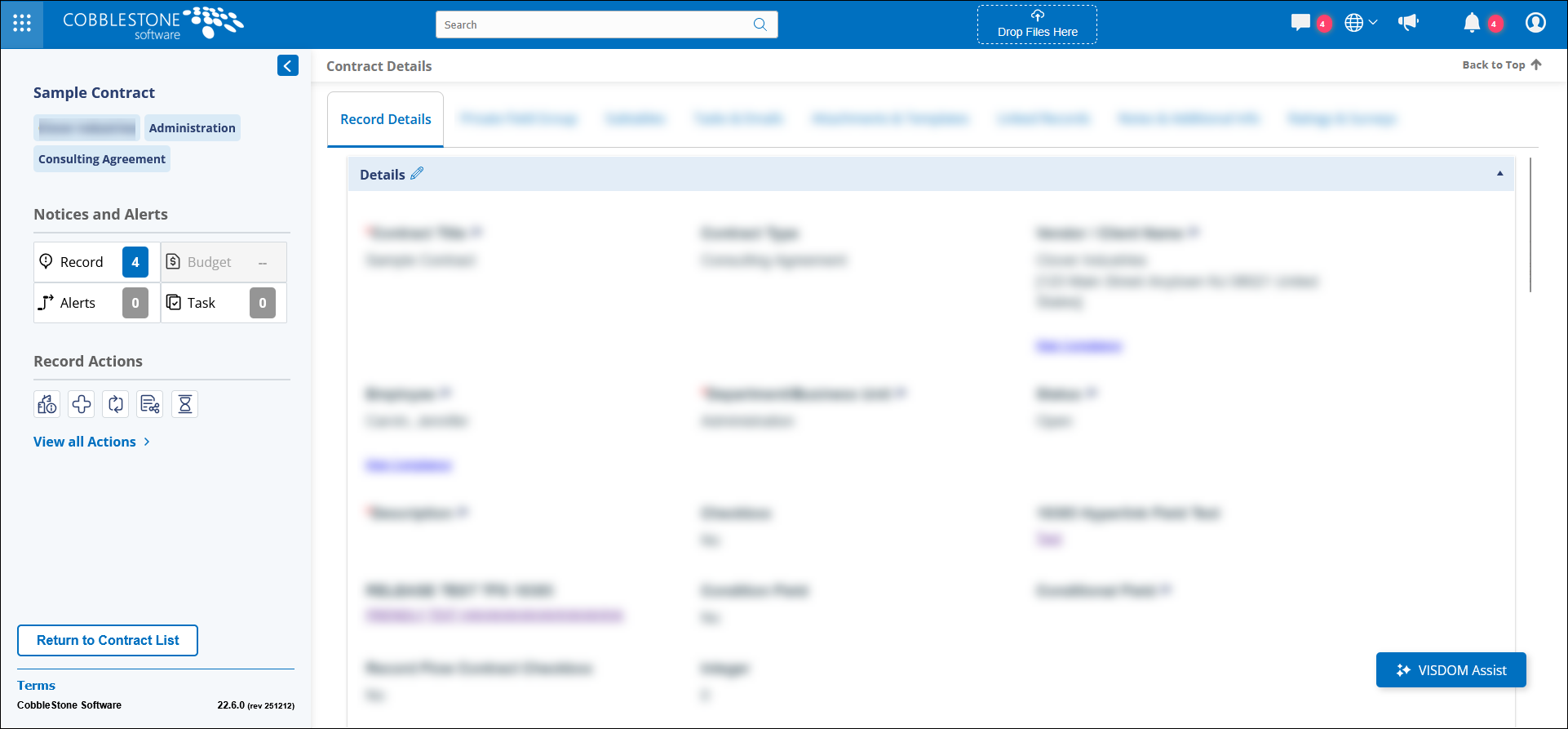
- On any record details page with the side panel, you’ll now see a collapse/expand button at the top right of the side panel.
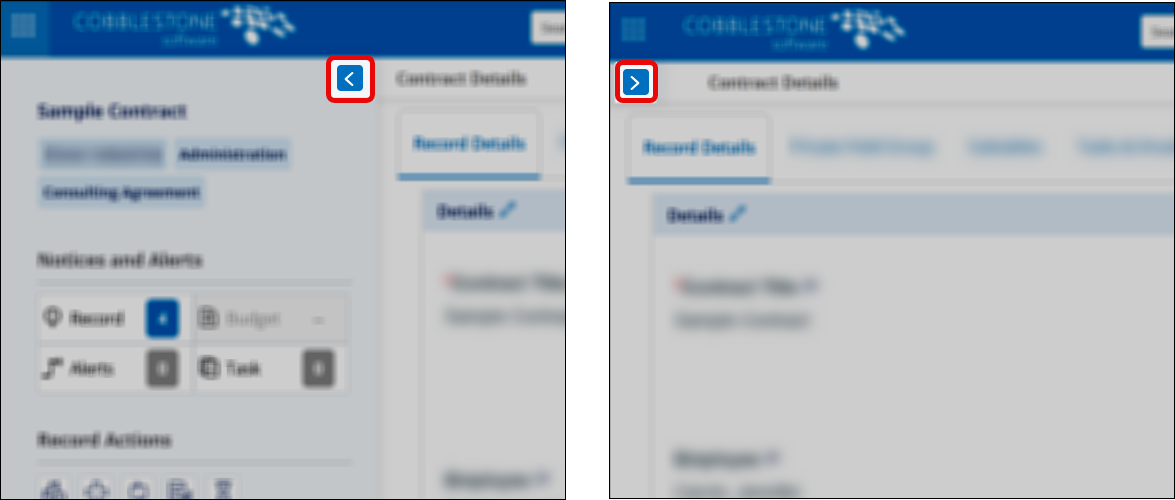
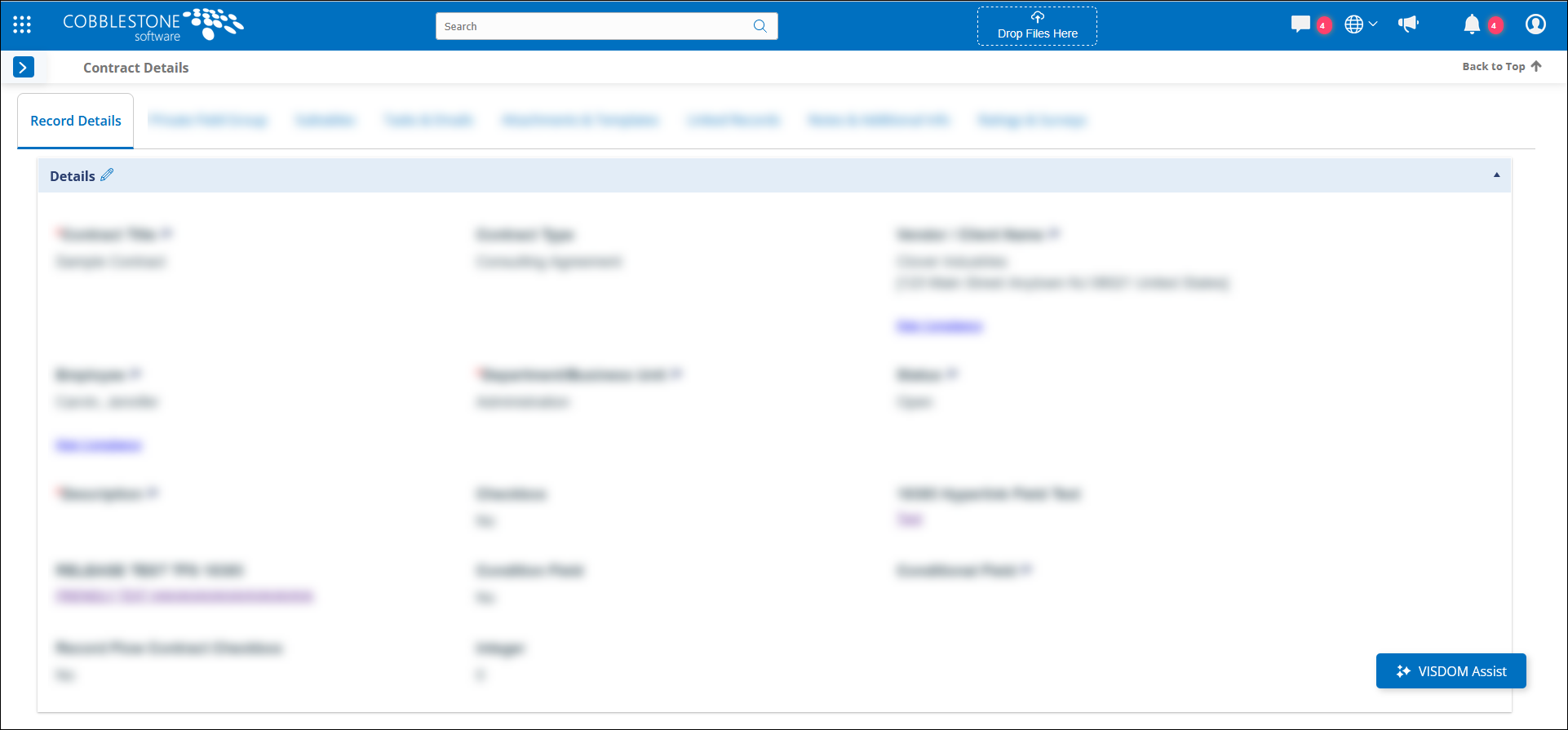
- Click the arrow to collapse the side panel and free up screen space.
- The arrow button remains visible so you can easily expand the side panel again when needed.
- Your preference (collapsed or expanded) will stay in place even if you refresh or navigate to another page.
Why This Matters:
This enhancement gives you more control over your workspace, helping you keep your screen clean and organized.
ENHANCEMENT: New Options for Document Templates: Convert and Lock PDFs
Reference #: 251212.345.19328
We’ve added two new options to make managing document templates easier and more secure.
What’s New?
- When uploading a Word document to a template and opening Manage File Info, you’ll now see:
- Convert to PDF: Automatically convert the document to PDF when merging.
- Lock PDF: Appears after checking Convert to PDF. If selected, the PDF will be locked to prevent further editing after conversion.
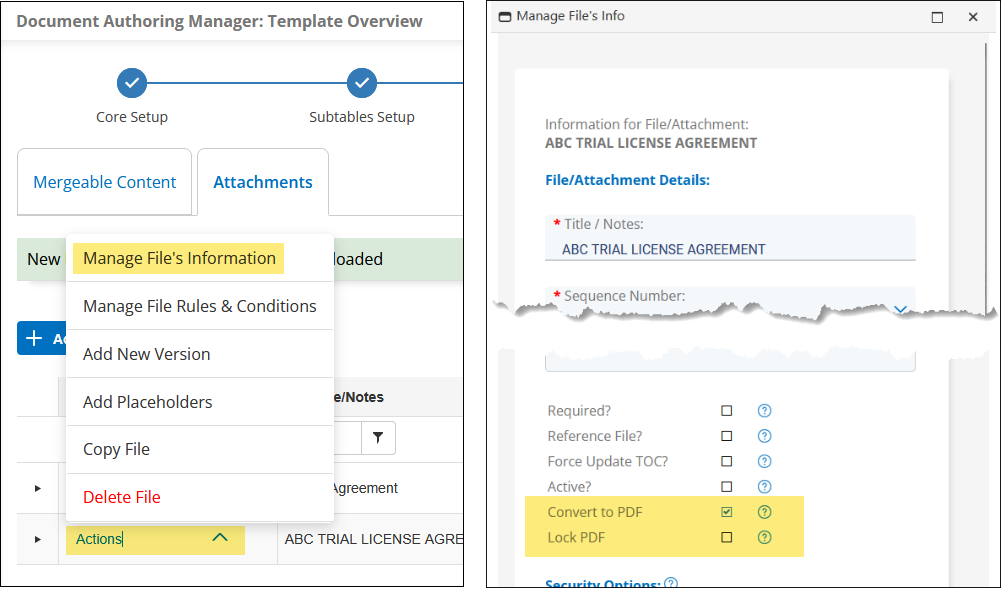
- For PDF files, you’ll see the Lock PDF option only.
Why This Matters:
These enhancements give you greater flexibility and control over document formatting and security, ensuring your templates remain consistent and protected.
ENHANCEMENT: Import Line Items for Requests
Reference #: 251212.365.19895
We’ve made it easier to manage line items in Requests by introducing a bulk import option.
What’s New?
The Requests Line Items subtable now includes an Import Record(s) button, similar to the functionality in Purchase Orders. Simply:
- Navigate to a Request record and open the Line Items subtable.
- Click Import Record(s) to download the CSV template.
- Fill in your line items and upload the file.
Once uploaded, your line items will automatically appear in the subtable.
Why This Matters:
This enhancement reduces manual data entry, saves time, and streamlines your workflow for managing Requests.
ENHANCEMENT: Flexible “From” Address for Non-SendGrid Email Configurations
Reference #: 251212.1259.22176
We’ve added more flexibility to email sending when SendGrid is not enabled.
What’s New?
- Users can now select a different “From” address when sending emails from the system.
- A new field, Include in From Email List, has been added to Employee records.
- Set this field to Yes to make that employee available in the “From” dropdown.
- The dropdown appears when you clear the default sender and begin typing to search.
- Only one “From” address can be selected per email.
Important:
- This feature is exclusive to non-SendGrid configurations.
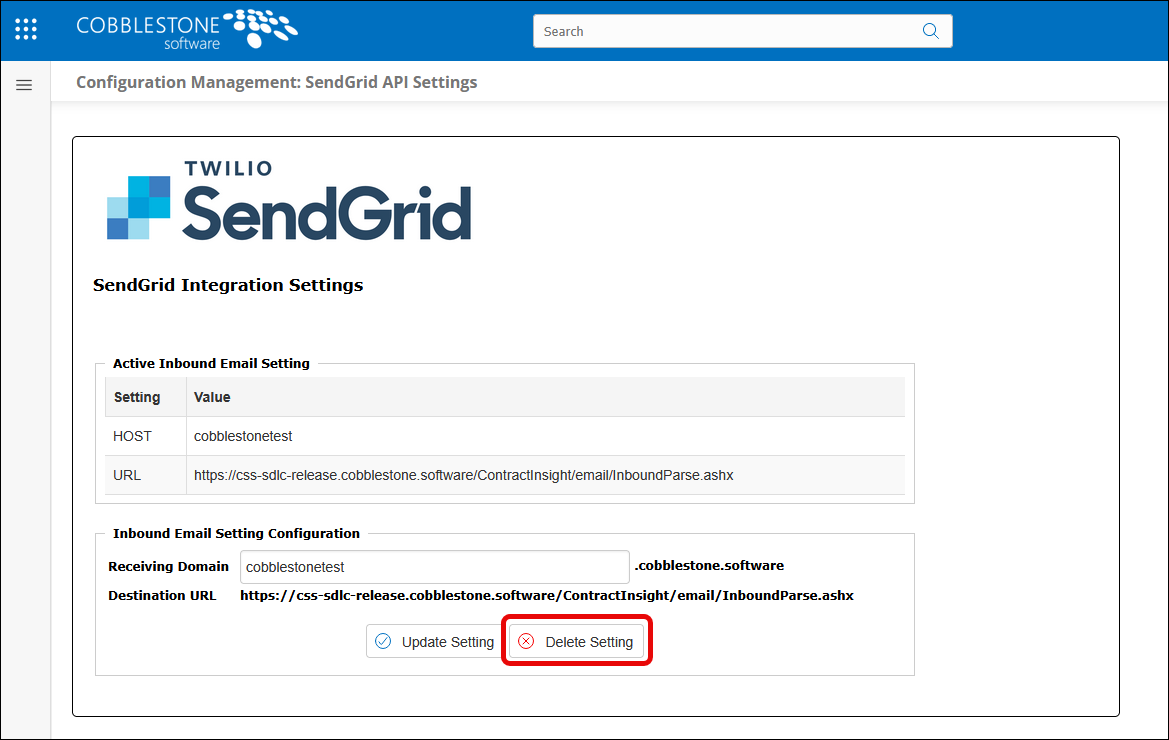
- To enable this functionality, delete SendGrid Setting under Manage/Setup → SendGrid API Management → Delete Setting.
Why This Matters:
This enhancement gives organizations more control over email communication, allowing messages to be sent on behalf of other authorized users for improved flexibility and workflow efficiency.
ENHANCEMENT: VISDOM Assist Now Available in the Legacy Online Editor
Reference #: 251212.1273.9675
We’ve enhanced the Legacy Online Editor in Contract Insight to bring it closer to the powerful functionality you know from our Word Add-In and VISDOM Basic/VISDOM+ tools.
What’s New?
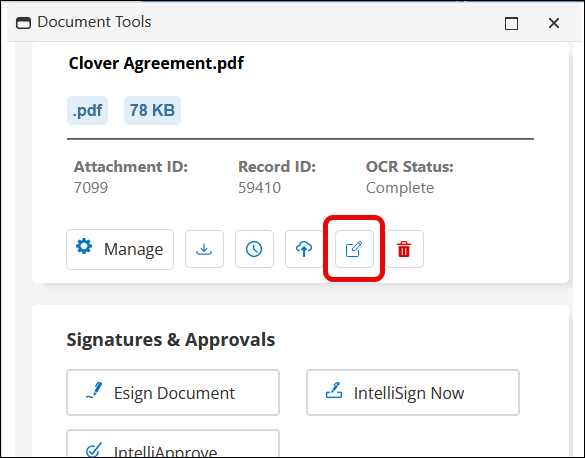
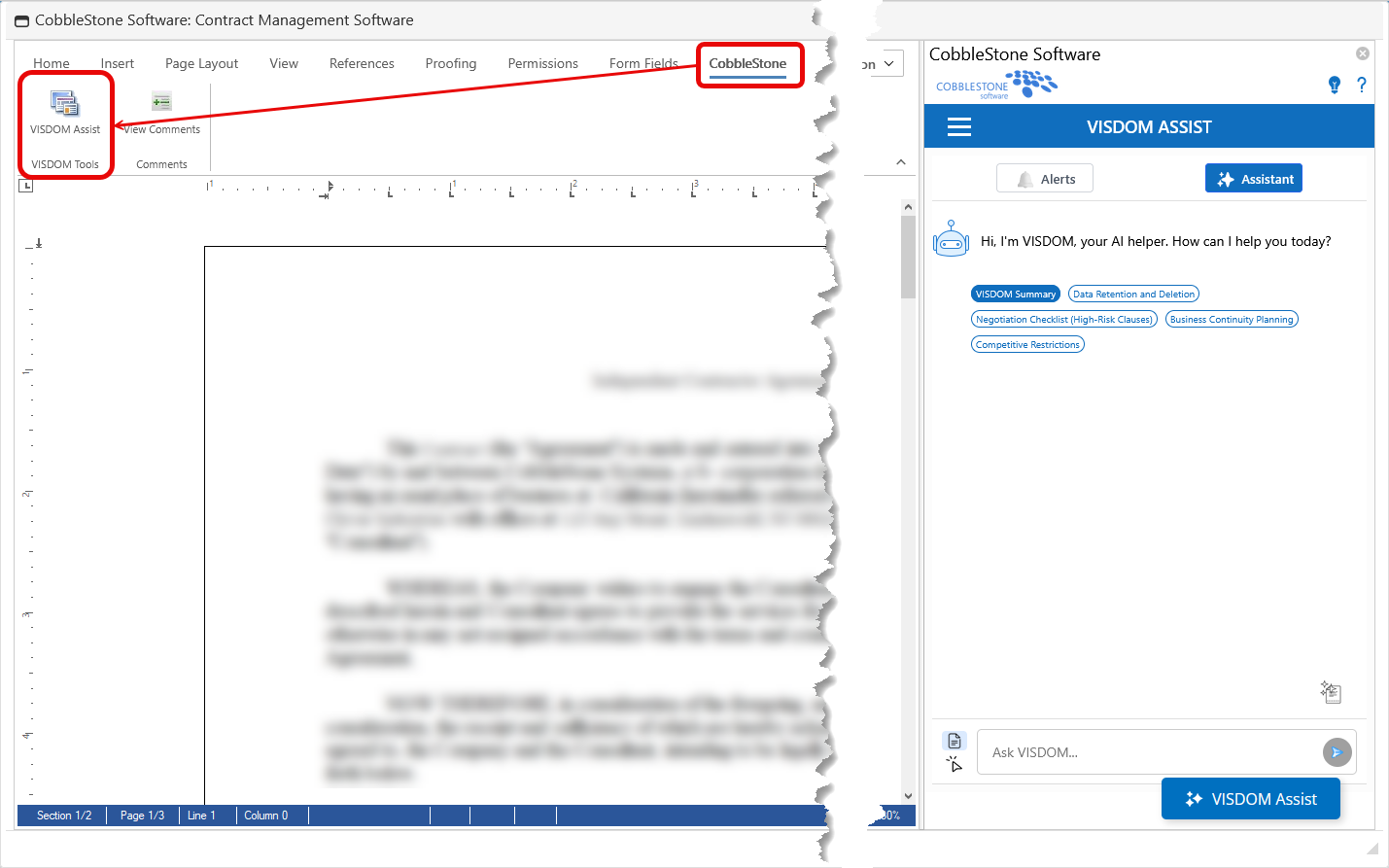
- VISDOM Assist Integration: When using the Online Document Editor, you can now access VISDOM Assist directly from the editor.
- Smart Chatbot:
- Get a document summary instantly.
- Use prompt suggestions or ask your own questions about the document.
- Save custom prompts for future use.
- Alerts: Enable Critical, Warning, and Info alerts to receive actionable suggestions for improving your document.
- Advanced Features: Access tools like:
- Clause Library
- Found Clauses
- Sentiment Analysis (VISDOM+)
- High-Risk Findings (VISDOM+)
Why This Matters:
This update standardizes functionality across platforms, giving you the same powerful insights and editing tools whether you’re working in Word or directly in Contract Insight’s Online Editor.
CORE SYSTEM
RESOLUTIONS
RESOLUTION: Email Sending Errors for Certain Records
Reference #: 251212.1259.19325
We resolved an issue where sending emails from specific records resulted in errors for certain users. This occurred inconsistently and was linked to email addresses containing spaces or special characters at the beginning or end.
The email sending logic has been updated to handle spaces and special characters correctly. Users can now send emails from records without encountering errors caused by formatting issues in email addresses.
RESOLUTION: Task Buttons Displayed in Email Alerts Despite Configuration
Reference #: 251212.1259.20732
We resolved an issue where task alert emails continued to display task action buttons even when the configuration was set to hide them. This behavior was reported in a client system and has now been corrected.
Email alerts for task statuses now fully respect configuration settings. Users can toggle the display of task action buttons on or off, and the system will apply these preferences as expected.
RESOLUTION: Special Characters Display Incorrectly in Excel Export
Reference #: 251212.1258.20892
Clients reported that when exporting reports to Excel, special characters in the Description field were not displaying correctly. For example, an apostrophe (') appeared as ’, and similar issues occurred with slashes and dashes.
We updated the export process to properly handle and display special characters in Excel. Apostrophes, slashes, dashes, and other symbols will now appear as intended.
RESOLUTION: Missing Primary Record Information in Workflow Email Alerts from Request Notes
Reference #: 251212.1259.21807
We resolved an issue where email alerts triggered by workflows from the Request Notes table did not include the Primary Record Information section when using the default notification template. This caused incomplete context in workflow notifications.
Email alerts now correctly include Primary Record Information when workflows are triggered from Request Notes updates, ensuring recipients have full visibility into the related record details.
RESOLUTION: Page Refresh When Updating Conditional Fields
Reference #: 251212.1287.22142
We have resolved an issue where the page would refresh and return to the top of the Contract Details section when updating conditional fields on the Add Contract page (using a file or drag-and-drop in VISDOM). This behavior required users to scroll back down to continue entering additional values, causing unnecessary interruptions.
The refreshing logic has been updated to provide a smoother experience. Users can now update conditional fields without the page fully resetting, allowing for faster and more efficient contract creation.
RESOLUTION: Errors When Using Filter, Sort, or Add Record on Application Maintenance Page
Reference #: 251212.1287.22771
We resolved an issue where users encountered errors when attempting to use the Filter, Sort, or Add Record buttons on the Application Maintenance page. These errors disrupted normal functionality and prevented users from managing records effectively.
The underlying logic for these actions has been corrected. Users can now filter, sort, and add records on the Maintenance page without encountering errors.
RESOLUTION: Some Contract Fields Empty After Using IntelliXtract
Reference #: 251212.1275.14085
Some clients reported that certain contract fields appeared empty after using the Update with VISDOM feature. This typically occurred when creating a contract via Drag and Drop, then updating fields through VISDOM. Even though fields were populated before contract creation, the data was not retained as expected.
We’ve improved the logic that stores original field values during the update process. The system now correctly maps and saves values using the column name as the key, ensuring that data remains intact after VISDOM updates.
RESOLUTION: Deleted or Inactive Companies Appearing in Search Results
Reference #: 251212.337.16787
Some clients reported that standard users could still see companies that had been deleted or marked as inactive when performing quick searches. System administrators, who have the Is Deleted toggle, did not see these records when the toggle was turned off, causing inconsistent visibility between user roles.
We’ve updated the filtering logic to properly separate conditions for deleted and inactive companies. Now:
- Deleted companies will only appear if the Is Deleted toggle is enabled.
- Inactive companies will no longer appear in quick search results for standard users.
RESOLUTION: Improved Track Changes Color in Redlining
Reference #: 251212.1273.17250
When redlining a document, users noticed that their edits appeared in red, while edits from the next participant appeared in yellow. These colors were difficult to read and caused confusion during document review.
We’ve updated the color scheme for track changes to use more legible and visually distinct colors, making it easier to identify edits from different participants.
RESOLUTION: User Unable to Delete Records Despite Correct Permissions
Reference #: 251212.349.19030
A client reported that a user could not delete records even though they had the appropriate permissions. During troubleshooting, we confirmed that the user had both a security group assigned and most individual permissions.
We identified and corrected the underlying logic that prevented record deletion when permissions were configured in this manner. Users with proper delete permissions—whether through security groups or individual settings—can now delete records as intended.
RESOLUTION: Survey Invitations and Response Handling for Vendor Contacts
Reference #: 251212.1259.20398
We resolved two issues related to survey distribution and response behavior:
- Survey Invitations Sent Despite “Send Email” Setting
Previously, vendor/company contacts with Send Email set to No were still receiving survey invitations. This has been corrected—contacts marked as Send Email = No will no longer receive survey emails. - Incorrect Survey Response Display
When multiple contacts accessed the same survey link, the second user could see the first user’s responses. If Allow Retake = No, these responses appeared greyed out, preventing the second user from answering. This issue has been resolved to ensure each participant can respond independently without viewing another user’s answers.
RESOLUTION: Email Sending Restricted to Edit Permissions
Reference #: 251212.1259.20993
We resolved an issue where users were unable to send or reply to emails from the system, even though they had the appropriate view permissions on contract records. Previously, the Send Email and Reply to Email buttons were restricted to users with edit permissions.
The permissions logic has been updated so that users with applicable view permissions on a record can now send and reply to emails directly from the system.
RESOLUTION: Silk Theme Causing Toolbar Icons Overflow When Adding Notes to Attachments
Reference #: 251212.1287.21074
When using the Silk theme and adding a note to an attachment within a Contract Record, several icons above the text box did not fit properly in the toolbar, causing visual overflow. Despite this, notes still saved correctly and remained visible after navigating away from the page.
We updated the toolbar styling by setting its height to adjust automatically. This ensures all icons fit within the toolbar without overlapping or being cut off.
RESOLUTION: Error During Update-Only Import Process
Reference #: 251212.1258.22185
Clients reported encountering an error message stating “Invalid column name 'Admin'” during an Update Only import process. This error prevented the import from completing successfully.
We added a validation check for the Employee table during the import process to ensure that all column references are correct. This prevents the system from attempting to use invalid column names.
RESOLUTION: Email Attachment Download and Access Flow
Reference #: 251212.1259.18076
We have addressed several issues impacting the download and access of email attachments for both internal and external users. These improvements ensure secure, streamlined access to files shared via email.
Internal Users:
- Previously, clicking an attachment link redirected users to the related record instead of the file. Now, internal users are taken directly to the file for download.
- Added proper permission checks to confirm the user has rights to access the file.
Custom Email Recipients:
- When authenticated email download was enabled, custom recipients could not access the file. This has been resolved by adding logic to verify if the recipient is part of the email chain before granting access.
External Users (Vendor Gateway):
- Added validation to ensure external users are correctly associated with the vendor before allowing file download.
- Fixed an issue where copying an attachment link into another browser session could allow unauthorized access. This is now prevented.
These updates improve security, ensure proper permissions, and provide a smoother experience when downloading attachments from email notifications.
RESOLUTION: HTML Tags Appearing in Excel Export
Reference #: 251212.1287.20928
When exporting data to Excel from pages under Manage/Setup > Master Reference Data, some clients noticed HTML tags appearing around the View/Manage link in the exported file. This made the exported data look cluttered and harder to read.
The export process has been updated to remove unnecessary HTML formatting. Now, the View/Manage link will display cleanly in Excel without extra tags.
RESOLUTION: Unable to Add Attachments While Record Is on Legal Hold
Reference #: 251212.1250.18415
Clients reported that even when Legal Hold was configured to allow adding attachments to a record under Legal Hold, the system did not permit attachments to be added. This issue was confirmed and replicated across multiple environments, including demo, QA, and the latest release.
We corrected the logic controlling attachment permissions for records under Legal Hold. When the setting is configured to allow attachments, users can now successfully add files without restriction.
RESOLUTION: VISDOM IntelliXtract Page Navigation After Record Creation with VISDOM Basic
Reference #: 251212.1222.17930
Some clients reported difficulty navigating document pages when using VISDOM IntelliXtract after creating a record via Drag and Drop. In certain cases, the viewer would open on a random page (first, last, or another) and was prevented from switching between pages. This issue primarily affected OCR documents (such as PDFs) in VISDOM Basic.
We’ve corrected the page navigation logic so that:
- The page drop down now accurately reflects the page number being viewed.
- Navigation between pages works consistently, and the displayed text matches the correct page content.
RESOLUTION: File Download from Vendor Contracts
Reference #: 251212.349.21744
We’ve addressed an issue where users were unable to download attachments from the Vendor Contracts section within a Contract record. Previously, attempting to open these files could result in an error or the page failing to load. This has now been resolved, and downloading files from Vendor Contracts will work as expected.
RESOLUTION: View Links After Email Replies with Attachments
Reference #: 251212.1259.21983
We’ve fixed an issue that occurred when replying to an email sent from the system with an attachment. Previously, after the reply with an attachment was processed, some View links on list pages (such as search results for Contracts, Companies, or Requests) could display an error message: “The file does not exist.” This happened because the links were incorrectly modified during the process.
This issue has been resolved. Replies with attachments will no longer affect the functionality of View links, and users can navigate list pages without interruption.