COBBLESTONE SOFTWARE
Contract Insight — User Guide
Single Sign On Overview
Single Sign-On › Single Sign On Overview
Note: Each procedure in this guide begins at the Contract Insight homepage, so any section can be followed on its own. Custom fields are configurable, so the exact field list on a contract category record may vary between environments.
1. Overview
The application supports several login methods, selectable per audience from the Login Method dropdown on Administration › Single Sign-On. The page has two fully independent tabs:
- Your people (internal users): Standard (username / password), Integrated Windows Authentication, SAML 2.0 Single Sign-On, or ADFS / WS-Federation.
- Vendors & clients (Gateway) (Vendor/Client Gateway users): Standard (user name, password and company id), Simplified (email address and password), SAML 2.0 Single Sign-On, or ADFS / WS-Federation.
Because the tabs are independent — each has its own identity provider, certificate, and login method — an organization can run standard login for one audience and federated SSO for the other, or different SSO setups for each. Changing the Gateway configuration never affects how internal users sign in. Switching the Login Method requires clicking Apply, and a Refresh configuration action re-reads all settings from the database in case a change was made on another server.
2. Key Elements
- Login Method options are chosen independently for Your people and Vendors & clients (Gateway).
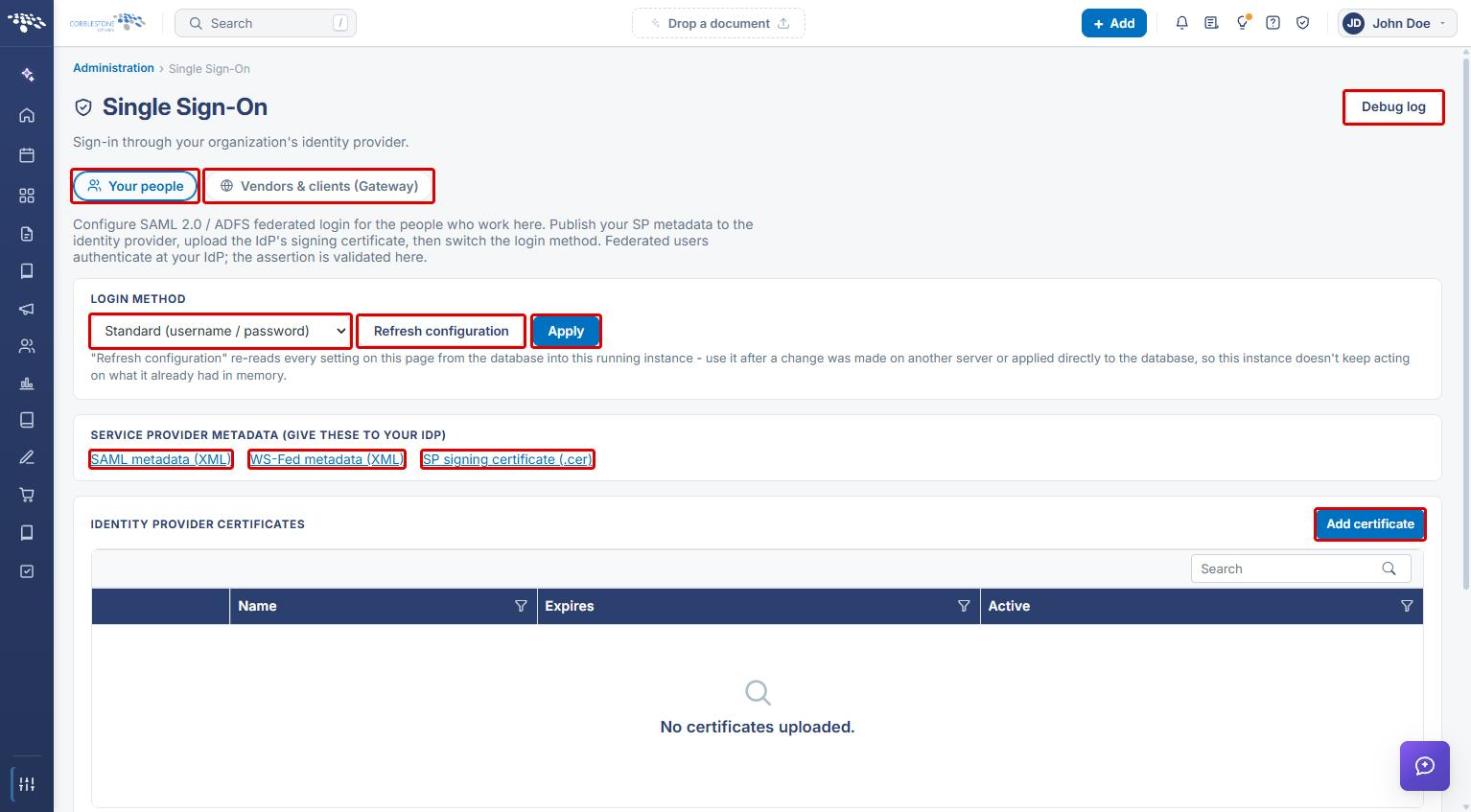
- Apply commits a Login Method change. Refresh configuration re-reads every setting on the page from the database into the running instance, without requiring an application restart.
- Service Provider Metadata links (SAML metadata (XML), WS-Fed metadata (XML), SP signing certificate (.cer)) are provided to your identity provider (IdP).
- Identity Provider Certificates holds the IdP's signing certificate(s), added with Add certificate.
- SSO Configurations lists each SSO configuration, added with Add configuration. Row actions: Edit, Just-in-time provisioning for this configuration, Metadata for this configuration, and Delete this configuration.
- Debug log (top right) opens the SSO debug log for troubleshooting sign-in issues.
3. Navigating to Single Sign-On
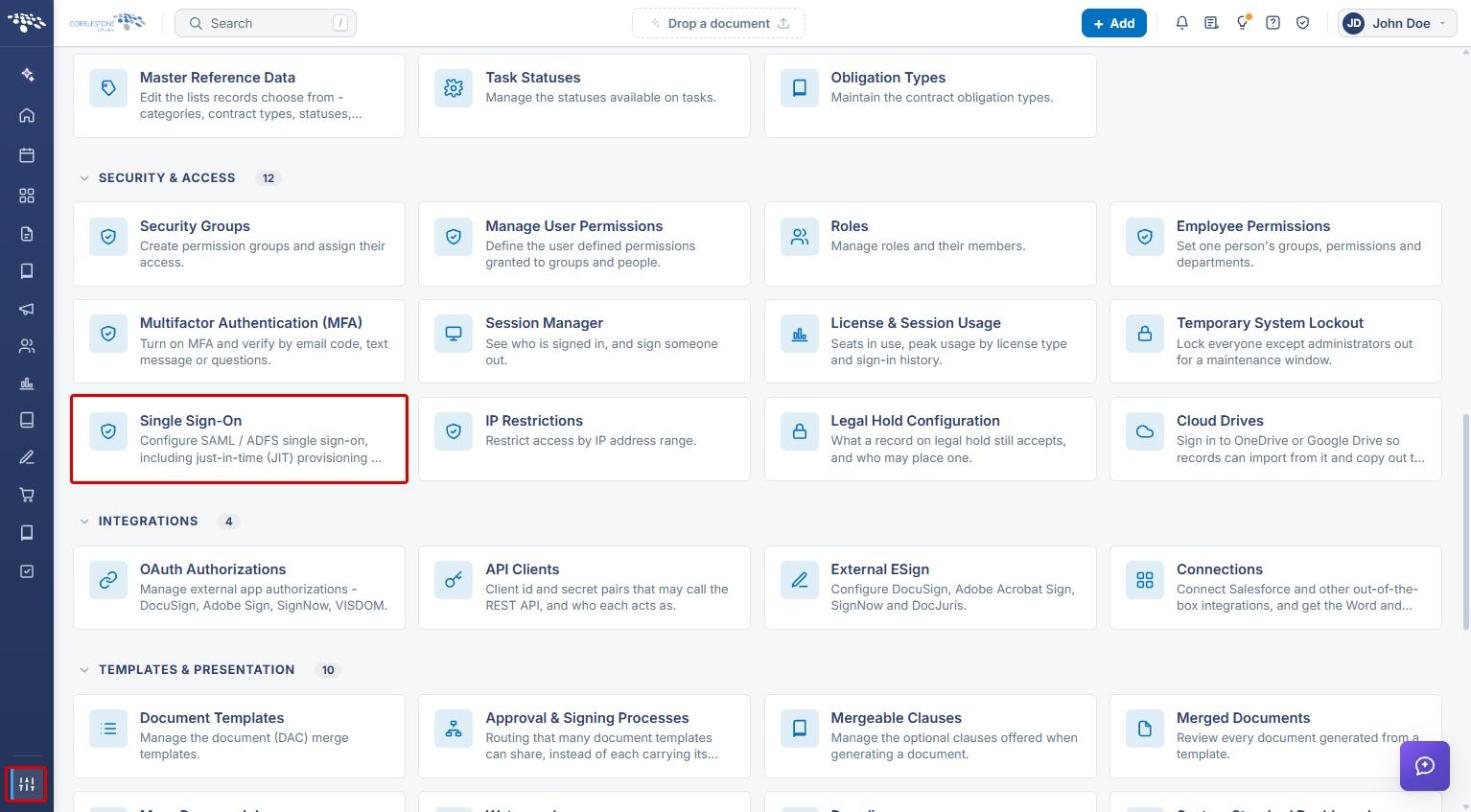
- From the Contract Insight homepage, click the Application settings icon at the bottom of the left navigation bar.
- Under Security & Access, click Single Sign-On.
4. Setting the Login Method for Your People
- The Single Sign-On page opens on the Your people tab.
- Under Service Provider Metadata, download the SAML metadata (XML) or WS-Fed metadata (XML) and the SP signing certificate (.cer), and provide them to your identity provider.
- Under Identity Provider Certificates, click Add certificate to upload the IdP's signing certificate.
- Under Login Method, select the method for internal users.
- Click Apply to save the change.
Note: Upload the IdP certificate and configure SSO before switching the Login Method to SAML or ADFS, so users are not locked out.
5. Managing Certificates and SSO Configurations
Scroll down on either tab to manage the identity provider certificates and SSO configurations for that audience.
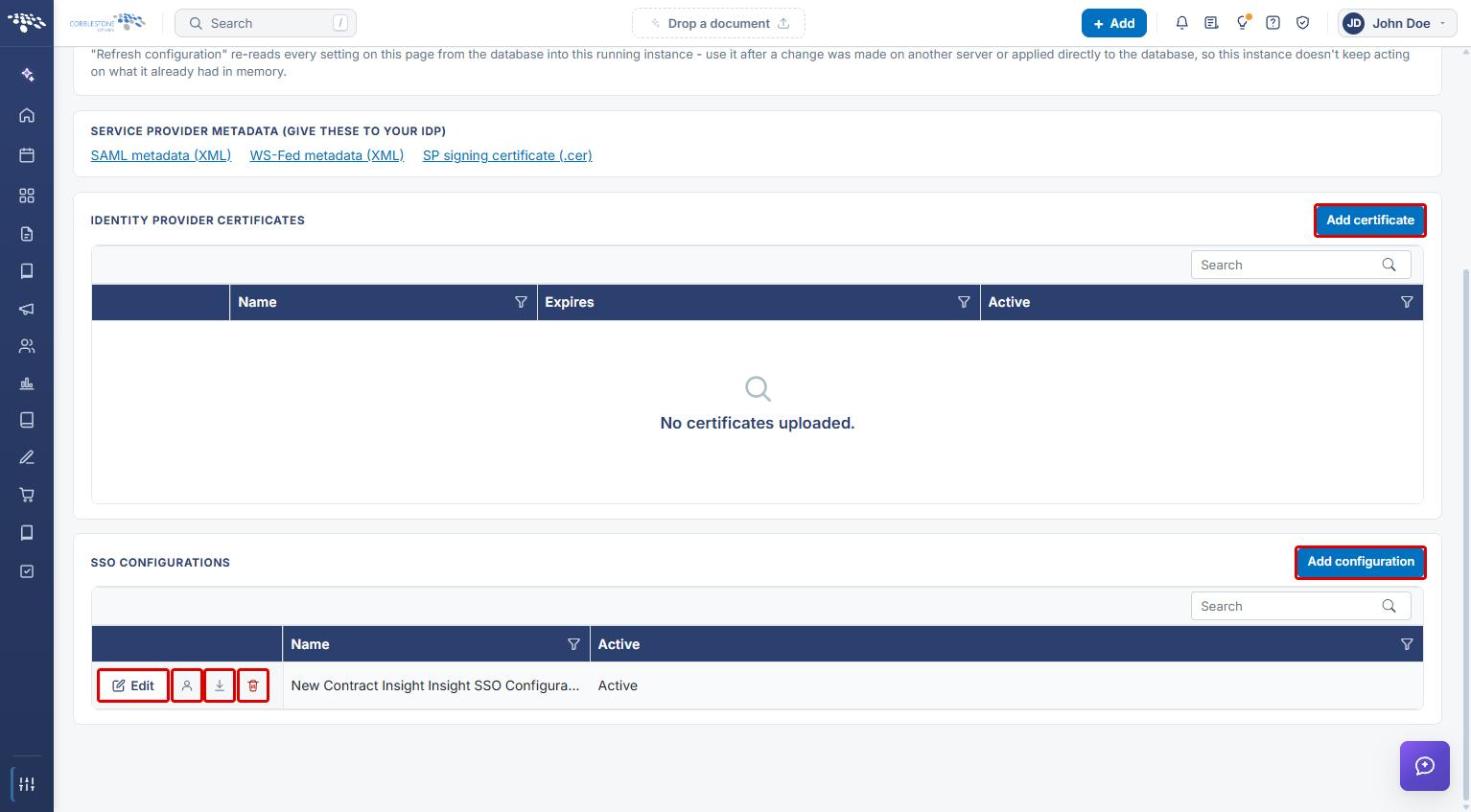
- Add certificate: uploads an IdP signing certificate. The grid shows each certificate's Name, Expires date, and Active status.
- Add configuration: creates a new SSO configuration.
- Edit: opens the configuration's settings.
- Just-in-time provisioning (person icon): configures just-in-time (JIT) provisioning for the configuration.
- Metadata (download icon): downloads the metadata for the configuration.
- Delete (trash icon): deletes the configuration.
6. Setting the Login Method for Vendors & Clients (Gateway)
- Click the Vendors & clients (Gateway) tab.
- Under Login Method, select Standard (user name, password and company id), Simplified (email address and password), SAML 2.0 Single Sign-On, or ADFS / WS-Federation.
- If using SAML or ADFS, provide this tab's Service Provider Metadata to the Gateway's identity provider and click Add certificate to upload its signing certificate.
- Click Apply to save the change.
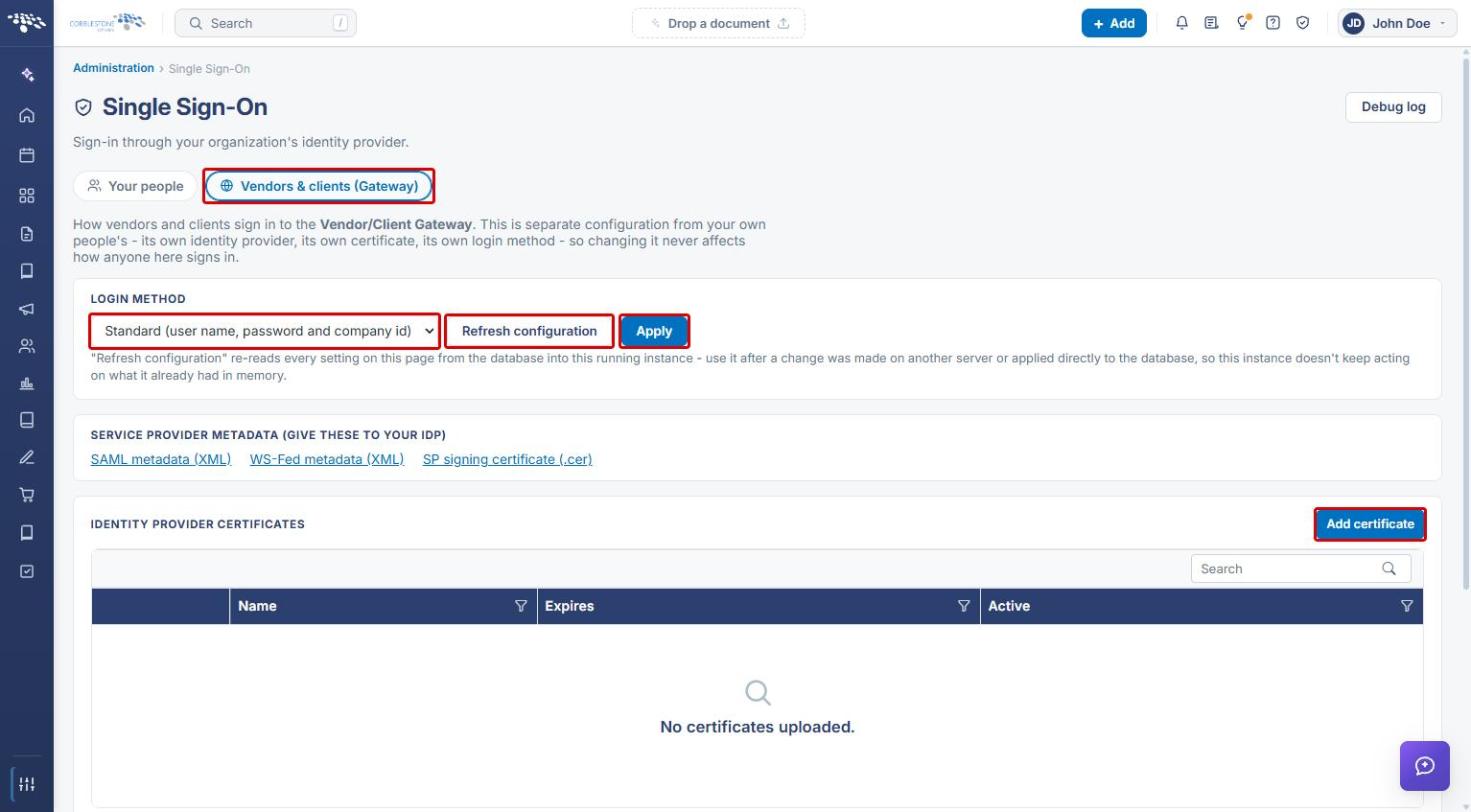
Note: The Gateway tab is a separate configuration from Your people — changing it never affects how internal users sign in.
7. Quick Reference Summary
| Setting | Your people | Vendors & clients (Gateway) |
|---|---|---|
| Login Method options | Standard (username / password); Integrated Windows Authentication; SAML 2.0 Single Sign-On; ADFS / WS-Federation | Standard (user name, password and company id); Simplified (email address and password); SAML 2.0 Single Sign-On; ADFS / WS-Federation |
| Save a Login Method change | Apply | Apply |
| Reload settings from the database | Refresh configuration | Refresh configuration |
| Give to your IdP | SAML metadata (XML), WS-Fed metadata (XML), SP signing certificate (.cer) | SAML metadata (XML), WS-Fed metadata (XML), SP signing certificate (.cer) |
| Upload IdP signing certificate | Add certificate | Add certificate |
| Create / manage SSO configurations | Add configuration; Edit, JIT provisioning, Metadata, Delete | Add configuration; Edit, JIT provisioning, Metadata, Delete |
| Troubleshoot sign-in | Debug log | Debug log |