COBBLESTONE SOFTWARE
Contract Insight — User Guide
Shopping Cart - Requests
Module: Purchase Orders › Catalog Management › Shopping Cart - Requests
Note: Each procedure in this guide begins at the Contract Insight homepage, so any section can be followed on its own. Custom fields are configurable, so the exact field list on a contract category record may vary between environments.
1. Overview
The Shopping page (Procurement → Shopping) lets you “browse a supplier's catalog and build a cart, then turn it into a purchase order or a request.” You choose a Supplier catalog (only the catalogs you have been given access to are listed), add items to Your cart in the panel on the right, and then click Create request to turn the cart into a Request. This connects the Procurement module's catalogs to the Contract & Procurement Requests process.
2. Key Elements
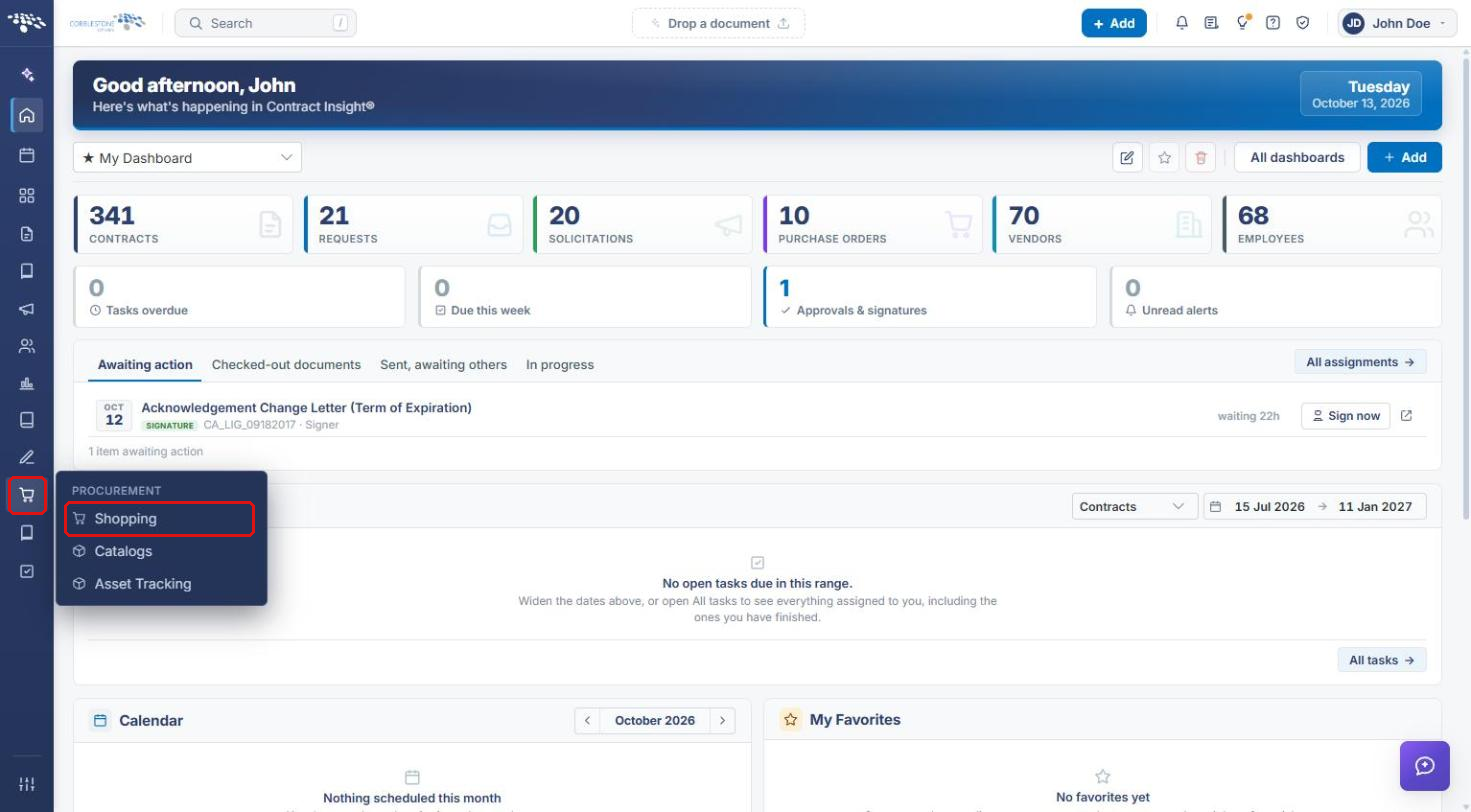
- Procurement → Shopping: the Shopping Cart page. The Procurement menu also includes Catalogs and Asset Tracking.
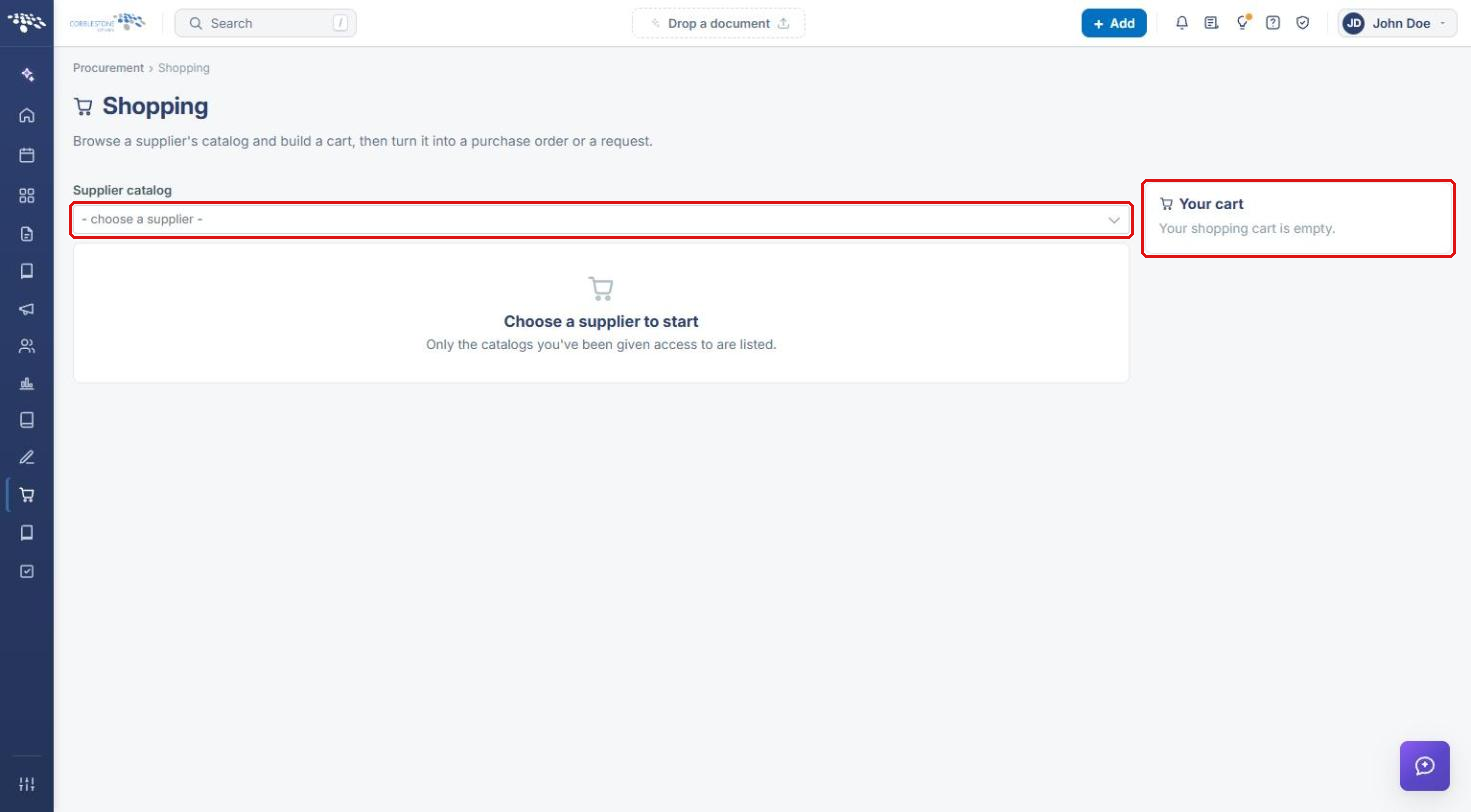
- Supplier catalog dropdown: lists only the suppliers whose catalogs you can shop. Until you choose one, the page shows “Choose a supplier to start.”
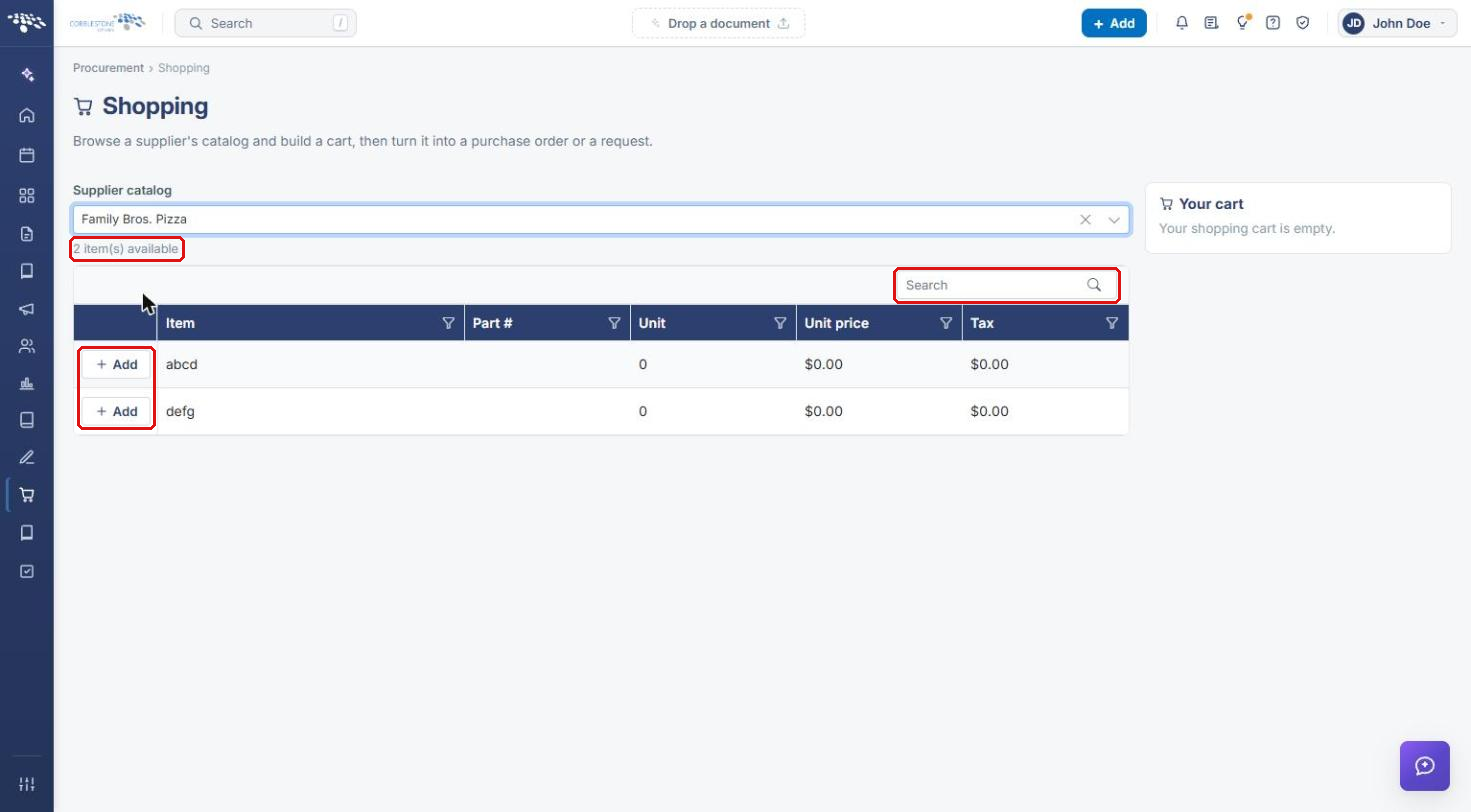
- Catalog items grid: each available item with its Part #, Unit, Unit price, and Tax, and an + Add button.
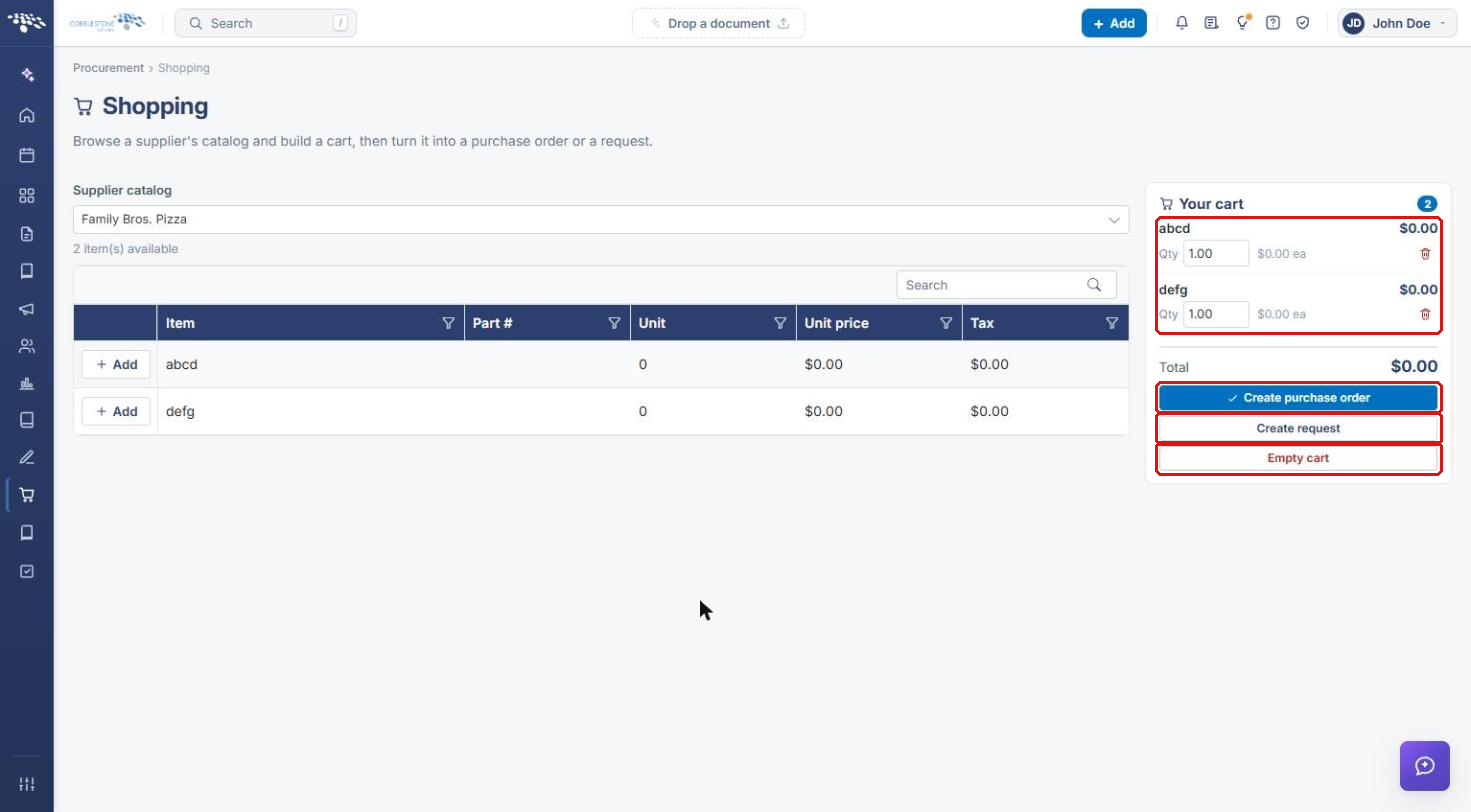
- Your cart panel: the items you've added, each with a Qty and a remove icon, the cart Total, and the Create purchase order, Create request, and Empty cart buttons.
- Who can shop it: on each catalog under Procurement → Catalogs, the list of employees allowed to shop that catalog.
3. Opening the Shopping Page
- From the Contract Insight homepage, click the Procurement (shopping cart) icon in the left navigation bar.
- Select Shopping.
The Shopping page opens with an empty Supplier catalog selection and an empty Your cart panel.
4. Choosing a Supplier Catalog
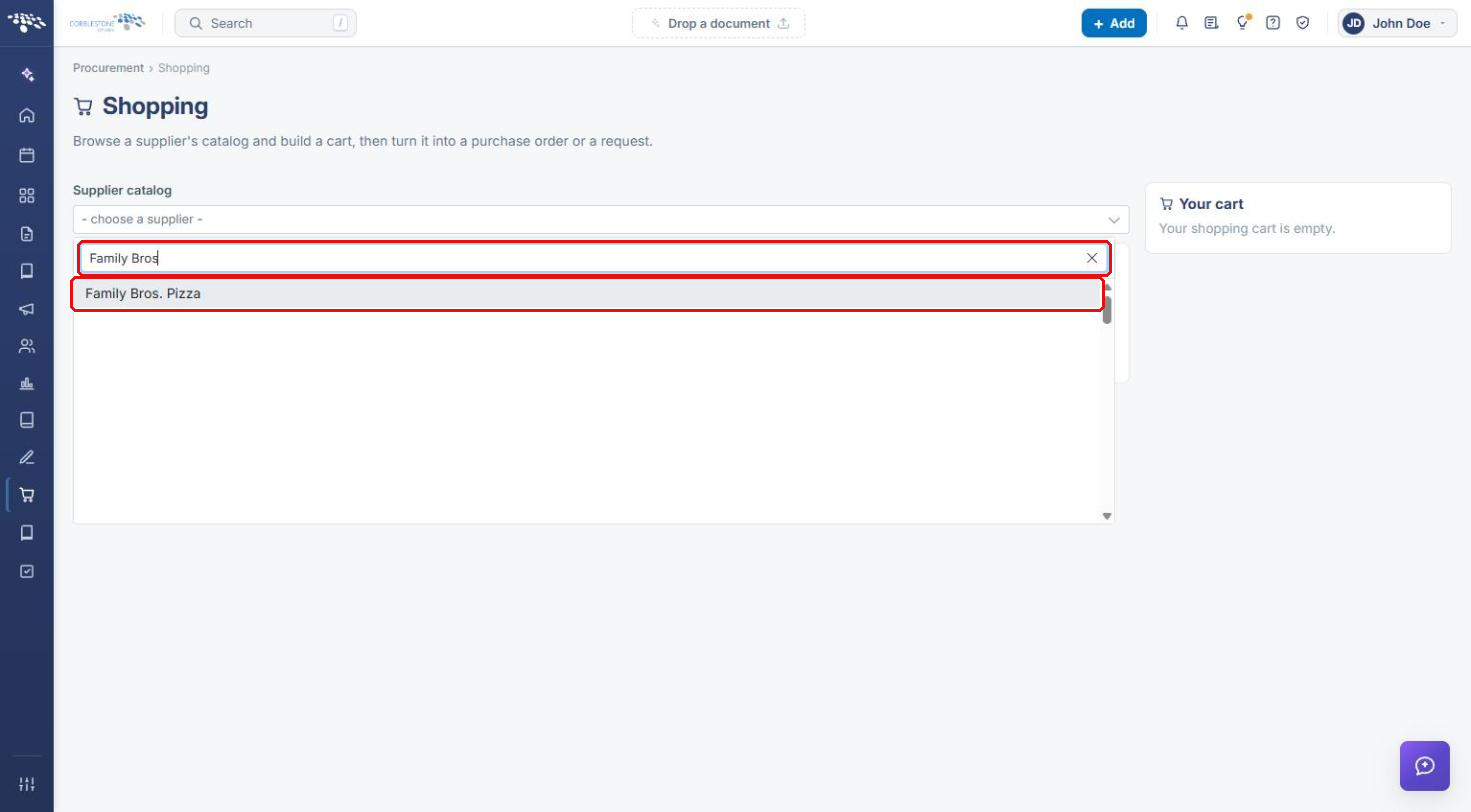
- Click the Supplier catalog dropdown.
- Type in the search box to filter the list, then click the supplier.
The supplier's catalog items are listed with a count of the items available. Use the Search box above the grid to find a specific item.
Note: If the page shows “No items available from this supplier,” the supplier's catalogs may be empty, outside their date window, or not shared with you. See Section 7.
5. Building the Cart
- Click + Add on each item you need. A “Added to your cart” message confirms each one, and the item appears in Your cart.
- In the cart, adjust the Qty for each item as needed. The Total updates.
- To remove a single item, click its red trash icon.
6. Turning the Cart into a Request
- Review the items, quantities, and Total in Your cart.
- Click Create request. Contract Insight creates a Request from the items in the cart.
Note: To create a Purchase Order instead, click Create purchase order. If the cart has no items, Contract Insight shows “The request could not be created - is the cart empty?”
6a. Emptying the Cart
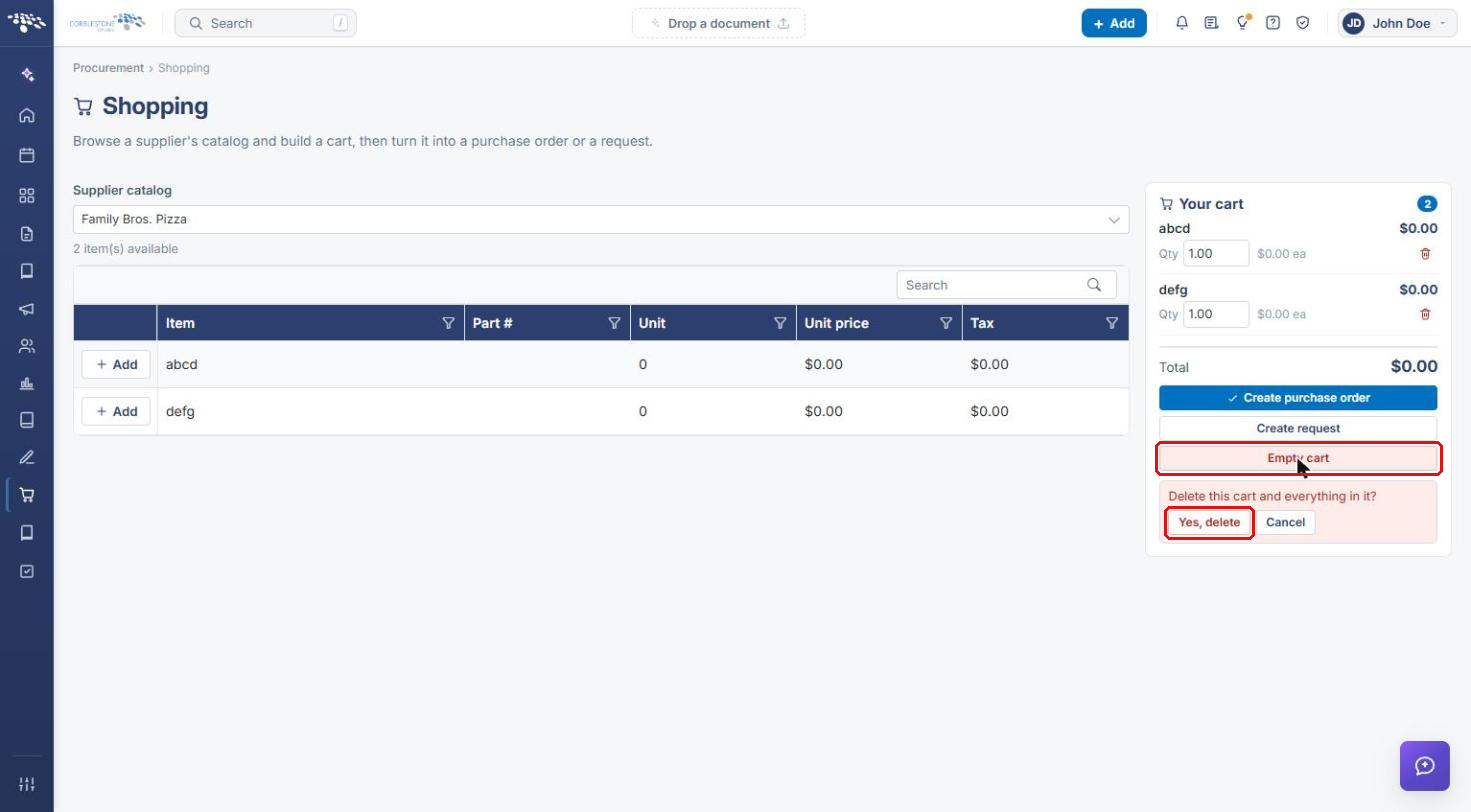
- Click Empty cart.
- When asked “Delete this cart and everything in it?”, click Yes, delete, or Cancel to keep the cart.
7. Granting Access to a Catalog (Administrators)
Users only see suppliers whose catalogs they have been given access to. If a user can't see items from a supplier, an administrator grants access on the catalog.
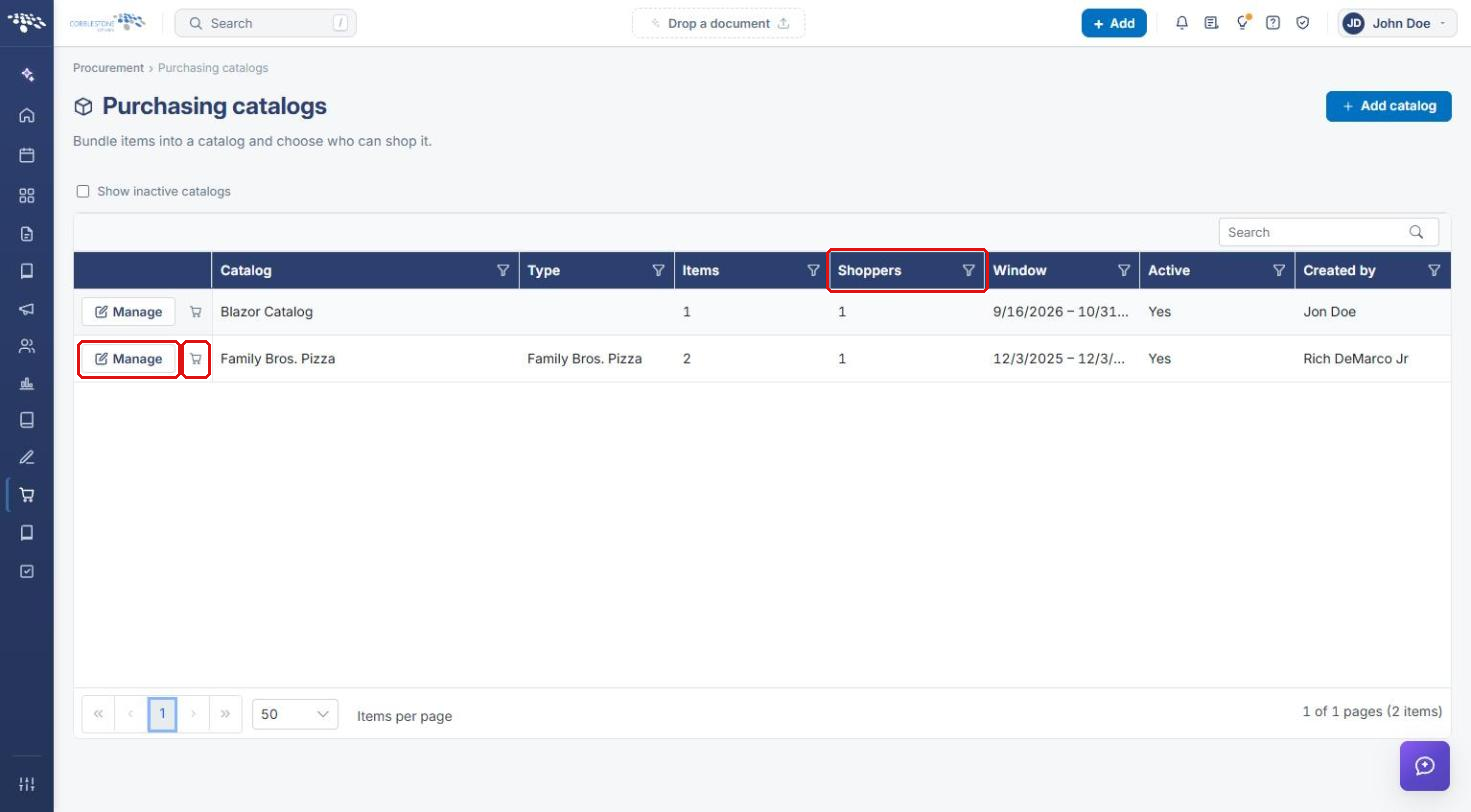
- From the Contract Insight homepage, click Procurement and select Catalogs.
- On the Purchasing catalogs page, check the Shoppers count, then click Manage on the catalog. (The cart icon next to Manage opens the Shopping page.)
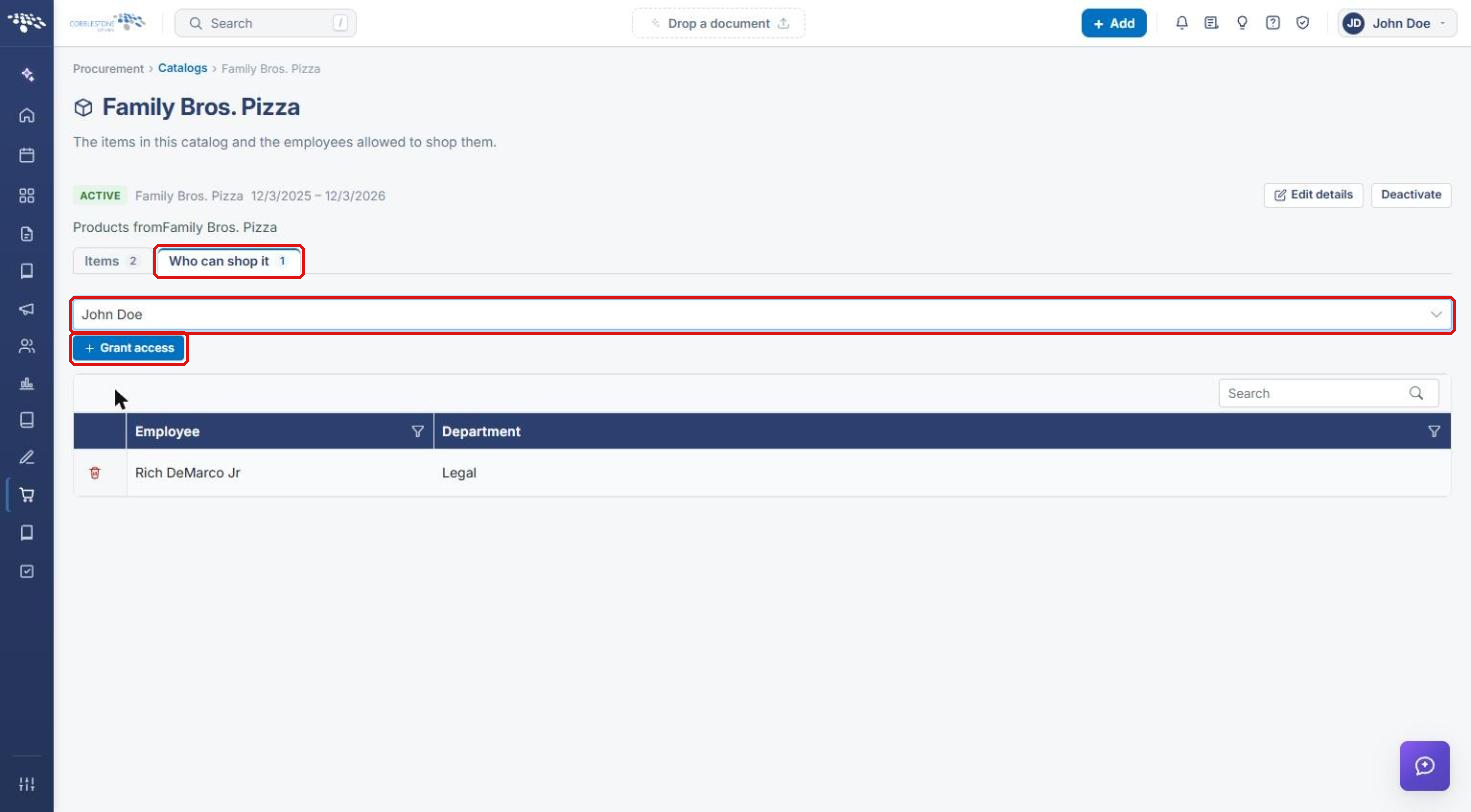
- Click the Who can shop it tab.
- Choose the employee in the choose an employee dropdown.
- Click + Grant access. The employee is added to the list and can now shop the catalog. To remove access, click the red trash icon on the employee's row.
8. Quick Reference Summary
| Task | How to Complete It |
|---|---|
| Open the Shopping page | Procurement → Shopping. |
| Browse a supplier's items | Shopping → Supplier catalog → choose the supplier. |
| Add items to the cart | Click + Add on each item; adjust Qty in Your cart. |
| Turn the cart into a Request | Your cart → Create request. |
| Turn the cart into a Purchase Order | Your cart → Create purchase order. |
| Clear the cart | Empty cart → Yes, delete. |
| Give someone access to a catalog | Procurement → Catalogs → Manage → Who can shop it → choose employee → + Grant access. |