COBBLESTONE SOFTWARE
Contract Insight — User Guide
Risk Management with Analytics, AI, and Machine Learning
03. Admin User Manual › VISDOM & Risk Management › Risk Management with Analytics, AI, and Machine Learning
Note: Each procedure in this guide begins at the Contract Insight homepage, so any section can be followed on its own. Custom fields are configurable, so the exact field list on a contract category record may vary between environments.
1. Overview
Risk in the redesigned application is surfaced from more than one angle at once. A contract record's summary panel shows Risk warnings and a Risk register (a High/Medium/Low by Unlikely/Possible/Likely grid) independent of VISDOM. VISDOM adds AI-driven risk analysis on top of that: the Playbook tab in the Edit with VISDOM workbench scores every clause in a chosen playbook against the uploaded document, and the Default extractions tab's CLAUSES group includes Clause sentiment and High-risk findings (both of which require Clause extraction to be turned on first) alongside Language Risk, which flags risky or non-standard contract language. Combined, these give a layered view of risk: structured register/warning data on the record itself, clause-level sentiment and high-risk flags from VISDOM's document analysis, and playbook-based scoring of how a document's clauses compare to an organization's standard language.
2. Key Elements
- Record-level Risk warnings and a Risk register grid appear on every contract's summary panel, independent of VISDOM.
- VISDOM adds Clause sentiment and High-risk findings (both require Clause extraction) plus a Language Risk service that flags non-standard wording.
- The Playbook tab in Edit with VISDOM scores every clause in a chosen playbook against the document for a structured, AI-assisted risk comparison.
3. Viewing a Contract's Risk Register
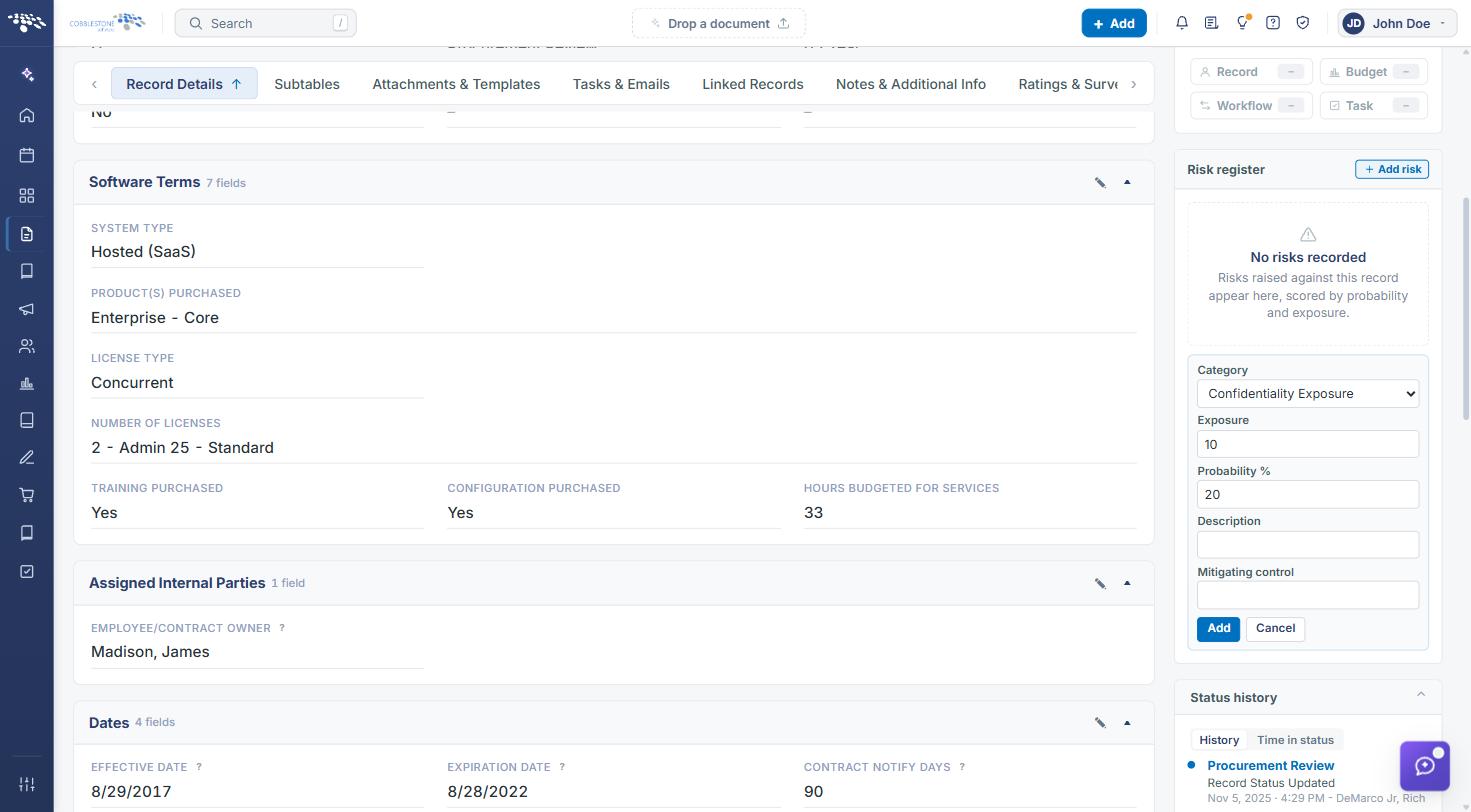
The Risk register card in a contract record's right-hand summary panel plots every risk recorded against that record on a High/Medium/Low by Unlikely/Possible/Likely grid. Each risk is listed below the grid with its category, rating, description, score, exposure, probability, owner, and mitigating control. A record with no risks shows "No risks recorded."
- From the homepage, select Contracts in the left navigation.
- Click Manage on the contract you want to review.
- Scroll the right-hand summary panel to the Risk register card.
4. Recording a Risk Against a Contract
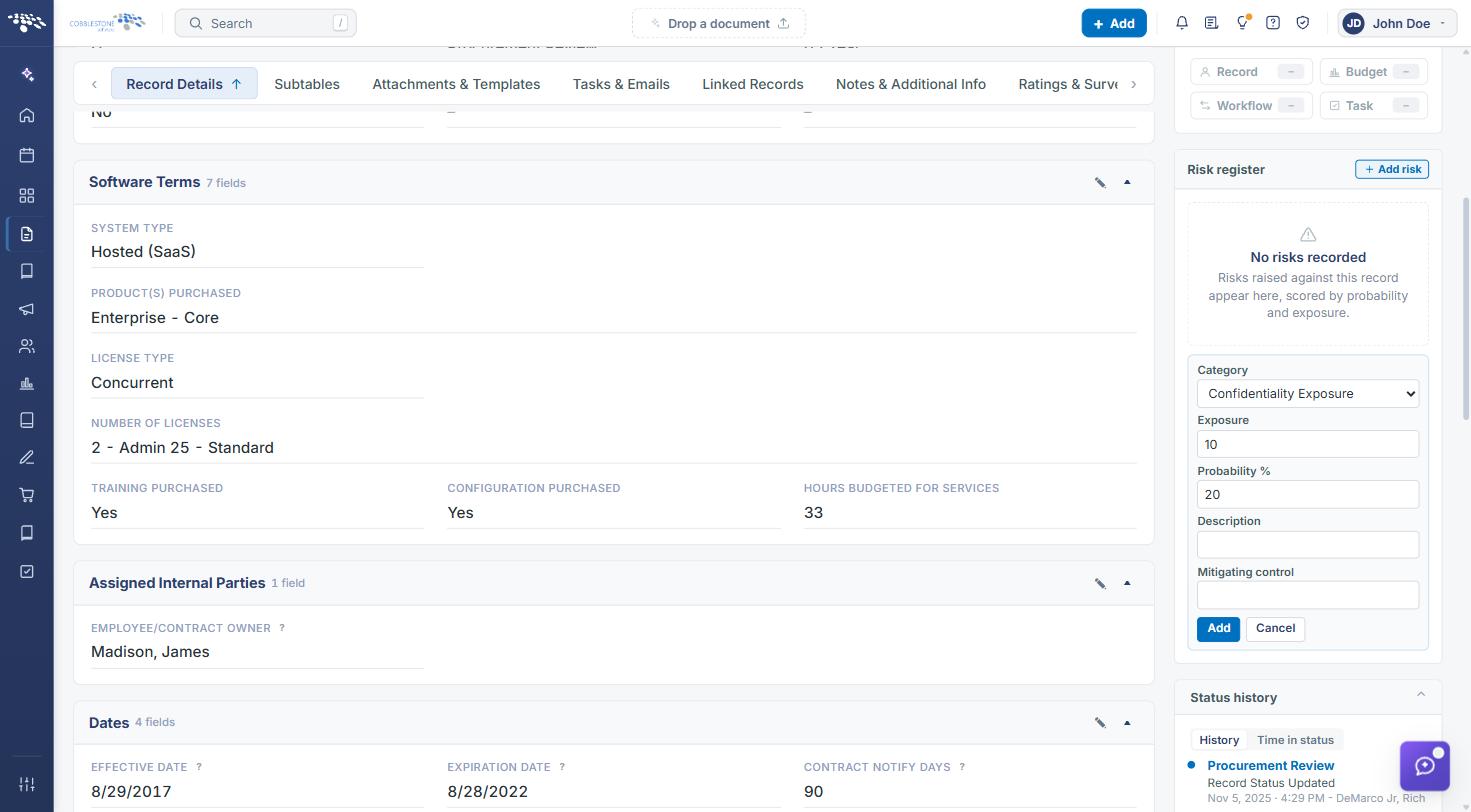
Risks are added directly from the Risk register card without opening the full edit form. Each risk's score is calculated from its exposure and probability (for example, an exposure of 75 at a 30% probability scores 22.5), and the risk is placed on the grid accordingly.
- Open the contract record (Contracts → Manage).
- In the Risk register card, click + Add risk.
- Select a Category, then enter the Exposure and Probability %.
- Enter a Description and the Mitigating control.
- Click Add. The risk appears on the grid and in the list below it.
5. Opening a Document in Edit with VISDOM
VISDOM's AI risk analysis runs in the Edit with VISDOM workbench. Word documents open for editing; PDFs open for VISDOM analysis.
- Open the contract record (Contracts → Manage).
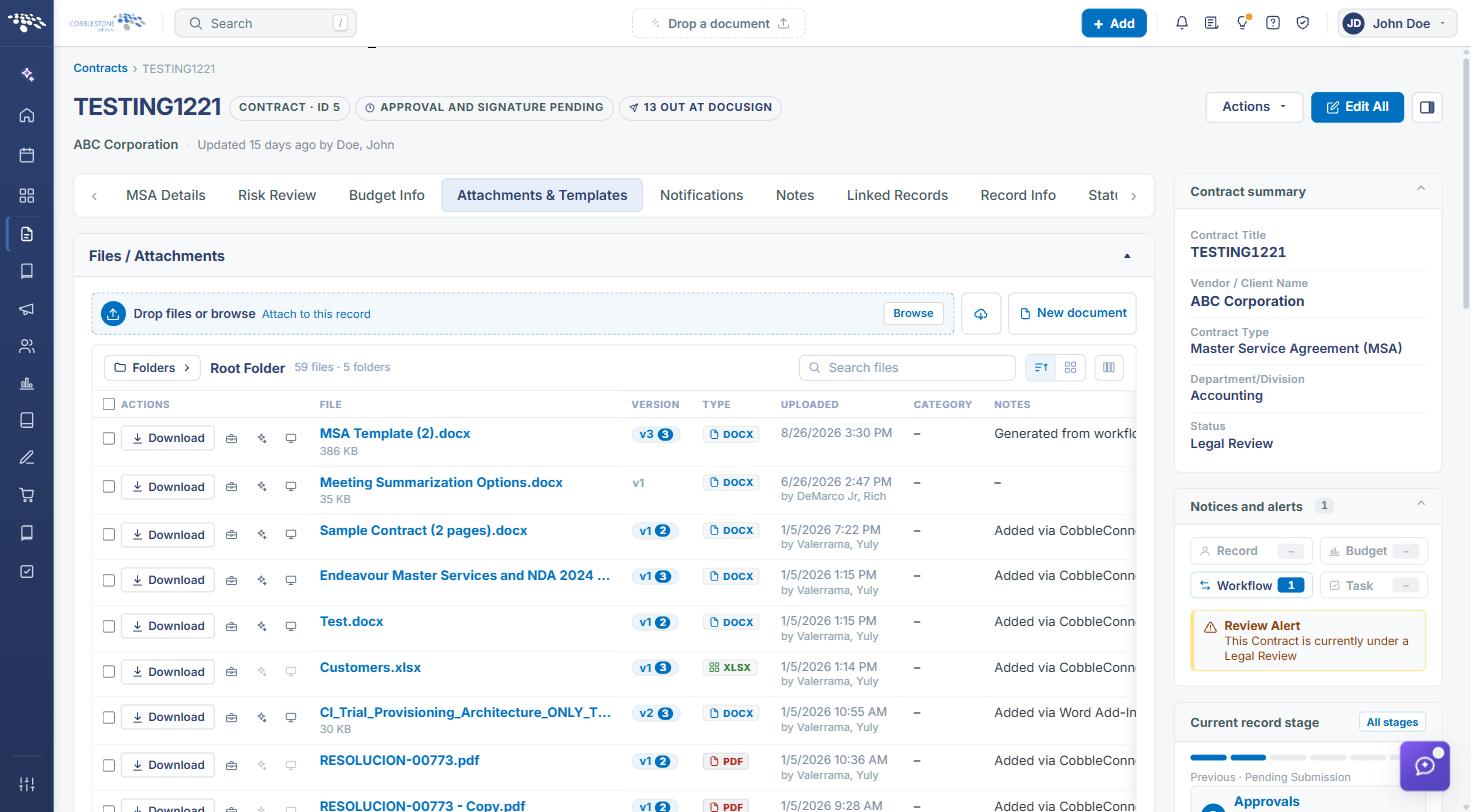
- Select the Attachments & Templates tab.
- In Files / Attachments, click the Edit with VISDOM (sparkle) icon in the document's Actions column.
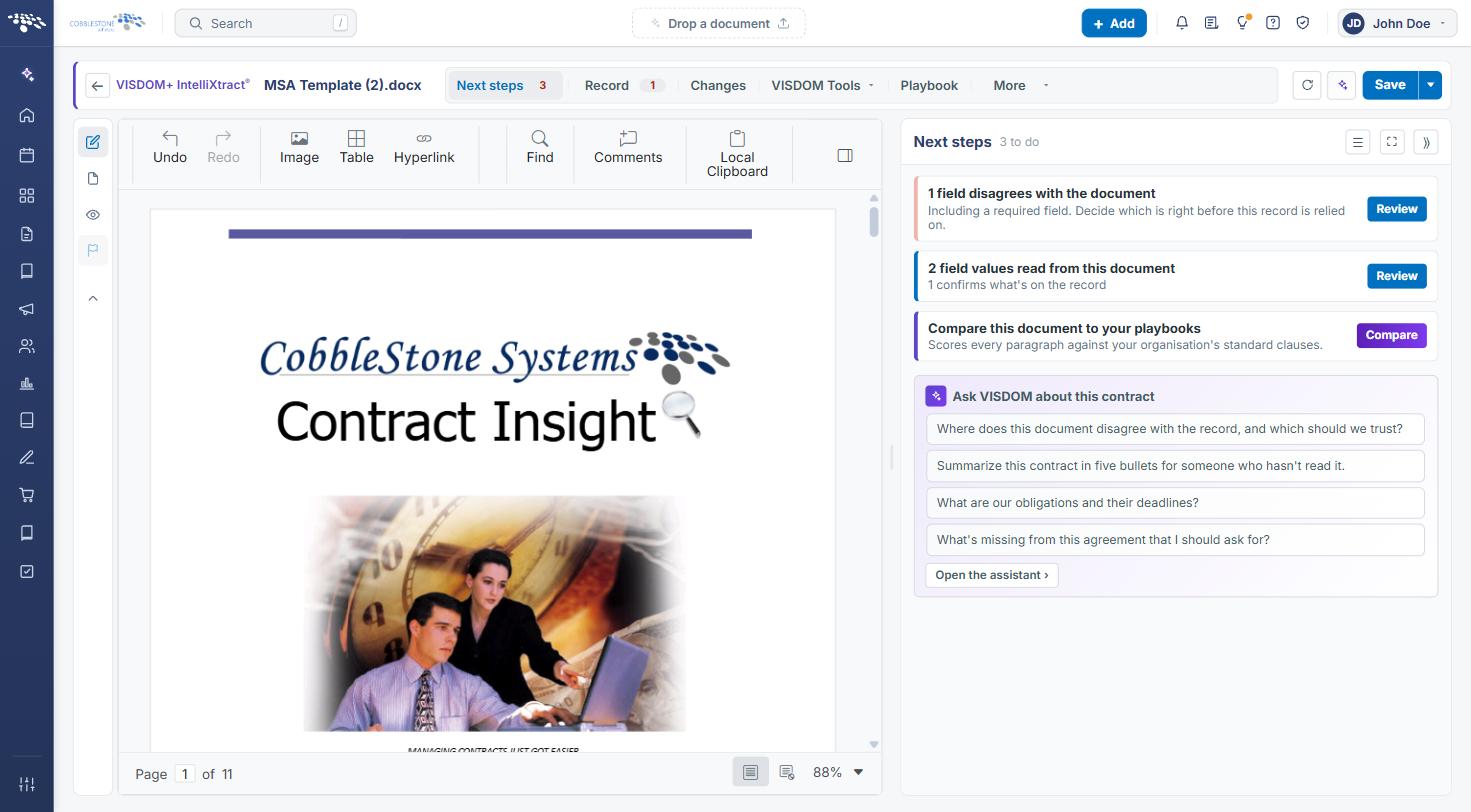
The workbench opens with the document on the left and the Next steps panel on the right, which lists field disagreements between the document and the record and offers Compare this document to your playbooks.
6. Turning On Clause Sentiment and High-Risk Findings
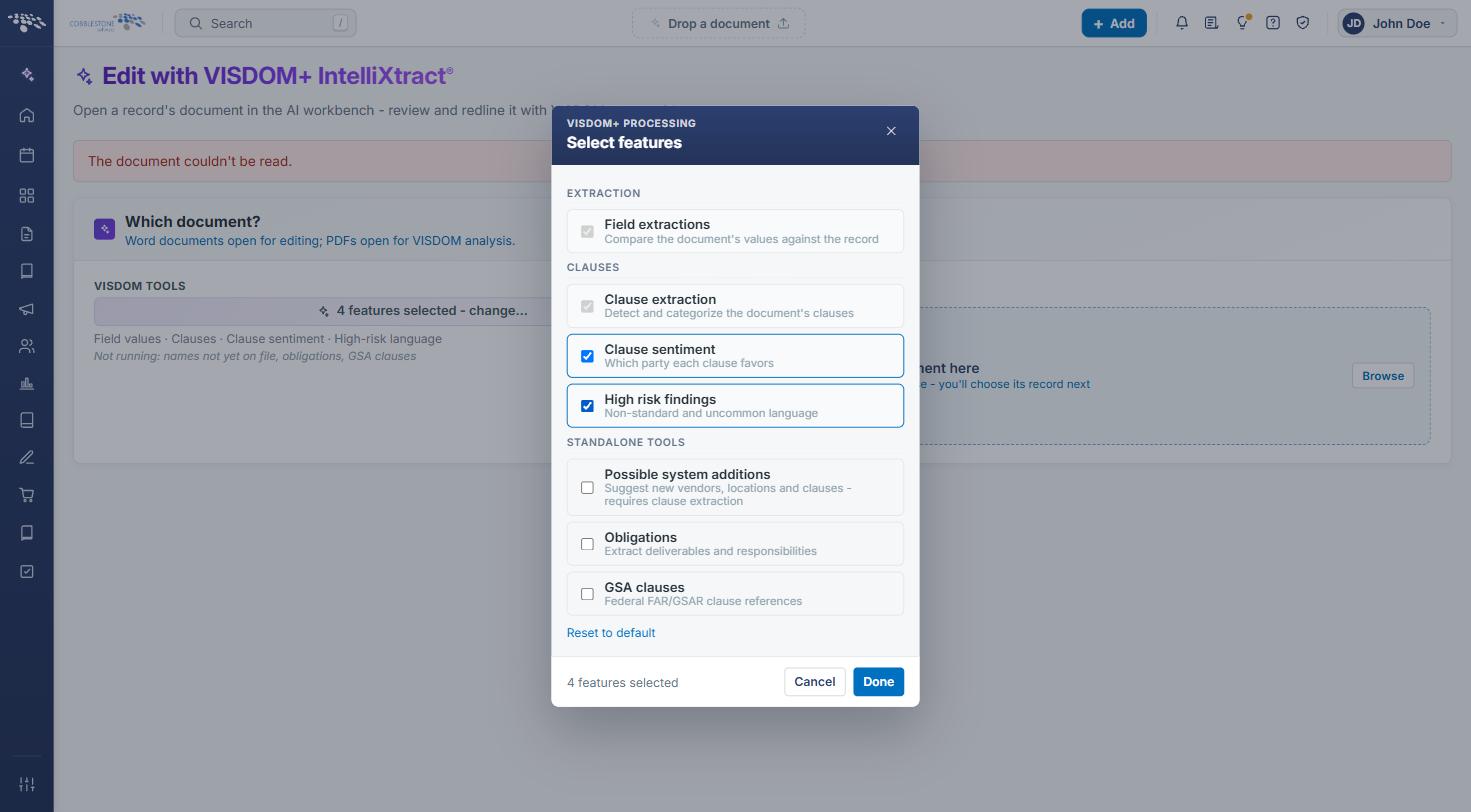
Clause sentiment and High risk findings are part of the CLAUSES group in VISDOM's feature selection and are off by default. Both depend on Clause extraction, which is on by default.
- On the Edit with VISDOM+ IntelliXtract page, under VISDOM Tools, click features selected – change….
- In the Select features dialog, under CLAUSES, check Clause sentiment (which party each clause favors) and High risk findings (non-standard and uncommon language).
- Click Done. The selected features are listed under VISDOM Tools, and features that will not run are listed beneath them.
7. Comparing a Document Against a Playbook
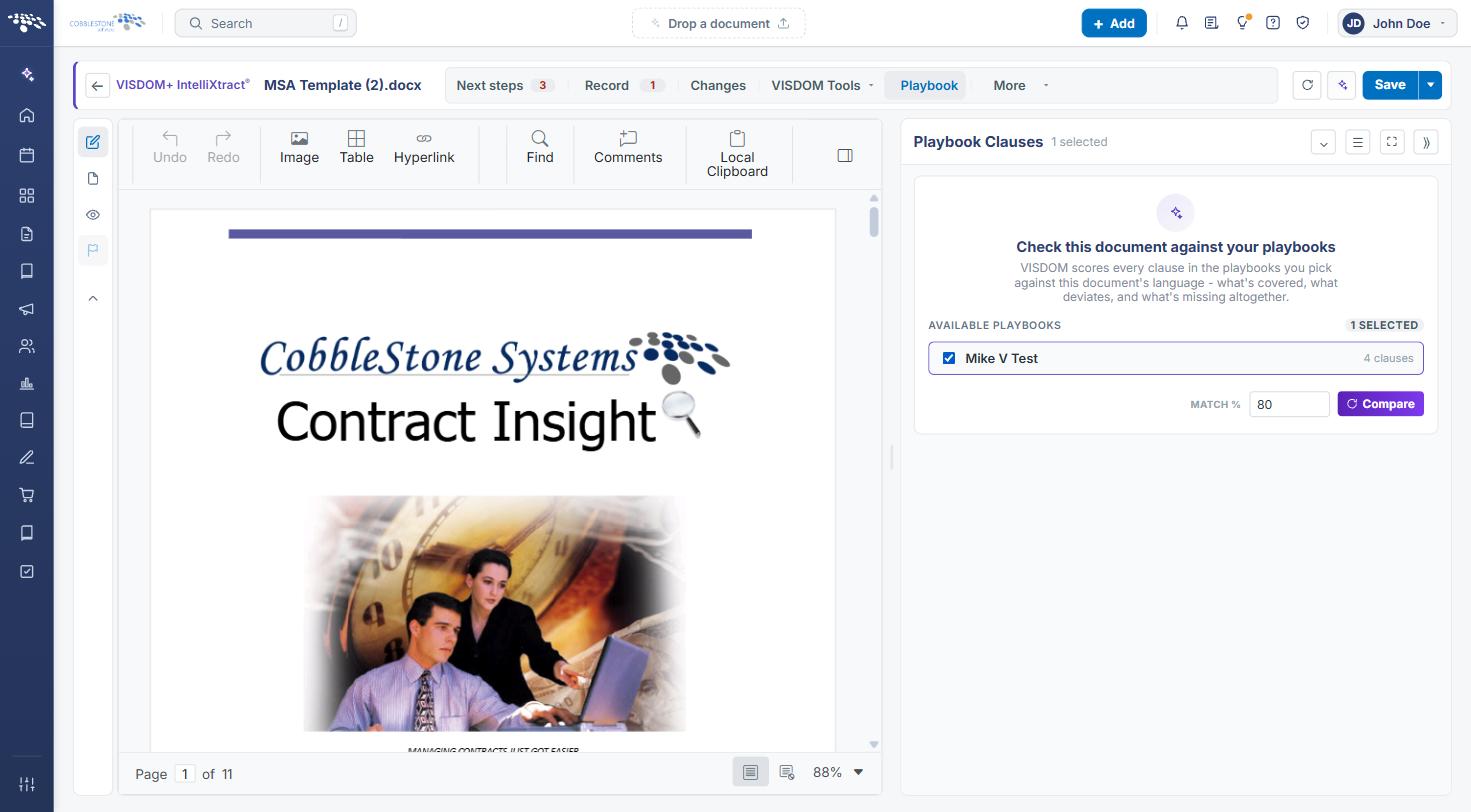
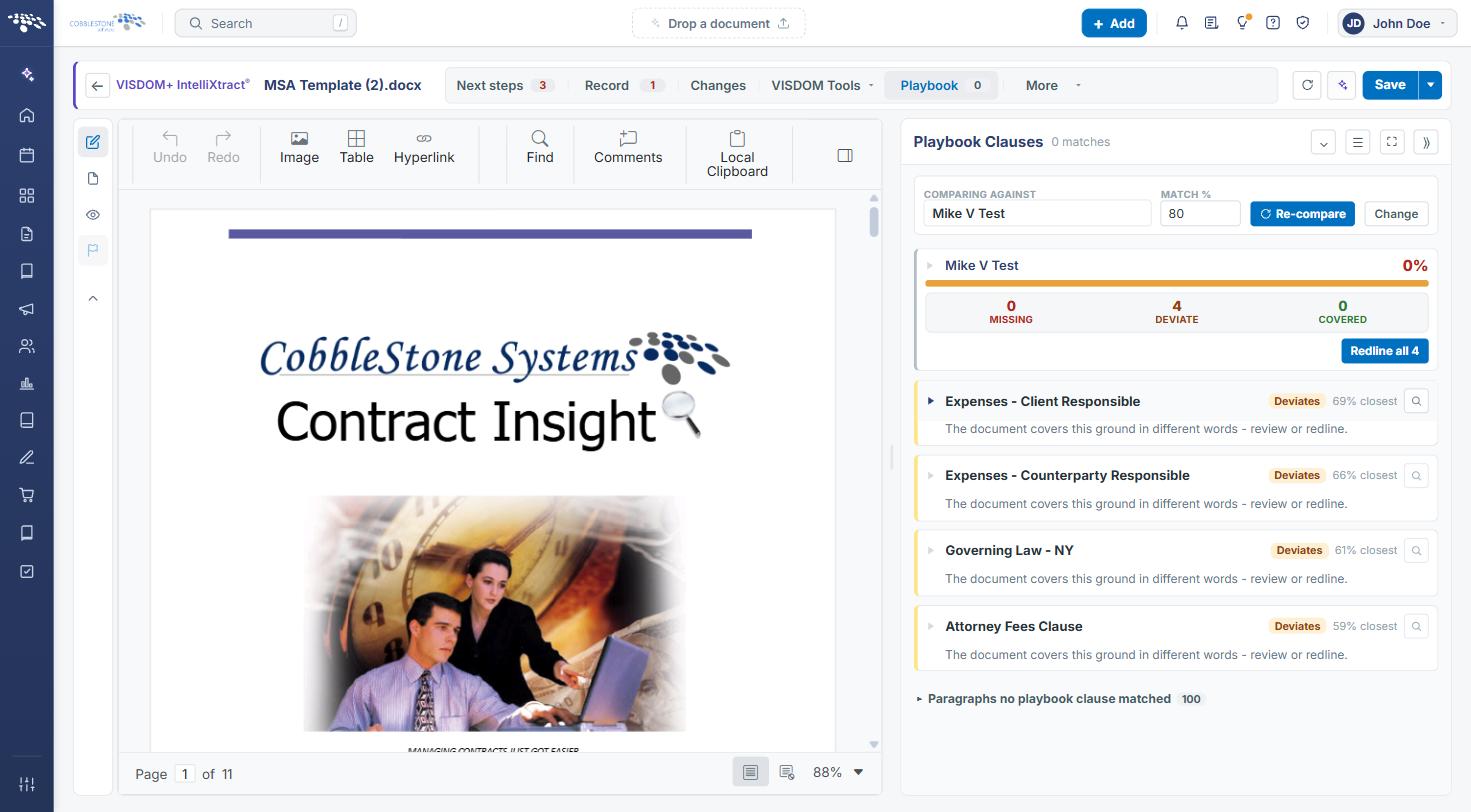
The Playbook tab scores every clause in the selected playbook(s) against the document's language and reports what is covered, what deviates, and what is missing.
- With the document open in Edit with VISDOM, select the Playbook tab.
- Under Available Playbooks, check one or more playbooks.
- Adjust the Match % threshold if needed (default 80), then click Compare.
Results show an overall match percentage with Missing, Deviate, and Covered counts. Each playbook clause is listed with its status and closest match percentage. Click Redline all to redline deviating clauses, Re-compare to run again, or Change to pick different playbooks.
8. Quick Reference Summary
Task | How to Complete It |
View a contract's risk register | Contracts → Manage → right-hand summary panel → Risk register card. |
Record a new risk | Risk register card → + Add risk → enter Category, Exposure, Probability %, Description, Mitigating control → Add. |
Open a document in Edit with VISDOM | Contract record → Attachments & Templates → Edit with VISDOM (sparkle) icon on the document. |
Turn on Clause sentiment / High risk findings | Edit with VISDOM+ IntelliXtract → VISDOM Tools → features selected – change… → CLAUSES → check both → Done. |
Compare a document to a playbook | Edit with VISDOM → Playbook tab → select playbook(s) → set Match % → Compare. |