COBBLESTONE SOFTWARE
Contract Insight — User Guide
PDF Watermark Configuration
03. Admin User Manual › PDF Watermark Configuration
Note: Each procedure in this guide begins at the Contract Insight homepage, so any section can be followed on its own. Custom fields are configurable, so the exact field list on a contract category record may vary between environments.
1. Overview
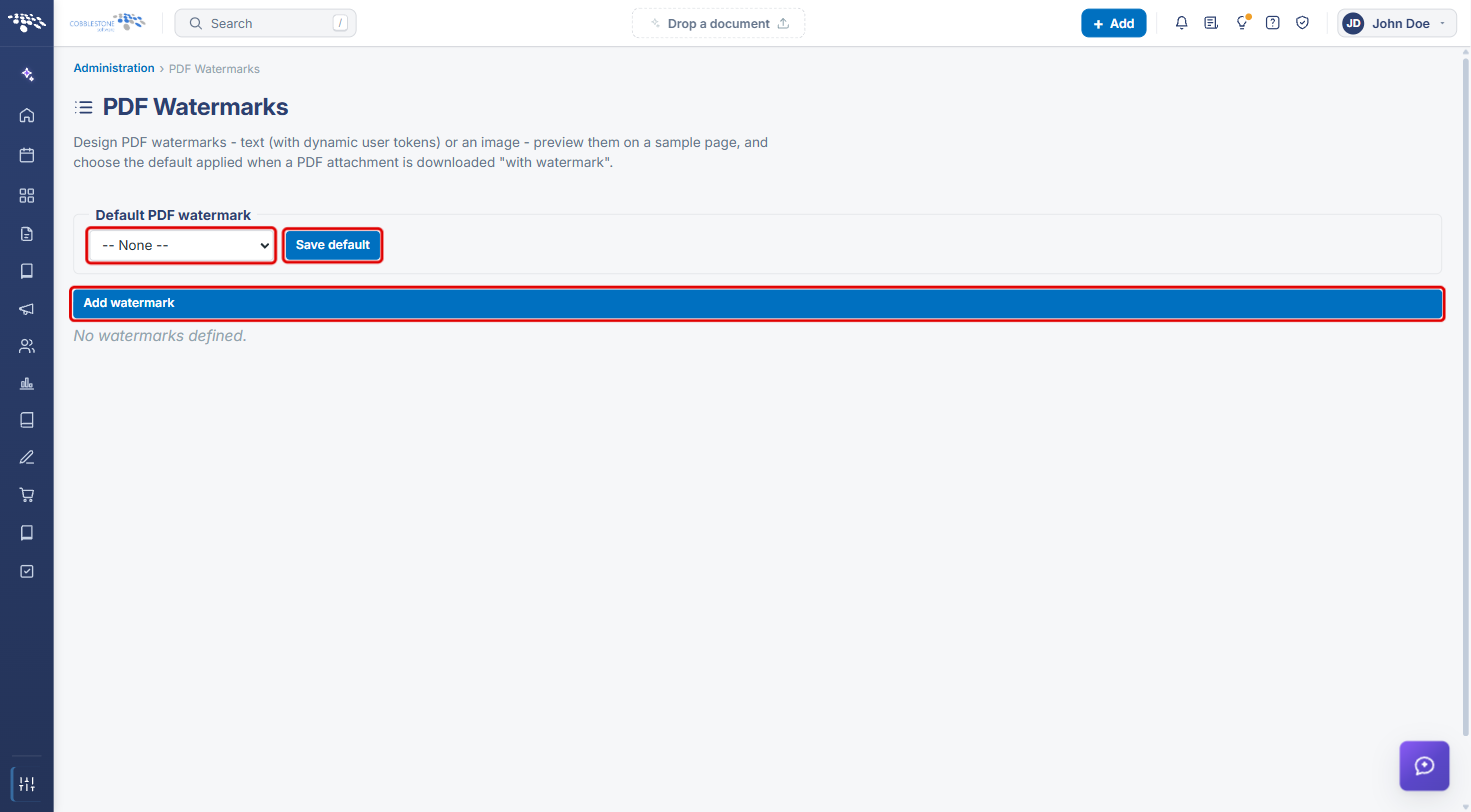
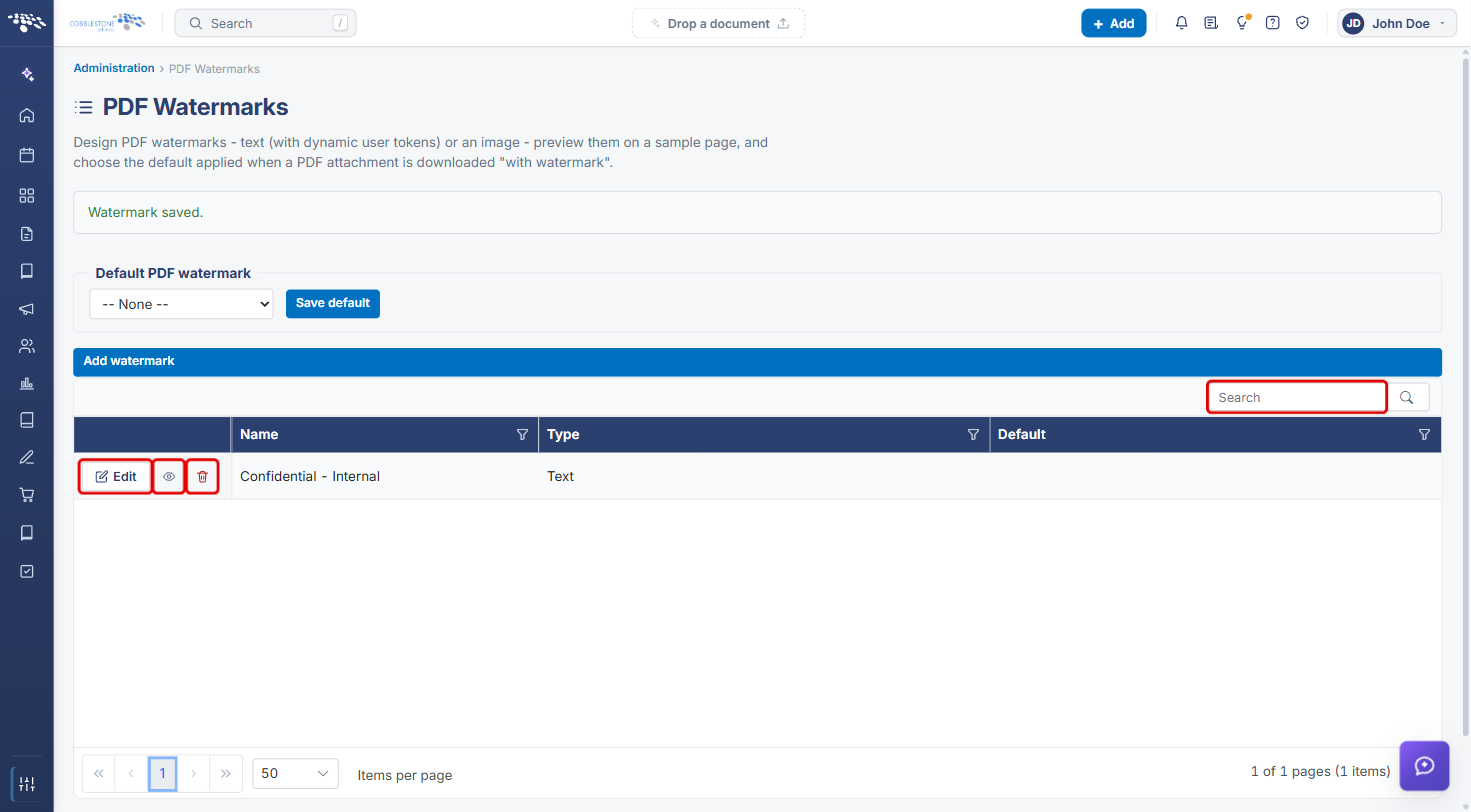
Administration → PDF Watermarks (labeled Watermarks in the Administration hub) is where you design PDF watermarks: either text, which can include dynamic user tokens, or an image. You can preview each watermark on a sample page and choose the Default PDF watermark that is applied when a PDF attachment is downloaded "with watermark". The page lists every watermark with its Name, Type, and whether it is the Default, with row actions to Edit, Preview on a sample PDF, and Delete.
2. Key Elements
- Default PDF watermark dropdown and Save default: set the watermark that is applied automatically when a PDF is downloaded "with watermark". -- None -- means no default.
- Add watermark: opens the New watermark form for a Text or Image watermark.
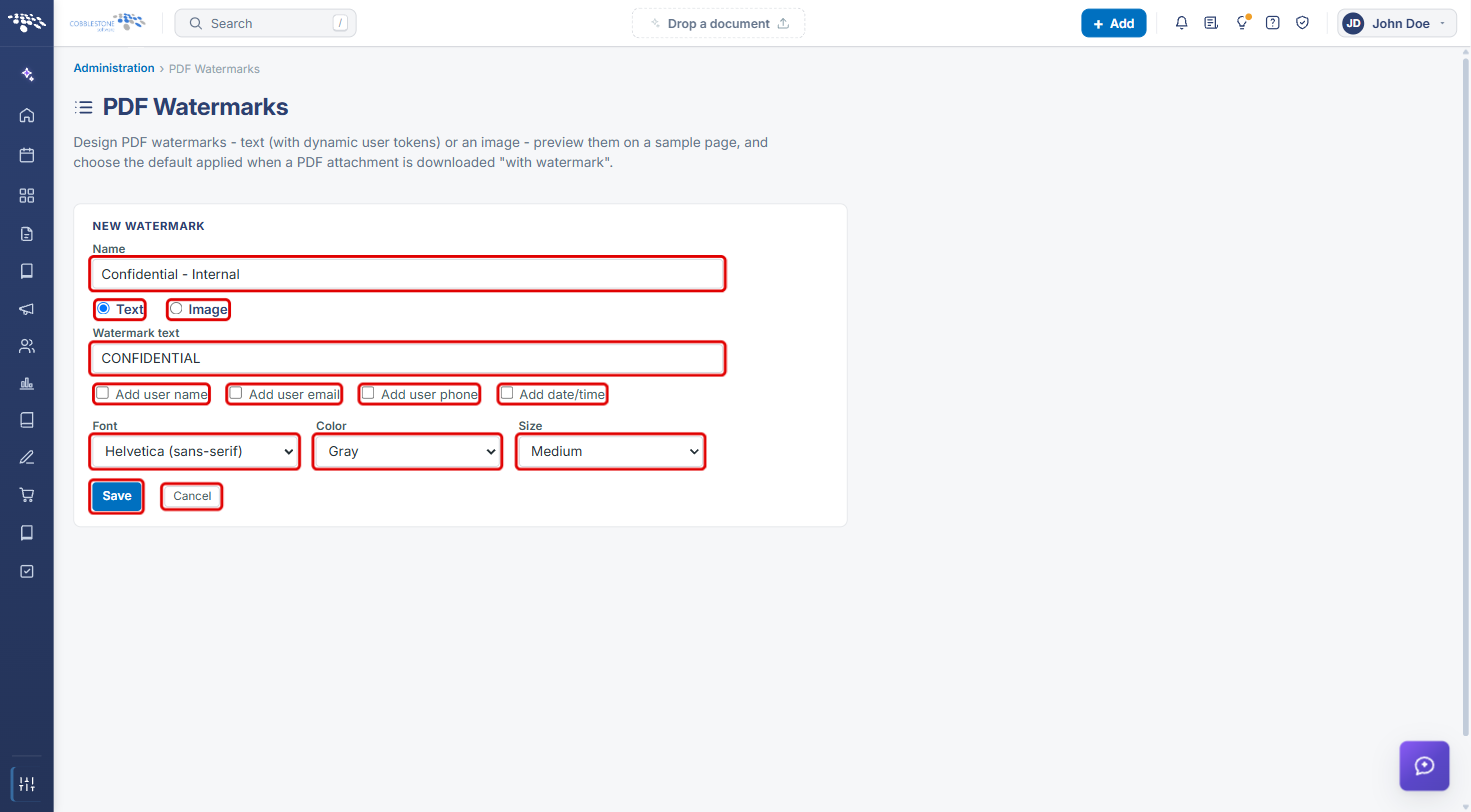
- Text watermarks: Watermark text, the dynamic user tokens Add user name, Add user email, Add user phone, and Add date/time, plus Font, Color, and Size.
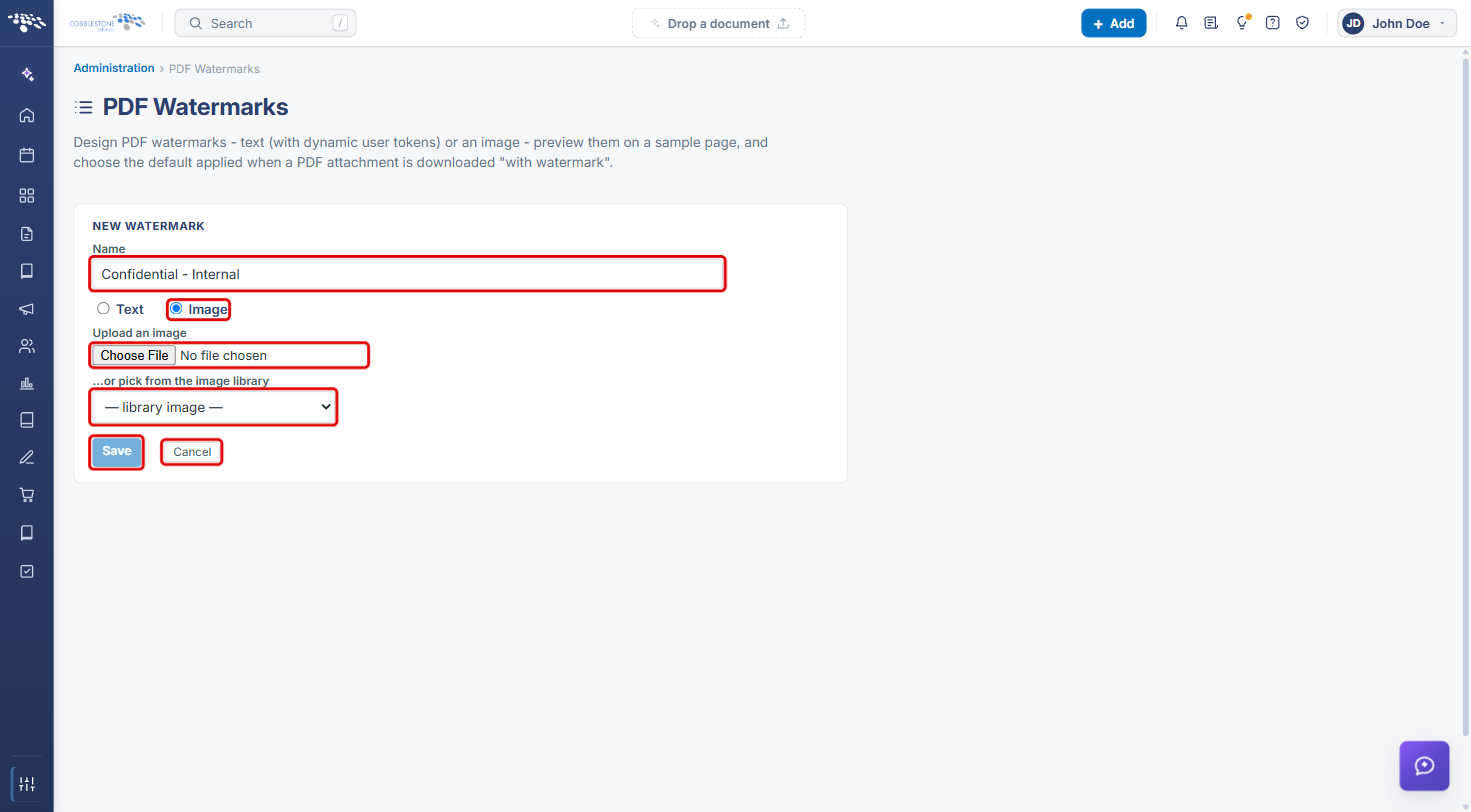
- Image watermarks: Upload an image, or pick one from the image library.
- Watermark list: Search, plus Edit, Preview on a sample PDF (eye icon), and Delete this watermark (trash icon) on each row.
- The Edit watermark form adds Preview saved, which opens the saved watermark on a sample PDF.
3. Navigating to PDF Watermarks
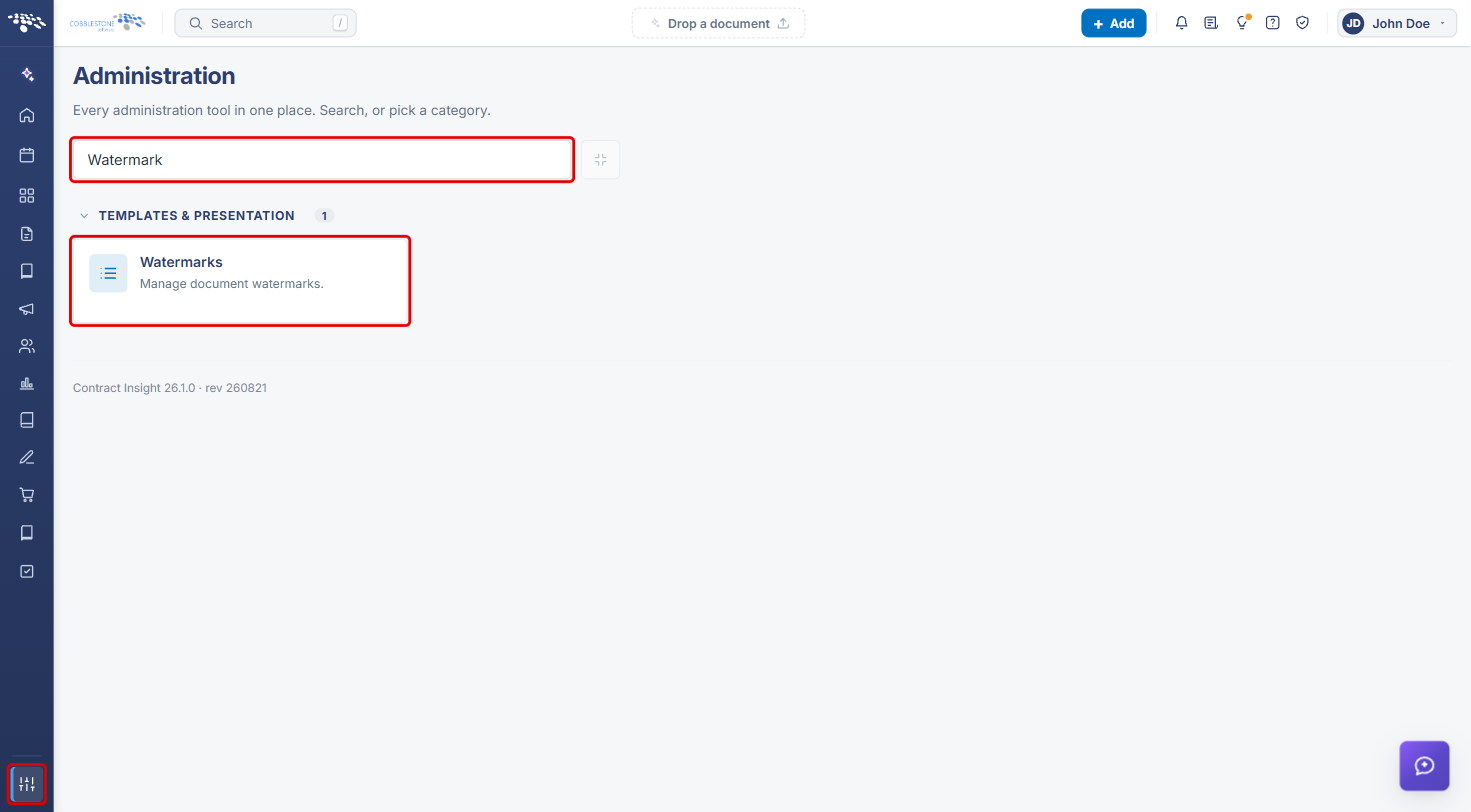
- From the Contract Insight homepage, click the Administration icon at the bottom of the left navigation bar.
- In the Search administration box, type Watermark (or scroll to the Templates & Presentation category).
- Click the Watermarks tile.
The PDF Watermarks page opens. If no watermarks exist yet, the list shows "No watermarks defined."
4. Adding a Watermark
4a. Adding a Text Watermark
- On the PDF Watermarks page, click Add watermark.
- In the New watermark form, enter a Name.
- Select Text.
- Enter the Watermark text (for example, CONFIDENTIAL).
- Optionally, check any dynamic user tokens to stamp the downloading user's details on the page: Add user name, Add user email, Add user phone, and Add date/time.
- Choose the Font (Helvetica, Times New Roman, or Courier New), Color (Gray, Black (navy), Yellow, or Red), and Size (Small, Medium, or Large).
- Click Save, or Cancel to close the form without saving.
4b. Adding an Image Watermark
- Click Add watermark and enter a Name.
- Select Image.
- Click Choose File under Upload an image, or select an existing image from the …or pick from the image library dropdown.
- Click Save, or Cancel to close the form without saving.
After saving, a "Watermark saved." message appears and the watermark is added to the list.
5. Managing Existing Watermarks
5a. Finding a Watermark
Saved watermarks are listed with their Name, Type, and Default status. Use the Search box or the column filters to find one. Each row has these actions:
- Edit: opens the watermark in the Edit watermark form.
- Preview on a sample PDF (eye icon): opens the watermark applied to a sample PDF page in a new browser tab.
- Delete this watermark (trash icon): removes the watermark (see Section 7).
5b. Editing a Watermark
- Click Edit on the watermark's row.
- In the Edit watermark form, update the name, text, user tokens, font, color, or size (or the image, for an image watermark).
- Click Save, or Cancel to discard your changes.
- Click Preview saved to open the saved version of the watermark on a sample PDF in a new tab.
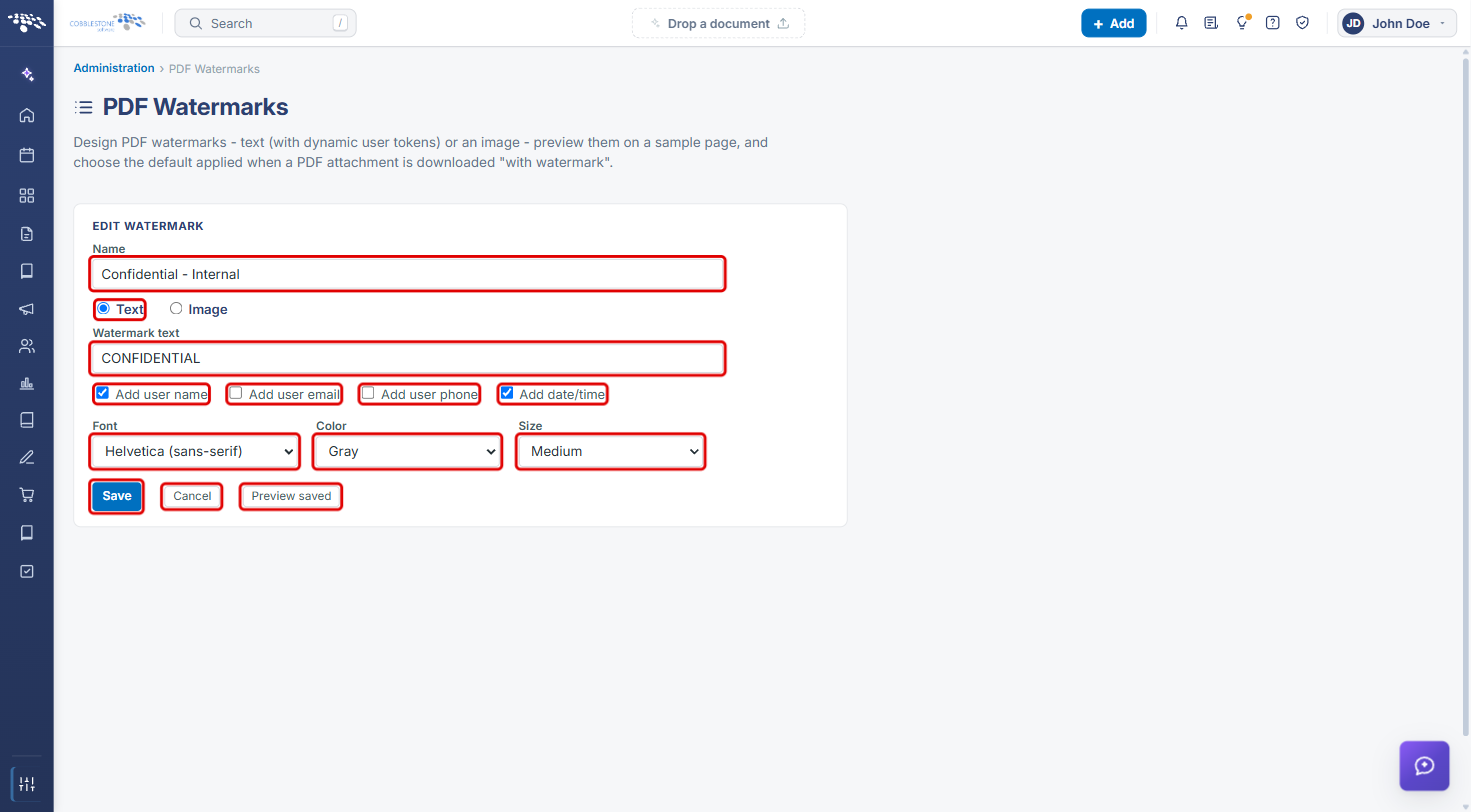
Note: Preview saved shows the last saved version. Click Save first to preview your latest changes.
6. Setting the Default PDF Watermark
- On the PDF Watermarks page, select a watermark in the Default PDF watermark dropdown, or -- None -- to turn off the default.
- Click Save default.
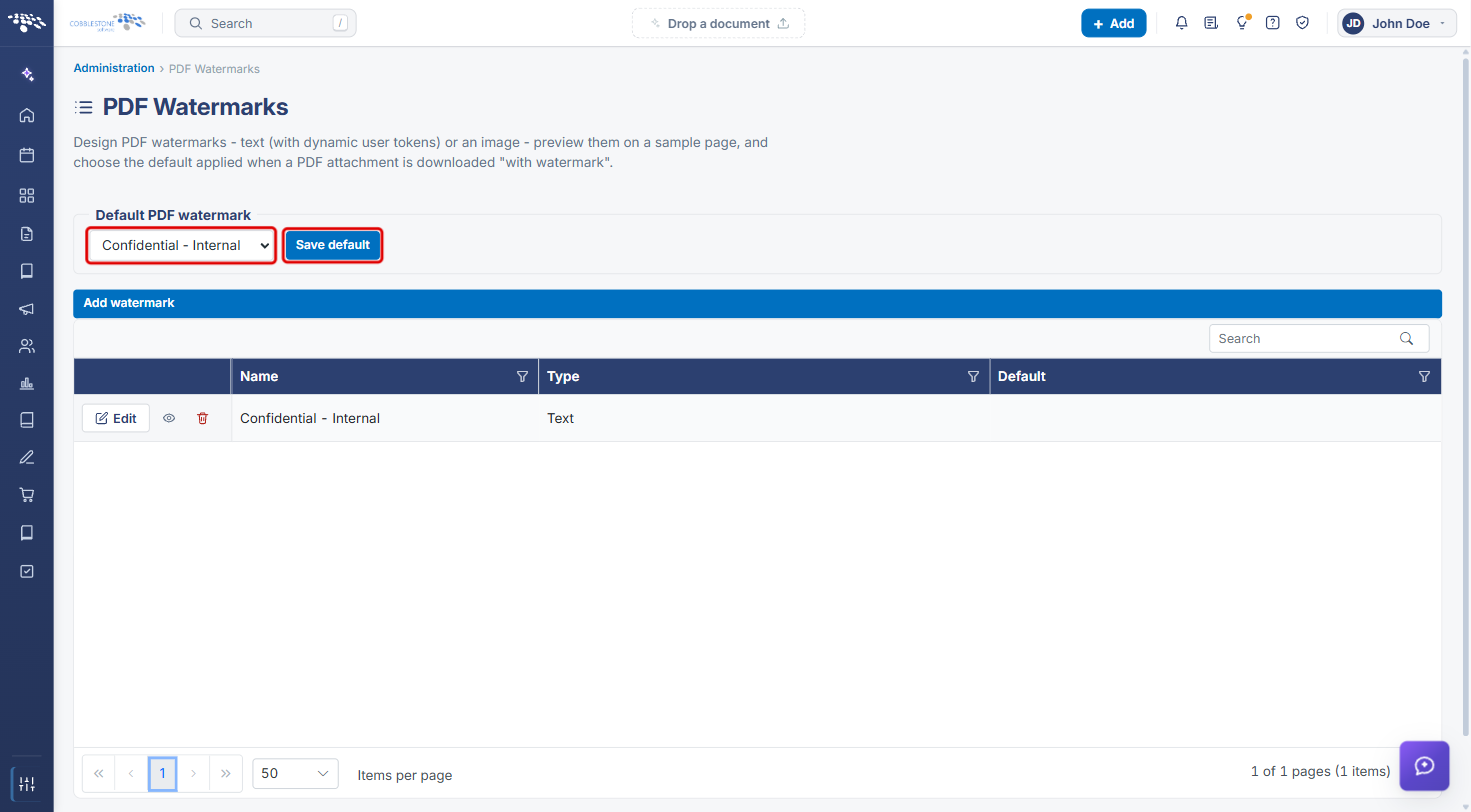
The default watermark is applied when a PDF attachment is downloaded "with watermark".
7. Deleting a Watermark
- Click the Delete this watermark (trash) icon on the watermark's row.
- In the Delete this watermark? dialog, click Delete watermark to confirm, or Cancel to keep it.
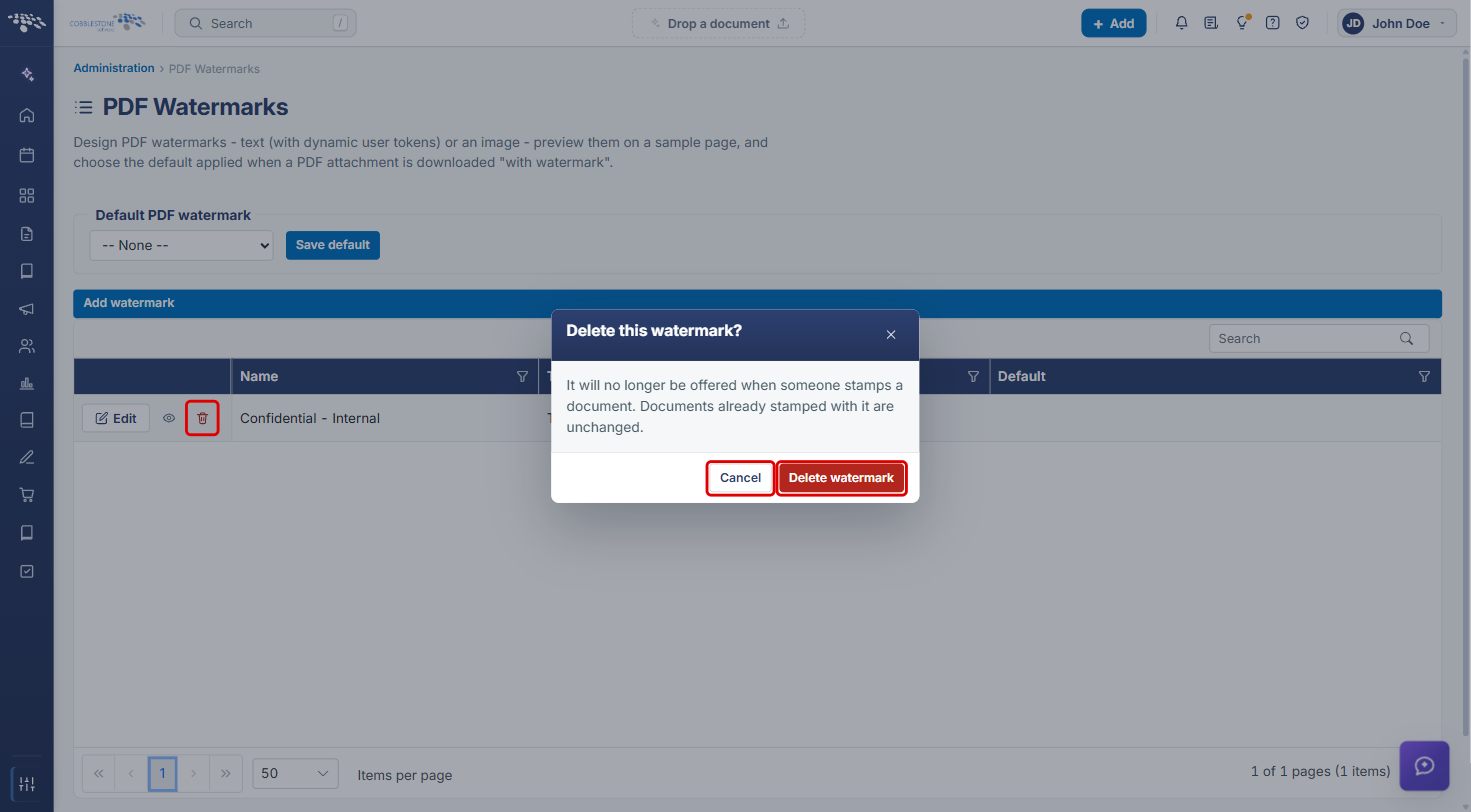
Note: A deleted watermark is no longer offered when someone stamps a document. Documents already stamped with it are unchanged.
8. Quick Reference Summary
| Task | How to Complete It |
|---|---|
| Open PDF Watermarks | Administration icon → search Watermark → Watermarks. |
| Add a text watermark | Add watermark → Name → Text → Watermark text, tokens, Font, Color, Size → Save. |
| Add an image watermark | Add watermark → Name → Image → upload or pick from library → Save. |
| Find a watermark | Type in the list's Search box or use the column filters. |
| Edit a watermark | Edit → update → Save. |
| Preview a watermark | Eye icon on the row, or Preview saved in the Edit form. |
| Set the default | Select it in Default PDF watermark → Save default. |
| Turn off the default | Select -- None -- → Save default. |
| Delete a watermark | Trash icon → Delete watermark. |