The Core System provides Contract Insight’s core components and functionality for full lifecycle management of your organization’s contracts and committals.
CORE SYSTEM
ENHANCEMENTS
ENHANCEMENT: VISDOM Preloading for Faster Document Processing
Reference #: 260210.1204.19819
We’re excited to introduce VISDOM Preloading, a major enhancement designed to make working with VISDOM significantly faster and more efficient. Users can now drag and drop a file into the system and have it processed in the background—allowing them to continue working while VISDOM does the heavy lifting.
This reduces the time spent waiting on the VISDOM Add‑In to evaluate documents.
What This Enhancement Allows You to Do
Drag & Drop Documents to Be Processed in the Background
Users can now drop Word or PDF files directly into the system and choose to have them:
- Saved into a background processing queue
- Automatically processed by VISDOM
- Delivered with a notification when the analysis is complete
This means you no longer need to wait on the VISDOM Add screen while VISDOM performs its processing.
Choose Your Workflow: Create Now or Keep in the Queue
When you drag and drop a file, you’ll see a modernized layout with two options:
Option A — Create New Record
Choose the module and record type, then proceed directly to the VISDOM Add screen.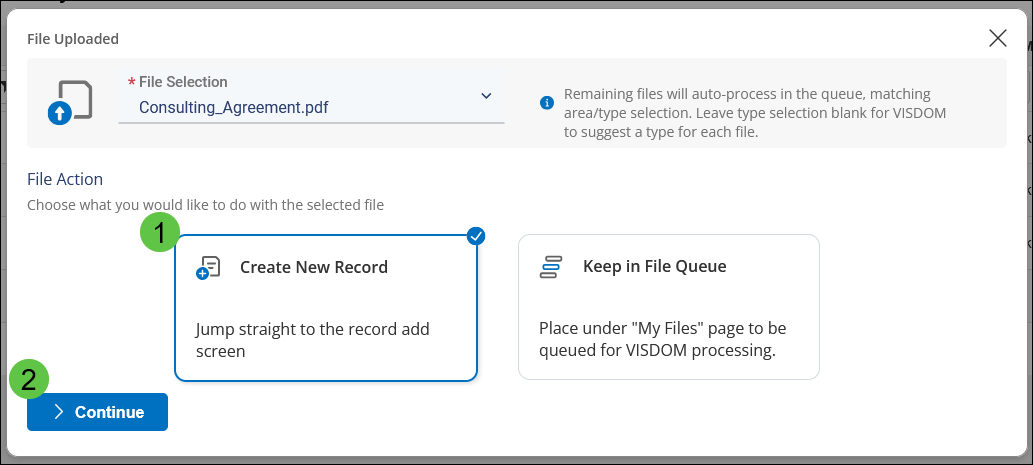
Option B — Keep in File Queue
Select the area/type and save the file to be processed in the background.
This option lets you step away and handle other tasks while VISDOM works.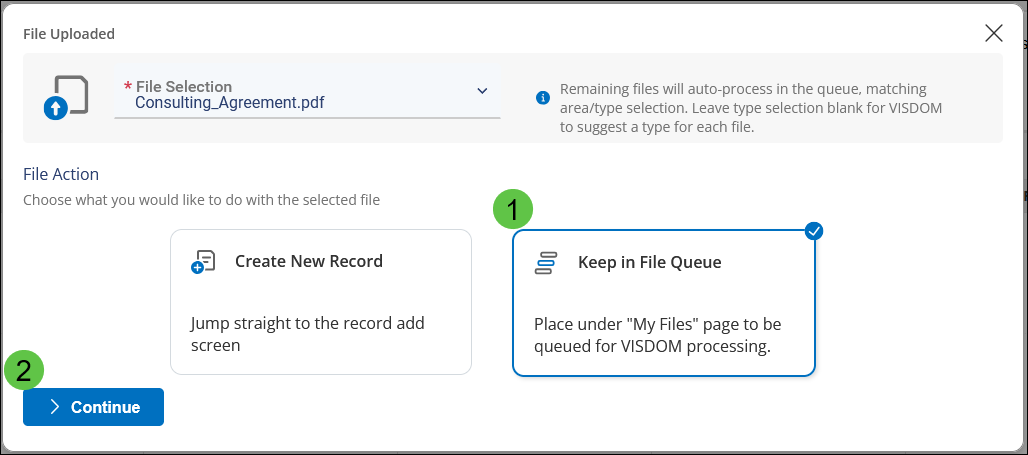
Continue Working While VISDOM Processes Your Document
Once a file is added to the queue:
- The system begins OCR (if needed)
- VISDOM processes the document
- The results are saved and linked to the file
- You will receive both an on‑screen notification and an email when the processing is finished
Users can continue with other work while VISDOM completes the extraction in the background.
On‑Demand Processing for Administrators
Administrators can manually trigger background processing from the job scheduler if needed.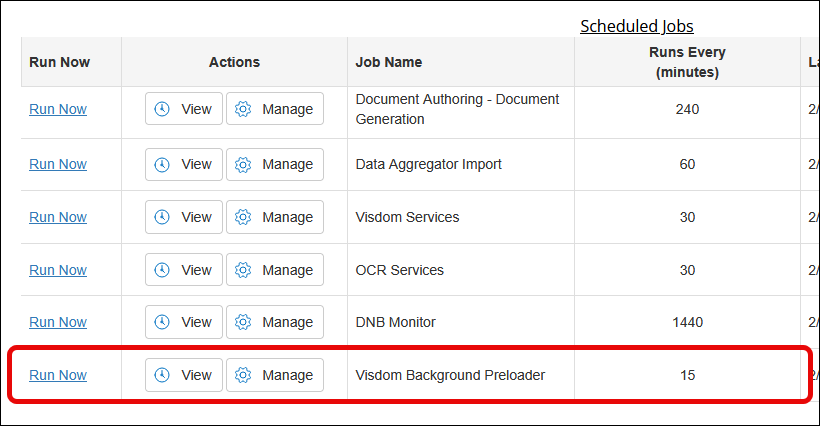
Review Completed Files and Create a Record Instantly
When processing is complete:
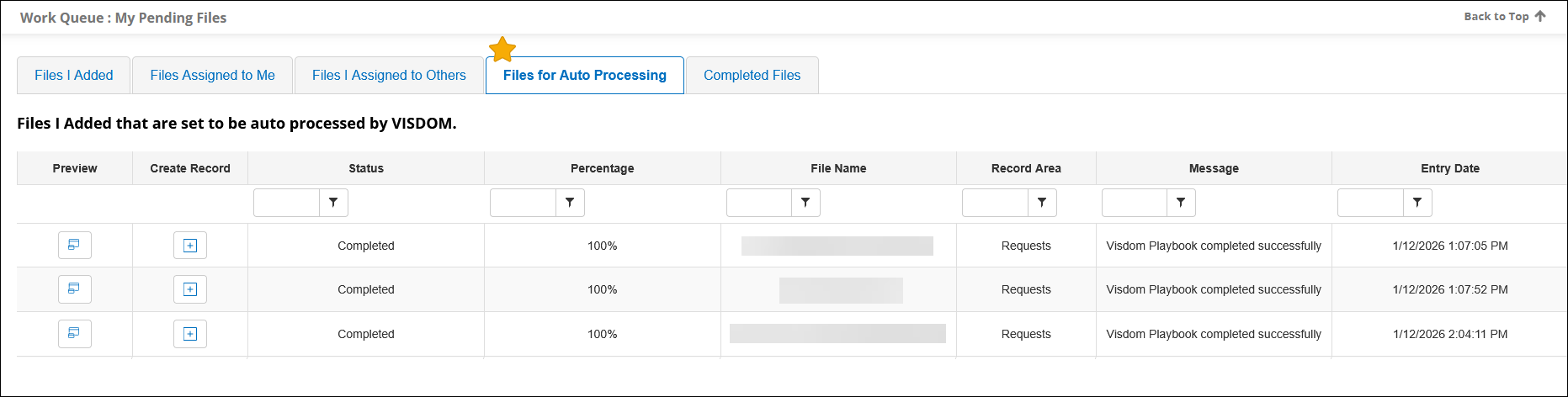
- Your file will appear in My Pending Files → Files for Auto Processing
- You can view the processed file
- A new Create Record button will appear
- Clicking it sends you straight to the VISDOM Add‑In screen
- The VISDOM Add‑In loads instantly because the heavy processing was already done
This creates a much faster and more seamless record‑creation experience.
This enhancement provides:
- Much faster VISDOM Add‑In loading
- Reduced waiting time for large documents
- More efficient workflows for power users
- More flexibility and fewer interruptions
- Automatic notifications when processing finishes
ENHANCEMENT: Streamlined VISDOM Add Screen — Improved Saving Options, Faster Reloads, and Better Page Performance
Reference #: 260210.1204.24557/24558/25195
1. New Split Save Button for VISDOM Add Screen
When creating records from the Pre‑Processor, the Save button has been replaced with a split‑button offering two workflow options:
Save and Continue
Saves the record and returns you to the Queue.Save and Continue to Detail
Saves the record and opens the newly created record’s Detail Page.
This makes it easier for users to choose the next step and reduces unnecessary navigation.
2. Faster Reload Times After a Failed Save
Previously, if a save failed, VISDOM would fully reload the page and re‑evaluate all fields, resulting in slow load times and the “Evaluating field group…” message.
With this enhancement:
- VISDOM now reloads much faster
- Field evaluation is not repeated unnecessarily
- Users will no longer see “Evaluating field group…” after a failed save
This creates a smoother, more efficient retry experience.
3. Overall VISDOM Add Screen Performance Improvements
The VISDOM Add screen has been optimized in several ways:
- Faster load time when starting from drag‑and‑drop
- The main content becomes visible as soon as it’s ready
- The Save button stays locked until the page is fully rendered
- A temporary cover appears on the left panel while loading
- VISDOM extraction will not override user changes if the save fails
- The Save button has been moved to the center for better visibility
How will this affect users?
These updates provide a much smoother experience when creating records:
- Faster page loads
- Clearer save options
- Less waiting after errors
- Better protection against losing work
- More intuitive page behavior while loading
This means users can complete tasks more efficiently and with fewer interruptions.
ENHANCEMENT: Modernized File Upload Experience on the Files & Attachments Page
Reference #: 260210.1267.25104
We’ve updated the Files & Attachments page to provide a cleaner, more intuitive, and more controlled file‑upload experience. This enhancement modernizes the drag‑and‑drop area, improves clarity, and reduces upload errors—all while keeping the existing functionality and controls clients are familiar with.

1. Drag‑and‑Drop No Longer Auto‑Uploads Files
Previously, dropping a file onto the upload area immediately uploaded it.
Now:
- Dropped (or selected) files open a new modal window
- The file is held in a “pending upload” state
- Users enter any required metadata before confirming the upload
This gives users more control and prevents accidental or incomplete uploads.
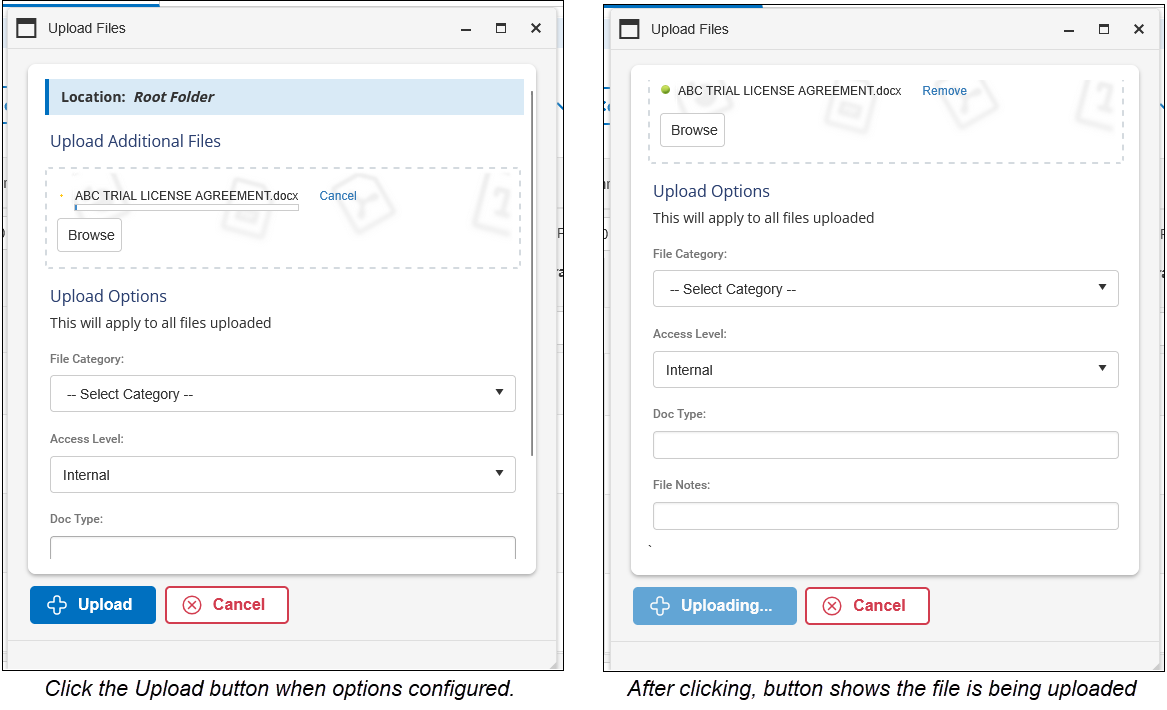
2. New Upload Modal for Better Accuracy and Control
A streamlined modal now appears whenever files are dropped or selected:
- Shows a list of files pending upload
- Allows additional files to be added by dropping them directly into the modal
- Displays required fields (Category, Access Level, Document Type, Notes, etc.)
- Ensures all information is captured before the upload begins
For Solicitations, the modal also includes two additional fields:
- Respondent
- Is Public
This helps ensure correct metadata is captured across all modules.
3. Improved Drop‑Zone Styling
The drag‑and‑drop area has been visually refreshed with:
- A more modern, clean design
- Better visual indicators for drag‑and‑drop actions
- A simplified and more organized layout
This makes it easier to understand exactly how to upload files.
4. Buttons and Actions Now Behave More Consistently
To improve clarity and reduce clutter:
- The Bulk Download button appears only for users with administrative permissions
- View All Actions now mirrors the same visibility rules
- In the Employees module, VCG Download History is hidden
- All “View” actions continue to open as modal windows, maintaining consistency across the system
These refinements help ensure users only see actions they are permitted to use.
5. Clearer Upload Feedback
Once users confirm the upload:
- The modal processes the file(s)
- A confirmation message appears once the upload is complete
- The newly uploaded files appear immediately in the grid with the metadata applied
This provides reassurance that the upload was successful and properly recorded.
How will this affect users?
This enhancement:
- Reduces user mistakes during file uploads
- Makes the upload process clearer and more intuitive
- Modernizes the user interface without requiring any configuration changes
- Maintains full compatibility with existing permissions and system behaviors
These improvements are lightweight but deliver a noticeably better user experience.
ENHANCEMENT: VISDOM Tools Now Available Inside the Collaborative Online Document Editor
Reference #: 260210.1203.17302
We’re excited to announce a major enhancement that brings key VISDOM‑powered features directly into the online collaborative editor. This update delivers a more intelligent, helpful, and consistent editing experience—similar to what users enjoy today in the VISDOM Add‑In and the Word Plugin—without ever leaving the browser.
VISDOM Sidebar Added to the Online Editor
The online editor now includes a new VISDOM sidebar, giving users access to several powerful document‑insight tools while editing files stored in the Files & Attachments section of any record. These tools are available immediately upon opening a document in the editor.
Built‑In Chatbot Assistance
A new document‑aware chatbot is now available in the sidebar.
When opened, the chatbot will:
- Scan the entire document automatically
- Provide a high‑level summary
- Present recommended prompts and insights tailored to the document’s content
This gives users a faster, more intuitive way to understand and interact with the material they are reviewing.
Access to Key VISDOM Features in the Editor
Users now have access to a limited VISDOM toolset within the browser, including:
- Alerts — Highlights items in the document that may require attention
- Document Review Tools — Provides automated insights and findings
- Clause Search & Clause Library — Helps locate and compare clauses directly inside the editor
- Chatbot — For summarization, prompting, and guided document interaction
This provides a consistent VISDOM experience across the platform and reduces the need to switch between tools.
How will this affect users?
These enhancements make it easier for users to:
- Understand documents quickly
- Identify issues and key content without manual review
- Work collaboratively without losing access to VISDOM insights
- Enjoy a more unified document‑editing experience across Contract Insight
It brings the intelligence of VISDOM to the same place where users already review, collaborate, and refine their documents.
ENHANCEMENT: New Joint Document Process Management for Collaborative Editing
Reference #: 260210.1203.21587
We’ve introduced an extensive set of enhancements to support the new collaborative document editor, giving users and administrators a dedicated place to manage, monitor, and track all active and past collaboration sessions. These enhancements bring greater transparency, improved control, and full auditing to the collaboration experience.
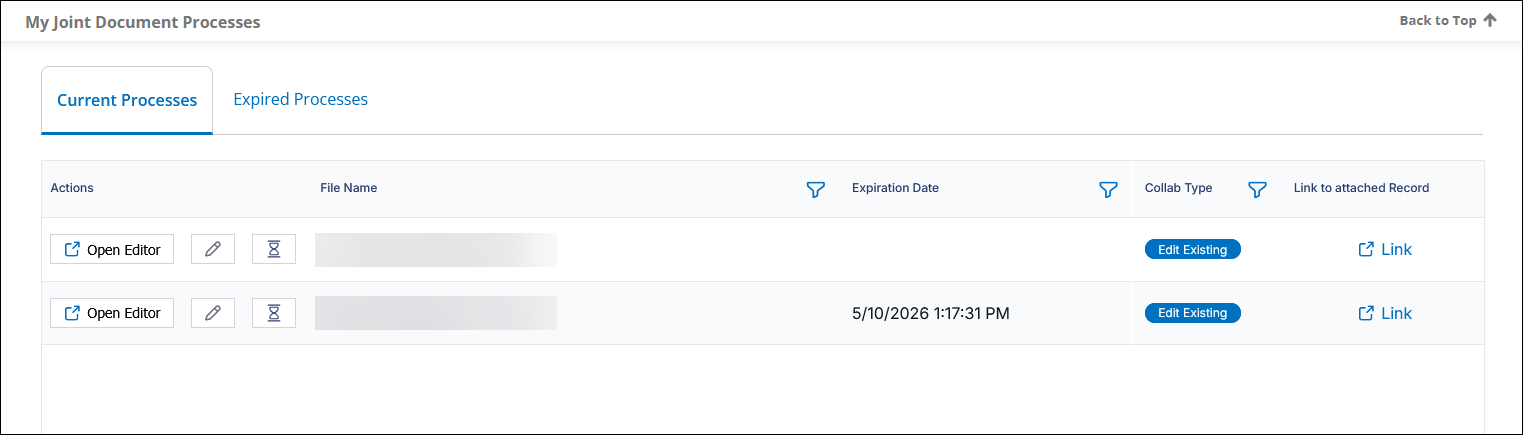
1. “My Joint Document Processes” – View and Manage Your Active Collaborations
Users now have a new page under the My menu called My Joint Document Processes, where they can:
- See all document processes they are actively collaborating on
- Open the document in the editor to continue working
- Manage collaborators (if permitted)
- Review the full audit log for the process
- Jump directly to the record where the file is stored
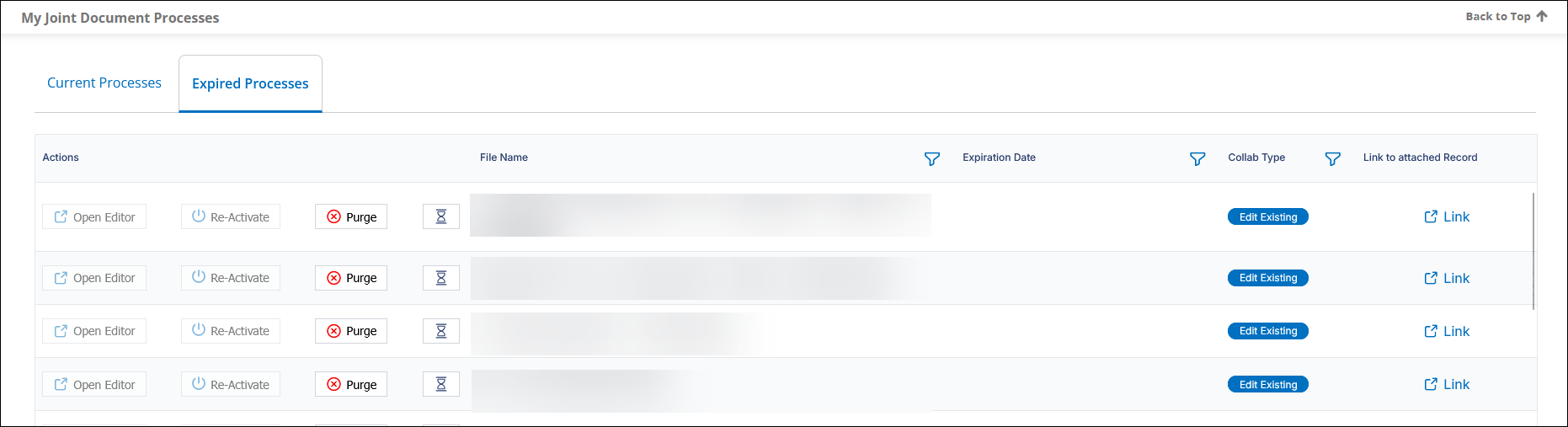
- View both current and expired document processes
Expired processes can also be reactivated or purged, depending on the user’s permissions.
2. “System Joint Document Processes” – Admin‑Level Visibility Across All Collaborations
Administrators gain a new page under Manage/Setup called System Joint Document Processes showing:
- Every joint document process in the system
- All active and expired processes
- The ability to open, review, and audit any collaboration
- Centralized oversight of collaboration activity across all users
This gives administrators a complete view of collaboration activity throughout the organization.
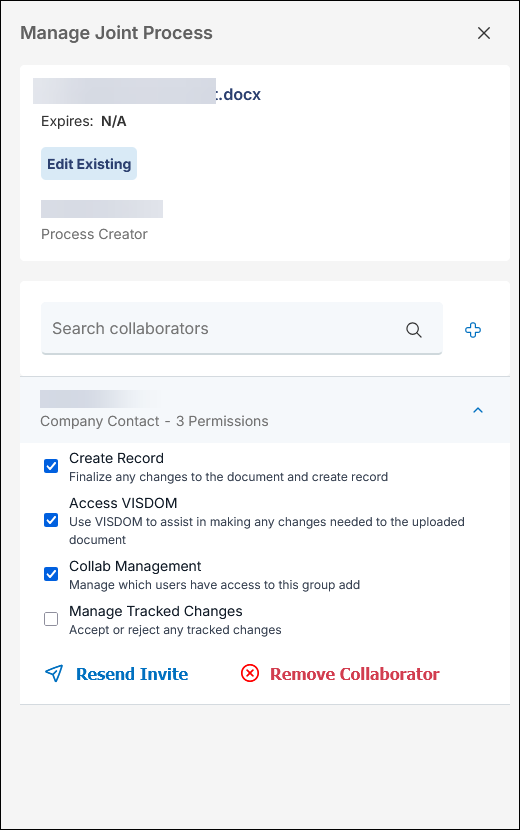
3. New Collaboration Management Sidebar
From either page, users with collaboration‑management permissions can open a new sidebar that allows them to:
- View all collaborators on a process
- Invite new collaborators (employees, company contacts, or email addresses)
- Set or adjust collaborator permissions
- Re‑send invitations
- Remove collaborators
This provides an intuitive, centralized way to manage joint editing access.
4. Expiration Dates & Reactivation Options for Collaborative Sessions
Document processes now include configurable expiration dates, allowing organizations to control how long collaborative editing sessions remain active.
New configuration settings allow admins to define:
- When expiration begins (process start or last update)
- How long a process remains active
- Whether expired processes can be reactivated
Once expired, a process becomes view‑only unless reactivated by an authorized user.
5. Comprehensive Audit Log for Each Document Process
Every collaboration session now includes a full audit trail accessible via a History icon. Events tracked include:
- Process start, end, and reactivation
- When collaborators open the document
- Opening expired documents
- Collaborator invitations, removals, and permission changes
This ensures full transparency and meets compliance and governance needs.
6. Improved Visibility in Files & Attachments
Documents that are currently part of an active joint editing process are now highlighted in the Files & Attachments grid.
Additionally:
- Files in an active process cannot be deleted until the process is completed or closed
This helps prevent accidental changes or removal of in‑use documents.
7. Optional Login Requirements for Vendor/Client Gateway Users
Organizations can now specify whether external collaborators must log in through the Vendor/Client Gateway to access the editor.
- By default, external collaborators do not need to log in
- A new option allows requiring login per contact when sending invitations
This provides added flexibility for balancing ease of access with security.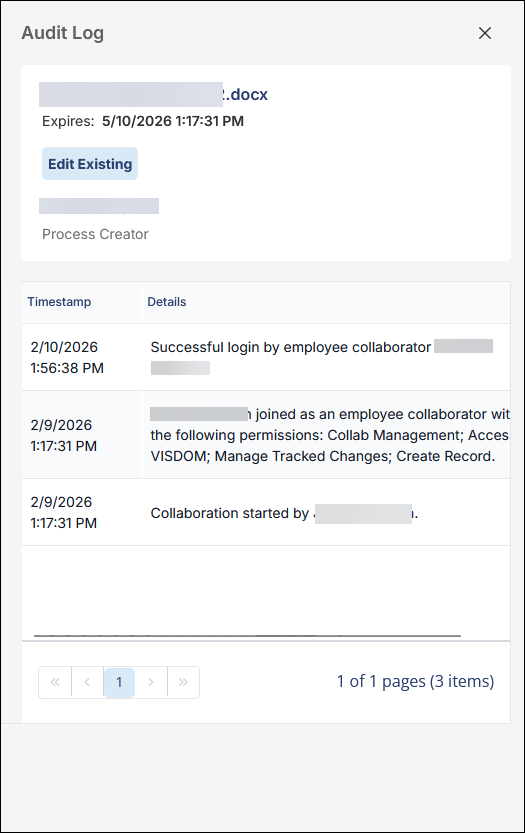
How will this affect users?
This enhancement provides:
- A clear place to monitor all ongoing document collaboration
- Easy access to audit logs and process history
- Better control over who can collaborate and how
- Improved oversight for administrators
- Safer file management when documents are actively being edited
Together, these enhancements offer a much smoother, more transparent, and more manageable collaboration experience.
ENHANCEMENT: Configurable Field Limit for VISDOM Basic Drag‑and‑Drop
Reference #: 260210.360.18277
We’ve improved the VISDOM Basic drag‑and‑drop experience by making the maximum number of fields that can be processed fully configurable through Application Configuration settings.
The drag‑and‑drop interface in VISDOM Basic is designed to handle up to 100 fields reliably. Exceeding this number may cause:
- Browser slowdowns
- Excessive memory usage
- System instability, which may affect other applications running on the user’s computer
Previously, this limit was hard‑coded into the system.
You can now adjust the VISDOM Max Field Count limit directly through system configuration settings.
- The default value remains 100, which is the recommended and supported maximum.
- Administrators may increase this limit if absolutely necessary; however, values above 100 are not supported and may impact performance.
- This setting is now visible in Application Configuration → General System.
This enhancement provides flexibility for organizations with special use cases, while still protecting system stability for typical usage.
How will this affect users?
- No changes to day‑to‑day functionality
- Administrators gain more control over VISDOM Basic’s field‑processing threshold
- The system remains protected under normal conditions with the 100‑field default
This update enhances configurability while maintaining performance safeguards.
CORE SYSTEM
RESOLUTIONS
RESOLUTION: Contract End Date Not Calculating When Using Mixed Taxonomies in VISDOM Extract
Reference #: 260210.360.16876
Some clients using VISDOM Standard (Basic) extract plans that combined both Common Clauses and a custom (user‑defined) taxonomy noticed that the system was not calculating the Contract End Date as expected.
When determining the Contract End Date, the system should review all available taxonomies to find the right clause information. However:
- VISDOM Standard only looked at the first taxonomy in the results.
- In VISDOM+, the Common Clauses taxonomy was listed first, so the Data Point was found.
- In VISDOM Standard, the custom taxonomy appeared first, and it did not contain enough information—so the system stopped too early and could not calculate the date.
We updated the logic so the system now:
- Checks all taxonomies, not just the first one,
- Finds the correct clause information wherever it exists, and
- Successfully calculates the Contract End Date using the VISDOM Data Point.
Clients using extracts that combine Common Clauses with custom taxonomies will now see the Contract End Date calculated consistently across both VISDOM Standard and VISDOM+.
RESOLUTION: Auto‑Complete Tasks Not Displaying Correctly on the Contract Task Subtable
Reference #: 260210.365.25556
Auto-Complete Tasks were not appearing on the Contract Task subtable even when the Show AutoComplete Tasks checkbox was selected. This occurred specifically when the Hide Auto Complete Tasks admin configuration setting was turned ON.
Clients experienced symptoms such as:
- The progress bar showing additional tasks pending, even though they did not appear in the task list.
- Toggling Show AutoComplete Tasks had no effect on what was displayed.
- The checkbox state sometimes did not persist when navigating between tabs.
- Auto-Complete Tasks appeared normally only when the Hid Auto Complete Tasks configuration setting was turned OFF.
We updated the system so that task visibility behaves consistently and predictably:
- The system now correctly honors the Hide Auto Complete Tasks admin setting.
- When the setting is True, the Show AutoComplete Tasks checkbox is hidden (since Auto-Complete Tasks are not intended to be shown).
- When the setting is False, the checkbox becomes visible and properly controls whether Auto-Complete Tasks appear in the task list.
- The checkbox state now persists when navigating between tabs on the Contract Record page.
- The Notice and Alert sections, along with the task progression bar, always reflect all open tasks - both manual and Auto-Complete - so progress is displayed accurately.
All clients should now see Auto-Complete Tasks displayed consistently based on their admin configuration and checkbox selections.
RESOLUTION: “View Contracts” Link Error in Company Pages
Reference #: 260210.1203.25988
We identified an issue where the “View Contracts” link displayed an error instead of opening the expected contract information. This occurred in several areas of the system, including:
- The Company List page
- View All Actions → View Contracts within the Company Details page
- The Linked Records tab within Company Details
Clients accessing contracts through any of these locations may have been unable to view the linked records.
This issue has been fully resolved. All “View Contracts” links throughout the Company pages now operate as expected.
RESOLUTION: Clause Library Edit Screen Not Opening Correctly
Reference #: 260210.337.26015
Some clients encountered an issue where attempting to edit a clause from the Clause Library list resulted in an error or a broken page link. This occurred because the system did not properly build the URL that opens the clause edit screen.
We updated the URL logic so the system now correctly recognizes whether the SiteAddress ends with “/” and adjusts the link accordingly.
- Clause edit links now generate properly in all configurations
- The Clause Library is fully accessible again
- No user action or reconfiguration is required
Clients can now open and edit clauses from the Clause Library list without any errors.
RESOLUTION: Error When Rearranging Columns in the Workflow Task Grid
Reference #: 260210.365.26044
Attempting to rearrange columns in the Workflow Task grid—specifically when moving the Task Name column—resulted in an error. This prevented users from customizing the column layout within that section.
We updated the column behavior within the Workflow Task grid to prevent these errors:
- Grouping has been disabled for the Task Action and View columns, since they are not designed to be grouped.
- All other columns continue to allow rearranging and grouping as expected without issue.
Users can now rearrange columns in the Workflow Task grid without encountering errors. Normal customization of the grid layout is fully restored.
RESOLUTION: Certain Windows Not Opening When VISDOM Was Disabled
Reference #: 260210.1222.26045
Some clients experienced issues when VISDOM was disabled in their system settings. When attempting to open certain pop‑up windows that rely on translation functions—for example, the CobbleStone IntelliSign window accessed through Esign Document options—the window would fail to open.
In affected cases:
- The pop‑up window did not load
- The action appeared unresponsive
- A JavaScript error occurred in the browser console
This prevented users from completing tasks such as initiating an IntelliSign session from a file's toolbox.
We updated the system to ensure pop‑up windows continue functioning properly even when VISDOM is turned off:
- Translation scripts now remain available on the page when VISDOM is disabled
- Additional safeguards ensure translation‑related calls are skipped entirely when VISDOM is not active
- Pop‑up windows like CobbleStone IntelliSign now open reliably regardless of VISDOM settings
Clients who disable VISDOM can now continue to use functions as expected.
RESOLUTION: Field Reordering on Subtables Not Updating on Details Screens
Reference #: 260210.337.26212
When reordering fields on subtables using Fields by Type or Field Manager, the changes did not appear on the corresponding Details screens. Even though the new order saved successfully, the layout on record screens did not update to match.
We implemented a fix to ensure that subtables are automatically rebuilt whenever field order is changed. This ensures that:
- Updated field ordering is reflected immediately on Details screens
- Reordering made in Fields by Type or Field Manager now displays consistently system‑wide
Field reordering now behaves as expected. Clients should see their updated field layouts reflected accurately on all Details screens.
RESOLUTION: Clause Library References Not Merging Inside Mergeable Clauses
Reference #: 260210.1157.26063
When generating documents from templates, clause library references inside mergeable clauses were not merging correctly.
In these cases:
- The main mergeable clause would appear in the document, but
- Any clause library references inside that mergeable clause stayed as placeholder text instead of merging in the referenced clause content.
Clause library references outside mergeable clauses continued to work as expected.
We updated the logic so that clause library references are now recognized and merged properly within mergeable clauses.
- Clause references inside mergeable clauses now behave the same as standalone clause references
- All referenced content merges into the final document as expected
- No changes are required to existing templates