COBBLESTONE SOFTWARE
Contract Insight — User Guide
Partial Fill of an Individual Line Item
Module: Purchase Orders › Inventory Tracking › Partial Fill of an Individual Line Item
Note: Each procedure in this guide begins at the Contract Insight homepage, so any section can be followed on its own. Custom fields are configurable, so the exact field list on a contract category record may vary between environments.
1. Overview
The same Quantity Received tracking supports partial receipts: entering a Quantity Received smaller than the line's ordered Quantity leaves Units Remaining and Amount Remaining above zero on the Purchase Order Items Received subtable, so a line item can be received in more than one increment over time.
Partial receipts are logged from the PO Line Items subtable using the Receive part of this line action. Each receipt is added to the Purchase Order Items Received subtable, which tracks what has arrived and what is still outstanding.
2. Key Elements
- Quantity Received can be less than the ordered Quantity for a partial fill.
- Purchase Order Items Received subtable shows the remaining Units and Amount after a partial receipt.
- Additional receipts against the same line item can be logged as more inventory arrives.
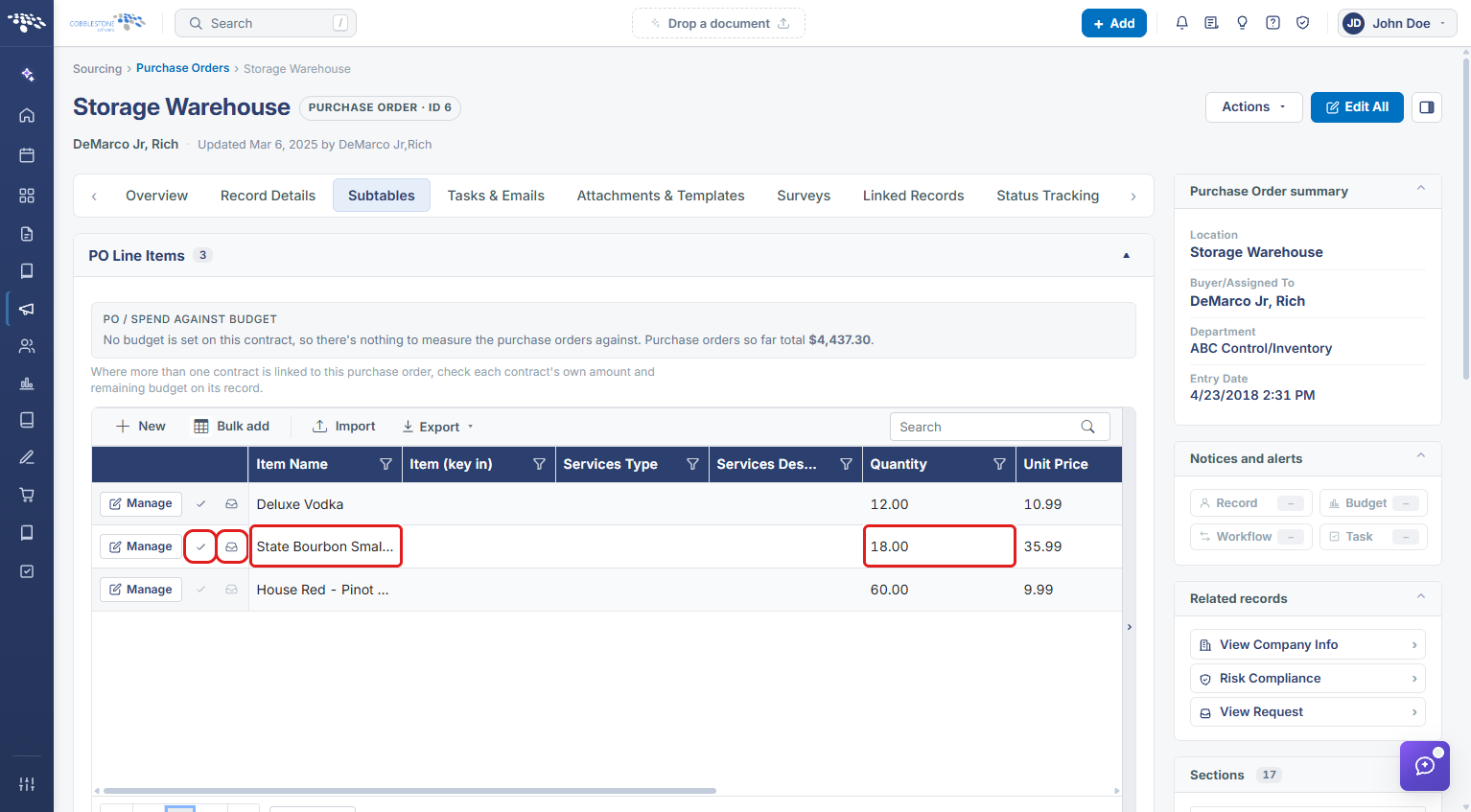
- Each row on the PO Line Items subtable has two receiving actions: Received in full (check mark) and Receive part of this line (inbox icon).
- The Receive part of this line window shows Ordered, Received, and Outstanding counts and a Quantity received now field.
3. Navigating to Purchase Orders
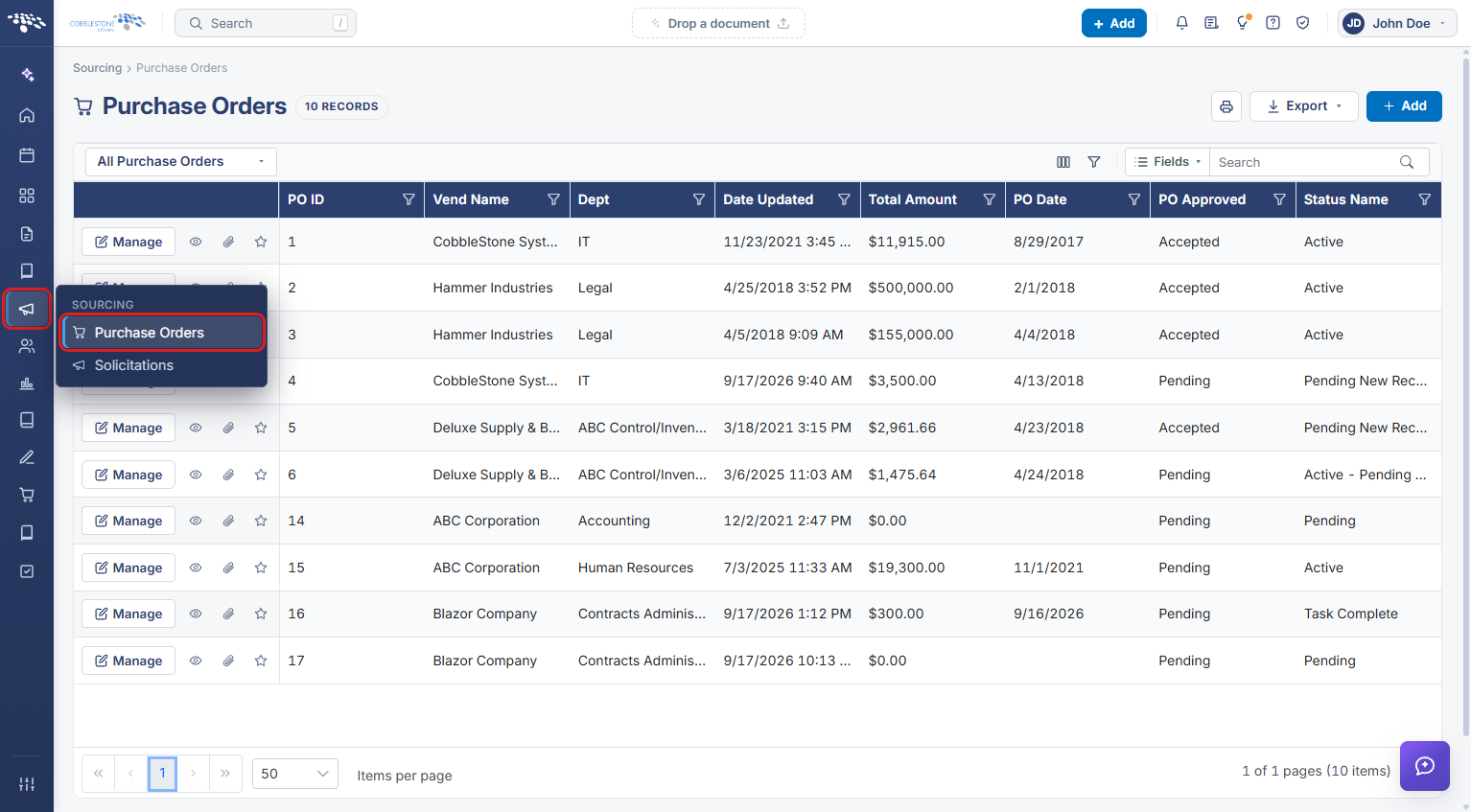
- From the Contract Insight homepage, click the Sourcing icon in the left navigation bar.
- Select Purchase Orders.
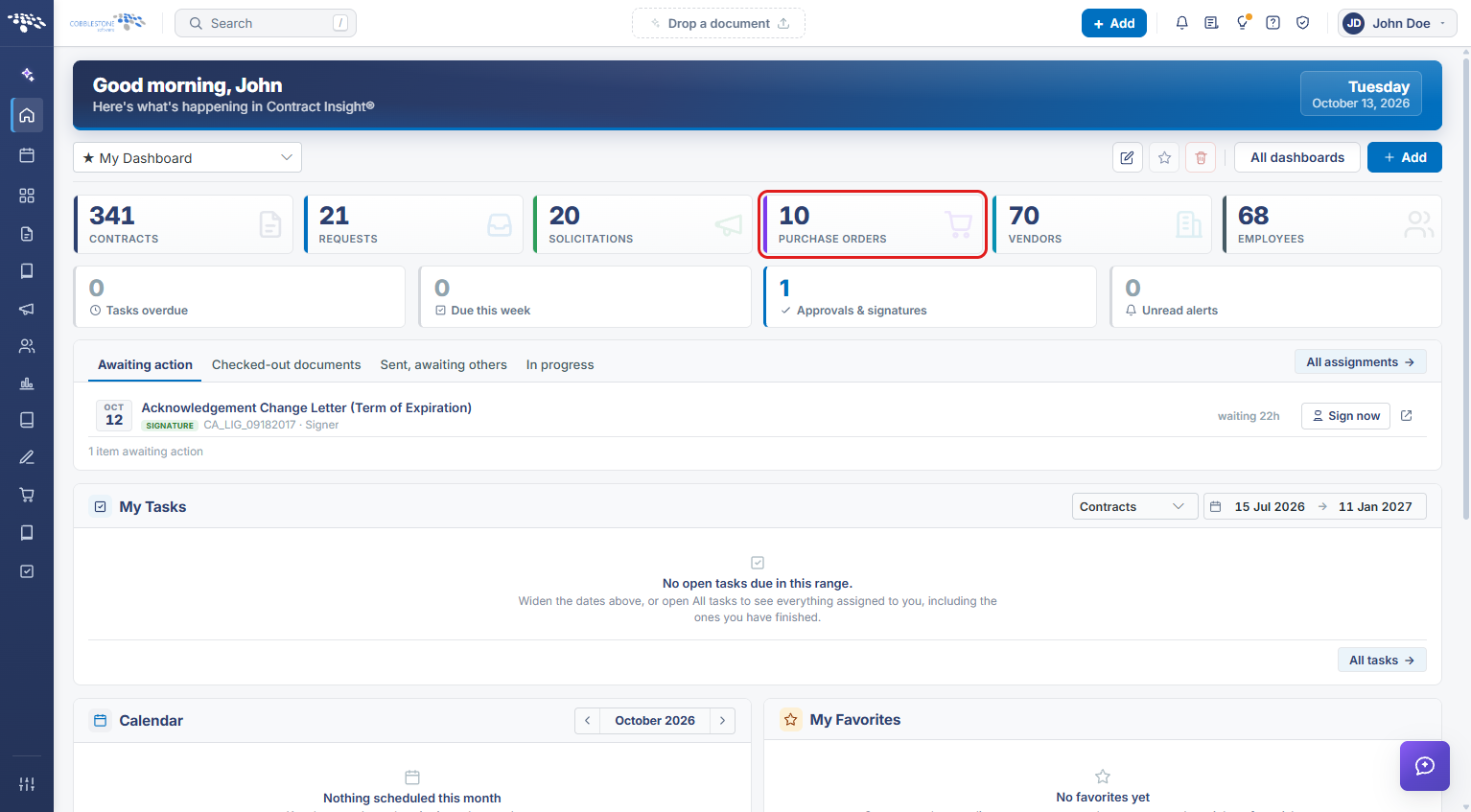
You can also click the Purchase Orders tile on the homepage dashboard.
4. Opening the Purchase Order
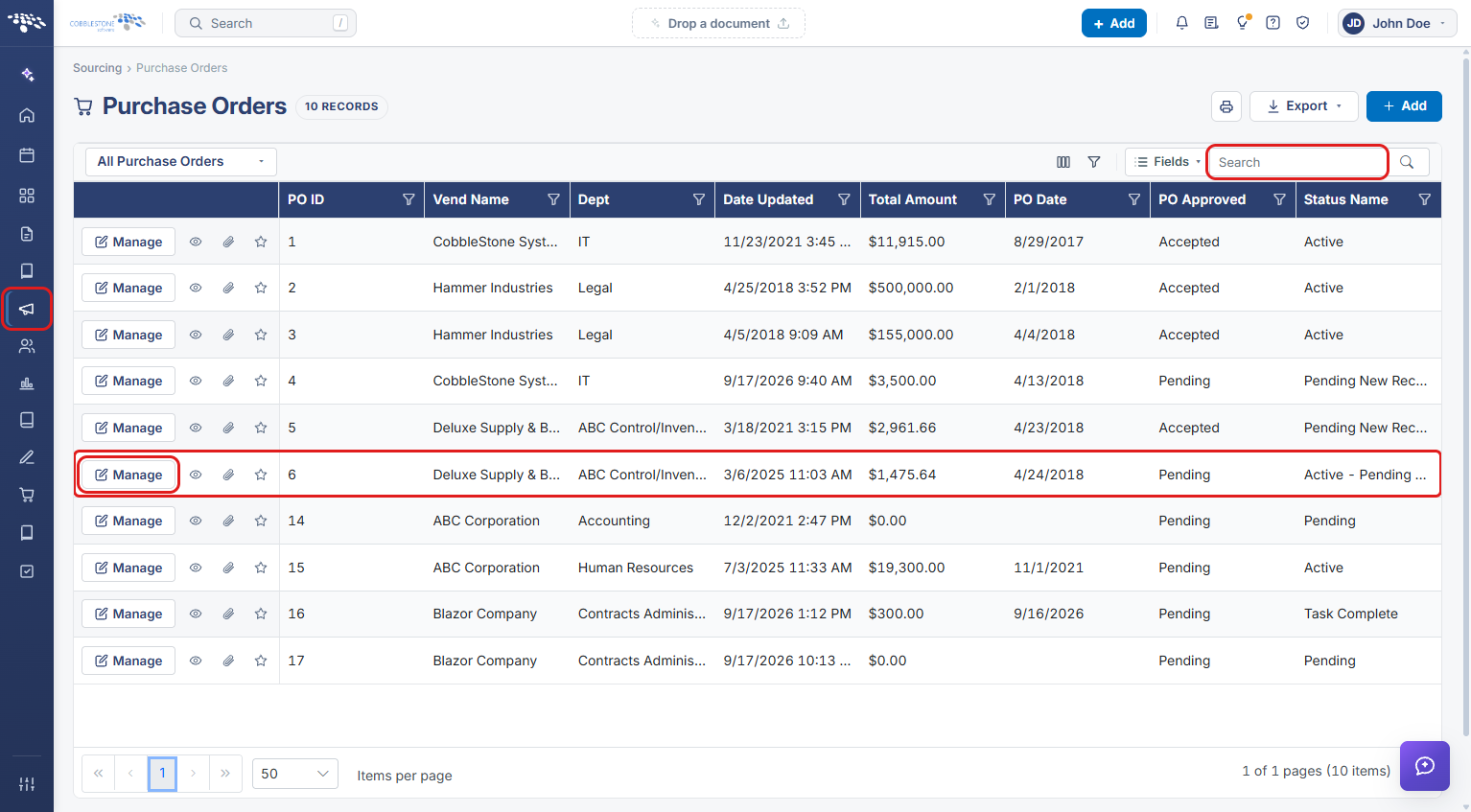
- On the Purchase Orders list, find the purchase order using the Search box or the list columns.
- Click Manage on the purchase order's row.
- On the purchase order record, click the Subtables tab.
5. Receiving Part of a Line Item
- On the Subtables tab, find the line in PO Line Items and note its ordered Quantity.
- Click the Receive part of this line icon (inbox) on that row. To receive the whole line at once, click Received in full (check mark) instead.
- In the Receive part of this line window, review Ordered, Received, and Outstanding.
- Enter the number of units that arrived in Quantity received now. It defaults to the outstanding amount; enter a smaller number for a partial fill.
- Click Receive. Click Cancel to close without logging anything.
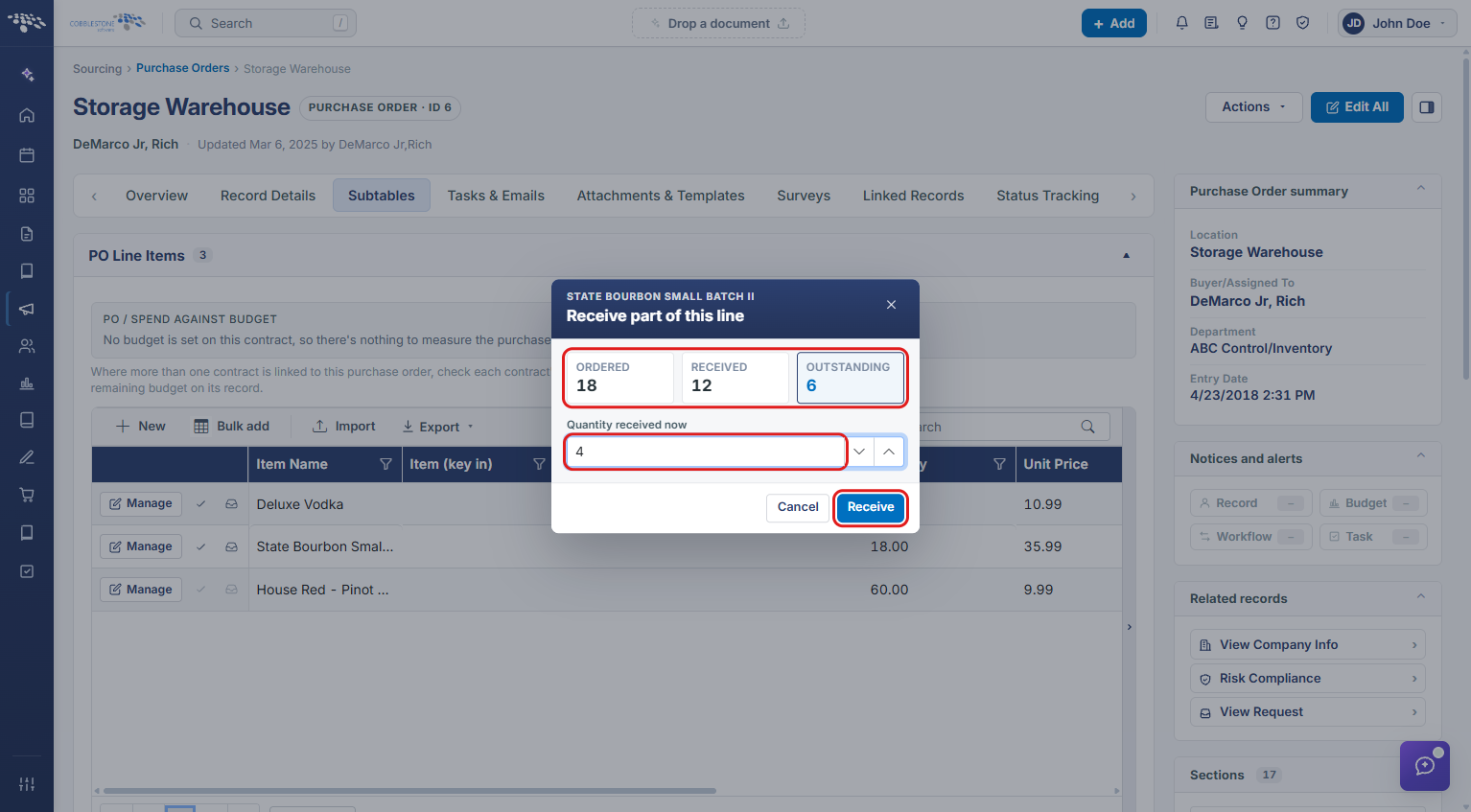
Note: In this example, 18 units were ordered and 12 have been received, so 6 are outstanding. Entering 4 records a further partial receipt and leaves 2 outstanding.
6. Checking Remaining Units and Amount
- Scroll to the Purchase Order Items Received subtable on the Subtables tab.
- Find the item and review Quantity Received, Units Remaining, and Amount Remaining. Values above zero mean the line is only partially filled.
- As more inventory arrives, repeat Section 5 to log another receipt against the same line until Units Remaining reaches 0.
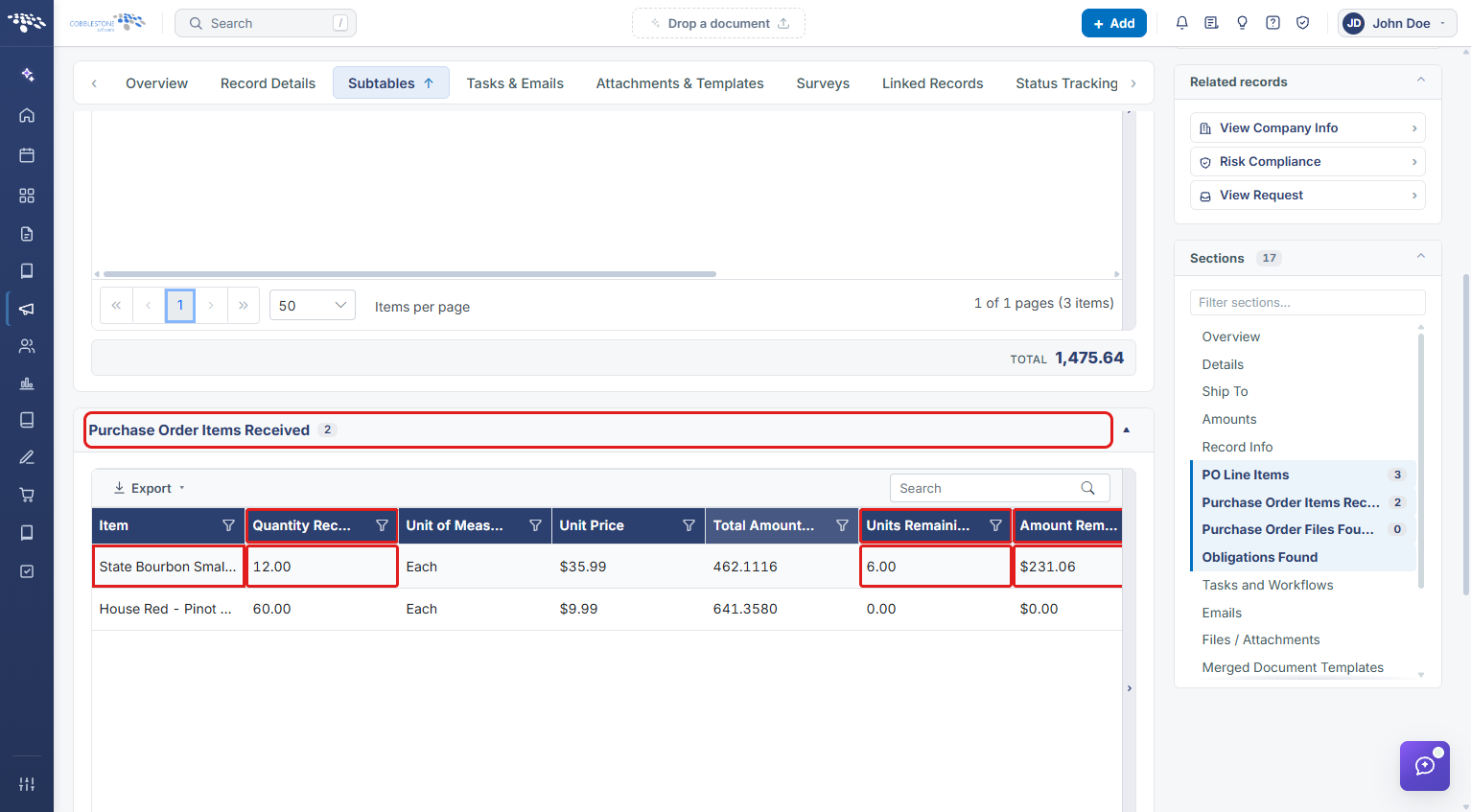
Note: A fully received line shows 0.00 Units Remaining and $0.00 Amount Remaining, like the House Red line in the example.
7. Quick Reference Summary
| Task | How to Complete It |
|---|---|
| Open Purchase Orders | Sourcing → Purchase Orders, or the Purchase Orders dashboard tile. |
| Open a purchase order's line items | Manage on the PO row → Subtables tab → PO Line Items. |
| Log a partial receipt | Line row → Receive part of this line → enter Quantity received now → Receive. |
| Receive a whole line | Line row → Received in full. |
| See what is still outstanding | Purchase Order Items Received → Units Remaining / Amount Remaining. |